Trupeer Blog
Camtasia Review 2026: Features, Pricing and Best Alternatives
Read the Camtasia review for 2026 covering features, pricing, pros, and limitations. Compare video editing tools and explore AI-powered alternatives like Trupeer.

Camtasia at a Glance
Best For | Starting Price | Free Plan | Standout Feature | Main Limitation |
|---|---|---|---|---|
Professional instructional designers | $299.99 | No | SCORM export for LMS | Steep learning curve |
What is Camtasia for Onboarding?
Camtasia is a comprehensive screen recording and video editing software developed by TechSmith, widely used for creating professional-grade video content. It is particularly well-suited for business onboarding, training, and documentation videos. The software allows users to capture their screen activity, integrate webcam footage, and edit videos with a variety of tools including callouts, annotations, and zoom effects. Camtasia also supports SCORM export, making it ideal for integration into Learning Management Systems (LMS). However, mastering its features requires significant time and effort, making it best suited for individuals with existing video editing skills.
Camtasia Features Breakdown
Screen Recording with Webcam Overlay
Camtasia excels in capturing high-quality video of your screen activity and can simultaneously record webcam footage. This dual recording capability is perfect for creating engaging onboarding content where a personal touch is needed. Users can record full-screen activities or select specific areas, ensuring that only the most important information is captured.
Video Timeline Editor
The timeline editor in Camtasia is robust, allowing users to drag and drop elements easily. It supports multi-track editing, which is crucial for synchronizing audio, video, and other media elements. The editor’s intuitive design helps users arrange clips and effects with precision, although it does require some video editing knowledge to use effectively.
Callouts and Annotations
Adding emphasis and clarity to your videos is simple with Camtasia’s callouts and annotations. These features allow users to add text, arrows, shapes, and highlights directly onto their video, making it easier to convey complex information. This is particularly useful in training videos where step-by-step instructions are necessary.
Zoom and Pan Effects
To draw attention to specific areas of your screen recordings, Camtasia offers zoom and pan effects. These effects can be applied with precision, helping viewers focus on the most critical parts of your presentation. While these effects enhance video engagement, applying them correctly requires some practice.
SCORM Export for LMS Integration
Camtasia’s ability to export videos as SCORM packages makes it a valuable tool for educational and corporate environments. This feature allows videos to be seamlessly integrated into LMS platforms, ensuring that training materials are both accessible and trackable. Organizations that rely on SCORM for compliance and reporting find this feature indispensable.
Audio Editing Tools
In addition to video editing, Camtasia provides a suite of audio editing tools. Users can remove background noise, adjust volume levels, and add sound effects or background music, creating a polished final product. These tools are essential for maintaining audio clarity throughout your video content.
Customizable Video Templates
For those looking to maintain brand consistency, Camtasia offers customizable video templates. These templates allow users to create a standardized look and feel across multiple videos, saving time and ensuring professionalism. However, setting up these templates requires initial effort and understanding of the software's design tools.
Camtasia Pricing
Plan | Monthly Price | Key Inclusions | Best For |
|---|---|---|---|
One-Time License | $299.99 | Full feature access, SCORM export | Individuals who prefer a one-time purchase |
Annual Subscription | $179/year | All updates, priority support | Teams needing ongoing support |
Camtasia Pros and Cons
Pros | Cons |
|---|---|
High-quality screen recording | Steep learning curve |
SCORM export capability | Requires video editing skills |
Comprehensive editing tools | No AI voiceover generation |
Customizable templates | Time-consuming editing process |
"Camtasia offers a wide range of features, but it takes time to learn and use effectively."
A verified G2 reviewer, Customer Success Manager at a mid-market SaaS company (Source: G2, 2024)
Who Camtasia is Best For
Instructional designers who need to create detailed, professional training videos.
Organizations that require SCORM-compliant content for their LMS systems.
Teams with members who have video editing expertise and can dedicate time to learning the software.
Companies producing polished, high-quality onboarding content that requires intricate editing and effects.
Camtasia Limitations and Common Complaints
While Camtasia is a powerful tool, it does come with its set of challenges. One of the most common complaints is the steep learning curve. New users often find the interface complex and the abundance of features overwhelming without prior video editing experience. Many users also note the lack of AI automation, which means every edit requires manual intervention on the timeline. This can be particularly time-consuming; editing a simple three-minute video can often take an hour or more. Additionally, Camtasia is not cost-effective for large teams due to its per-device licensing structure. Finally, the absence of AI voiceover generation is a setback for those who want to create engaging content without recording narration.
Best Alternatives to Camtasia
While Camtasia is a solid choice for professional video editing and screen recording, several alternatives offer unique features and advantages, particularly for teams looking for more user-friendly or cost-effective solutions.
Trupeer
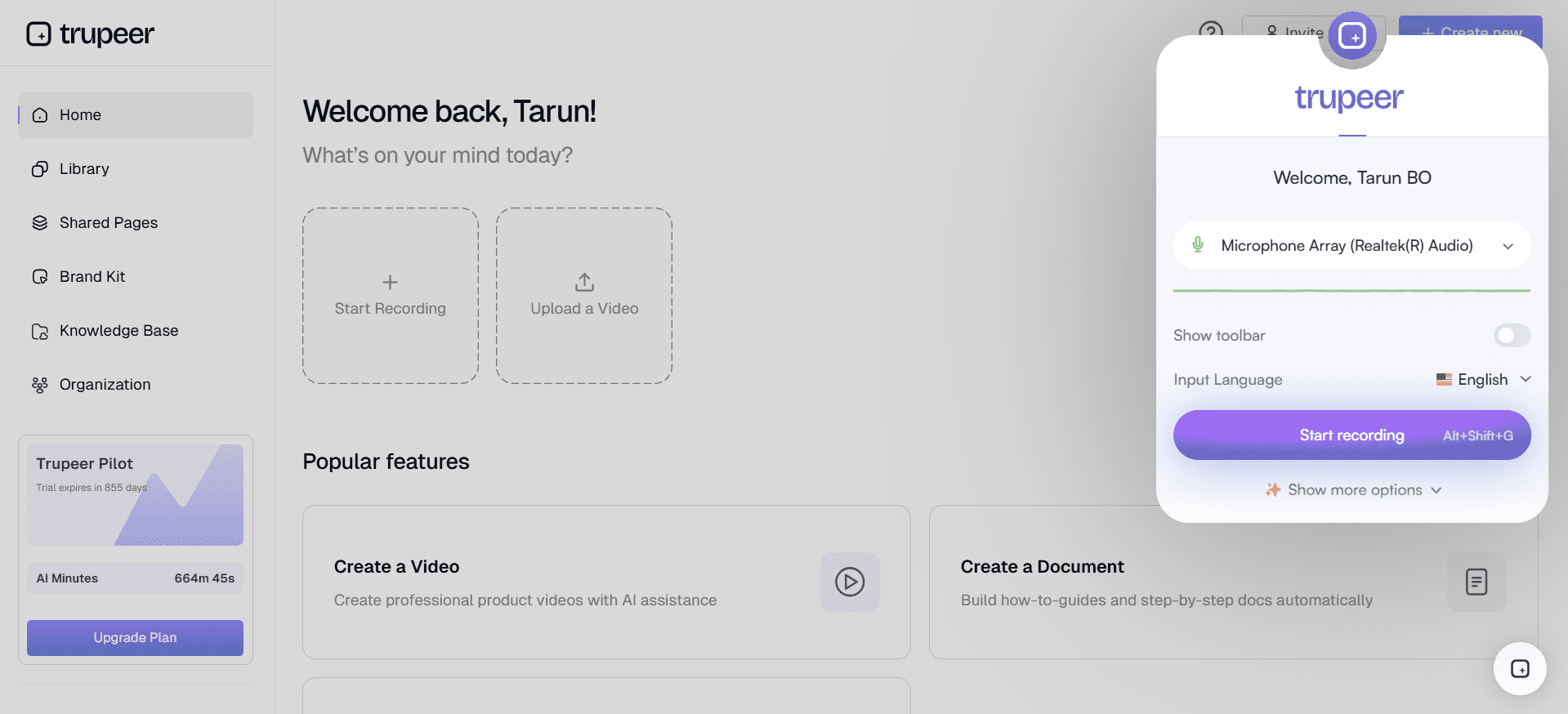
Trupeer stands out as an exceptional alternative to Camtasia, especially for teams that lack dedicated video editors. It leverages AI technology to automate many of the processes that Camtasia requires users to perform manually. Trupeer offers features like automatic video editing, AI voiceover generation, and seamless integration with various platforms. These capabilities make it highly appealing for those looking to streamline the content creation process. Furthermore, Trupeer's user-friendly interface ensures that even non-technical team members can produce professional-quality videos quickly. Its pricing model is also more flexible, with options that cater to both individuals and larger teams.
Loom
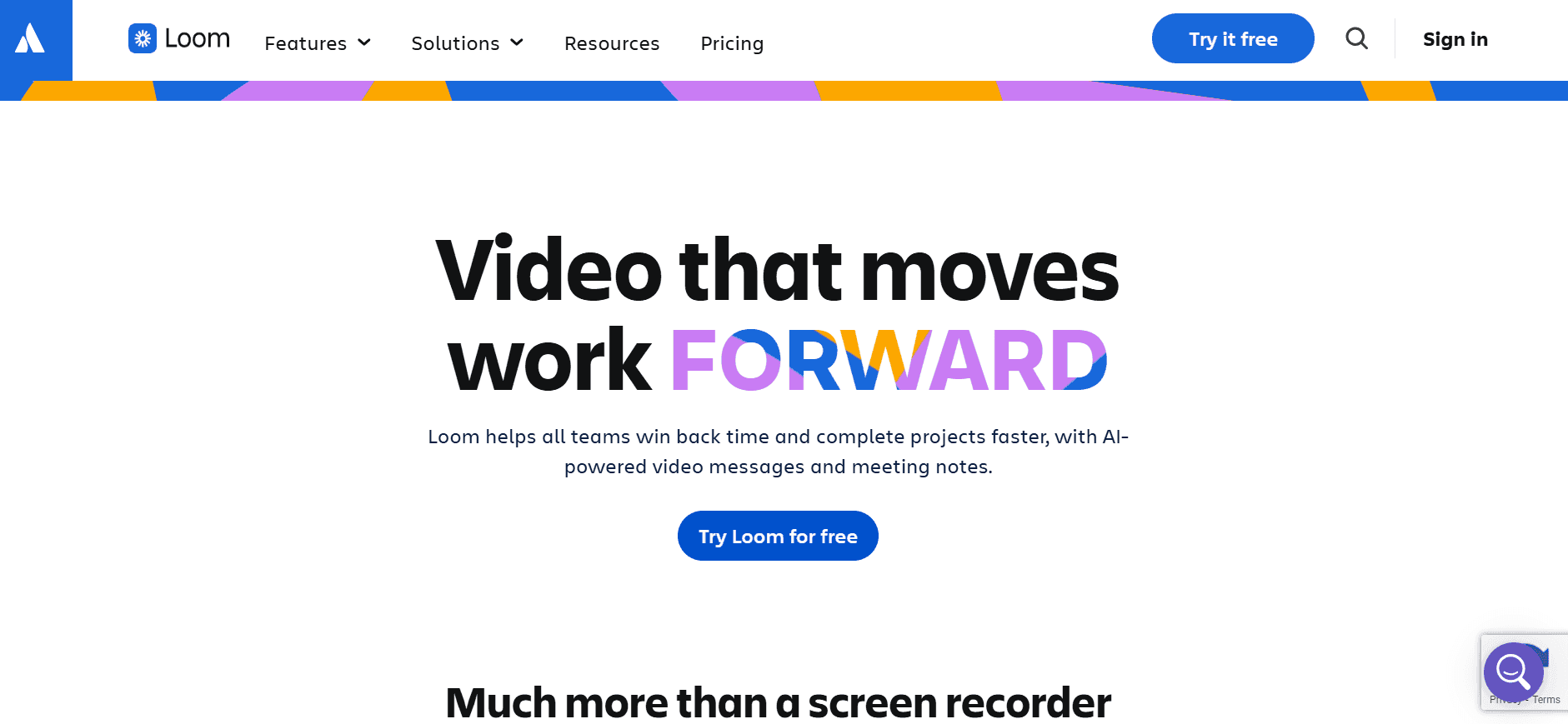
Loom is another popular choice, known for its simplicity and speed. It's ideal for quick video messages, tutorials, and screen recordings. With a free plan available, Loom is accessible to individuals and small teams. However, it lacks the advanced editing features found in Camtasia, making it less suitable for creating polished, detailed videos.
Descript
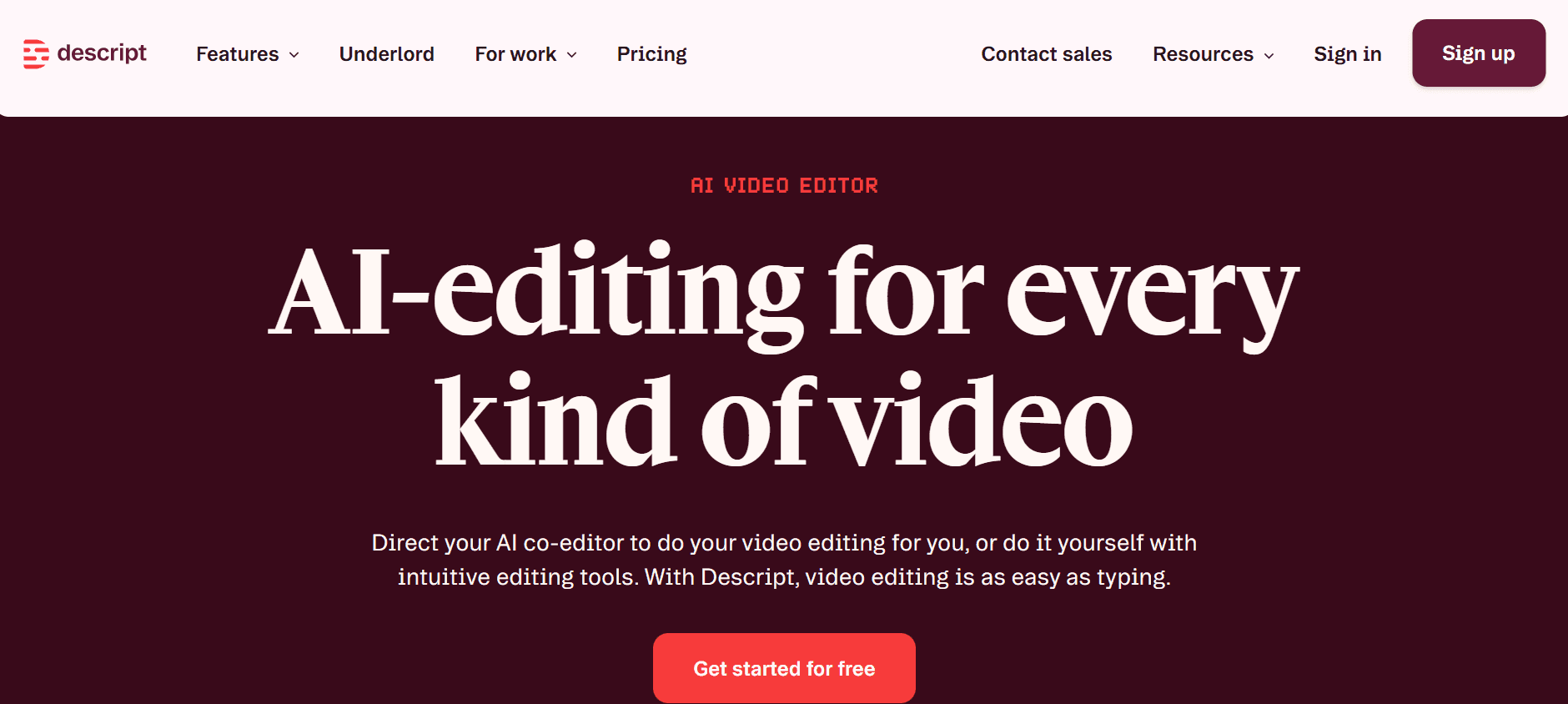
Descript offers a unique approach to video editing, allowing users to edit video and audio by editing text. This feature is particularly useful for those who find traditional video editing interfaces cumbersome. Descript also supports collaborative editing, which is a boon for teams. Yet, it doesn't offer the same level of screen recording capabilities as Camtasia.
ScreenFlow
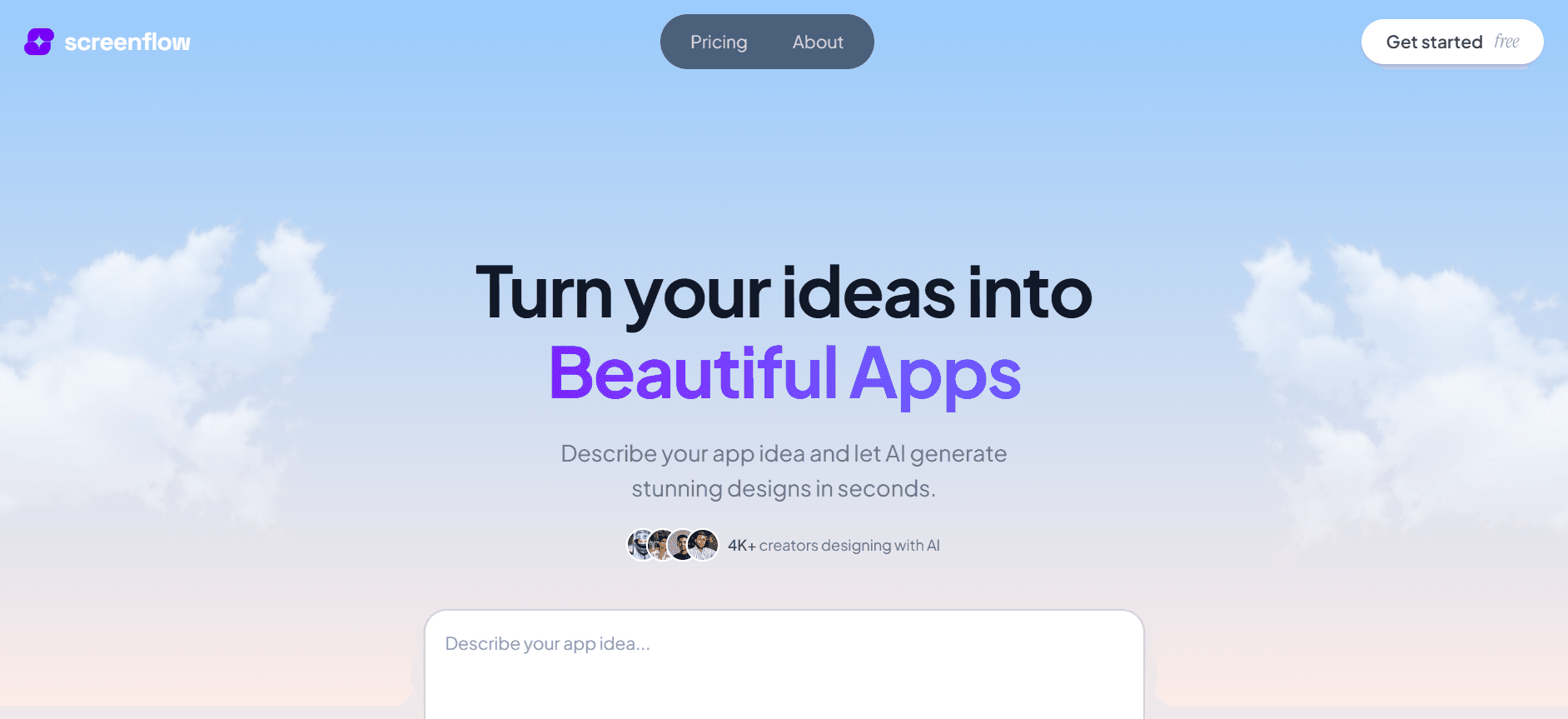
ScreenFlow is similar to Camtasia in terms of feature set, providing robust screen recording and editing tools. It's particularly favored by Mac users for its seamless integration with Apple's ecosystem. However, ScreenFlow's pricing can be a barrier for larger teams, as it follows a per-license model similar to Camtasia.
Tool | Best For | Starting Price | Key Advantage vs Camtasia |
|---|---|---|---|
Trupeer | AI-powered video automation | Flexible pricing | AI automation and ease of use |
Loom | Quick video messages | Free | Simplicity and speed |
Descript | Text-based video editing | $12/month | Text-based editing capabilities |
ScreenFlow | Mac users with editing skills | $129 | Integration with Mac ecosystem |
Camtasia vs Trupeer: Which Should You Choose?
When deciding between Camtasia and Trupeer, consider your team’s needs and expertise. Camtasia is suitable for those who require detailed, polished videos and have the skills to navigate its complex features. Trupeer, on the other hand, is designed for teams seeking speed and simplicity, offering AI-powered tools that make video creation accessible to everyone.
Feature | Camtasia | Trupeer |
|---|---|---|
Ease of Use | No | Yes |
AI Automation | No | Yes |
SCORM Export | Yes | Limited |
Price Flexibility | No | Yes |
For teams looking to produce professional videos without the steep learning curve, Trupeer is the better choice. Its AI-driven approach reduces the time spent on video editing, making it ideal for fast-paced environments.
Best Practices for Using Camtasia
To get the most out of Camtasia, it's essential to adopt certain best practices that enhance productivity and quality. Here are some specific tips:
Plan Your Content: Before you start recording, outline your video's purpose and structure. This planning stage should include scripting, which helps ensure that your message is clear and concise.
Optimize Recording Settings: Adjust your screen resolution to match the final output format. This ensures that what you record is what the audience sees, minimizing post-production adjustments.
Use Keyboard Shortcuts: Familiarize yourself with Camtasia's keyboard shortcuts to speed up your editing process. Shortcuts can significantly reduce the time spent on repetitive tasks.
Leverage Annotations and Callouts: Use these tools to emphasize key points. Effective use of annotations can guide viewers' attention and improve comprehension.
Test Audio Levels: Poor audio can detract from your video quality. Record a short test clip to check audio levels and ensure there's no background noise before starting your main recording.
Save Projects Frequently: Regularly save your work to prevent data loss. Camtasia's autosave feature is helpful, but manual saves ensure you're protected from unexpected software crashes.
Common Mistakes to Avoid
While Camtasia is a powerful tool, users often encounter pitfalls that can hinder the quality of their projects. Here are some common mistakes to avoid:
Neglecting Pre-Production: Jumping straight into recording without a plan can lead to disorganized and ineffective videos. Always script your content and have a clear vision of your end goal.
Overusing Effects: While callouts, transitions, and animations can enhance a video, overusing them can distract viewers. Use effects sparingly and only when they add value to your content.
Ignoring Audio Quality: Poor audio can ruin even the most visually appealing videos. Invest in a good microphone and use Camtasia’s audio editing features to ensure clear sound.
Overcomplicating the Timeline: A cluttered timeline with too many tracks can become confusing and difficult to manage. Keep your timeline organized and simplify your editing process by merging similar tracks where possible.
Failing to Preview Edits: Always review your video after making significant edits. This helps catch mistakes or inconsistencies that might have been overlooked in the editing process.
By following these best practices and avoiding these common mistakes, users can maximize Camtasia's potential, creating professional and engaging video content that meets their objectives.
Frequently Asked Questions
What is Camtasia mainly used for?
Camtasia is primarily used for creating professional-grade screen recordings and video editing, suitable for business onboarding and training videos. It's widely adopted in organizations needing SCORM-compliant content.
Does Camtasia offer a free trial?
Yes, Camtasia offers a free trial that allows users to explore its features before committing to a purchase. This trial period typically lasts for 30 days.
Can I use Camtasia on multiple devices?
Each Camtasia license is tied to a specific device. For use on multiple devices, additional licenses must be purchased, which can increase costs for larger teams.
Is Trupeer better for beginners?
Trupeer is more suited for beginners due to its user-friendly interface and AI-powered features that automate many aspects of video creation, reducing the need for advanced editing skills.
Does Camtasia support collaborative editing?
Camtasia doesn't natively support collaborative editing. Video files need to be shared manually between team members, which can be cumbersome for collaborative projects.
Can I export videos in multiple formats with Camtasia?
Yes, Camtasia allows exporting videos in a variety of formats including MP4, WMV, and AVI, making it versatile for different use cases and platforms.
How does Camtasia handle updates?
Users with an annual subscription receive updates as part of their plan. Those with a one-time purchase may need to pay for major version upgrades separately.
Is customer support available for Camtasia users?
Camtasia offers customer support via email and an extensive online help center. Priority support is available for those with an annual subscription plan.
Closing
Choosing the right video editing tool depends on your specific needs and expertise. Camtasia remains a strong choice for creating detailed, professional videos, especially in environments that require SCORM compliance. However, for teams seeking a more streamlined process, Trupeer provides an innovative alternative that leverages AI to simplify video creation.
If you're looking to enhance your team's video production capabilities with ease and efficiency, consider exploring Trupeer. Visit Trupeer's website to learn more about how it can transform your content creation process.

