
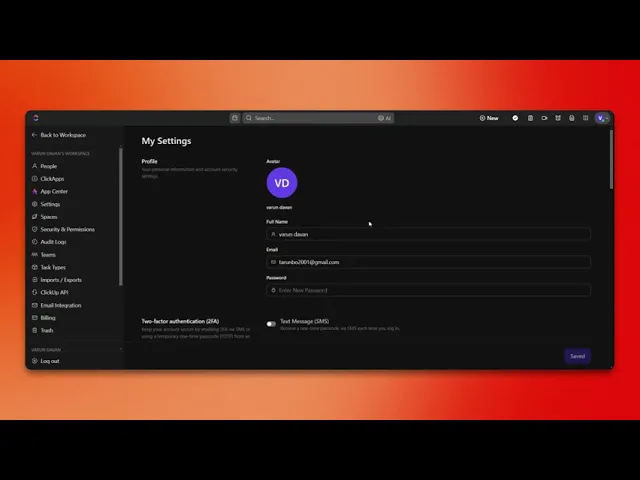
How Do You Set Up Quickswitch ClickUp
Learn the step-by-step process to set up Quickswitch in ClickUp. Optimize your task management and improve efficiency with our expert tips
This document provides a step-by-step procedure for setting up a quick switch in Click Up. By following these instructions, you will enable a keyboard shortcut to efficiently navigate through tasks.
Step 1
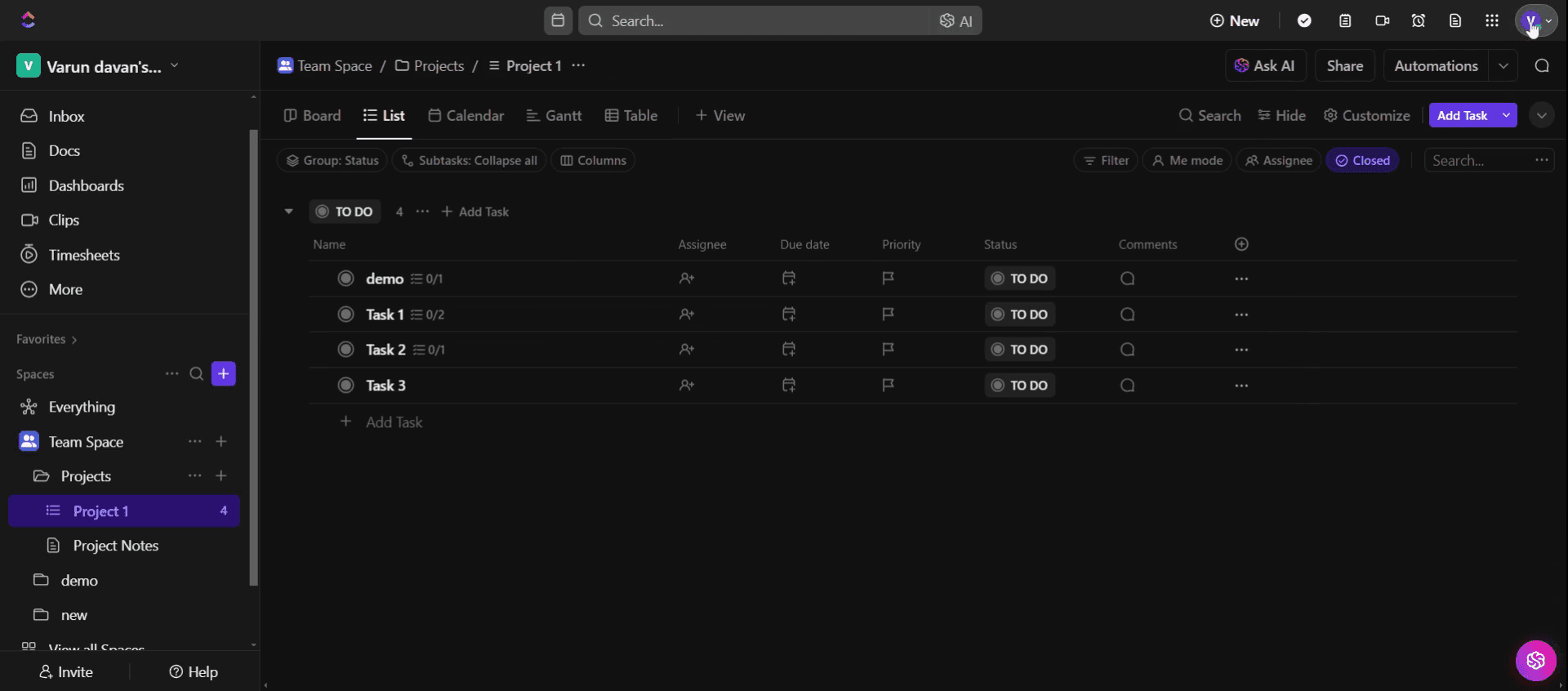
Click on your profile icon,
Step 2
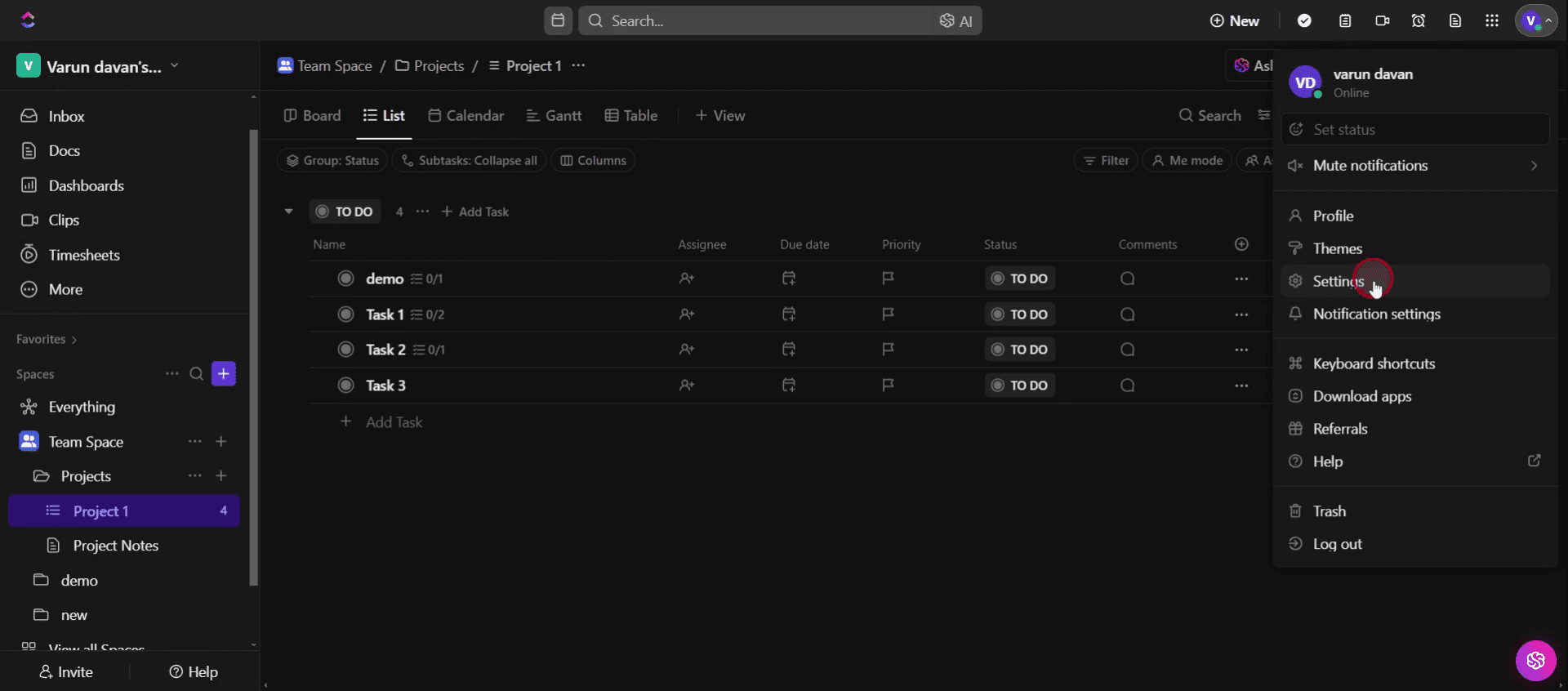
And select Settings option.
Step 3
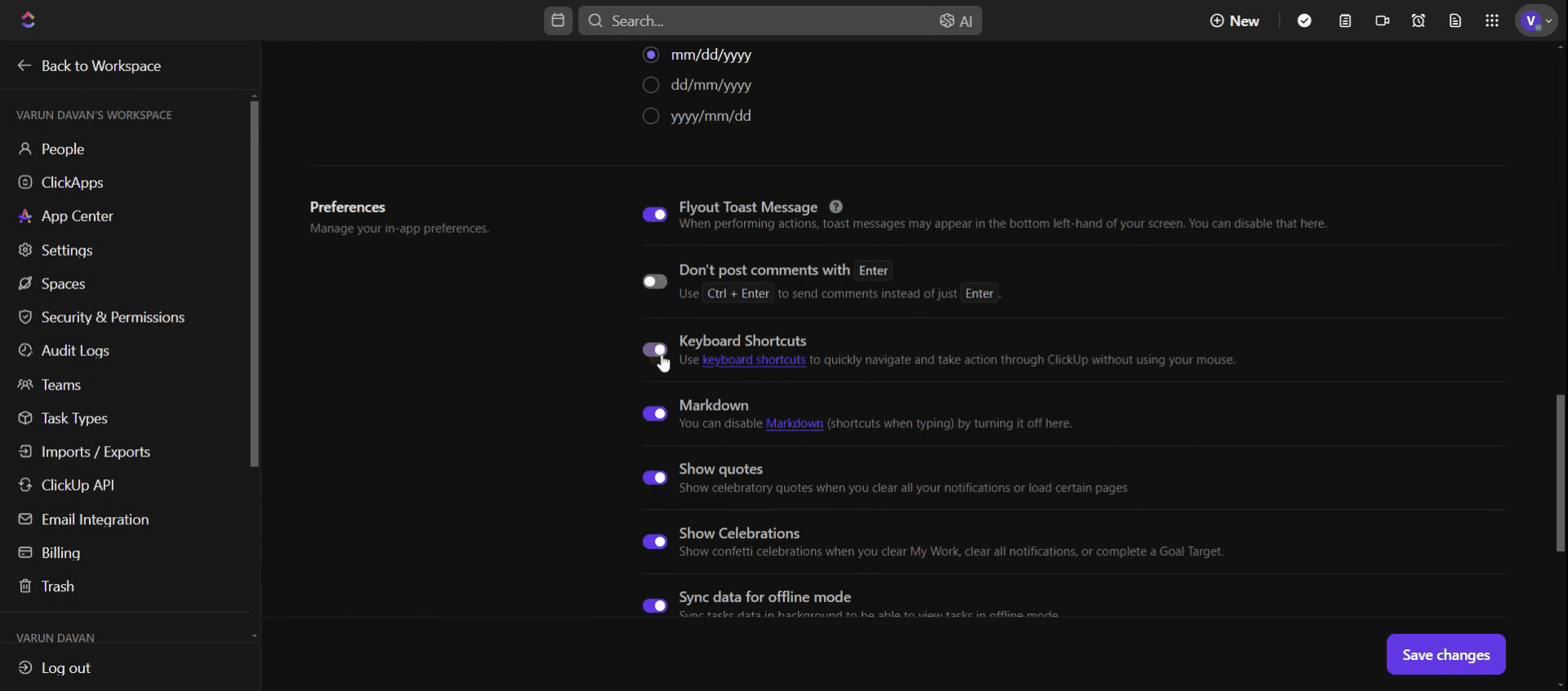
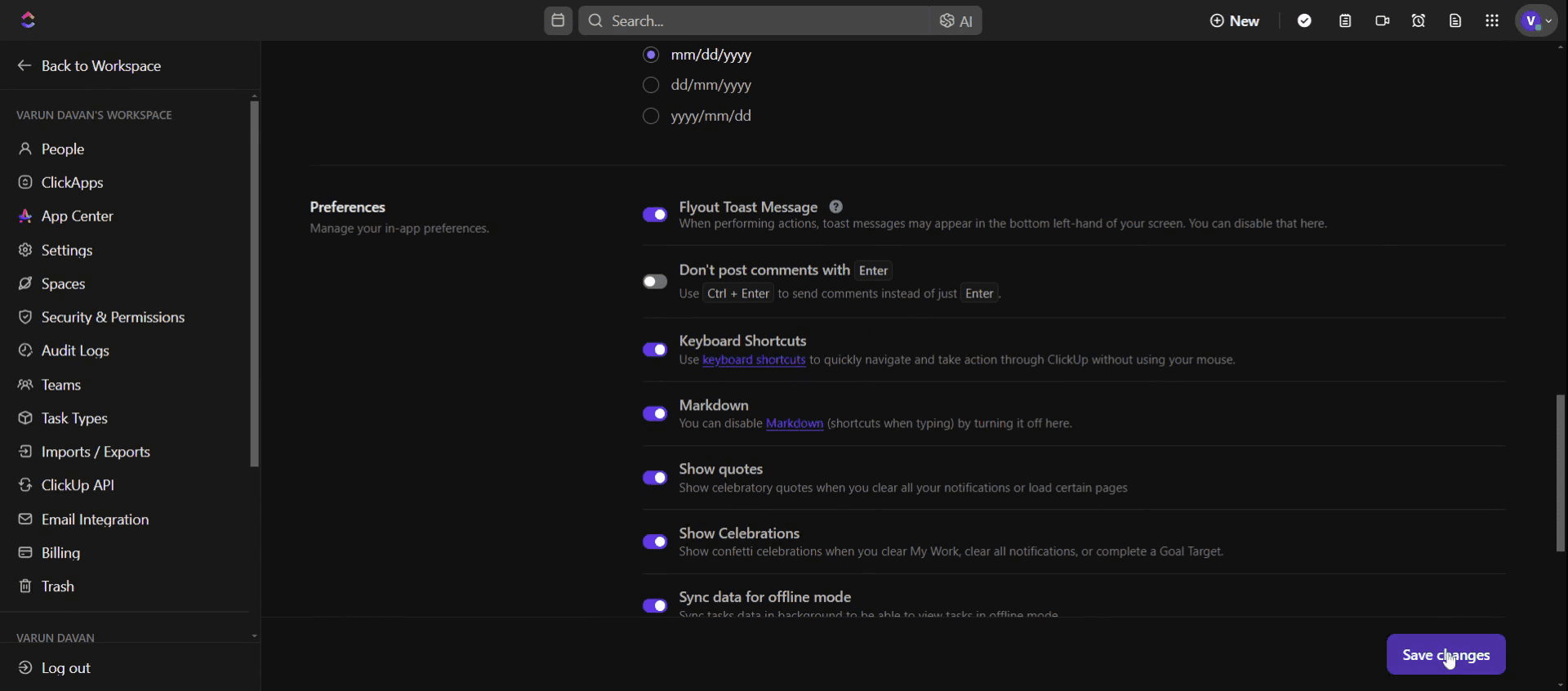
Enable the keyboard shortcut option.
Step 4
And click on save the changes.
Step 5
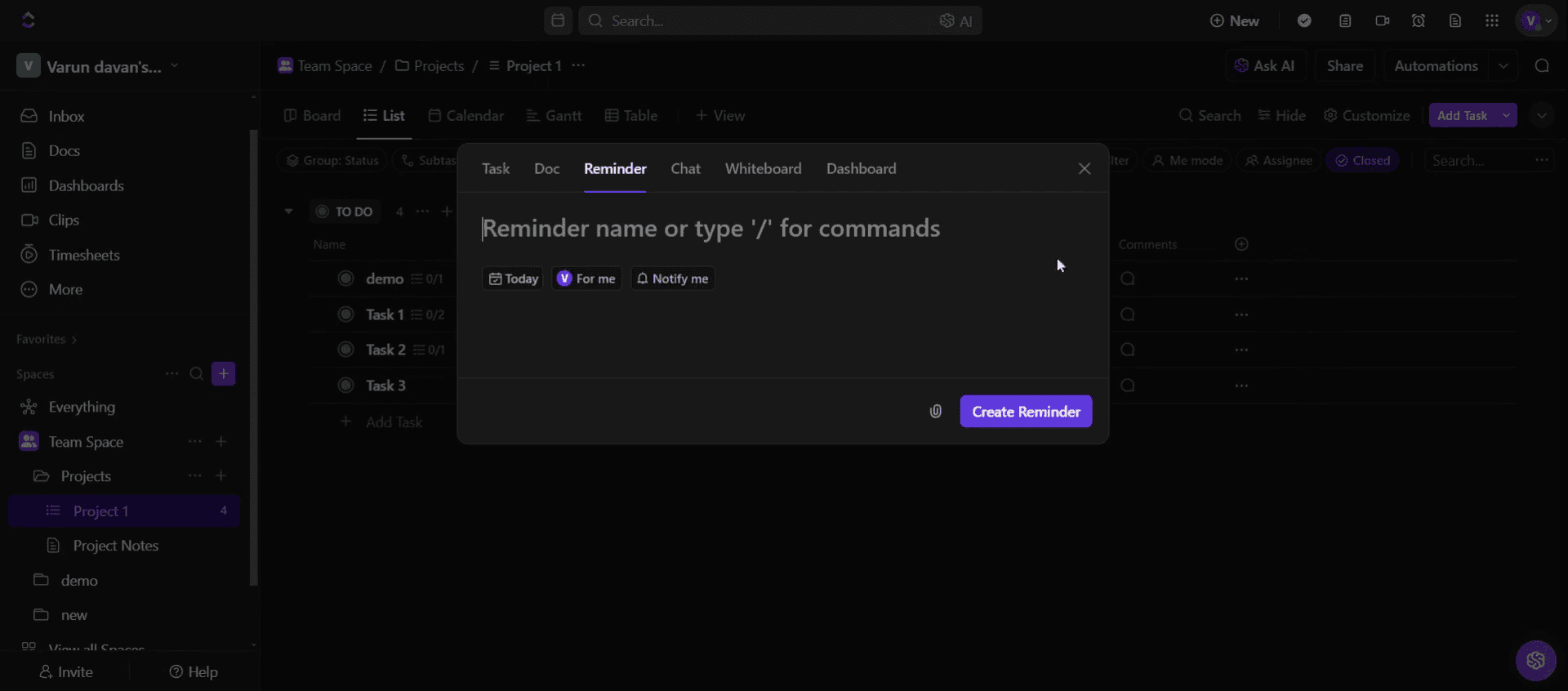
Press the R key on your keyboard to access reminders.
Step 6
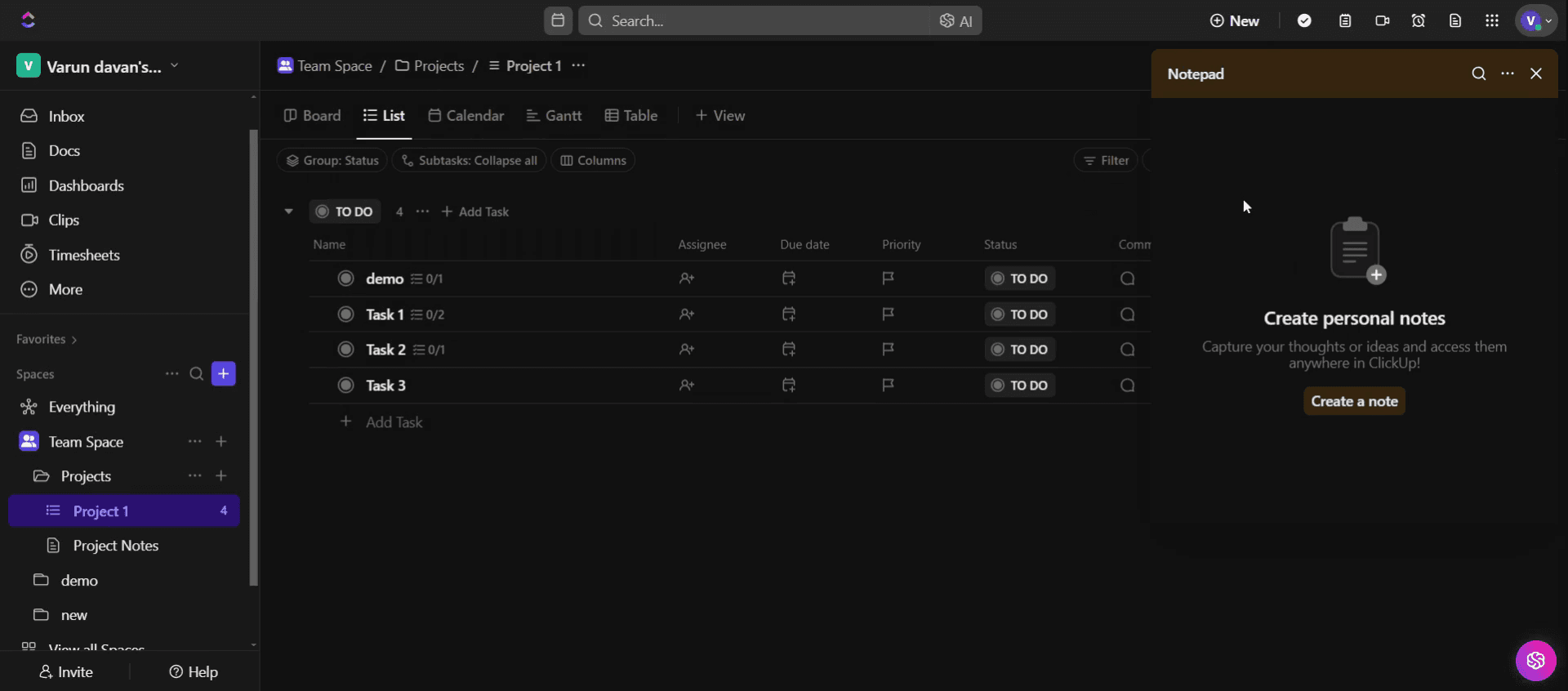
If you require the notepad feature, click P key on your keyboard.
This is the step-by-step process to set up quick Switch in Click Up. Let’s look at some tips for it.
Pro tips for setting up quick switch in Click Up
Use the shortcut key for instant access – Press
Kon your keyboard to open Quick Switch and navigate Click Up faster.Search by keyword – Type any workspace, task, or view name to quickly jump to what you need without manually browsing.
Refine your search with filters – Use specific words like task, doc, or view to narrow down search results for better efficiency.
Common pitfalls & how to avoid them
Not using the shortcut key can slow navigation, so always press
Kfor instant access.Typing vague search terms can lead to irrelevant results, so use specific keywords for precise navigation.
Ignoring filter options can make searches cluttered, so use keywords like List or Board to refine Quick Switch results.
Common FAQs for setting up quick switch in Click Up
Can i use Quick Switch to open tasks and views?
Yes, you can search and open tasks, docs, dashboards, and views directly from Quick Switch.Does Quick Switch work across different workspaces?
Yes, you can search across multiple workspaces, making it easier to switch between them.Why is Quick Switch not finding my task?
Ensure you're typing the exact task name or use keywords to filter results for better accuracy.Can i customize Quick Switch settings?
While Quick Switch does not have advanced customization options, you can refine searches using better keywords and filters.
If you're an instructor or content creator looking to make tutorial videos, give a try. It transforms rough screen recordings into polished, studio-style videos that are ready for sharing with your audience. Plus, it automatically generates a step-by-step guide based on the video you create. Fascinating, right? Start by creating your first tutorial for free with trupeer.ai .

