
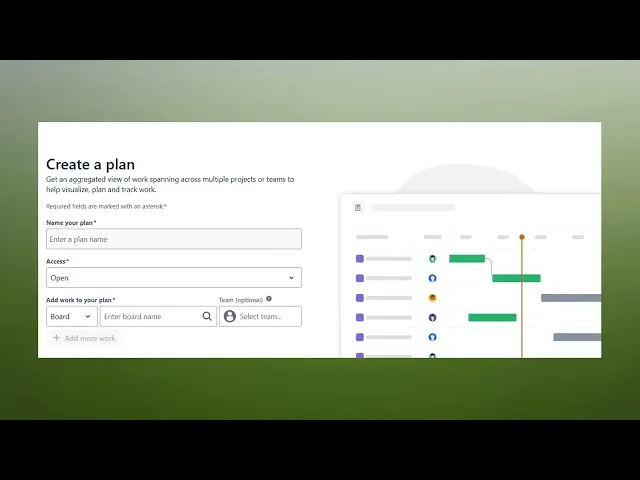
How To Access Advanced Roadmaps In Jira
Unlock the full potential of Jira with our step-by-step guide on accessing Advanced Roadmaps. Improve your planning and tracking efficiency effortlessly.
This document outlines the process for accessing and creating advanced roadmaps within Jira. It provides a concise, step-by-step guide to help you navigate the interface and utilize the features effectively.
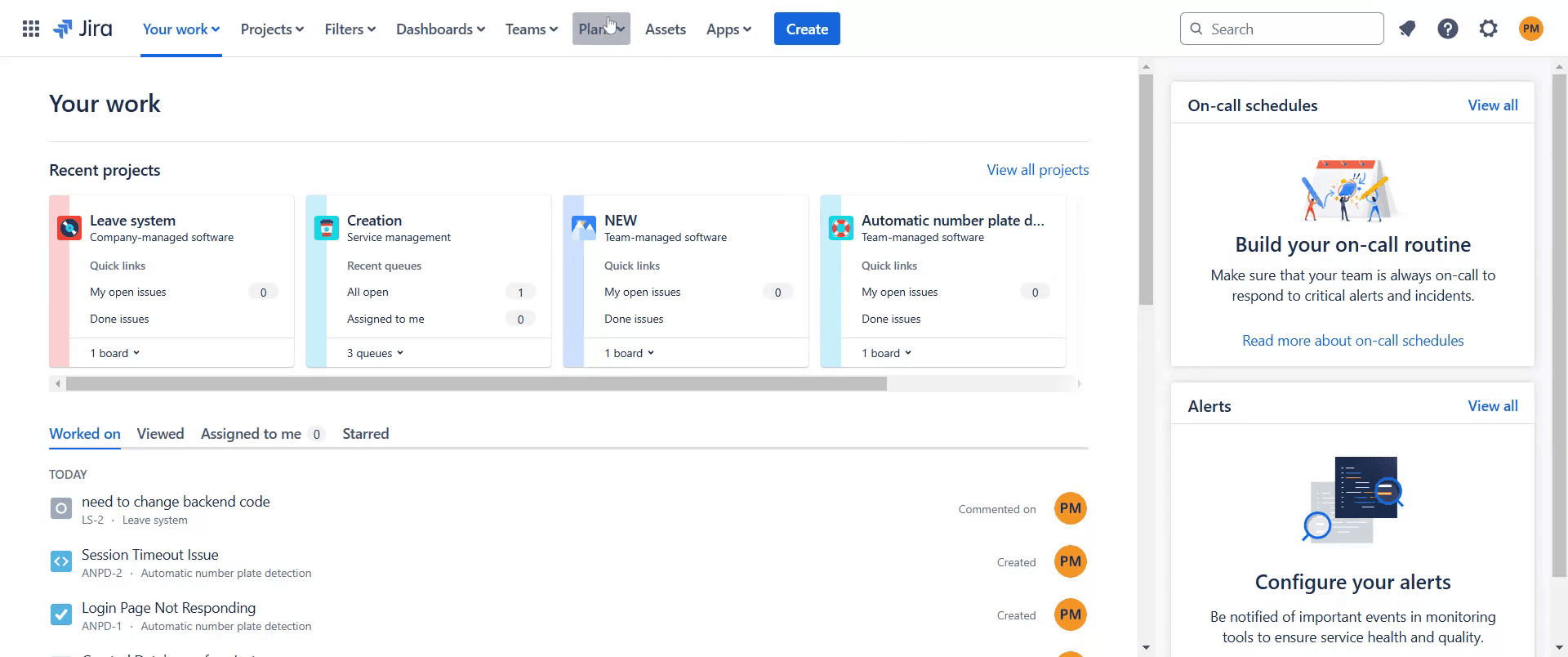
Step 1
To start, go to the Plans section in Jira and click on "Plans".
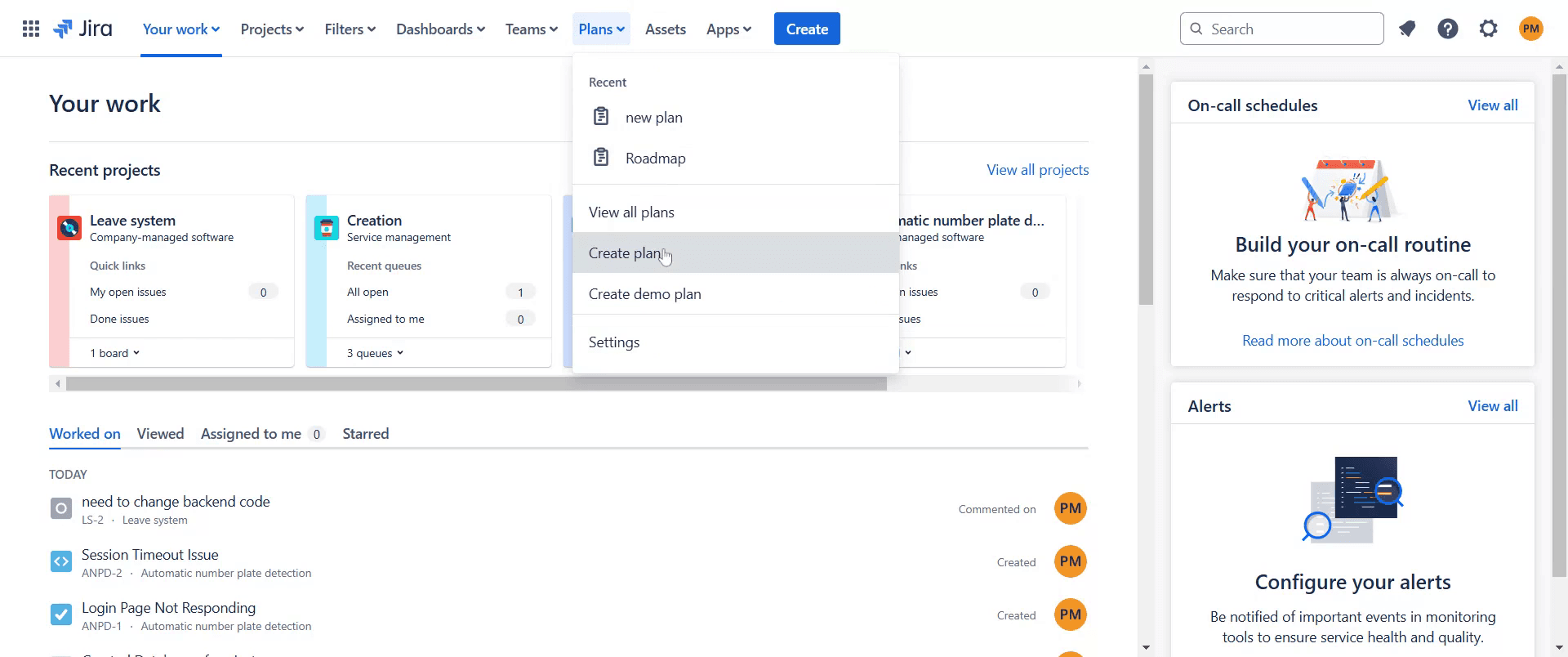
Step 2
Within the menu, select "Create Plan" to begin the process.
Step 3
Choose the relevant project for which you want to create this plan.
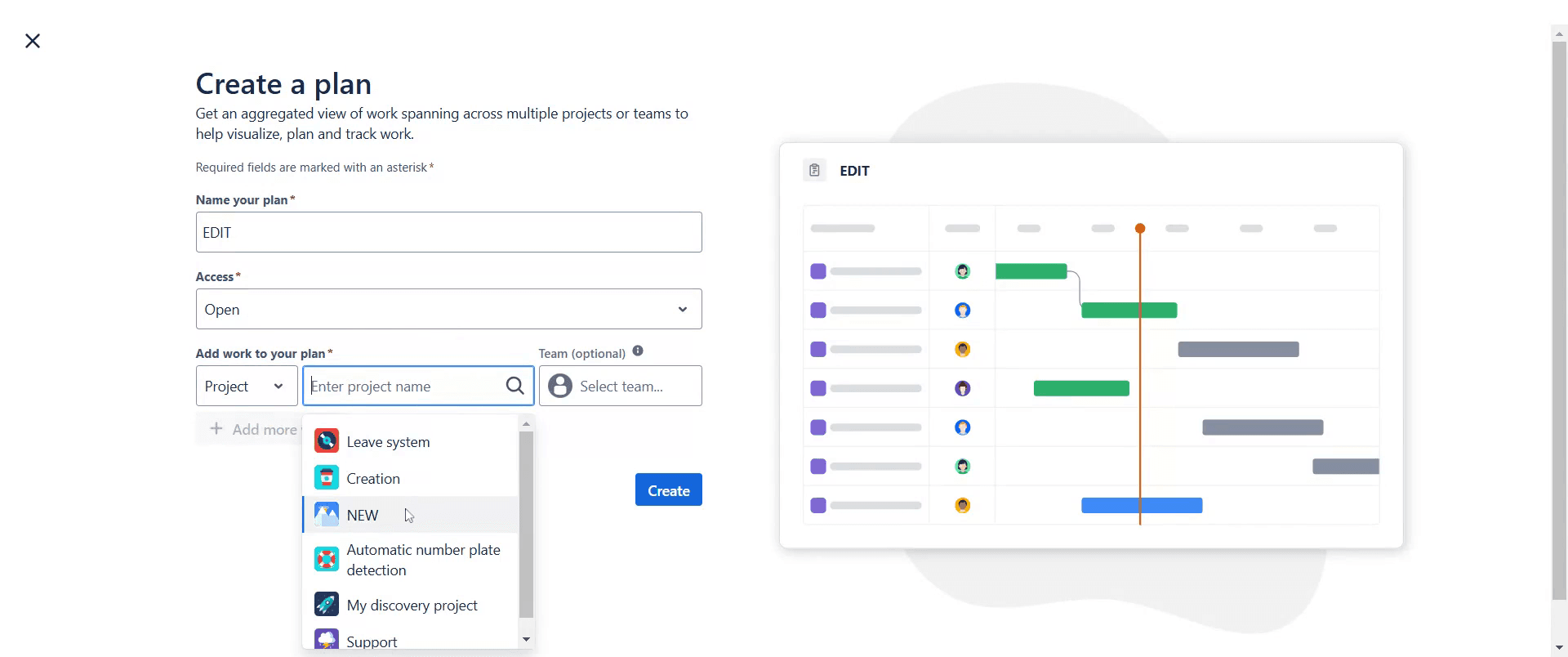
Step 4
After selecting, click on the "Create" option to proceed.
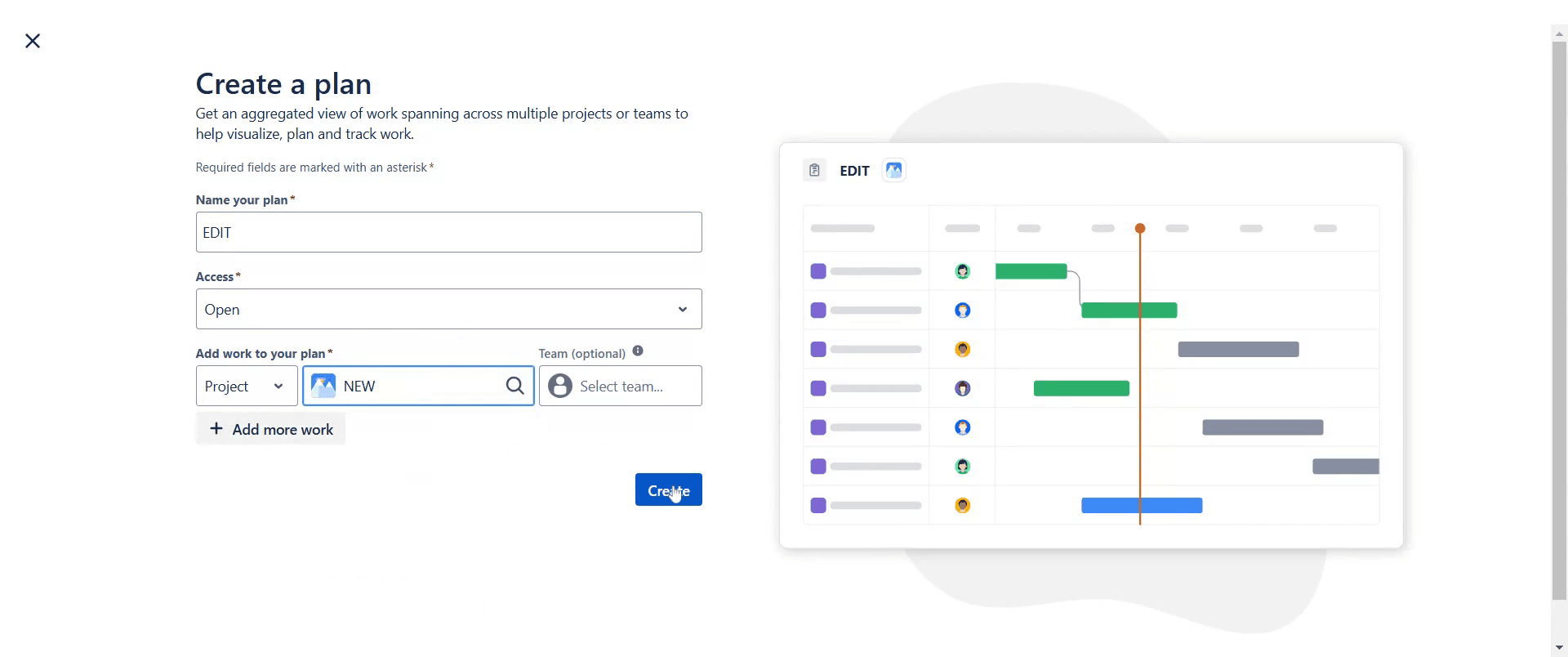
Step 5
Upon opening the plan, use the available options for organization and customization.
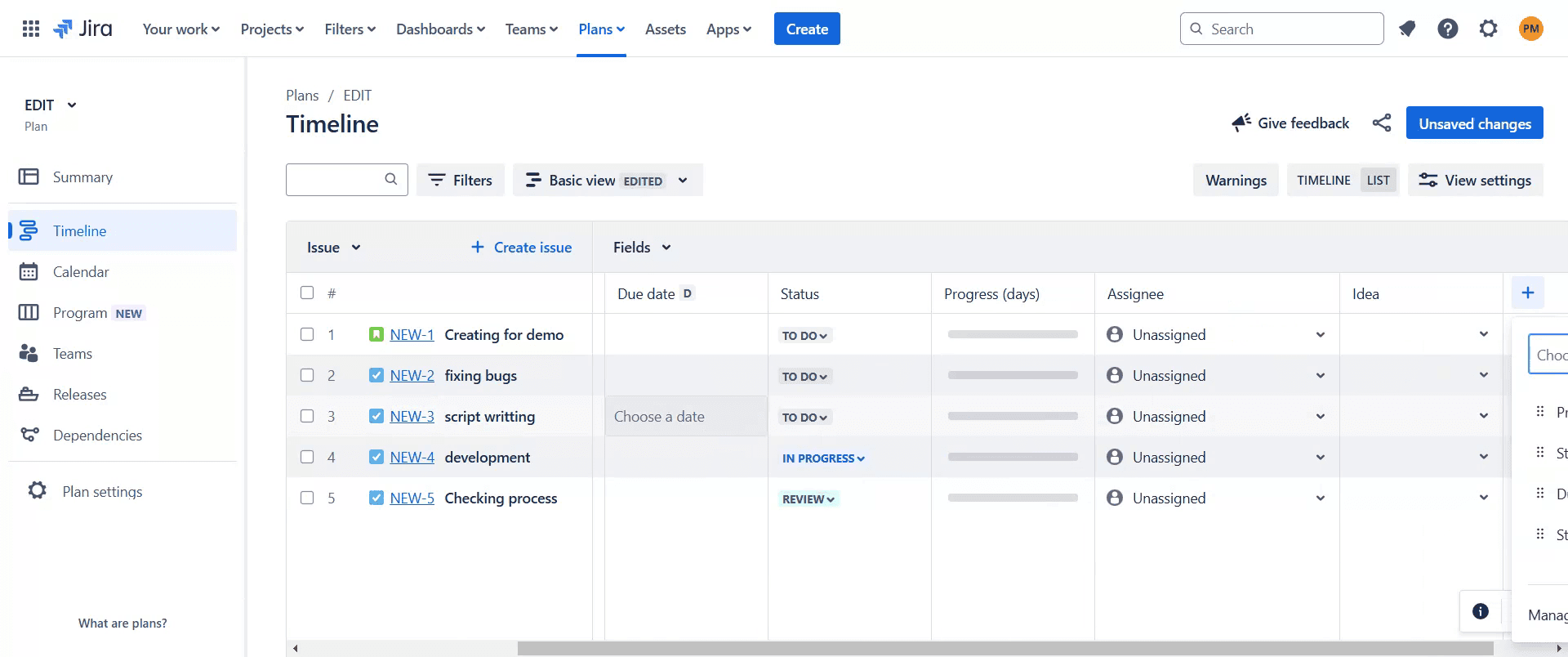
That's it. This is a step-by-step guide on how to access Advanced Roadmaps in Jira.
Pro-tips for accessing advanced roadmaps in Jira
Ensure you have the necessary Jira Software Premium subscription, as Advanced Roadmaps is not available in the Standard plan.
Navigate to Plans > Create a plan to start using Advanced Roadmaps for project planning and tracking.
Customize roadmap views by adjusting filters, timeframes, and issue hierarchies for better clarity.
Common pitfalls & how to avoid them while accessing advanced roadmaps in Jira
Not having the correct permissions – Ensure you have the right user role or admin access to view Advanced Roadmaps.
Confusing Advanced Roadmaps with basic roadmaps – Advanced Roadmaps offers multi-project planning, while basic roadmaps are limited to individual projects.
Missing data in roadmaps – Make sure issues have start and due dates assigned to appear correctly in the roadmap.
Common FAQs for accessing advanced roadmaps in Jira
Can I use Advanced Roadmaps in Jira Standard?
No, Advanced Roadmaps is only available in the Premium and Enterprise versions.How do I add a project to Advanced Roadmaps?
Open your plan, click Edit sources, and select the projects or boards you want to include.Can I share my roadmap with others?
Yes, you can export or share a live link of your roadmap with team members.
If you're an instructor or content creator looking to make tutorial videos, give Trupeer.ai a try. It transforms rough screen recordings into polished, studio-style videos that are ready for sharing with your audience. Plus, it automatically generates a step-by-step guide based on the video you create. Fascinating, right? Start by creating your first tutorial for free with Trupeer.ai.

