
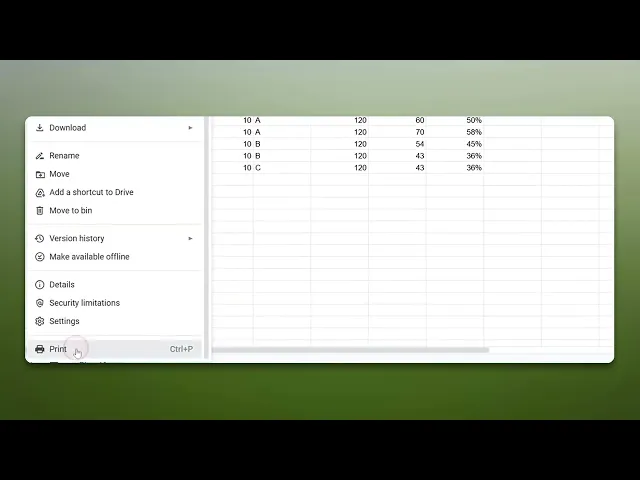
How To Add A Header In Google Sheets
Discover the step-by-step guide on how to add a header in Google Sheets. Enhance your spreadsheets with clear, organized headers for better data management.
This document provides a comprehensive process to add headers in an Excel worksheet, enabling users to include information such as sheet names or workbook titles efficiently.
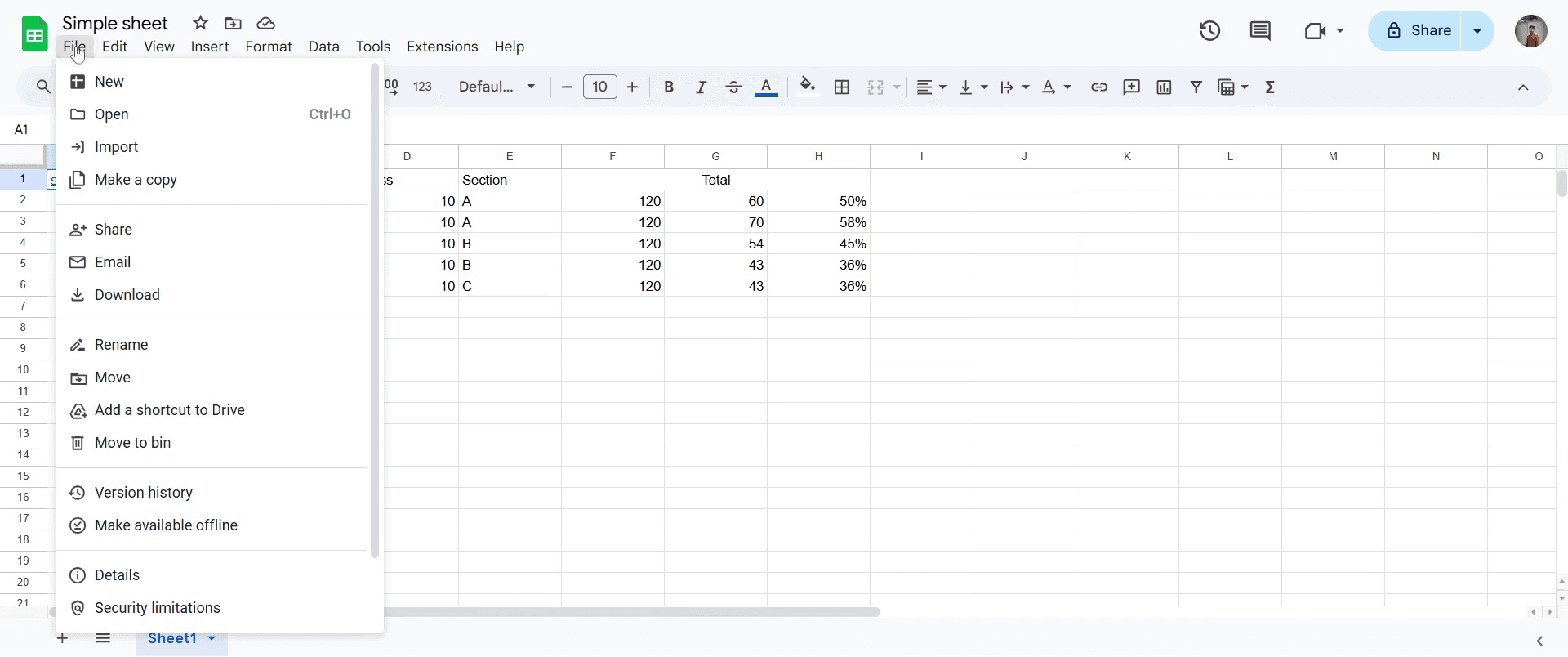
Step 1
Begin by navigating to the 'File' section in Excel. Click on it.
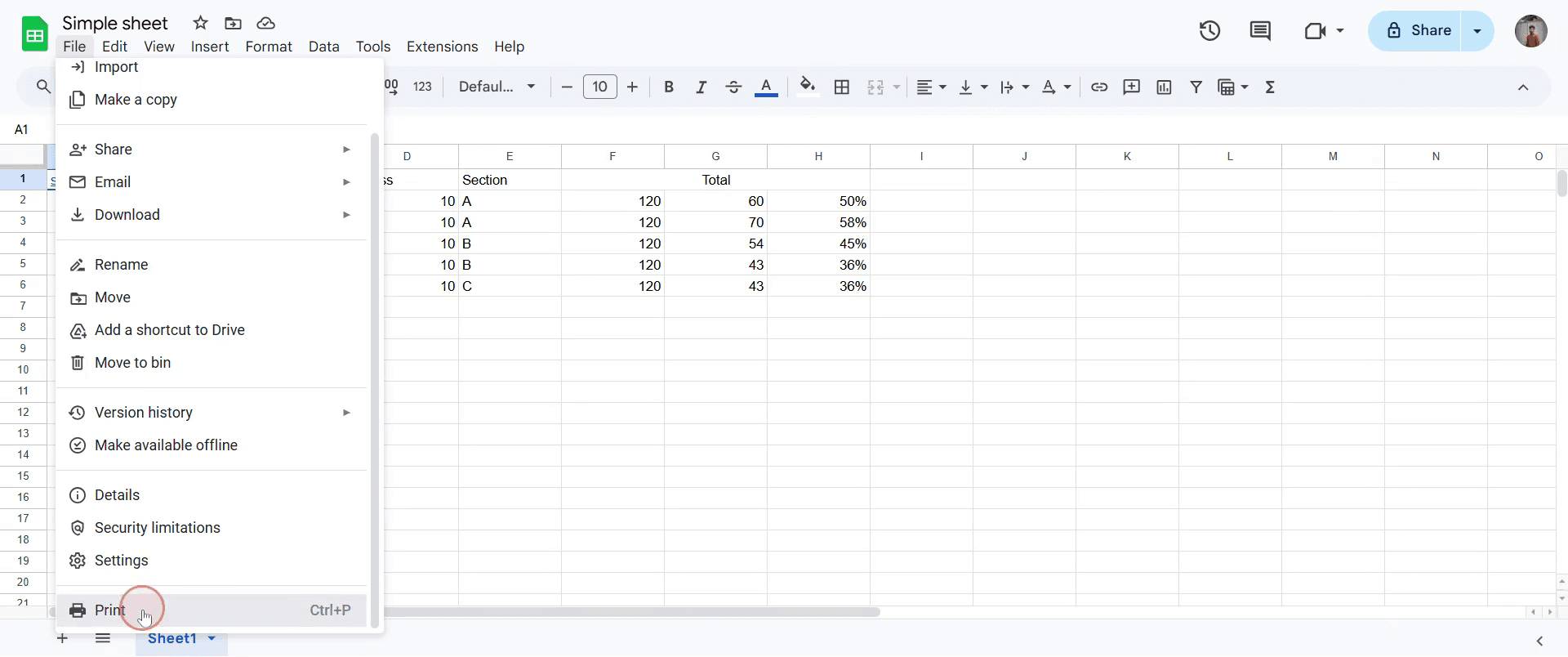
Step 2
Go and select the 'Print' option.
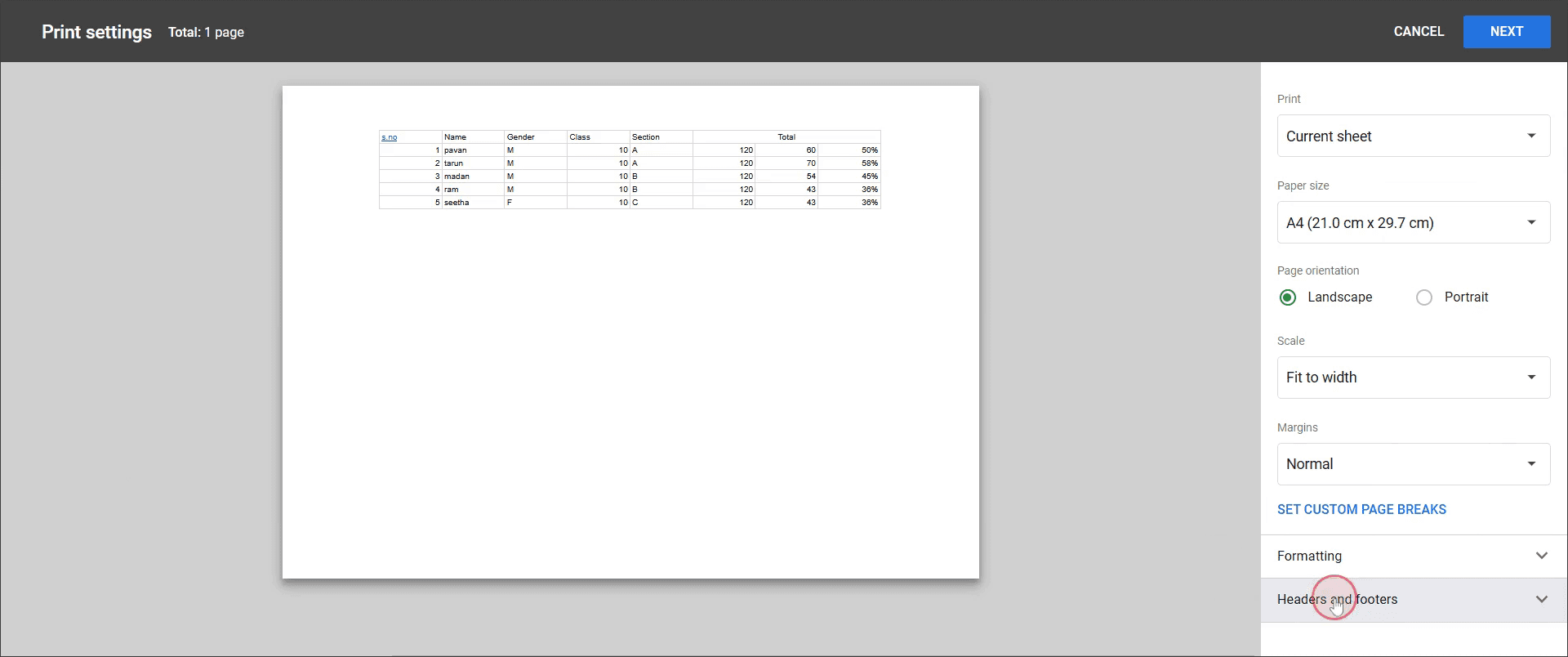
Step 3
Find and click on the 'Header and Footer' option.
Step 4
You can now add the sheet name or workbook title as desired.
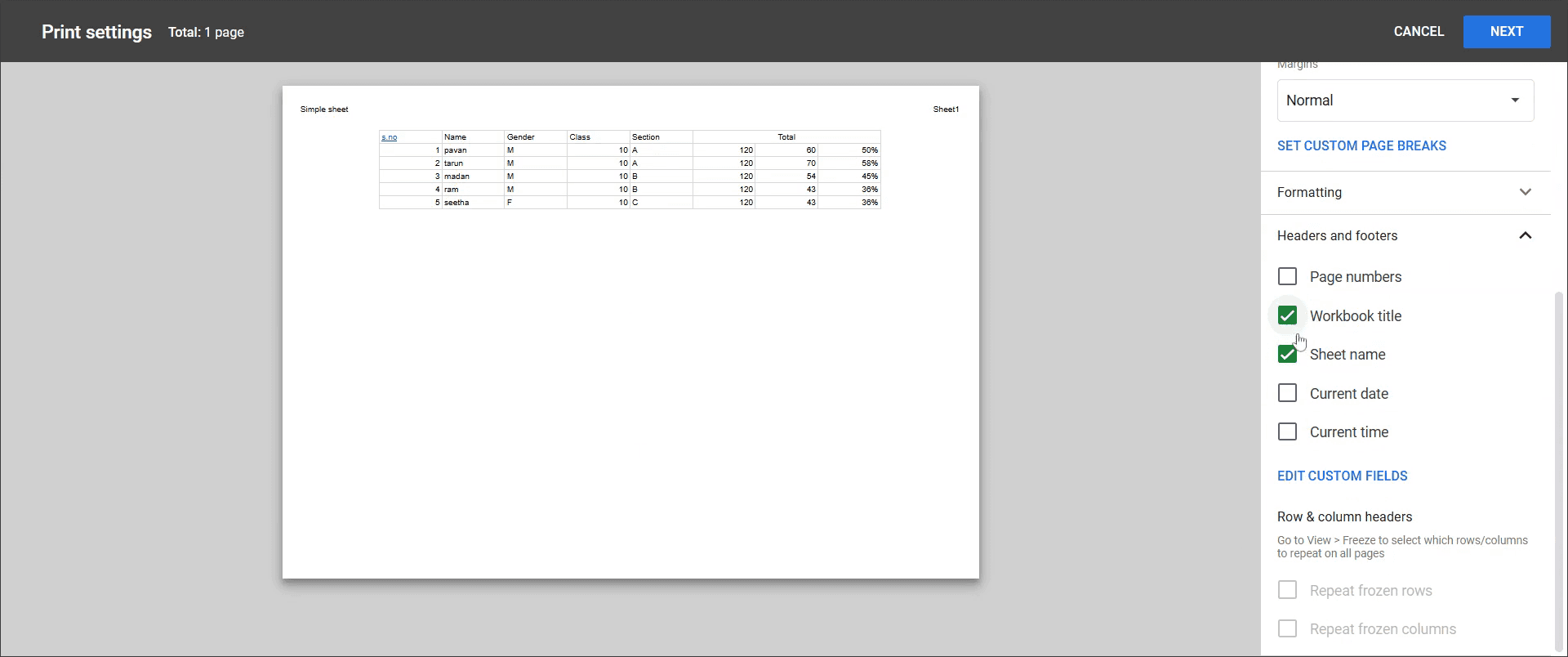
Step 5
Click on the specific fields you wish to modify, and add any additional information as required.
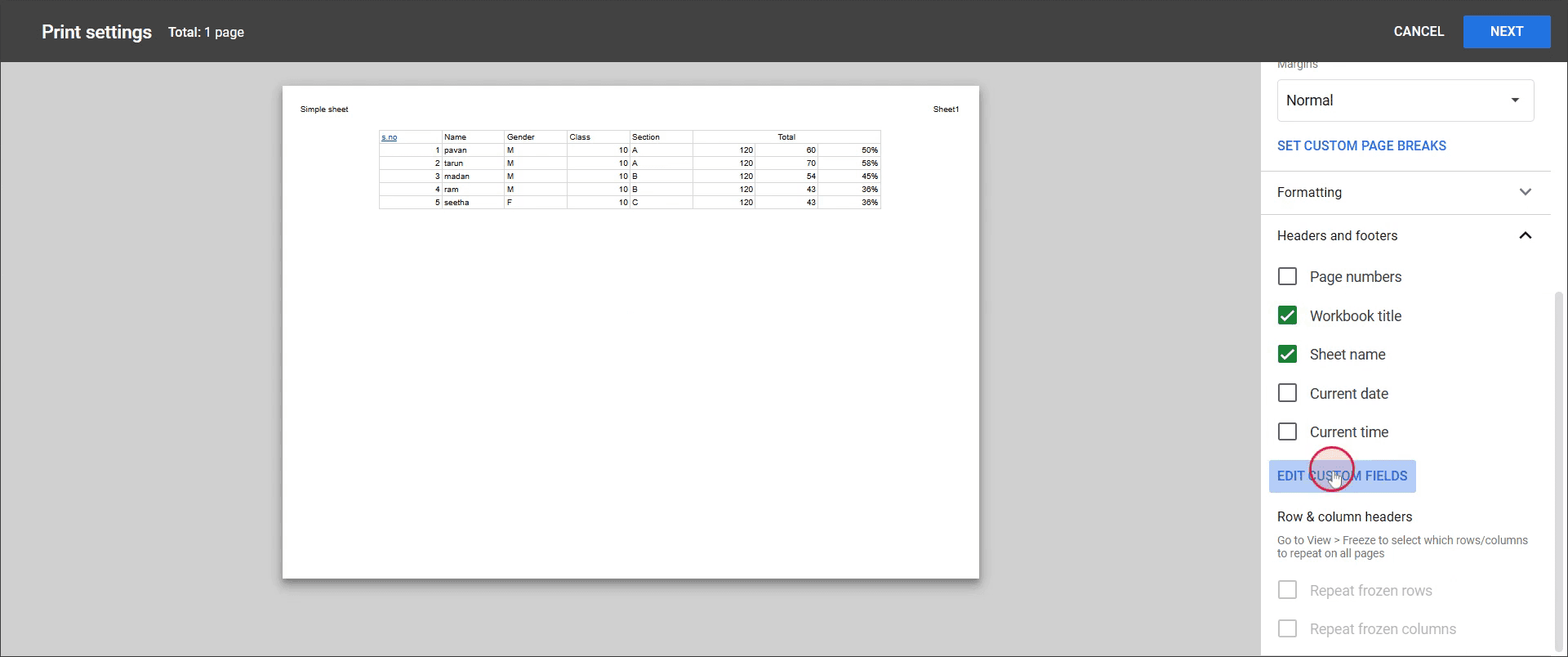
Step 6
Once every thing is ok, click on Confirm.
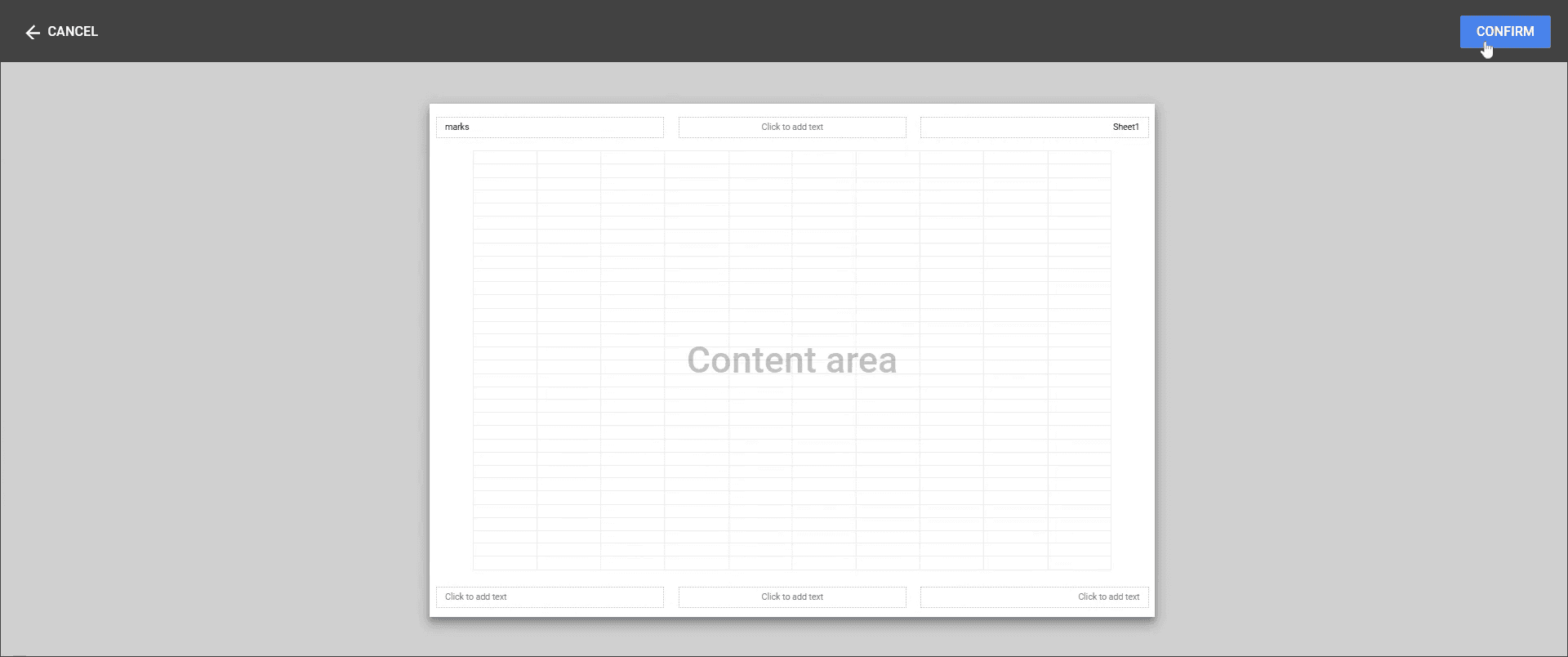
This is a step-by-step guide on how to add a header in Google Sheets.
Pro-tips for adding a header in Google Sheets
Format the header row by applying bold text, changing the font size, and adding a background color for better visibility.
Freeze the header row using the Freeze option so it remains visible while scrolling down the sheet.
Ensure your header is properly aligned and clear for easy readability when you share the sheet with others.
Common pitfalls & how to avoid them while adding a header in Google Sheets
Forgetting to freeze the header always freeze the top row to keep it visible when scrolling through large datasets.
Not adjusting the font size or style make sure the header text stands out by adjusting the font for better clarity.
Overcrowding the header with too much text keep it concise and clear to ensure the header remains readable.
Common FAQs for adding a header in Google Sheets
How can I freeze the header row in Google Sheets?
Go to the View menu, click on Freeze, and select 1 row to freeze the header.Can I change the font style of the header in Google Sheets?
Yes, you can change the font style by selecting the header cell and using the font toolbar options.Can I apply color to the header row in Google Sheets?
Yes, you can change the background color of the header row by selecting it and using the fill color option.
If you're an instructor or content creator looking to make tutorial videos, give Trupeer.ai a try. It transforms rough screen recordings into polished, studio-style videos that are ready for sharing with your audience. Plus, it automatically generates a step-by-step guide based on the video you create. Fascinating, right? Start by creating your first tutorial for free with Trupeer.ai.

