
How To Add Background Image In Webflow
Learn how to seamlessly add a background image in Webflow with our comprehensive tutorial. Transform your web design and captivate your audience today.
This document provides a concise guide to adding background images in Web flow. You will learn how to select layouts, access style options, and choose your desired background image effectively.
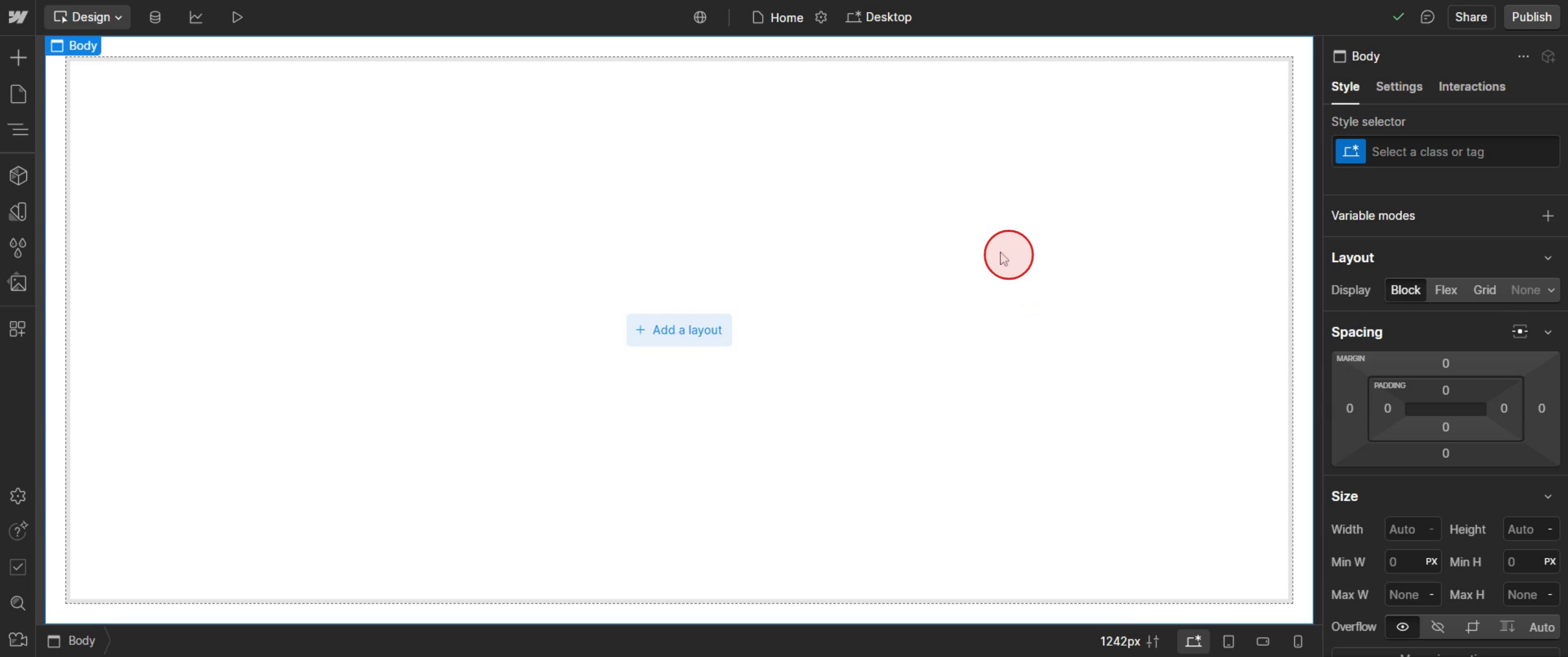
Step 1
Select the desired layout in Web flow,
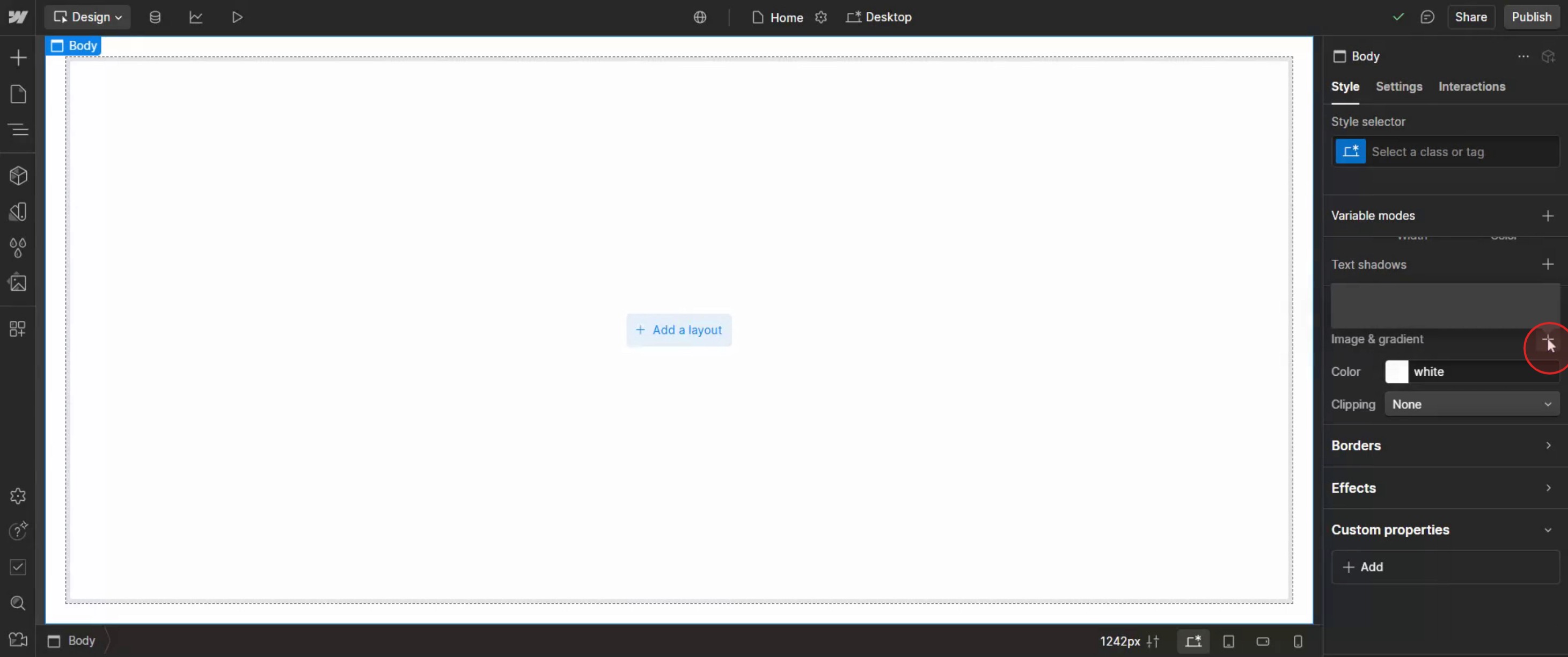
Step 2
In the images section click on plus icon.
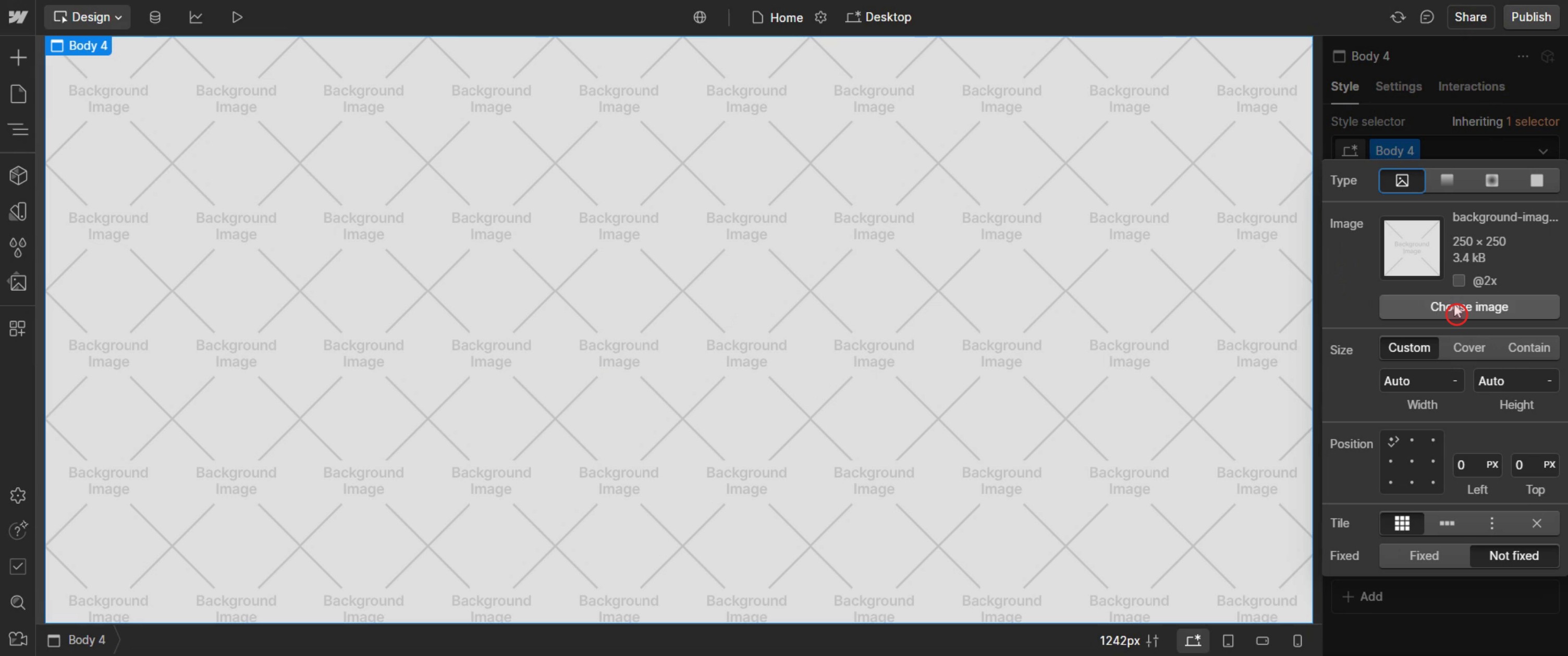
Step 3
Click on choose Image.
Step 4
And select the particular image.
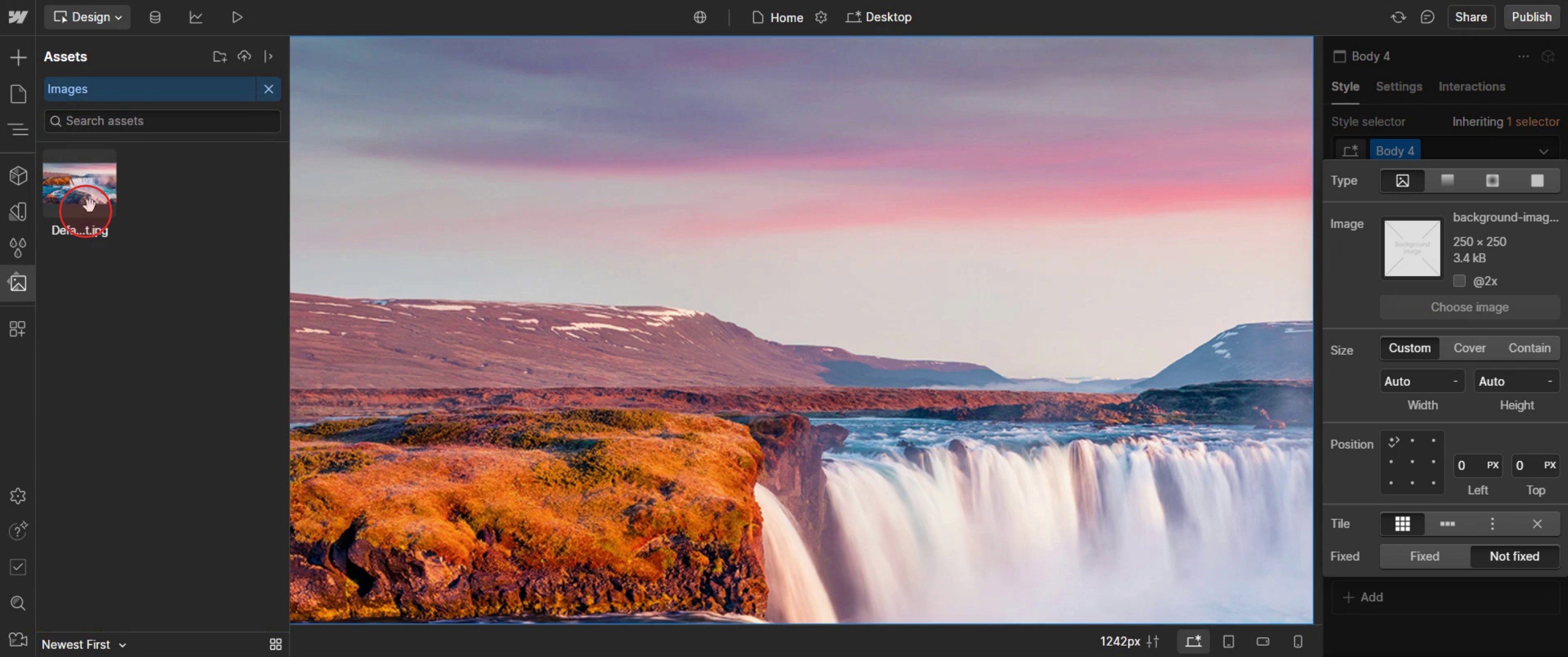
This is the step-by-step process to add a background image in Web flow. Let’s look at some tips for it.
Pro-tips for adding pages in Web flow
Use the Pages Panel for Easy Management – The Pages panel in Web flow allows you to add, duplicate, and organize pages efficiently.
Organize Pages with Folders – If your project has multiple pages, use folders to keep them structured and easy to navigate.
Set Up SEO Settings for Each Page – When creating a new page, always update the Title Tag, Meta Description, and Open Graph settings to improve SEO.
Common pitfalls & how to avoid them
Not Naming Pages Properly – Keep page names clear and structured to make it easier to manage large projects.
Forgetting to Update SEO Settings – Always customize the SEO title and meta description to improve visibility on search engines.
Ignoring Page Speed Optimization – Avoid heavy images, unnecessary animations, or excessive scripts that could slow down your site.
Common FAQs for adding pages in Web flow
Can i duplicate an existing page in Web flow?
Yes. In the Pages panel, find the page you want to duplicate, click the three-dot menu (•••), and select Duplicate.How do i create dynamic pages in Web flow?
Use CMS Collections to generate template-based pages that update automatically based on CMS content.Can i change a page's URL after creating it?
Yes. Go to Page Settings, find the Slug (URL path) field, edit the URL, and save the changes.How do i organize pages into folders?
In the Pages panel, click New Folder, name it, and drag relevant pages into it for better structure.
If you're an instructor or content creator looking to make tutorial videos, give a try. It transforms rough screen recordings into polished, studio-style videos that are ready for sharing with your audience. Plus, it automatically generates a step-by-step guide based on the video you create. Fascinating, right? Start by creating your first tutorial for free with trupeer.ai .

