
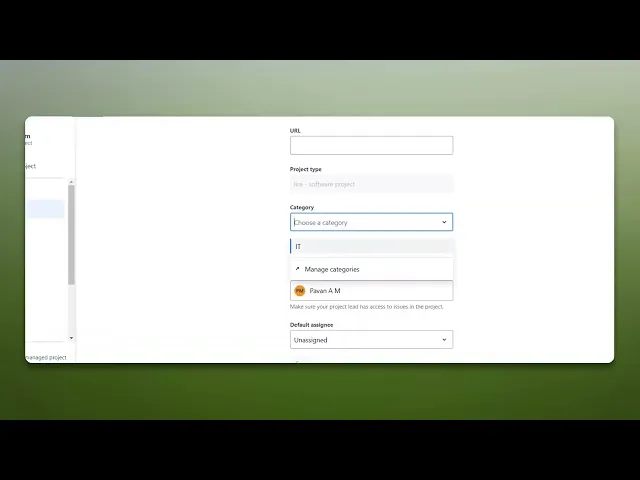
How To Add Category In Jira
Discover the step-by-step process to add categories in Jira. Enhance your project management skills and streamline your workflow with our comprehensive guide.
This process outlines how to add a category to an existing project in Jira. It involves accessing project settings and utilizing the category management feature to assign or manage categories as needed.
Step 1
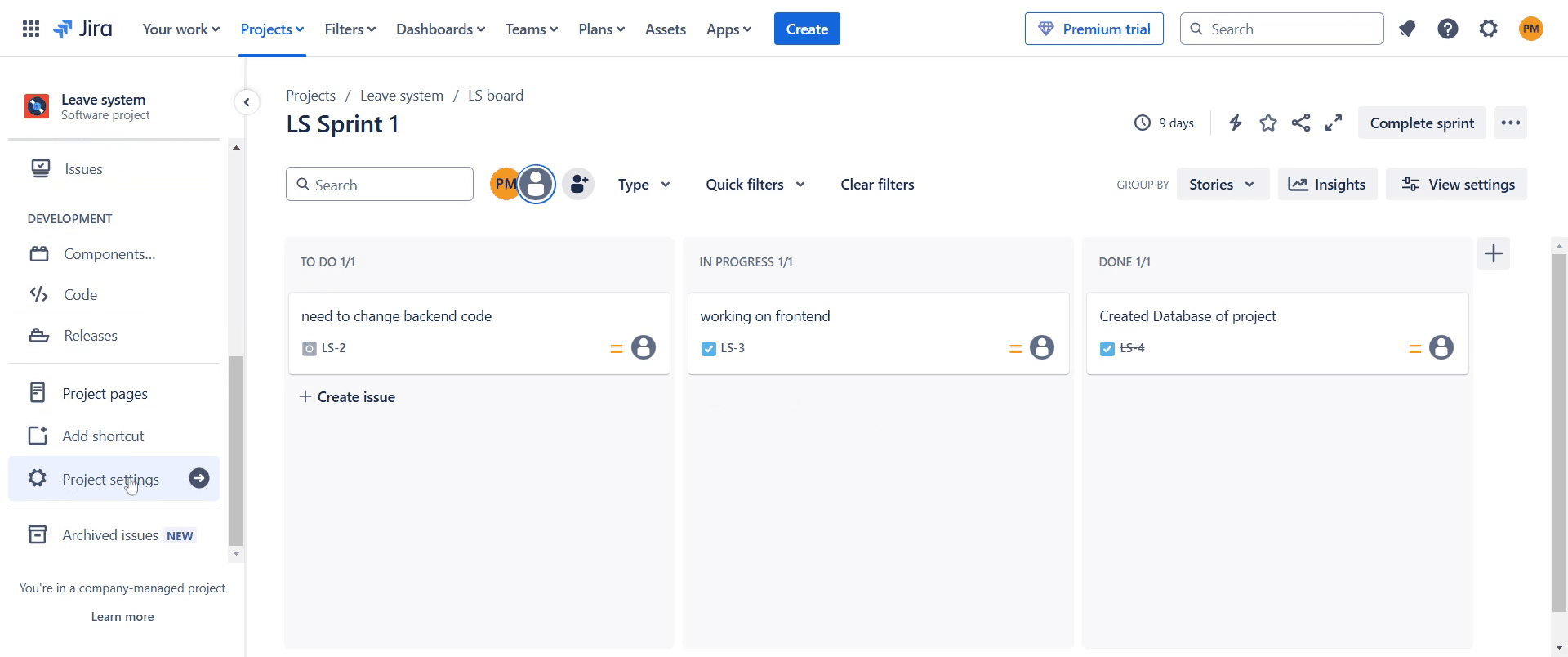
Click on the option labeled "Project Settings."
Step 2
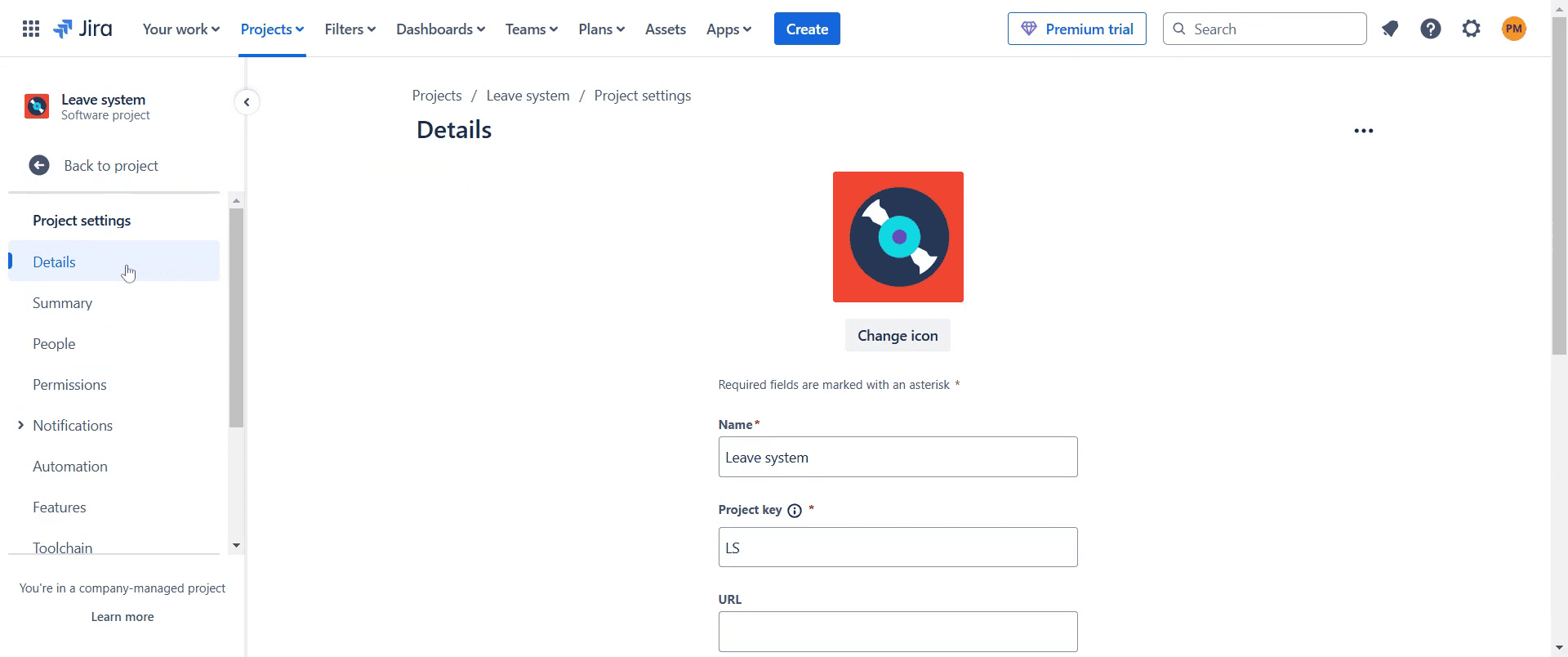
Click on "Details" option.
Step 3
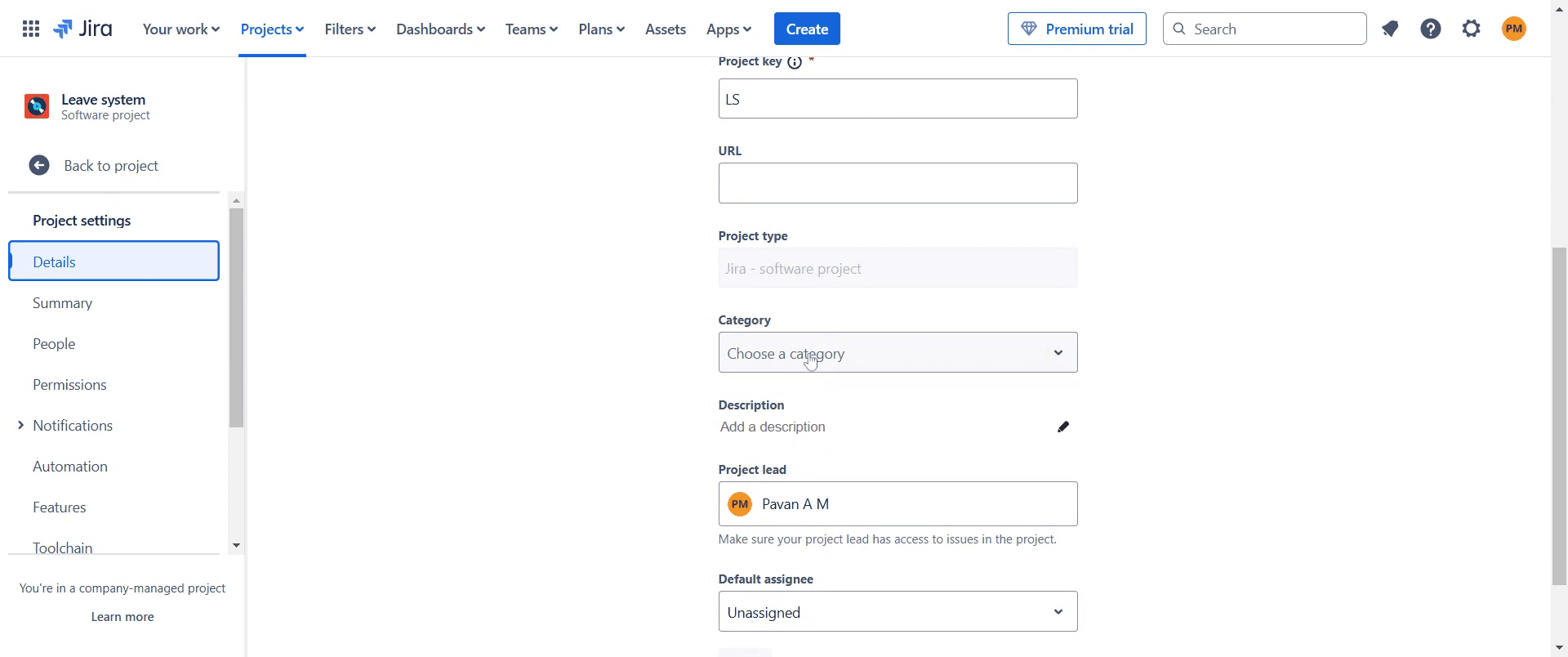
Click on the " Choose a Category" option.
Step 4
Simply select the default category if it suits your needs.
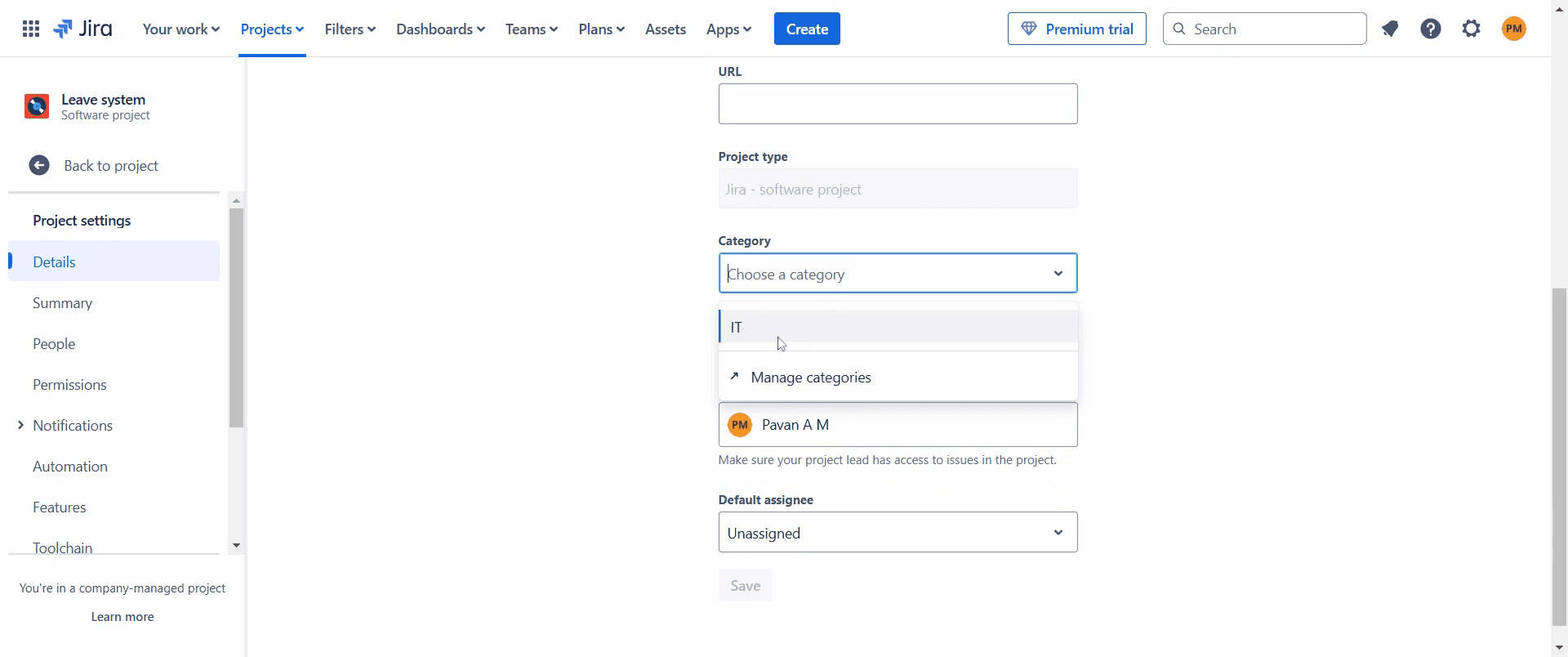
Step 5
click "Save" option to save the Category.
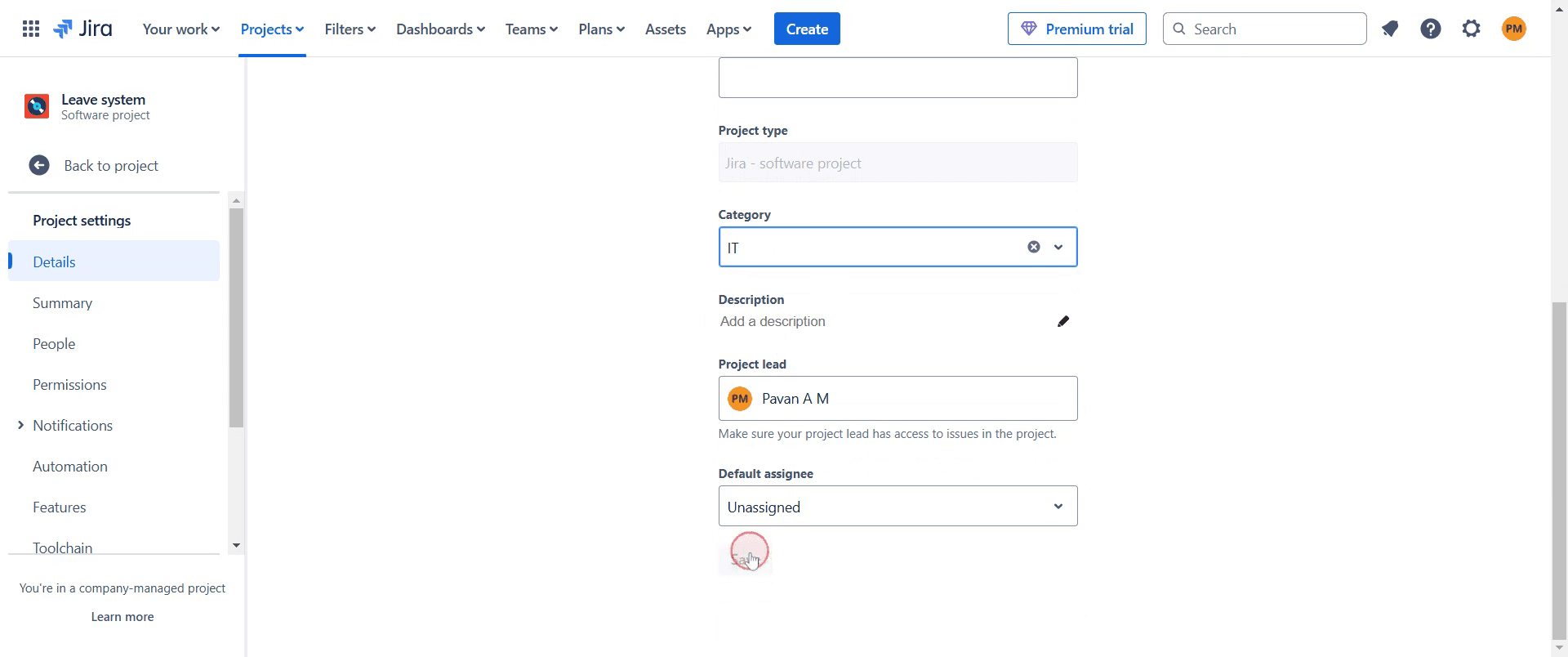
Step 6
A pop-up will confirm that the project details have been successfully updated. Thank you.
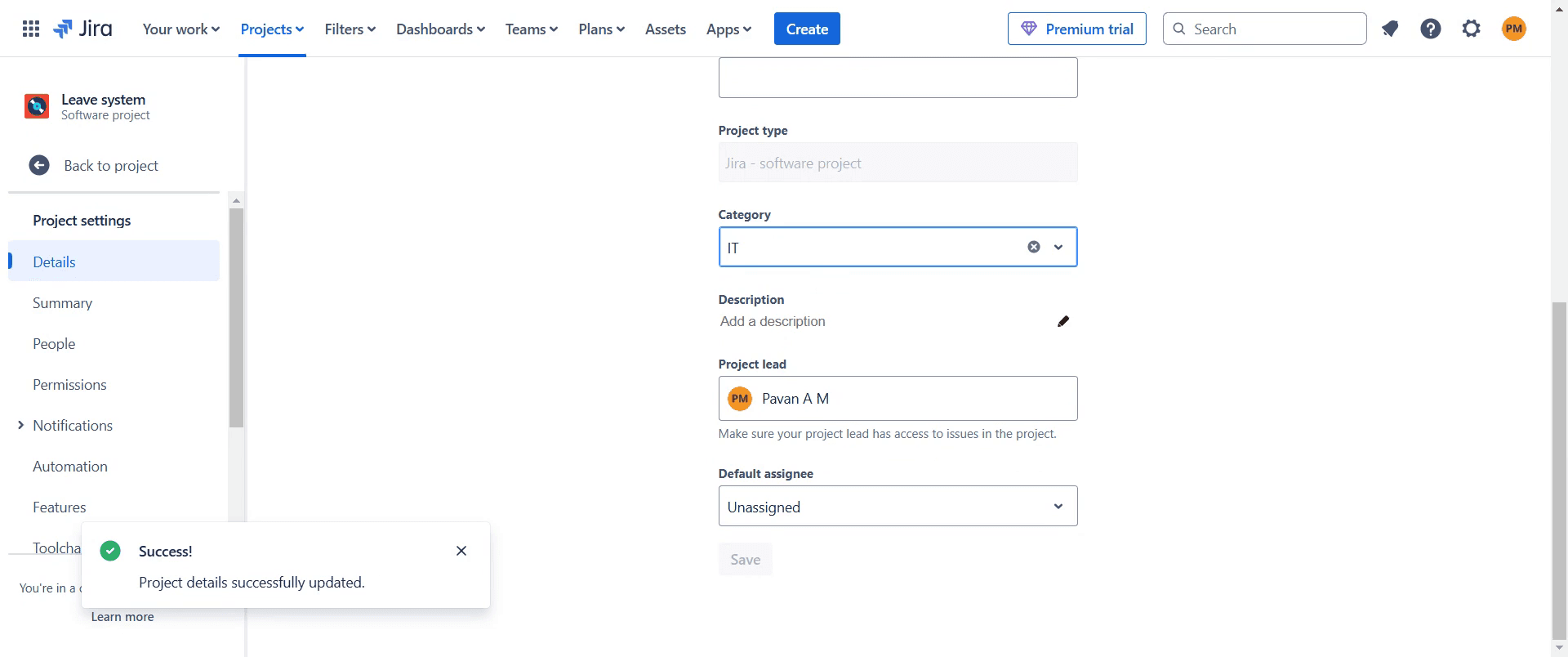
This is a step-by-step guide on how to add a category in Jira.
Pro-tips for adding a category in Jira
Navigate to Jira Administration and go to the Projects section to manage categories.
Use clear and descriptive category names to help users quickly identify related projects.
Assign multiple projects to a single category to improve organization and reporting efficiency.
Common pitfalls & how to avoid them while adding a category in Jira
Using vague category names ensure categories have meaningful names that reflect the projects grouped under them.
Forgetting to assign projects after creating a category, make sure to assign relevant projects to it.
Lack of standardization maintain consistency in naming conventions to avoid confusion.
Common FAQs for adding a category in Jira
Can I assign a project to multiple categories?
No, each project can only be assigned to one category at a time.How do I remove a project from a category?
Edit the project settings and change or remove the assigned category.Can I rename a category in Jira?
Yes, you can edit an existing category name from the Manage Project Categories section.
If you're an instructor or content creator looking to make tutorial videos, give Trupeer.ai a try. It transforms rough screen recordings into polished, studio-style videos that are ready for sharing with your audience. Plus, it automatically generates a step-by-step guide based on the video you create. Fascinating, right? Start by creating your first tutorial for free with Trupeer.ai.

