
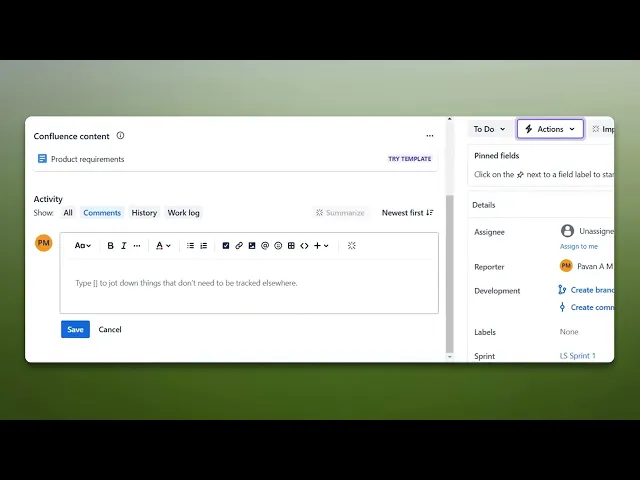
How To Add CC In Jira Comment
Learn how to add CC in Jira comments with our comprehensive guide. Improve communication and ensure your team stays updated on project discussions.
This guide will show you how to add CC in a Jira comment. Simply select the issue, mention the individual by using the @ symbol in the comment, and save your changes.
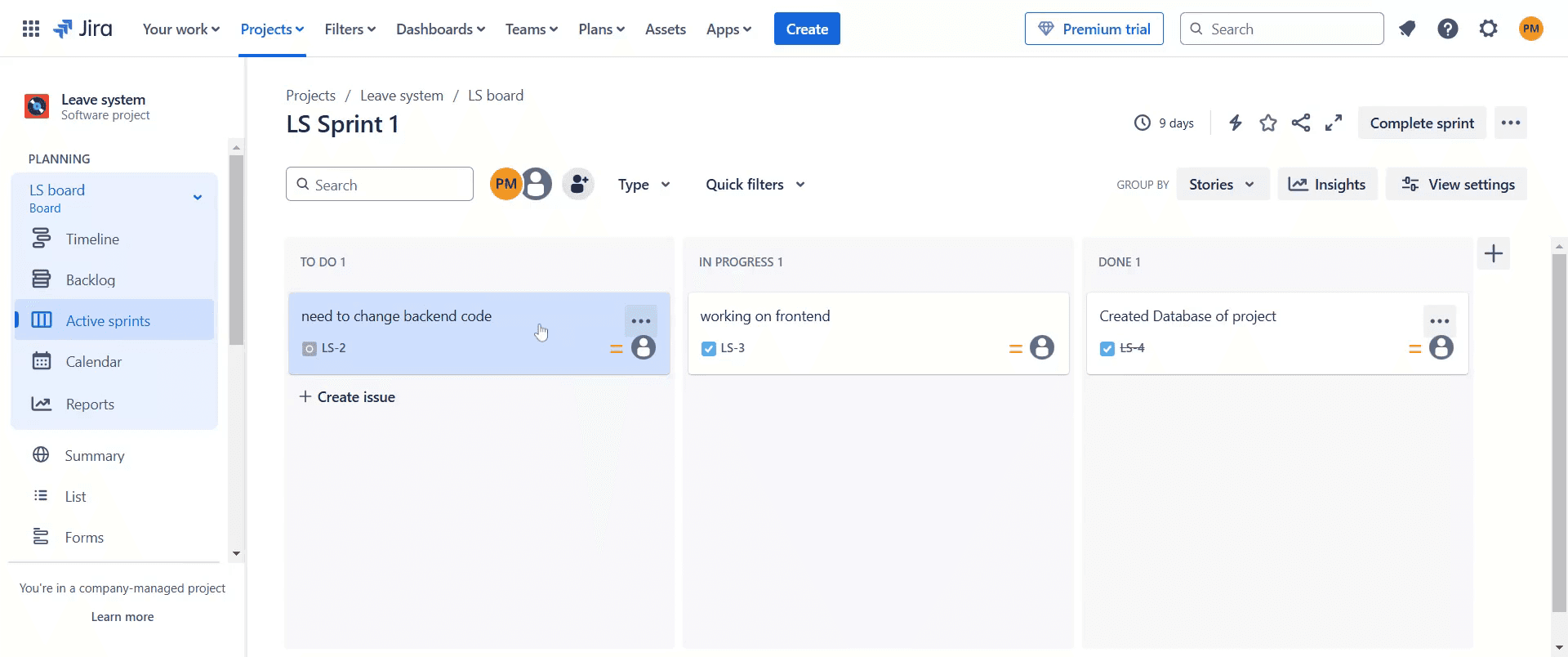
Step 1
Click on the specific issue to which you want to add a CC.
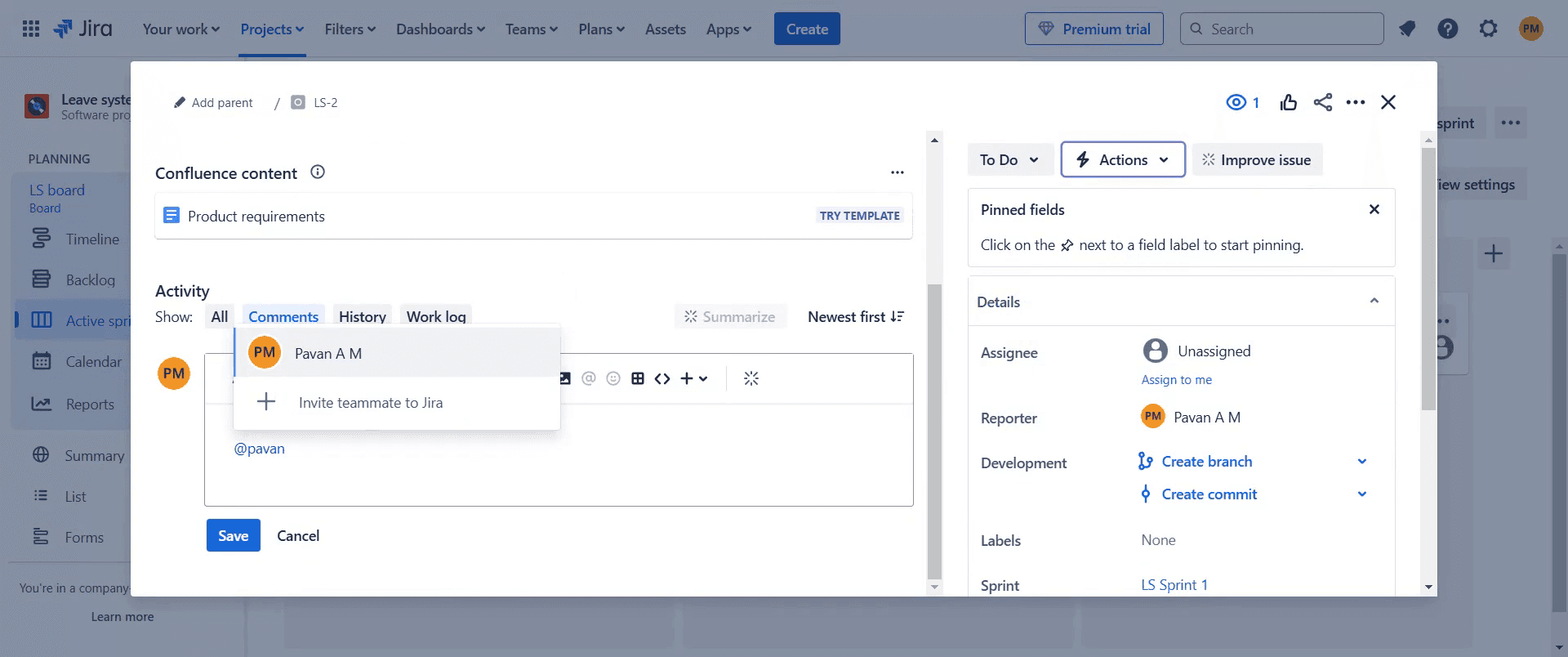
Step 2
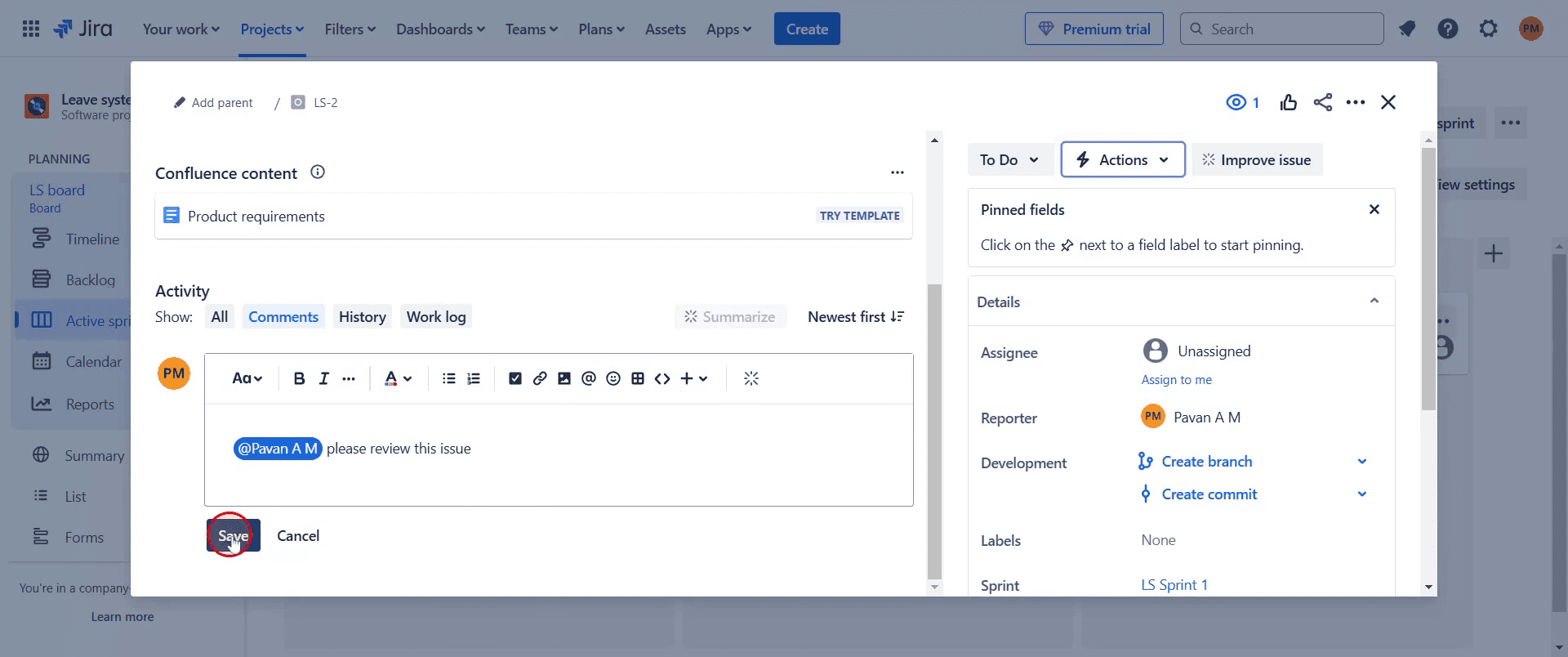
Next, add a comment by typing the @ symbol followed by the individual's name.
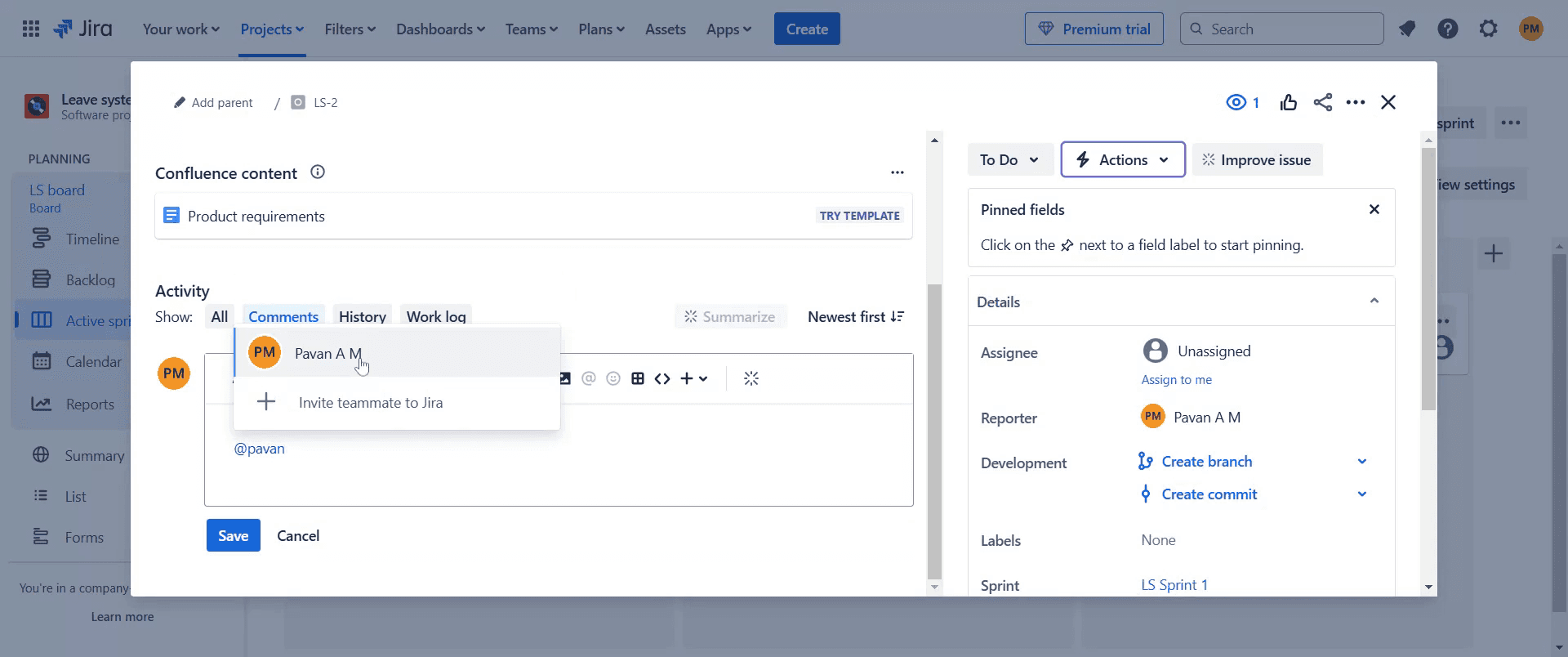
Step 3
Select the person you want to review the issue.
Step 4
Click the save button to finalize your changes.
Step 5
The mentioned users will receive a notification about the comment, similar to a CC in email.
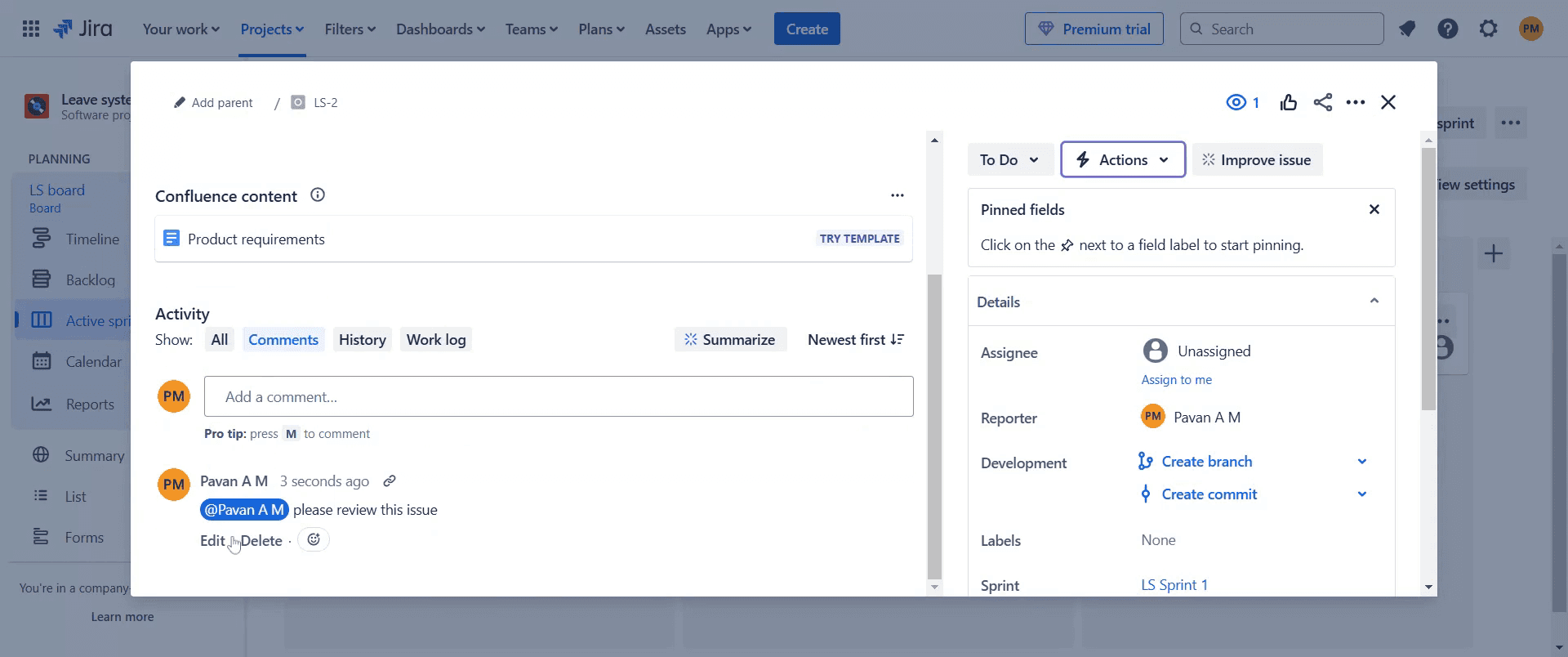
This is a step-by-step guide on how to add CC in Jira comments.
Pro-tips for adding CC in Jira comment
Use the
@mentionfeature to notify specific users when adding a comment in Jira.Ensure that the mentioned users have the correct permissions to view the comment and issue details.
Utilize Jira automation rules to send email notifications when specific users are mentioned in comments.
Common pitfalls & how to avoid them while adding CC in Jira comment
Mentioning users who don’t have access verify user permissions to ensure they can view the issue and comment.
Forgetting to use
@mentionalways type@followed by the user’s name to properly notify them.Overusing mentions avoid excessive mentions in a single comment to prevent unnecessary notifications.
Common FAQs for adding CC in Jira comment
Will mentioned users receive a notification?
Yes, Jira sends an email notification when a user is mentioned in a comment.Can I mention multiple users in a single comment?
Yes, you can mention multiple users by using@mentionfor each person.What if a mentioned user does not receive a notification?
Check if the user has notifications enabled and has permission to view the issue.Can I notify external users who don’t have Jira access?
No, mentions only work for users within the Jira system who have access to the project.
If you're an instructor or content creator looking to make tutorial videos, give Trupeer.ai a try. It transforms rough screen recordings into polished, studio-style videos that are ready for sharing with your audience. Plus, it automatically generates a step-by-step guide based on the video you create. Fascinating, right? Start by creating your first tutorial for free with Trupeer.ai.

