
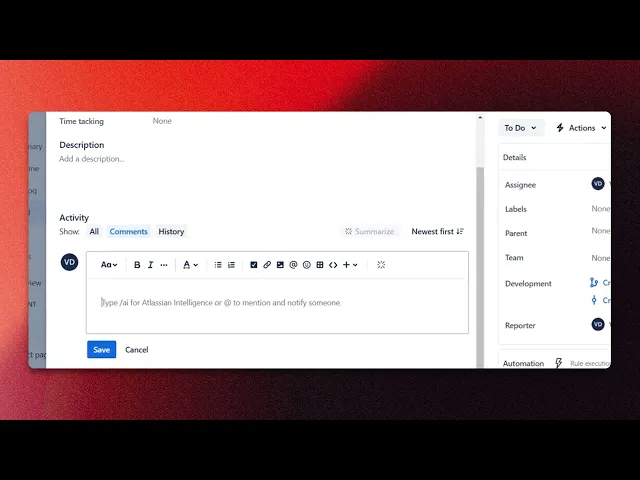
How to Add Comments in Jira
Discover the step-by-step process of adding comments in Jira. Enhance collaboration and streamline communication within your project management tasks.
This document outlines the process of adding comments to a Jira ticket, ensuring your communication is clear and well-organized. Follow these steps to effectively mention team members, format your text, and include multimedia elements as needed.
Step 1
Selecting the specific ticket,
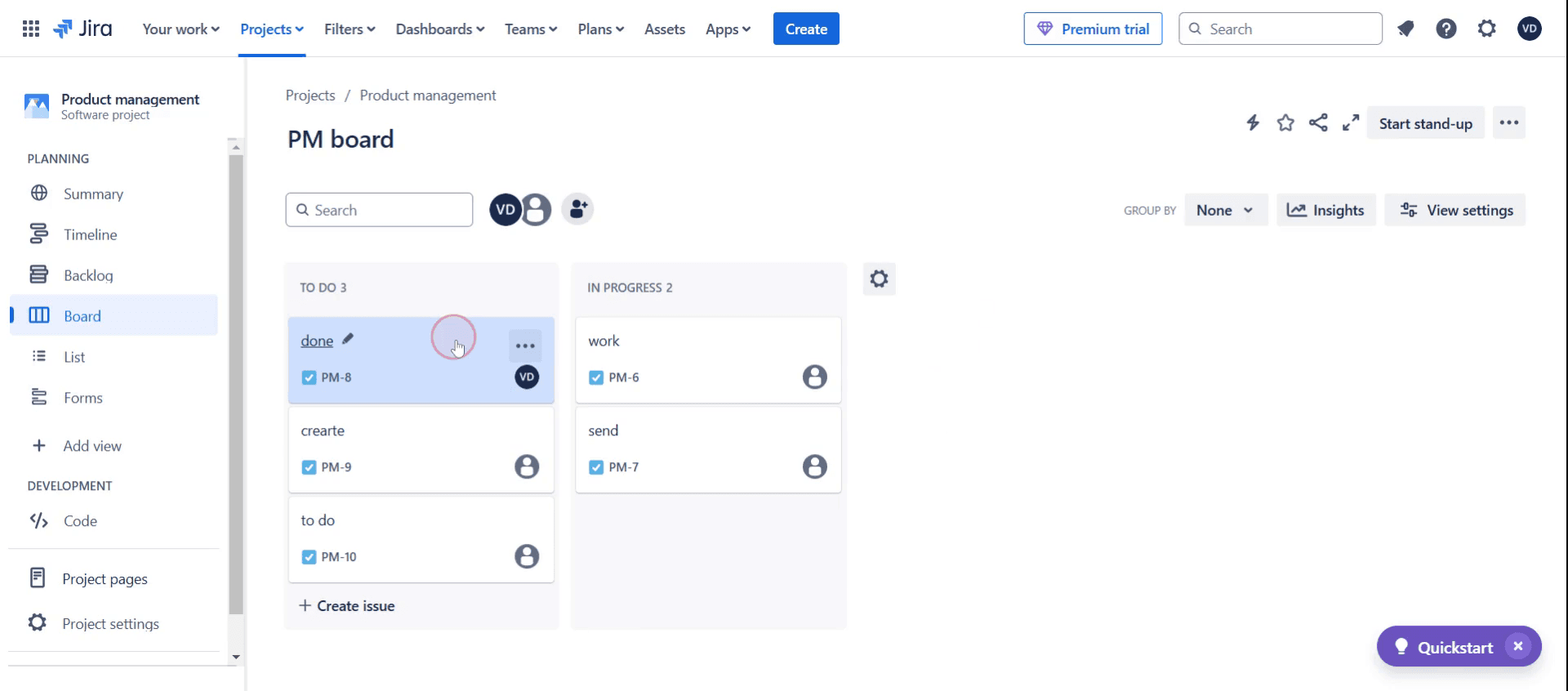
Step 2
Click on the Add Comment section,
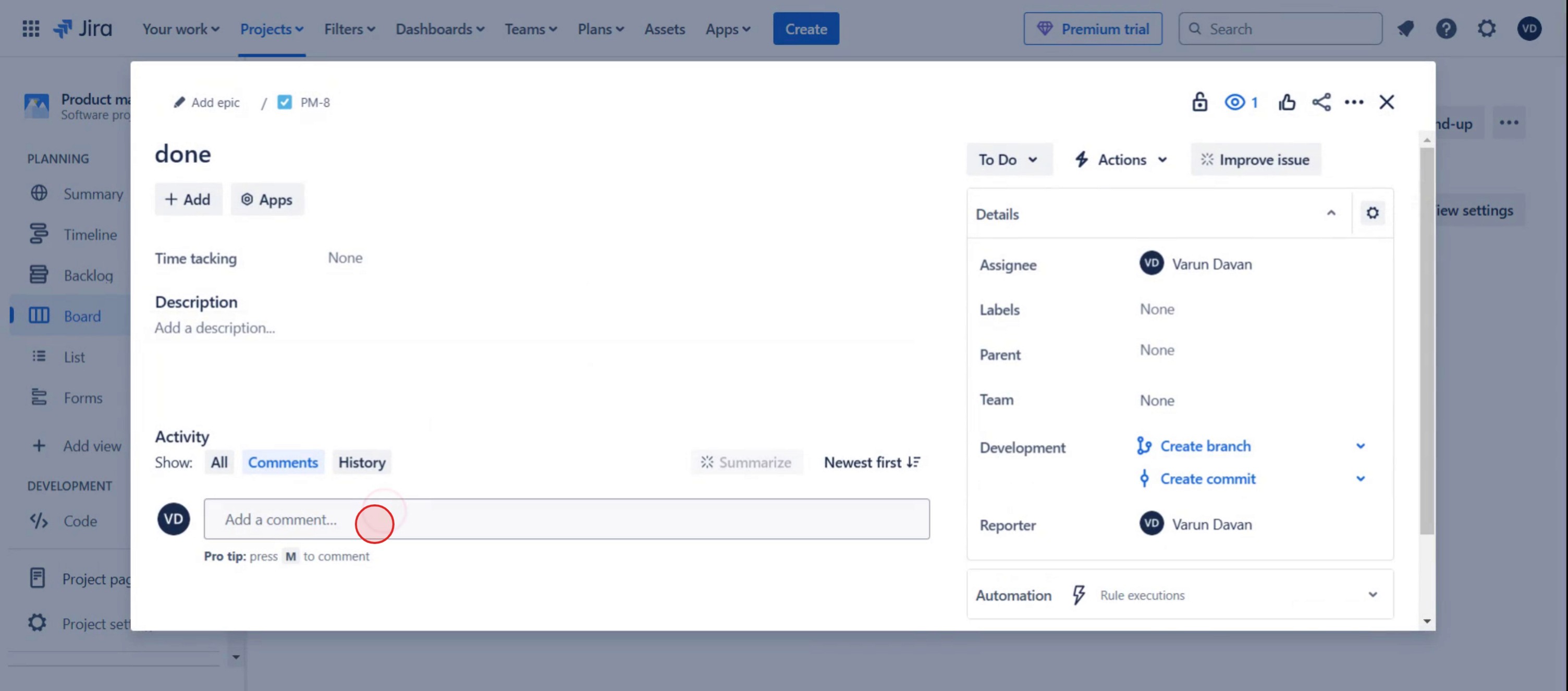
Step 3
And typing your comment, Begin by including @ and type their name.
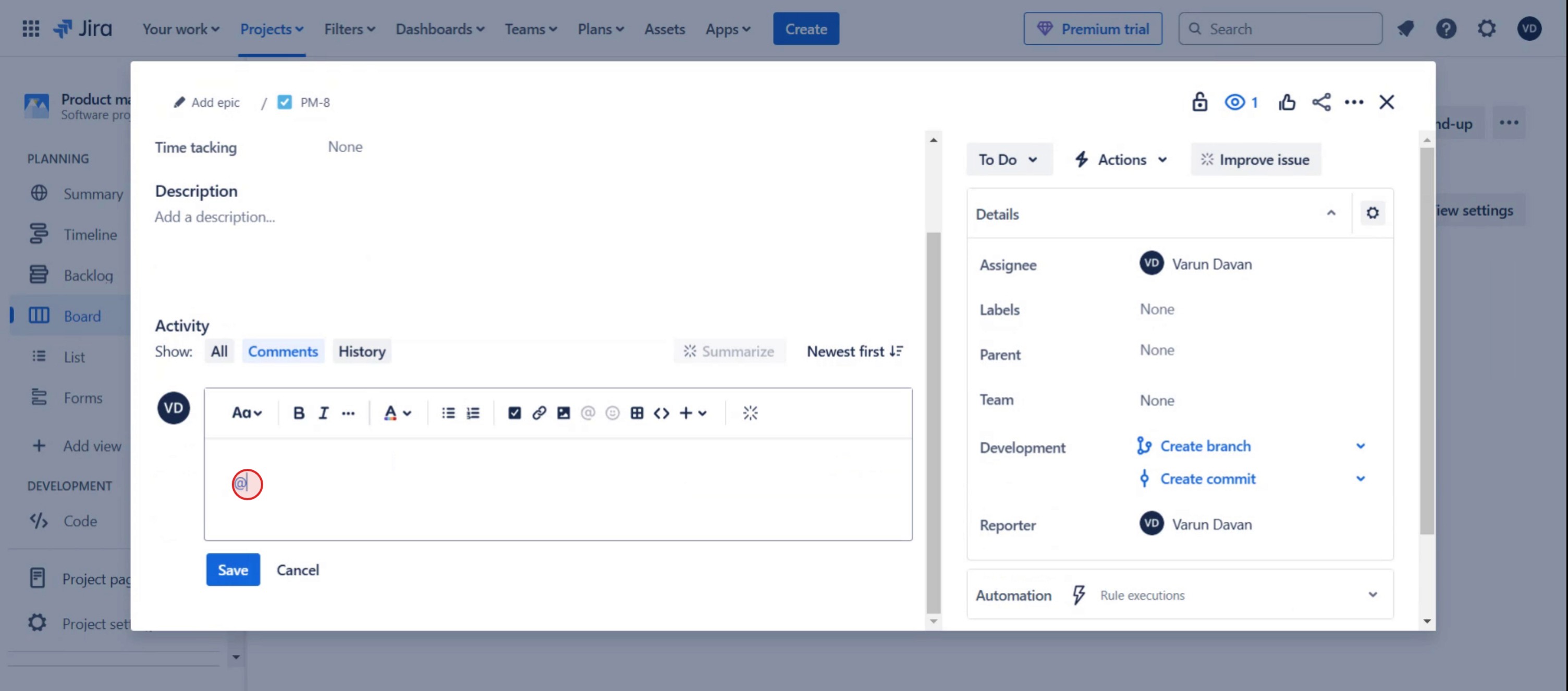
Step 4
Select the person name.
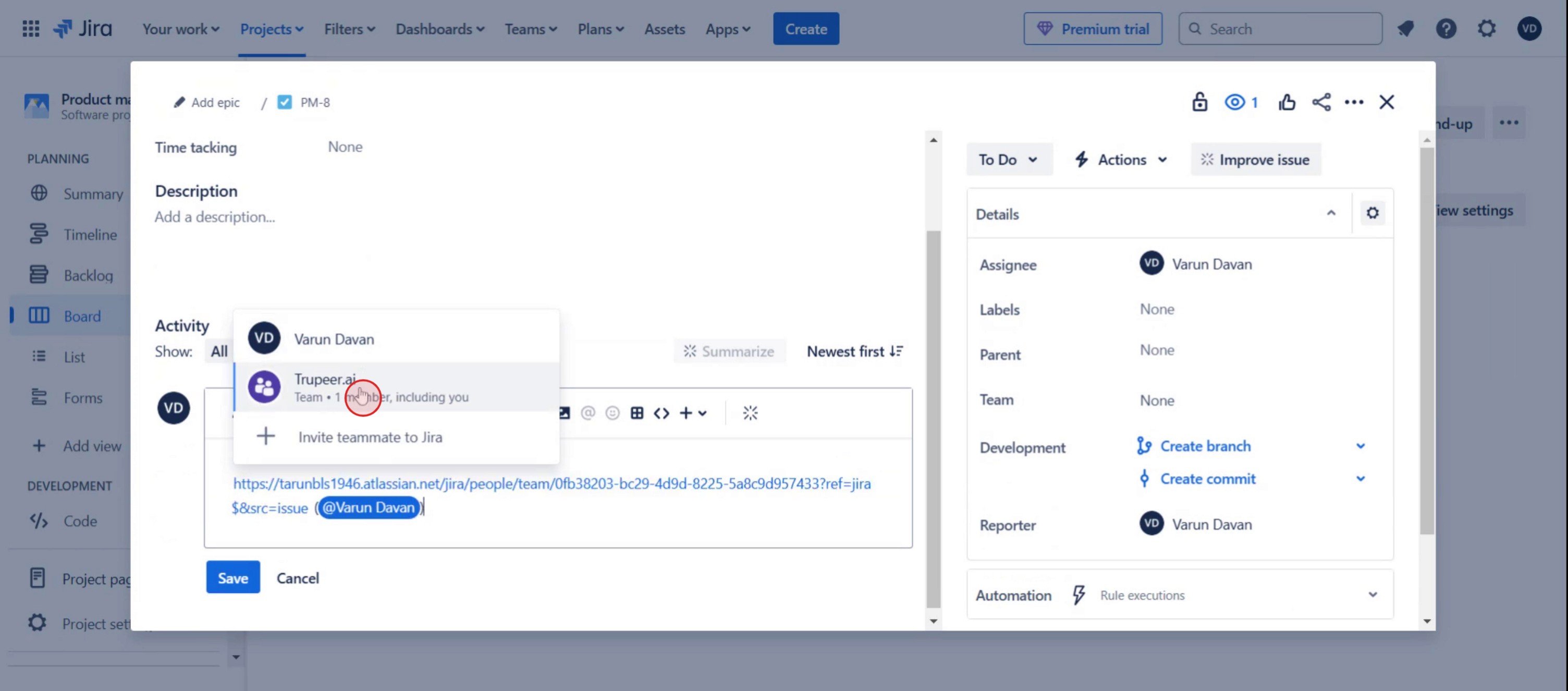
Step 5
You can customize the text by using bold formatting, and you can also include images and emojis as necessary.
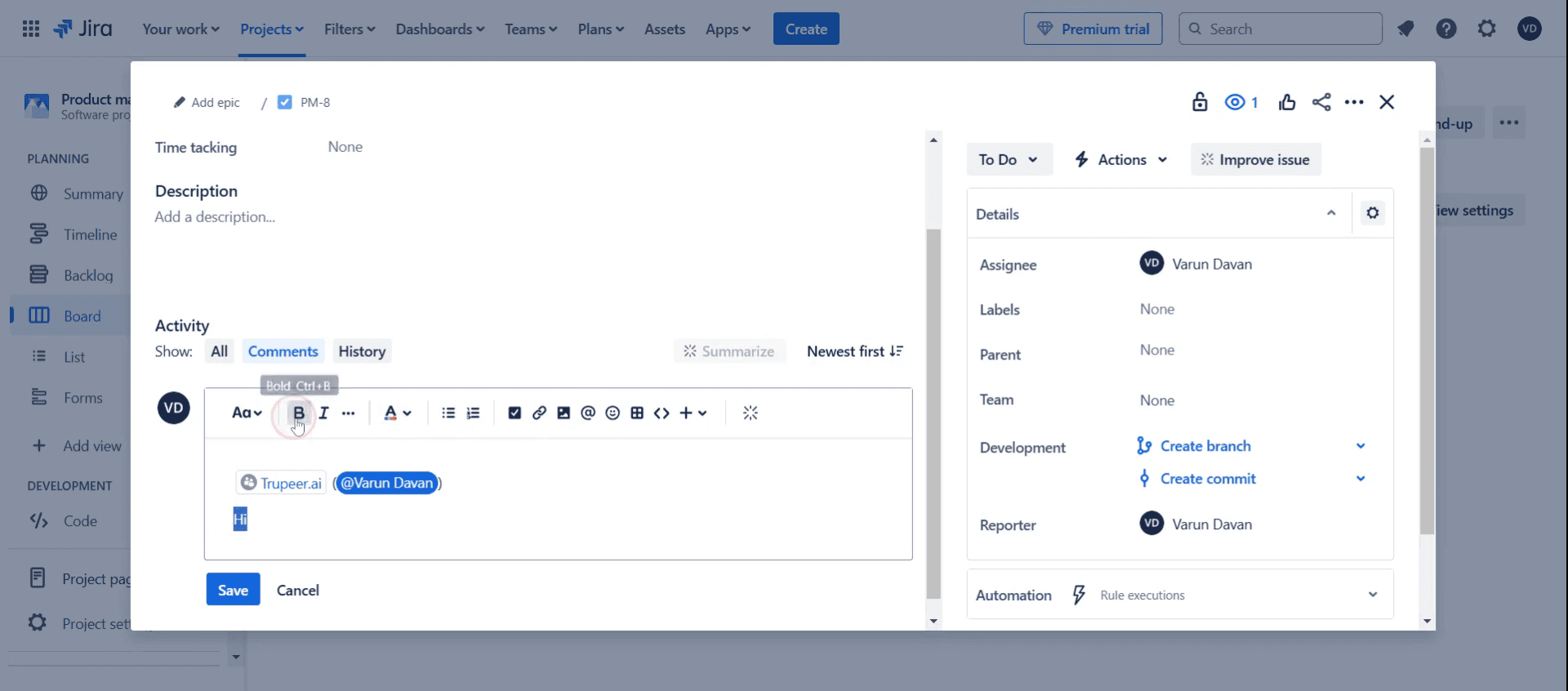
Step 6
Click on the Save button.
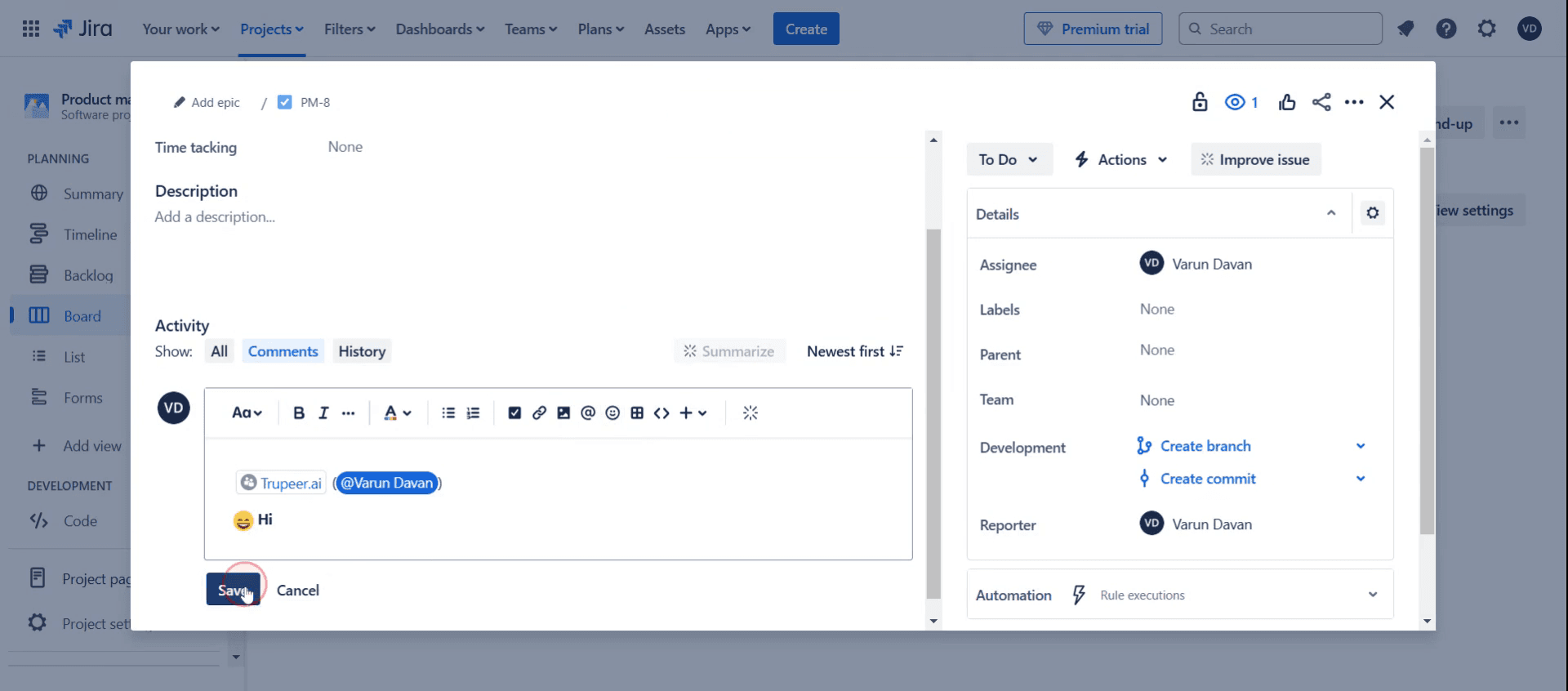
This is a step-by-step guide on how to add Comments in Jira.
Pro tips on how to add comments in Jira
Use @mentions to tag team members in comments and ensure they receive notifications for faster responses.
Format your comments with bold, italics, and bullet points for better readability, especially in complex discussions.
Use the Restrict Comment option when adding sensitive information to limit visibility to specific users or groups.
Common pitfalls and how to avoid them
Adding comments without tagging relevant team members may cause delays—always use @mentions to notify the right people.
Posting long, unstructured comments can make it hard to follow—use formatting options like bullet points and bold text for clarity.
Forgetting to check comment restrictions can lead to information being shared too broadly—always review permissions before posting.
Common FAQs on how to add comments in Jira
Can i edit or delete a comment in Jira?
Yes, if you have the necessary permissions, you can edit or delete your comments by clicking the options menu next to your comment.Why can’t i add comments in Jira?
If you can’t add comments, check your project permissions or ask your Jira administrator to enable commenting for your role.How do i tag someone in a Jira comment?
Use the @mention feature by typing @username to tag a specific team member and notify them instantly.Can i restrict who sees my comments in Jira?
Yes, Jira allows you to restrict comments to specific users, roles or groups by selecting the appropriate visibility settings before posting.
If you're an instructor or content creator looking to make tutorial videos, give a try. It transforms rough screen recordings into polished, studio-style videos that are ready for sharing with your audience. Plus, it automatically generates a step-by-step guide based on the video you create. Fascinating, right? Start by creating your first tutorial for free with trupeer.ai .

