
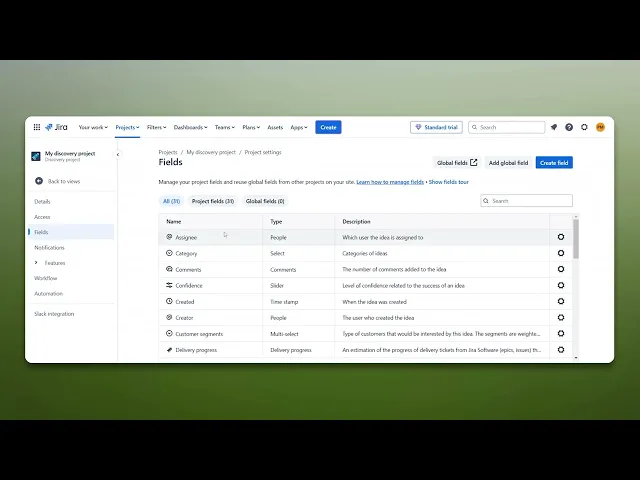
How To Add A Field To A Project In Jira
Discover the step-by-step process to add a field to your Jira project. Enhance your project management skills and customize your workflow effectively.
This document provides detailed instructions on how to add a field to a project in Jira. Follow these steps to navigate the Jira interface and successfully create a new field tailored to your project's needs.
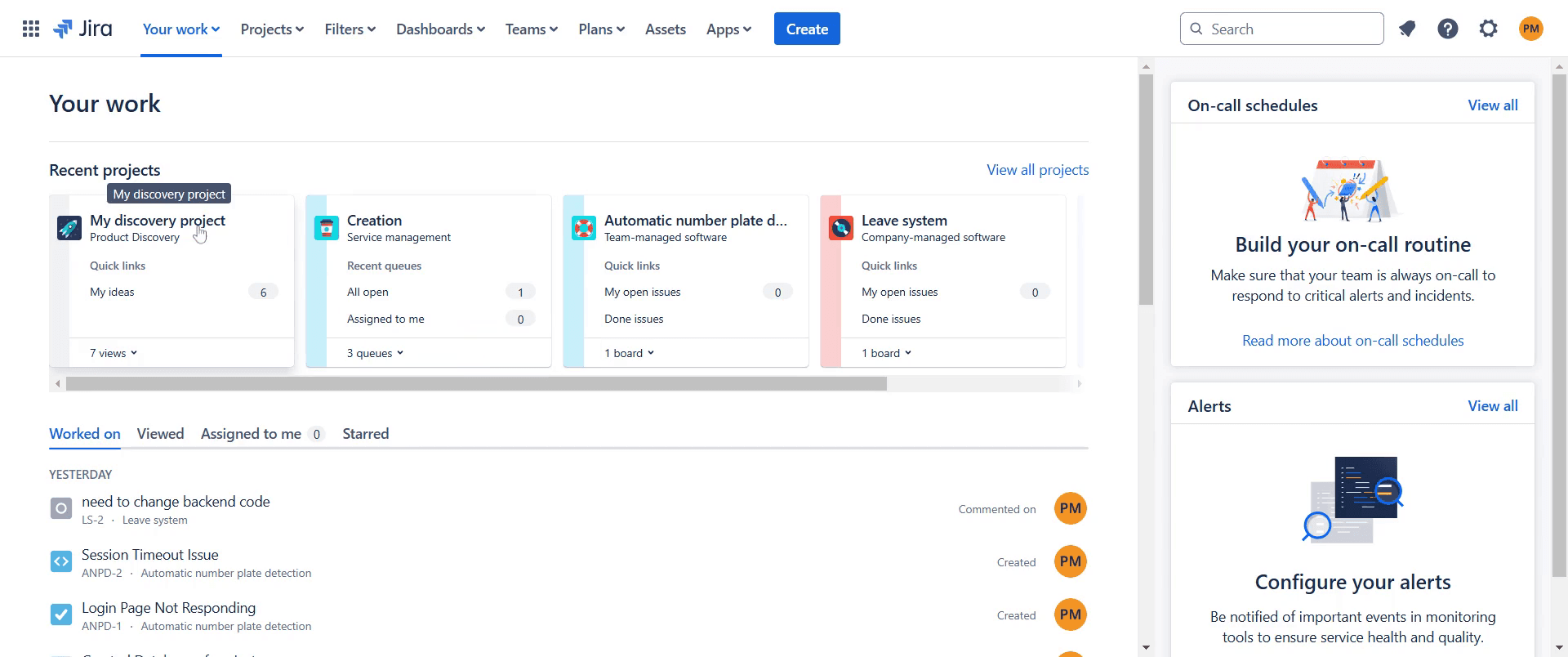
Step 1
Go to the project in Jira to which you want to add a field.
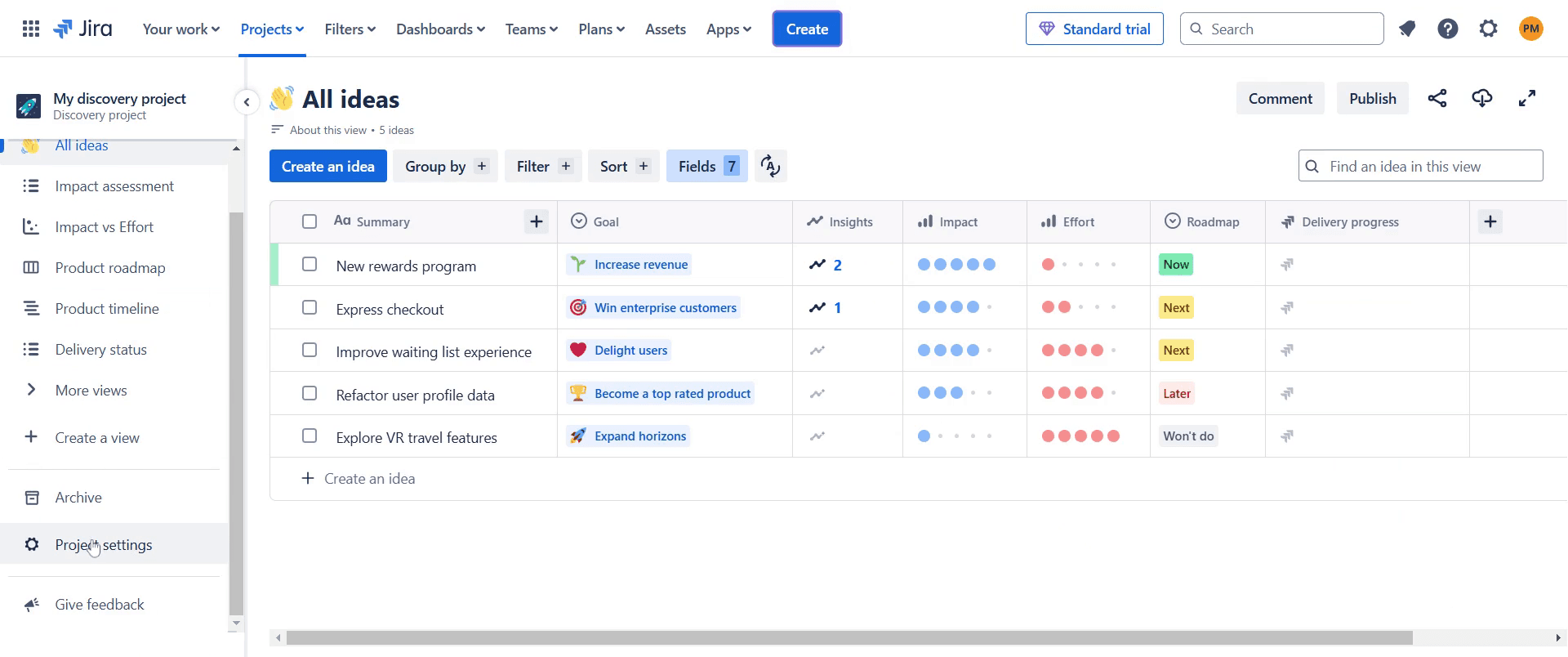
Step 2
Click on the option labeled "Project Settings."
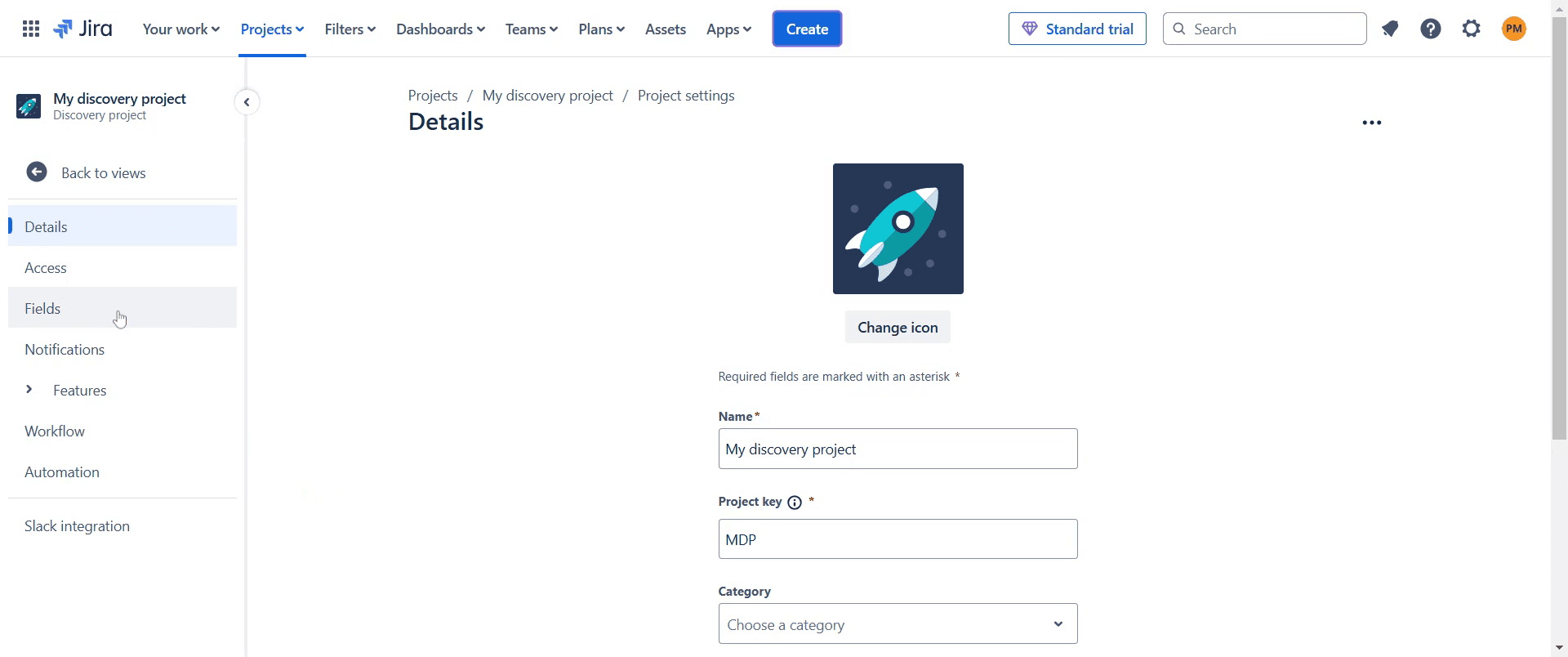
Step 3
Click on the option labeled "Fields."
Step 4
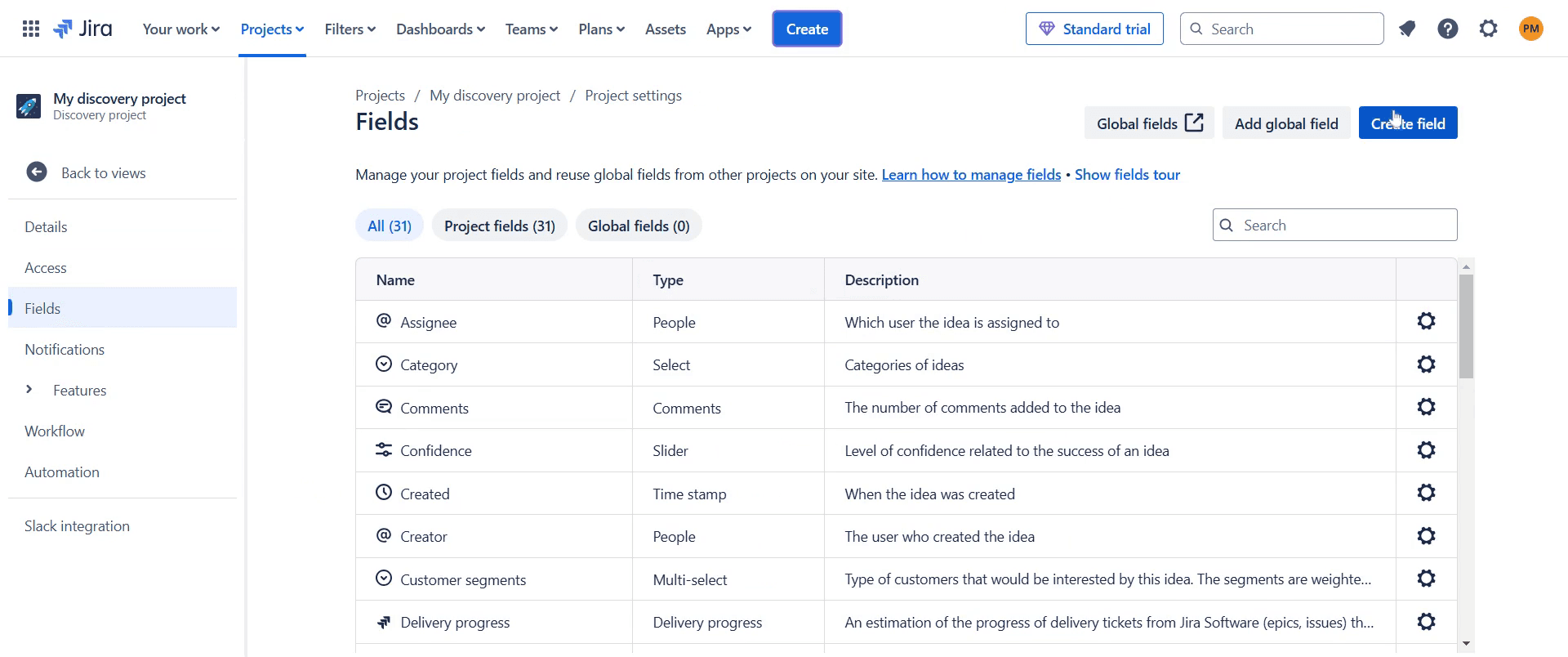
Click on "Create Field" and enter a name for your new field.
Step 5
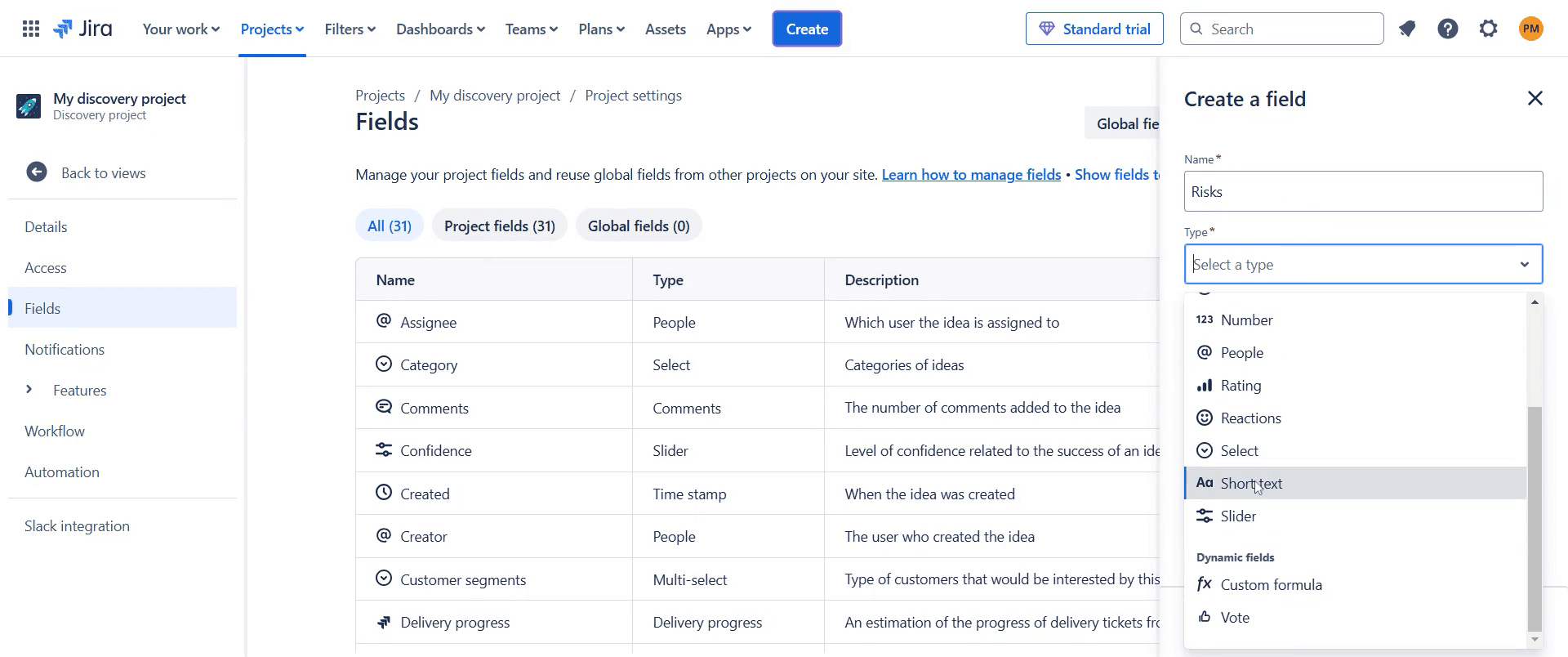
Select the appropriate type for your new field.
Step 6
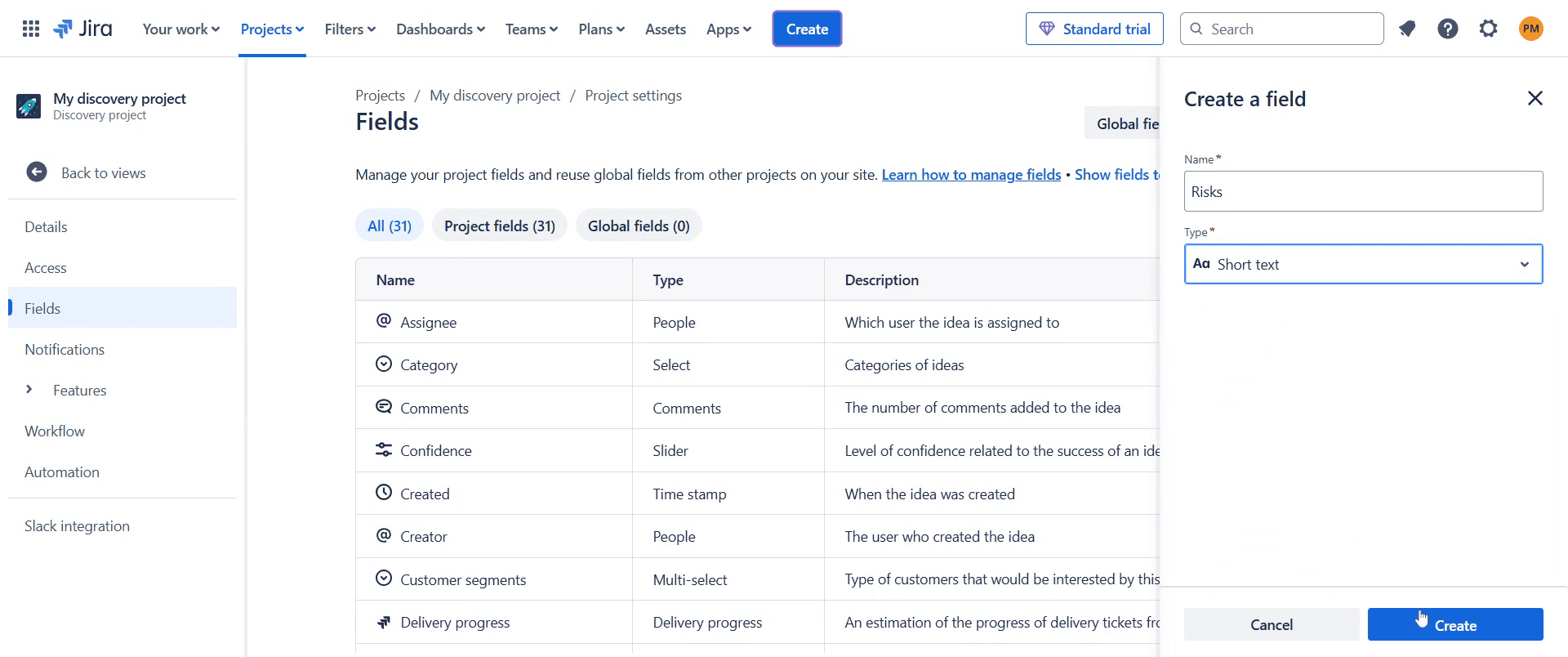
Click on "Create" to finalize the process.
Step 7
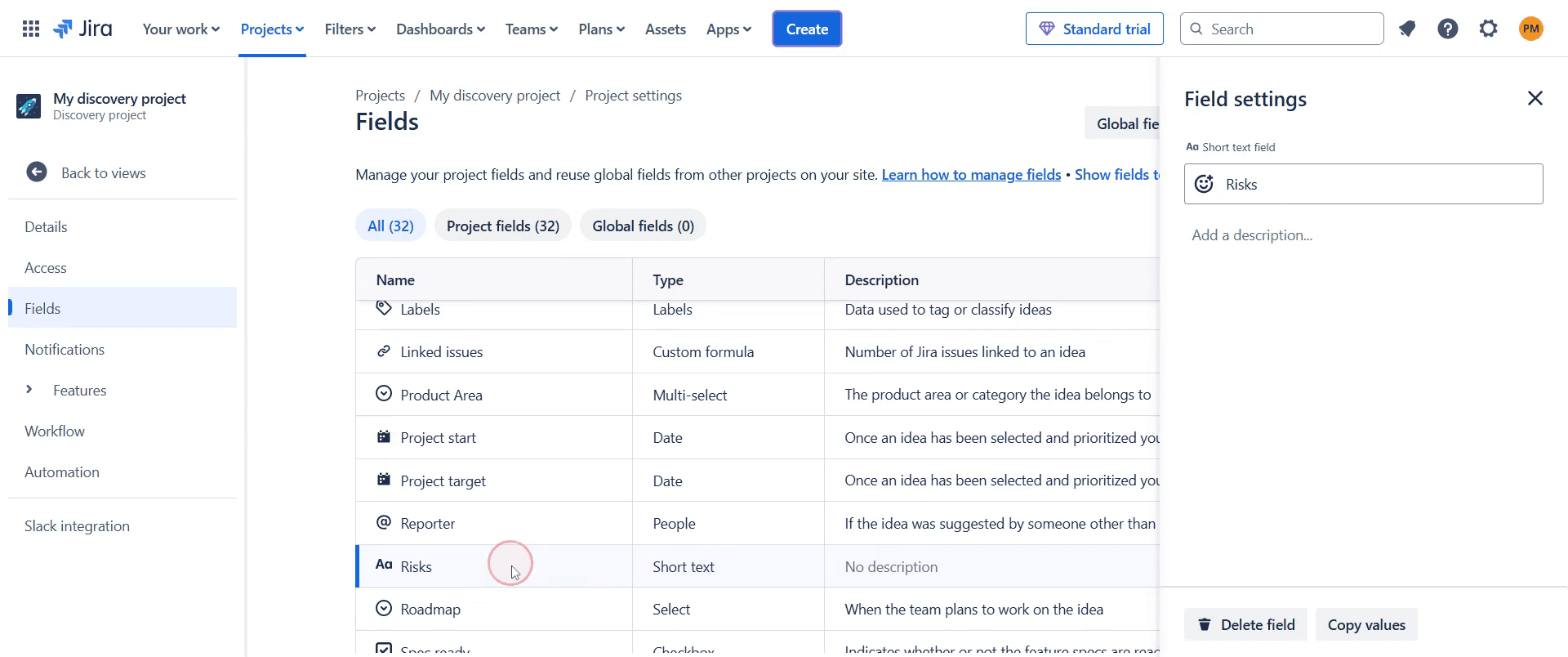
The new field will now appear in your project's field list.
This is a step-by-step guide on how to add a field to a project in Jira.
Pro-tips for adding a field to a project in Jira
Navigate to Jira Administration, go to Issues, and select Custom Fields to add a new field.
Choose the appropriate field type, such as text, number, date, or dropdown, to match the data you need to collect.
Associate the field with the correct screens, field configurations, and contexts to ensure it appears where needed.
Common pitfalls & how to avoid them while adding a field to a project in Jira
Not assigning the field to a screen, ensure the field is added to the relevant screen to make it visible in issues.
Using incorrect field types, choose the correct field type to avoid future limitations in data entry and reporting.
Forgetting to update permissions, verify that users have the necessary permissions to view and edit the field.
Common FAQs for adding a field to a project in Jira
Why is my field not showing in issues?
Ensure the field is added to the correct screens, field configurations, and issue types for the project.Can I make a field required in Jira?
Yes, you can set a field as required using Field Configuration Schemes.Can I delete a custom field after adding it?
Yes, but be cautious as deleting a field will remove all associated data permanently.
If you're an instructor or content creator looking to make tutorial videos, give Trupeer.ai a try. It transforms rough screen recordings into polished, studio-style videos that are ready for sharing with your audience. Plus, it automatically generates a step-by-step guide based on the video you create. Fascinating, right? Start by creating your first tutorial for free with Trupeer.ai.

