
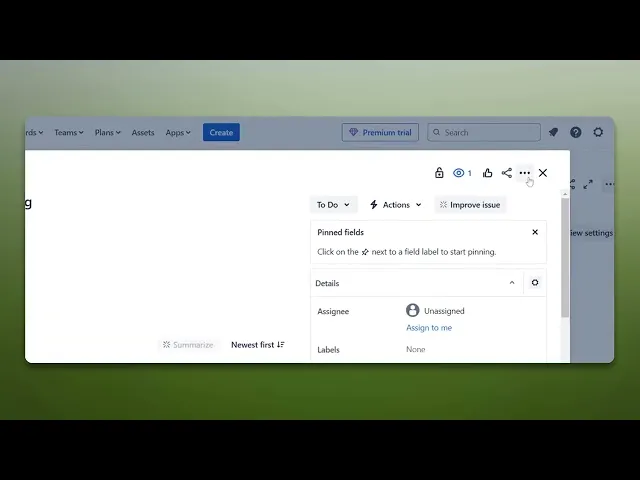
How To Add A Flag In Jira
Discover the step-by-step guide on how to add a flag in Jira. Enhance your project management skills and streamline your workflow effectively.
This document provides a concise walkthrough on how to add a flag to an issue in Jira. Follow the steps carefully to ensure successful flag addition.
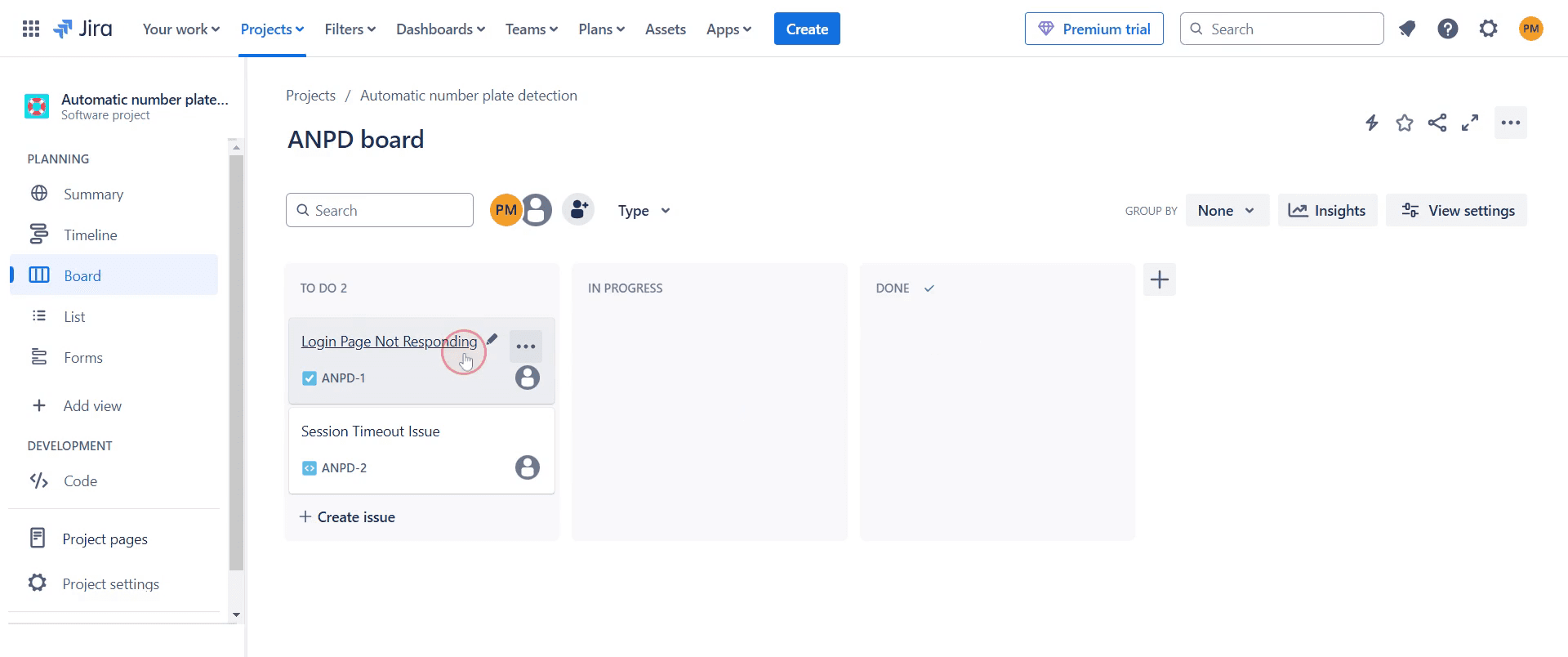
Step 1
Click on the "issue" to open its details.
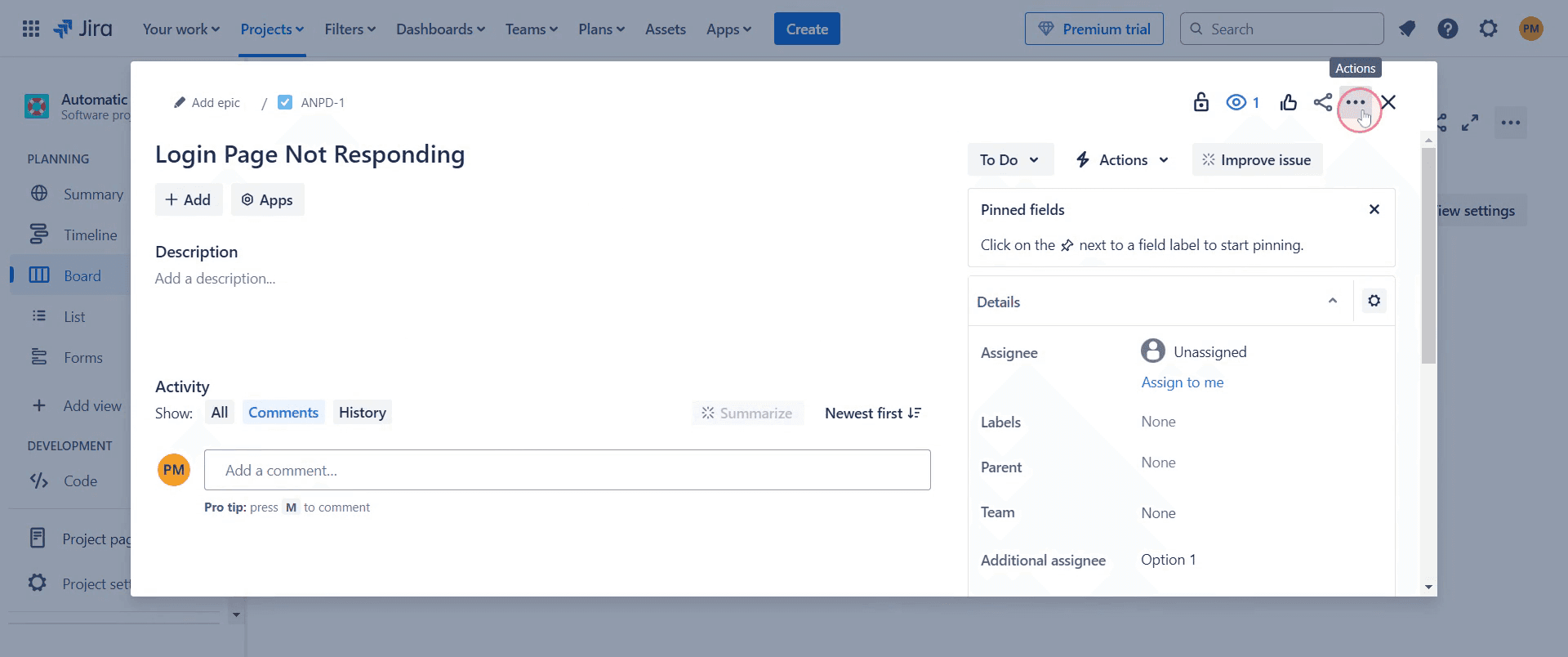
Step 2
Click on "ellipsis icon" option.
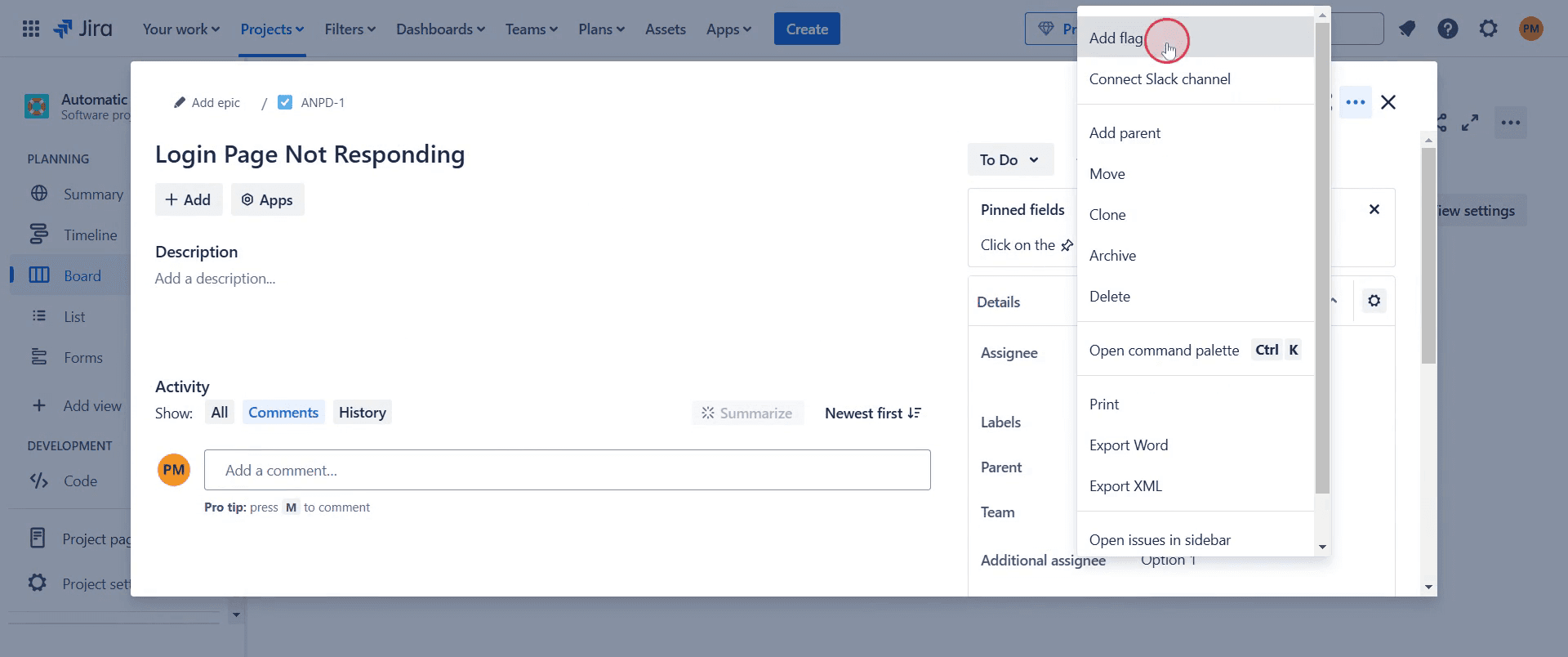
Step 3
Select the option labeled "Add Flag."
Step 4
You'll notice a red flag appears, indicating that the issue has been flagged.
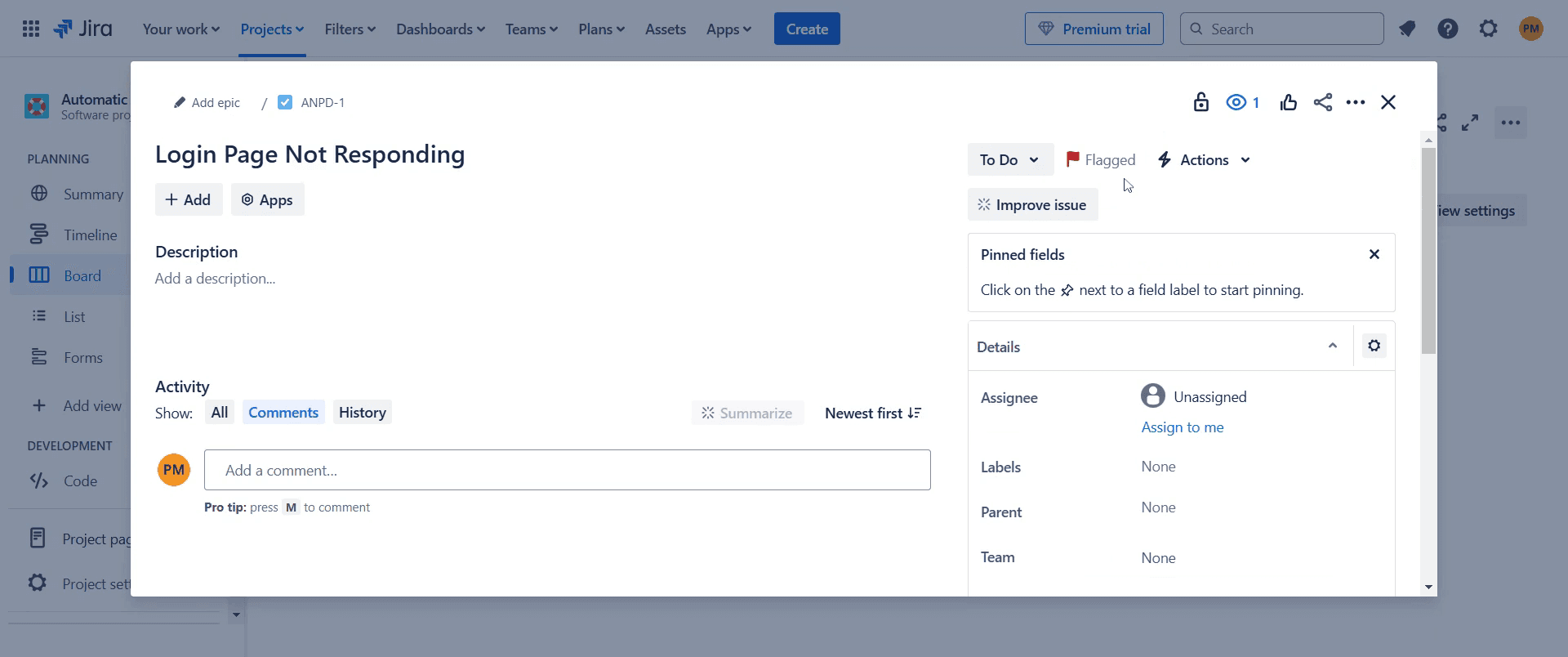
This is a step-by-step guide on how to add a flag in Jira.
Pro-tips for adding a flag in Jira
Use flags to highlight issues that need attention or are blocked.
Right-click on an issue in the board to quickly add or remove a flag.
Utilize Jira filters to create a list of flagged issues for easy tracking.
Common pitfalls & how to avoid them while adding a flag in Jira
Flag option not visible, ensure you are working within a Scrum or Kanban board where flags are supported.
Flags not saving, verify that you have the necessary project permissions to modify issue properties.
Too many flagged issues causing confusion, use flags selectively for only the most critical blockers.
Common FAQs for adding a flag in Jira
Can I remove a flag from an issue?
Yes, right-click the flagged issue and select Remove Flag to clear the indicator.Does adding a flag notify my team?
No, flags are visual markers only. Mention team members in a comment to notify them.Are flags available in all Jira project types?
Flags are primarily used in Jira Software projects with Scrum and Kanban boards.
If you're an instructor or content creator looking to make tutorial videos, give Trupeer.ai a try. It transforms rough screen recordings into polished, studio-style videos that are ready for sharing with your audience. Plus, it automatically generates a step-by-step guide based on the video you create. Fascinating, right? Start by creating your first tutorial for free with Trupeer.ai.

