
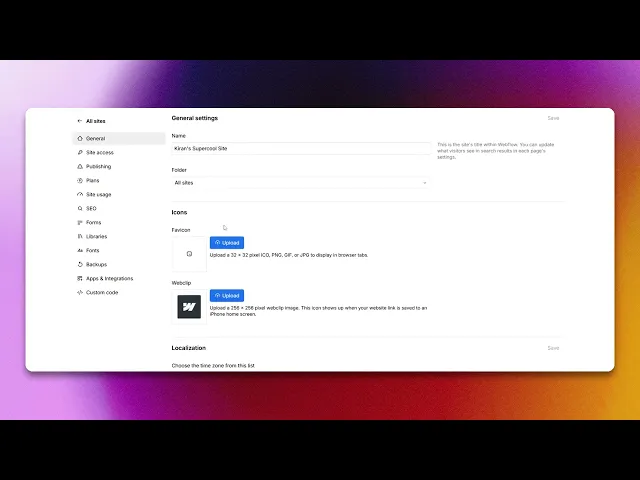
How To Add Icons In Webflow
Discover the step-by-step guide on how to add icons in Webflow. Enhance your website's design with our easy-to-follow instructions and tips.
This document provides a straightforward process to add icons in Web flow. By following the steps outlined below, you will be able to incorporate icons efficiently using the Web flow interface.
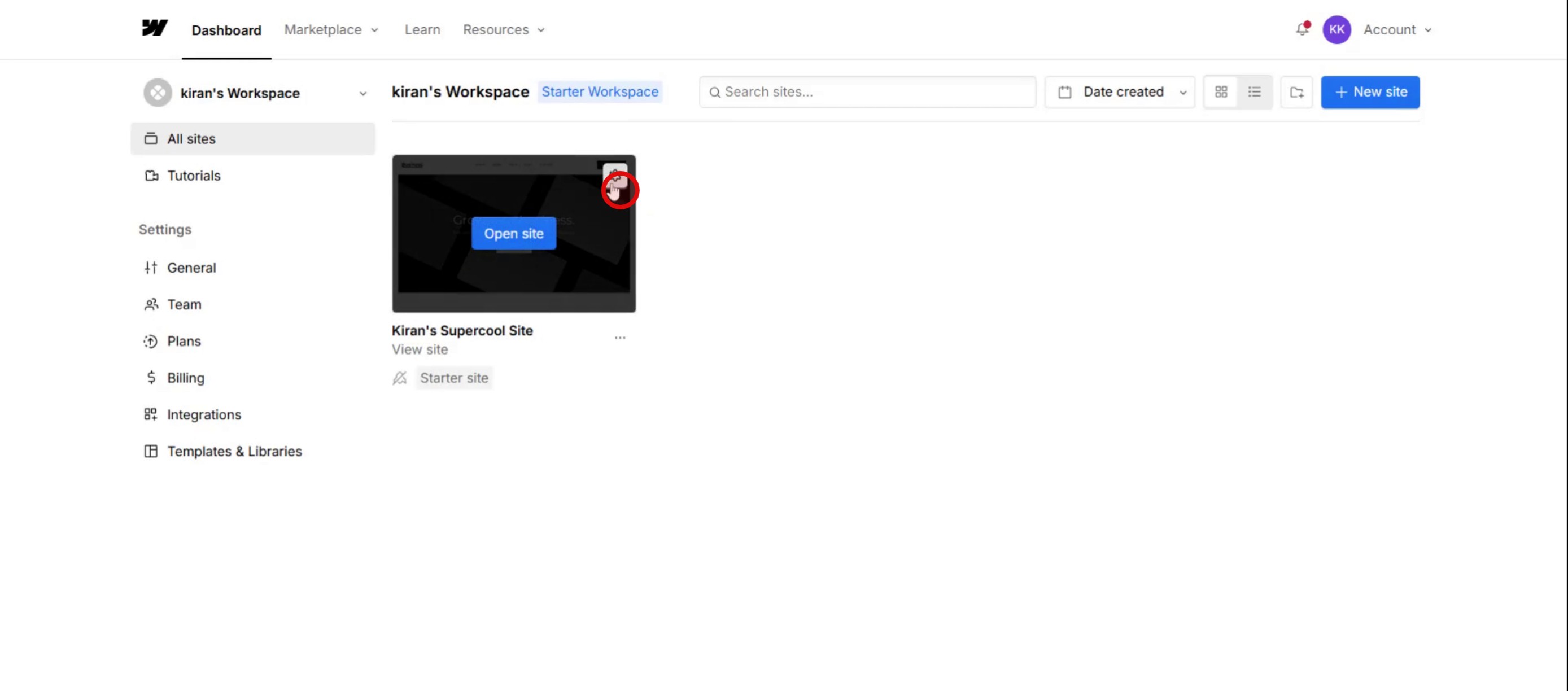
Step 1
Clicking on the settings icon.
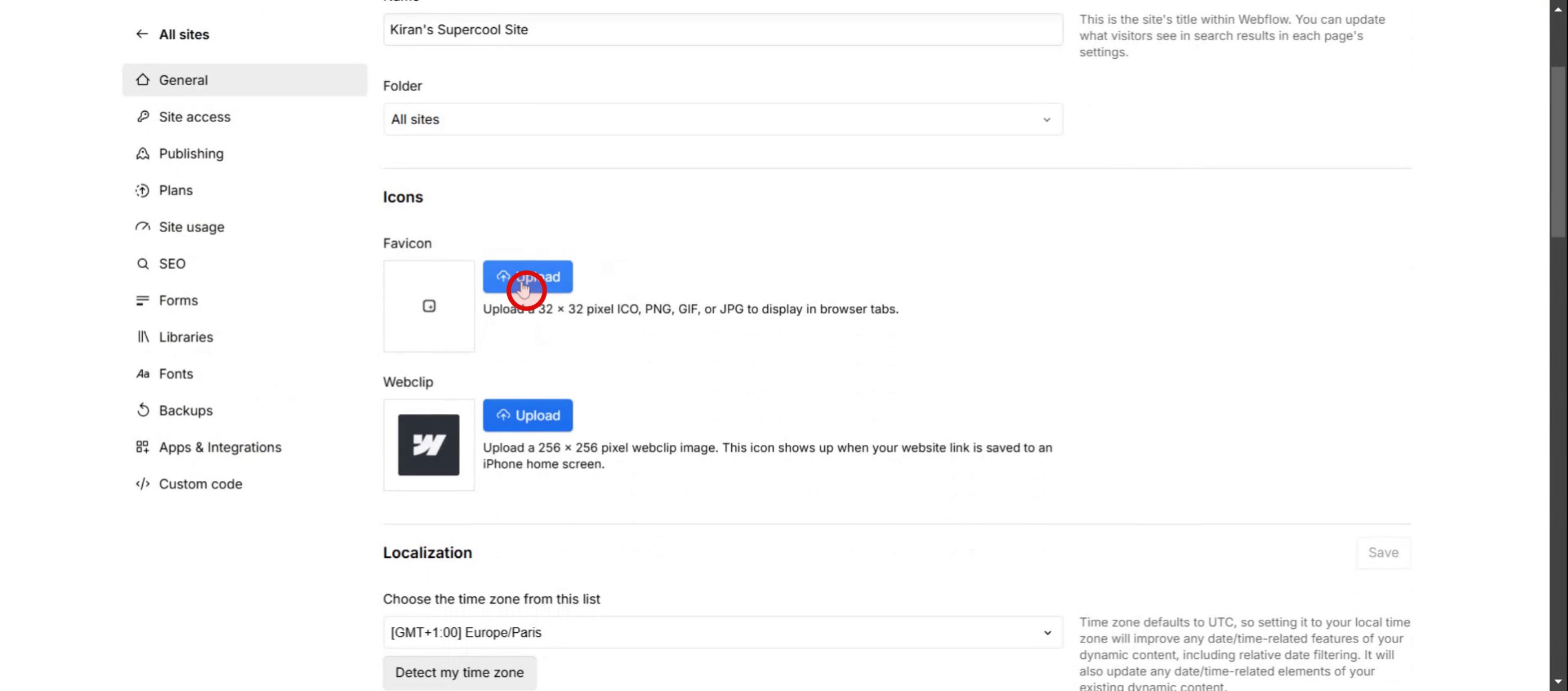
Step 2
Click on the upload button.
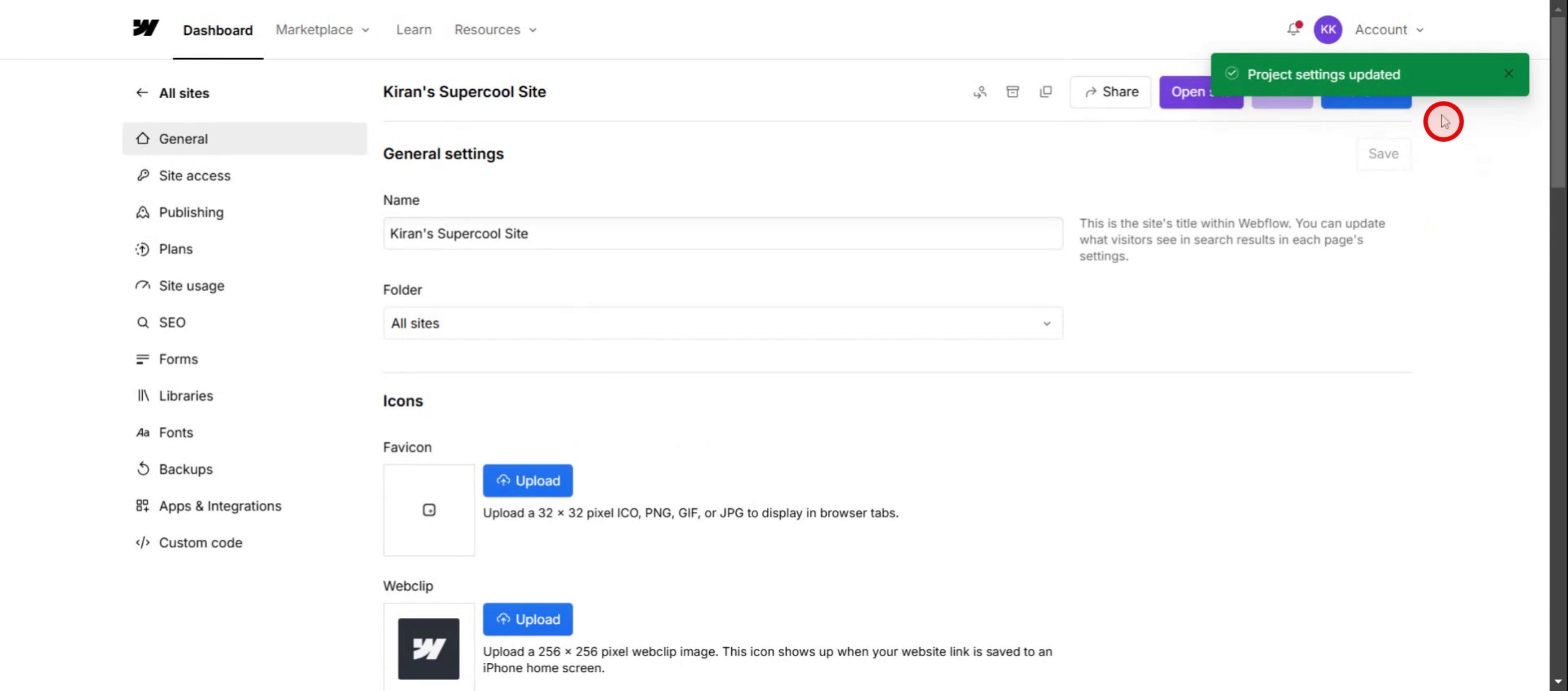
Step 3
Once the icon is uploaded, you can see the updates in the screen.
This is the step-by-step process to add icons in Web flow. Let’s explore some tips for it.
Pro-tips for adding icons in Web flow
Use Web flow's Built-in Assets Panel – Upload custom icons as SVG or PNG files and easily add them to your design using the Image or div Block elements.
Leverage Font Awesome or Other Icon Libraries – Web flow supports custom fonts, so you can use Font Awesome, Google Material Icons, or custom icon fonts for scalable icons.
Use SVG for High-Quality, Scalable Icons – SVG icons maintain crisp quality at any size without affecting page load speed. They also support custom styling with CSS.
Common pitfalls & how to avoid them
Using Low-Quality or Pixelated Icons – PNG icons may look blurry when resized. Use SVG files for better quality and performance.
Not Optimizing Icon File Sizes – Large PNG or JPG icons can slow down your site. Optimize file sizes using tools like Tiny PNG or SVGOMG.
Forgetting to Set Accessibility Tags – Always add Alt text to icons to improve SEO and accessibility for visually impaired users.
Common FAQs for adding icons in Web flow
Can i use Font Awesome icons in Web flow?
Yes. Add Font Awesome by embedding the CDN link in the Web flow Custom Code section, then use<i>tags in HTML Embed elements.What’s the best format for icons in Web flow?
SVG files are the best choice as they are lightweight, scalable, and customizable with CSS.How do i customize the color of an icon in Web flow?
If using SVG icons, you can change their color using CSS Fill properties in the Web flow Designer. PNG icons require editing in an external tool.
If you're an instructor or content creator looking to make tutorial videos, give a try. It transforms rough screen recordings into polished, studio-style videos that are ready for sharing with your audience. Plus, it automatically generates a step-by-step guide based on the video you create. Fascinating, right? Start by creating your first tutorial for free with trupeer.ai .

