
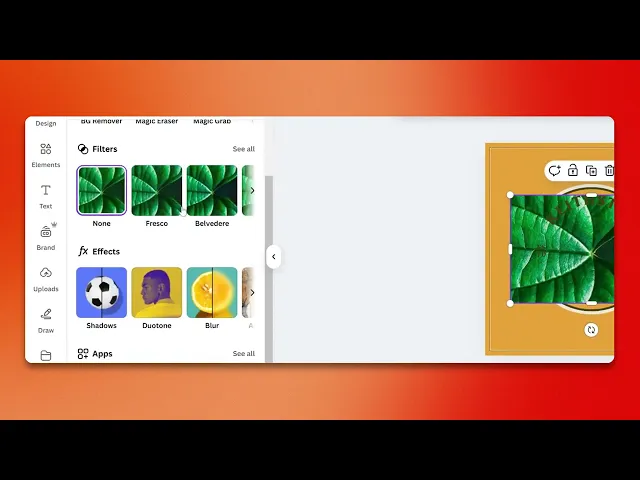
How To Add Outline In Canva Design
Discover how to add outlines to your designs in Canva with our step-by-step guide. Enhance your visuals and make your projects stand out effortlessly.
This document provides a proper guide on how to add an outline to a photo in Canva. Follow these steps to enhance your design by incorporating a professional-looking outline.
Step 1
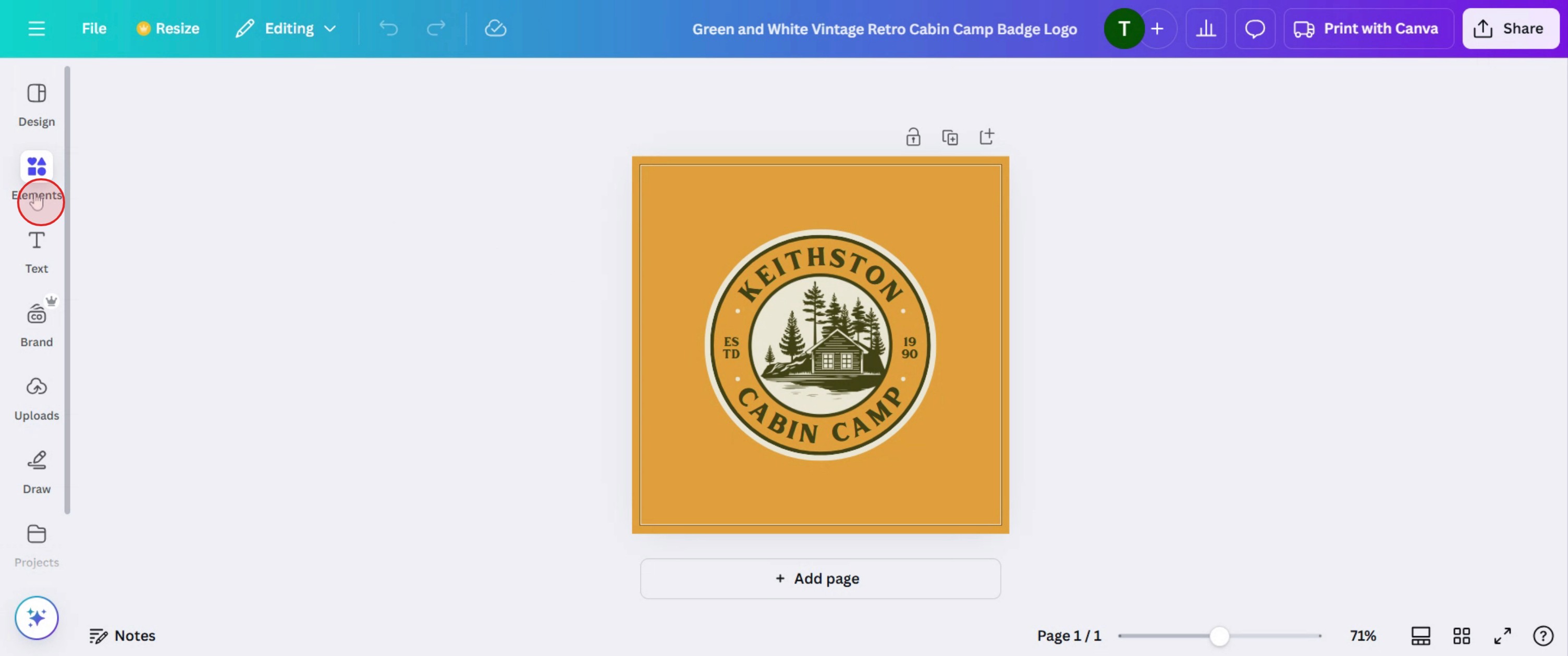
Click on the Elements.
Step 2
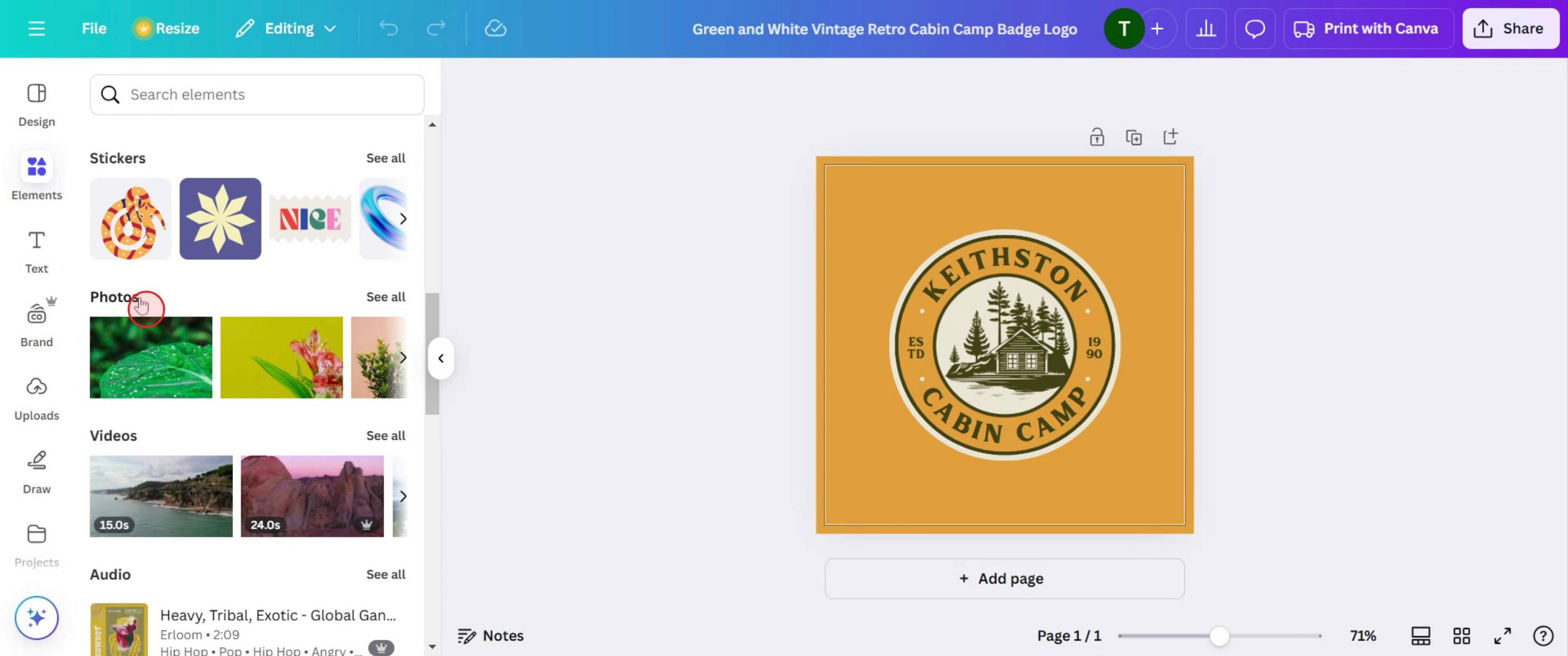
Click on photos option.
Step 3
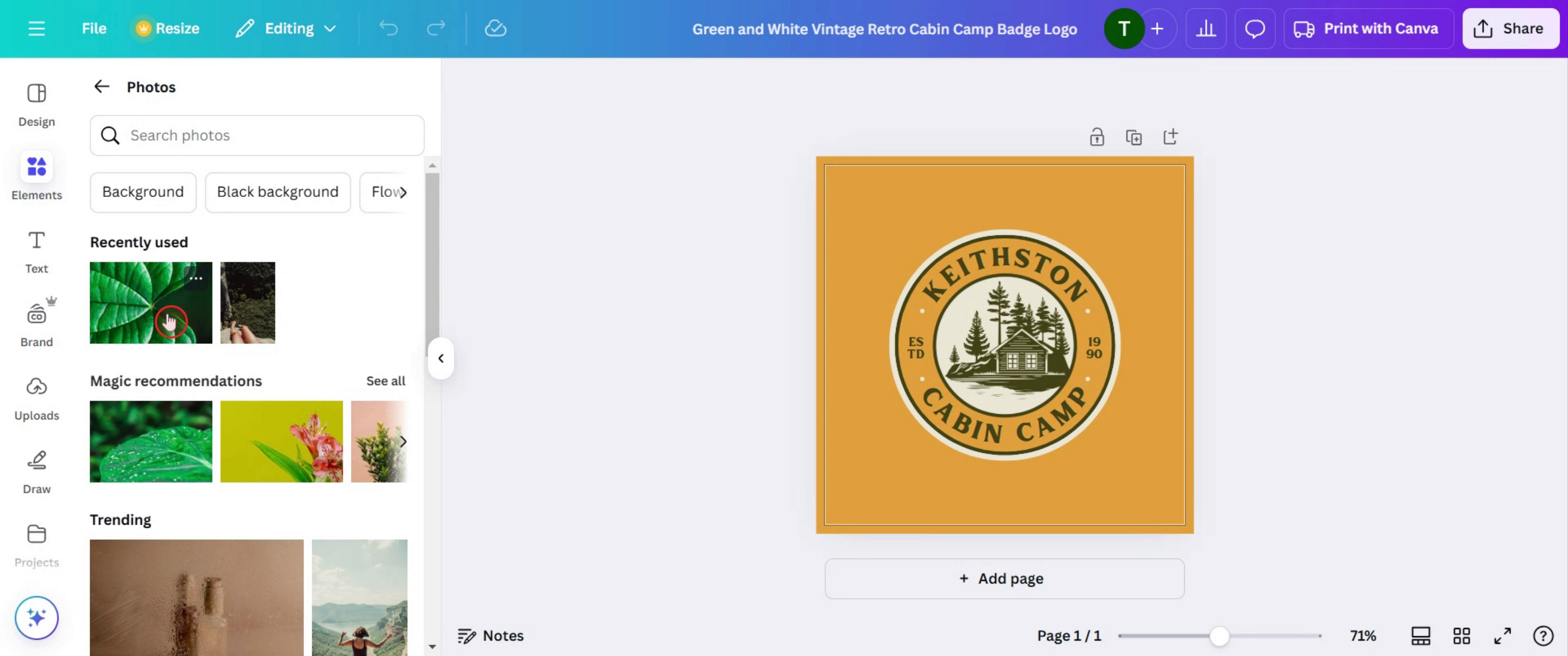
Then select a photo.
Step 4
Click on the Edit option.
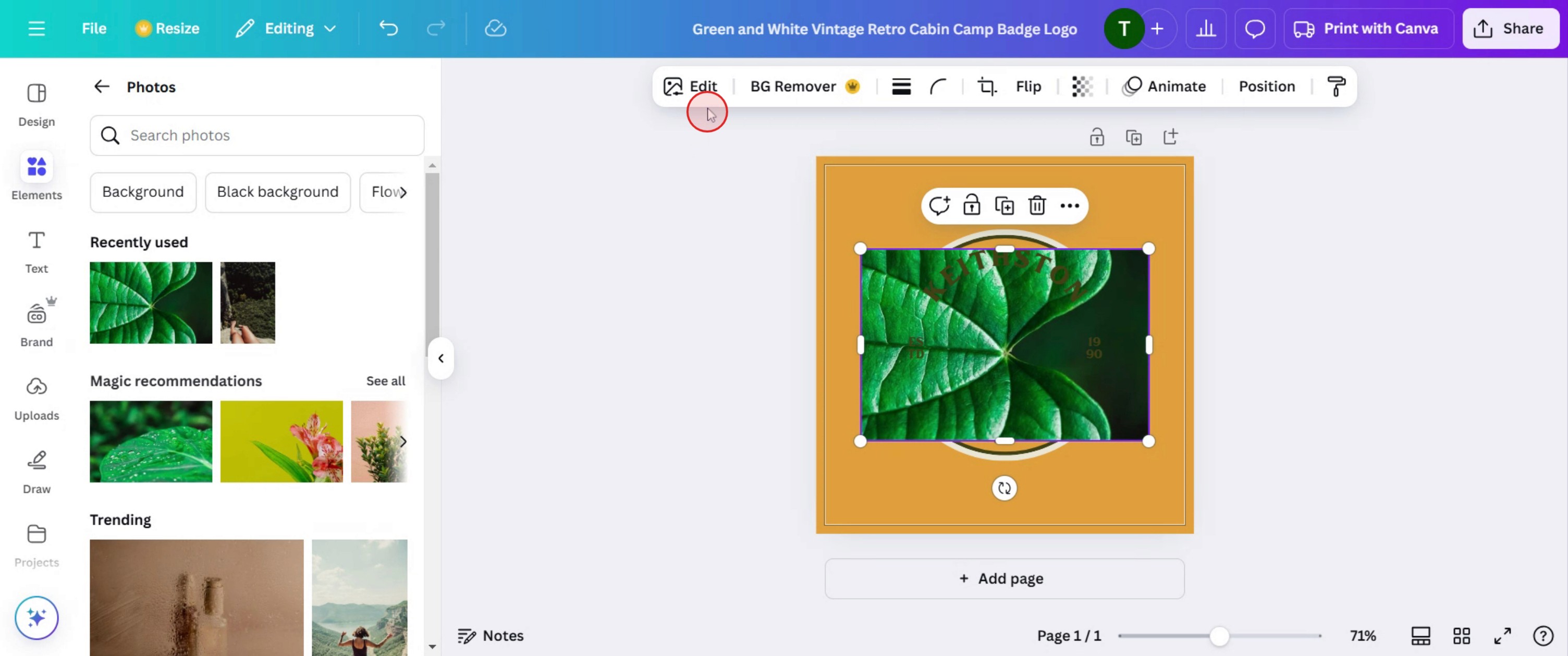
Step 5
Select the Shadows option.
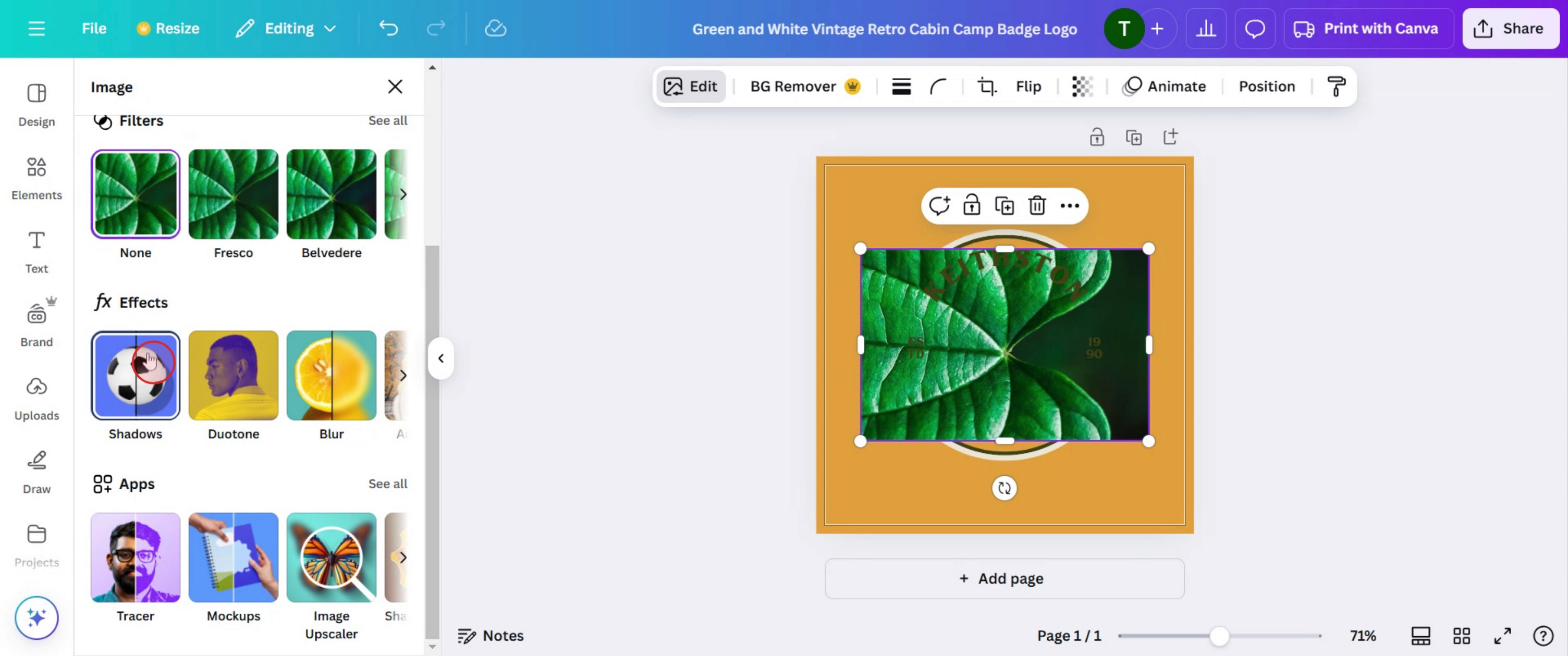
Step 6
Select the outline effect.
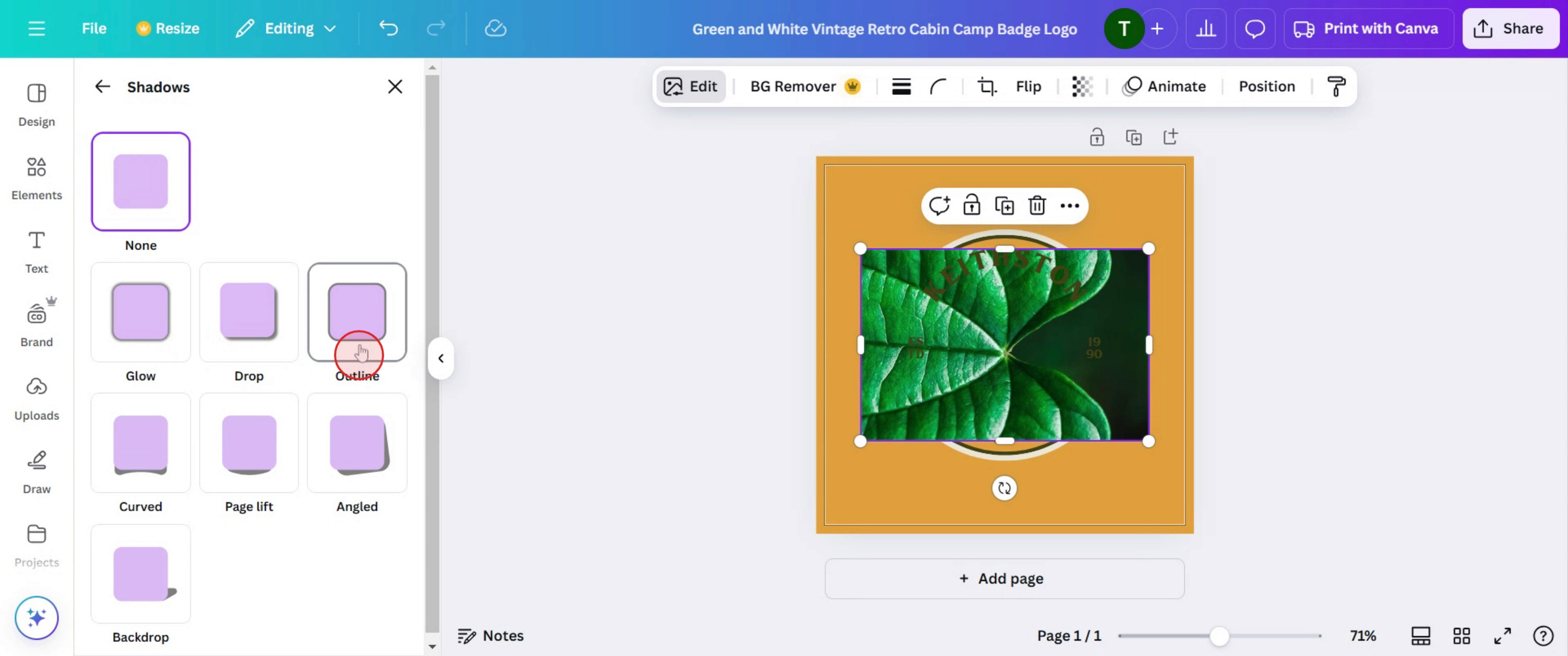
This is a step-by-step guide on how to add outline in Canva Design.
Pro tips for how to add outline in Canva Design
Use the glow effect for text outlines – Apply the Glow text effect and adjust blur and transparency to create a crisp outline around text.
Duplicate & adjust for object outlines – Create a duplicate of an element, enlarge it slightly, and change its color to simulate an outline effect.
Use Canva’s stroke feature (If Available) – In premium versions, check for stroke or border options to quickly add outlines without manual adjustments.
Common pitfalls and how to avoid them
Choosing low-contrast colors – Use contrasting colors for the outline to make the design stand out effectively.
Forgetting to adjust transparency & blur – If using the Glow effect, fine-tune transparency and blur settings for a sharp outline.
Overusing outlines – Too many outlines can clutter the design, so use them strategically to highlight key elements.
Common FAQs for how to add outline in Canva Design
1. Can i add an outline to text when adding an outline in Canva design?
Yes! Use the Glow effect under text effects, and adjust blur and transparency to create a clear outline.
2. Is there a built-in stroke tool for adding an outline in Canva Design?
Currently, Canva does not have a direct stroke tool, but it duplicating the elements.
3. Why doesn’t my outline look sharp when applying an outline in Canva Design?
Check the blur settings and increase contrast between the outline and the main element for a sharper look.
If you're an instructor or content creator looking to make tutorial videos, give a try. It transforms rough screen recordings into polished, studio-style videos that are ready for sharing with your audience. Plus, it automatically generates a step-by-step guide based on the video you create. Fascinating, right? Start by creating your first tutorial for free with trupeer.ai .

