
How To Add A Status To A Column In Jira
Learn the process of adding a status to a column in Jira. Our comprehensive guide provides clear instructions to streamline your workflow and improve productivity.
This document provides a step-by-step process for adding a status to a column in Jira. Follow these instructions to efficiently manage your project workflow by customizing the board columns.
Step 1
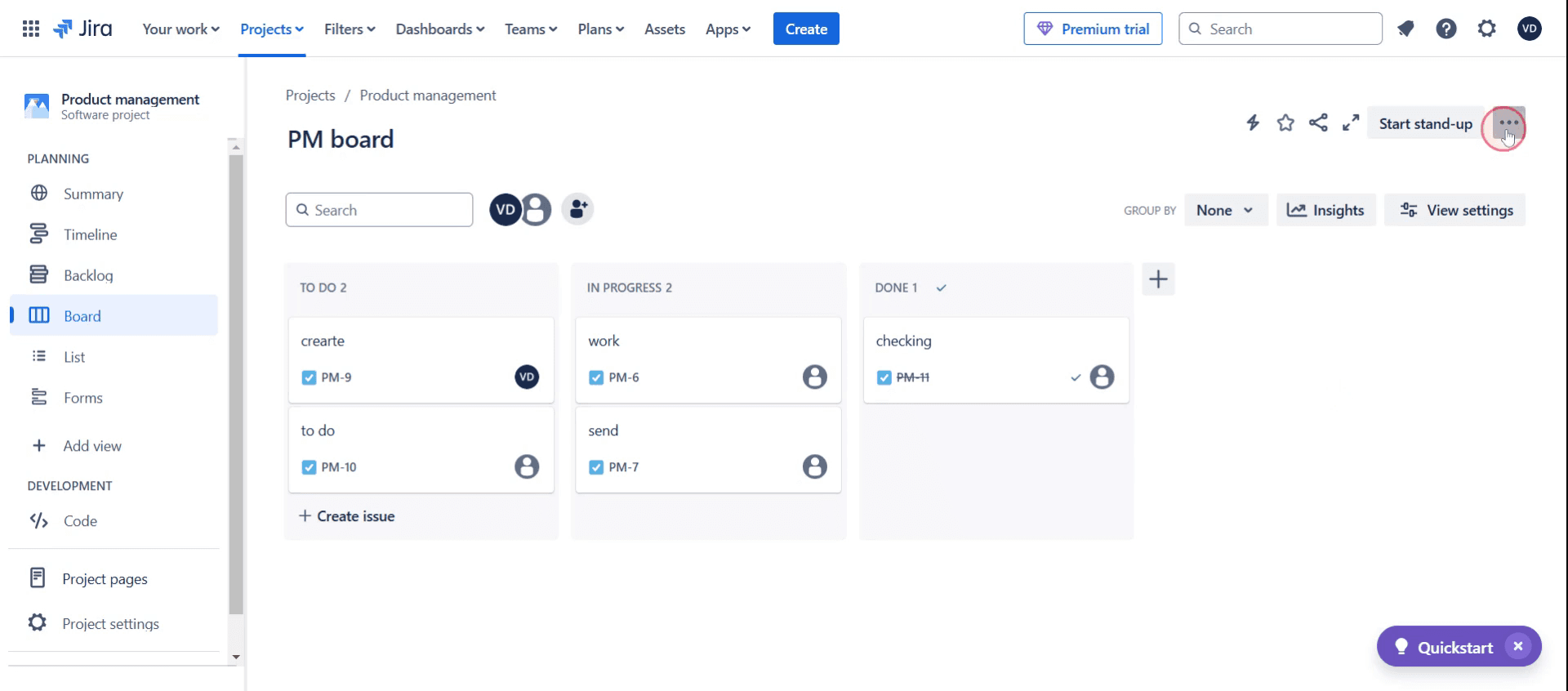
Click on the three dots,
Step 2
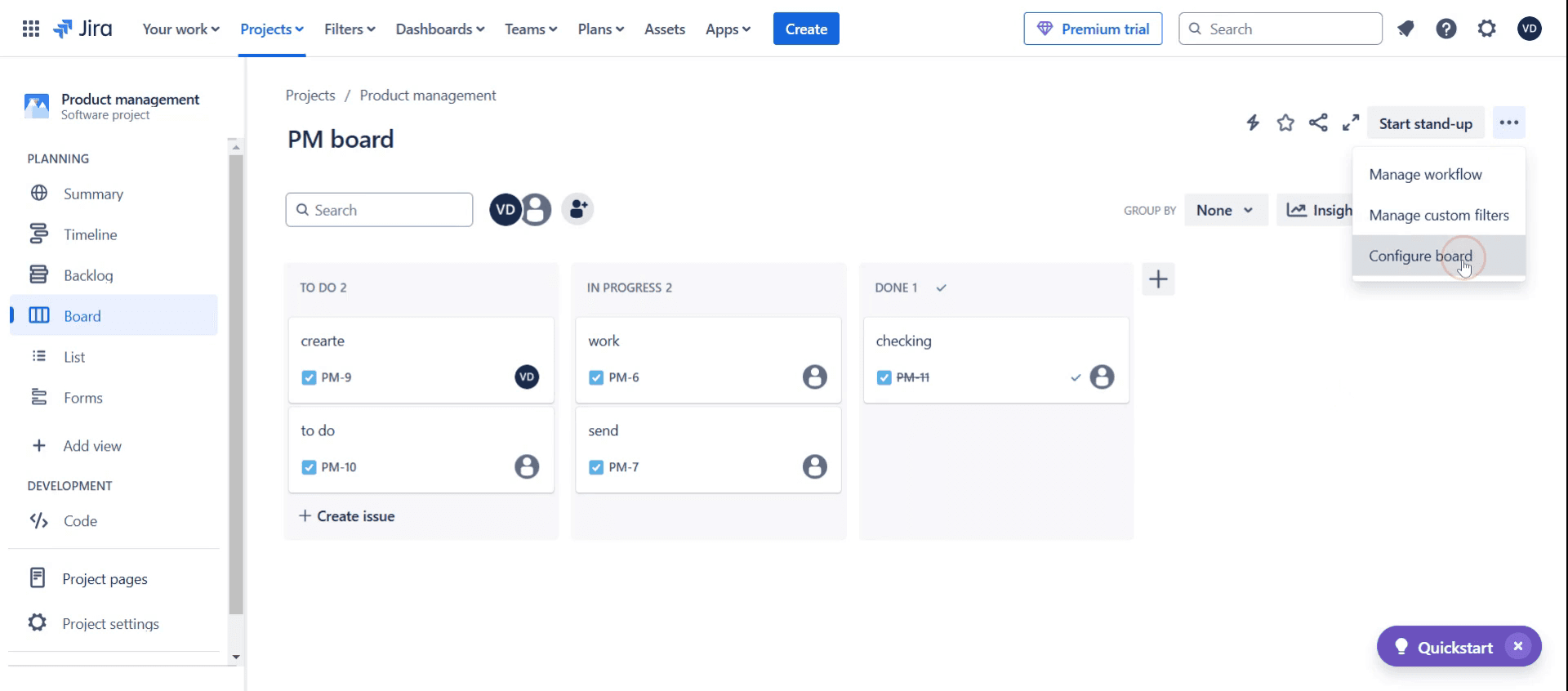
Then select Configure Board.
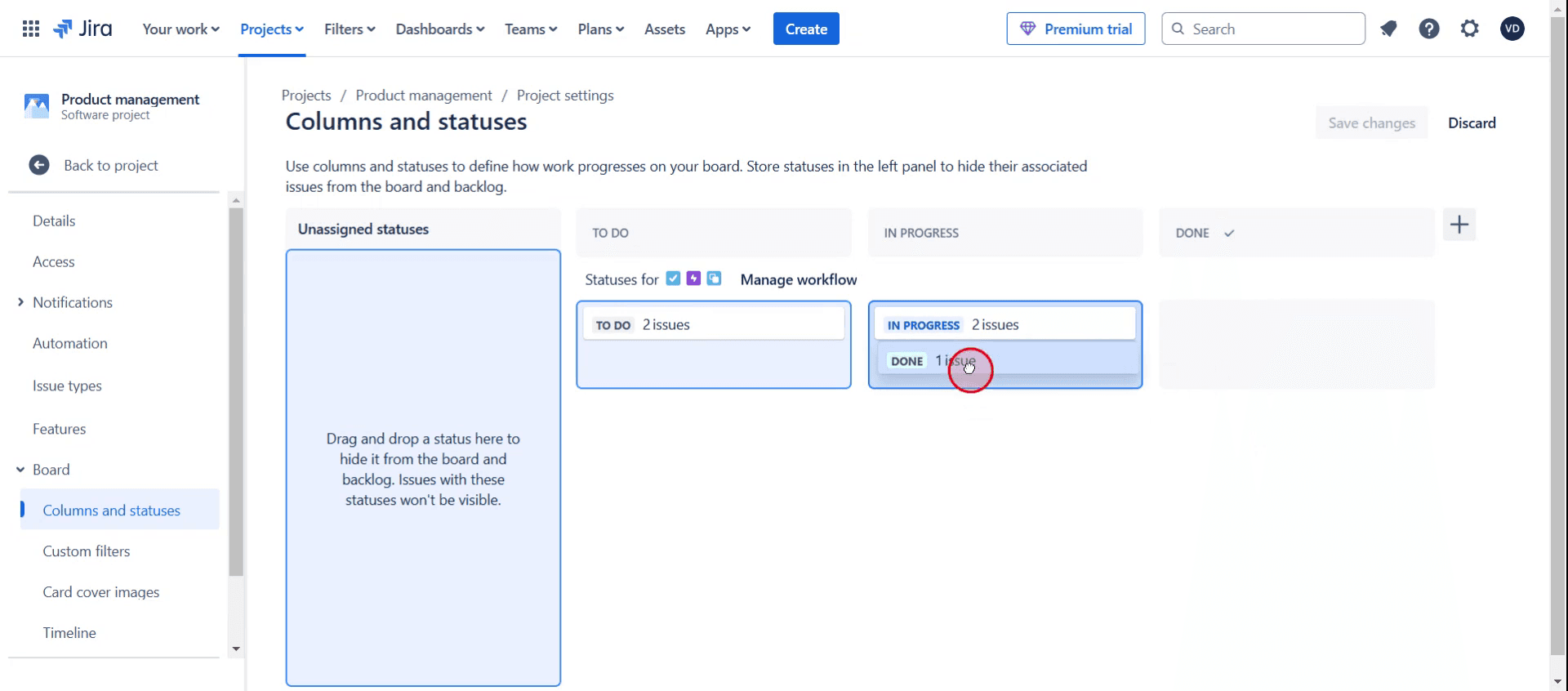
Step 3
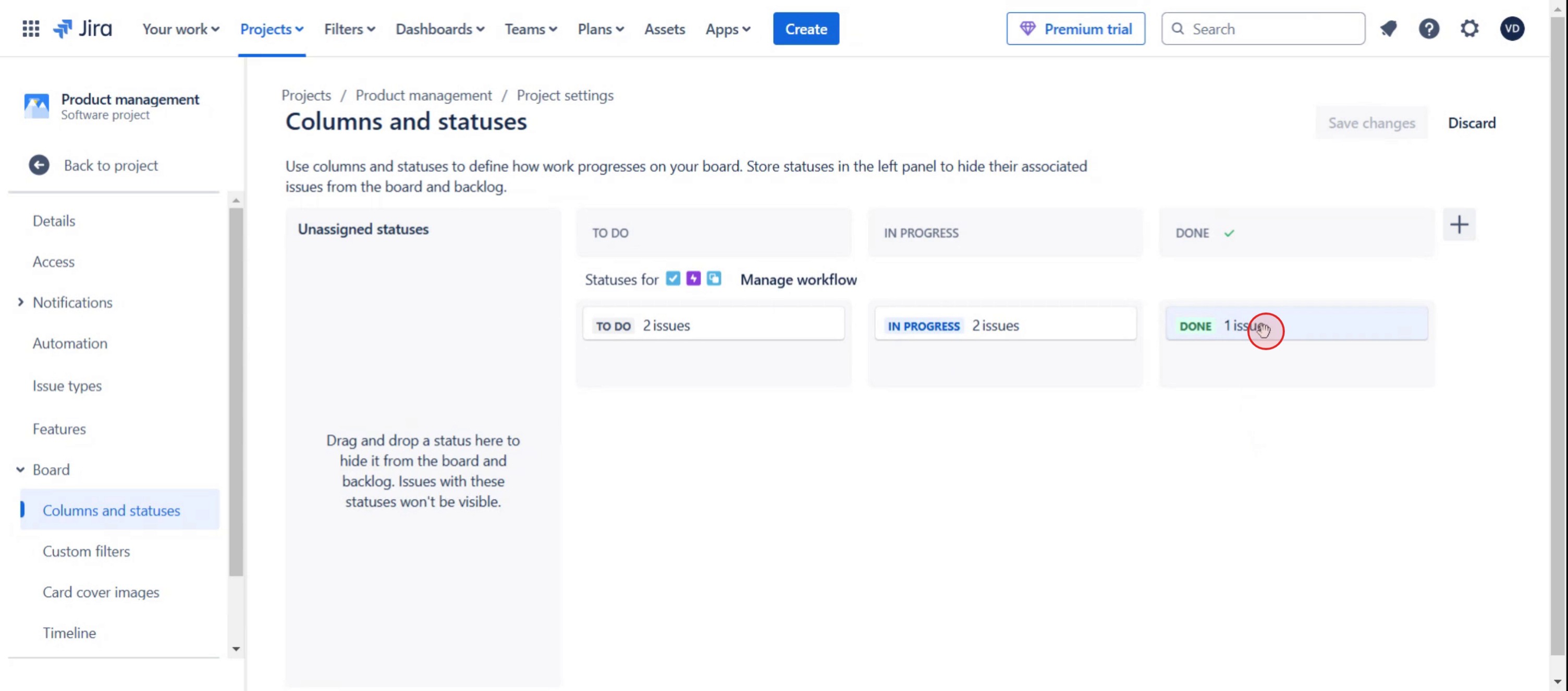
Drag and drop the desired status to update the column accordingly.
Step 4
Now you can see the column updated status.
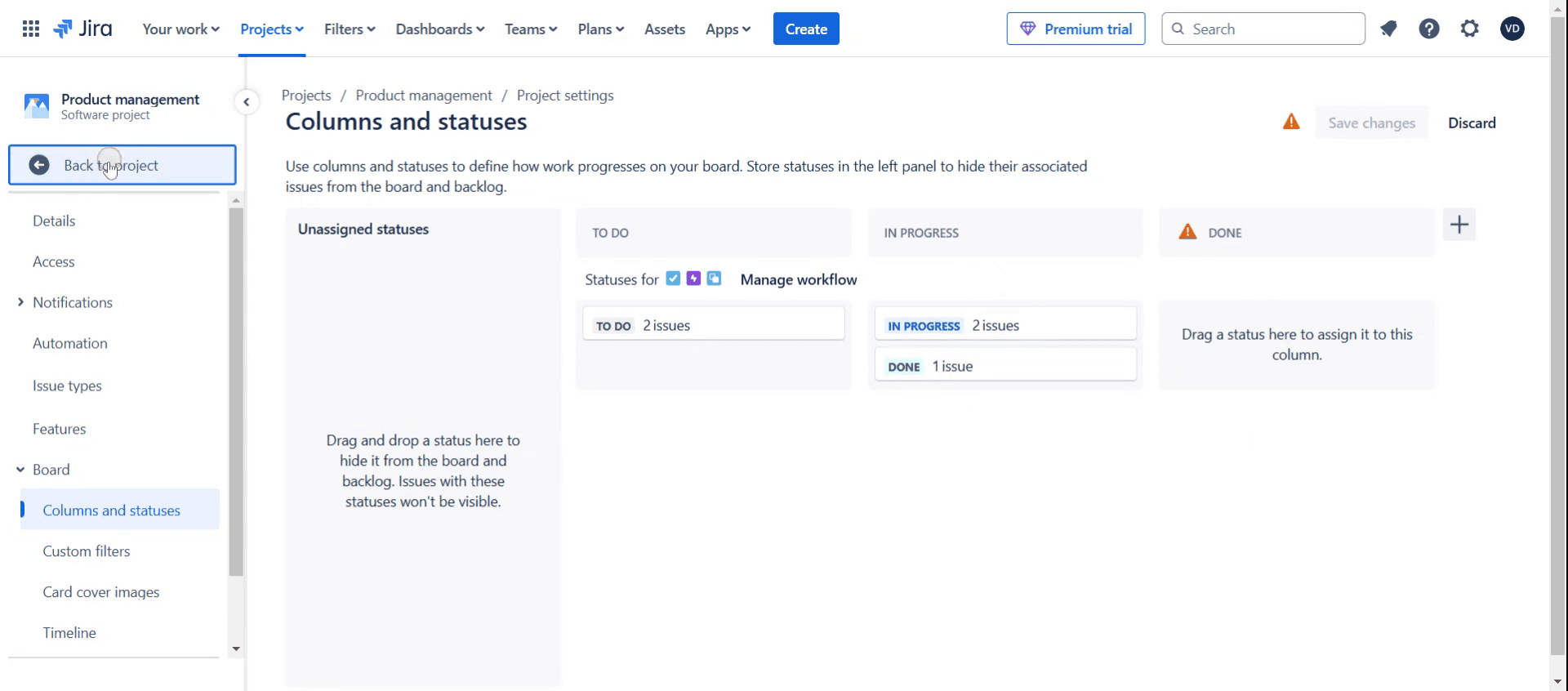
Step 5
Click on Back to the Projects.
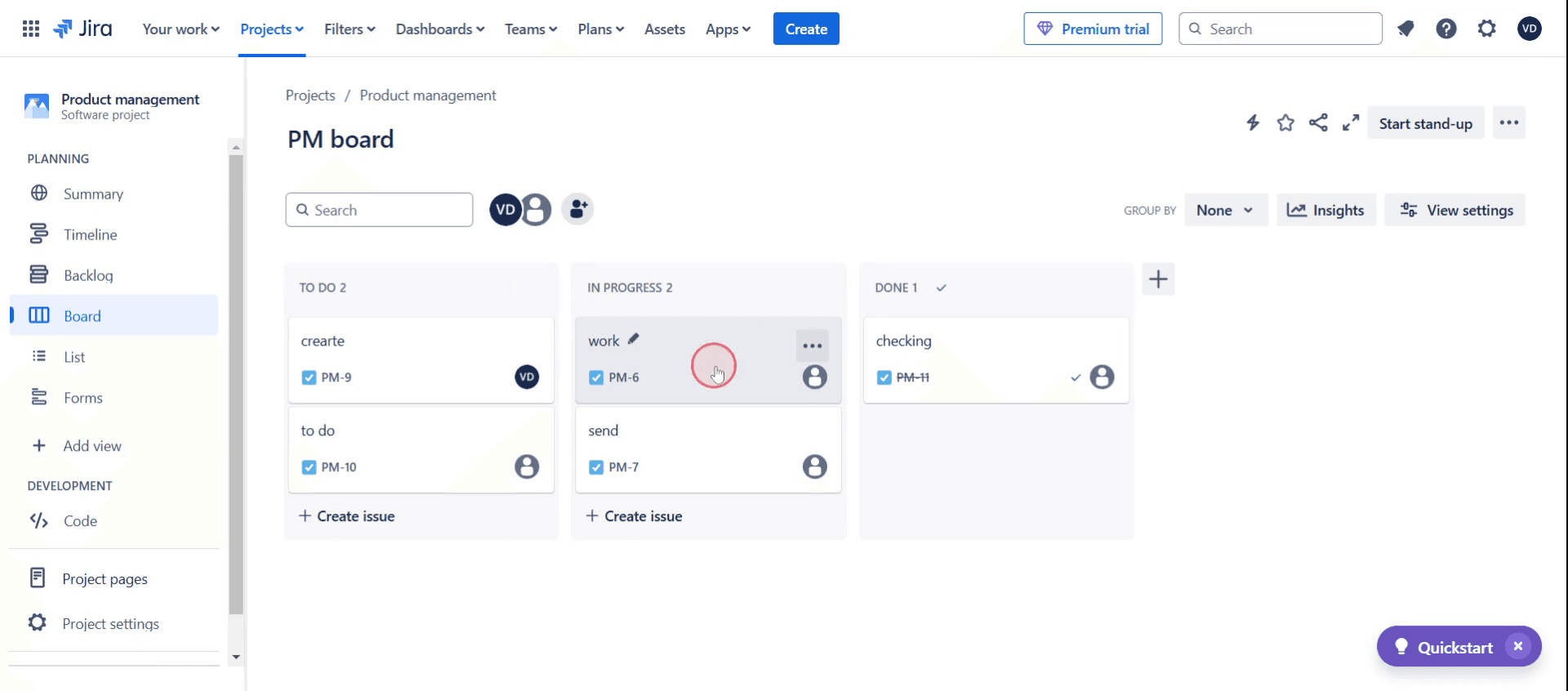
Step 6
Select the specific ticket,
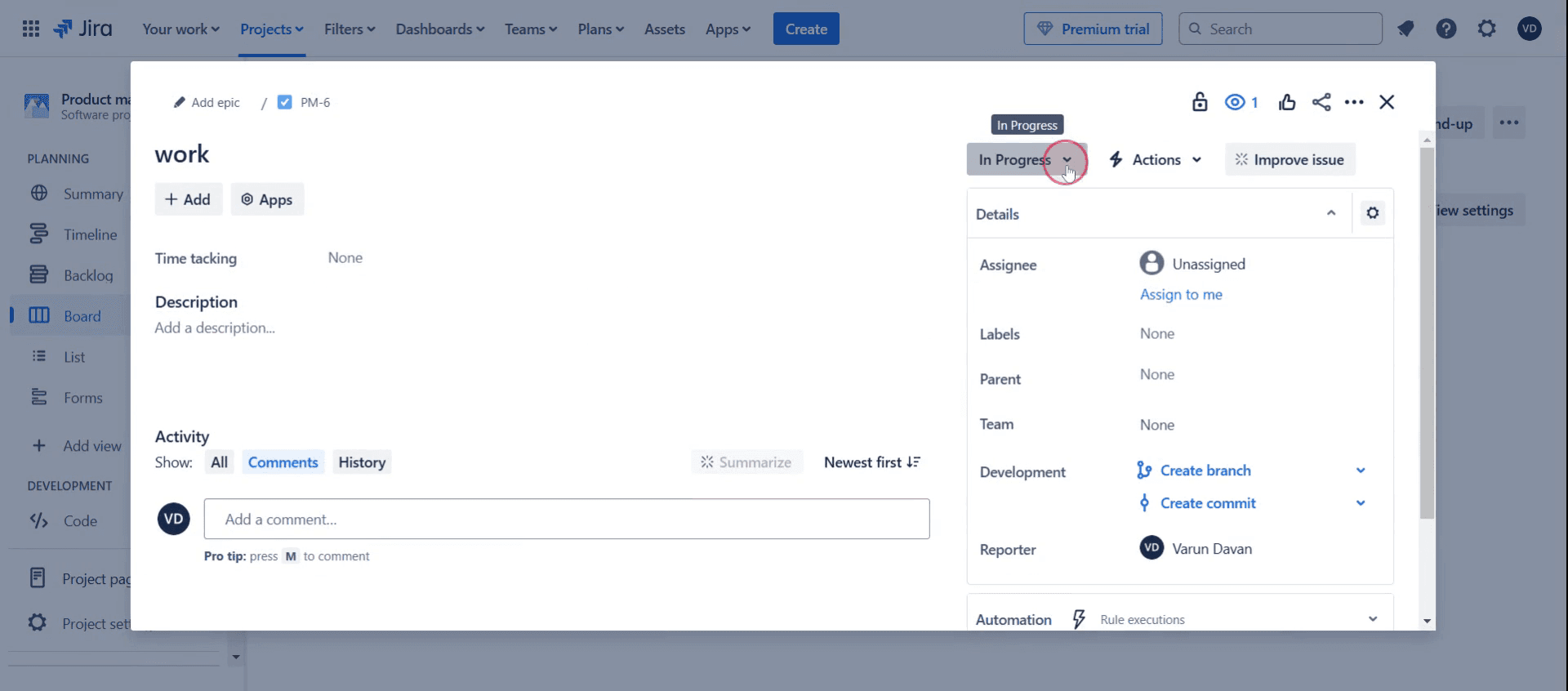
Step 7
Click on the progress to update the status.
Here was our step by step guide that will help you create a status to a column in Jira. Check a few tips from the below section.
Pro tips for adding a status to a column in Jira
Ensure you have the necessary admin permissions to modify workflows and board settings.
Use Jira’s board settings to map statuses correctly to columns for seamless issue tracking.
Create custom statuses in the workflow editor to better match your team’s workflow needs.
Common pitfalls & how to avoid them
Status not appearing in the column, check if it’s mapped correctly in the board settings.
Issues stuck in a column, verify that the workflow transition allows movement between statuses.
Too many statuses causing confusion, keep the status list concise and relevant to avoid complexity.
Common FAQs for adding a status to a column in Jira
Can i create a custom status in Jira?
Yes, Jira admins can create custom statuses via the Workflow Editor under Jira settings.Why is my status not appearing on the board? Ensure that the status is mapped to a column in the board settings and is part of the associated workflow.
Can i assign multiple statuses to a single column?
Yes, you can map multiple statuses to one column for better workflow flexibility.Do i need admin rights to change statuses in Jira?
Yes, modifying workflows and board columns typically requires Jira admin or project admin permissions.
If you're an instructor or content creator looking to make tutorial videos, give a try. It transforms rough screen recordings into polished, studio-style videos that are ready for sharing with your audience. Plus, it automatically generates a step-by-step guide based on the video you create. Fascinating, right? Start by creating your first tutorial for free with trupeer.ai .

