
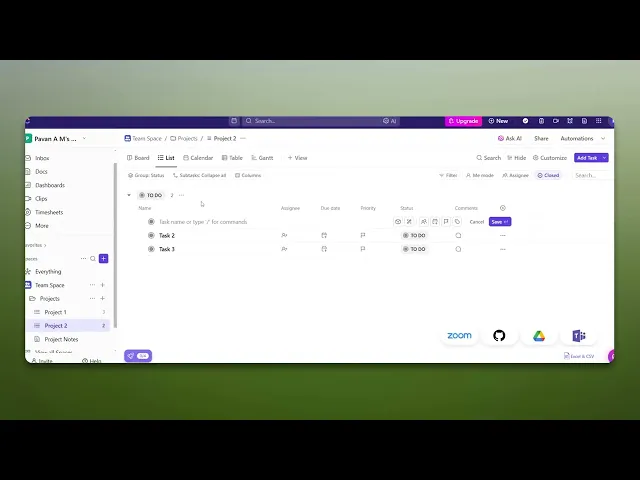
How To Add Task In ClickUp
Discover the step-by-step guide on how to add tasks in ClickUp efficiently. Enhance your productivity and streamline your project management today.
This document explains how to add a task in the Kickup application. It provides step-by-step instructions to navigate to your project and create a new task.
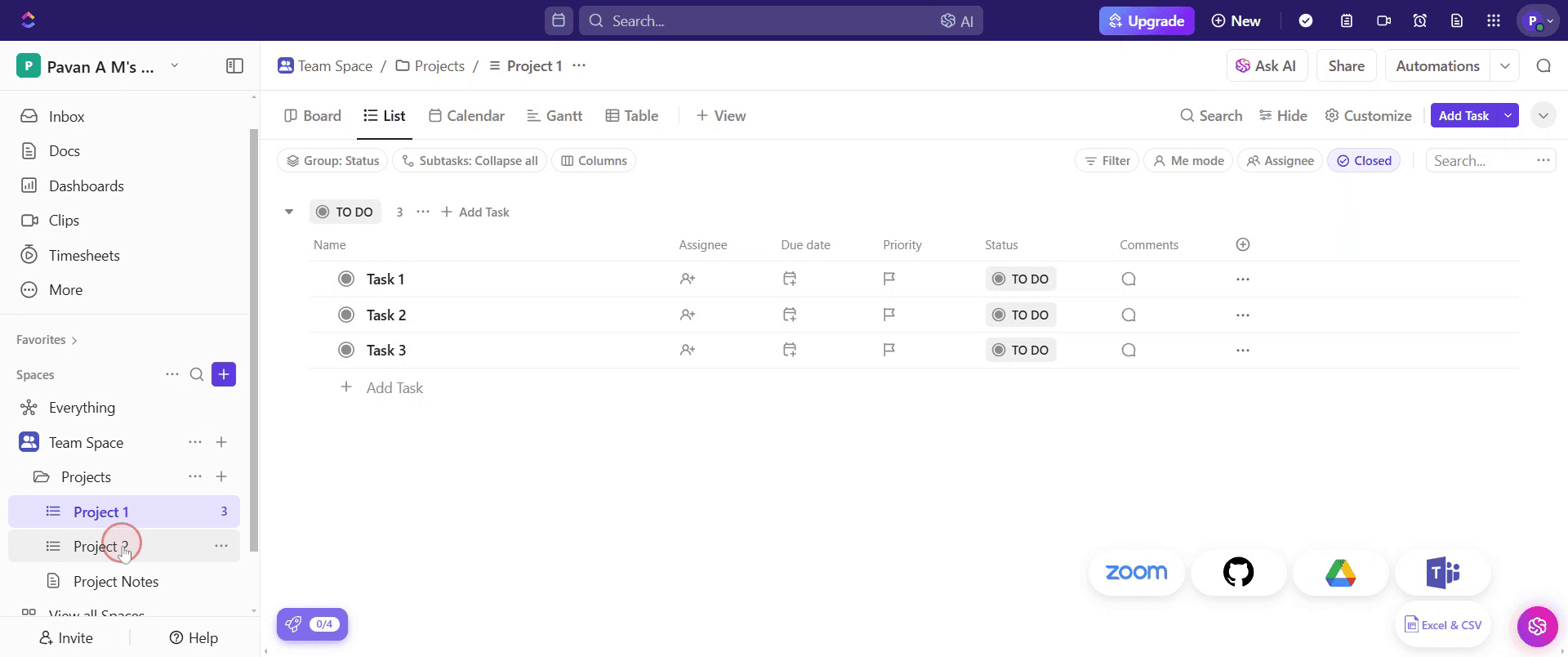
Step 1
Go to the project where you want to add a task, click on it.
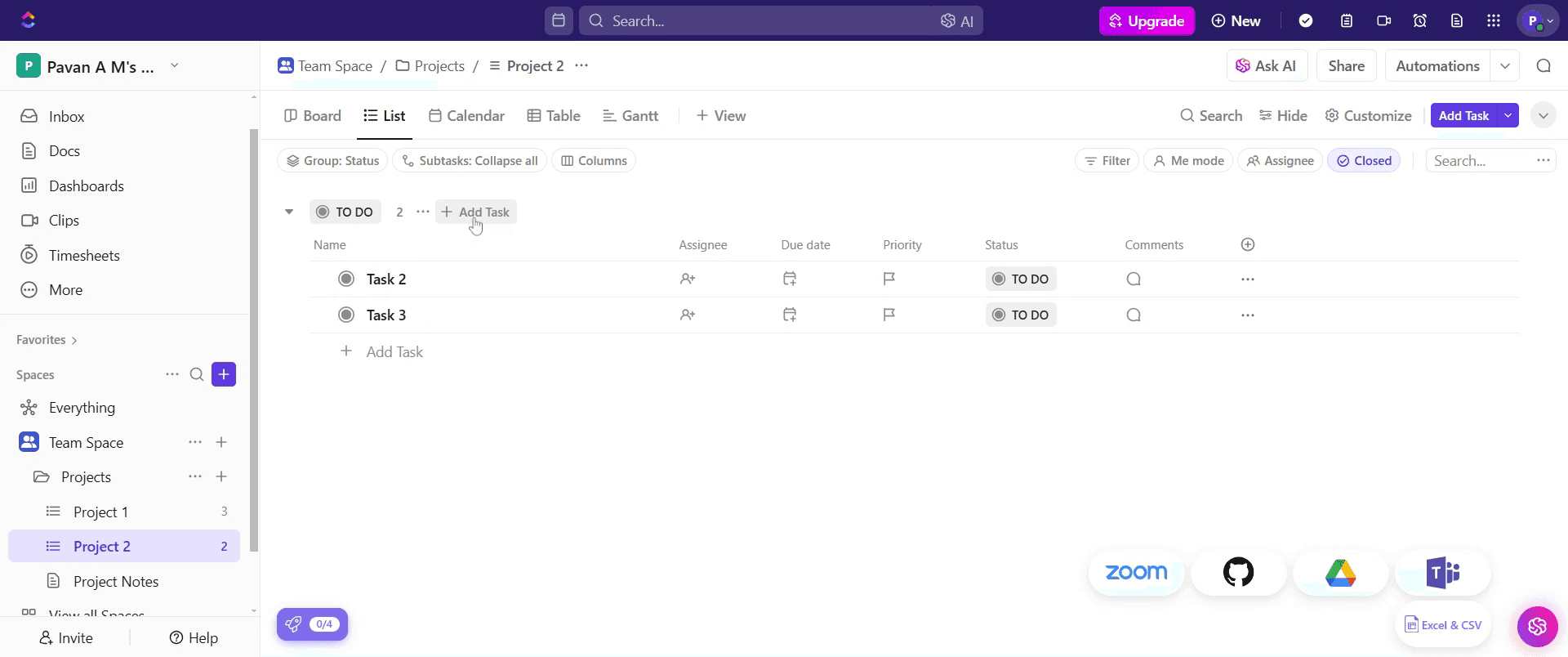
Step 2
Find the "Add Task" option and click on it.
Step 3
Enter the task name in the designated field.
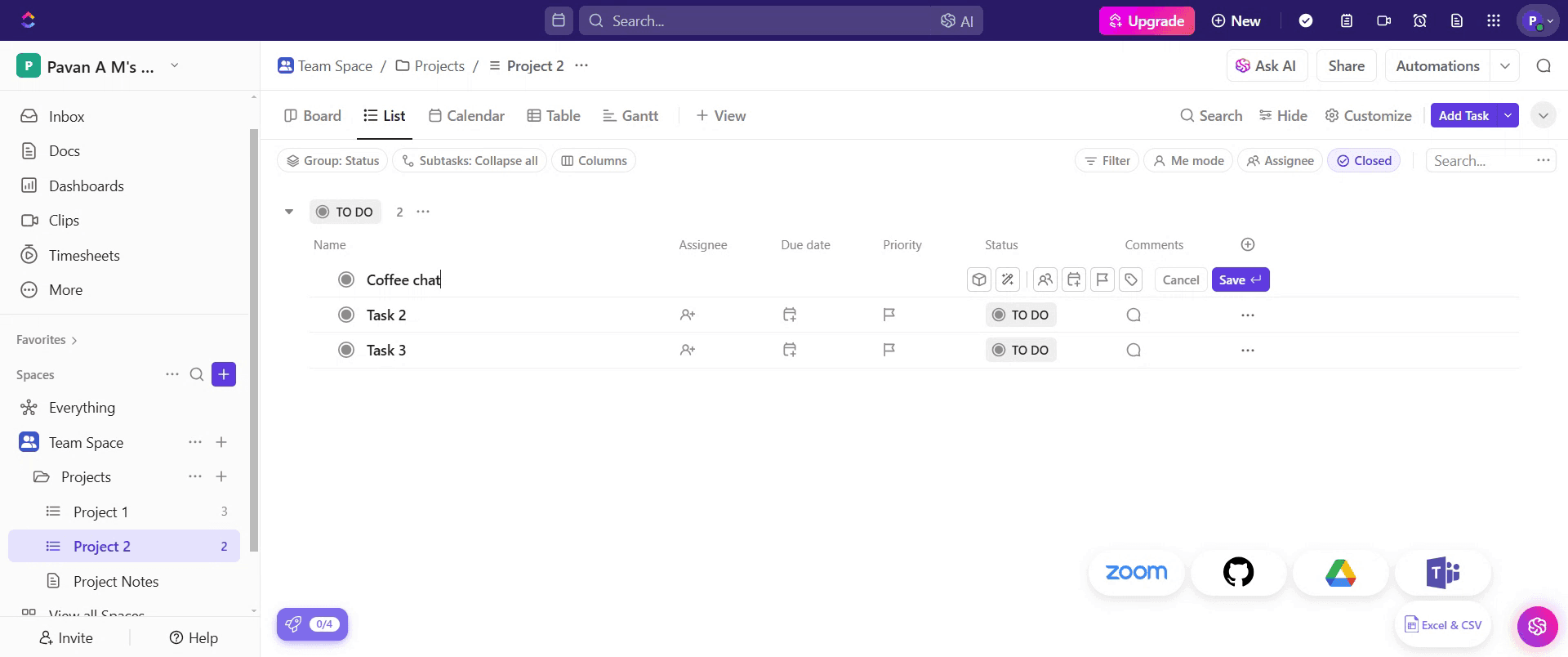
Step 4
Then, click on the "Save" button.
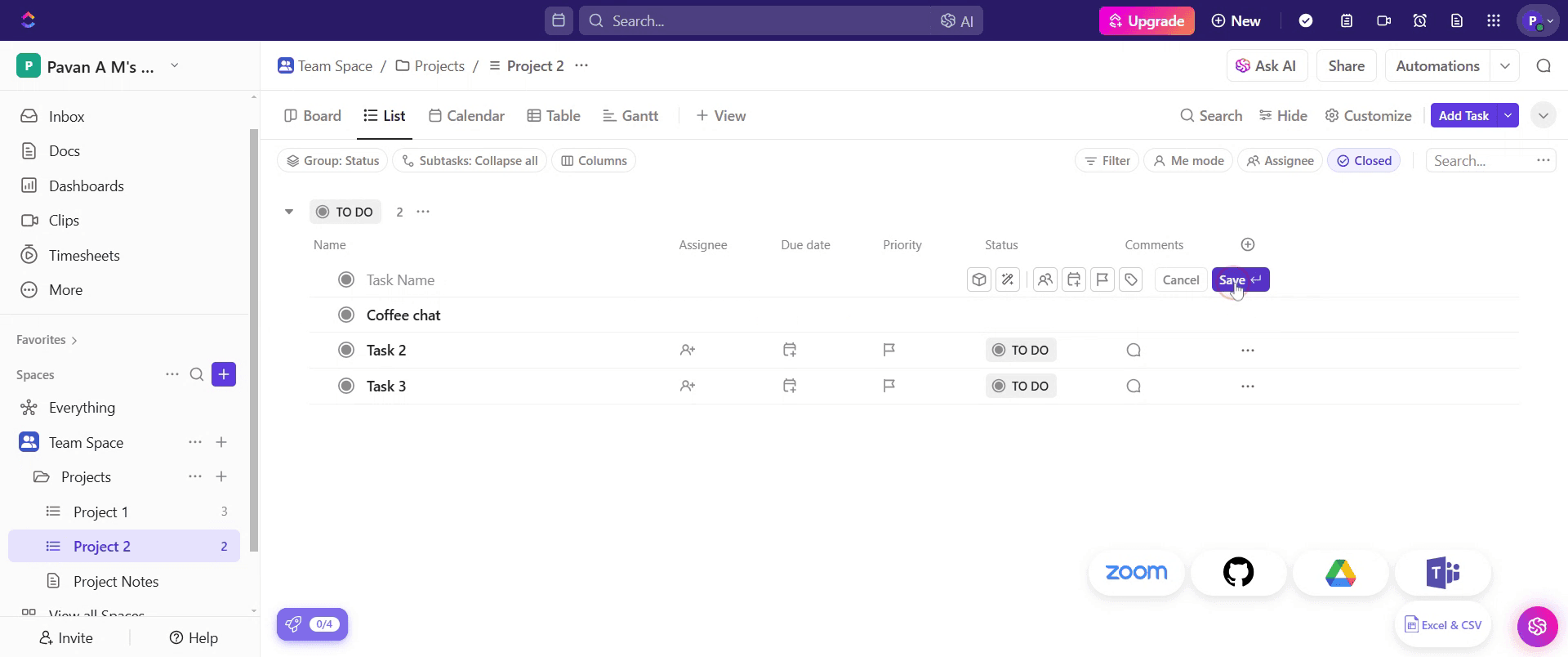
Step 5
You will now see the newly added task in the project.
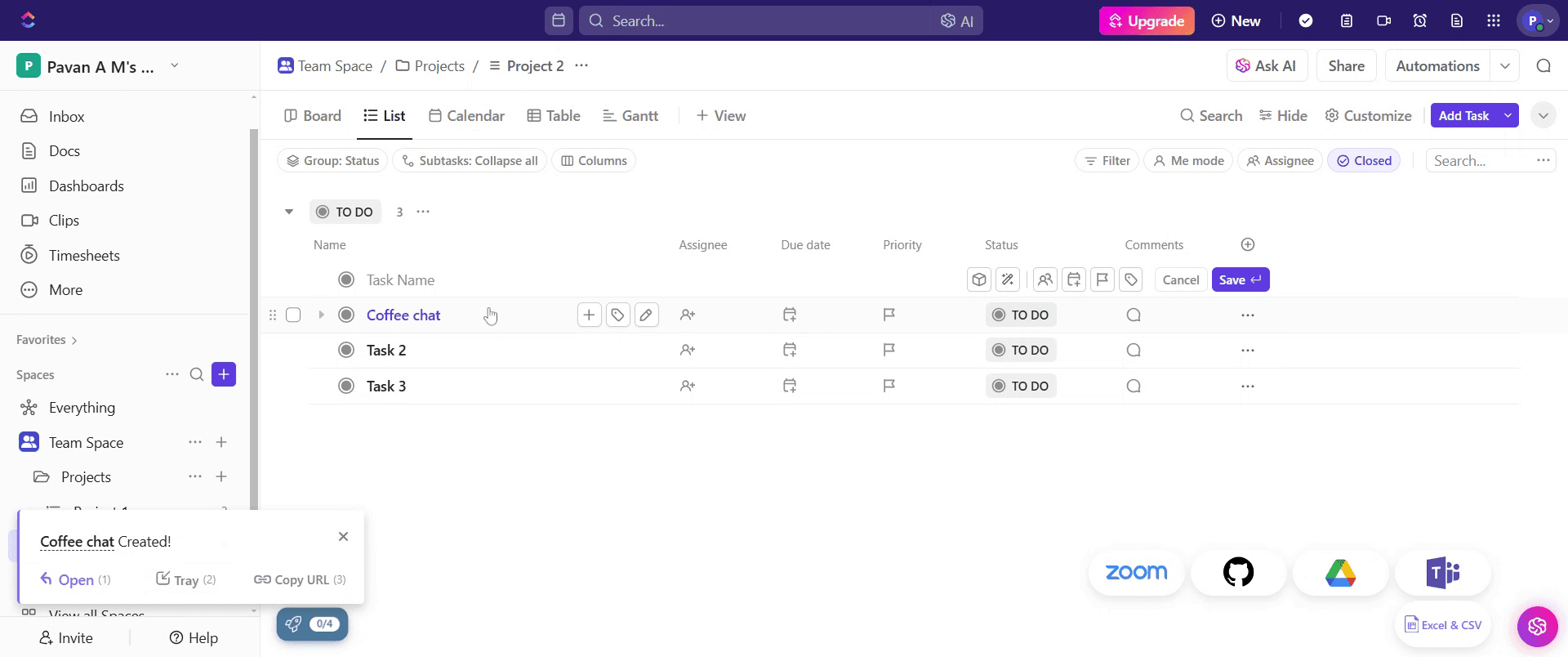
That's it. This is a step-by-step guide on how to add a task in ClickUp.
Pro-tips for adding a task in ClickUp
Use task templates for repetitive tasks to save time and maintain consistency
Assign due dates and priorities to ensure tasks are completed on time
Utilize subtasks and checklists to break down complex tasks into manageable steps
Common pitfalls & how to avoid them while adding a task in ClickUp
Not assigning tasks ensure tasks are assigned to team members to avoid confusion and ensure accountability
Missing deadlines set due dates and reminders to keep track of important deadlines
Lack of task descriptions provide clear details and instructions to ensure team members understand the task requirements
Common FAQs for adding a task in ClickUp
Can i assign tasks to multiple users?
Yes, ClickUp allows assigning tasks to multiple team members for collaborationHow do i set a due date for a task? Open the task, click on the due date field, and select the desired date
Can i create recurring tasks in ClickUp?
Yes, you can set tasks to repeat at custom intervals using the recurrence featureIs there a way to track task progress?
Yes, ClickUp provides task statuses, progress percentages, and custom fields to monitor task completion
If you're an instructor or content creator looking to make tutorial videos, give Trupeer.ai a try. It transforms rough screen recordings into polished, studio-style videos that are ready for sharing with your audience. Plus, it automatically generates a step-by-step guide based on the video you create. Fascinating, right? Start by creating your first tutorial for free with Trupeer.ai.

