
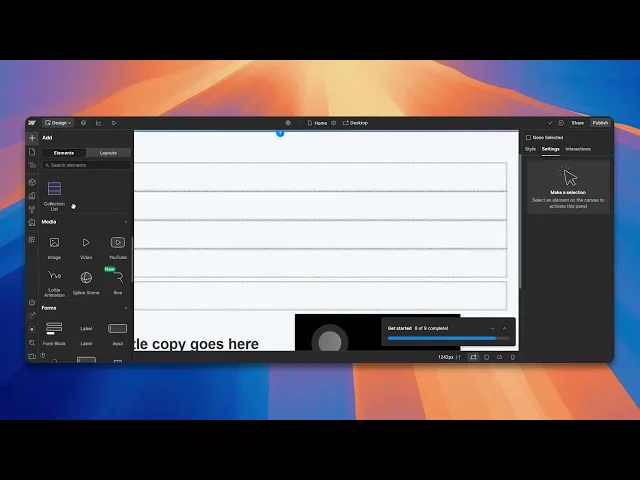
How To Add A Video To Webflow
Learn how to seamlessly add videos to your Webflow site. Our comprehensive guide provides tips and tricks for a visually appealing design.
This document outlines the process for adding a video to a Web flow project. Follow these steps to seamlessly integrate video content into your design, enhancing user engagement and providing a rich multimedia experience.
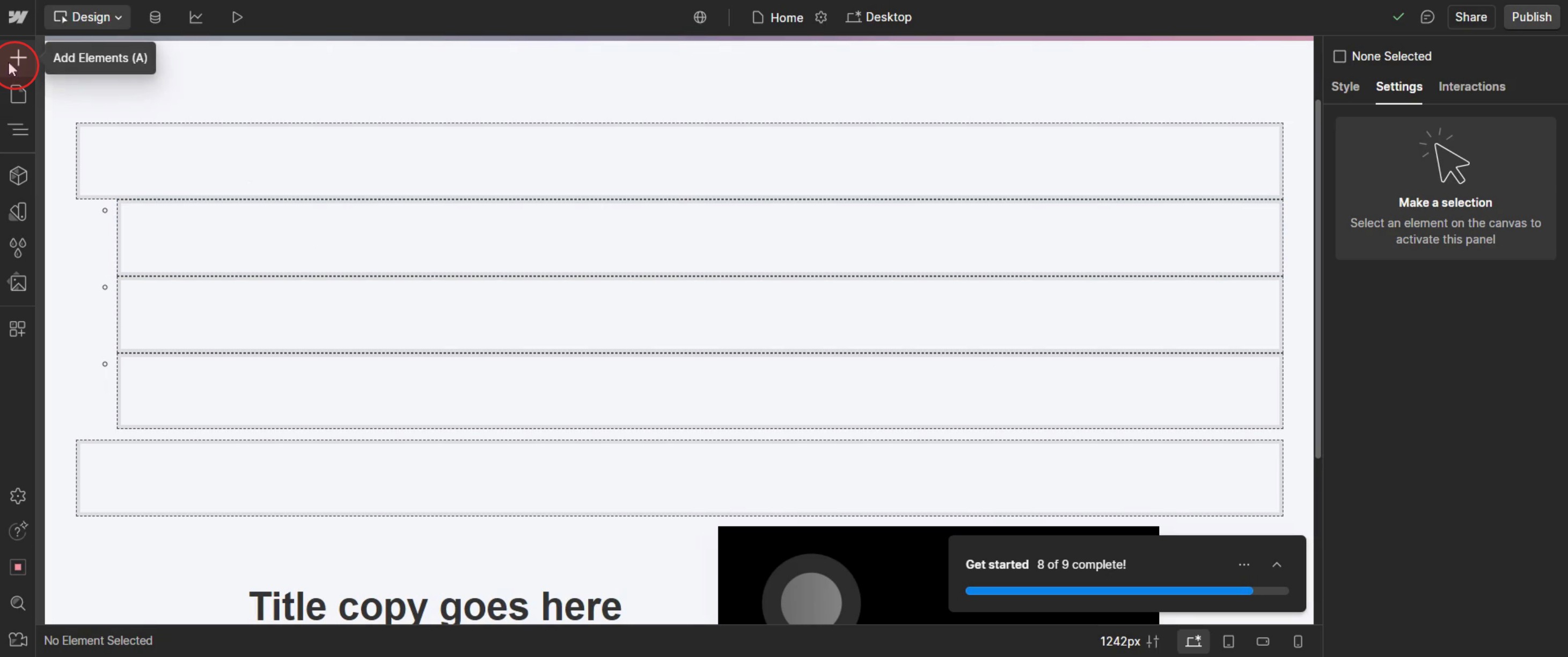
Step 1
Click on the add elements option.
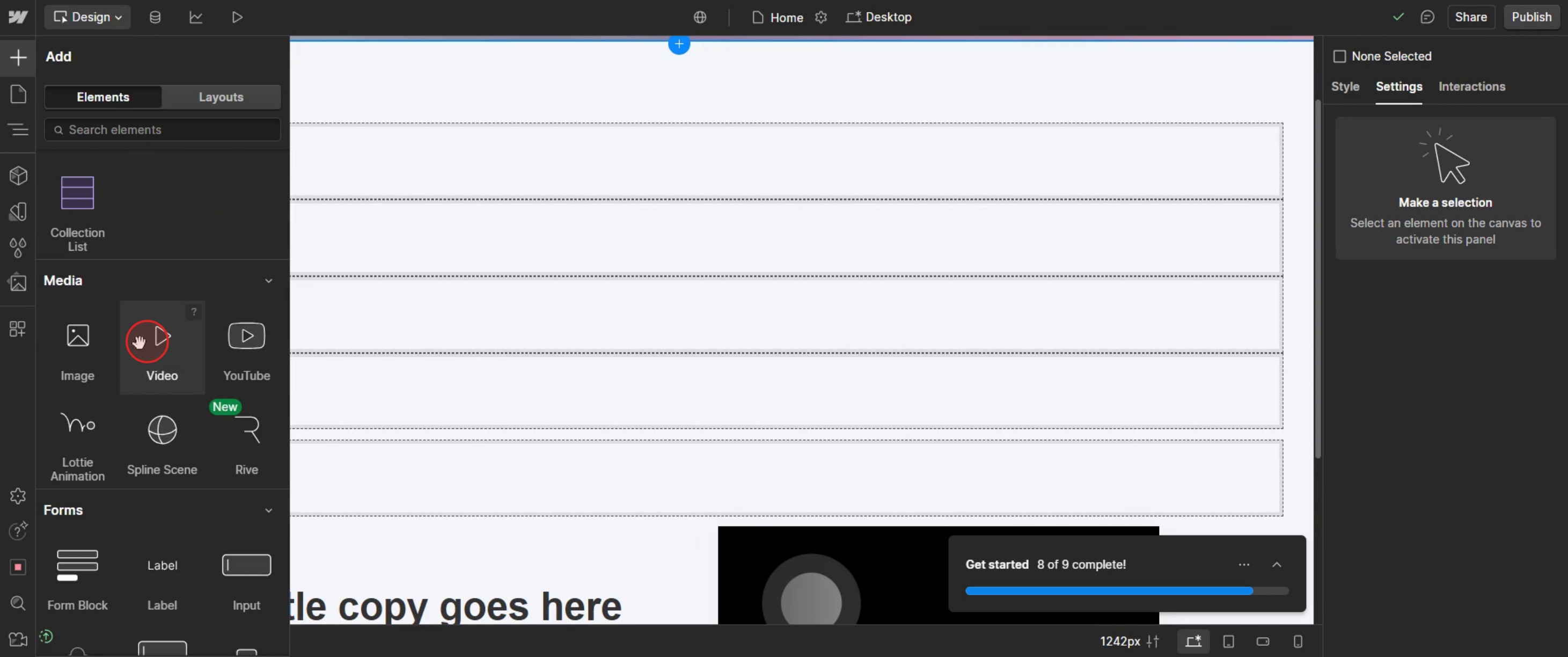
Step 2
Click on the video option.
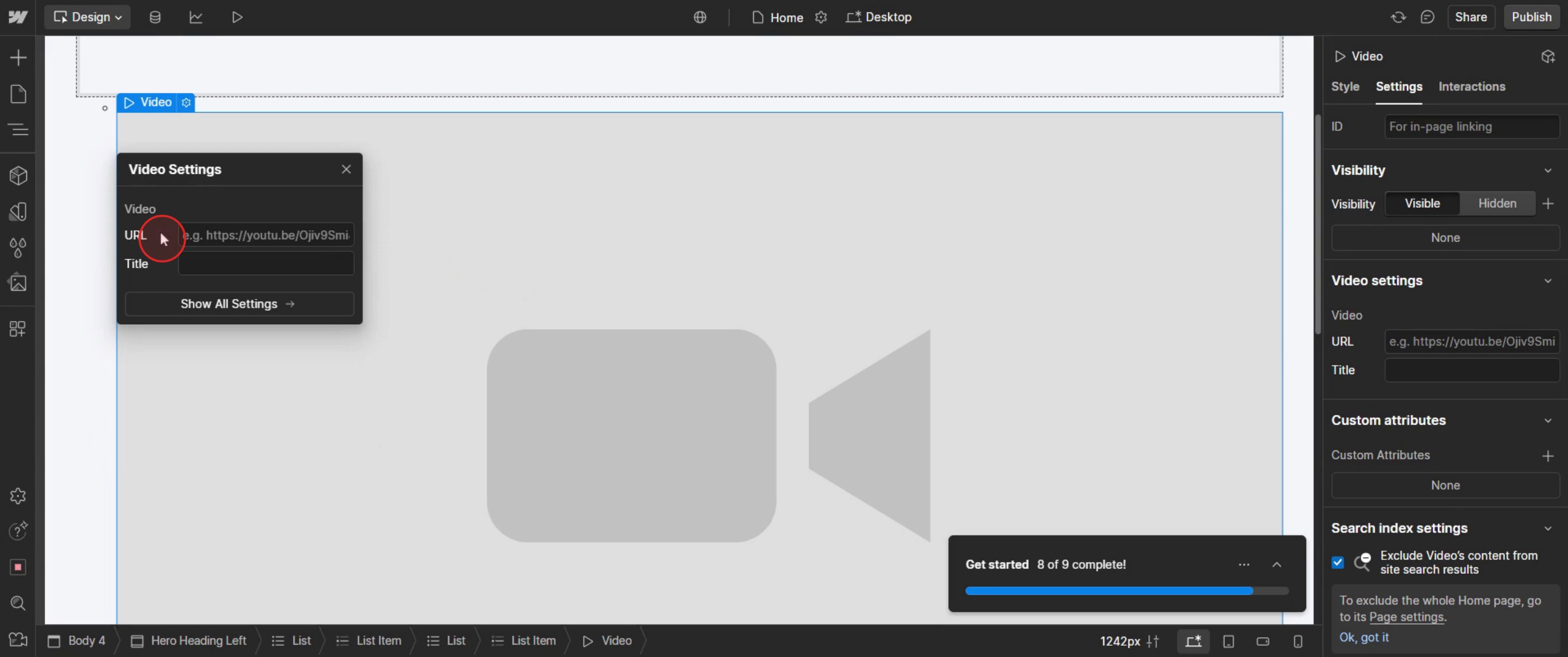
Step 3
Then enter the URL of the video,
Step 4
The video content will automatically load.
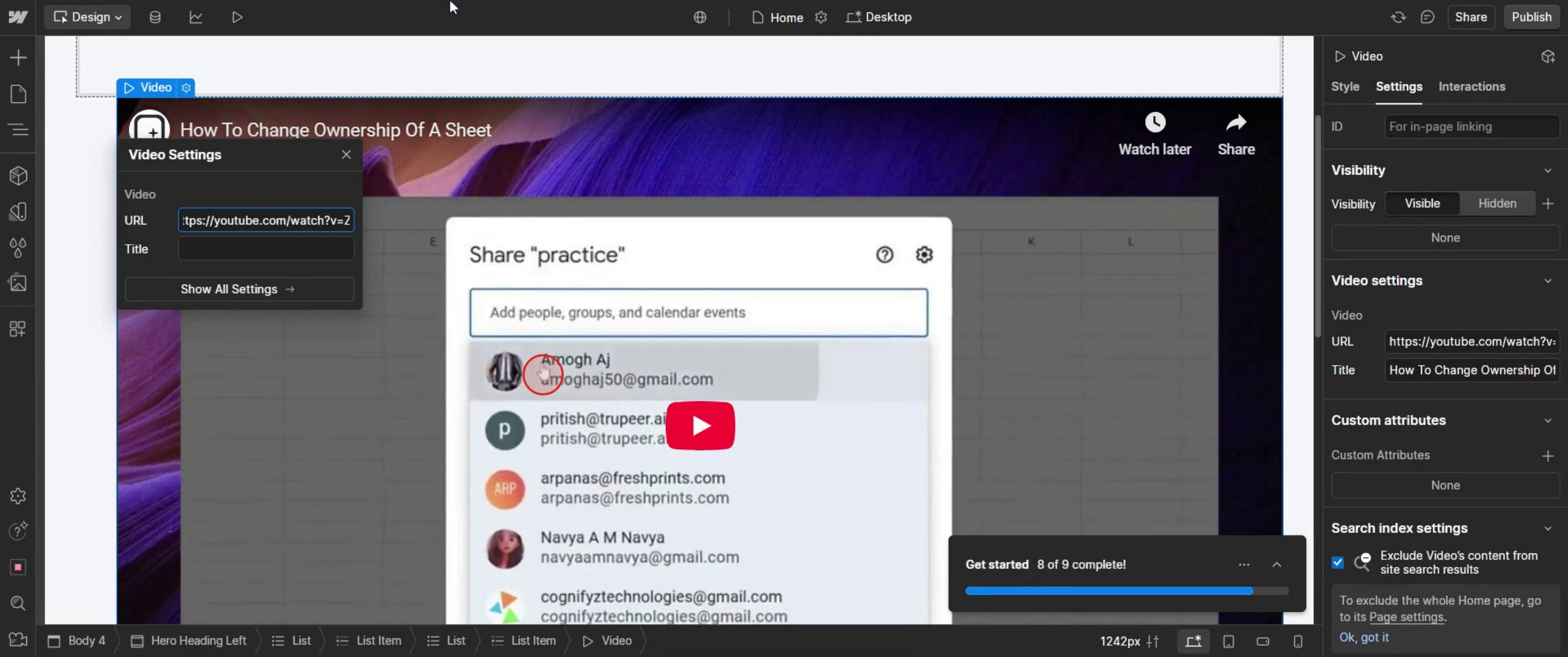
This is the step-by-step process to add bullet points in Web flow. Let’s explore some tips for it.
Pro-tips for adding a video in Web flow
Use Web flow's Built-in Video Element for Simplicity – Web flow provides a Video element that allows you to easily embed YouTube, Vimeo, or custom video links.
Optimize Video Loading Speed – Always compress videos before uploading to ensure faster page loading and a smooth user experience.
Use the Background Video Element for Looping Videos – If you want a looping, auto play video, use the Background Video element instead of a standard video block.
Common pitfalls & how to avoid them
Uploading Large Video Files Directly – Web flow has a 10MB limit for direct video uploads. Instead, use YouTube, Vimeo, or a CDN for hosting.
Ignoring Mobile Optimization – Videos may not scale properly on mobile devices. Always test and adjust video settings for responsiveness.
AutoPay Videos Not Working on Mobile – Most mobile browsers disable autopay with sound. Use muted autopay or background videos for better functionality.
Common FAQs for adding a video in Web flow
Can i upload my own video to Web flow?
Yes, but Web flow has a 10MB upload limit. It’s recommended to host videos externally for better performance.How do i make a video autopay in Web flow?
Use the Background Video element or enable autopay in the Video settings. Note that autoplay with sound is disabled on most mobile browsers.Why is my video not responsive on mobile?
Set the video width to 100%, adjust the height, and use Web flow's Flexbox or Grid settings to ensure proper scaling.How do i embed a custom HTML video in Web flow?
Use the Embed element and insert a<video>tag with your custom video source URL.
If you're an instructor or content creator looking to make tutorial videos, give a try. It transforms rough screen recordings into polished, studio-style videos that are ready for sharing with your audience. Plus, it automatically generates a step-by-step guide based on the video you create. Fascinating, right? Start by creating your first tutorial for free with trupeer.ai .

