
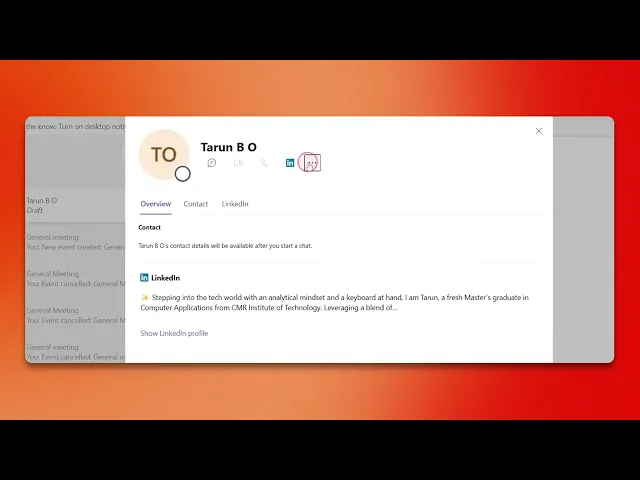
How To Block Someone On Teams
Discover the step-by-step guide on how to block someone on Microsoft Teams. Enhance your communication experience with our comprehensive instructions.
This guide outlines a simple process for blocking a contact in Microsoft Teams. Follow these steps to effectively prevent further communication from a specific individual.
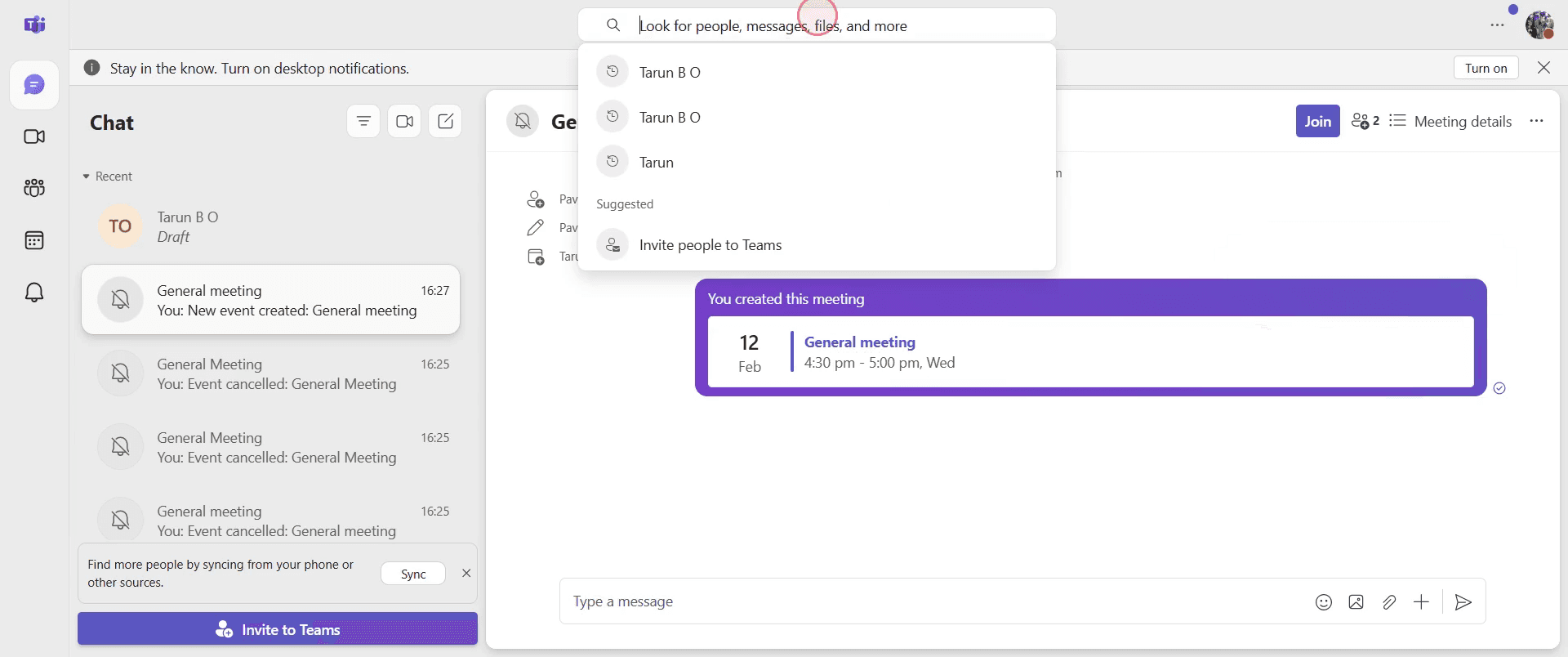
Step 1
Go to the search bar and type the name of the person you want to block.
Step 2
Click on their name to open their profile.
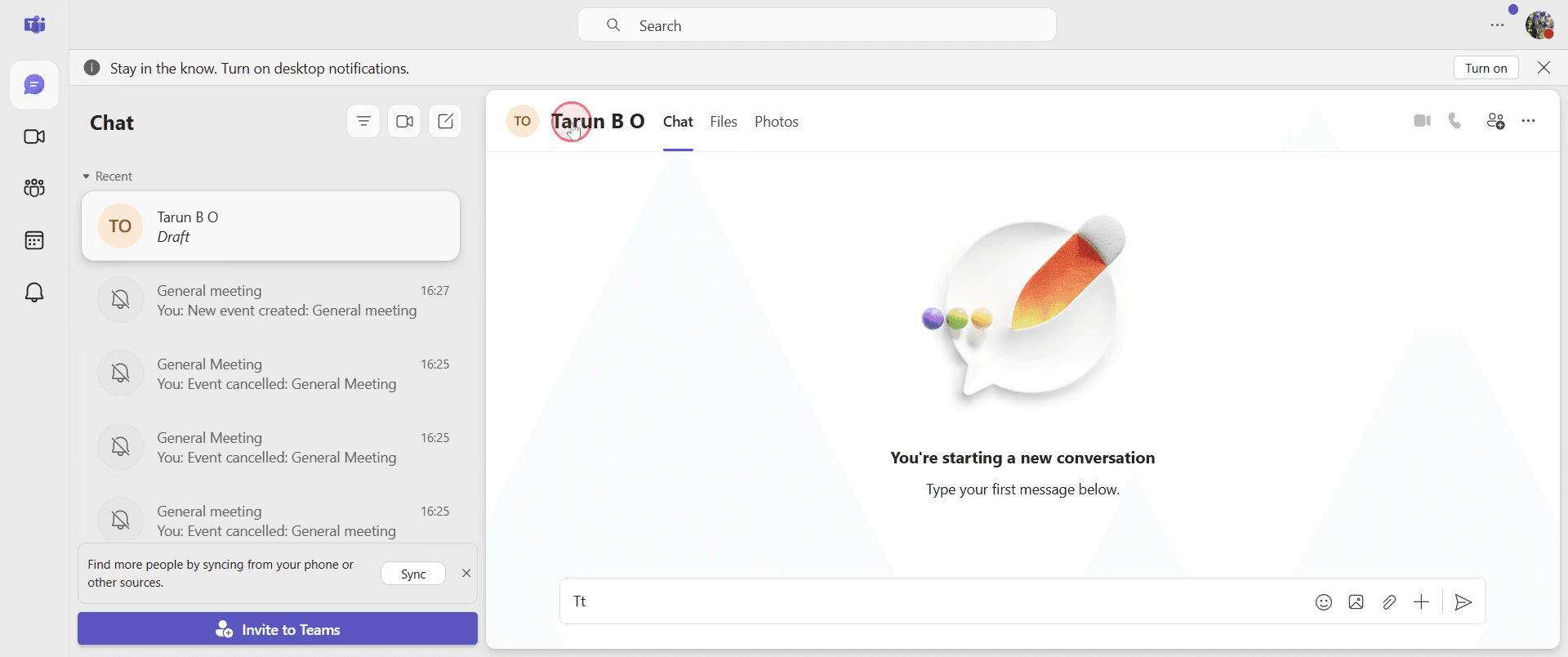
Step 3
locate and click on the "More options" button.
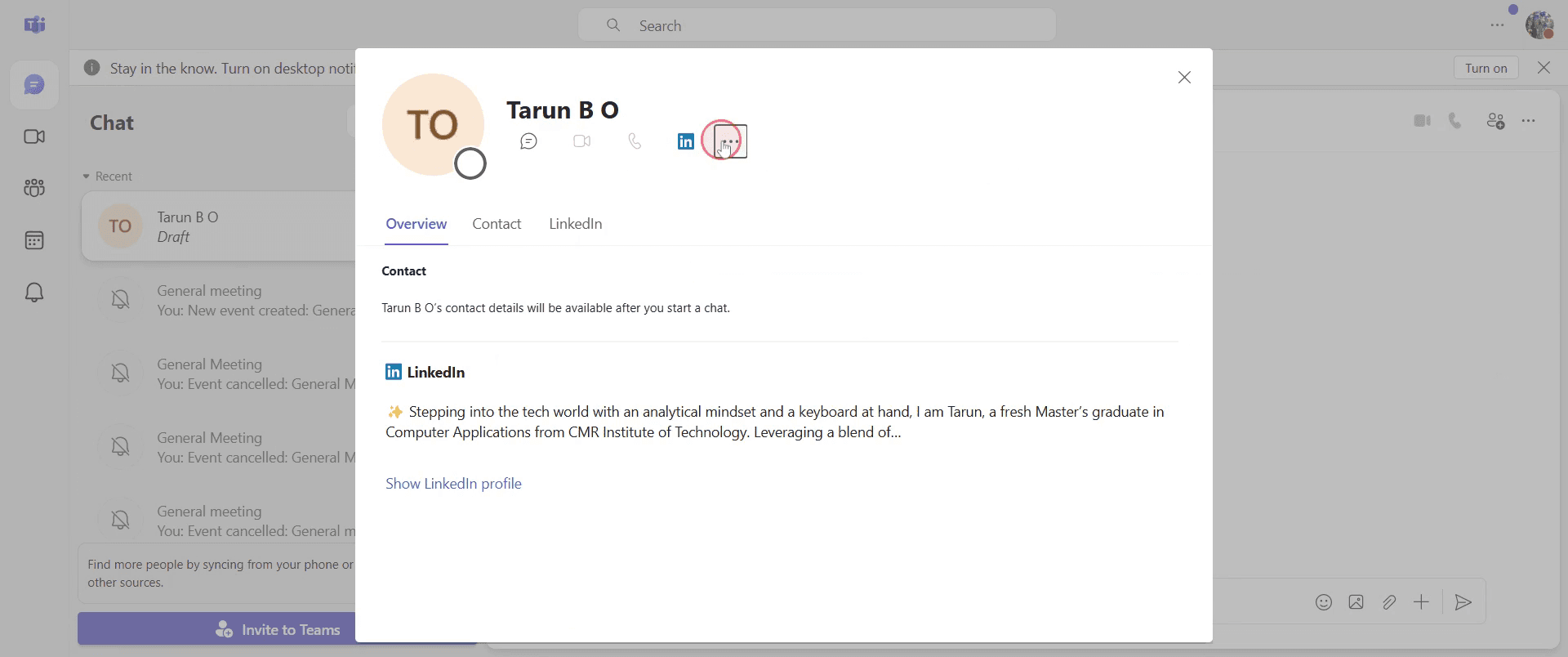
Step 4
From the dropdown menu, select the "Block contact" option.
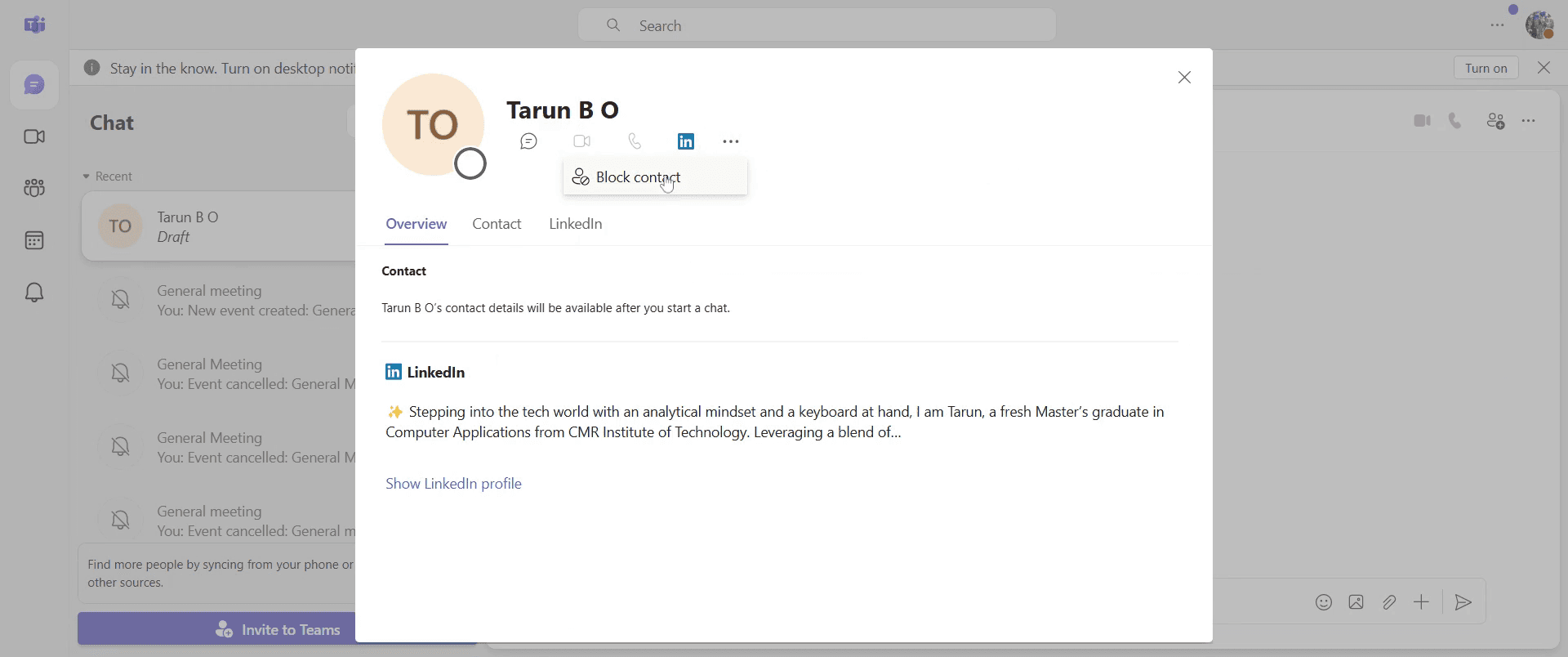
Step 5
Confirm your choice by clicking "Block" once more.
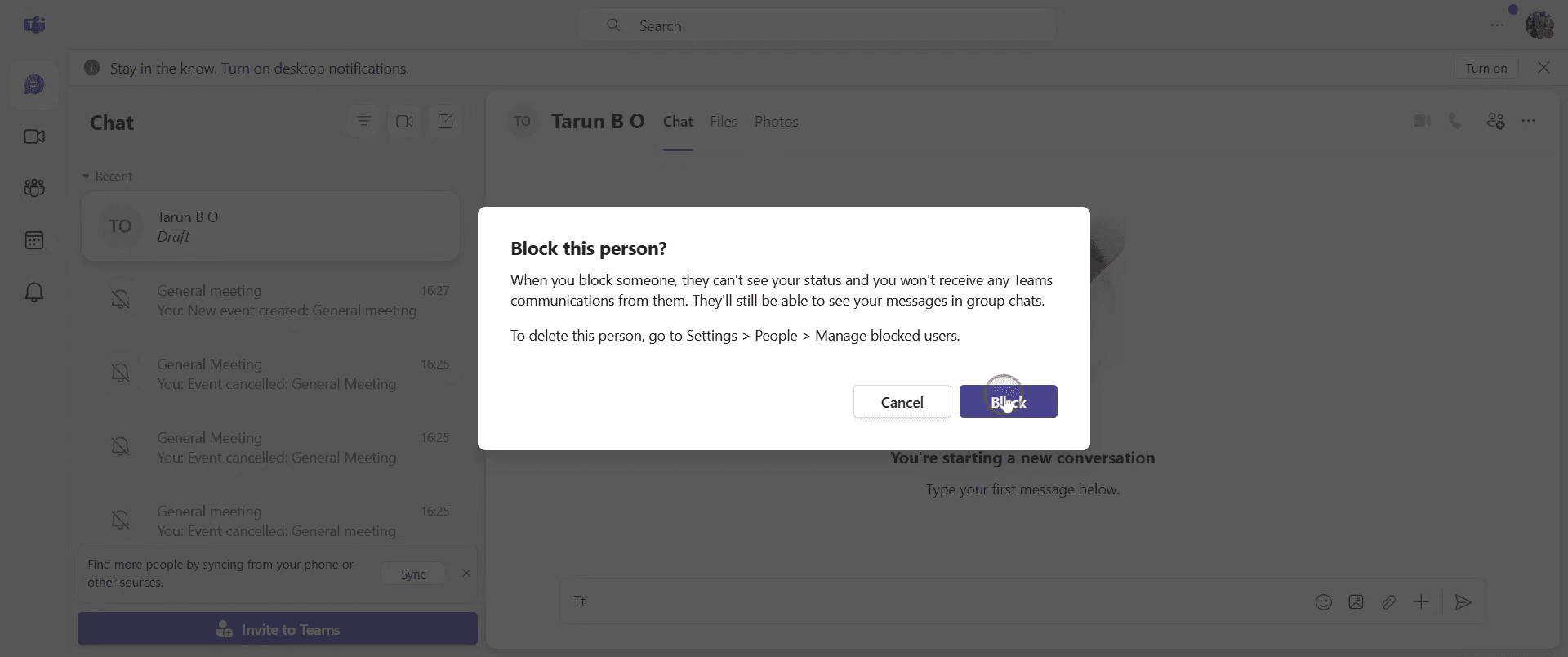
Step 6
This action will successfully block the contact.
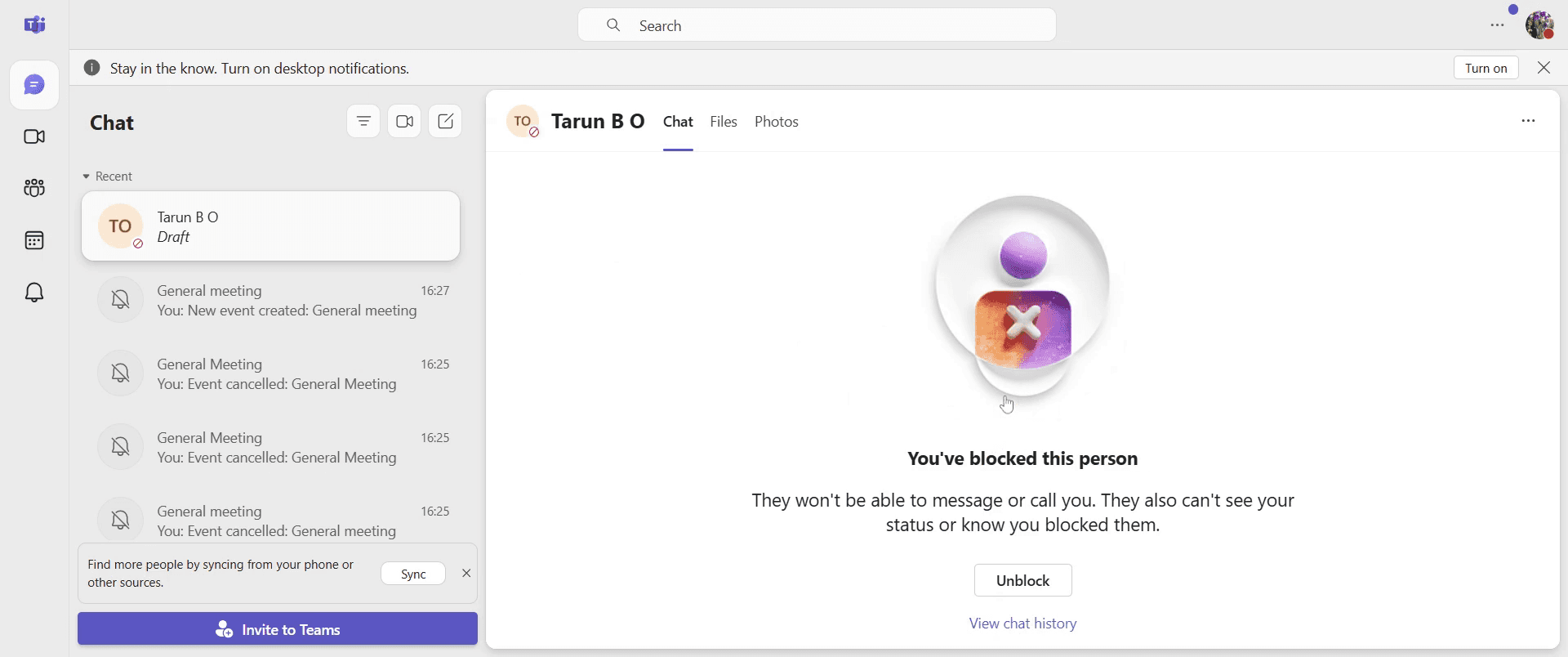
That’s it. This is a step-by-step guide on how to block someone on Teams.
Pro-tips for blocking someone on Teams
Use the mute or hide chat feature if you want to avoid notifications without fully blocking
Report inappropriate behavior if someone is violating company policies or guidelines
Ensure you check your privacy settings to manage who can contact you on Teams
Common pitfalls & how to avoid them while blocking someone on Teams
Not finding the block option - Blocking is only available for external contacts, so internal users might need to be muted instead
Still receiving messages from a blocked user - Restart Teams or log out and back in to refresh settings
Blocking an internal user - If blocking isn’t possible, consider muting, hiding chats, or informing IT for further action
Common FAQs for blocking someone on Teams
How do I block an external user on Teams?
Open the chat, click on the three-dot menu next to their name, and select BlockWhat happens when I block someone on Teams?
They won’t be able to message or call you, and you won’t receive notifications from themCan I unblock someone after blocking them?
Yes, go to your blocked contacts list in Teams settings and remove the blockCan I block someone in a group chat?
No, but you can leave the chat or mute notifications from that conversation
If you're an instructor or content creator looking to make tutorial videos, give Trupeer.ai a try. It transforms rough screen recordings into polished, studio-style videos that are ready for sharing with your audience. Plus, it automatically generates a step-by-step guide based on the video you create. Fascinating, right? Start by creating your first tutorial for free with Trupeer.ai.

