
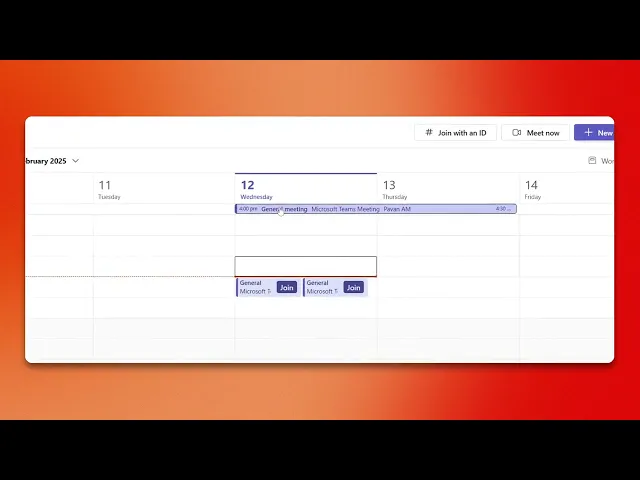
How To Cancel A Teams Meeting?
Discover the step-by-step process to cancel a Teams meeting effectively. Learn how to manage your schedule and communicate changes with ease.
This document outlines a clear step-by-step process to cancel a meeting in Microsoft Teams while ensuring that all participants receive proper notification.
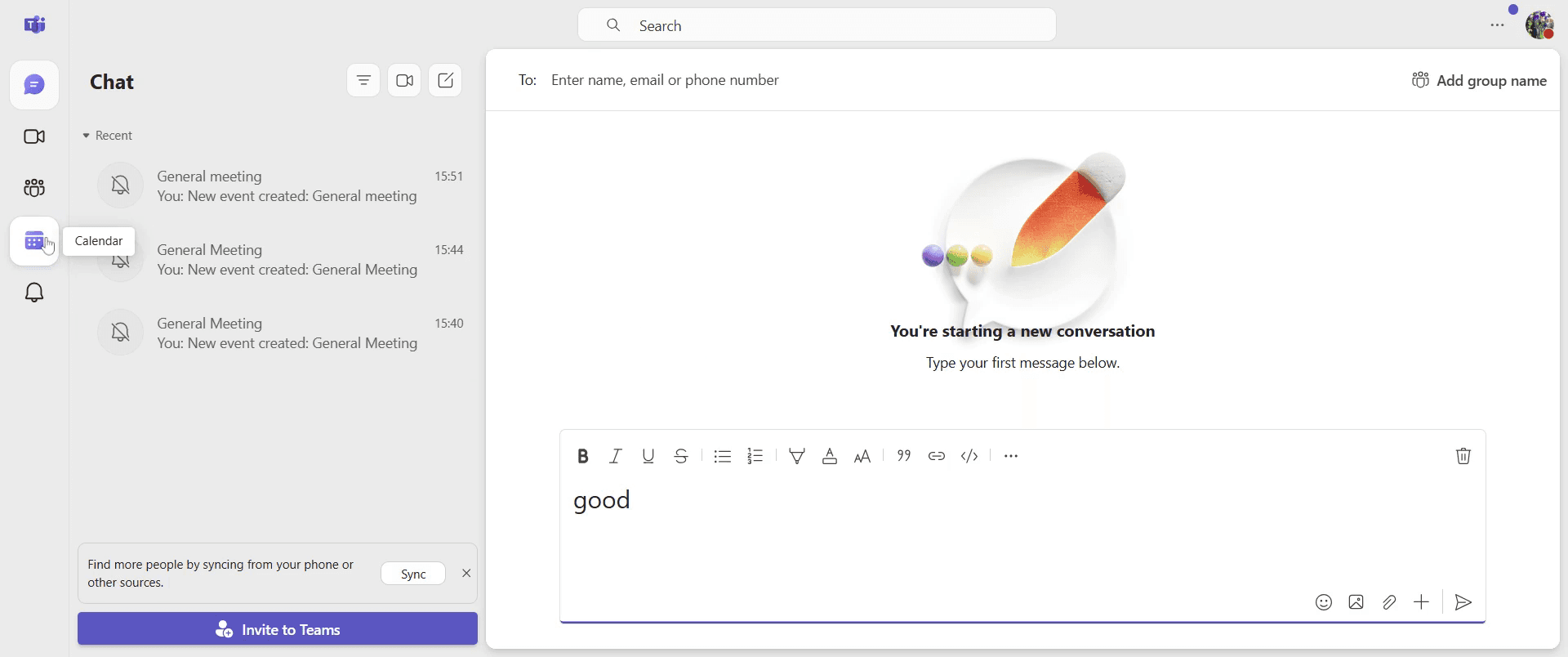
Step 1
Go to the Calendar option in Microsoft Teams and select it.
Step 2
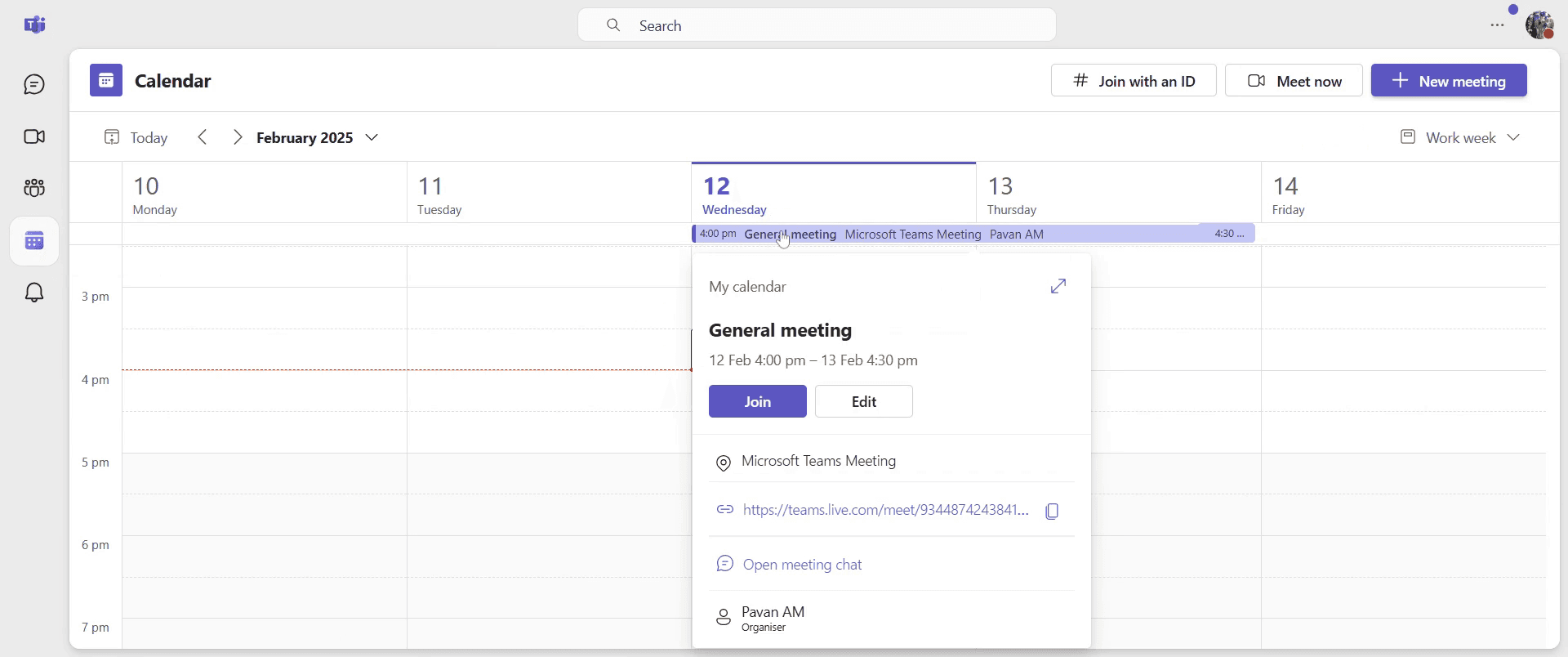
Select the meeting you wish to cancel.
Step 3
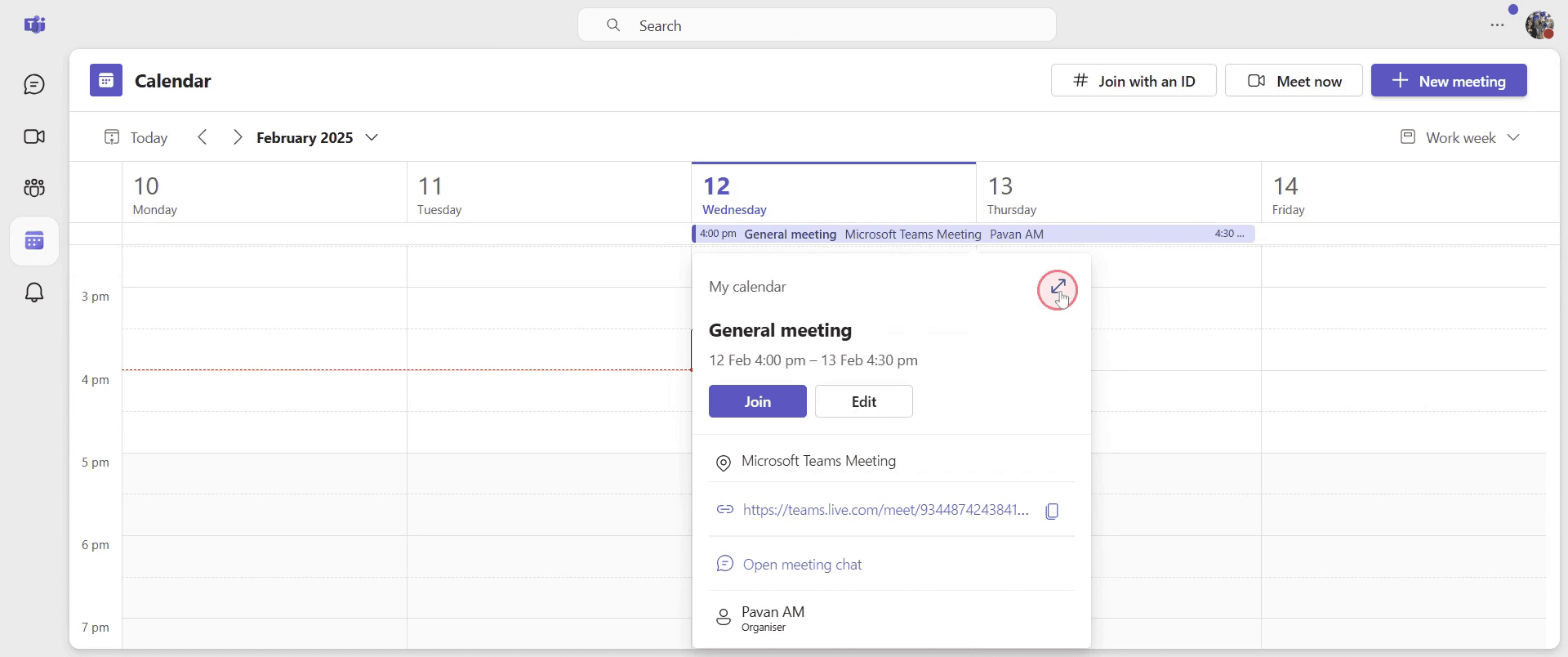
Click on the expand option.
Step 4
Select the "Cancel Meeting" option.
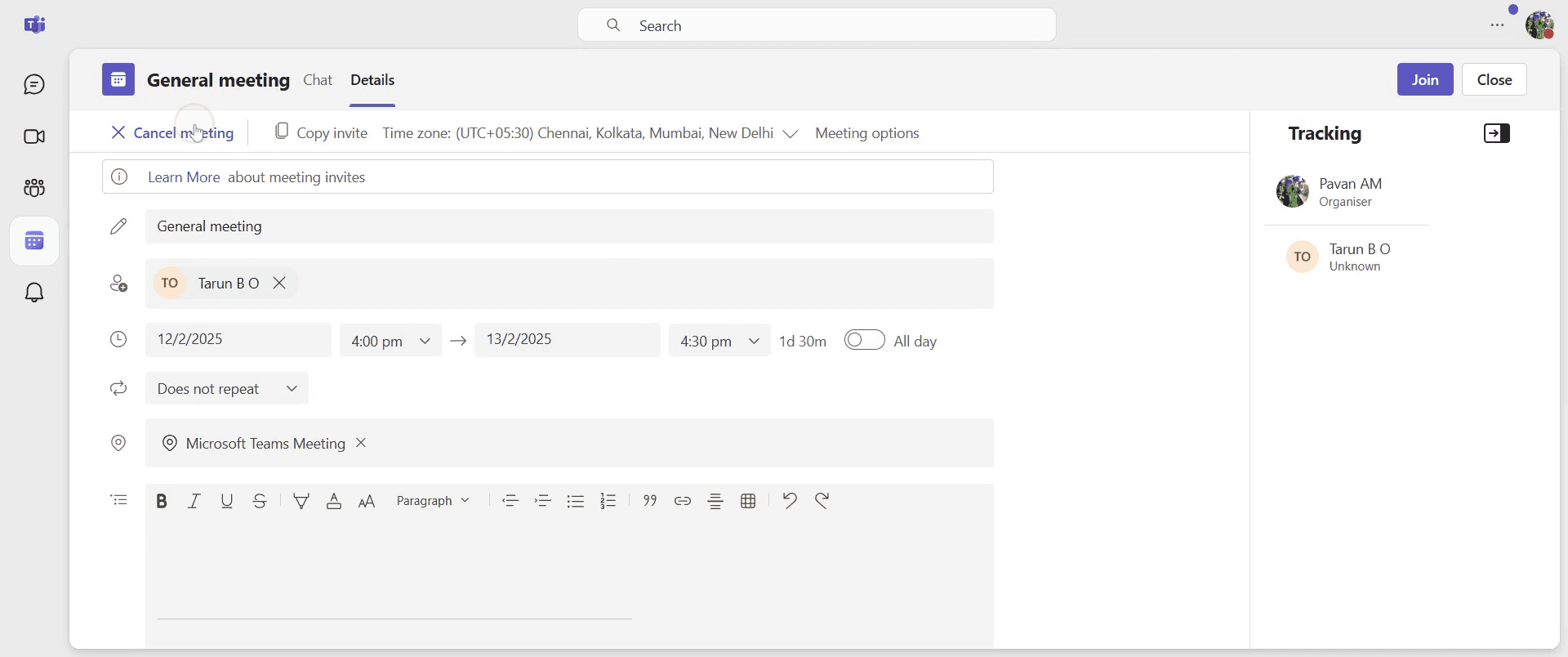
Step 5
Provide a reason for cancelling the meeting to inform all invitees, then click on the "Cancel Meeting" option to finalize the process.
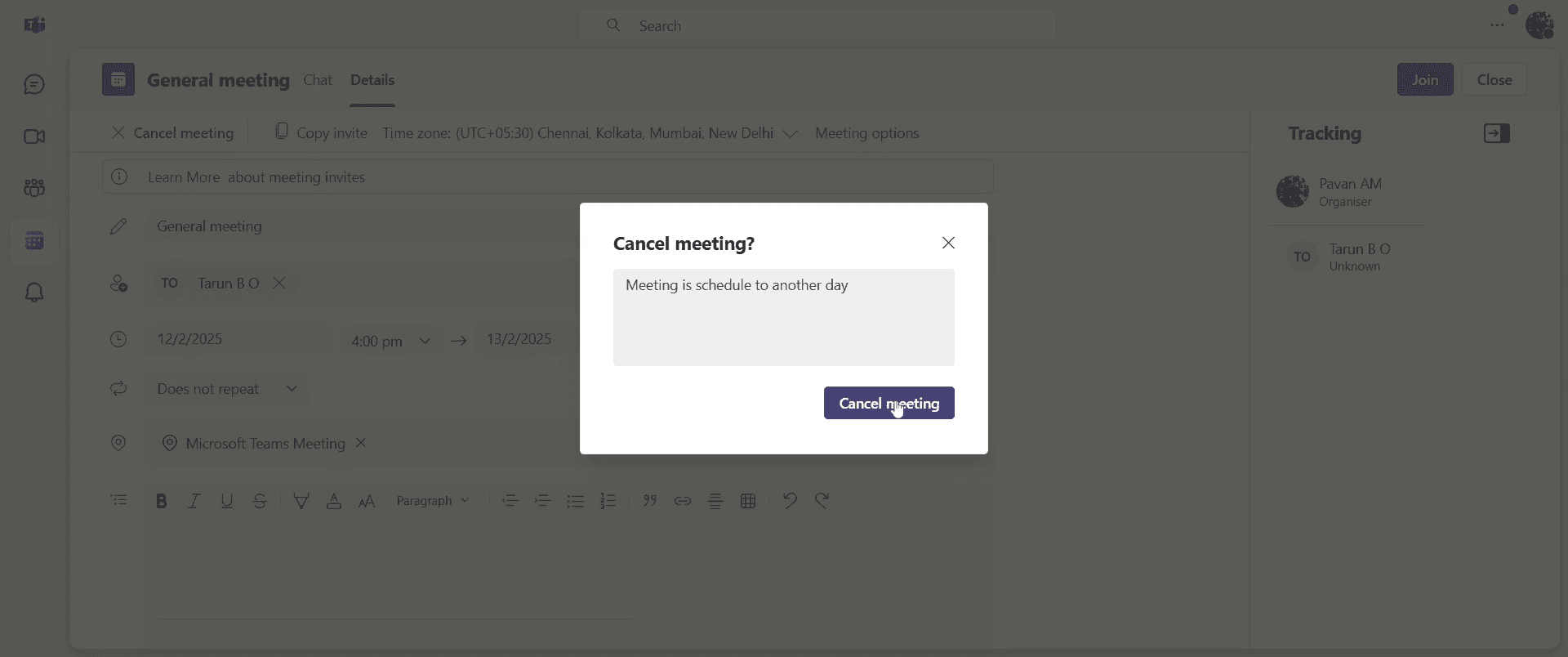
That’s it. This is a step-by-step guide on how to cancel a Teams meeting.
Pro-tips for canceling a Teams meeting
Notify participants before canceling to maintain professionalism
Use the reschedule option if the meeting is still needed but at a different time
Double-check the calendar invite to ensure you're canceling the correct meeting
Common pitfalls & how to avoid them while canceling a Teams meeting
Forgetting to inform attendees - Always send a cancellation message so participants are aware of the change
Accidentally deleting instead of canceling - Use the Cancel Meeting option instead of deleting the event to notify attendees properly
Canceling a recurring meeting - Choose whether to cancel just one occurrence or the entire series to avoid confusion
Common FAQs for canceling a Teams meeting
Can I cancel a meeting without notifying attendees?
No, Teams automatically sends a cancellation email to all inviteesWhat happens when I cancel a recurring meeting?
You can choose to cancel only one occurrence or the entire seriesCan an attendee cancel a Teams meeting?
No, only the organizer has permission to cancel the meetingHow do I reschedule instead of canceling?
Open the meeting, click Edit, change the date/time, and send the update
If you're an instructor or content creator looking to make tutorial videos, give Trupeer.ai a try. It transforms rough screen recordings into polished, studio-style videos that are ready for sharing with your audience. Plus, it automatically generates a step-by-step guide based on the video you create. Fascinating, right? Start by creating your first tutorial for free with Trupeer.ai.

