

How To Center An Image In Webflow
Discover the step-by-step guide on how to center an image in Webflow effortlessly. Enhance your web design skills with our expert tips and techniques.
Learn how to seamlessly insert and customize an image within Web flow by following these simple steps. This process involves adding elements, adjusting dimensions, and setting alignments to ensure your image appears exactly as desired in your project.
Step 1
Clicking on Add Elements.
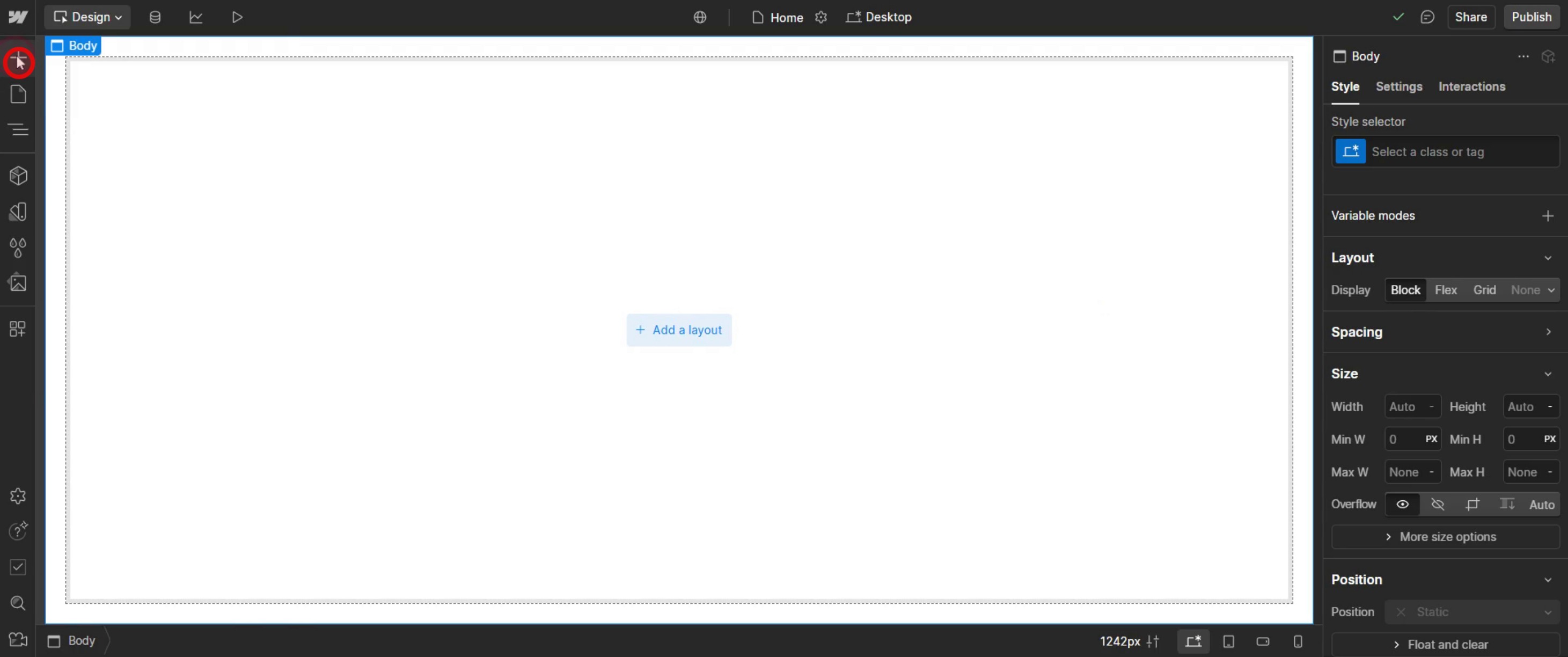
Step 2
Drop and drop the div Block onto your page.
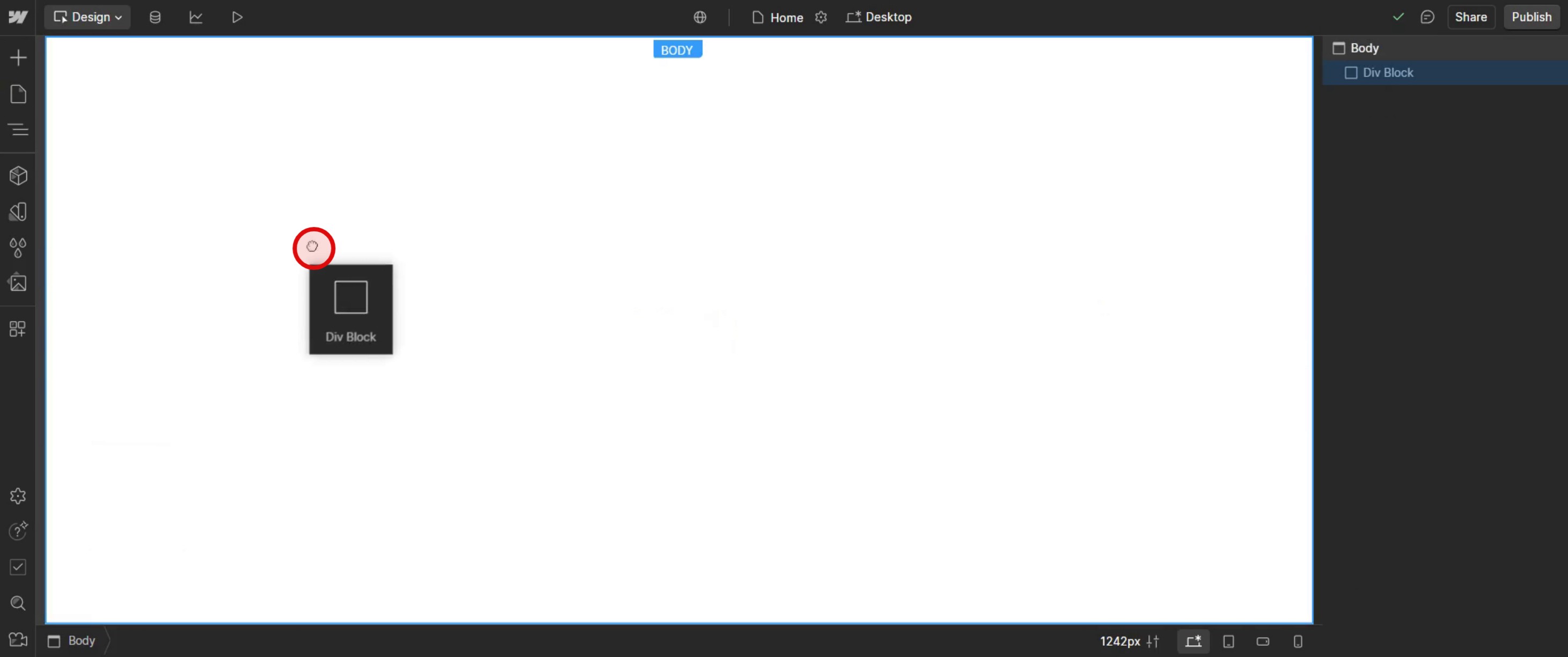
Step 3
Click again on Add Elements,
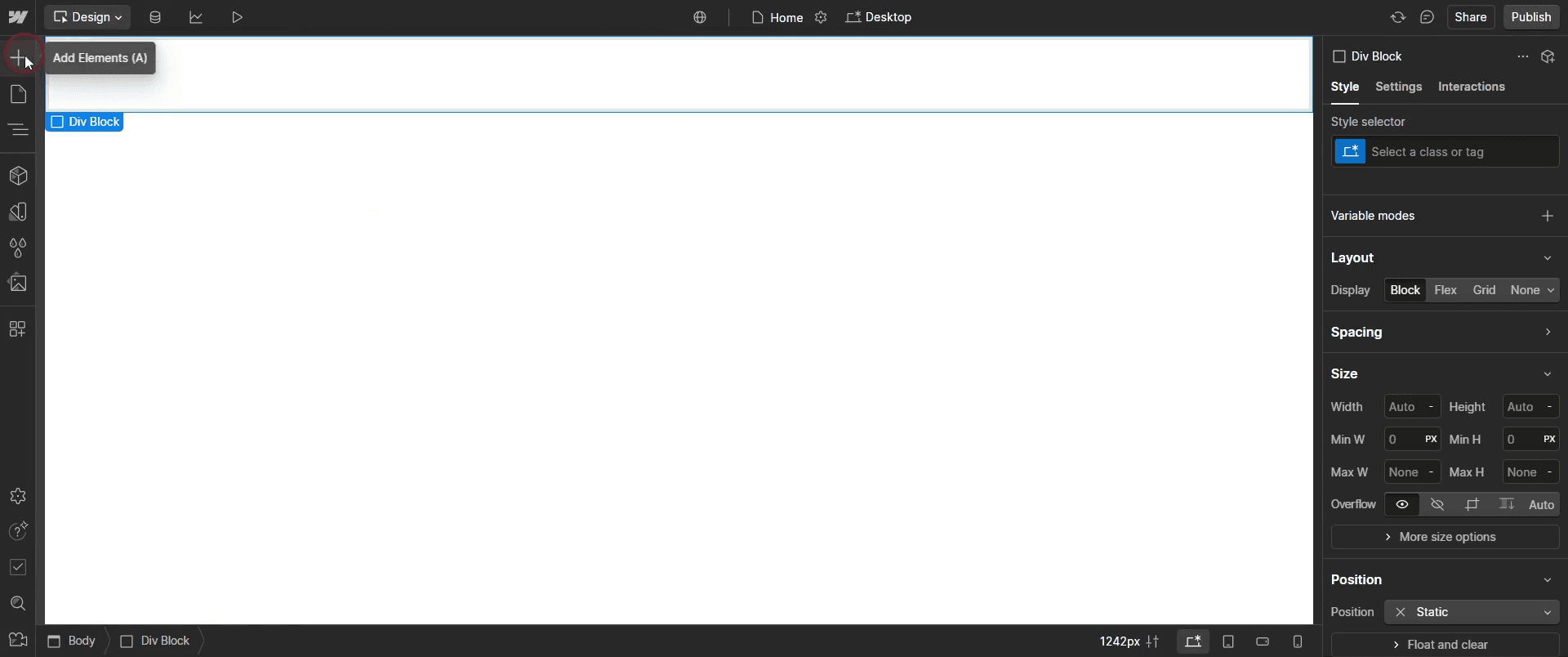
Step 4
Select the specific image,
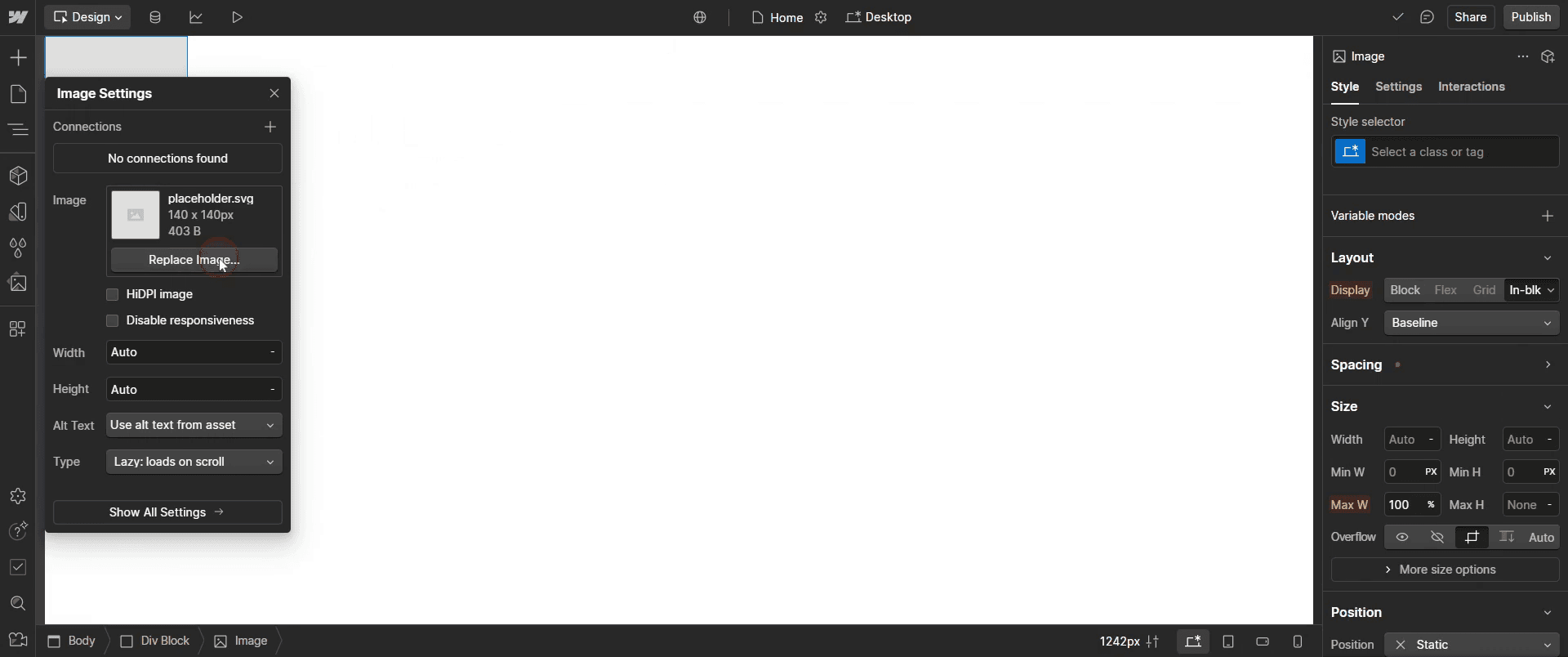
Step 5
Specify the size by selecting pixel measurements.
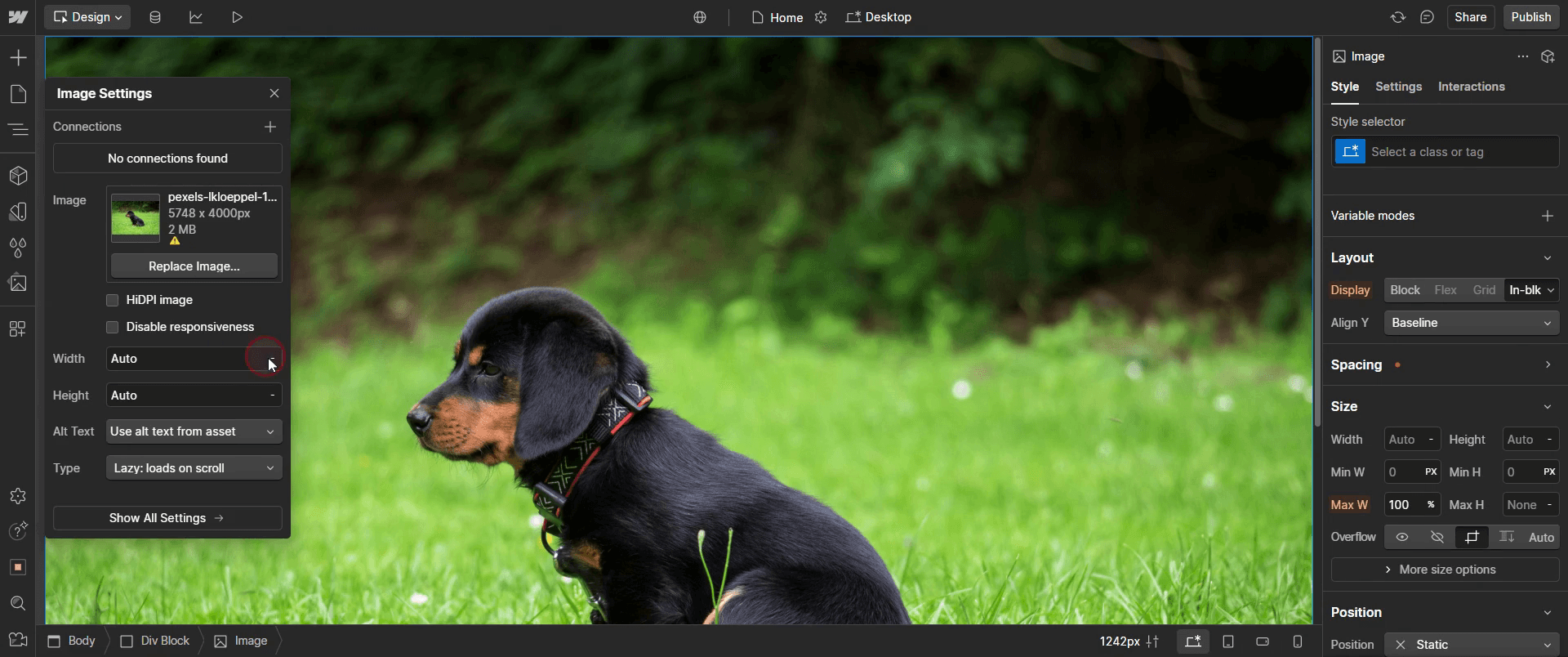
Step 6
Click on the navigator panel,
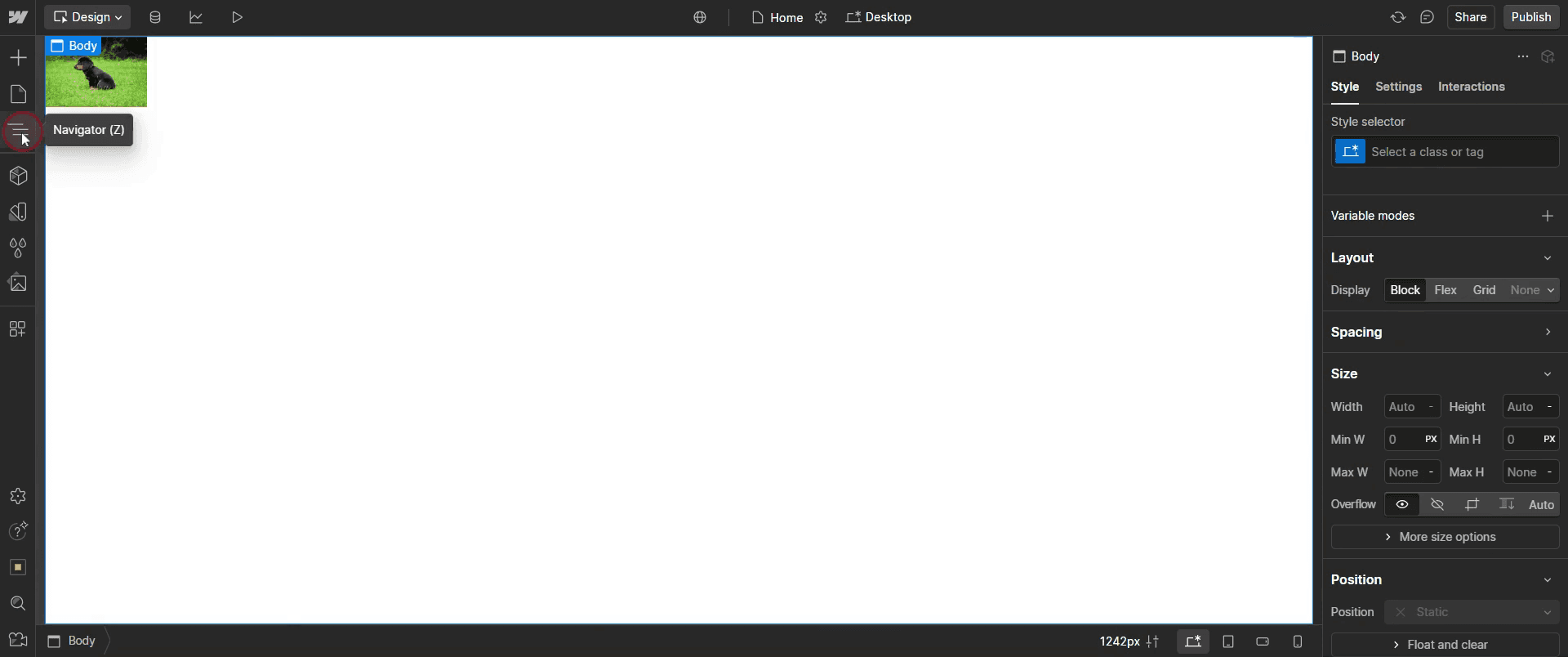
Step 7
And select the div block you have created.
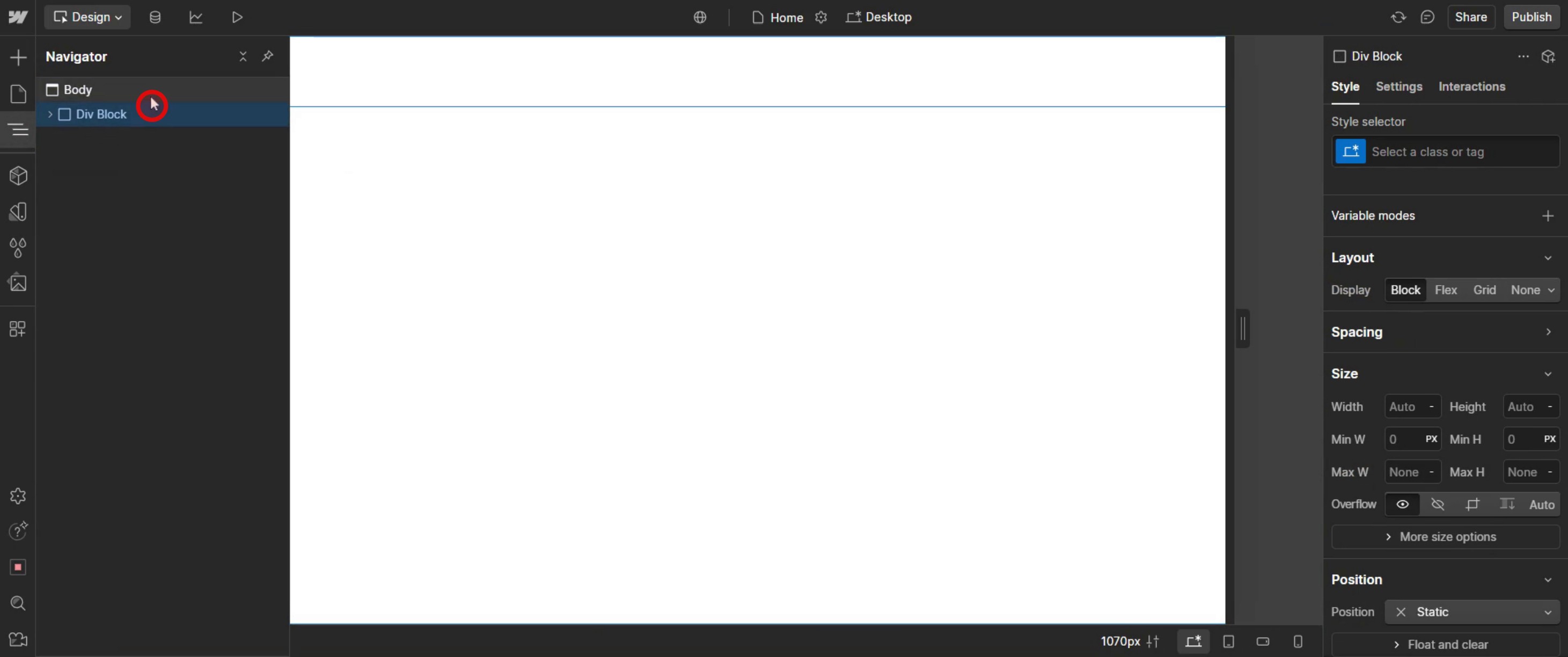
Step 8
Adjust the width.
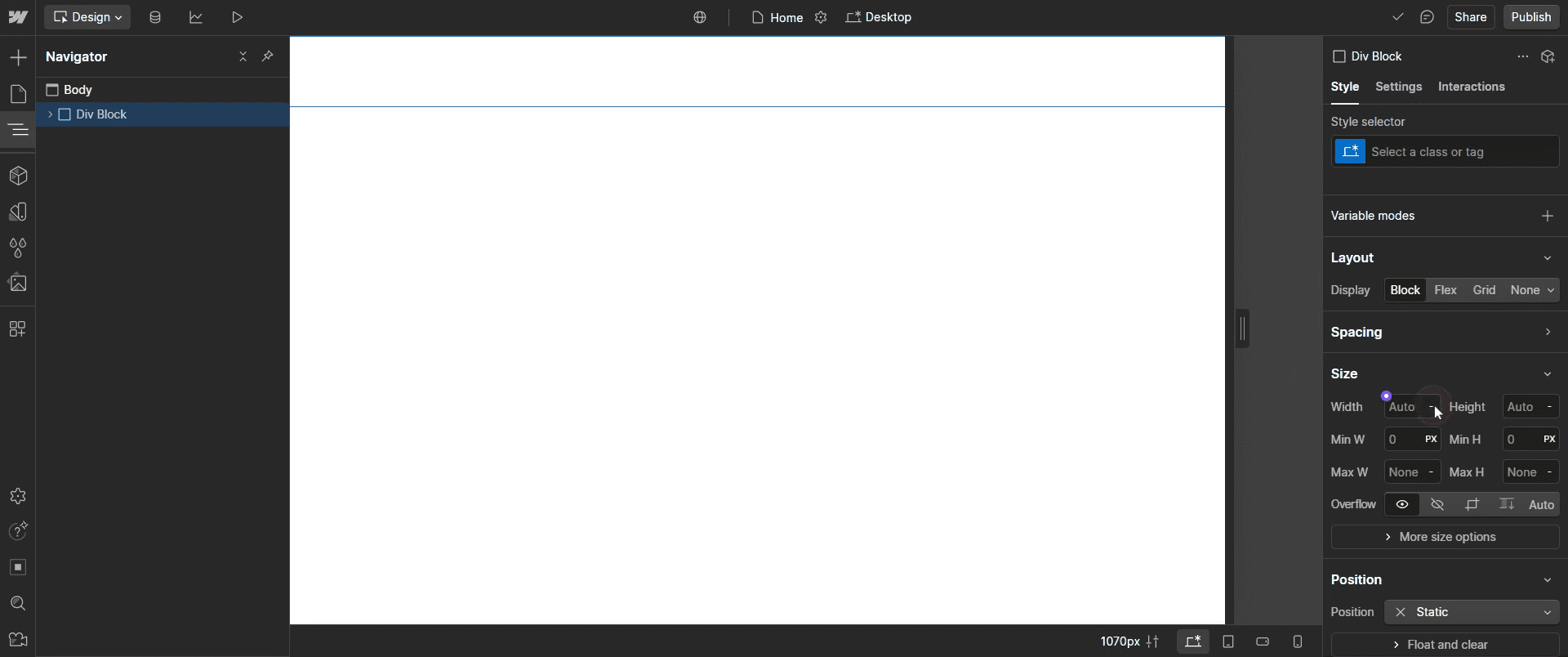
Step 9
Adjust it to 100% to ensure scalability.
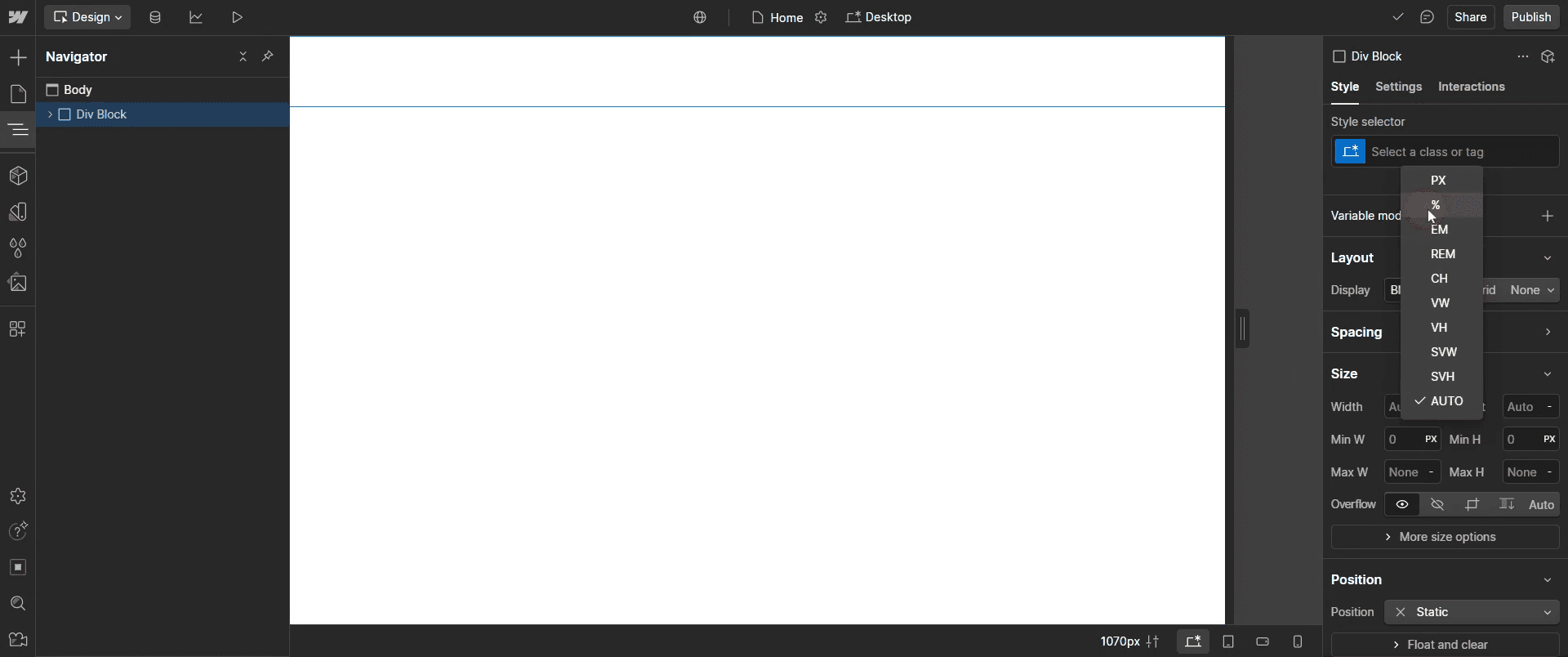
Step 10
Select the flex.
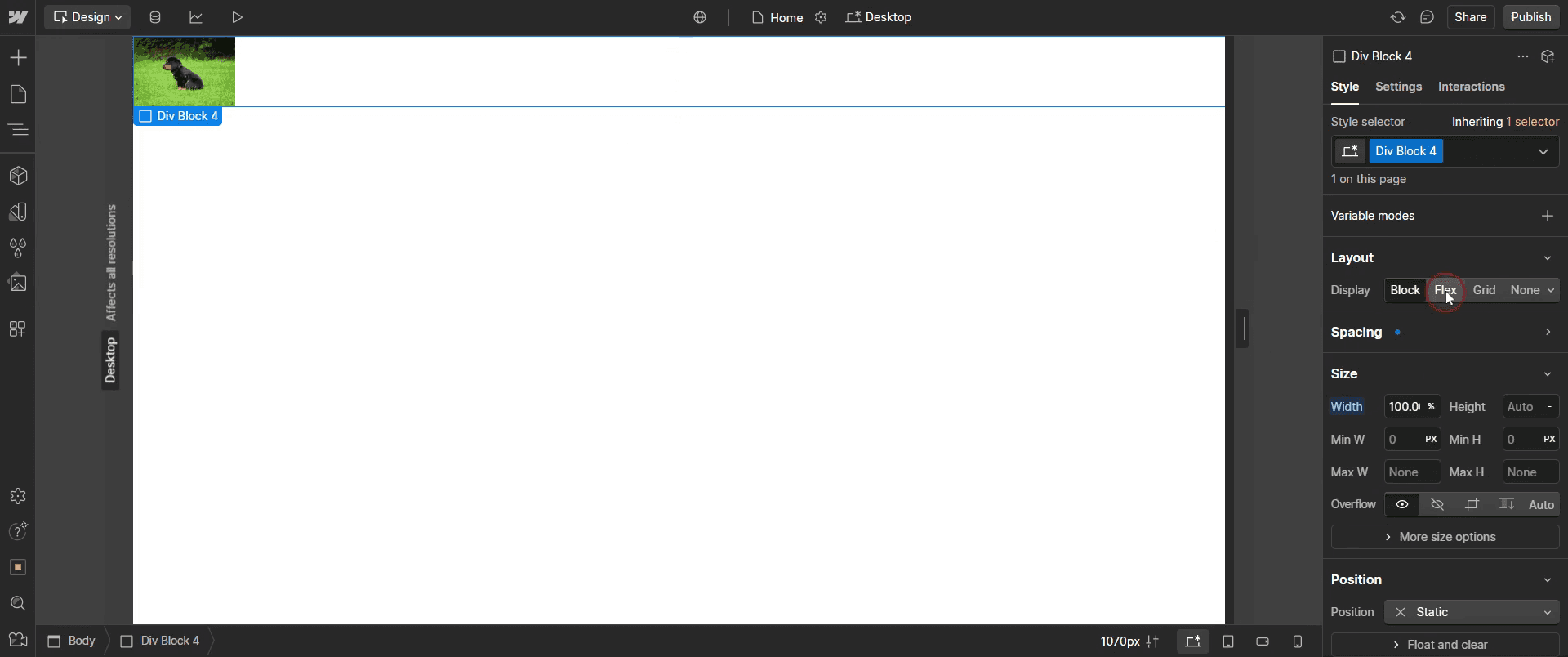
Step 11
Find the align option.
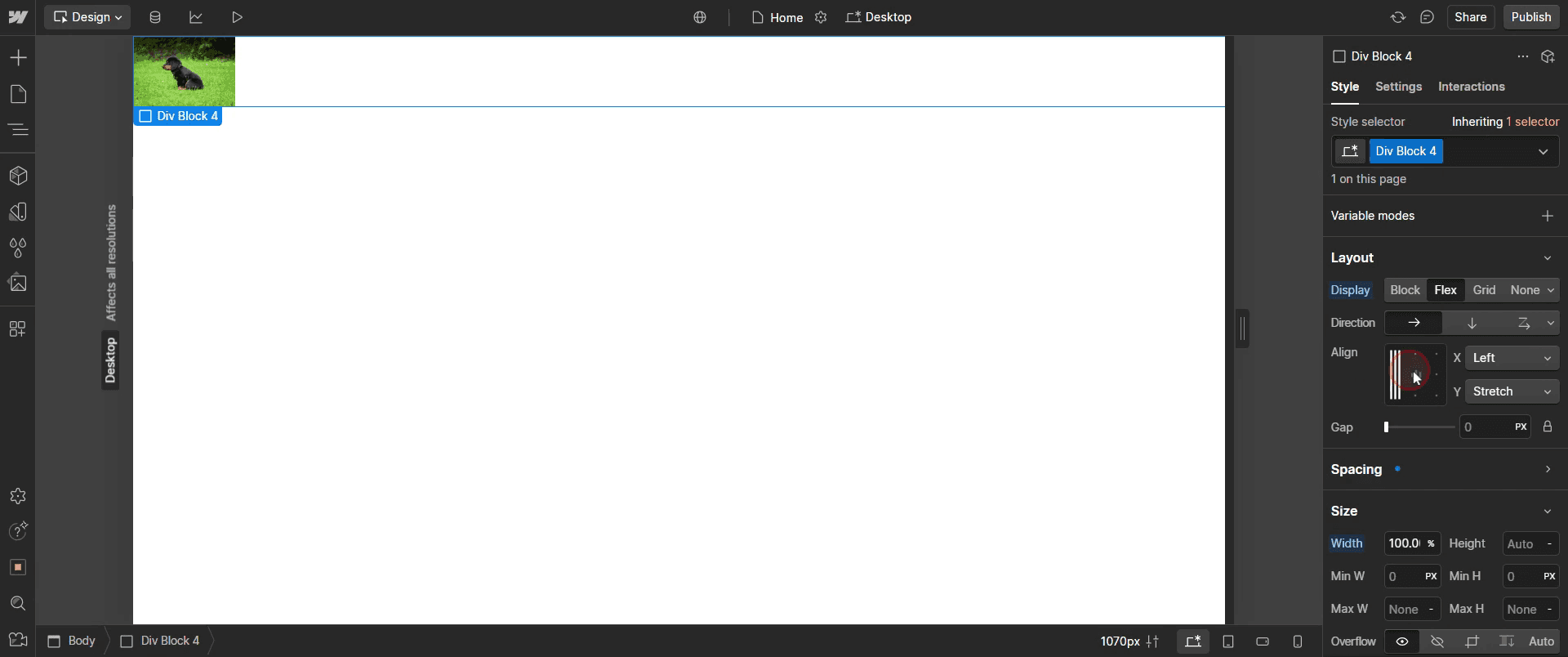
This is the step-by-step process to center an image in Web flow. Let’s explore some tips for it.
Pro-tips for centering an image in Web flow
Use Flexbox for Precise Alignment – The easiest way to center an image both horizontally and vertically is by using Flexbox. Set the parent container’s display to
Flexand useJustify: CenterandAlign: Center.Use Margin Auto for Horizontal Centering – If the image is inside a block-level container, set its left and right margins to
autoto center it horizontally.Use Grid for Advanced Layouts – If your page uses CSS Grid, place the image inside a grid cell and use
Align: CenterandJustify: Centerto position it.
Common pitfalls & how to avoid them
Not Using a Parent Container – If an image isn’t centering properly, ensure it’s inside a parent div block or container instead of being directly placed in the body.
Conflicting Styles Overriding Centering – Some elements may have existing styles like
floatorposition: absolutethat override centering properties. Always check the Styles Panel for conflicting rules.Forgetting to Define a Width or Height – If an image doesn’t have a set width or height, certain centering methods (like
margin: auto) may not work as expected.
Common FAQs for centering an image in Web flow
How do i center an image both vertically and horizontally?
Use Flexbox on the parent container and setJustify: CenterandAlign: Center. If using absolute positioning, setTop: 50%,Left: 50%, and applyTransform: Translate(-50%, -50%).Why is my image not centering in Web flow?
Possible reasons include conflicting styles (float, position absolute), missing parent container alignment, or an image without a defined width or height.Can i use Grid to center an image in Web flow?
Yes, if your layout uses CSS Grid, place the image inside a grid cell and applyAlign: CenterandJustify: Centerto center it within the grid.How do i center a background image in Web flow?
If using a background image, go to the Background Settings and setPosition: Center Centerto align it properly.
If you're an instructor or content creator looking to make tutorial videos, give a try. It transforms rough screen recordings into polished, studio-style videos that are ready for sharing with your audience. Plus, it automatically generates a step-by-step guide based on the video you create. Fascinating, right? Start by creating your first tutorial for free with trupeer.ai .

