
How To Change Open Graph Image Webflow
Learn how to change the Open Graph image in Webflow with our step-by-step guide. Enhance your website's social media presence effortlessly.
This document provides step-by-step instructions on how to change the Open Graph image in Web flow, including accessing settings, modifying the graph preview, and saving your changes.
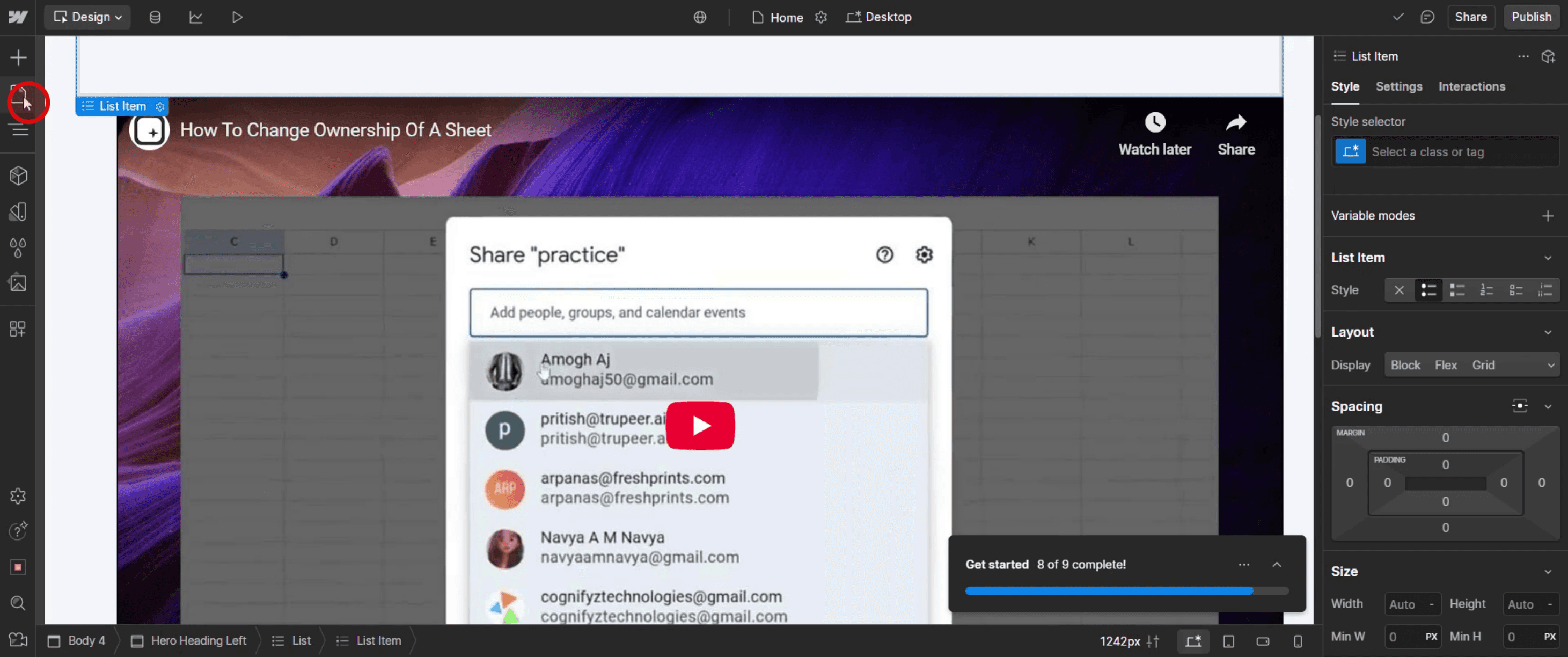
Step 1
Click on the Pages tab,
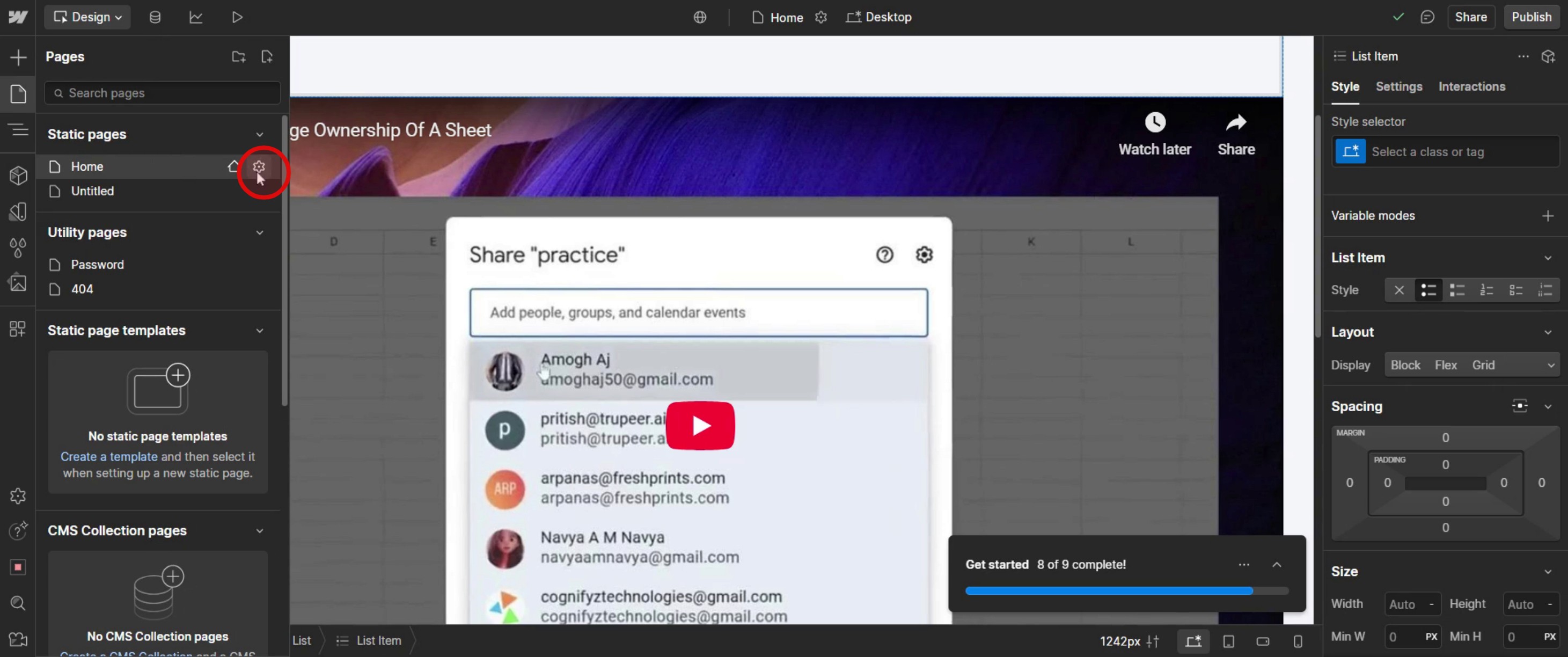
Step 2
Select the settings option,
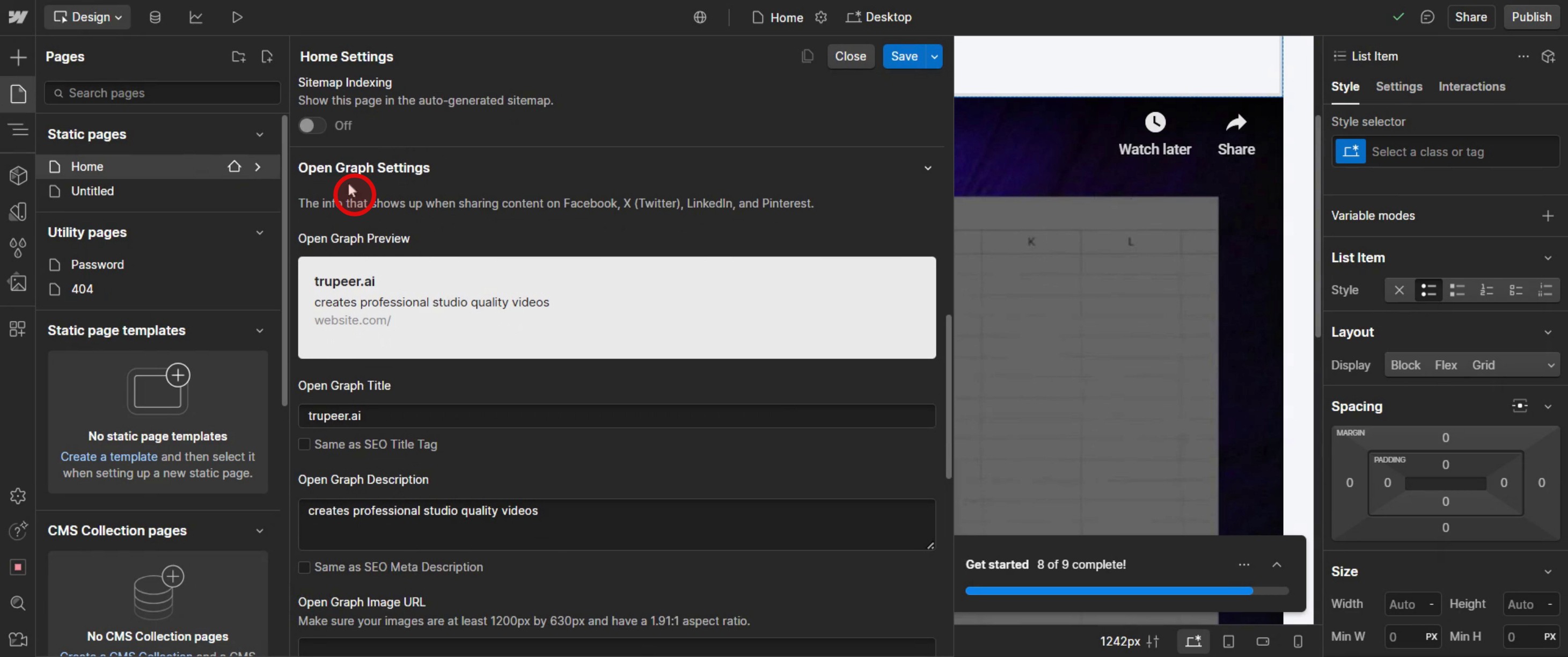
Step 3
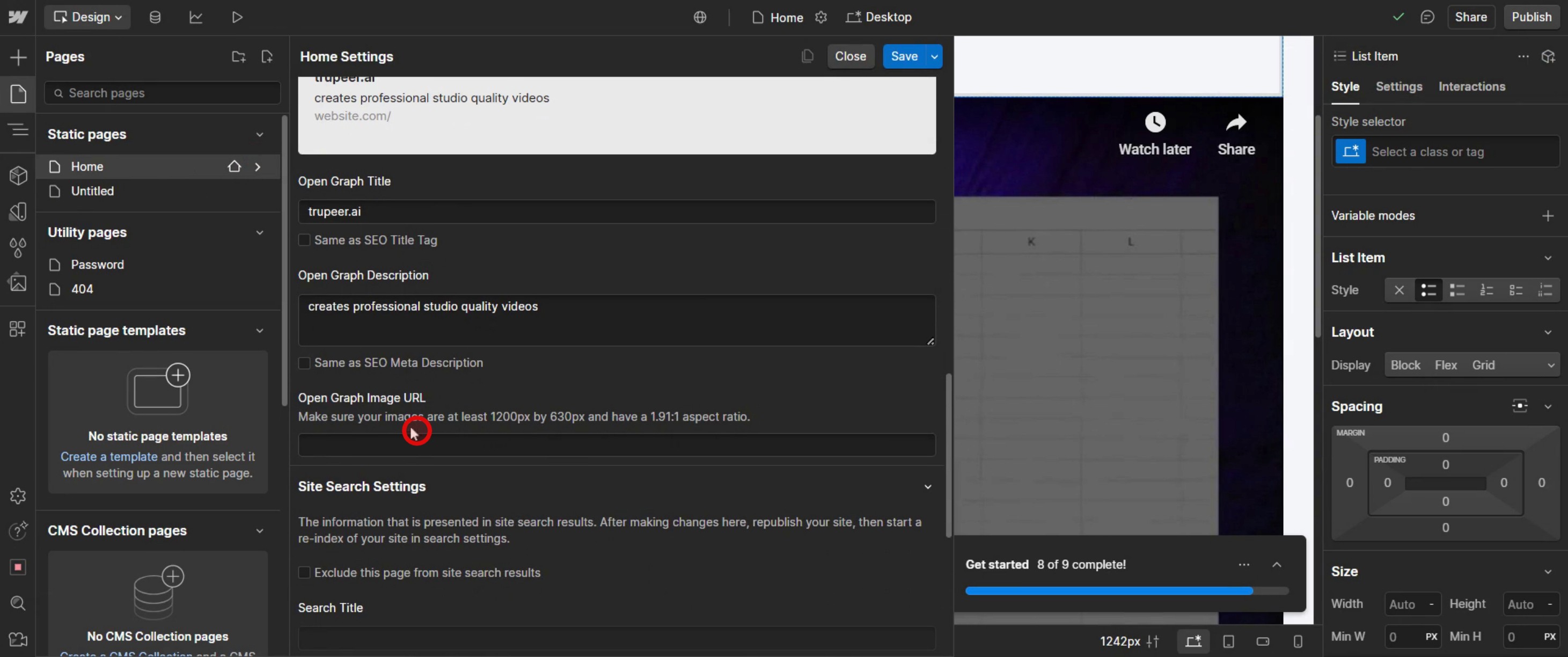
Scroll down to the open graph settings section,
Step 4
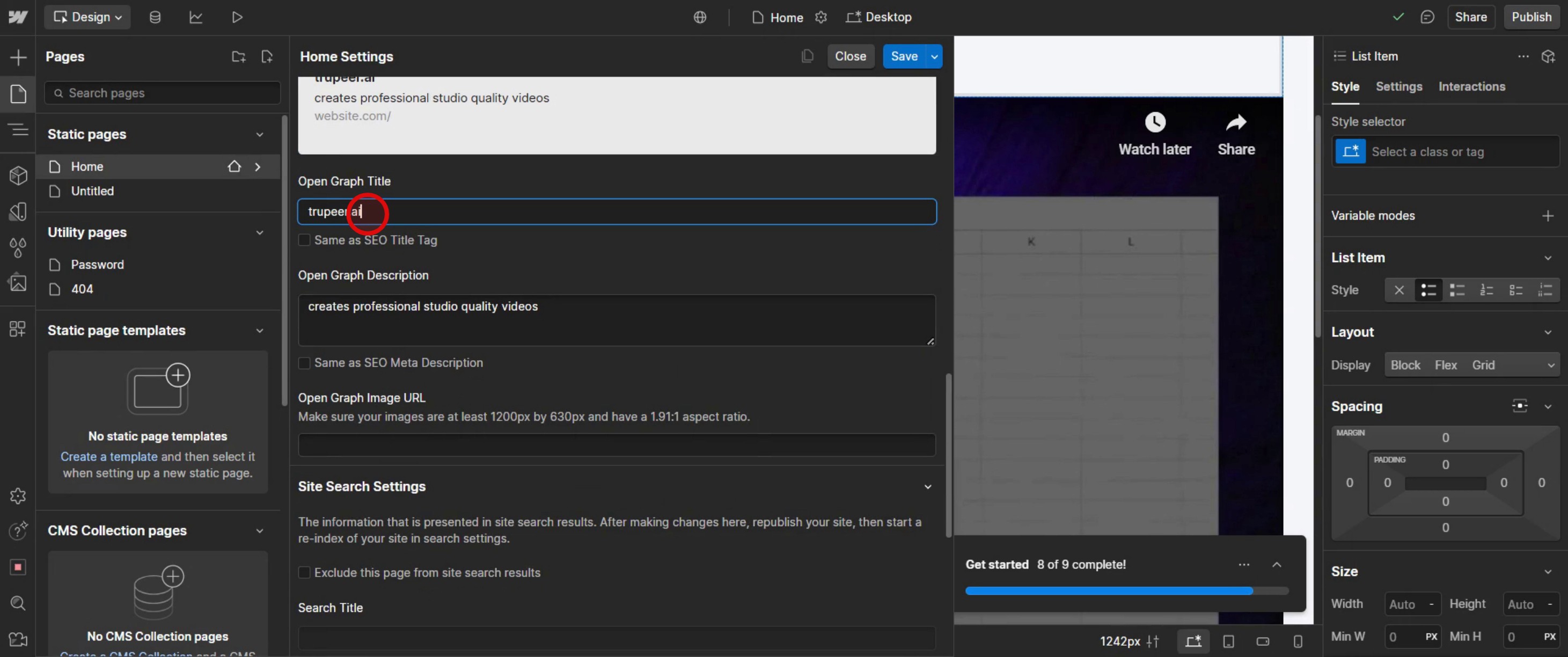
Enter the required details.
Step 5
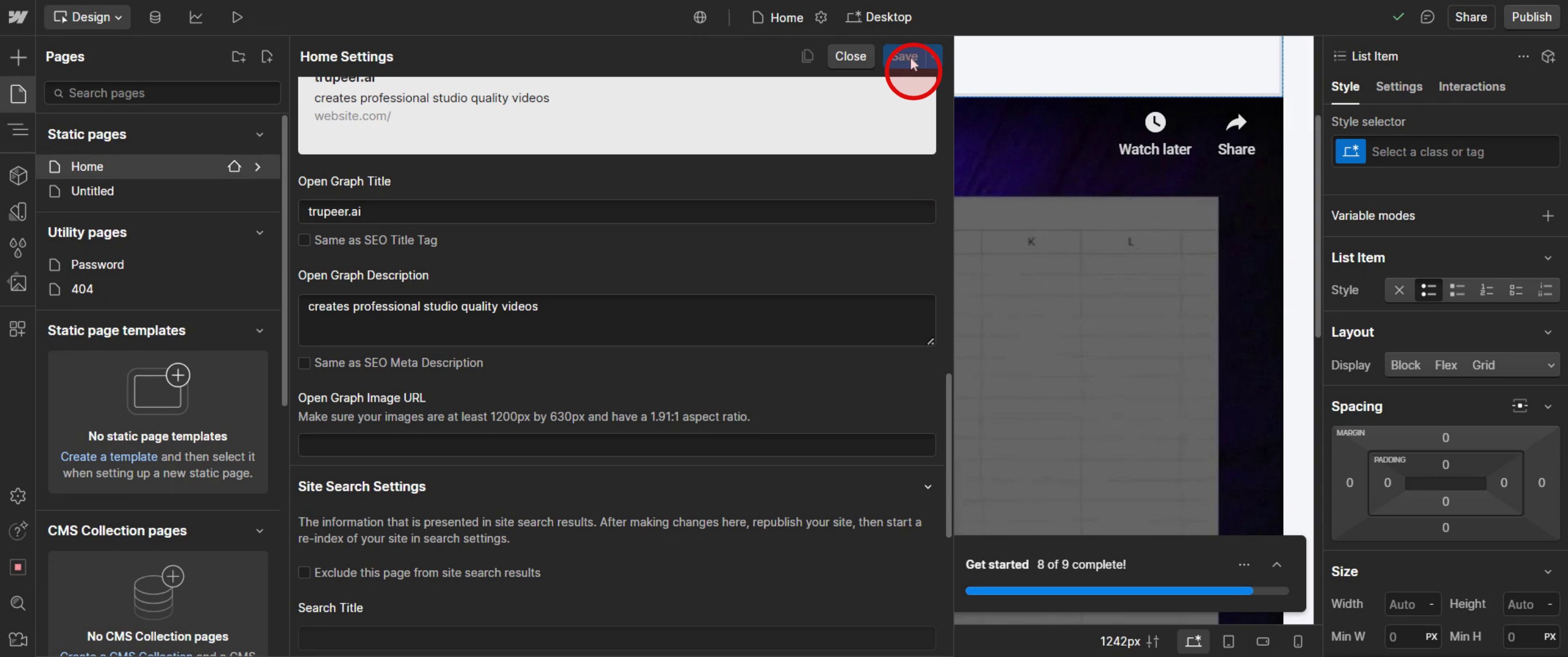
Click on save changes,
Step 6
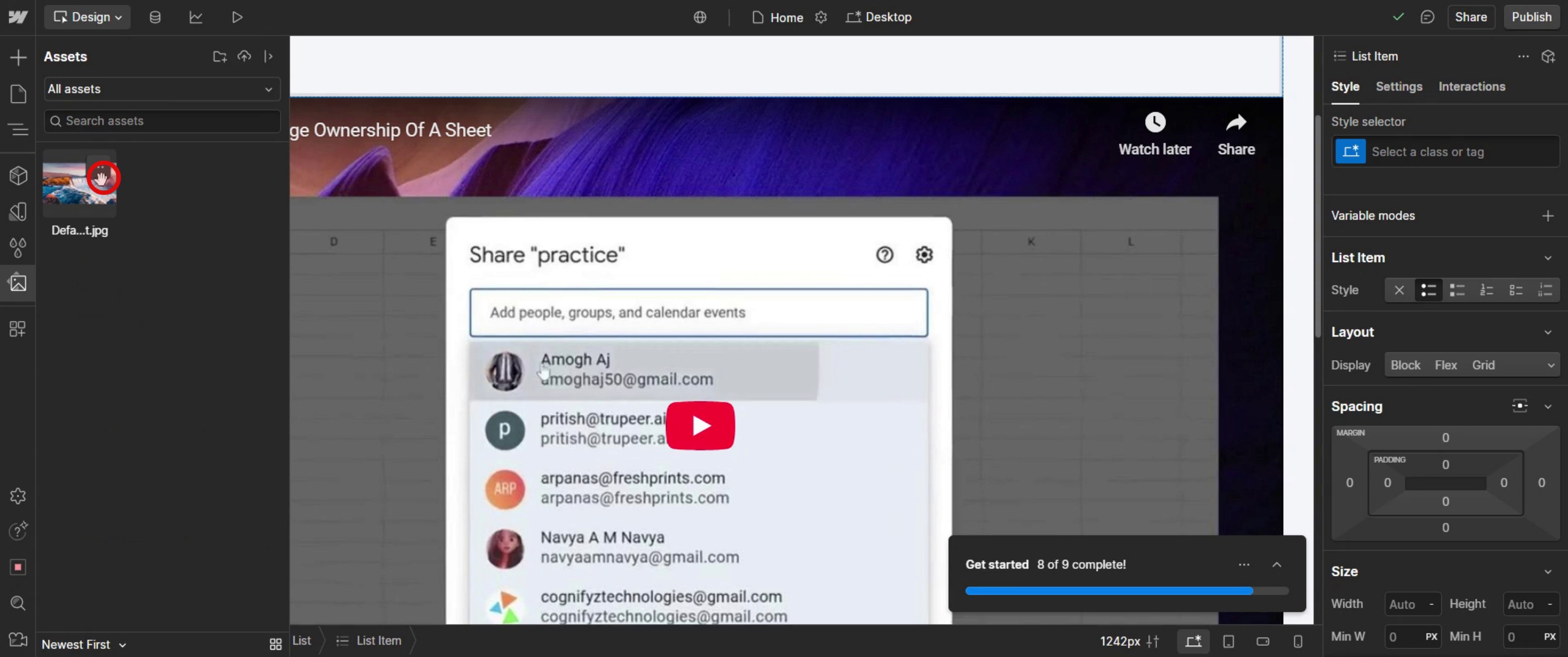
And click on the three dots.
Step 7
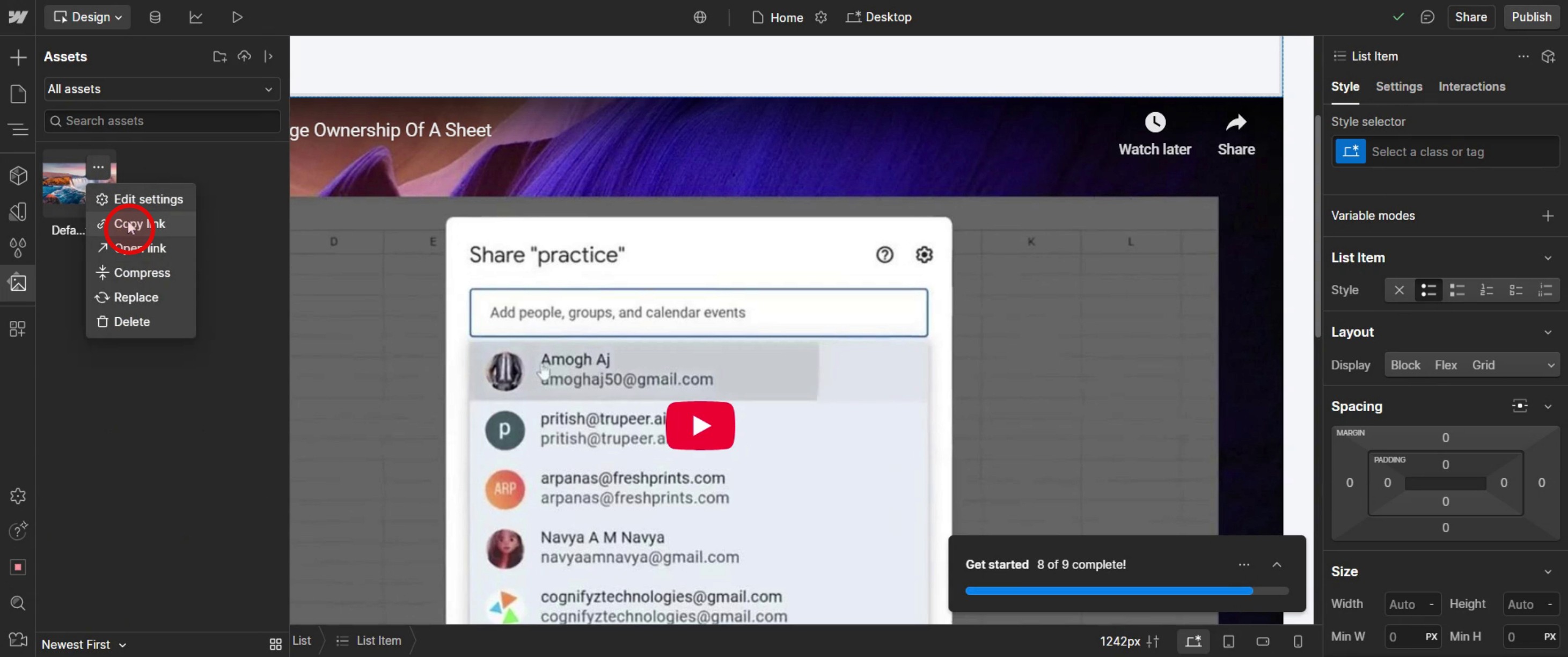
Then copy the link,
Step 8
Paste the copied URL,
Step 9
Click on save.
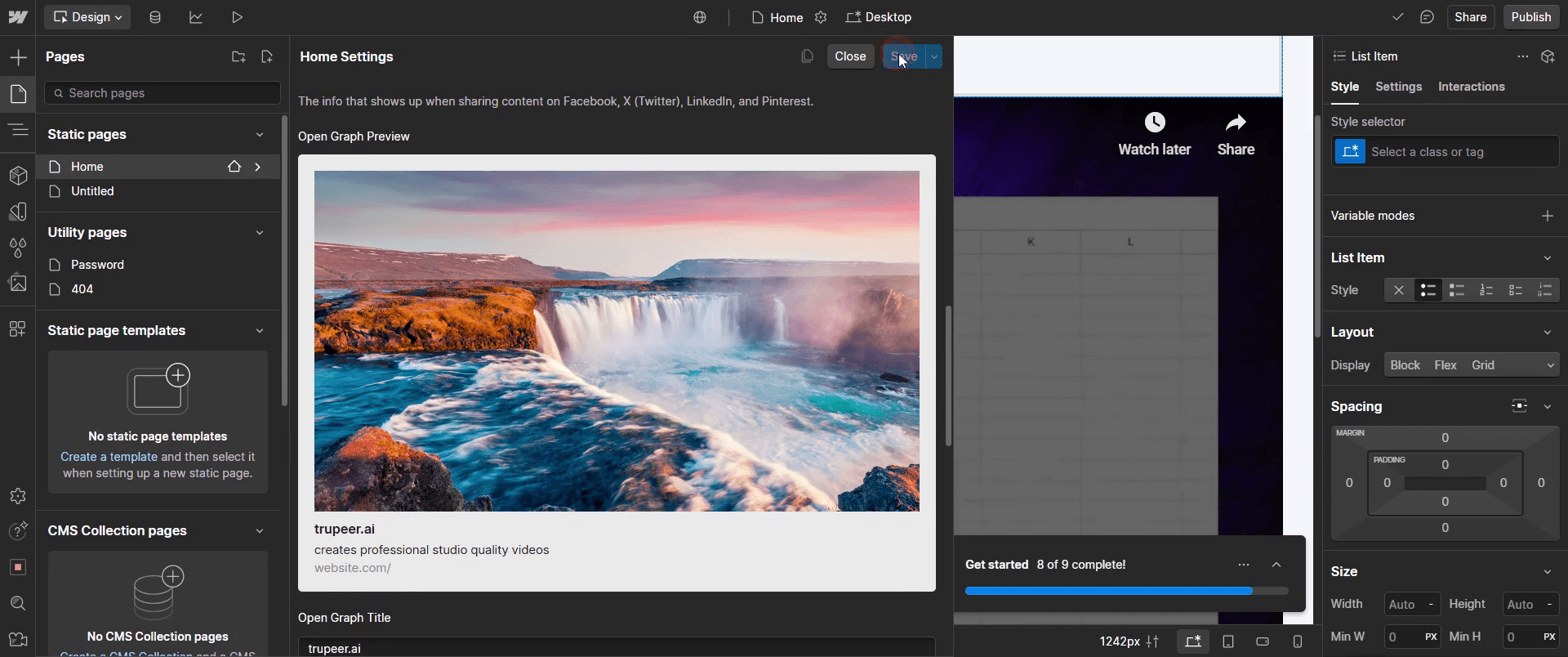
This is the step-by-step process to change the open graph image in Web flow. Let’s explore some tips for it.
Pro-tips for changing the open graph image in Web flow
Understand what an open graph image Is – The open Graph (OG) image is the preview image that appears when your website link is shared on social media platforms like Facebook, LinkedIn, and Twitter (X).
Use the Correct Image Dimensions – The recommended size for Open Graph images is 1200 x 630 pixels for the best clarity and visibility on social media.
Optimize Image for Fast Loading – Ensure your OG image is in JPEG or PNG format and optimized for fast loading without compromising quality.
Common pitfalls & how to avoid them
Forgetting to Publish Changes – Your OG image won’t update unless you publish your site after making changes. Always click Publish once you're done editing.
Not Clearing Social Media Cache – Some platforms cache OG images, meaning they might not update immediately. Use the Facebook Debugger or Twitter Card Validator to refresh them.
Uploading the Wrong Image Size – If your image is too small, it may appear blurry or cropped incorrectly. Always use 1200 x 630 px for best results.
Common FAQs for changing open graph image in Web flow
What is the best size for an Open Graph image?
The recommended size is 1200 x 630 pixels for the best display on social media platforms.Why is my new Open Graph image not showing on Facebook?
Facebook may cache old images. Use the Facebook Sharing Debugger to clear the cache and refresh your link preview.Can i set different Open Graph images for different pages?
Yes, you can customize the OG image for each page by editing the Page Settings in Web flow.Does Web flow automatically generate Open Graph images?
No, Web flow does not create OG images by default. You need to manually upload and set them in SEO settings.
If you're an instructor or content creator looking to make tutorial videos, give a try. It transforms rough screen recordings into polished, studio-style videos that are ready for sharing with your audience. Plus, it automatically generates a step-by-step guide based on the video you create. Fascinating, right? Start by creating your first tutorial for free with trupeer.ai .

