
How To Change Relative To In Webflow
Discover the step-by-step guide on changing relative positioning in Webflow. Enhance your design skills and create stunning layouts effortlessly.
This document outlines the procedure to modify the positioning of elements to relative within Web flow. The process involves adding elements, selecting specific components, and altering their position settings to enhance layout control.
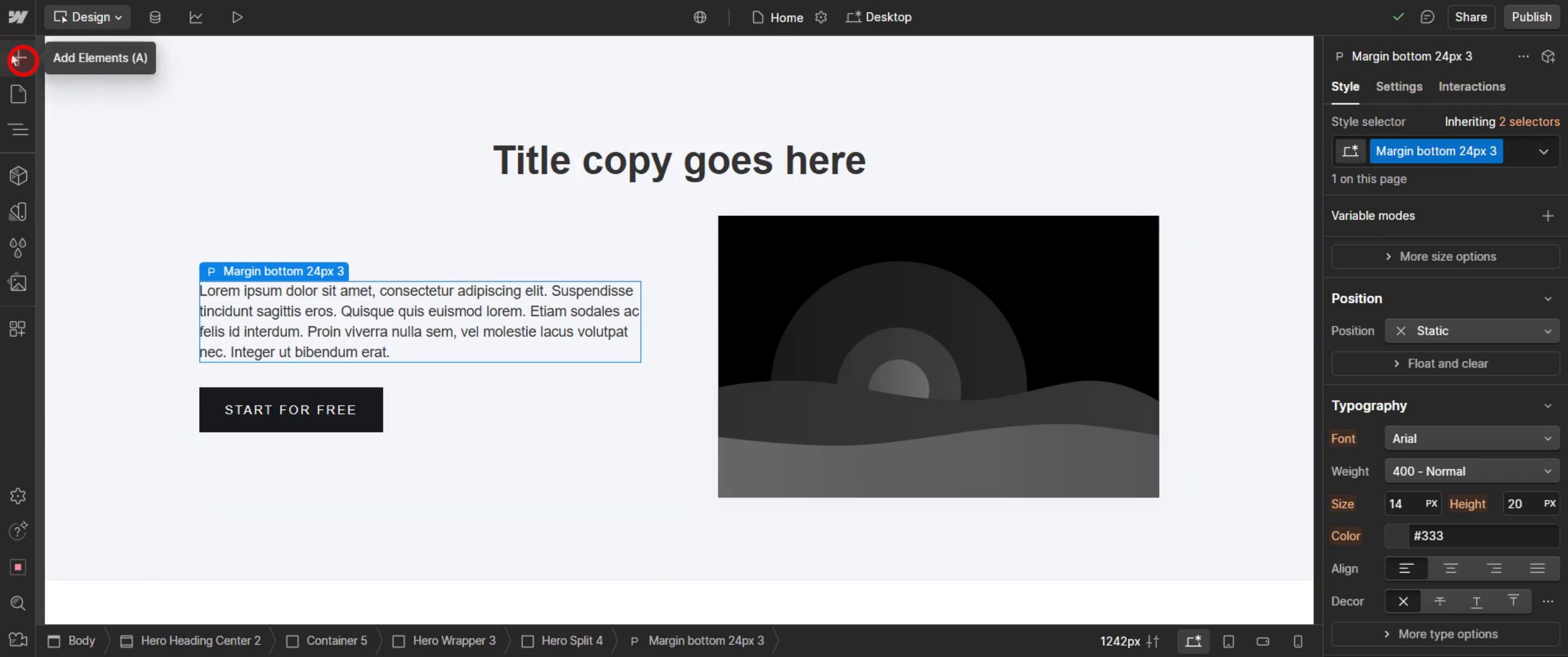
Step 1
Click on the add elements.
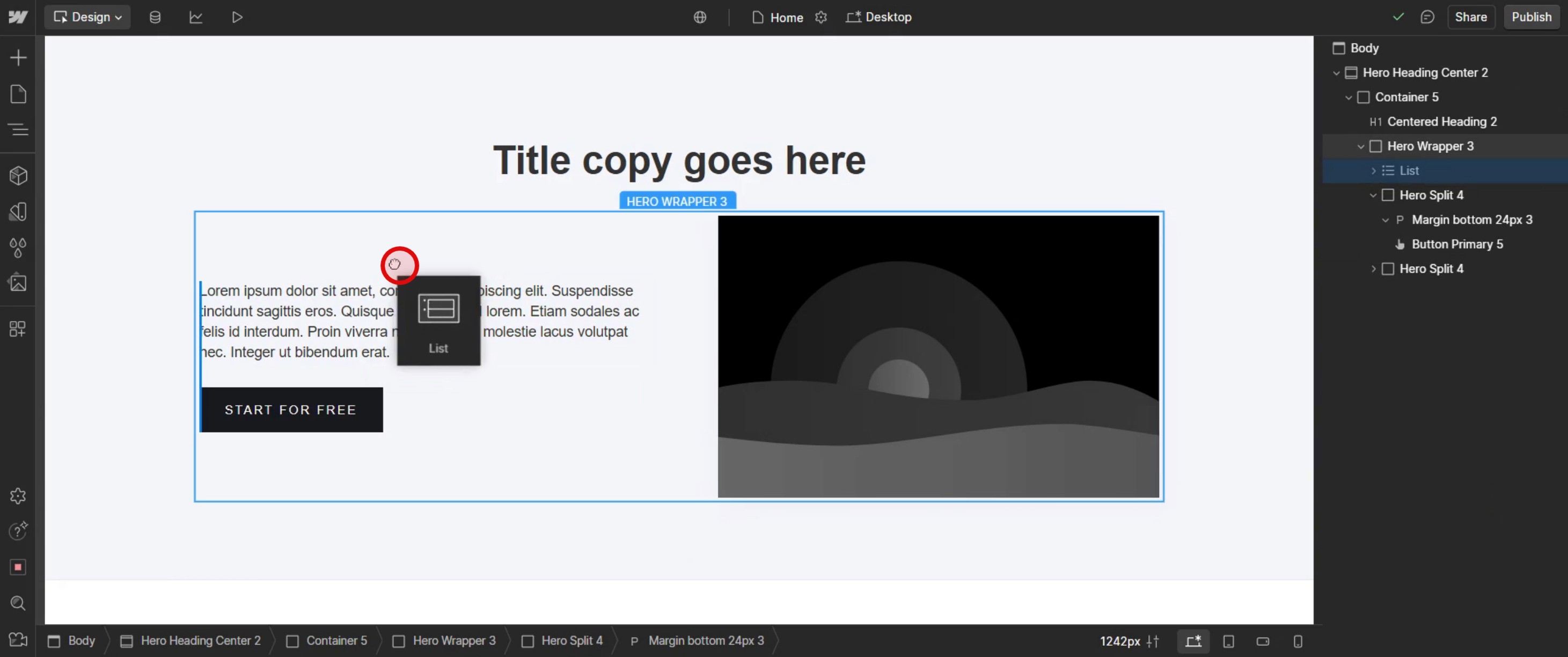
Step 2
Drag and drop the desired list item into the specified element section.
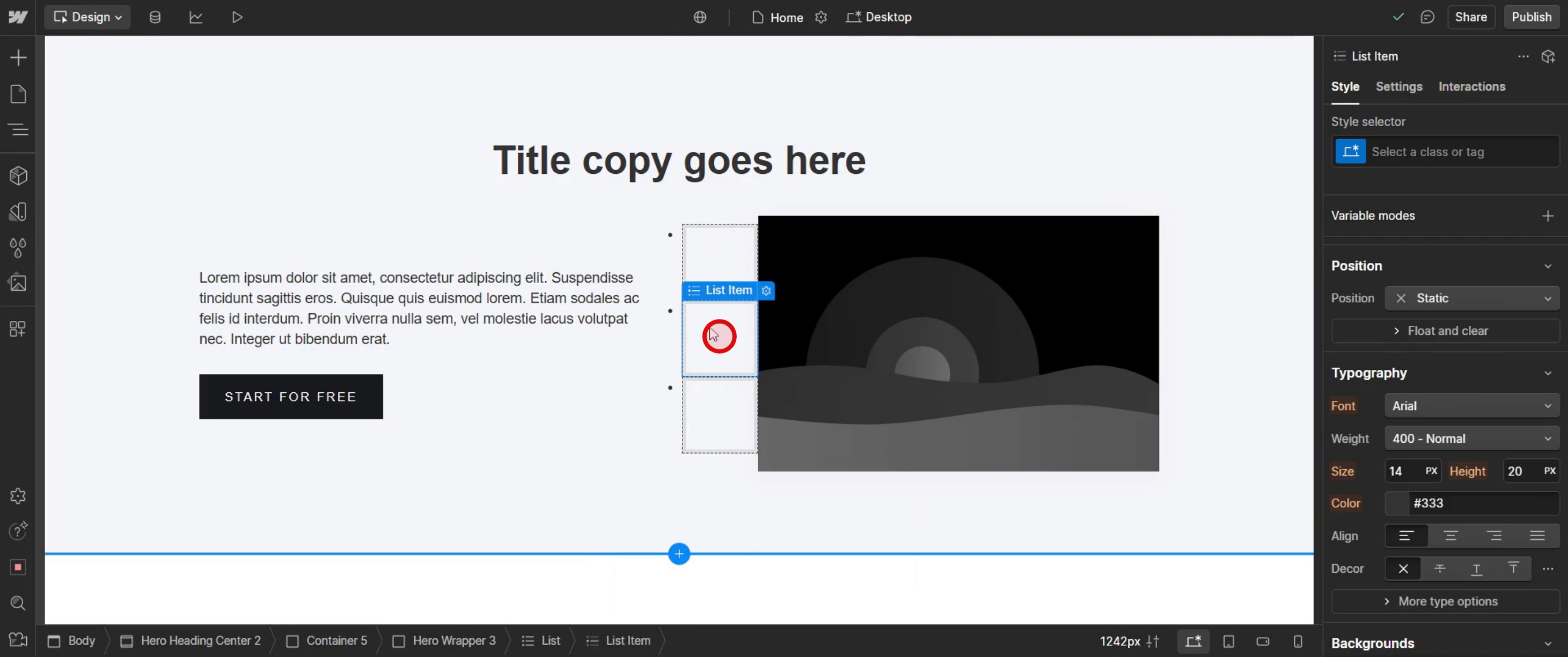
Step 3
Select the particular element.
Step 4
Locate the position option and select relative.
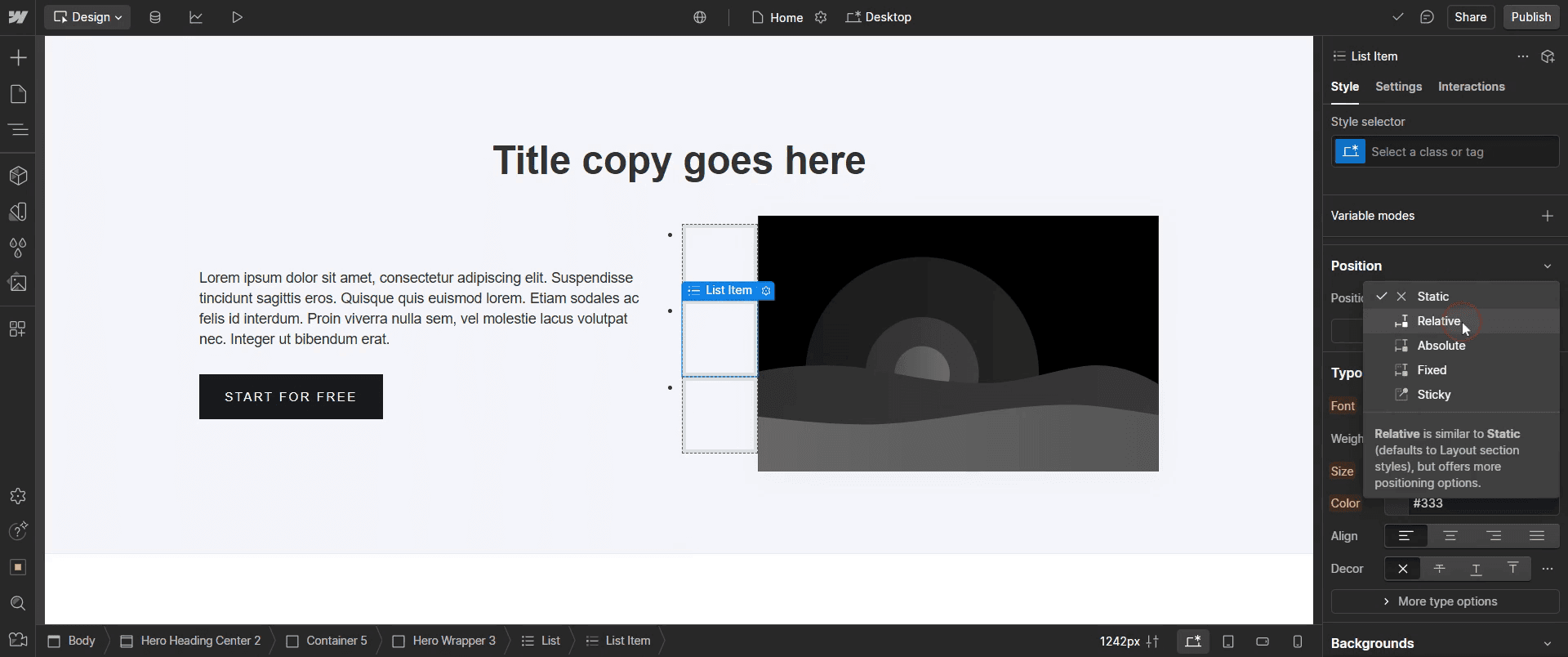
Step 5
Then hover the mouse on itself,
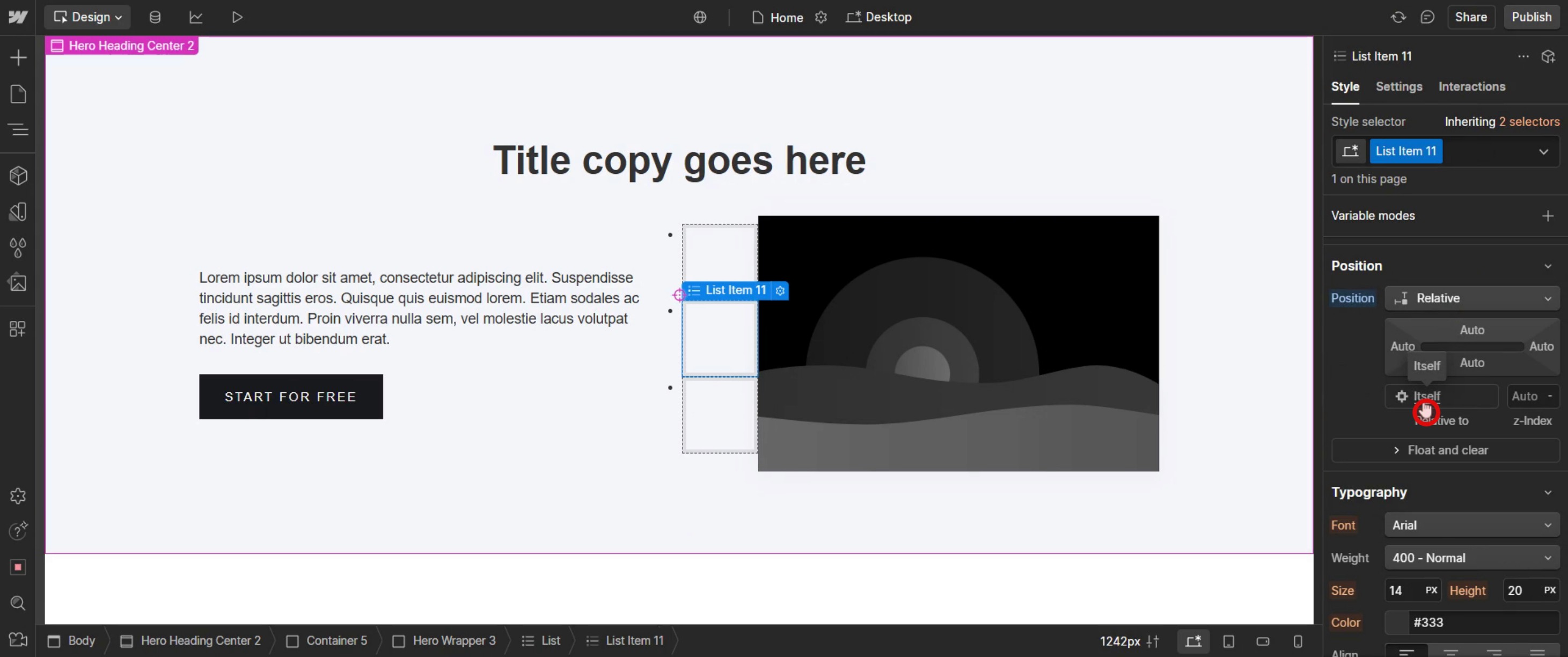
Step 6
Select the entire list to view its position,
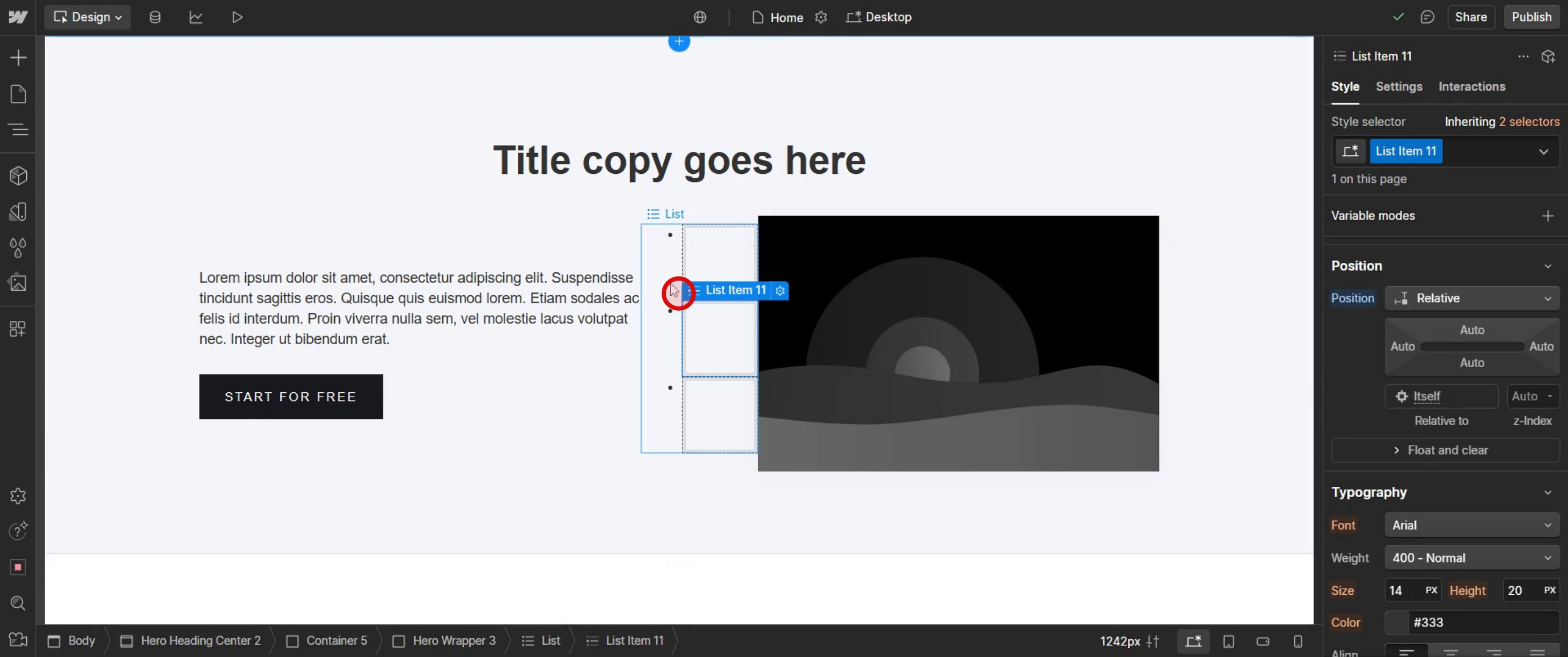
Step 7
Click on the position setting and change it to relative.
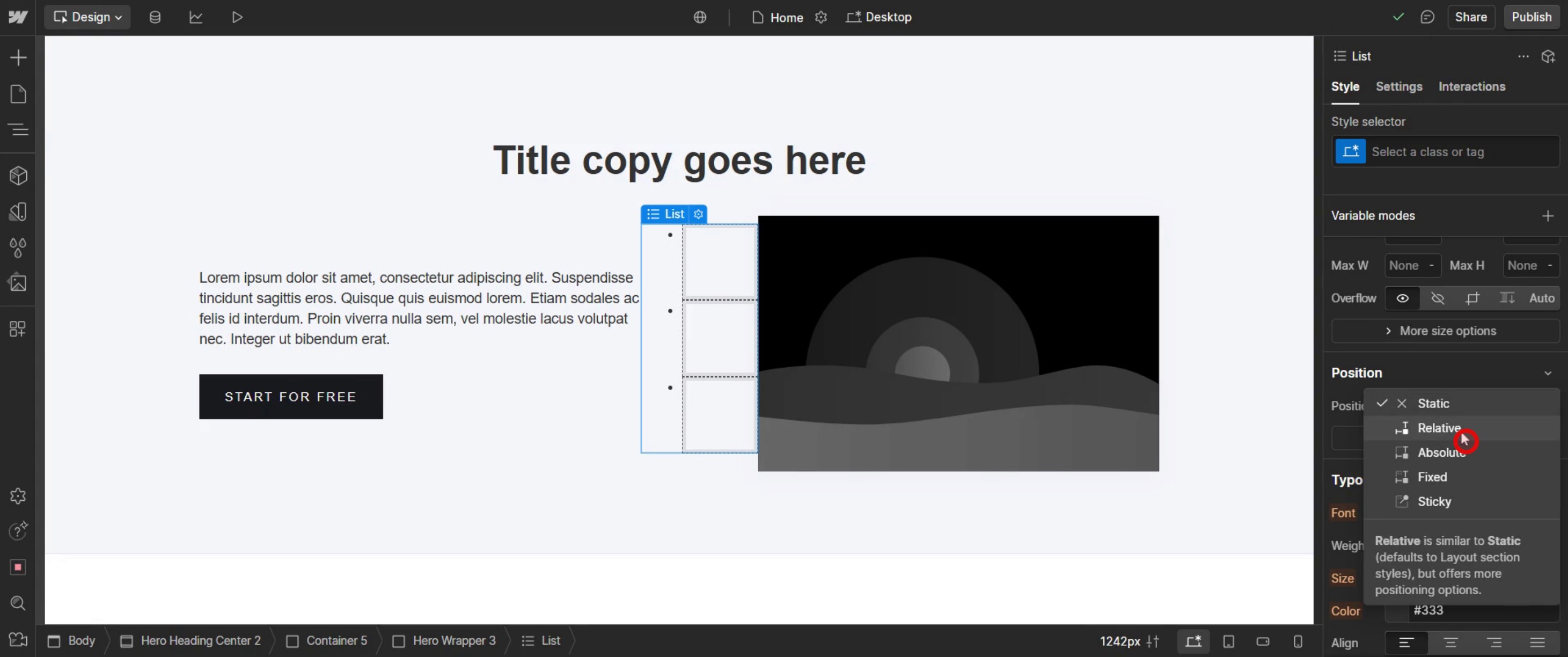
This is the step-by-step process to change the relative to setting in Web flow. Let’s explore some tips for it.
Pro-tips for changing relative to in Web flow
Understand Positioning Context – The Relative To setting determines how an element is positioned based on its parent or container. Ensure you understand the difference between relative, absolute, and fixed positioning.
Use Absolute Positioning Carefully – If you set an element to absolute, it will be positioned relative to the nearest positioned parent. Ensure the parent element has a relative position to avoid layout issues.
Test Across Different Screen Sizes – Positioning elements relative to different containers may affect how they appear on various screen sizes. Always check the Responsive Mode to ensure consistent placement.
Common pitfalls & how to avoid them
Selecting the Wrong Parent Element – If an element behaves unexpectedly, check its parent container’s position. Web flow positions absolute elements relative to the nearest positioned ancestor.
Using Absolute Without a Relative Parent – If the parent container is static, an absolute child may position itself relative to the entire page instead. Always set the parent to relative if you need local positioning.
Elements Overlapping or Disappearing – Changing Relative To can cause overlapping or hidden elements if not used correctly. Ensure elements have enough space and test different placements.
Common FAQs for changing relative to in Web flow
Why is my element not positioning correctly after changing Relative To?
The element may be relative to the wrong parent. Ensure the parent container has a set position (e.g., Relative) if using Absolute positioning.Can i use Relative To inside Flexbox or Grid layouts?
Yes, but Flexbox and Grid automatically control positioning, so using Absolute or Fixed positioning inside them may create unexpected results.What’s the difference between Relative, Absolute, and Fixed positioning in Web flow?
Relative: Moves an element based on its original position.
Absolute: Positions an element relative to its nearest positioned parent.
Fixed: Positions an element relative to the viewport, meaning it stays in place when scrolling.
If you're an instructor or content creator looking to make tutorial videos, give a try. It transforms rough screen recordings into polished, studio-style videos that are ready for sharing with your audience. Plus, it automatically generates a step-by-step guide based on the video you create. Fascinating, right? Start by creating your first tutorial for free with trupeer.ai .

