
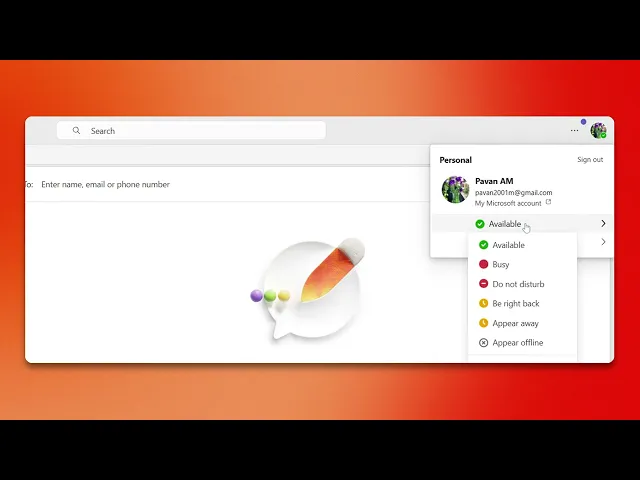
How To Change Status In Teams?
Discover how to change your status in Microsoft Teams effortlessly. Learn the steps to update your availability and enhance your communication experience.
This guide provides step-by-step instructions on how to update your status and set a status message in Microsoft Teams, helping you effectively communicate your availability to colleagues.
Step 1
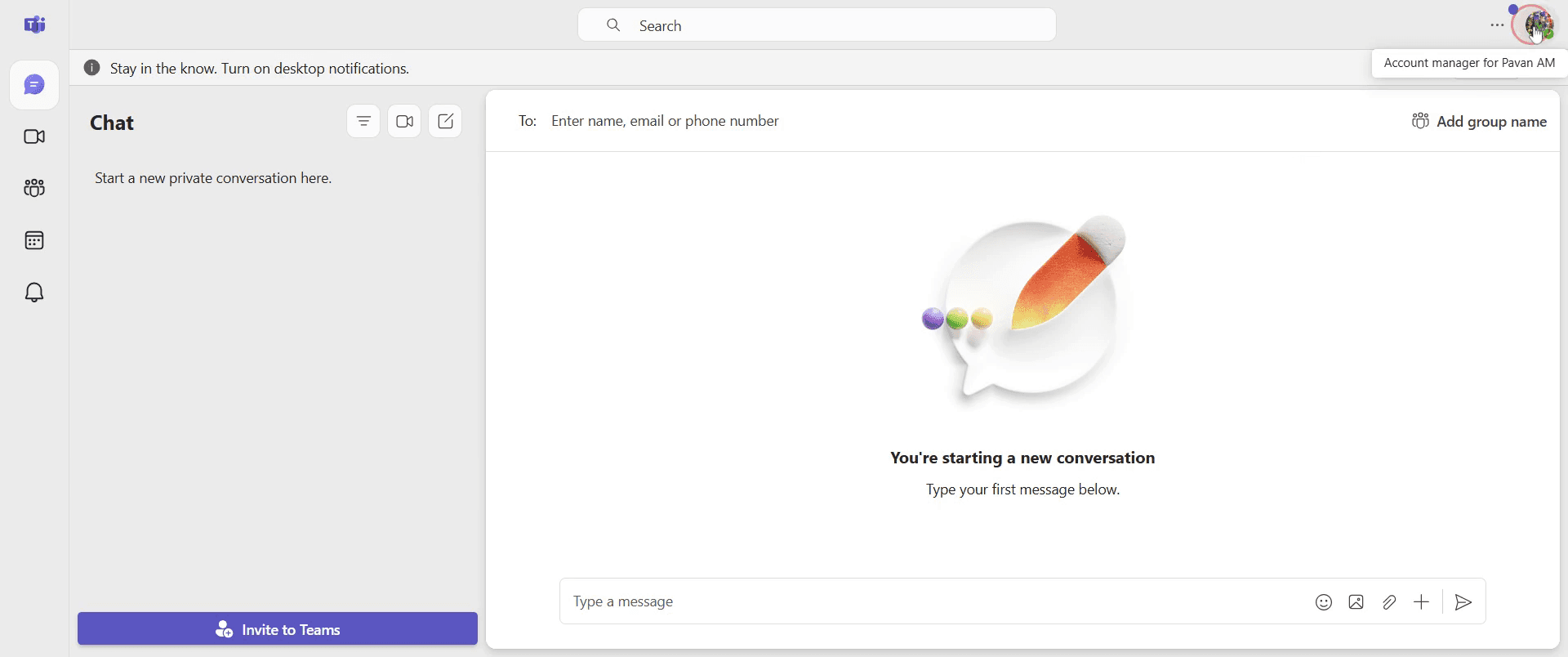
Go to your profile picture in Microsoft Teams and click on it.
Step 2
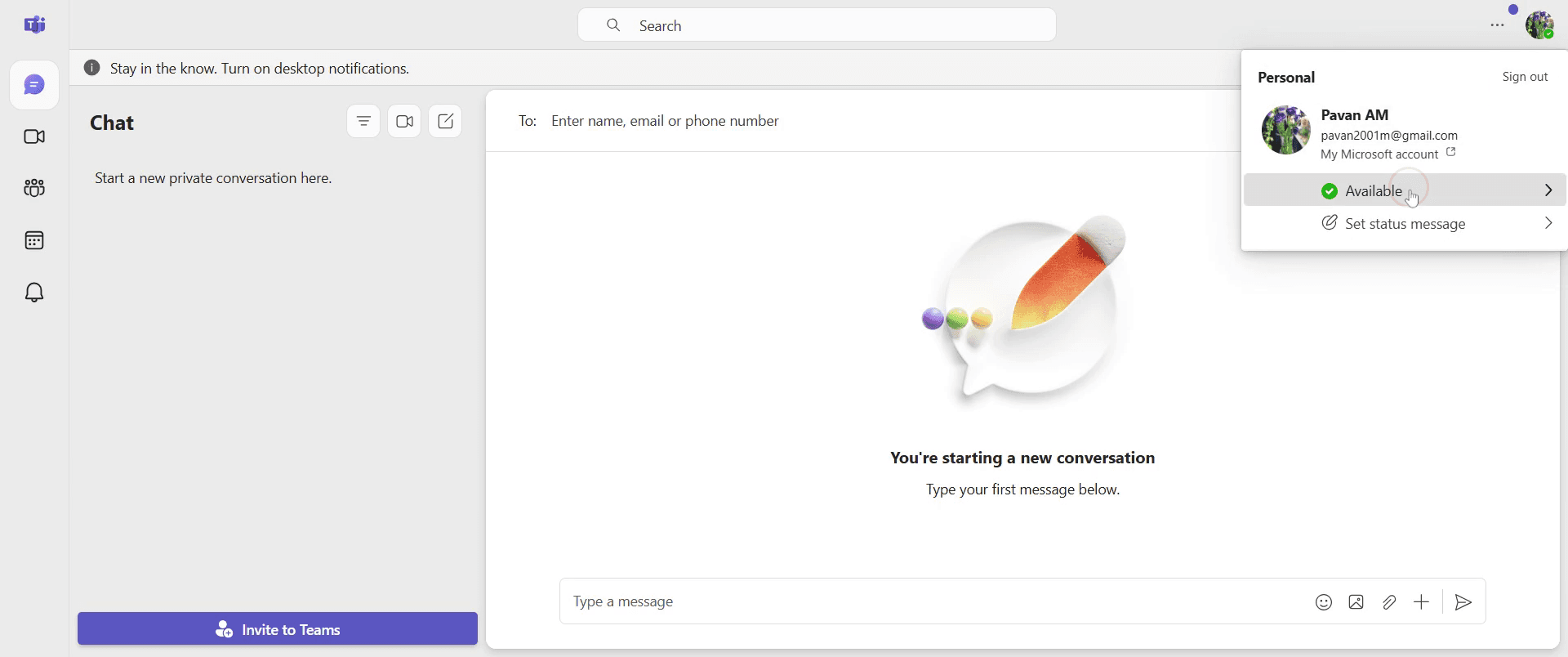
Click on "Available" to set your status.
Step 3
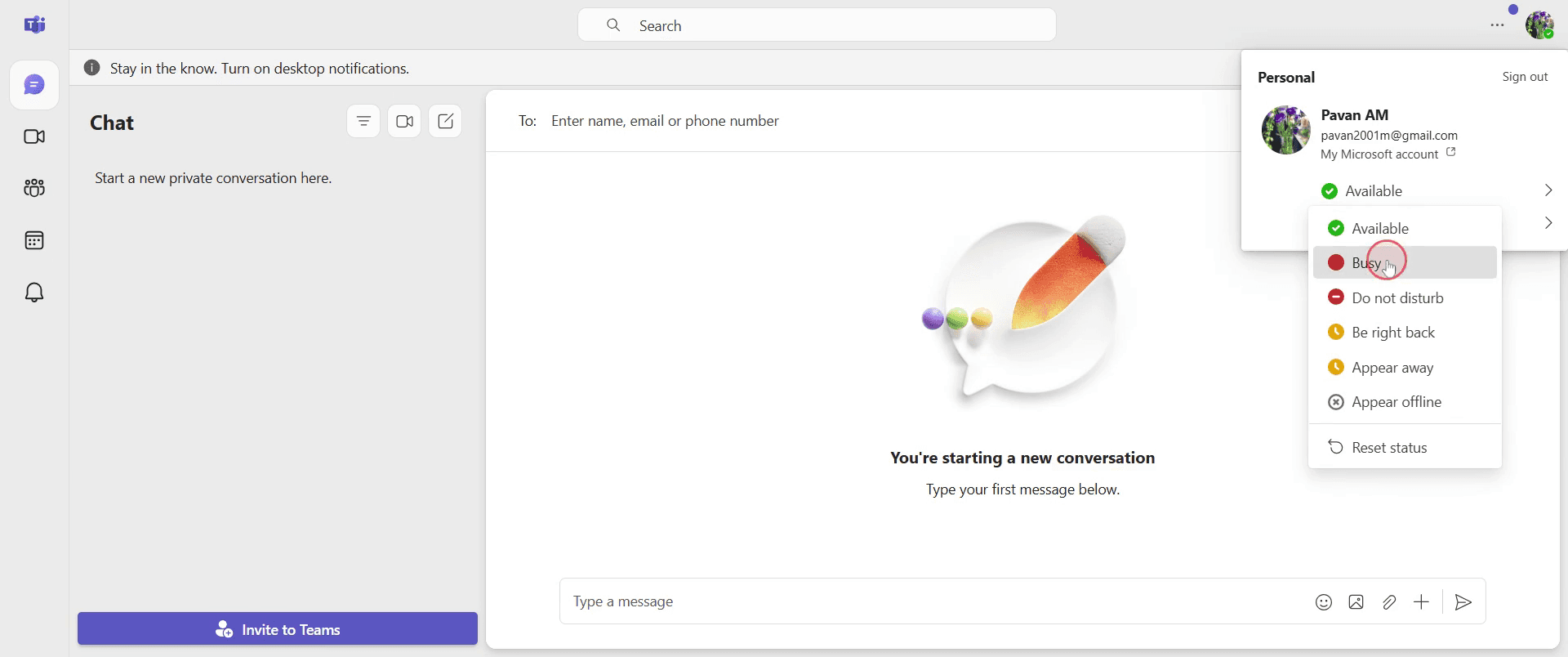
From the drop-down menu, select your preferred status from the available options.
Step 4
Next, proceed to set your status message.
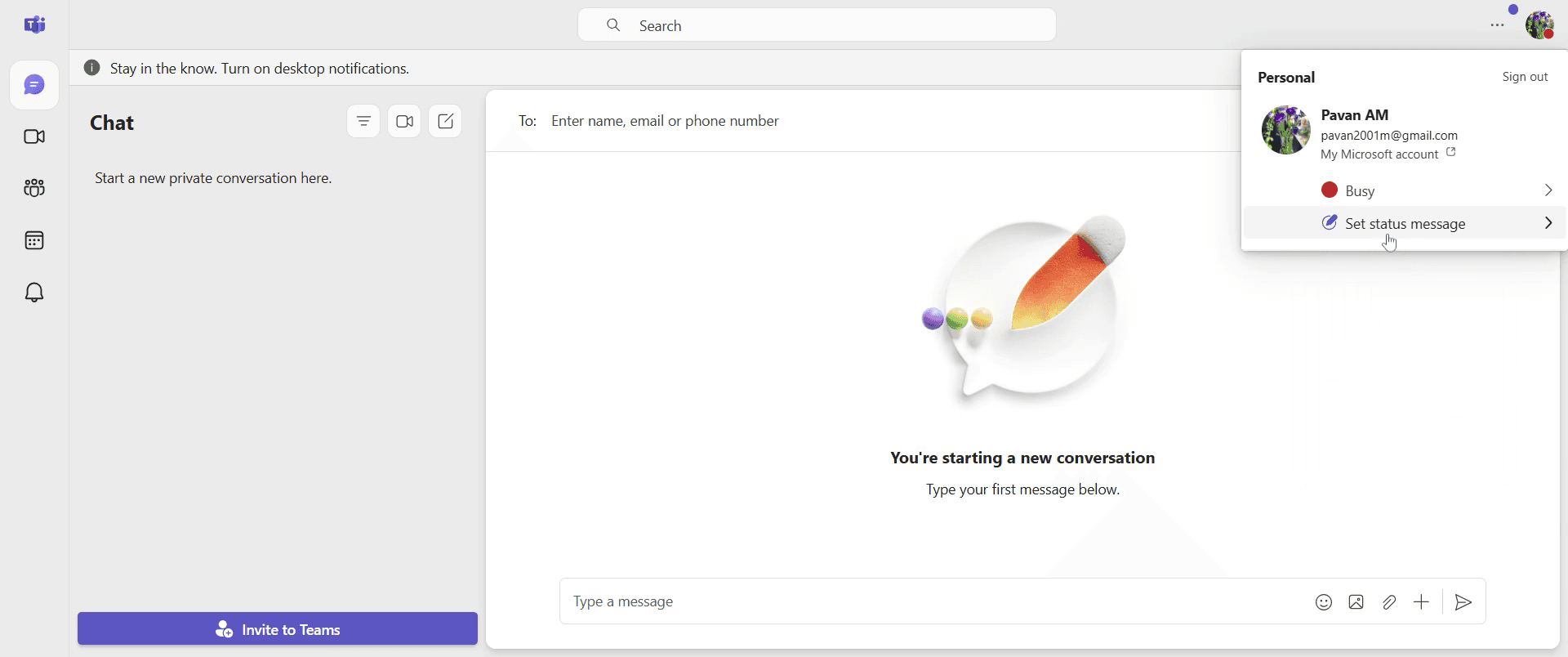
Step 5
Click on "Done."
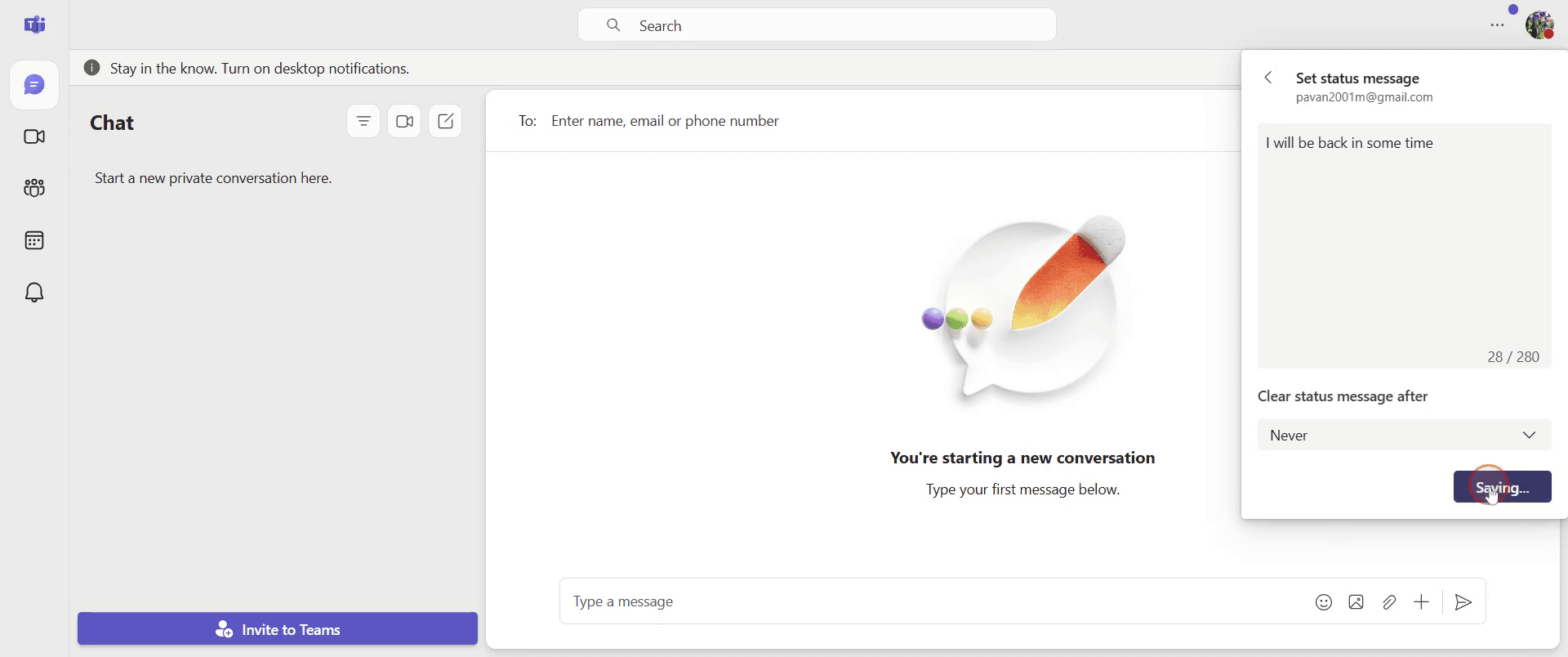
Step 6
The message will be visible to people when they visit your profile.
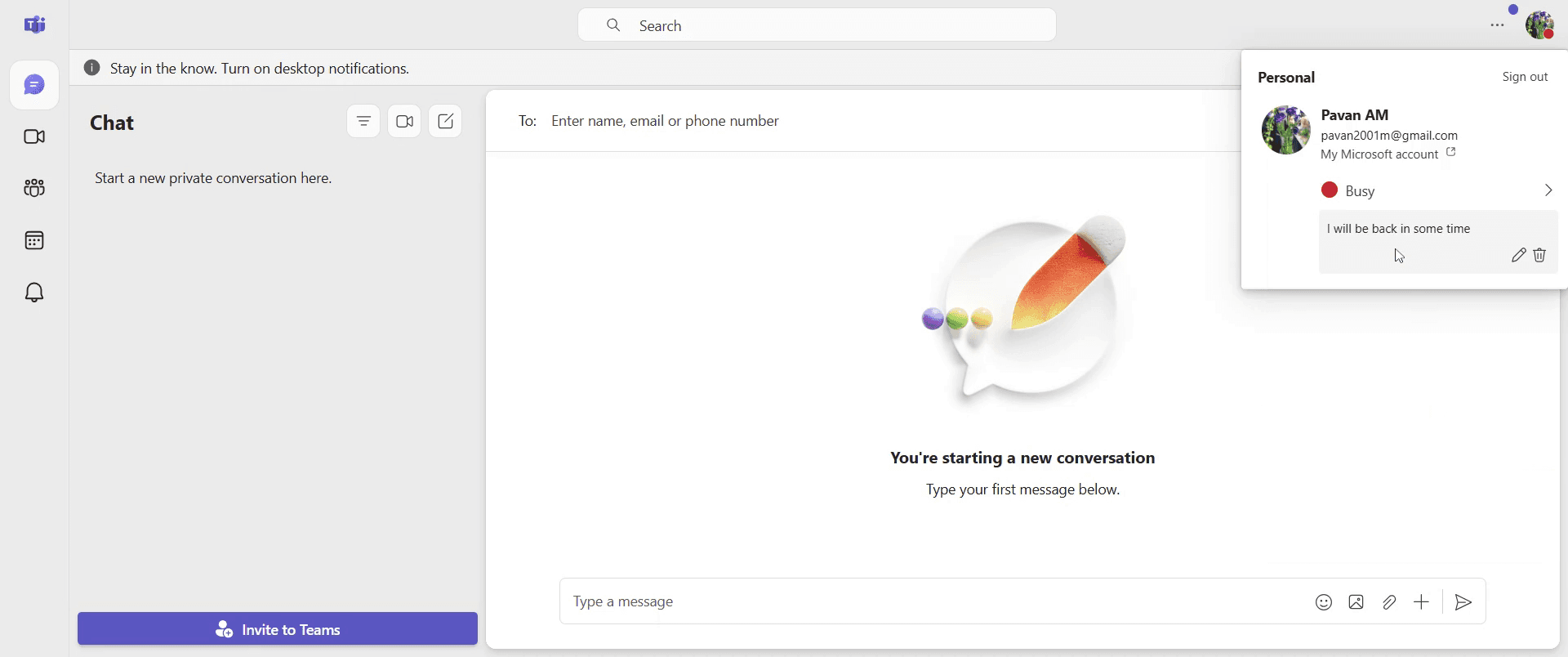
That’s it. This is a step-by-step guide on how to change status in Teams.
Pro-tips for changing status in Teams
Set your status to Do Not Disturb to avoid notifications during important meetings or focused work
Use the custom status message feature to inform colleagues about your availability
Set a duration for your status so it resets automatically when needed
Common pitfalls & how to avoid them while changing status in Teams
Status not updating properly - Sign out and sign back in if the status does not change instantly
Forgetting to reset status - Use the duration feature to automatically revert to “Available” when needed
Custom status message not saving - Ensure you click “Done” after entering the message to save it successfully
Common FAQs for changing status in Teams
Can I set a custom status message in Teams?
Yes, go to your profile, click on “Set status message,” type your message, and save itHow do I set my status to Do Not Disturb in Teams?
Open your profile, click on your current status, and select “Do Not Disturb” from the optionsCan I schedule my status to change automatically?
Yes, you can set a duration for your status to revert automatically after a set timeWhy does my status change automatically in Teams?
Teams updates your status based on activity, calendar events, and calls you can manually override it if needed
If you're an instructor or content creator looking to make tutorial videos, give Trupeer.ai a try. It transforms rough screen recordings into polished, studio-style videos that are ready for sharing with your audience. Plus, it automatically generates a step-by-step guide based on the video you create. Fascinating, right? Start by creating your first tutorial for free with Trupeer.ai.

