
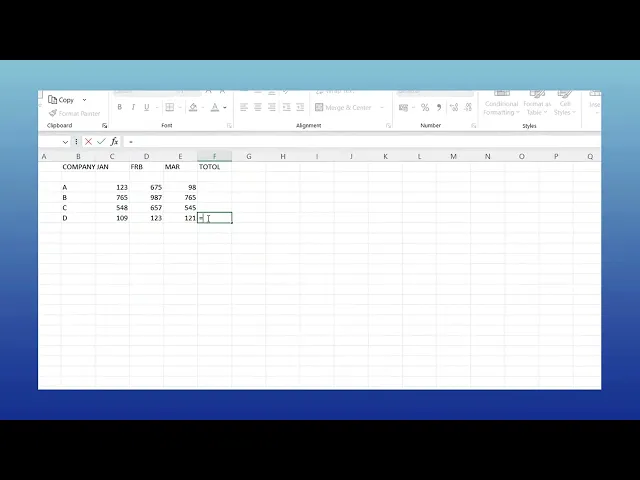
How To Create A Custom Formula In Microsoft Excel
Discover how to create custom formulas in Microsoft Excel with our comprehensive guide. Enhance your spreadsheet skills and streamline your data analysis today.
This document provides a step-by-step process to create a custom formula in Microsoft excel. By following these instructions, you will learn how to effectively input and use formulas within a spreadsheet to perform calculations.
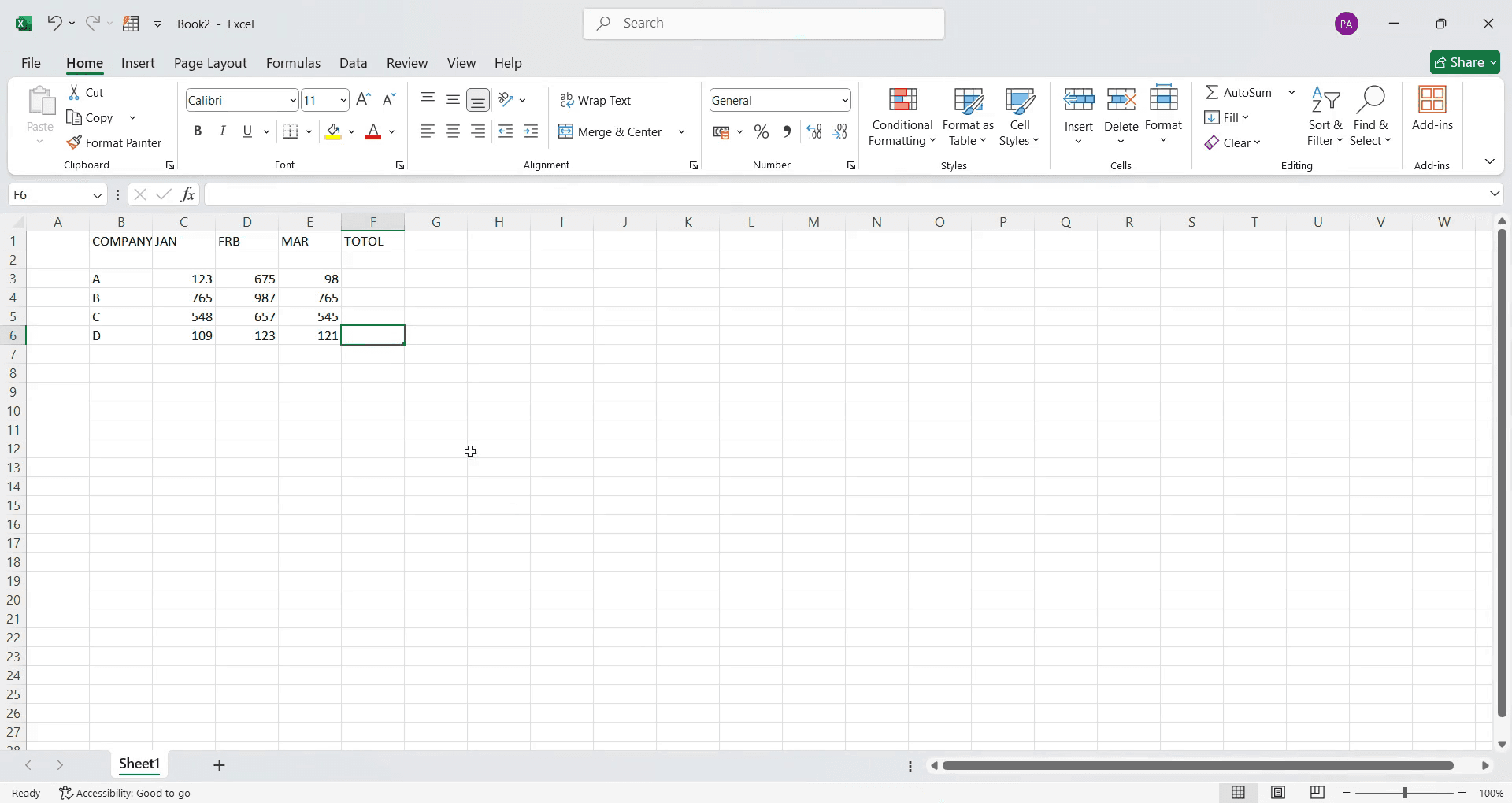
Step 1
Click on the cell where you want the result to appear.
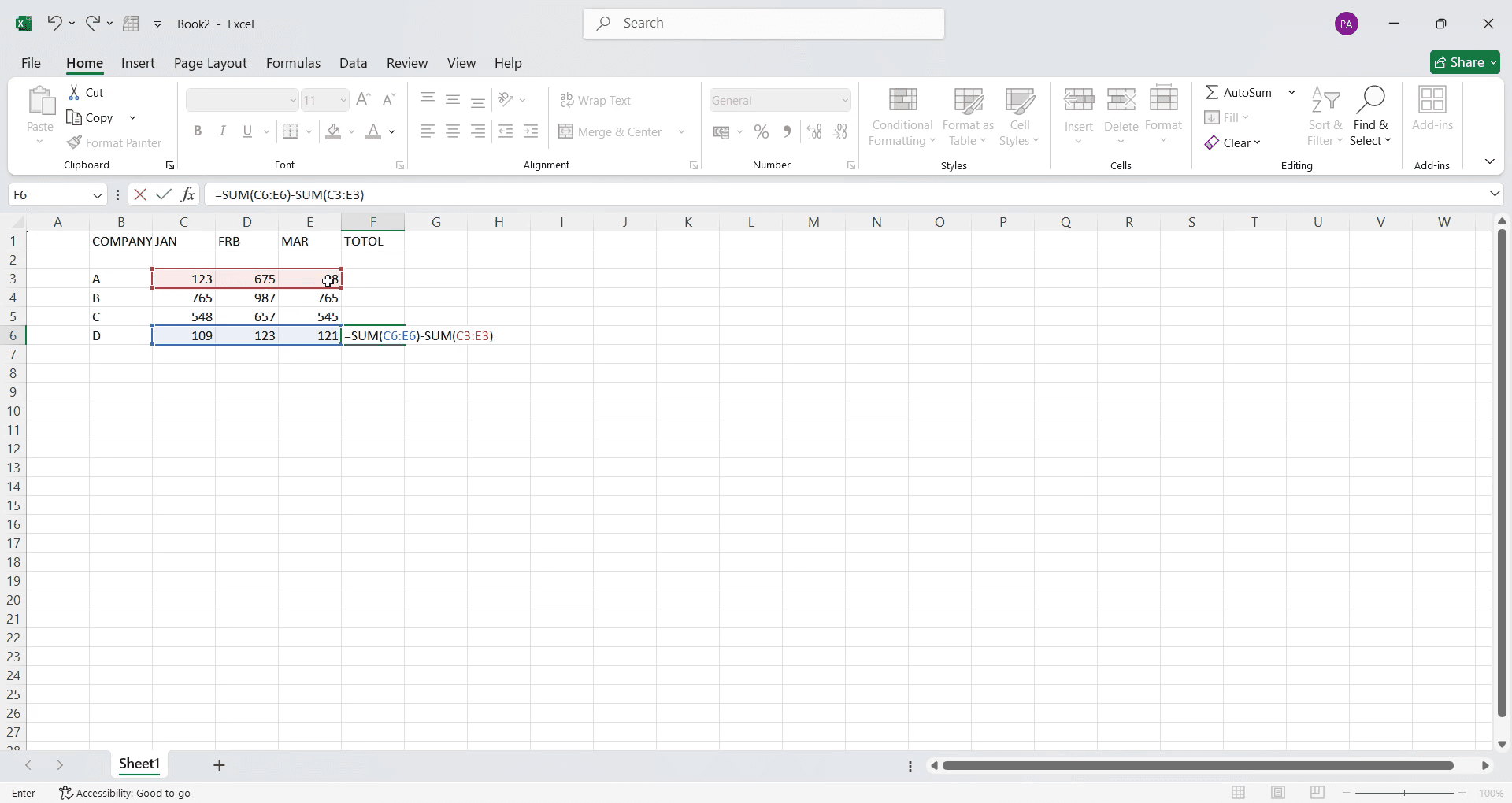
Step 2
Type the formula in the particular cell.
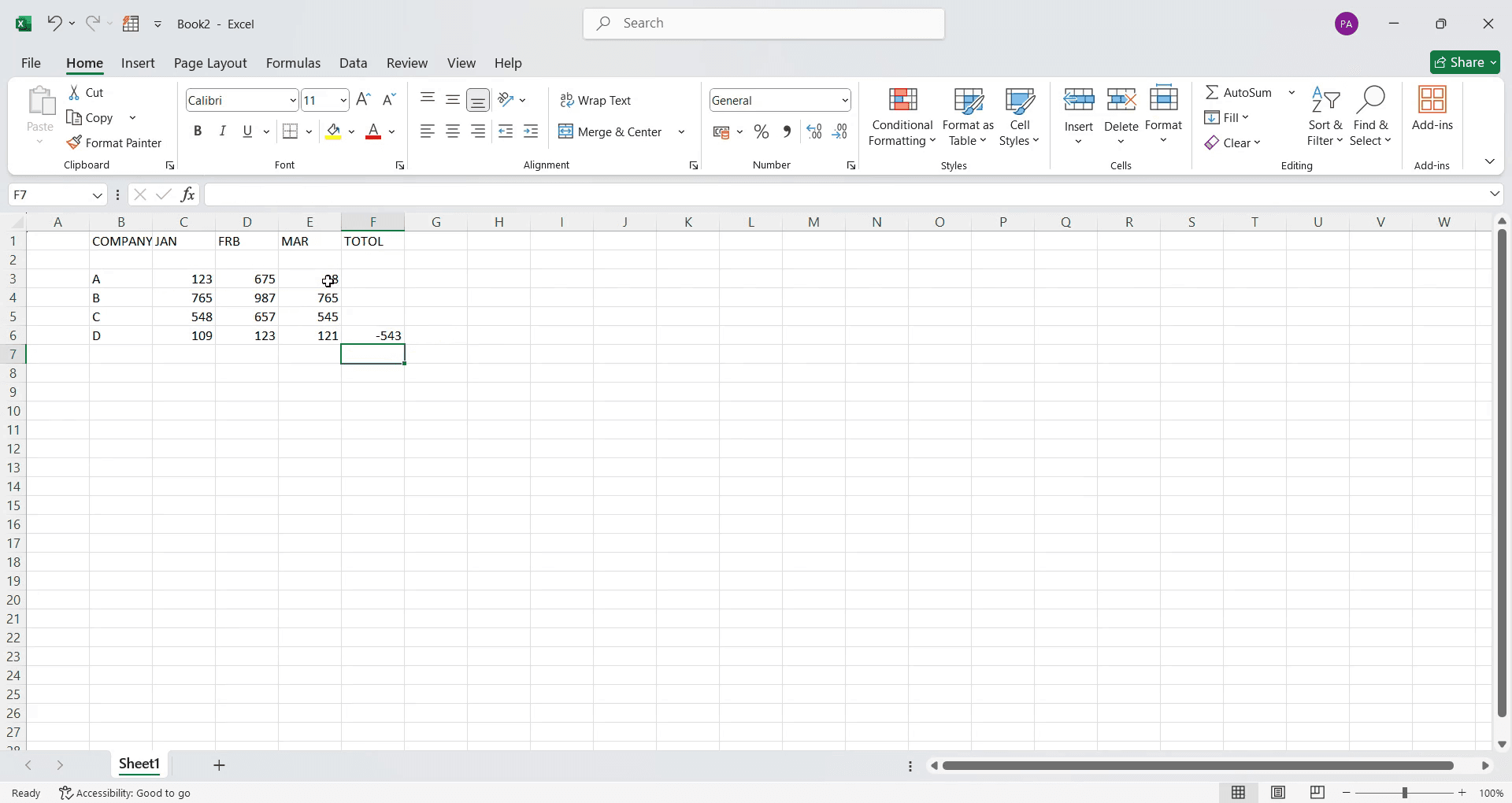
Step 3
After entering the formula, press the "Enter" key.
That's it. This is a step-by-step guide on how to create a custom formula in Microsoft Excel.
Pro-tips for creating a custom formula in Microsoft Excel
Use Excel's Define Name feature to create reusable formulas and make your spreadsheets cleaner and more efficient.
Leverage the IF function to build conditional formulas that can automatically calculate values based on your criteria.
Combine multiple functions like SUM, AVERAGE, and VLOOKUP to create more complex and dynamic custom formulas.
Common pitfalls & how to avoid them while creating a custom formula in Microsoft Excel
Forgetting to use correct cell references (absolute vs. relative) can cause errors when copying formulas always check before copying.
Using incorrect parentheses can break formulas double-check your function's syntax to ensure it's balanced and structured properly.
Relying too heavily on custom formulas without understanding their logic take time to learn how each formula function works to avoid mistakes.
Common FAQs for creating a custom formula in Microsoft Excel
Can I create my own functions in Excel?
Yes, you can use Excel VBA (Visual Basic for Applications) to create custom functions.How do I apply a formula to an entire column?
Click on the first cell with the formula, then drag the fill handle down to apply it to the column.What is the difference between a formula and a function?
A formula is an expression created by the user, while a function is a built-in calculation like SUM() or IF().How do I troubleshoot formula errors?
Use Formula Auditing in the Formulas tab to check for errors and dependencies.
If you're an instructor or content creator looking to make tutorial videos, give Trupeer.ai a try. It transforms rough screen recordings into polished, studio-style videos that are ready for sharing with your audience. Plus, it automatically generates a step-by-step guide based on the video you create. Fascinating, right? Start by creating your first tutorial for free with Trupeer.ai.

