
How To Create A Checklist Template In ClickUp
Discover how to create an effective checklist template in ClickUp. Streamline your tasks and enhance productivity with our step-by-step guide.
In this process, you will learn how to create a checklist template within Click Up. This guide will walk you through each step, from accessing your project to saving your checklist as a reusable template.
Step 1
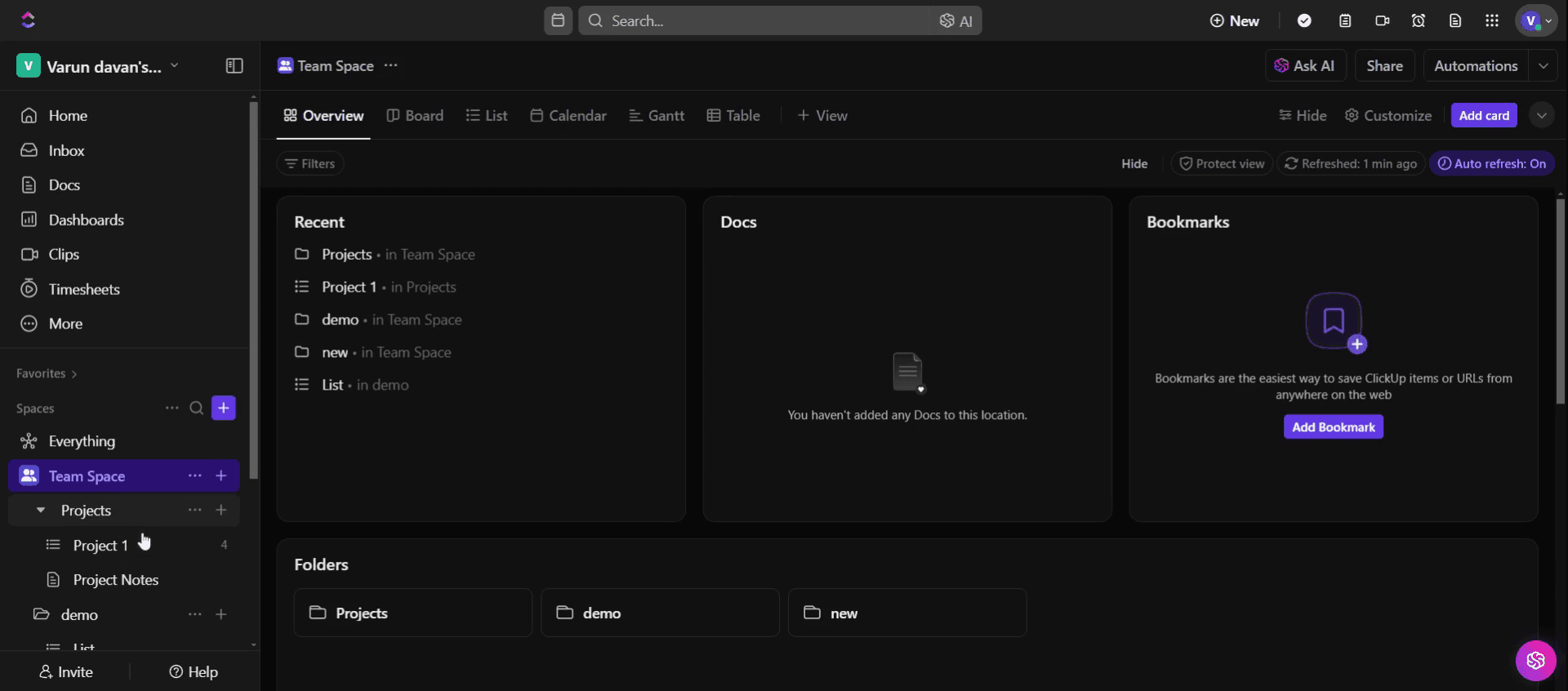
Open Click Up and select the project you wish to work with.
Step 2
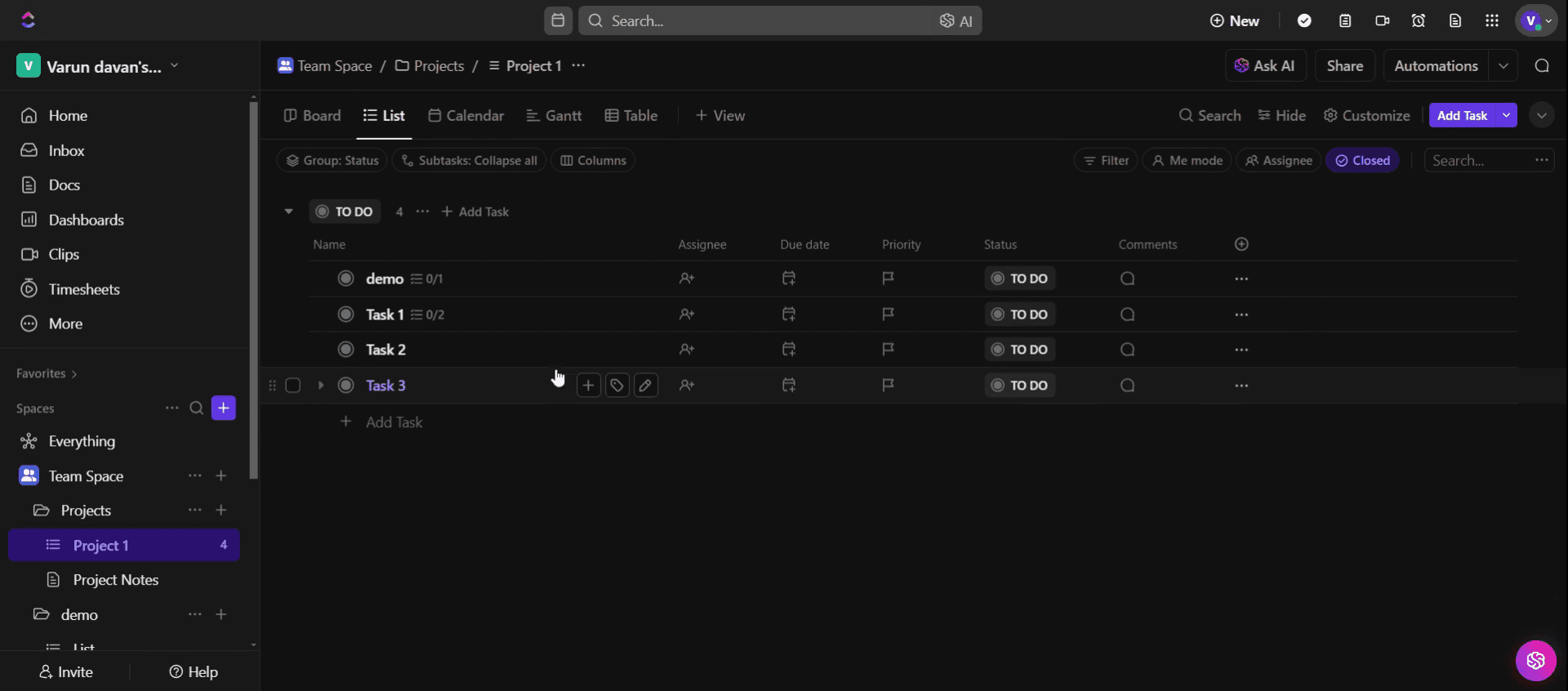
Navigate to the tasks section, select a specific task,
Step 3
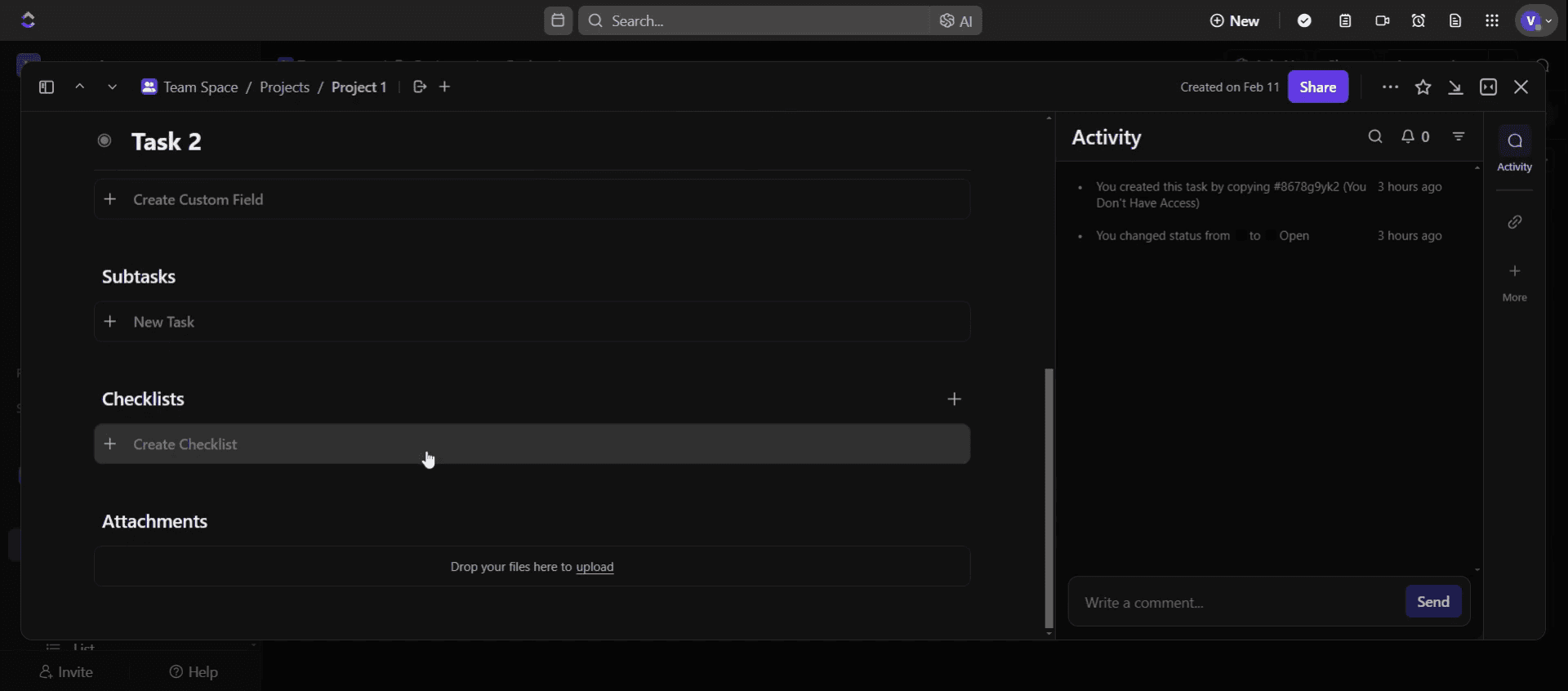
Find the checklist option and click on it to view or modify the checklist.
Step 4
Click on the create a checklist .
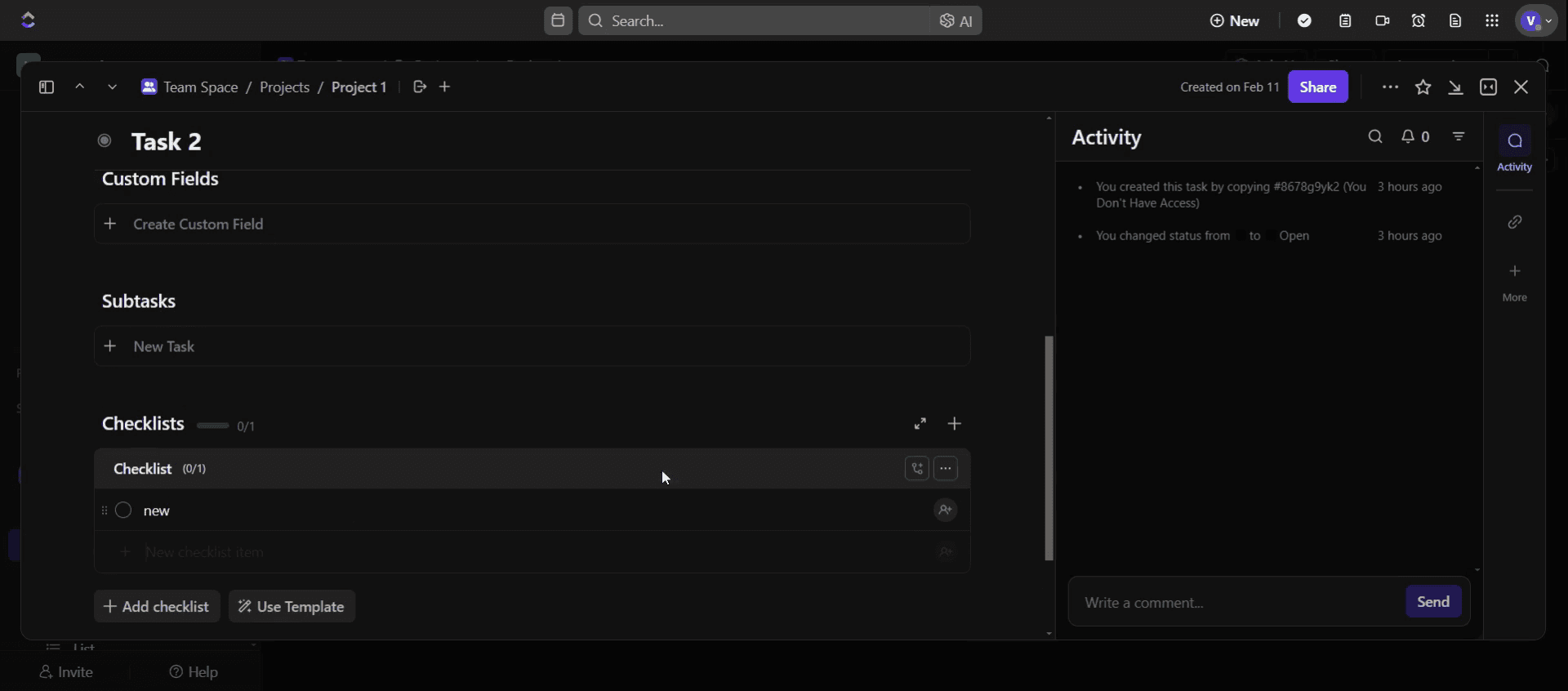
Step 5
Click on the three dots.
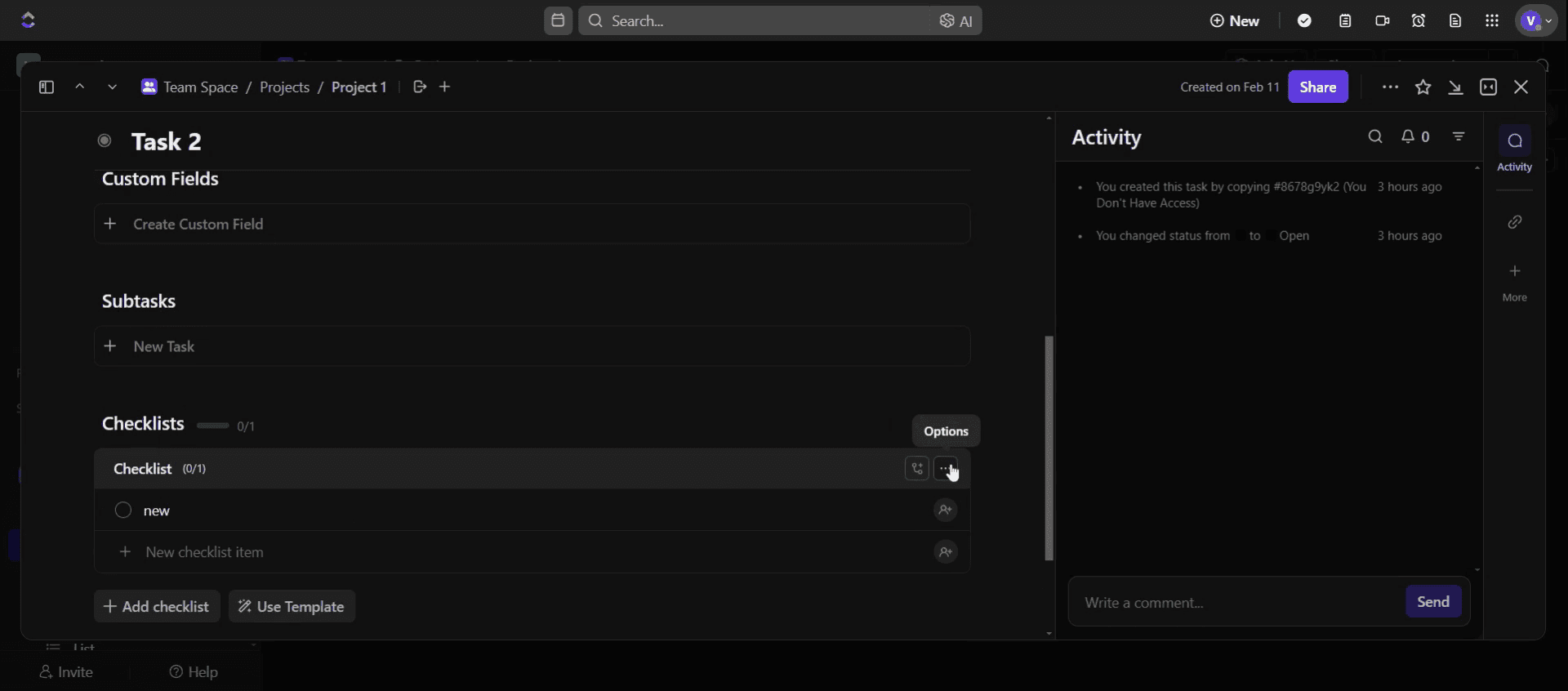
Step 6
Select the Save as Template option.
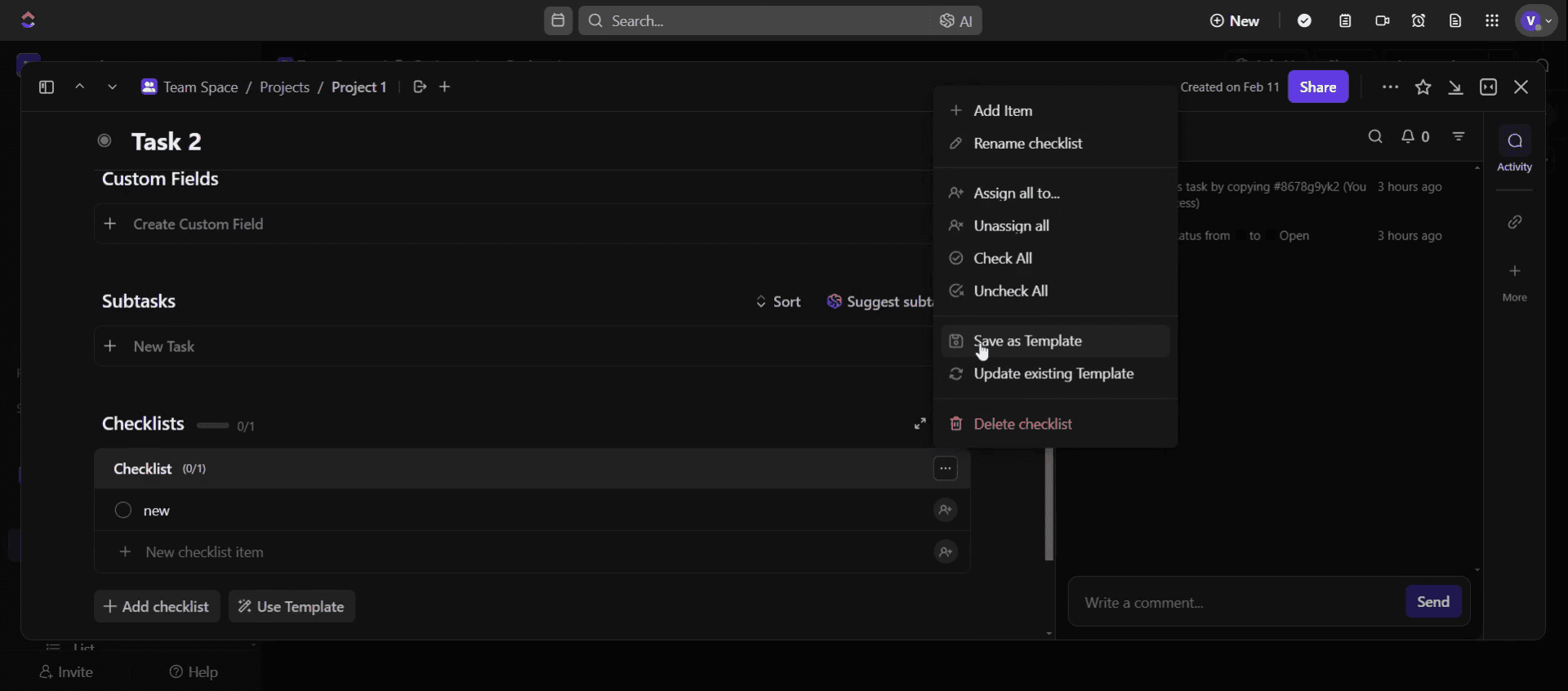
Step 7
Enter a name for your template,
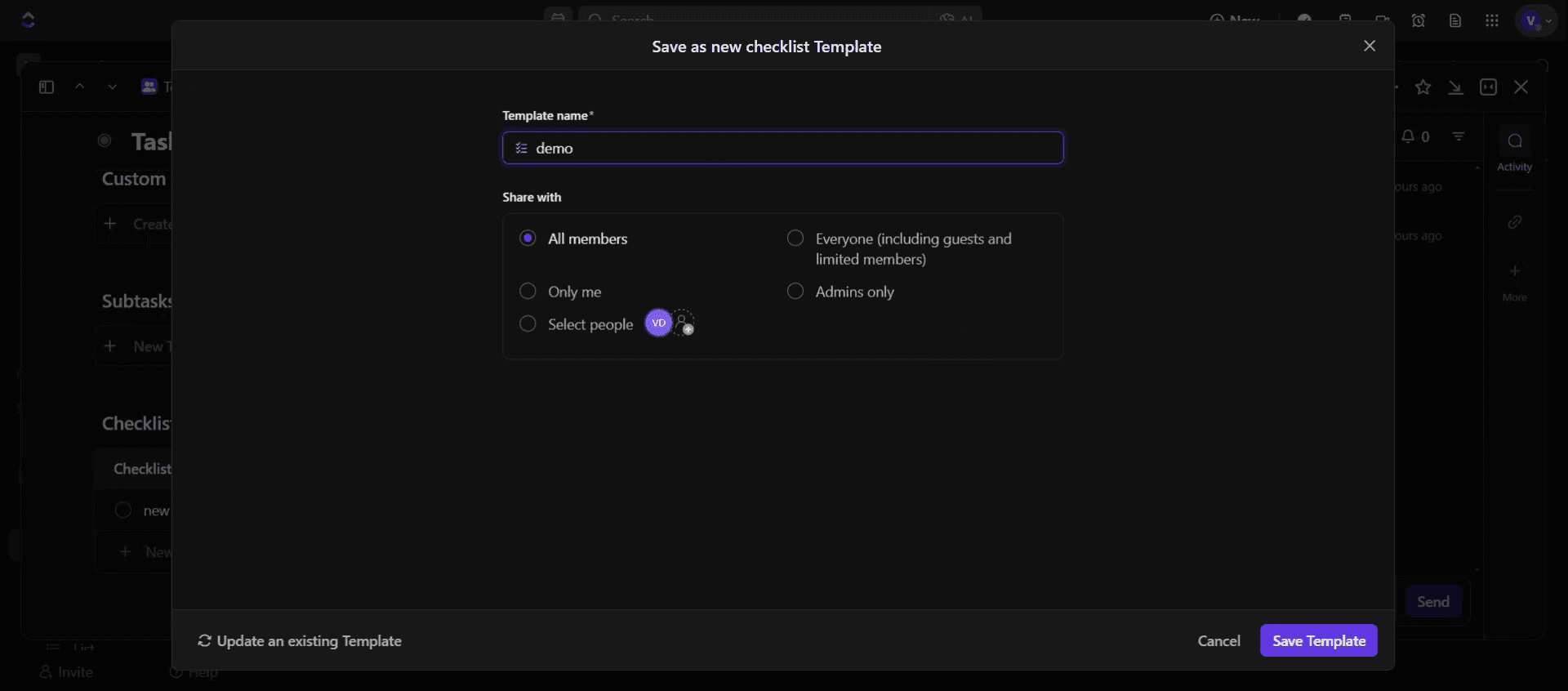
Step 8
Then click Save Template.
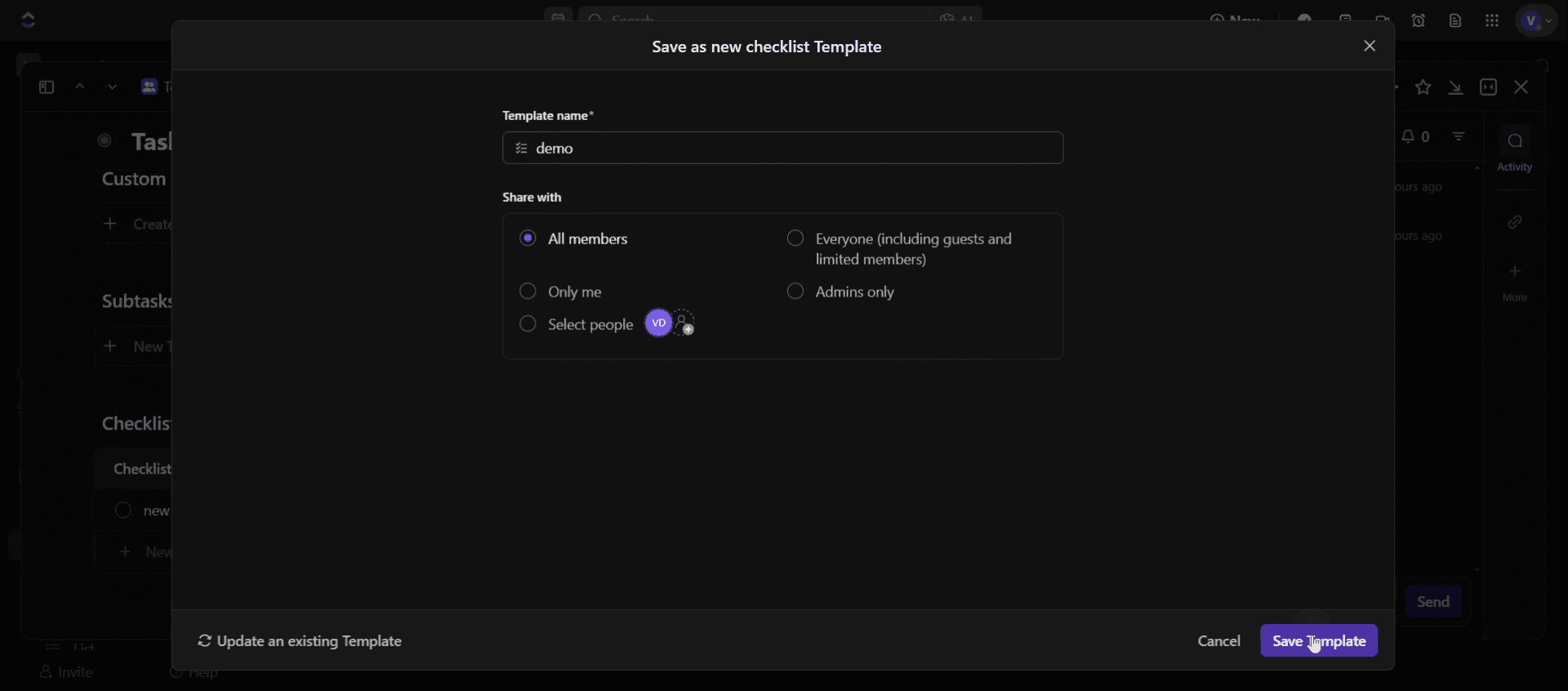
This is the step-by-step process to create a checklist template in Click Up. Let’s look at some tips for it.
Pro tips for creating a checklist template in Click Up
Use the recurring tasks feature – If you frequently use the same checklist, save it as a template to apply it to new tasks instantly.
Organize checklist items with nested checklists – Break down complex tasks using sub checklists to improve structure and clarity.
Standardize checklist formatting – Maintain consistency by using the same format, labels, and order for checklist items in your templates.
Common pitfalls & how to avoid them
Not saving the checklist as a template can result in manual re-entry every time, so always save it for reuse.
Overloading a checklist with too many items can make it overwhelming, so keep it concise and structured for efficiency.
Forgetting to update templates regularly can lead to outdated processes, so periodically review and refine your checklist templates.
Common FAQs for creating a checklist template in Click Up
Can i create multiple checklist templates in Click Up?
Yes, Click Up allows you to save multiple checklist templates and apply them to different tasks as needed.Is the checklist template feature available in Click Up’s free plan?
Yes, Click Up’s free plan includes the ability to create and save checklist templates, though some advanced features may require a paid plan.How do i apply a checklist template to a new task?
When creating a task, go to the checklist section, click Templates, and select the saved checklist template to insert it.Can i edit an existing checklist template?
Yes, you can modify a checklist template by updating an existing checklist and saving the changes as a new template.
If you're an instructor or content creator looking to make tutorial videos, give a try. It transforms rough screen recordings into polished, studio-style videos that are ready for sharing with your audience. Plus, it automatically generates a step-by-step guide based on the video you create. Fascinating, right? Start by creating your first tutorial for free with trupeer.ai .

