
How To Create A Dashboard In Click Up
Discover the step-by-step guide on how to create an effective dashboard in ClickUp. Enhance your project management skills and streamline your workflow today.
This document provides a concise and professional guide on creating a dashboard in Click Up. Follow the steps carefully to successfully set up and customize your dashboard according to your requirements.
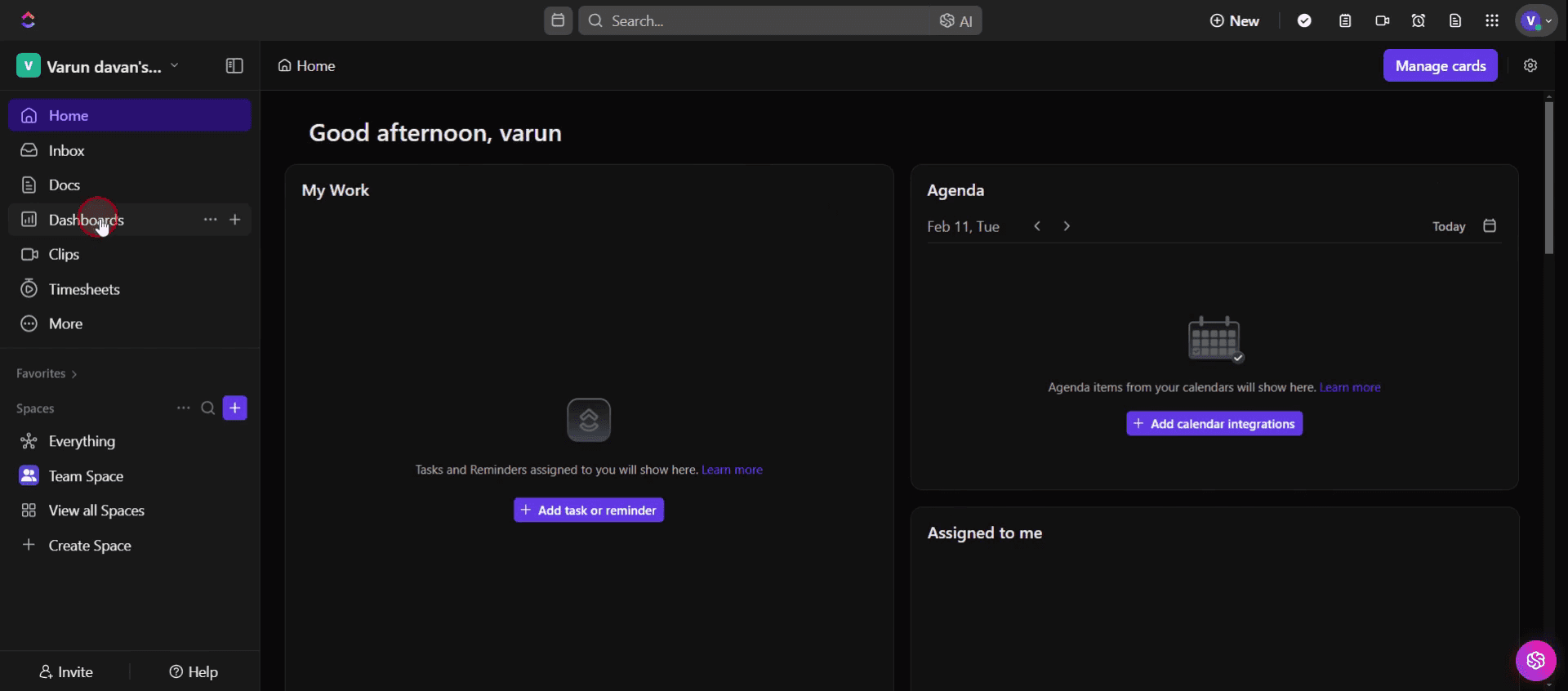
Step 1
Click on the dashboards .
Step 2
Select the template that most appropriately fits your needs.
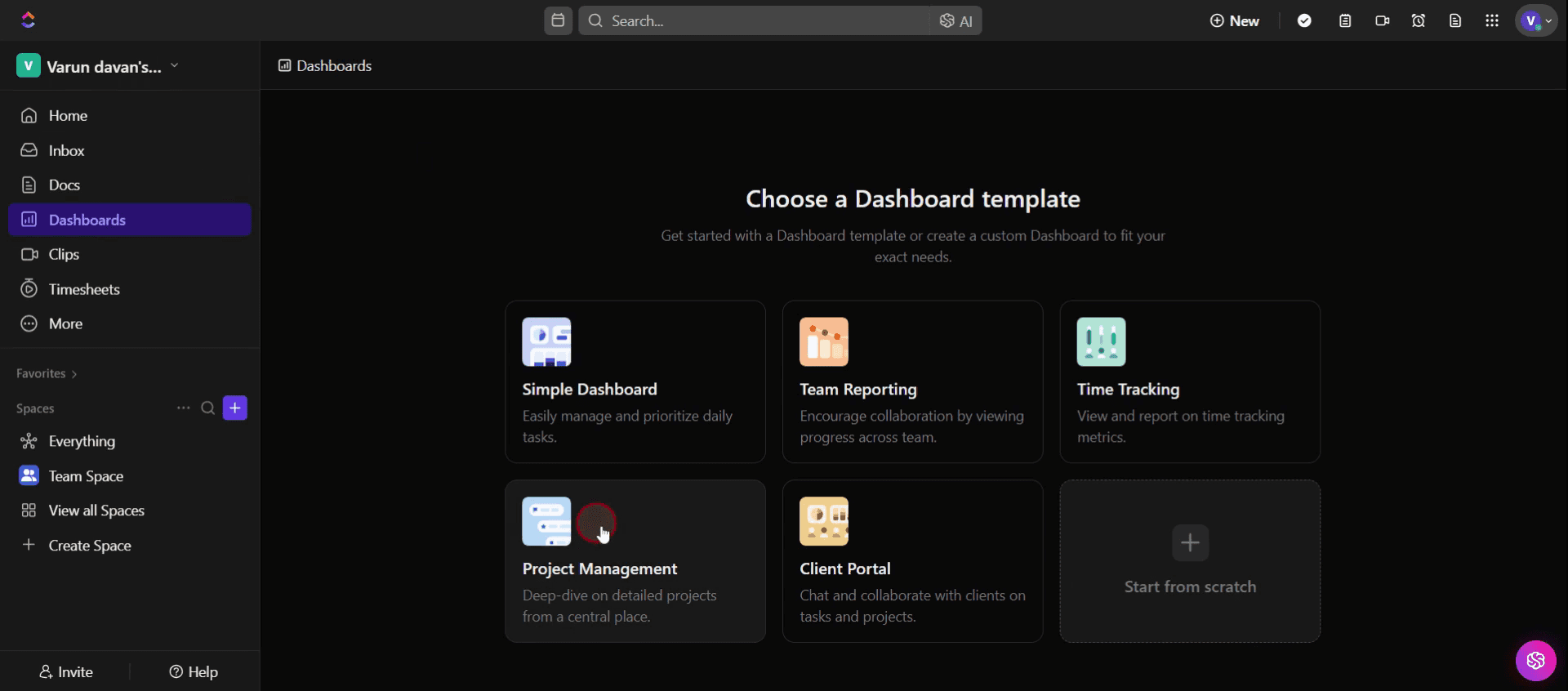
Step 3
Click on Create Dashboard .
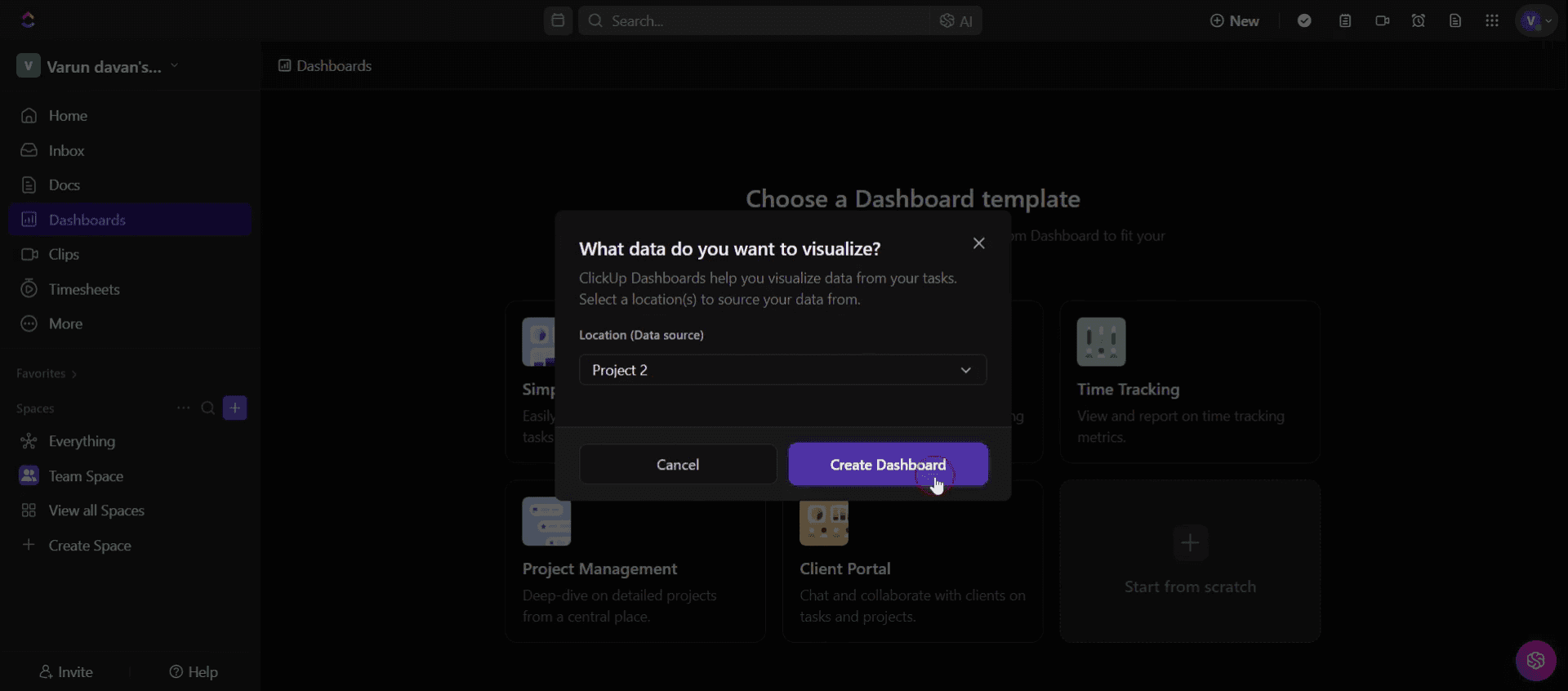
Step 4
Click on the three dots.
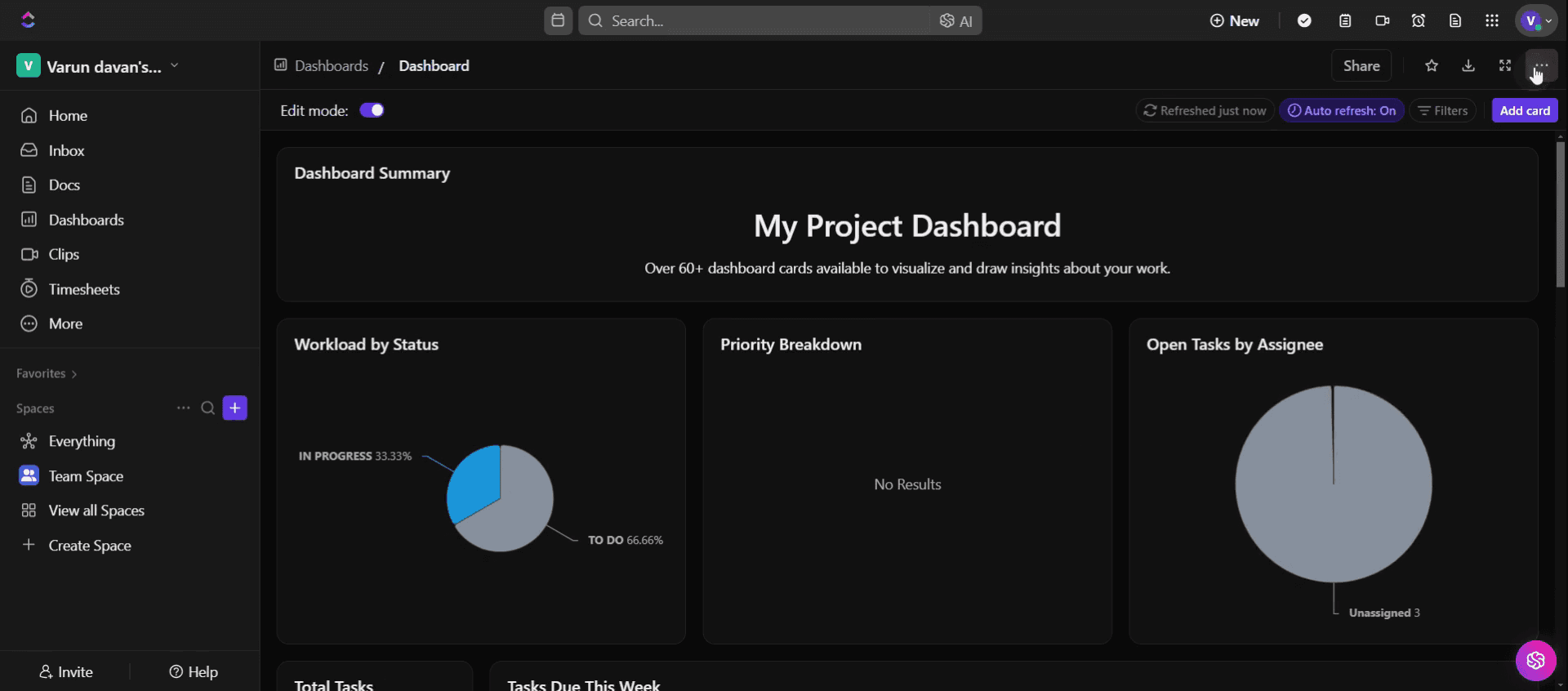
Step 5
Then click on Share Permissions.
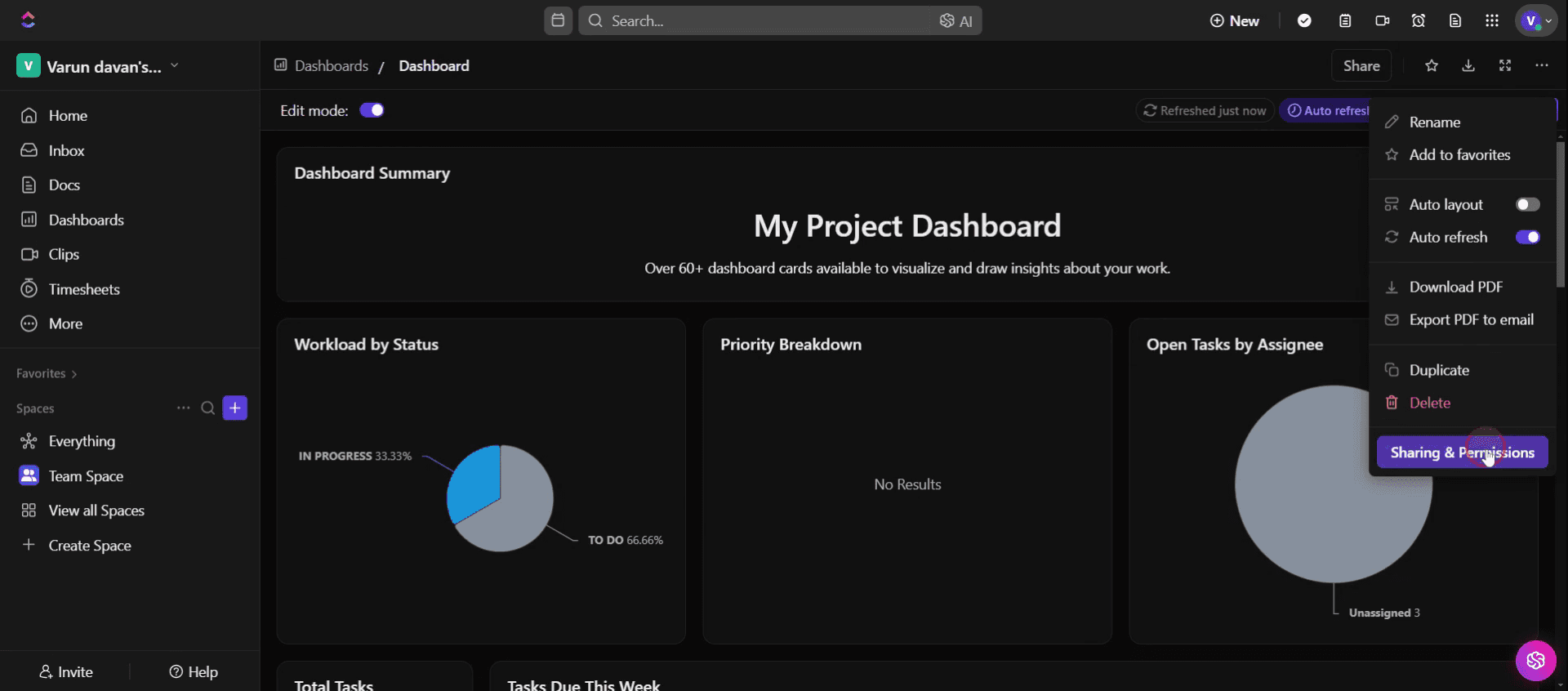
Step 6
Adjust the sharing permissions for your dashboard, deciding whether it should be public or private according to your preferences.
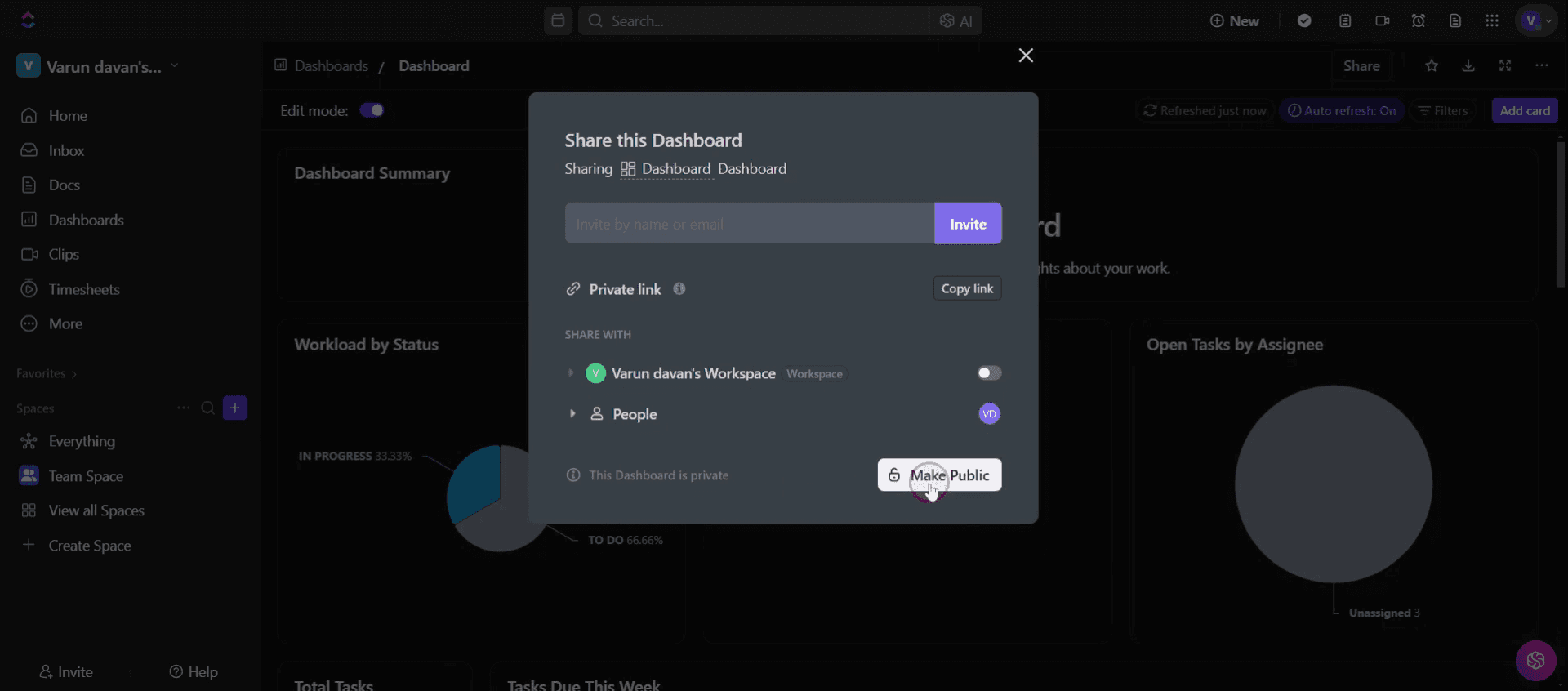
This is a step-by-step guide on how to create a dashboard in click up.
Pro-tips for creating a dashboard in Click Up
Use Click Up’s built-in widgets to customize your dashboard with tasks, goals, and workload views.
Organize data effectively by grouping widgets based on team priorities, project timelines, or workload distribution.
Utilize filters and automation to keep your dashboard dynamic and updated with real-time insights.
Common pitfalls & how to avoid them
Not setting proper permissions may restrict team members from viewing or editing dashboard elements.
Ignoring automation features can lead to outdated data; use real-time syncing for accurate reports.
Common FAQs for creating a dashboard in Click Up
Can i share my Click Up dashboard with my team?
Yes, you can share your dashboard by adjusting the permissions under the sharing settings.What types of widgets can I add to a Click Up dashboard?
Click Up allows you to add widgets for task progress, workload, time tracking, goals, and custom charts.Can i automate dashboard updates in Click Up?
Yes, dashboards update automatically in real time based on the linked tasks and projects.Is the Click Up dashboard feature available in the free plan?
Yes, Click Up offers basic dashboard features in the free plan, but advanced widgets and automation may require a paid plan.
If you're an instructor or content creator looking to make tutorial videos, give a try. It transforms rough screen recordings into polished, studio-style videos that are ready for sharing with your audience. Plus, it automatically generates a step-by-step guide based on the video you create. Fascinating, right? Start by creating your first tutorial for free with trupeer.ai .

