
How To Create Drop Down Options In Google Sheets
Discover how to create drop-down options in Google Sheets with our comprehensive guide. Simplify data entry and enhance your spreadsheets effortlessly.
This document provides a step-by-step process to create drop down options in Google Sheets. By following these instructions, you will be able to create interactive lists within your spreadsheet, which are helpful for data validation and improving user input accuracy.
Step 1
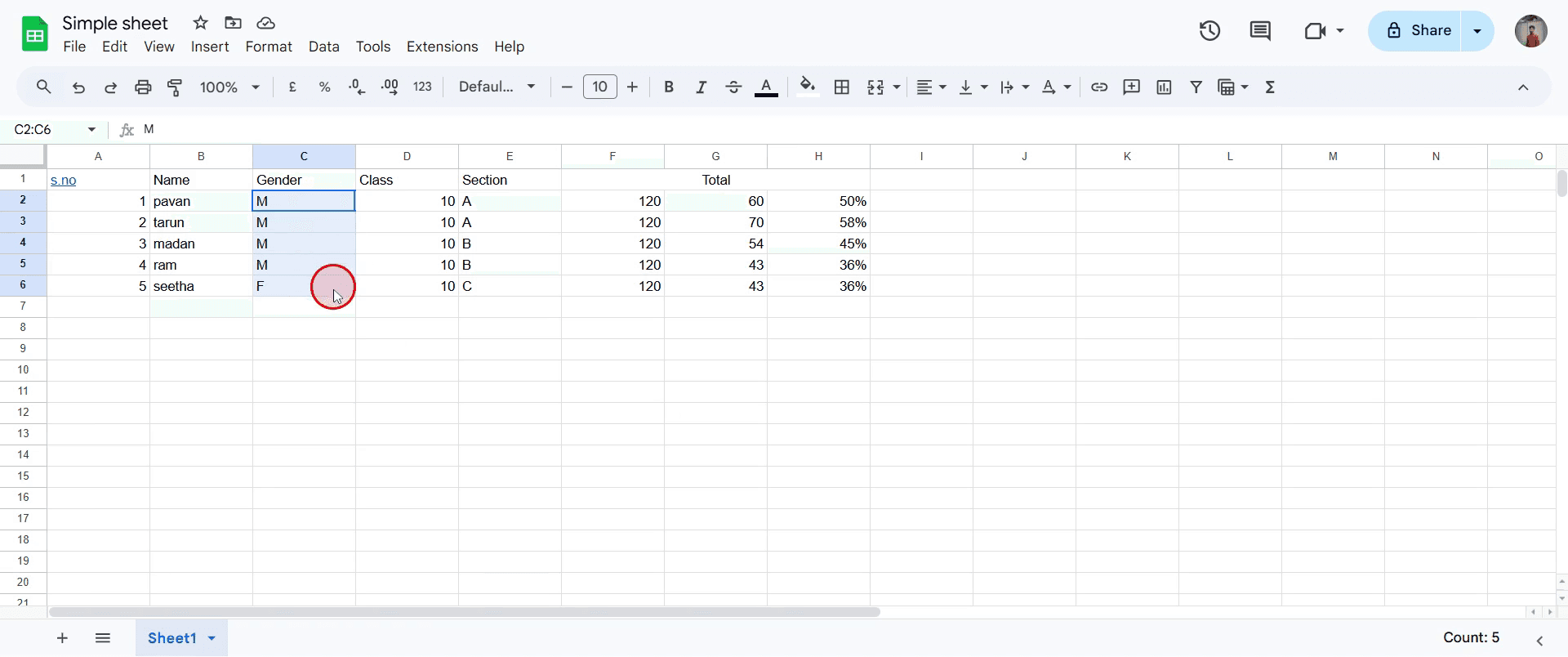
To begin, select the range of cells where you want to add the drop-down options.
Step 2
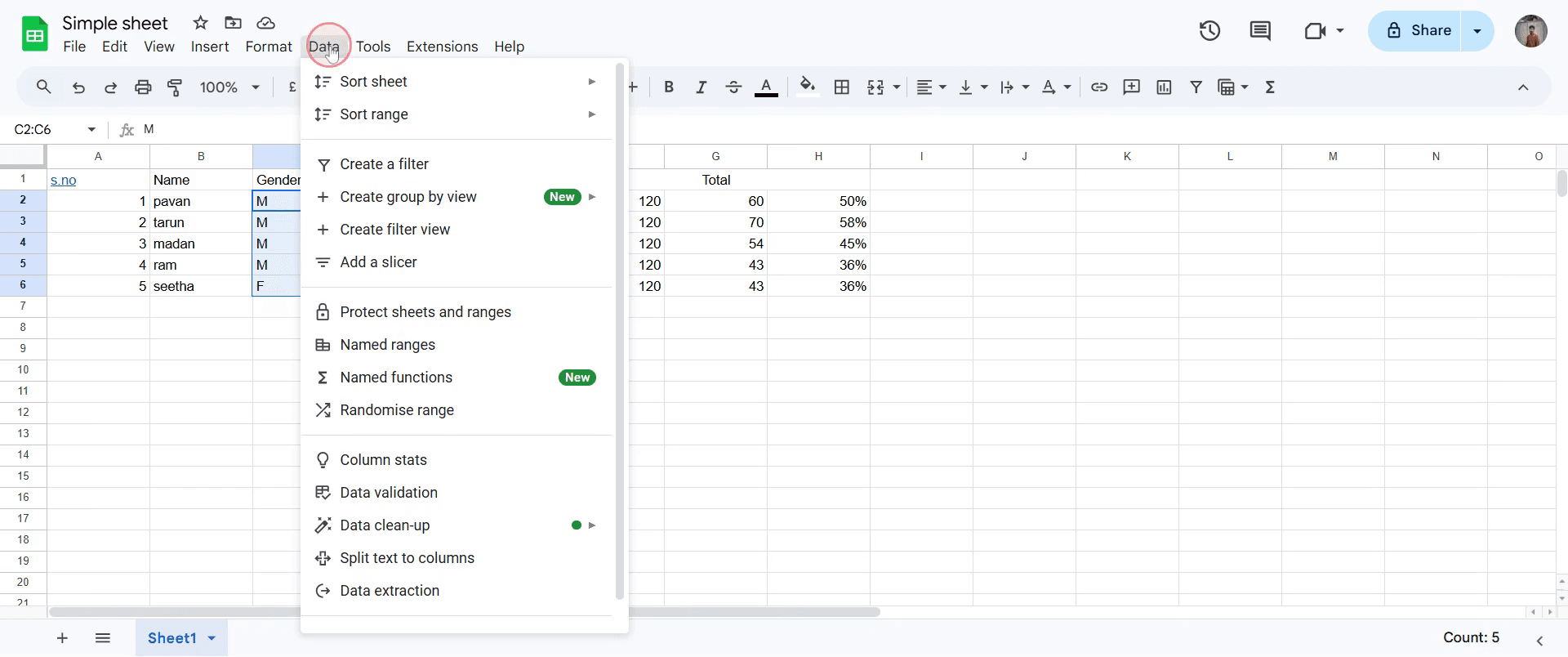
Navigate to the 'Data' option and click on that.
Step 3
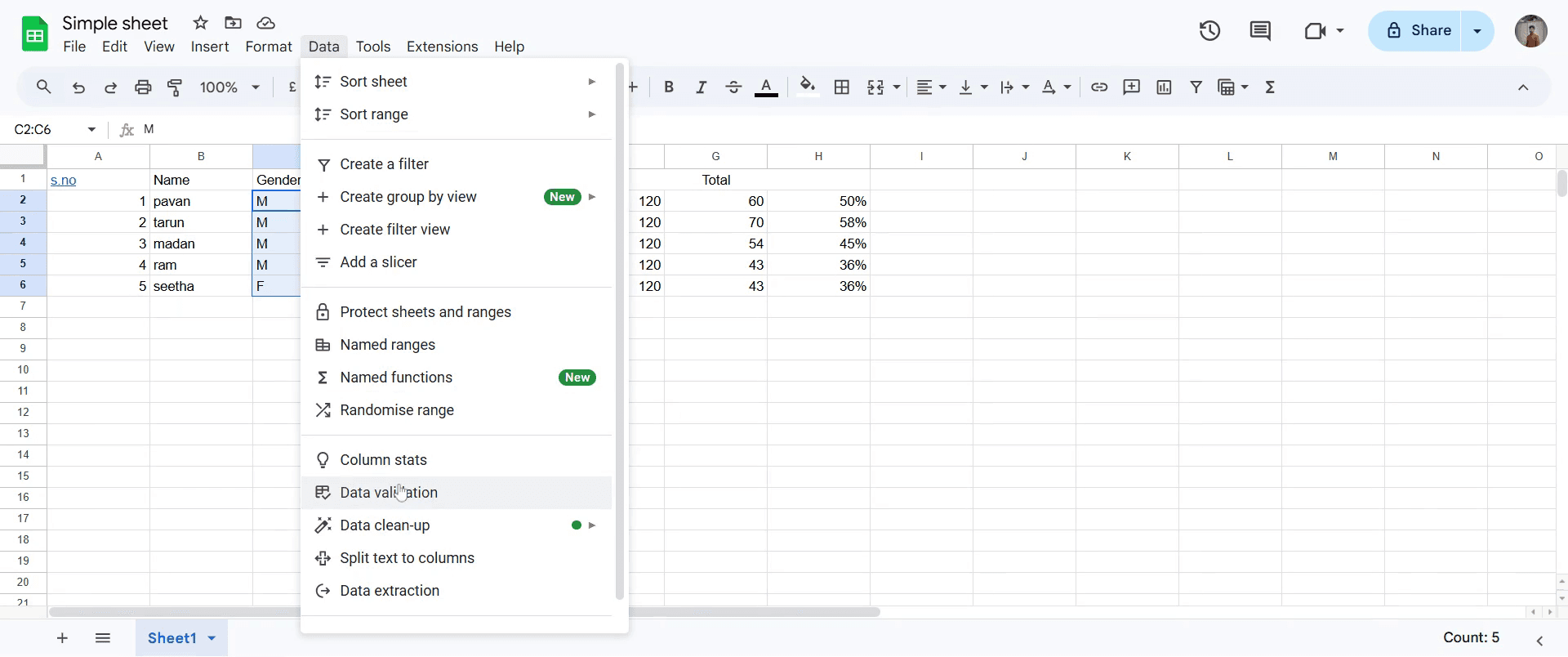
Click on the 'Data Validation' option.
Step 4
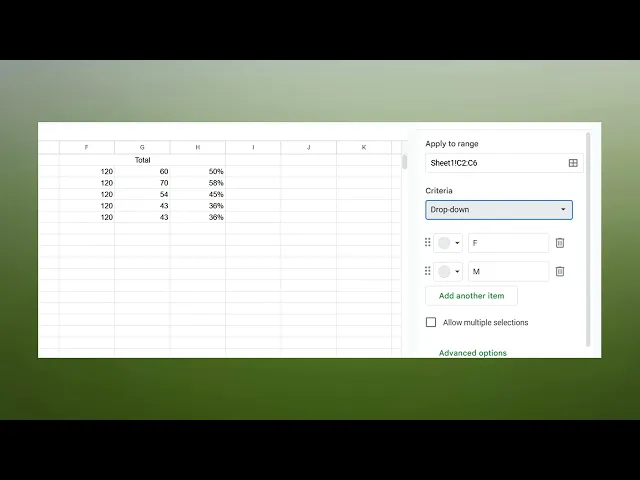
In the Data Validation area, set the criteria to 'Drop-Down'.
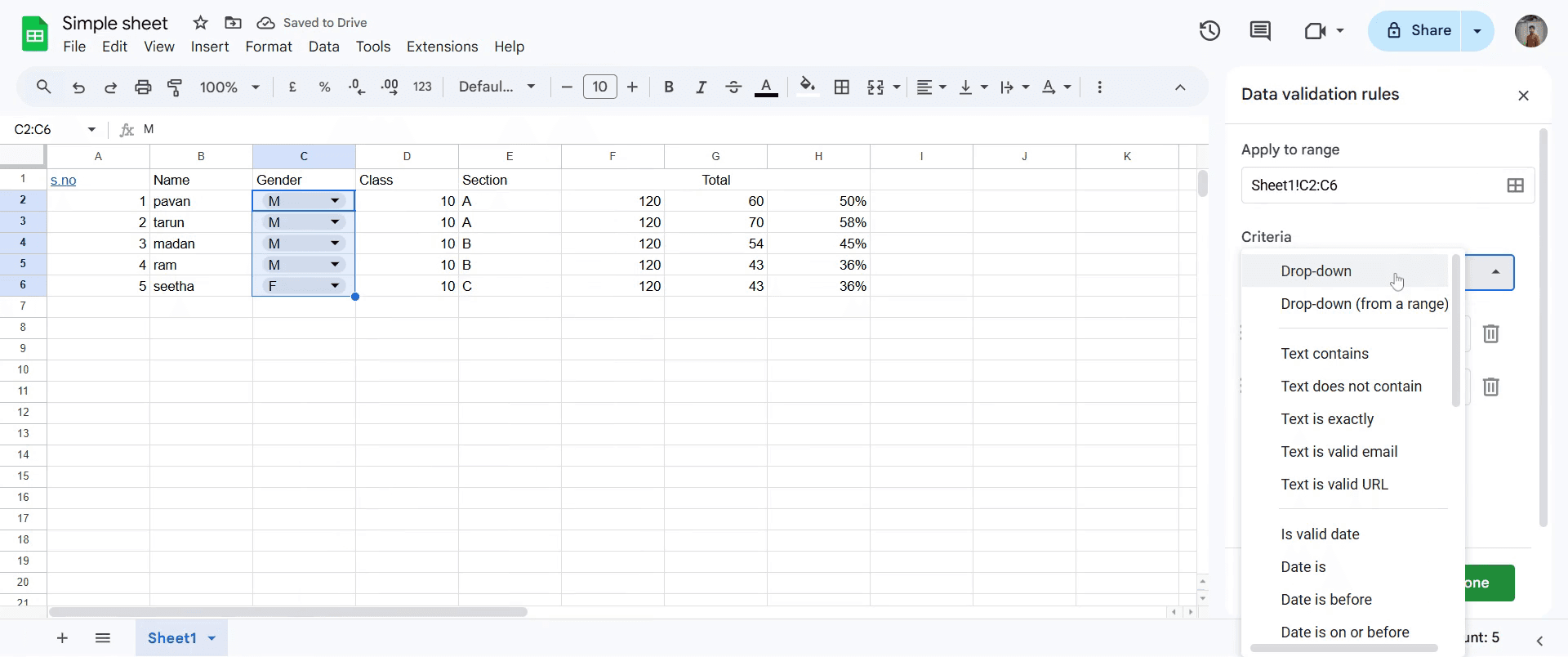
Step 5
Here, you can add the options you wish to include in the drop-down menu. You can add options like 'Option A', 'Option B', and more.
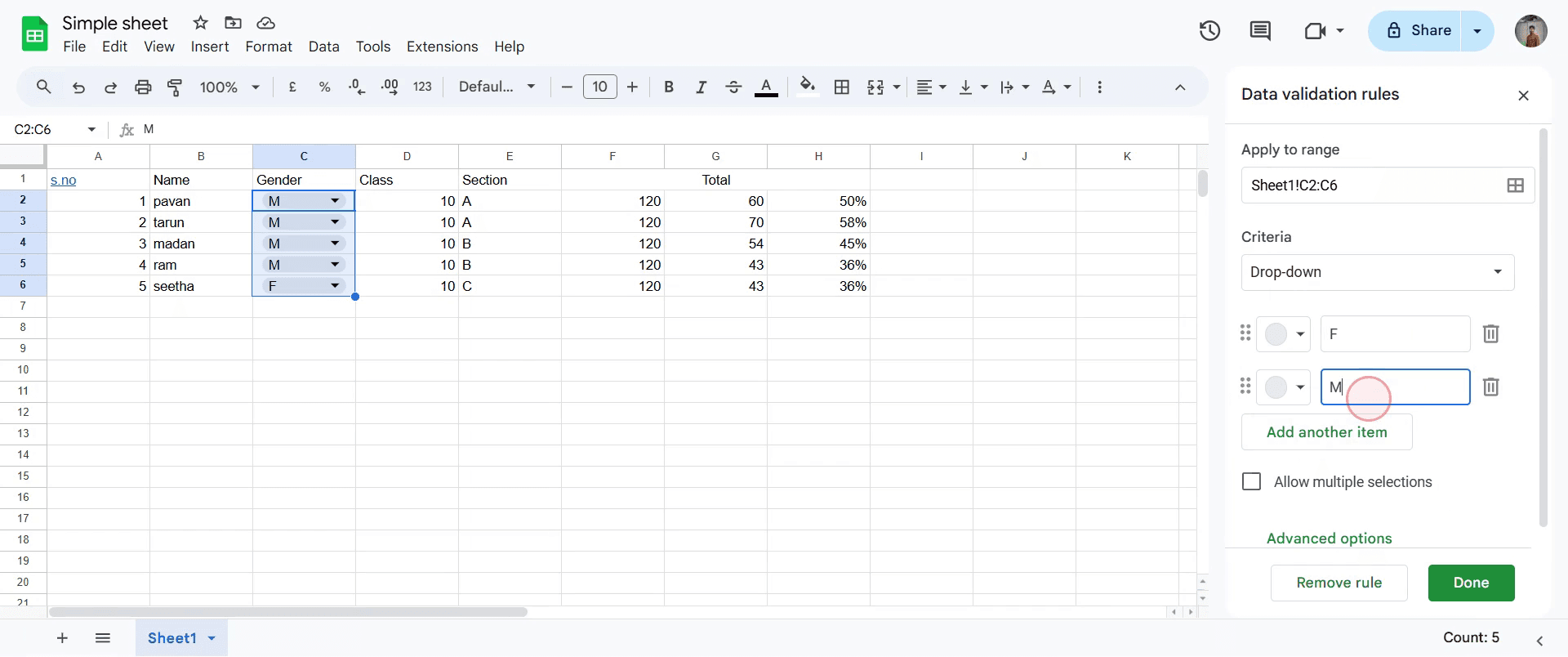
Step 6
Additionally, you can assign specific colors to each option for better visualization. For each entry, you have the ability to customize colors.
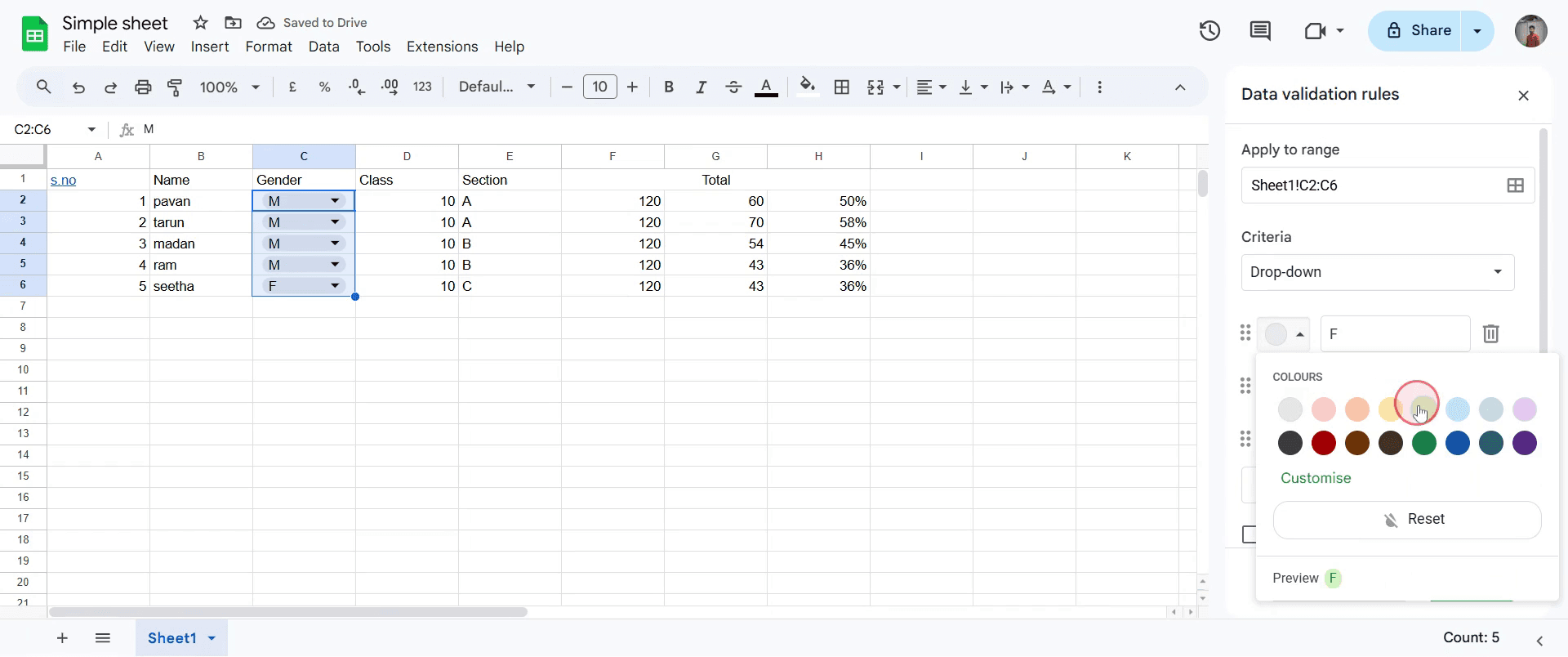
Step 7
Once you've finished setting up your options, click on 'Done'.
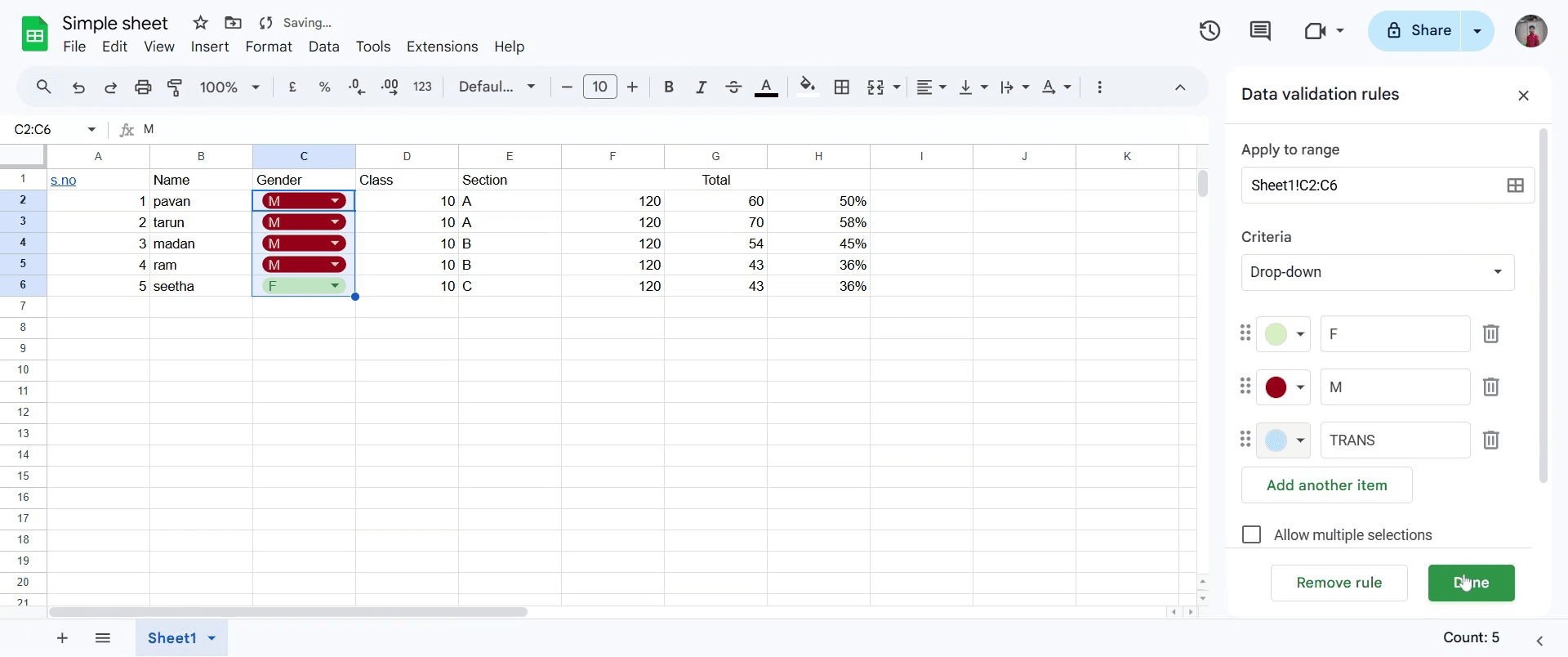
Step 8
You will now see the drop-down options, such as 'Option A', 'Option B', etc., appear in the selected cells.
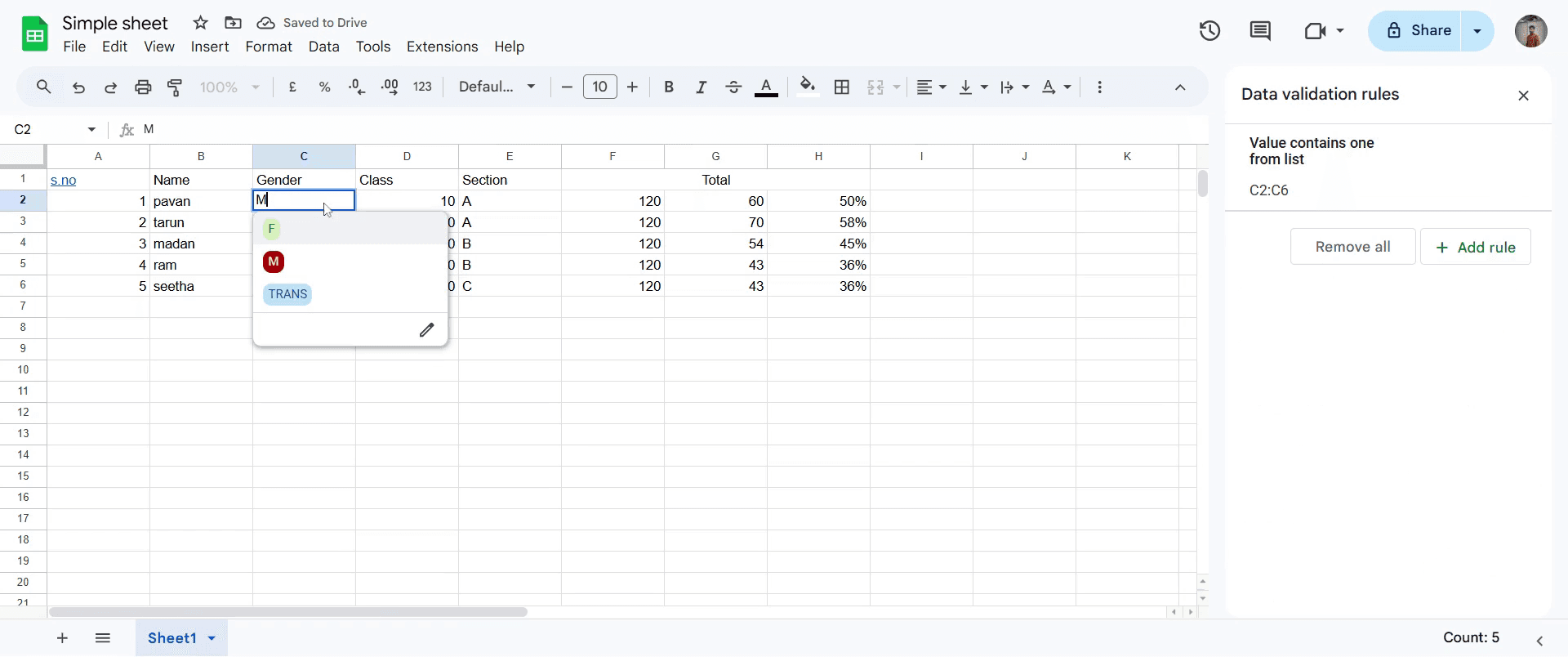
This is a step-by-step guide on how to create drop-down options in Google Sheets.
Pro-tips for creating drop-down options in Google Sheets
Use Data Validation under the Data menu to create structured drop-down lists for better data consistency.
Predefine a list of options in another sheet and reference them to make it easier to update later.
Enable error warnings to ensure users select only valid options from the drop-down list.
Common pitfalls & how to avoid them while creating drop-down options in Google Sheets
Manually typing options instead of referencing a range this makes updating the list harder later.
Forgetting to enable Show dropdown list in cell this can lead to confusion when selecting values.
Not allowing for blank entries when needed ensure flexibility by checking the Reject input setting only when necessary.
Common FAQs for creating drop-down options in Google Sheets
Can I create a drop-down list from another sheet?
Yes, you can reference a range from another sheet by selecting List from a range and entering the cell range.How do I edit or update an existing drop-down list?
Go to Data validation for the selected cell, update the list items, and save the changes.Can I allow users to enter values not in the drop-down list?
Yes, uncheck the Reject input option in the Data Validation settings to allow custom inputs.
If you're an instructor or content creator looking to make tutorial videos, give Trupeer.ai a try. It transforms rough screen recordings into polished, studio-style videos that are ready for sharing with your audience. Plus, it automatically generates a step-by-step guide based on the video you create. Fascinating, right? Start by creating your first tutorial for free with Trupeer.ai.

