

How To Create A Report Microsoft Excel
Learn how to create professional reports in Microsoft Excel with our step-by-step guide. Enhance your data presentation skills today!
In this process, you will learn how to generate a report using Microsoft Excel. The steps will guide you through selecting data, creating tables, and customizing your report with various tools available in Excel.
Step 1
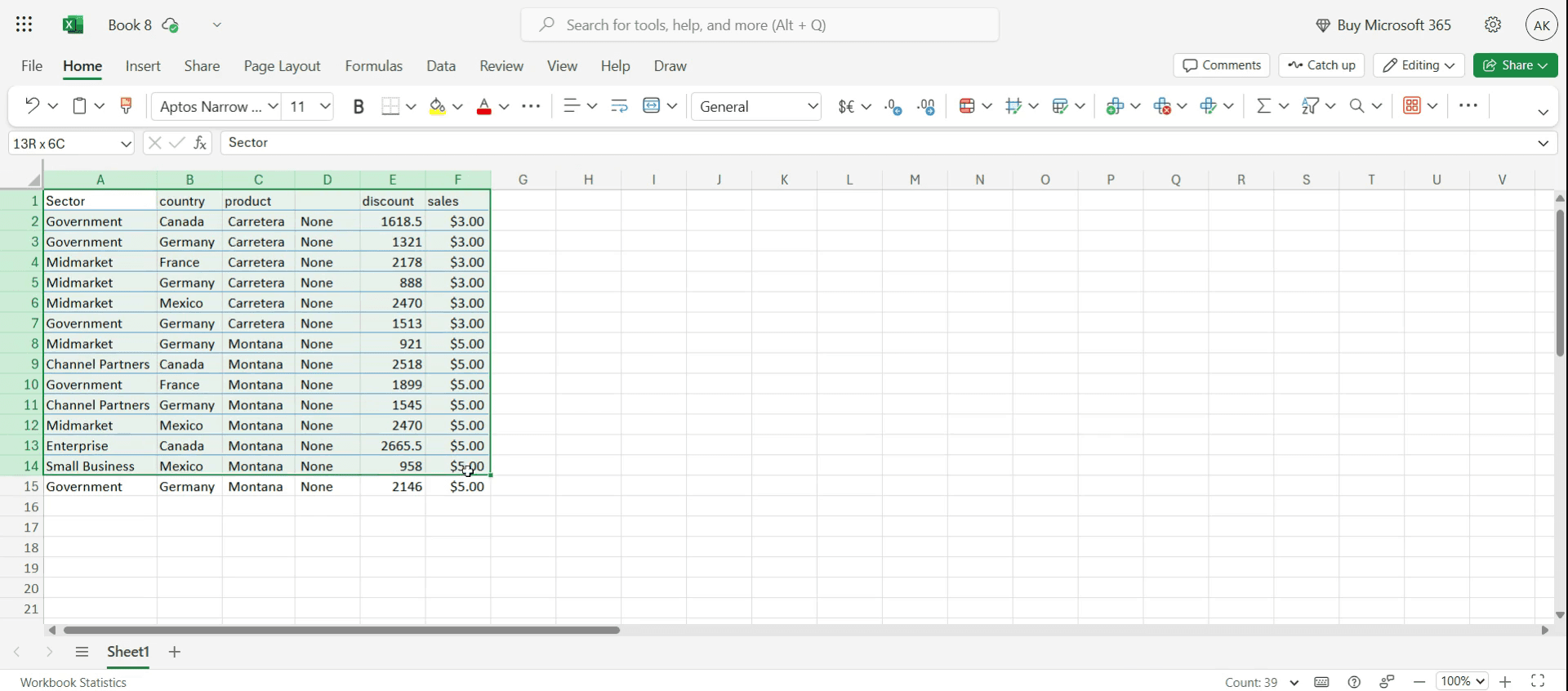
Select the data you wish to include in your report.
Step 2
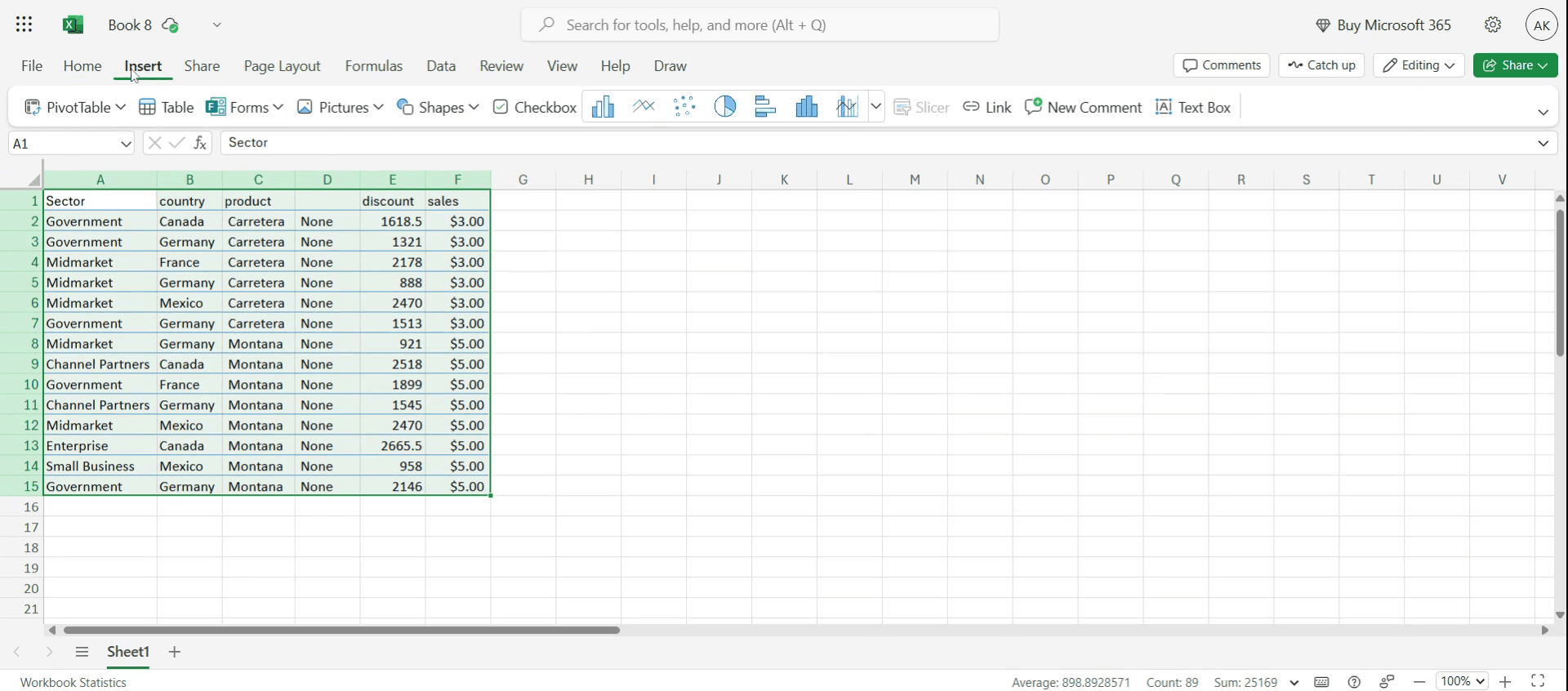
Click on the Insert.
Step 3
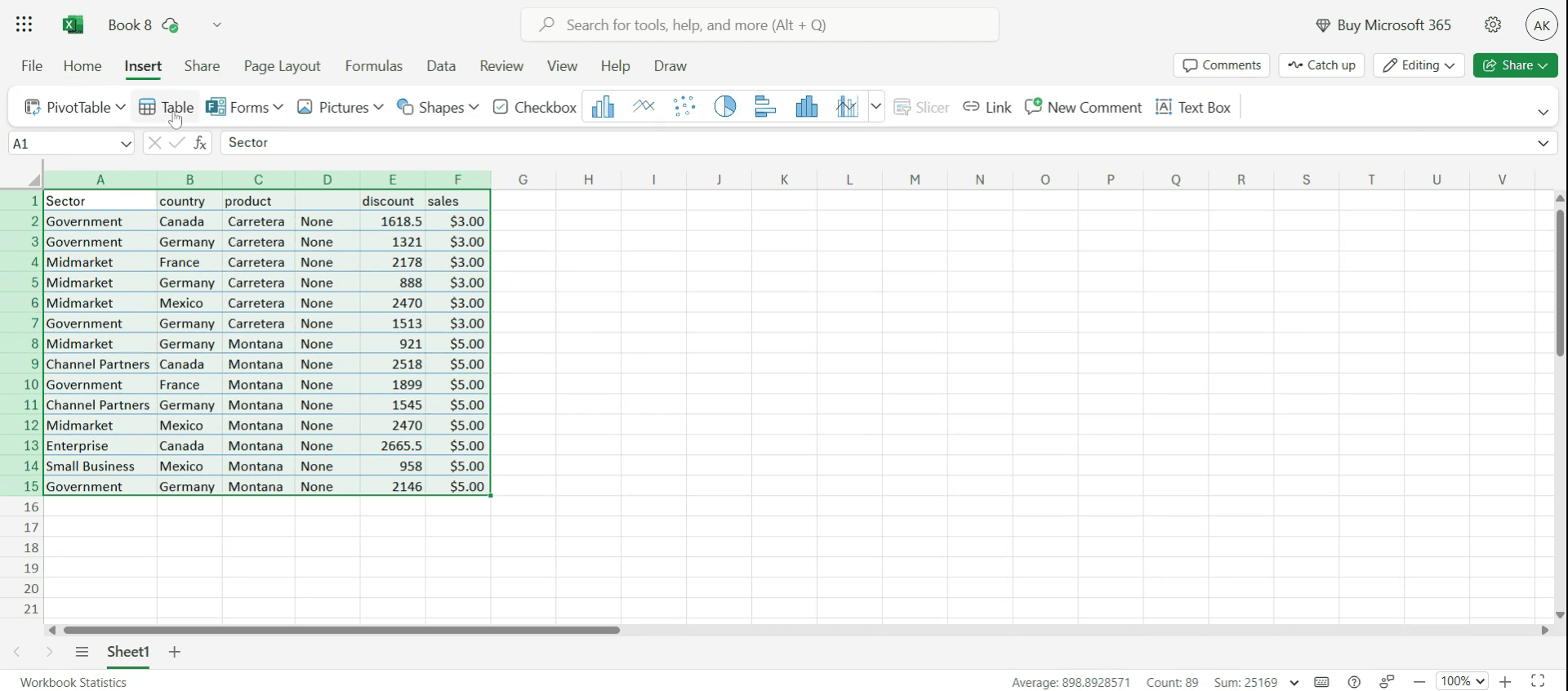
Click on the Table option.
Step 4
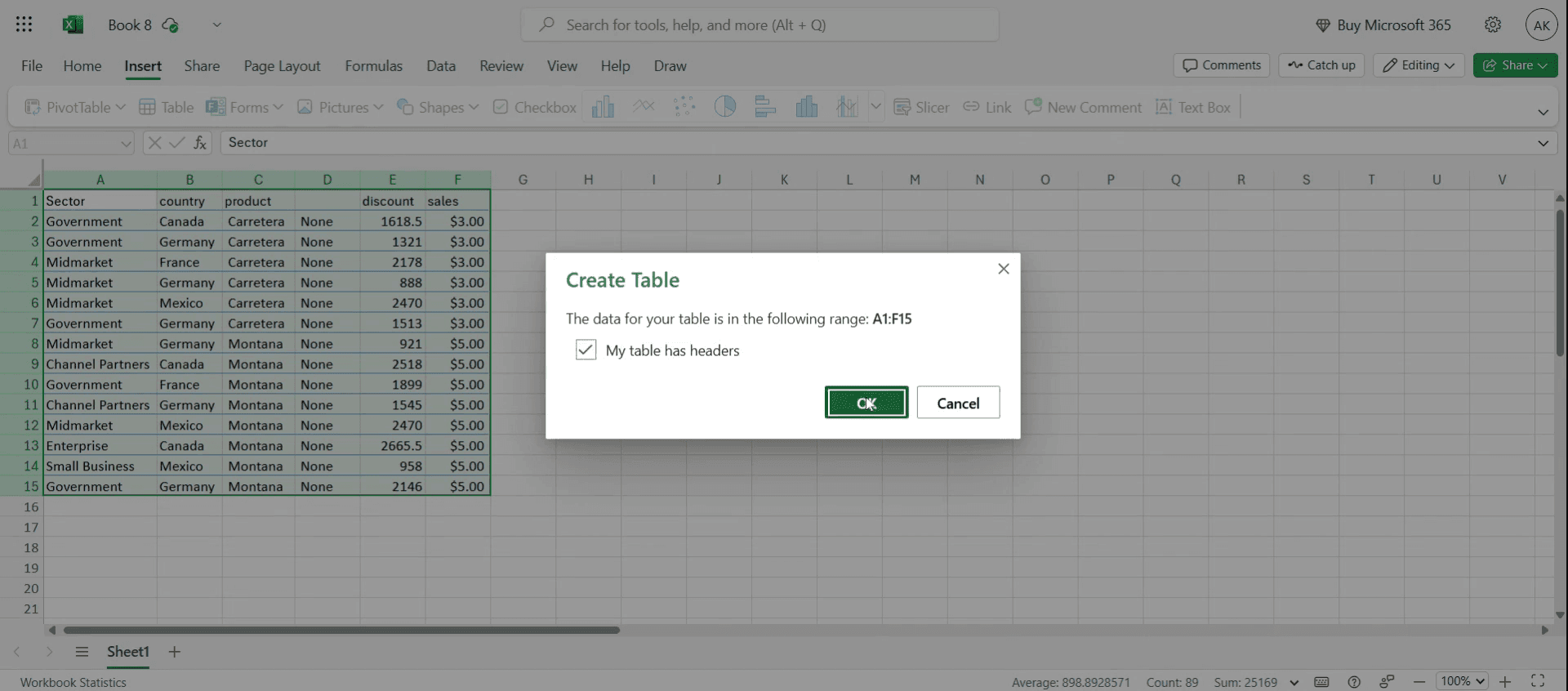
Click OK to proceed.
Step 5
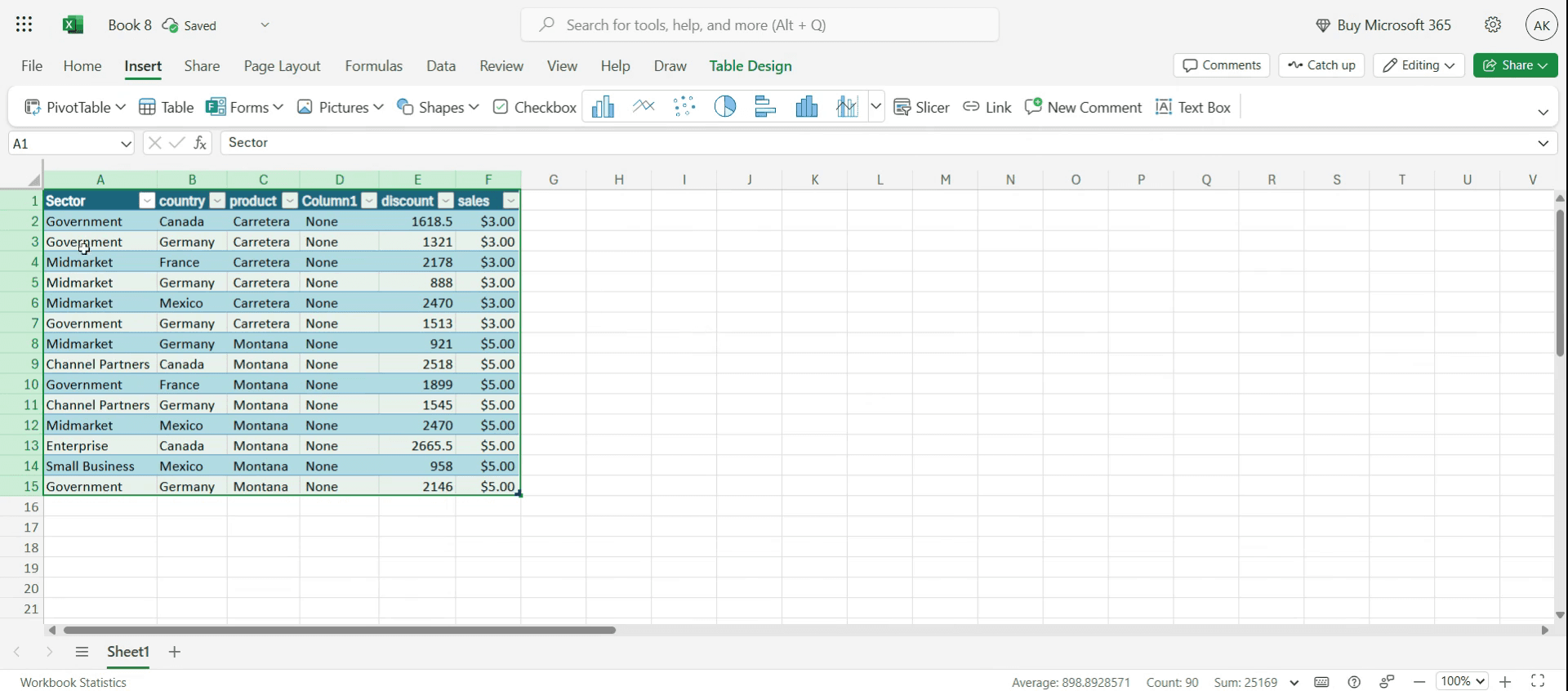
Then you can see the table created.
Step 6
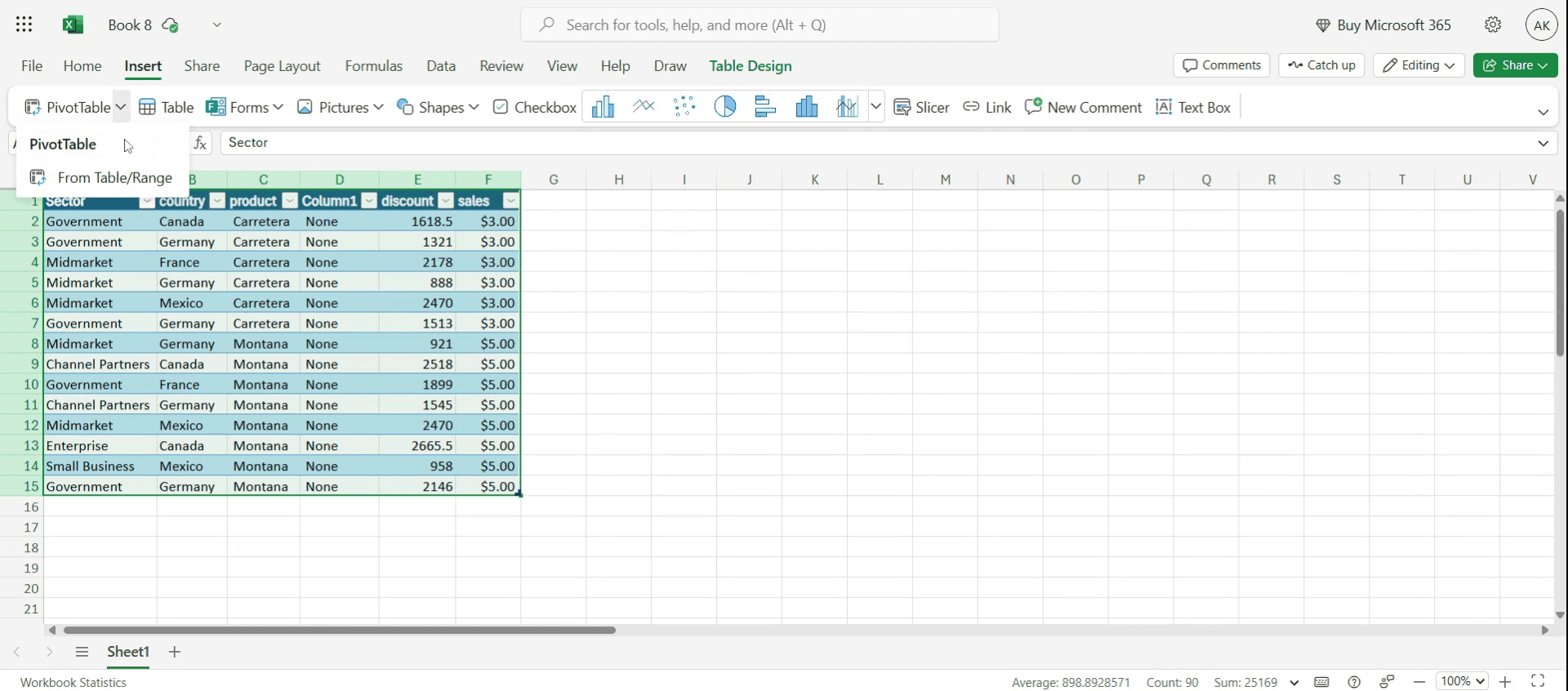
By clicking on pivot table you can insert the table .
Step 7
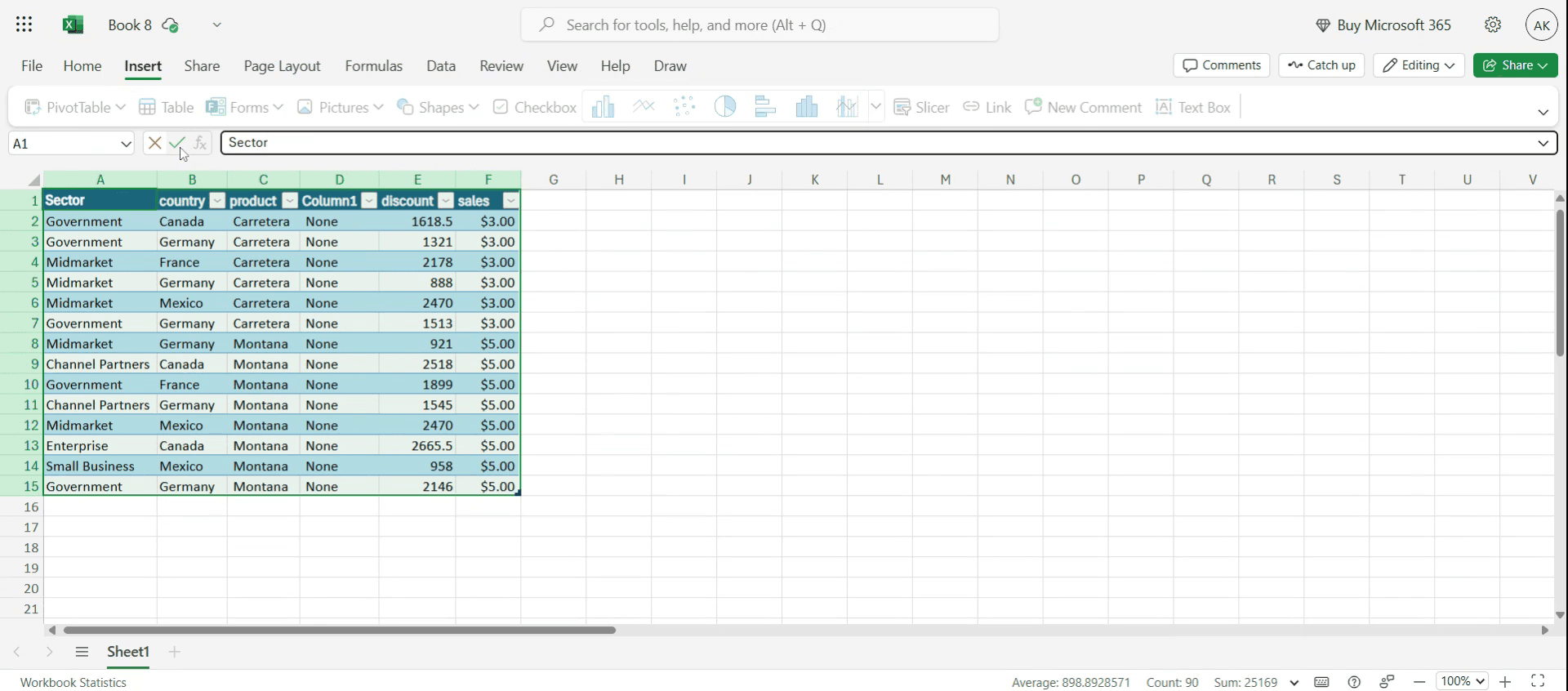
You have the option to insert custom formulas tailored to your requirements.
Step 8
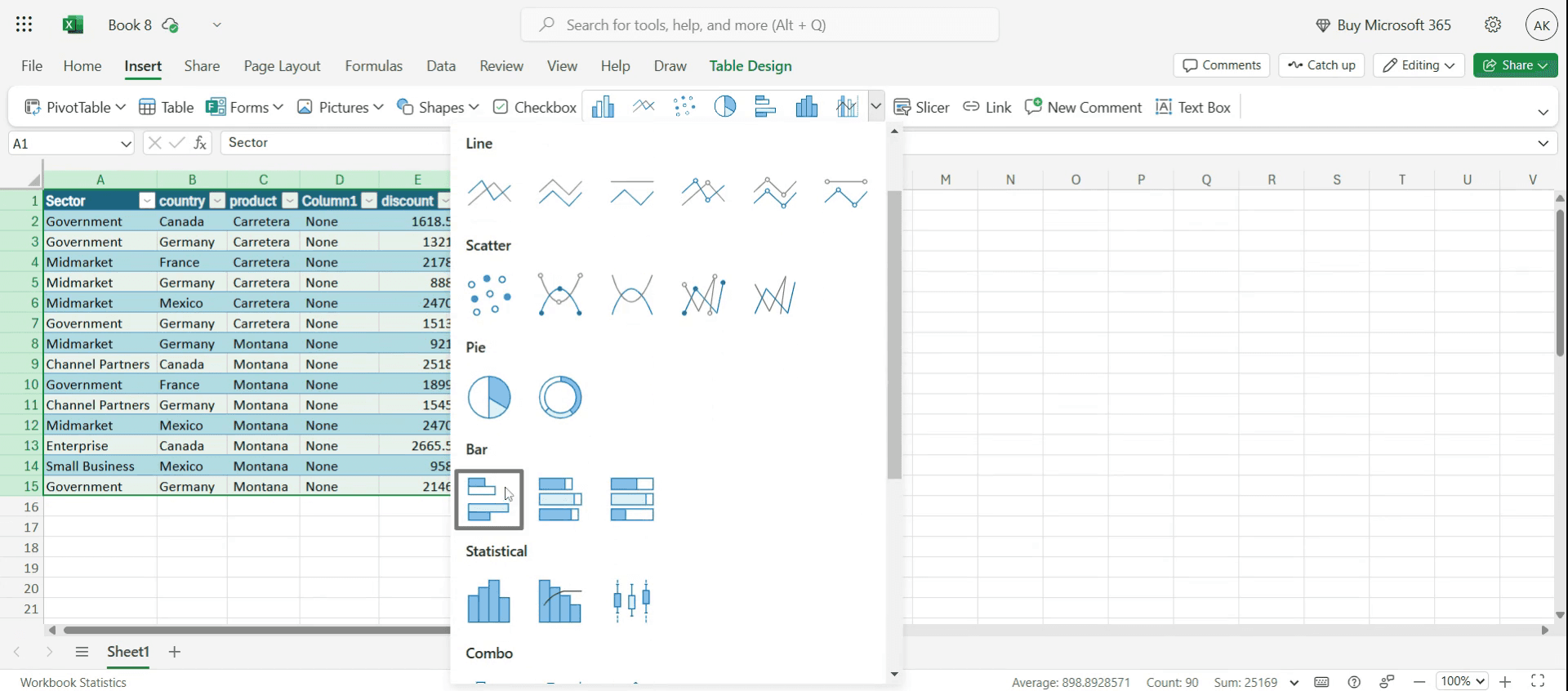
And we can also insert graphs by clicking on the particular graph.
This is the step-by-step process to create a report in Microsoft Excel. Let’s look at some tips for it.
Pro-tips for creating a report in Microsoft Excel
Use Excel Templates – Microsoft Excel offers pre-built report templates that can save time. Navigate to File > New > Search for Templates to find a template that suits your needs.
Organize Your Data Properly – Before creating a report, ensure your data is structured well. Use columns for specific categories, and avoid merging cells unnecessarily, as it can make sorting and filtering difficult.
Utilize Charts and Graphs – A well-visualized report is easier to understand. Create charts by selecting your data and going to Insert > Charts to choose between bar, line, pie, or scatter plots.
Use Formulas for Dynamic Reports – Excel formulas like SUM(), AVERAGE(), IF(), VLOOKUP(), and INDEX-MATCH() can automate calculations and improve report efficiency.
Common pitfalls & how to avoid them
Messy Data Leads to Inaccurate Reports – Ensure your data is clean and structured before creating your report. Remove duplicates, correct inconsistencies, and format data correctly.
Using Too Many Merged Cells – Merging cells can disrupt sorting and filtering. Instead, use Center Across Selection under Format Cells > Alignment for better alignment without merging.
Forgetting to Refresh Pivot Tables – If you update your dataset, the pivot table does not refresh automatically. Always click Refresh in the Pivot Table toolbar after making changes.
Common FAQs for creating a report in Microsoft Excel
Can i use Excel to generate automatic reports?
Yes, you can automate reports using PivotTables, Power Query, and Macros to update data dynamically.How do i add a chart to my Excel report?
Select your data, go to Insert > Charts, and choose a chart type that best represents your data.How can i export my Excel report to PDF?
Click File > Save As, then select PDF as the file format to save your report for easy sharing.What is the best way to summarize large datasets in Excel?
Use PivotTables, SUMIFS, and AVERAGEIFS functions to summarize key insights efficiently.
If you're an instructor or content creator looking to make tutorial videos, give a try. It transforms rough screen recordings into polished, studio-style videos that are ready for sharing with your audience. Plus, it automatically generates a step-by-step guide based on the video you create. Fascinating, right? Start by creating your first tutorial for free with trupeer.ai .

