How to Create a Watermark in Canva – Easy Branding Tip
Learn how to make and apply a watermark in Canva to protect your designs or brand your content with ease.

This document provides step-by-step instructions on how to create and apply a watermark to your images using Canva. You will learn how to add text as a watermark, adjust its transparency, and apply it to your desired image for professional use.
Step 1
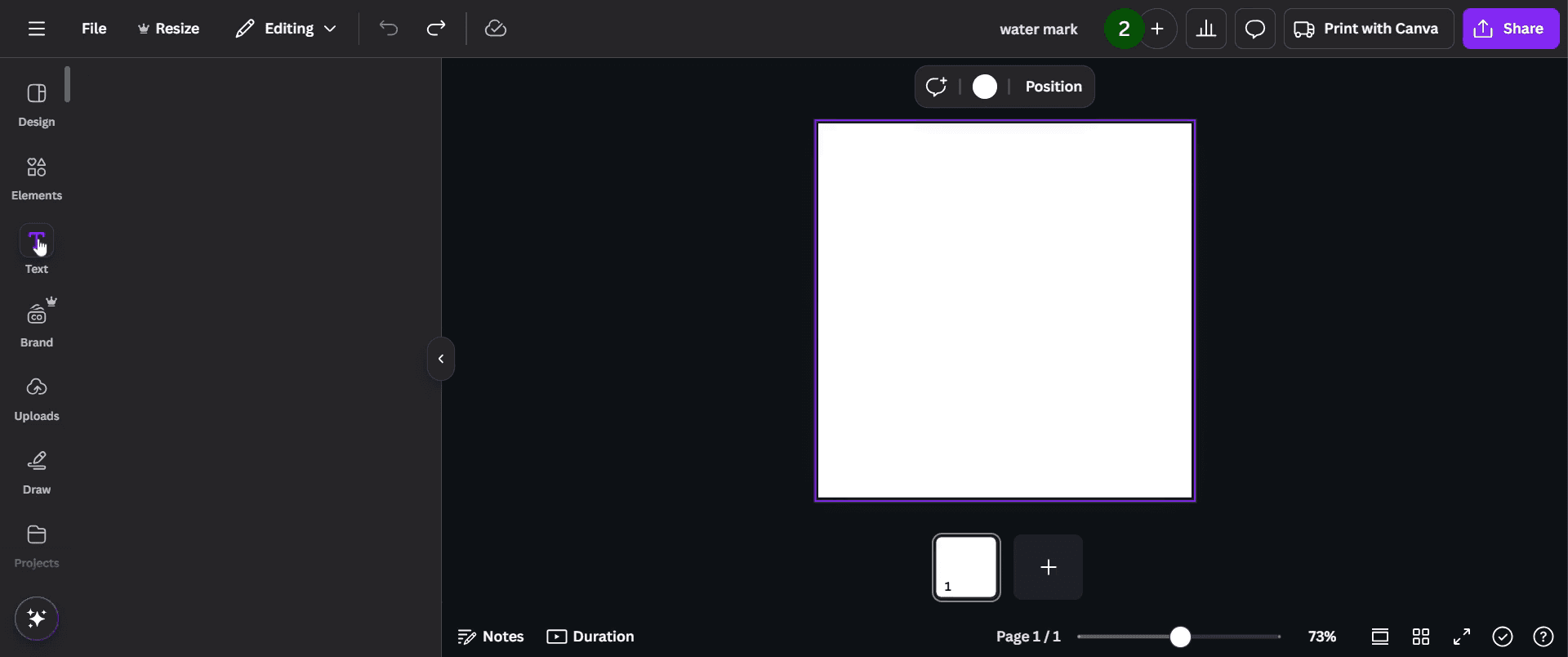
To create a watermark in Canva, start by navigating to the toolbar. Click on the 'Text' option.
Step 2
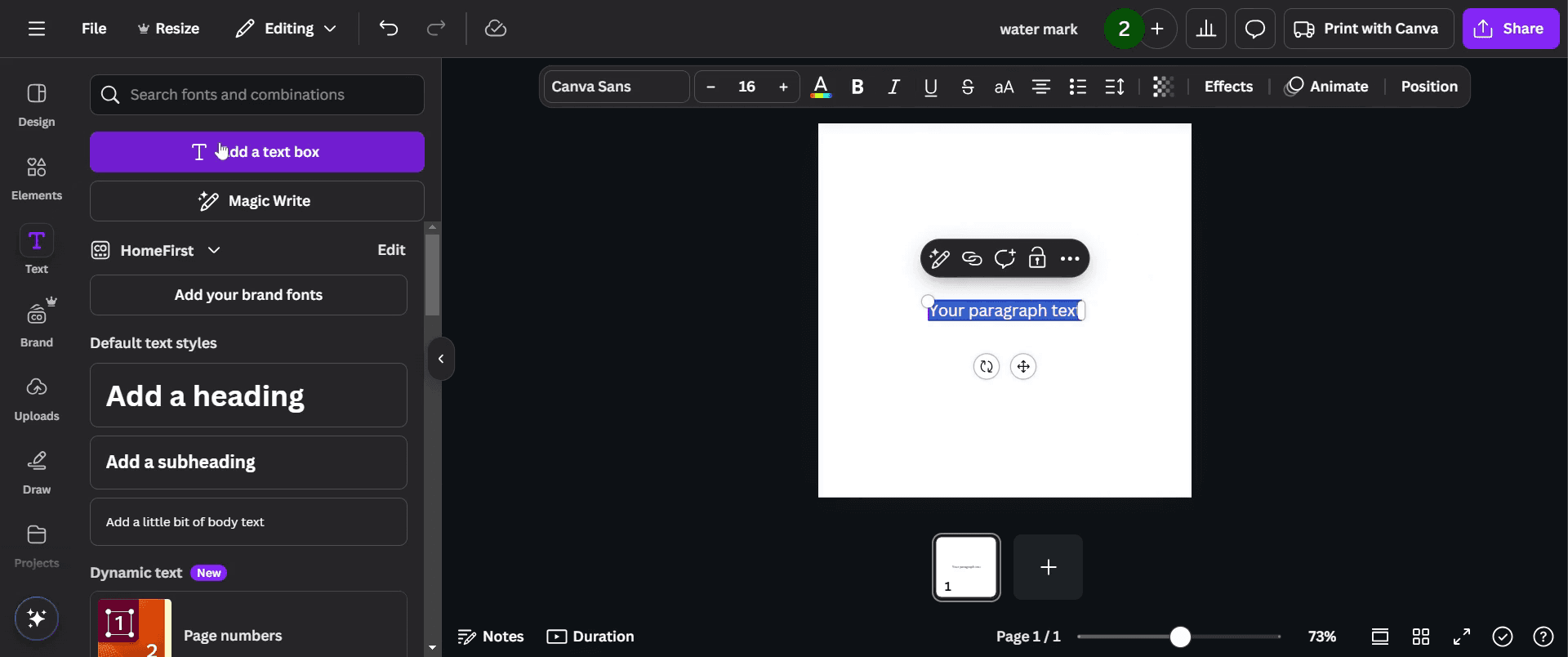
Then select 'Add a text box'.
Step 3
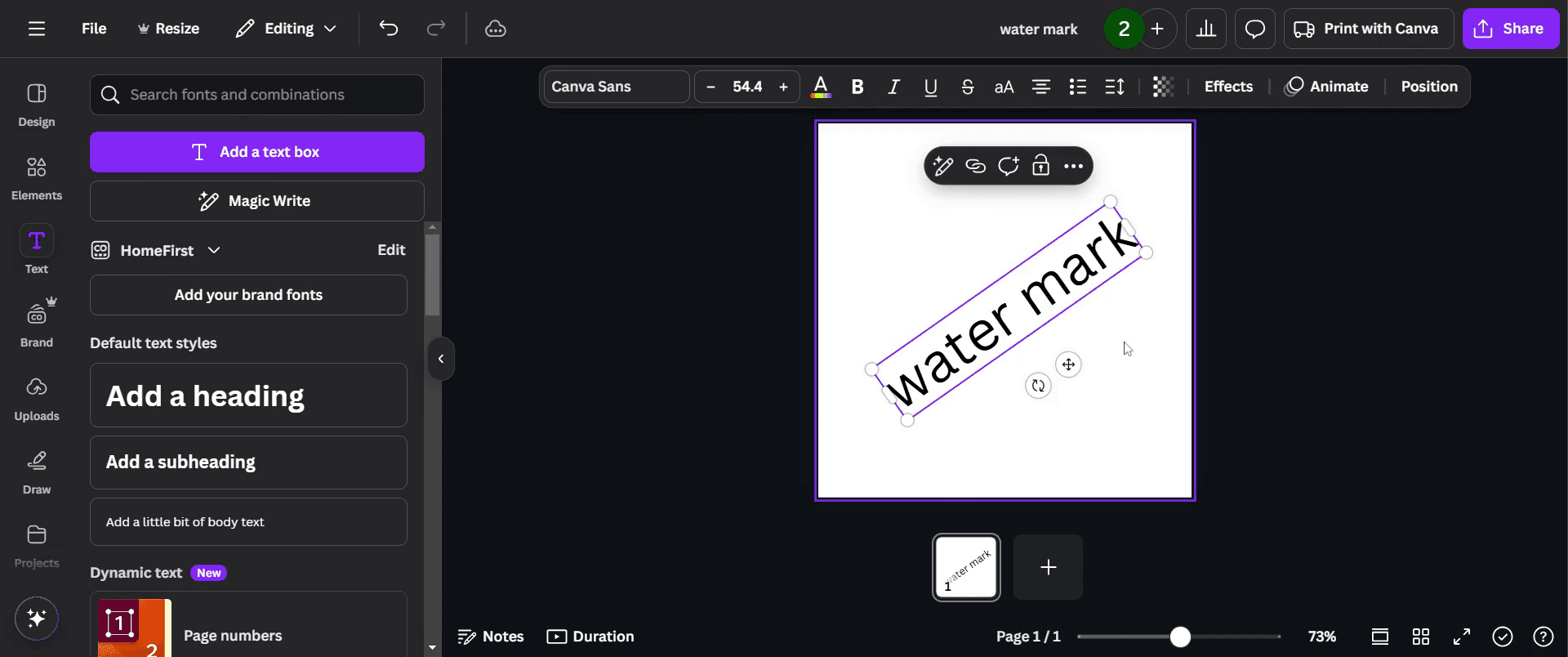
Type your desired watermark text and adjust its appearance to meet your requirements.
Step 4
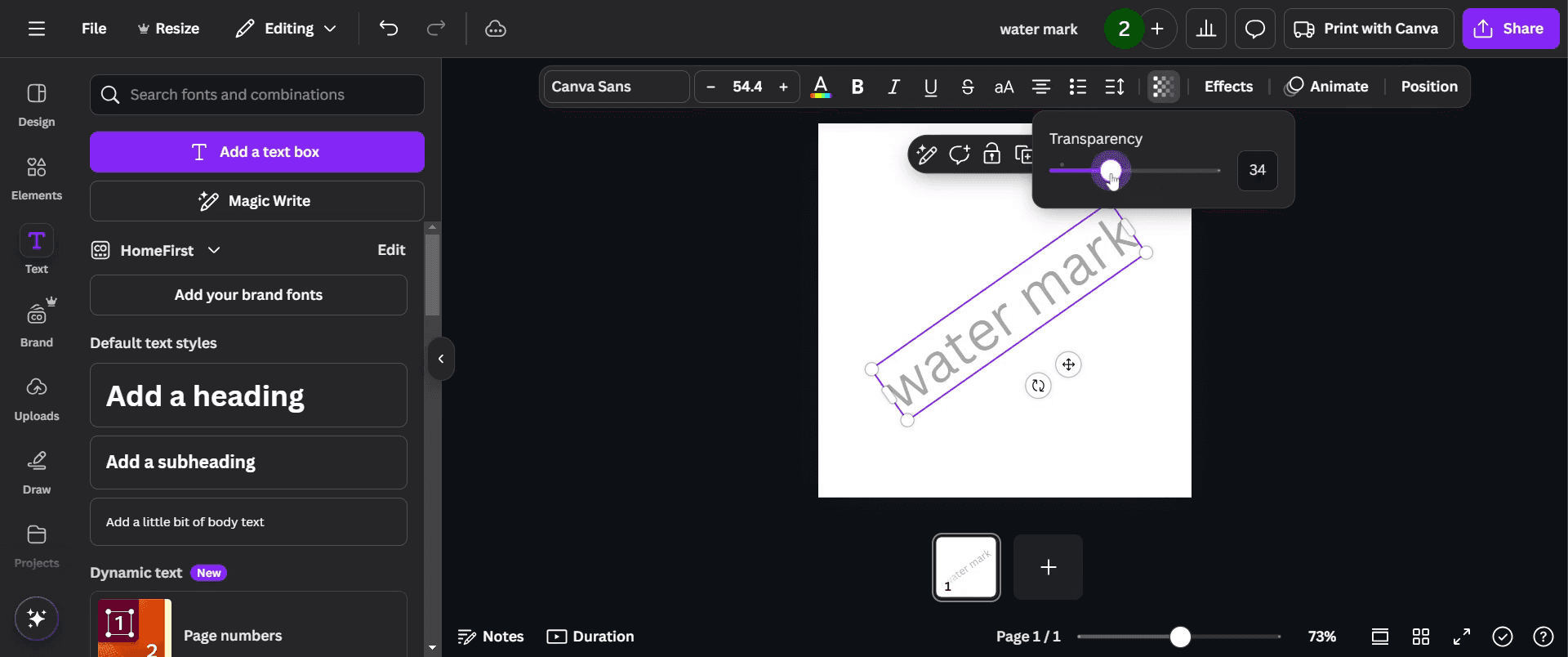
Click on the 'Transparency' option, Adjust the transparency to your preference.
Step 5
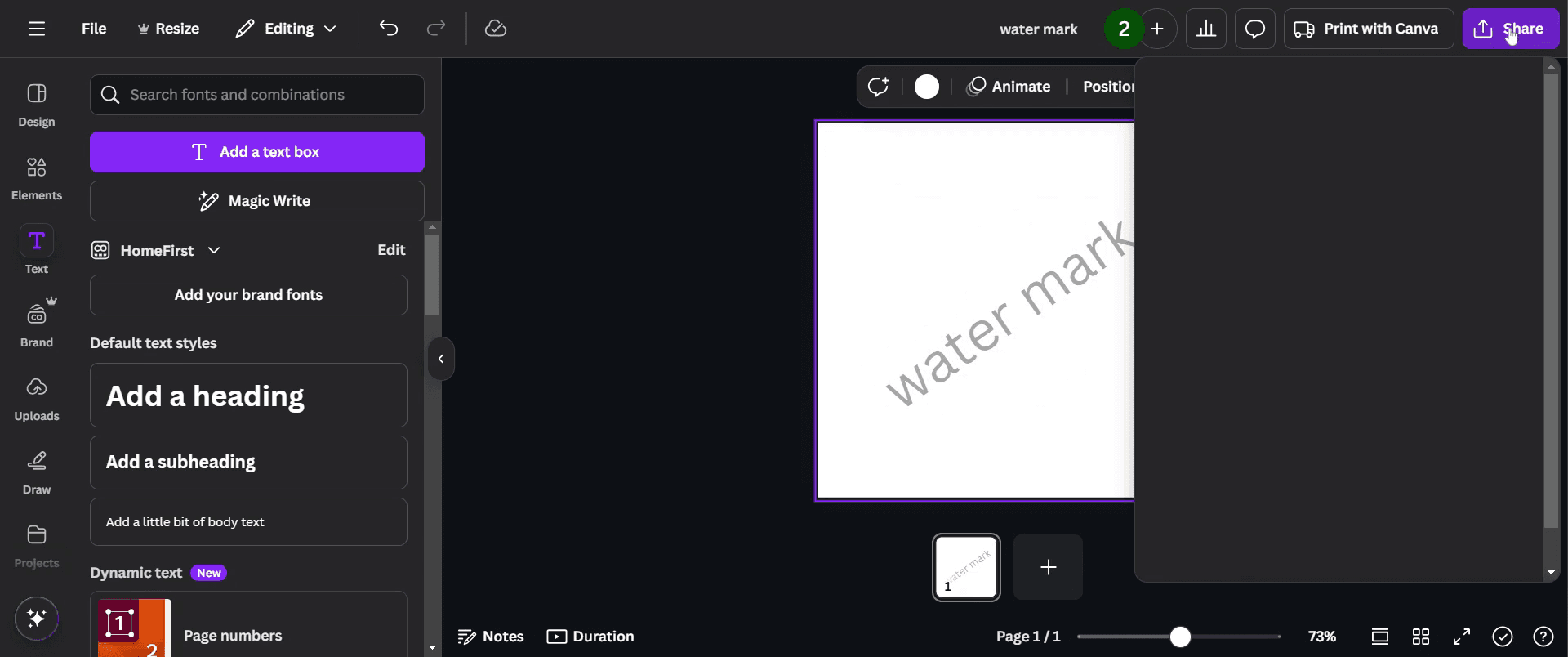
Afterward, click on the 'Share' button.
Step 6
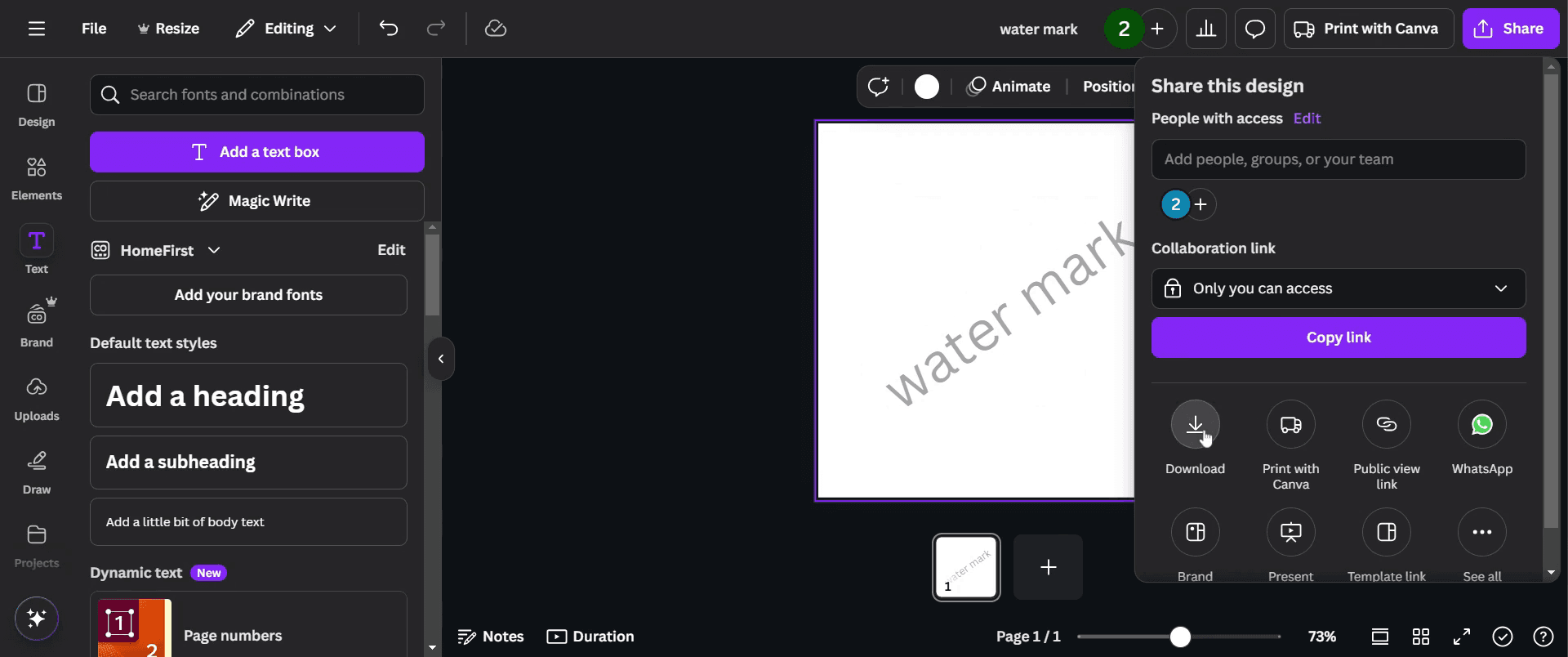
Proceed to download your design, and click the 'Download' button. Your design will be saved.
Step 7
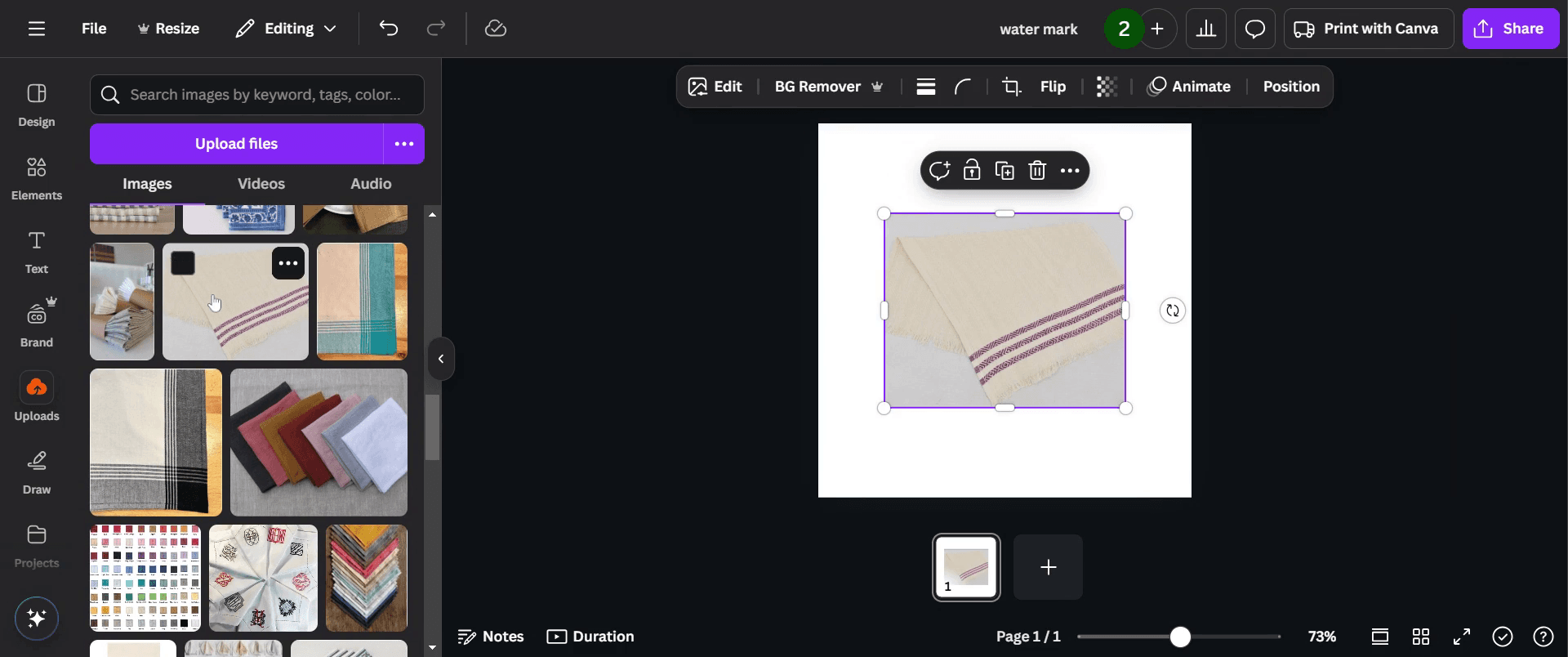
Go to 'Uploads' and choose any image you want to watermark.
Step 8
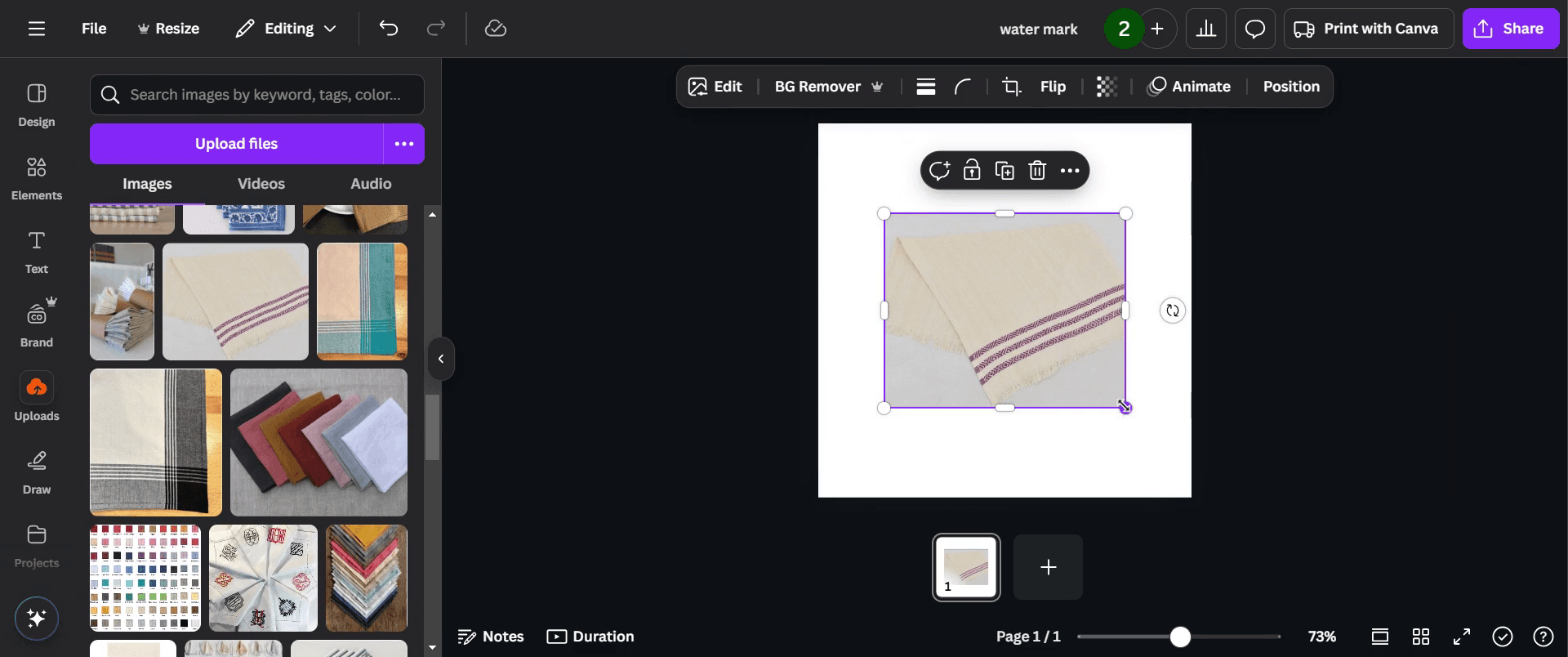
Adjust the image to your liking.
Step 9
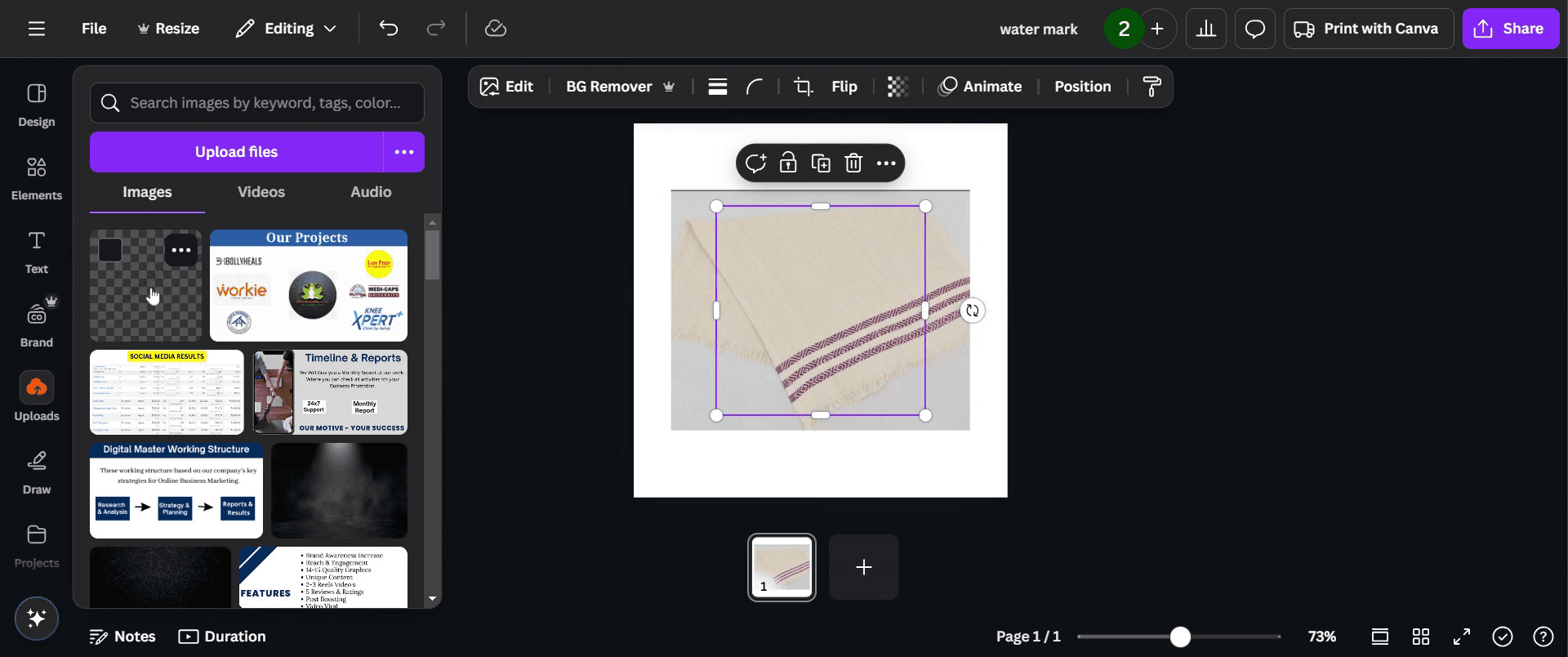
Return to 'Uploads' to find your watermark image, click on it.
Step 10
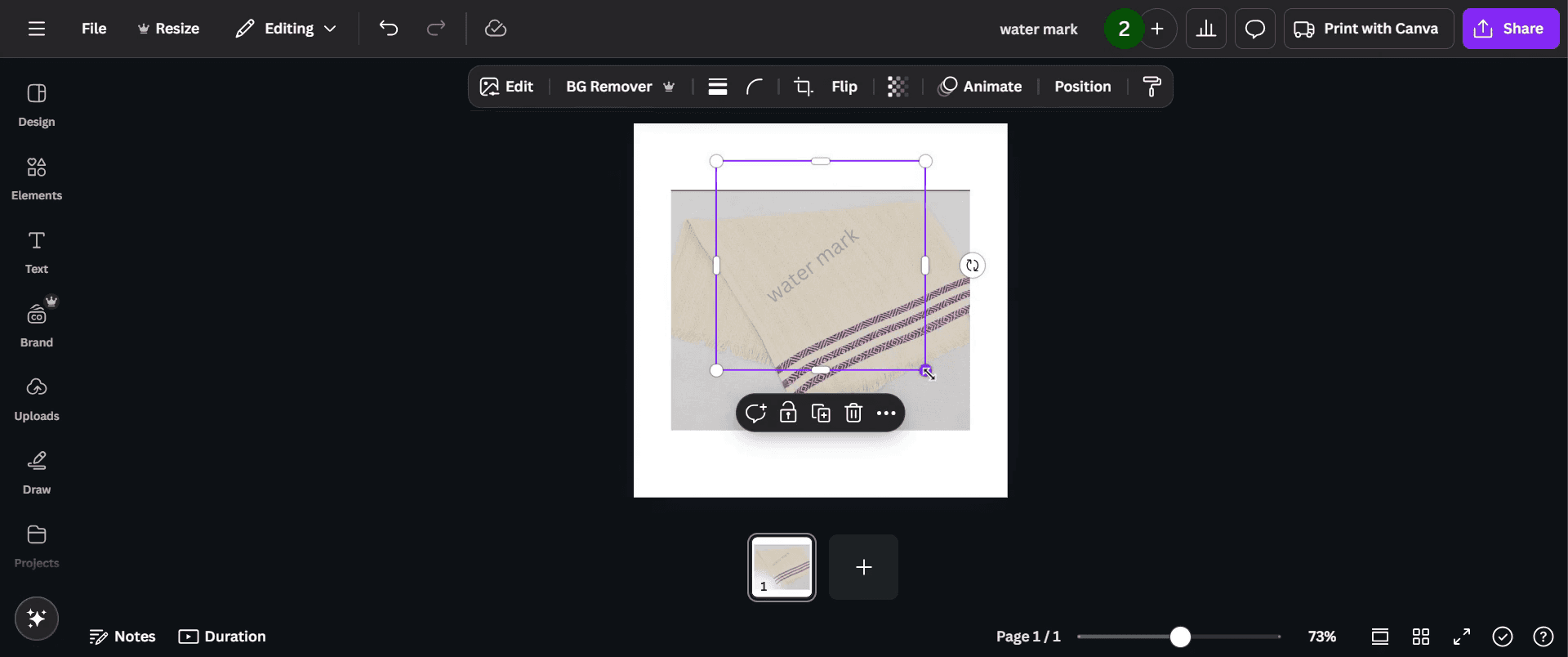
And position it as needed over your chosen image.
Step 11
Once you have positioned and adjusted the watermark to your satisfaction, click on the 'Share' button to easily share your watermarked image.
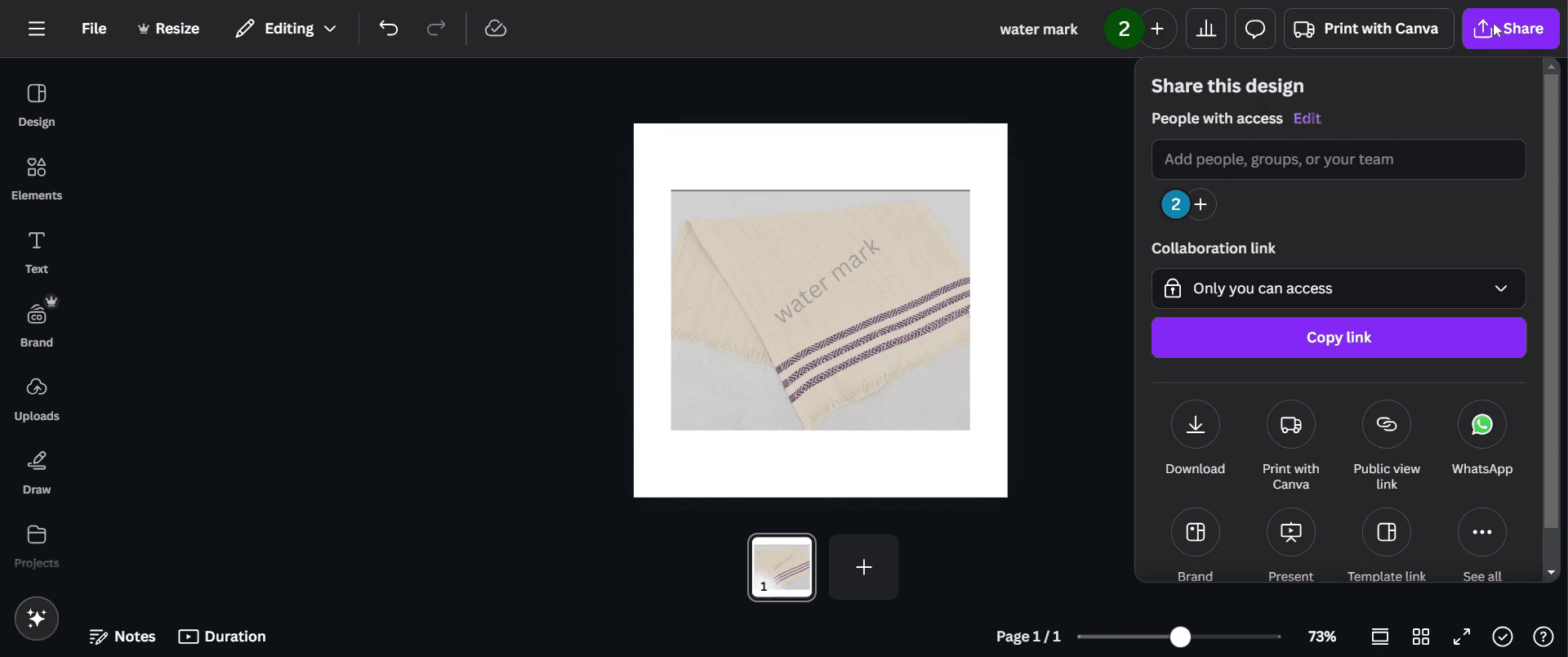
This is a step-by-step guide on how to create a watermark in Canva.
Pro-tips for creating a watermark in Canva
Use a transparent background by setting the opacity of your text or logo to make it blend subtly with your design.
Choose a simple, readable font and a light gray or white color to maintain a professional look.
Position the watermark in a corner or across the design diagonally to prevent easy removal.
Common pitfalls & how to avoid them while creating a watermark in Canva
Watermark is too visible, lower the transparency using the Opacity tool to keep it subtle.
Text-based watermark not standing out, use a bold font or add a slight shadow effect for clarity.
Image watermark appearing with a white background, download it as a PNG with a transparent background.
Common FAQs for creating a watermark in Canva
How do I save a watermark for future use?
Save it as a PNG file and upload it to Canva for reuse in other designs.Where should I place a watermark on my design?
Position it in a corner or across the image to prevent easy removal.How do I apply a watermark to multiple designs?
Upload your saved watermark to Canva and drag it onto different designs.Can I use a logo as a watermark?
Yes, upload your logo, adjust opacity, and place it over your design.
If you're an instructor or content creator looking to make tutorial videos, give Trupeer.ai a try. It transforms rough screen recordings into polished, studio-style videos that are ready for sharing with your audience. Plus, it automatically generates a step-by-step guide based on the video you create. Fascinating, right? Start by creating your first tutorial for free with Trupeer.ai.

