How To Delete A File From GitHub
Learn how to delete a file from GitHub with our comprehensive guide. Follow simple steps to manage your repositories effectively and maintain clean code.

This document provides a detailed procedure to efficiently delete a file from a GitHub project. Follow these steps to ensure that the process is carried out smoothly and correctly.
Step 1
Go to the specific project and click on it.
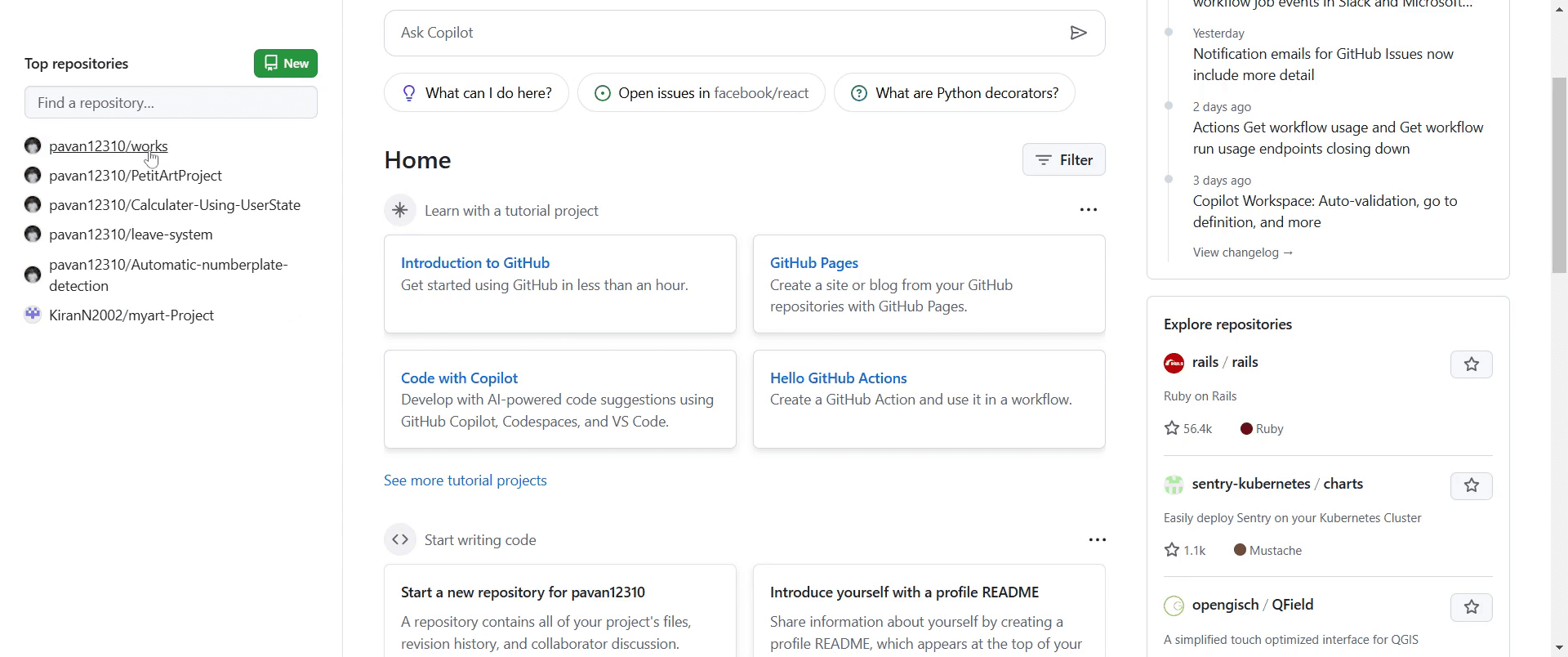
Step 2
And then click on the file you intend to delete.
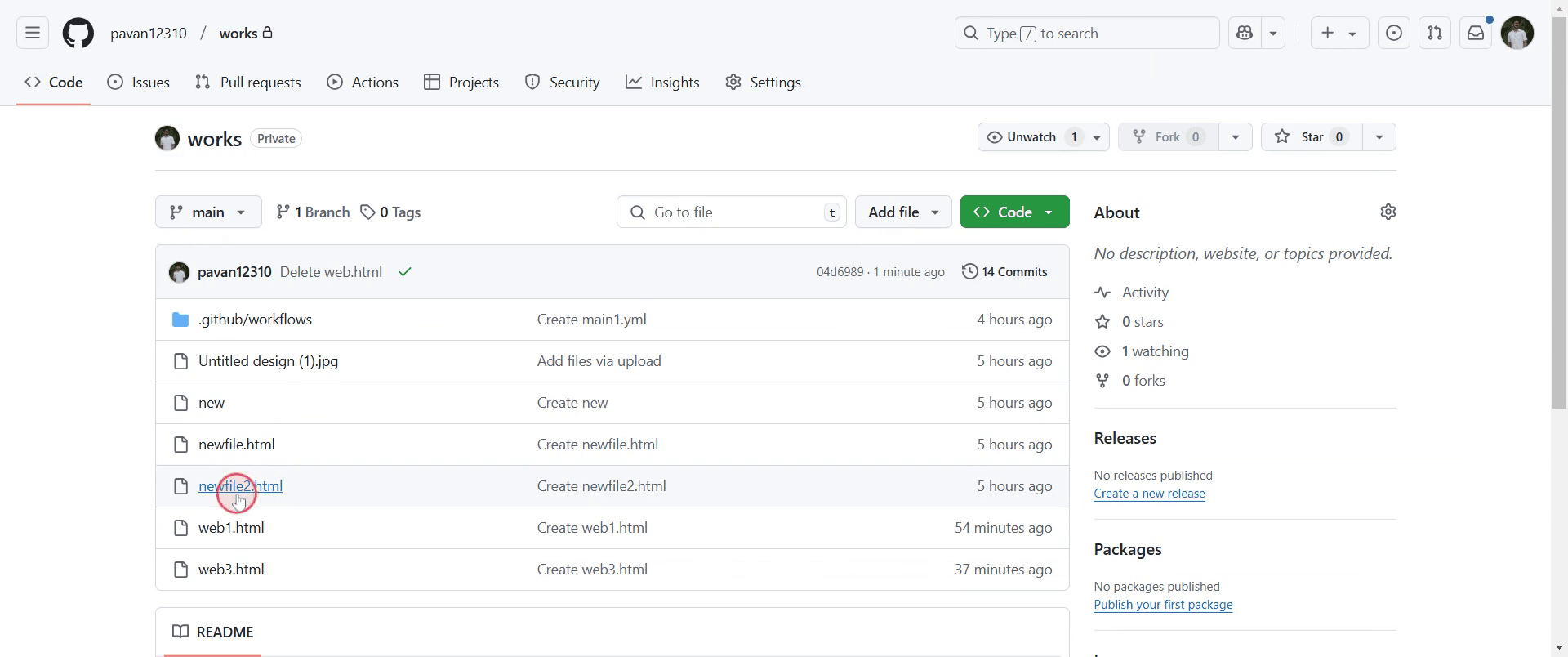
Step 3
Once the file is open, locate the "More file actions" option.
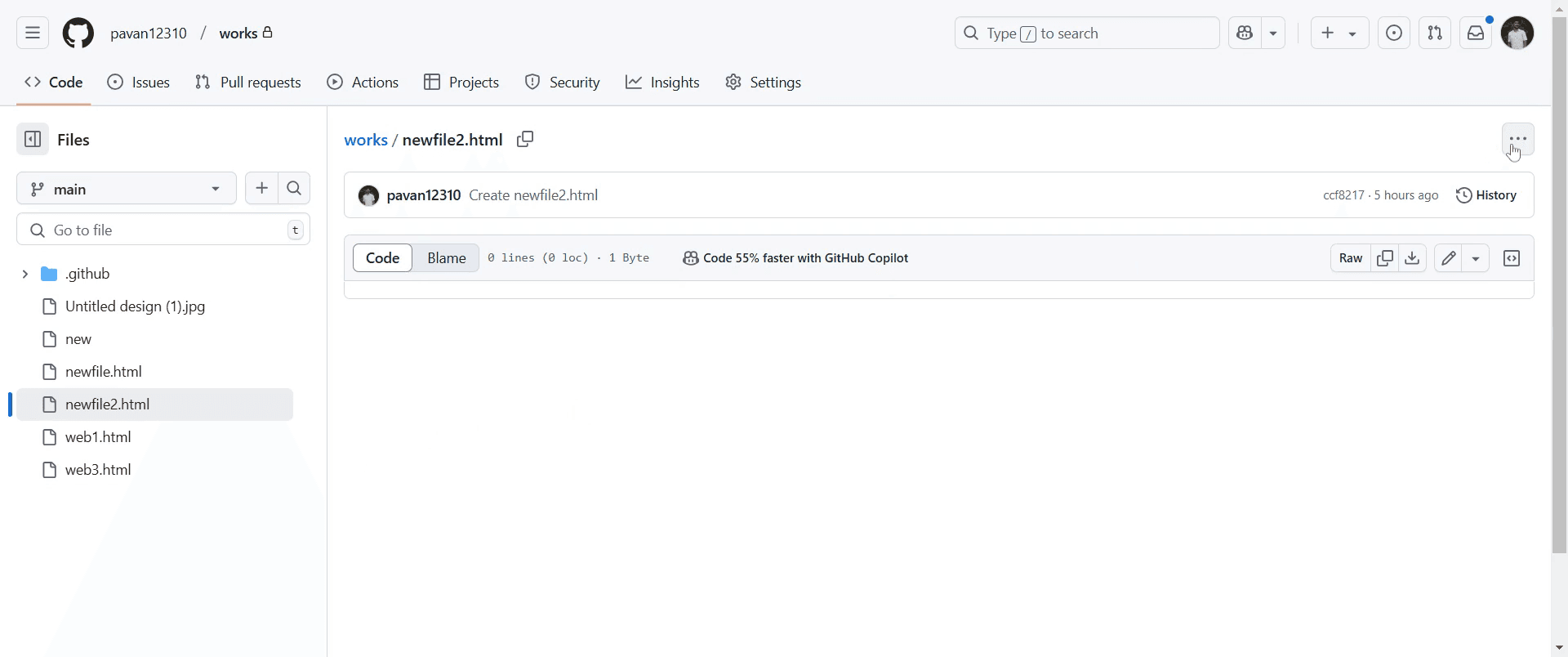
Step 4
Select the "Delete file" option from the dropdown menu.
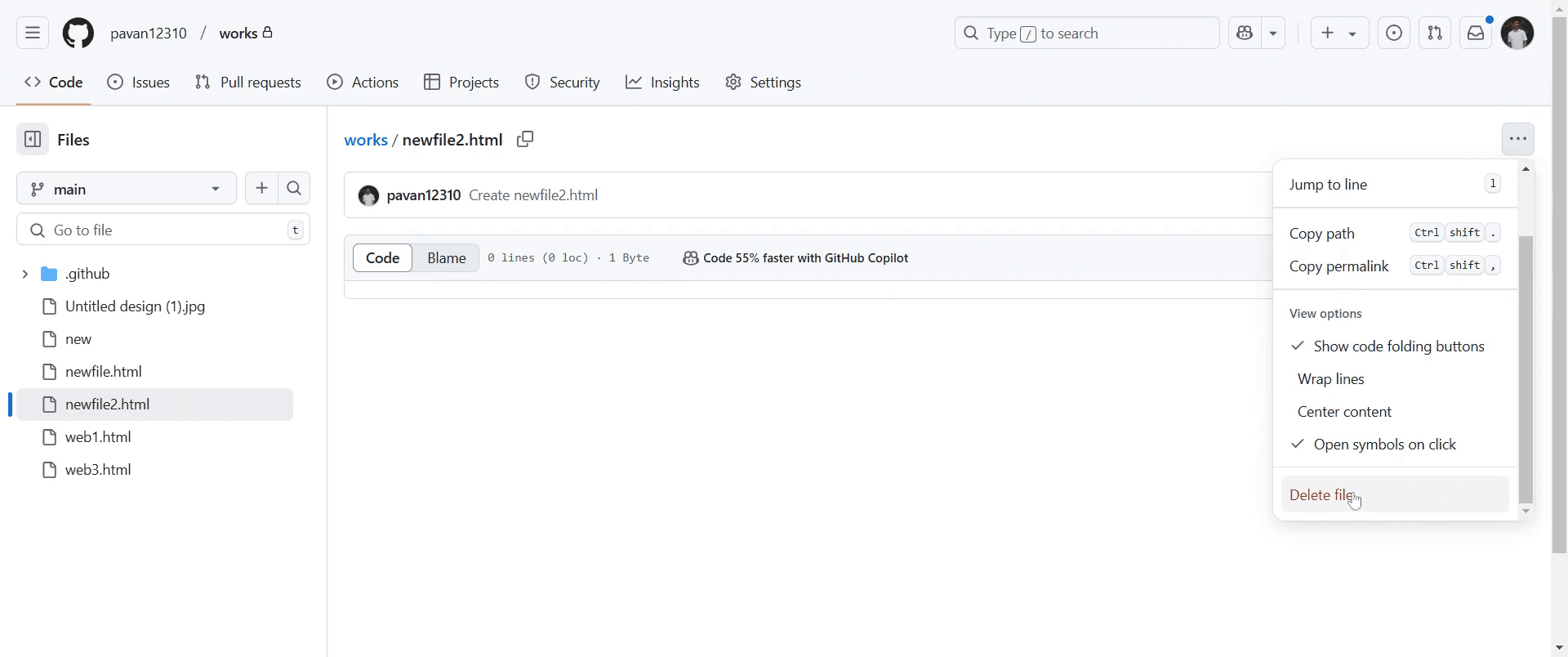
Step 5
To confirm the deletion, click on "Commit changes."
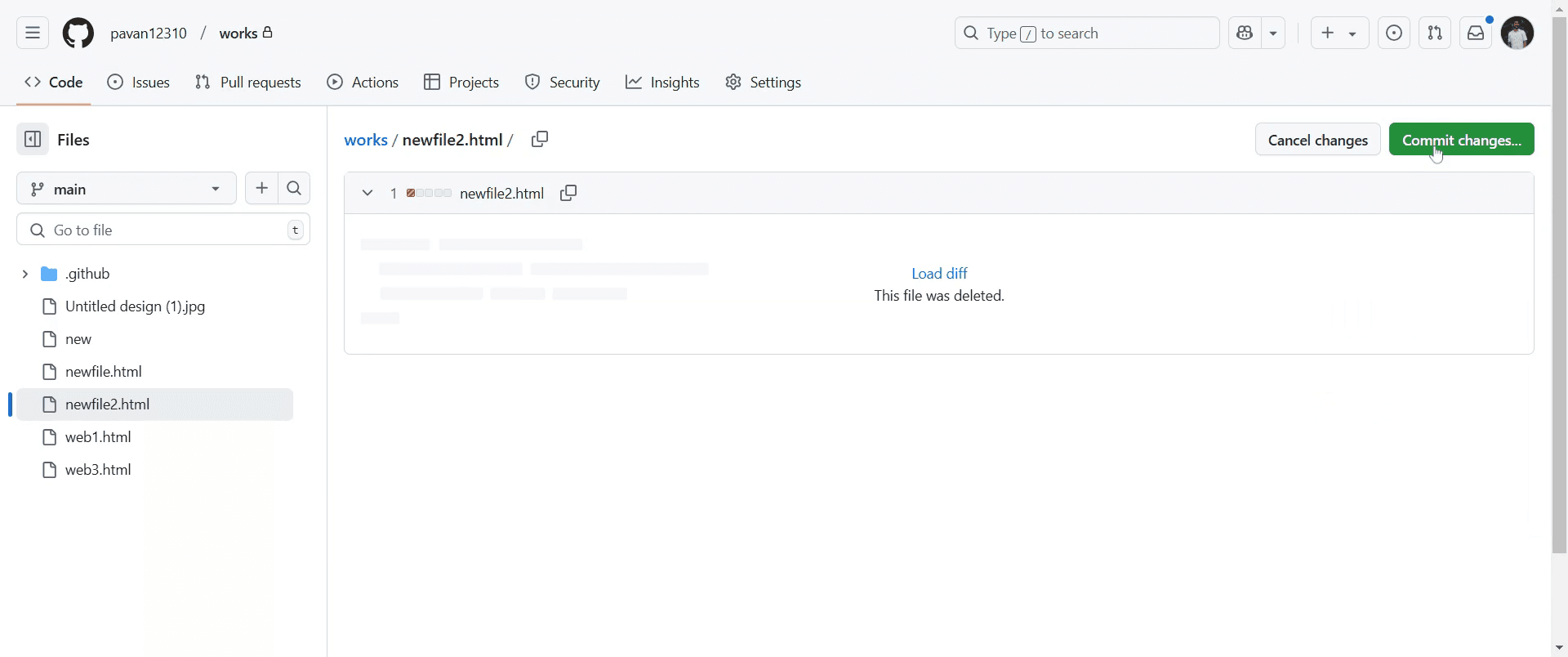
Step 6
Click on "Commit changes" again to finalize the deletion.
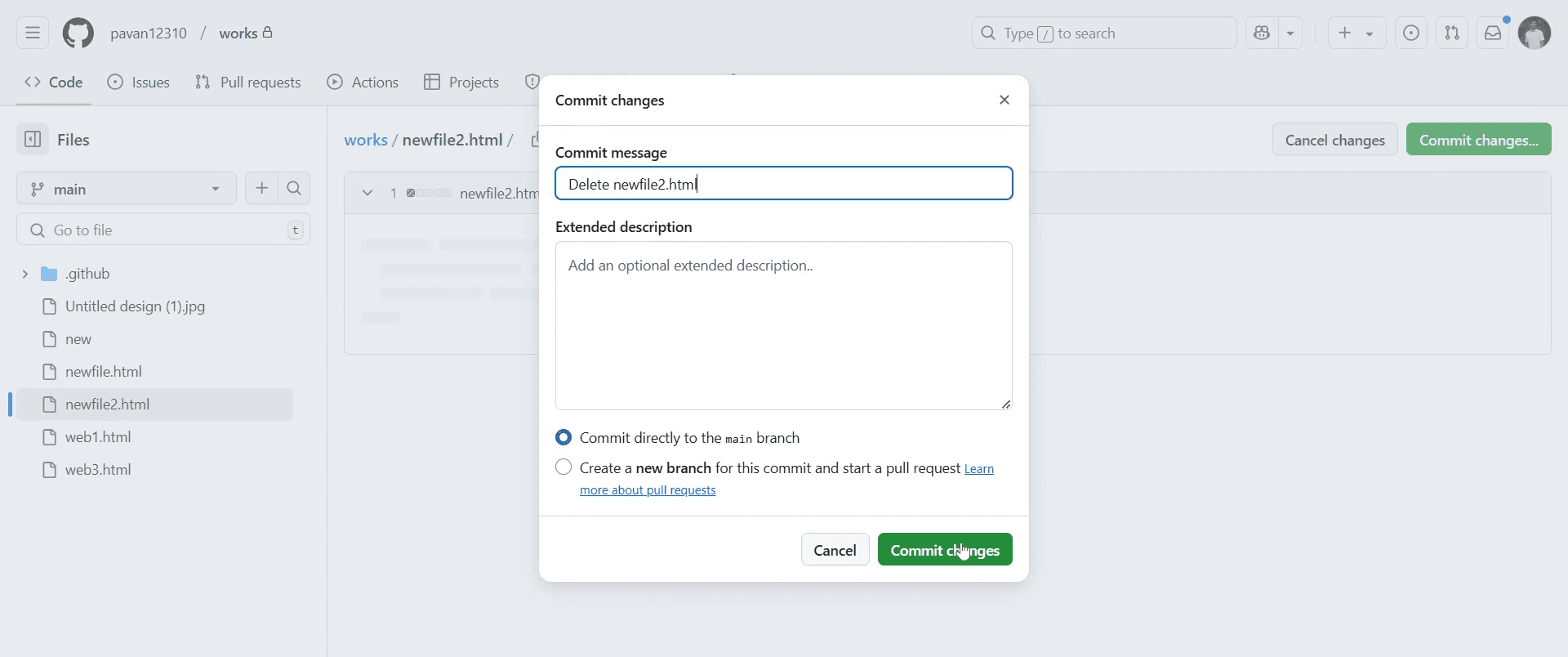
This is a step-by-step guide on how to delete a file from GitHub.
Pro-tips for deleting a file from GitHub
Delete a file directly from GitHub by opening the repository, selecting the file, and clicking the trash icon in the top-right corner.
Use Git on your local computer by running
git rm <filename>, committing the change, and pushing it to GitHub.Always review the file before deleting it to ensure it is not needed in other branches.
Common pitfalls & how to avoid them while deleting a file from GitHub
Deleting the wrong file – Double-check the file path before confirming deletion.
Not committing the change – If deleting via Git, remember to run
git commit -m "Delete file"andgit push.Forgetting about other branches – Ensure the file is deleted from all necessary branches to avoid inconsistencies.
Common FAQs for deleting a file from GitHub
Can I recover a deleted file in GitHub?
Yes, if you deleted it in a commit, you can restore it by reverting or checking the file history.How do I delete a file using Git commands?
Rungit rm <filename>, thengit commit -m "Delete file", andgit push origin <branch-name>.Can I delete multiple files at once in GitHub?
Yes, you can usegit rm -r <folder-name>to remove multiple files and folders.Will deleting a file affect previous commits?
No, previous commits will still have the file, but it will be removed from future updates.
If you're an instructor or content creator looking to make tutorial videos, give Trupeer.ai a try. It transforms rough screen recordings into polished, studio-style videos that are ready for sharing with your audience. Plus, it automatically generates a step-by-step guide based on the video you create. Fascinating, right? Start by creating your first tutorial for free with Trupeer.ai.

