
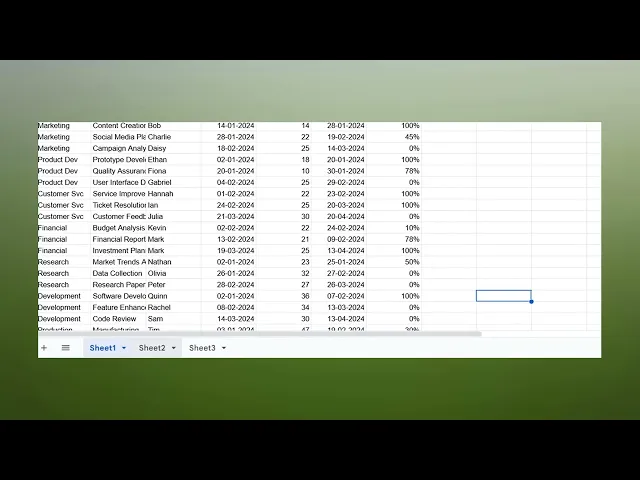
How To Delete Pages In Google Sheets
Discover the step-by-step guide on how to delete pages in Google Sheets efficiently. Simplify your spreadsheet management with our expert tips.
This process outlines that How to delete pages in Google Sheets, ensuring a streamlined and organized workspace. Follow these steps to delete sheets you no longer need.
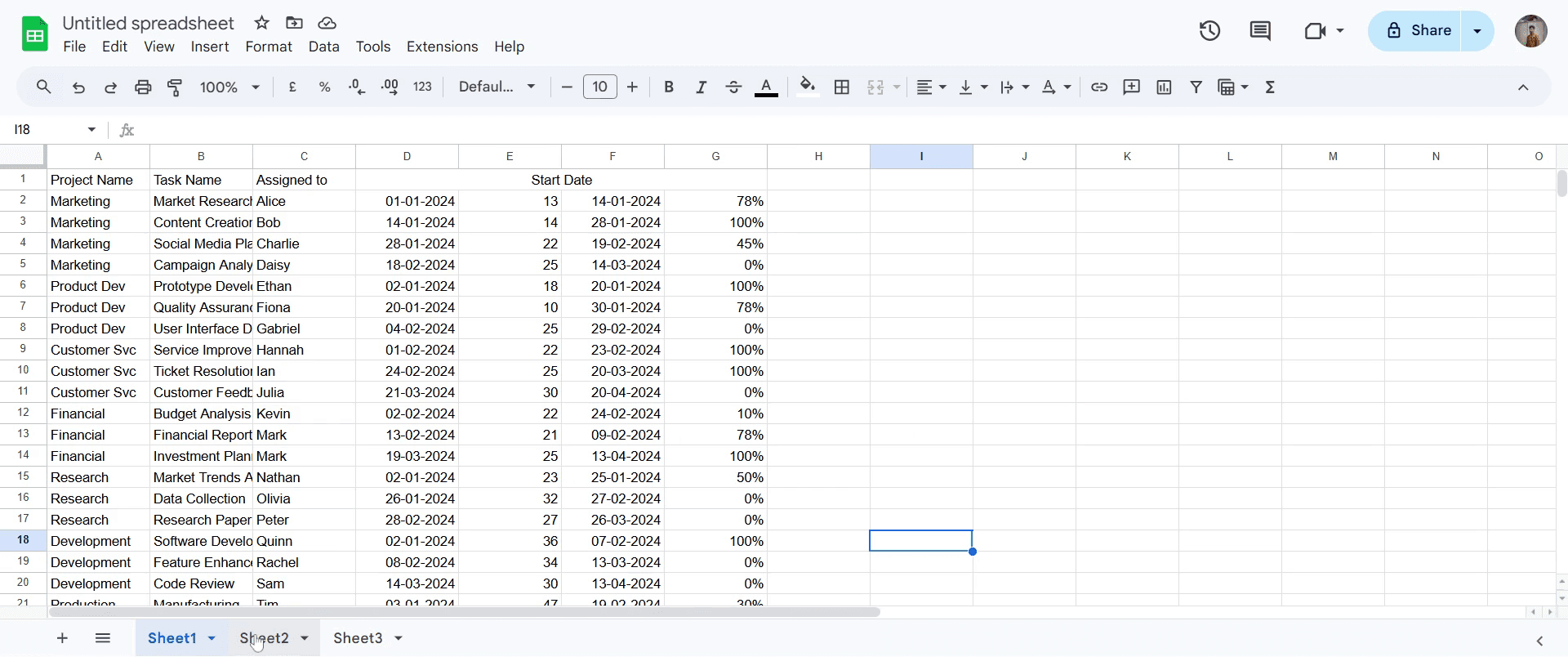
Step 1
Go to the specific sheet tab located at the bottom of your sheet.
Step 2
Right-click on this tab to reveal a menu of options.
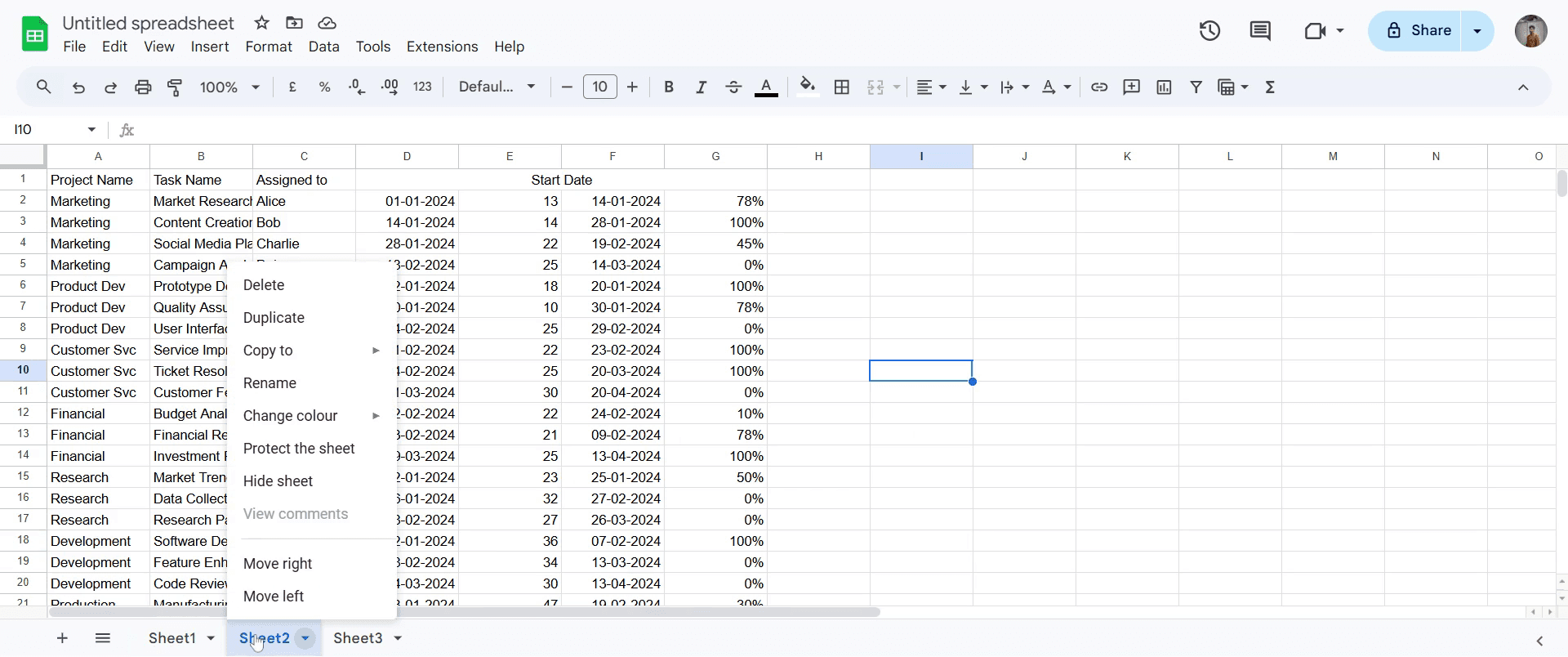
Step 3
From this menu, select the "Delete" option.
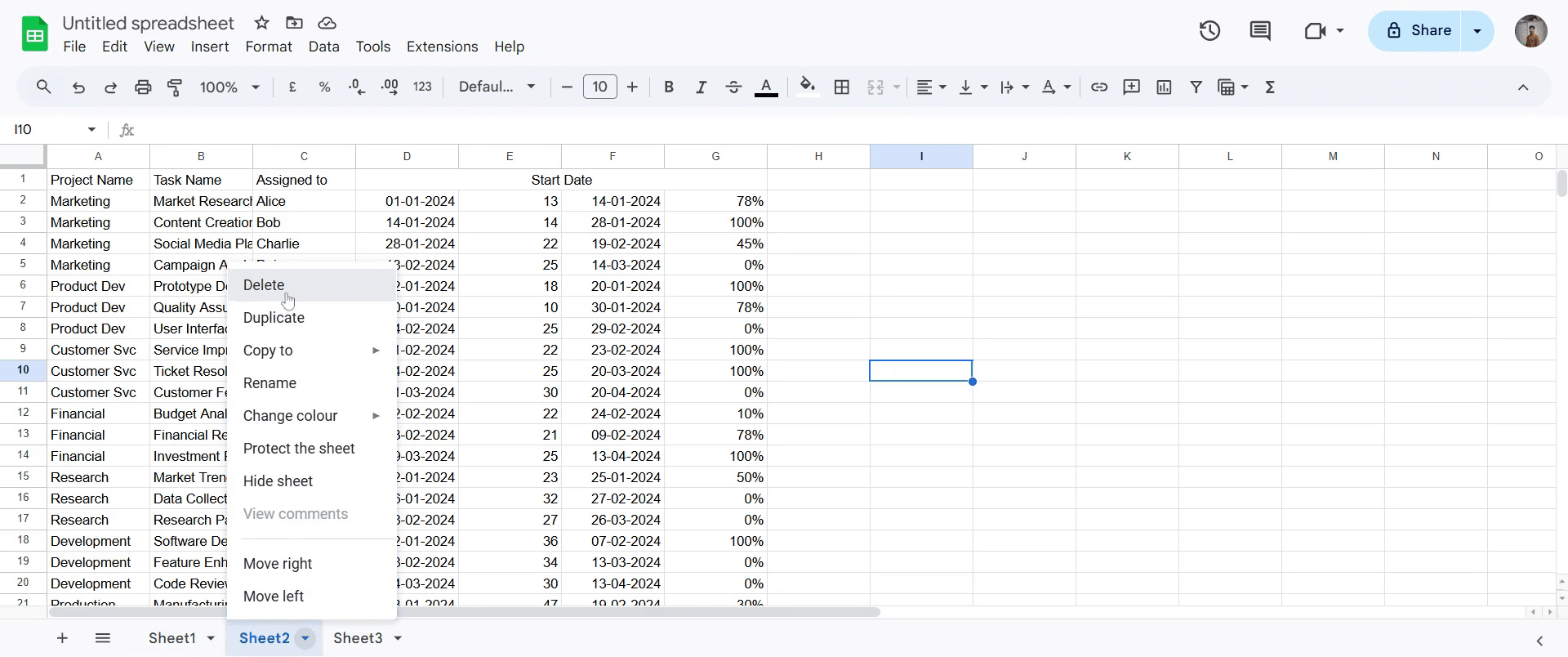
Step 4
Click "OK" to permanently remove the sheet from your document.
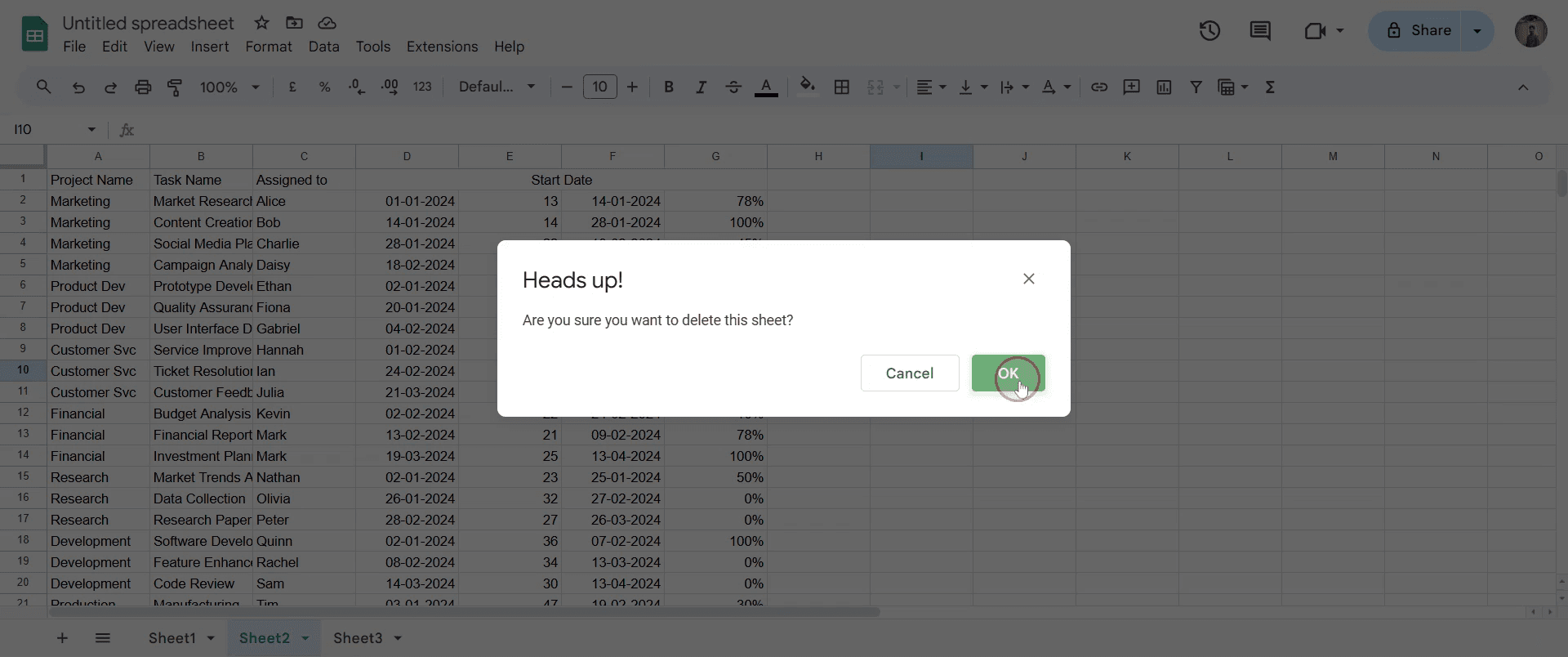
This is a step-by-step guide on how to delete pages in Google Sheets.
Pro-tips for deleting pages in Google Sheets
Use the Delete option under the sheet tab menu to remove unnecessary pages (sheets) quickly.
Double-check for important data before deleting a sheet, as this action cannot be undone.
Rename sheets before deleting to ensure you are removing the correct one.
Common pitfalls & how to avoid them while deleting pages in Google Sheets
Accidentally deleting the wrong sheet verify the sheet name before confirming deletion.
Assuming deleted sheets can be recovered Google Sheets does not have a restore option for deleted sheets, so save a backup if needed.
Deleting a shared sheet without informing collaborators ensure team members know before removing a page in shared documents.
Common FAQs for deleting pages in Google Sheets
Can I recover a deleted page in Google Sheets?
No, once deleted, a sheet cannot be restored unless you have a previous version saved in Version History.Will deleting a sheet affect other sheets in the file?
No, deleting a sheet only removes that specific page; the rest of your file remains unchanged.Can I delete multiple pages at once in Google Sheets?
No, sheets must be deleted one at a time as Google Sheets does not support multi-sheet deletion.
If you're an instructor or content creator looking to make videos, give Trupeer.ai a try. It transforms rough screen recordings into polished, studio-style videos that are ready for sharing with your audience. Plus, it automatically generates a step-by-step guide based on the video you create. Fascinating, right? Start by creating your first tutorial for free with Trupeer.ai.

