
How To Download Canva As Powerpoint
Discover the step-by-step guide on how to download Canva designs as PowerPoint presentations. Simplify your design process with our easy instructions.
This document provides a comprehensive guide on How to save your Canva presentation as a PowerPoint. Follow these steps to seamlessly save your project.
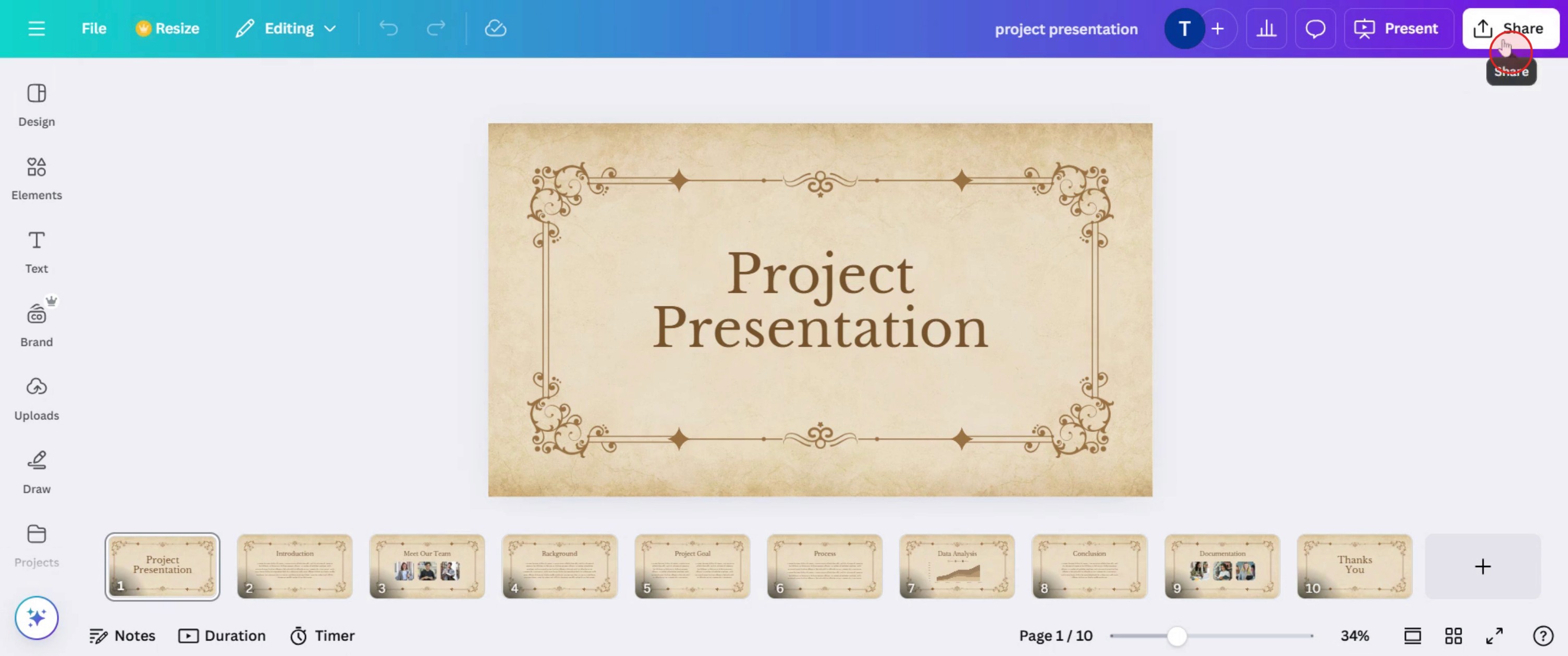
Step 1
Click on the share option.
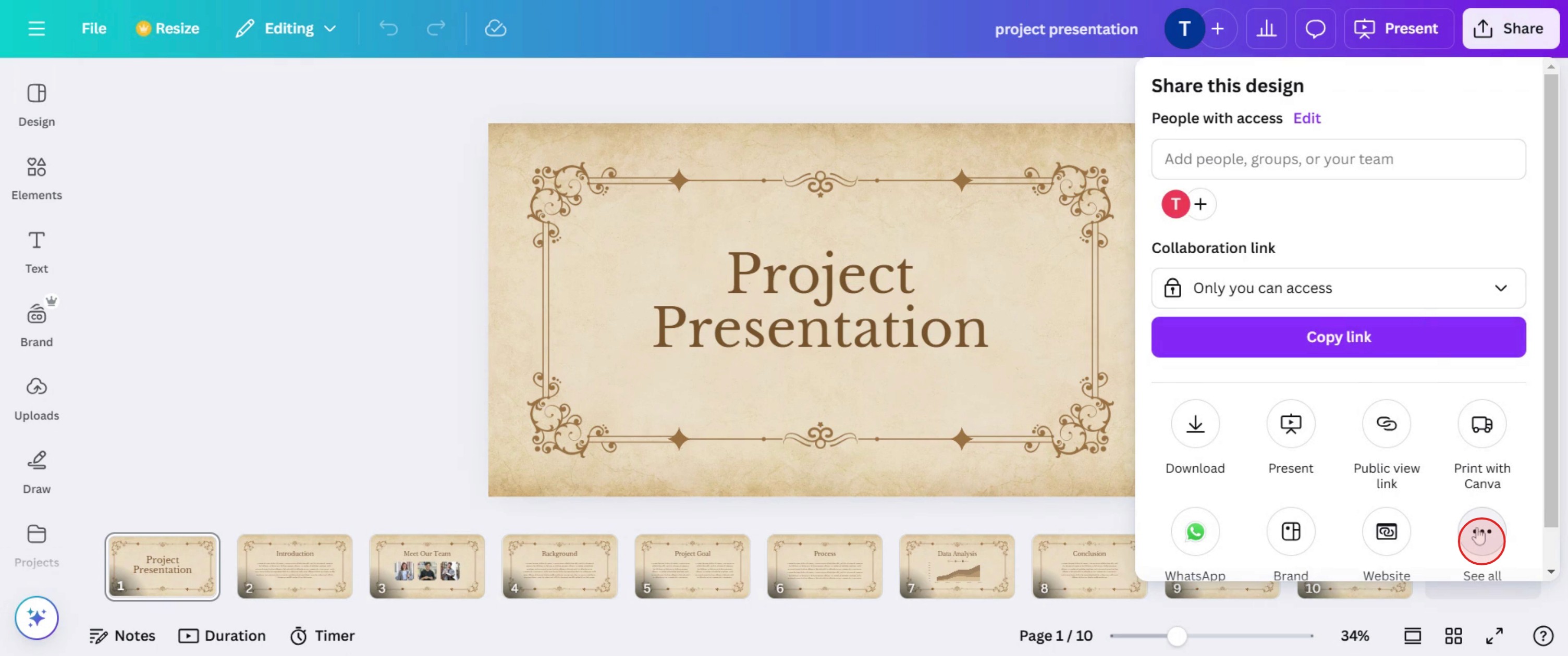
Step 2
Click on more options,
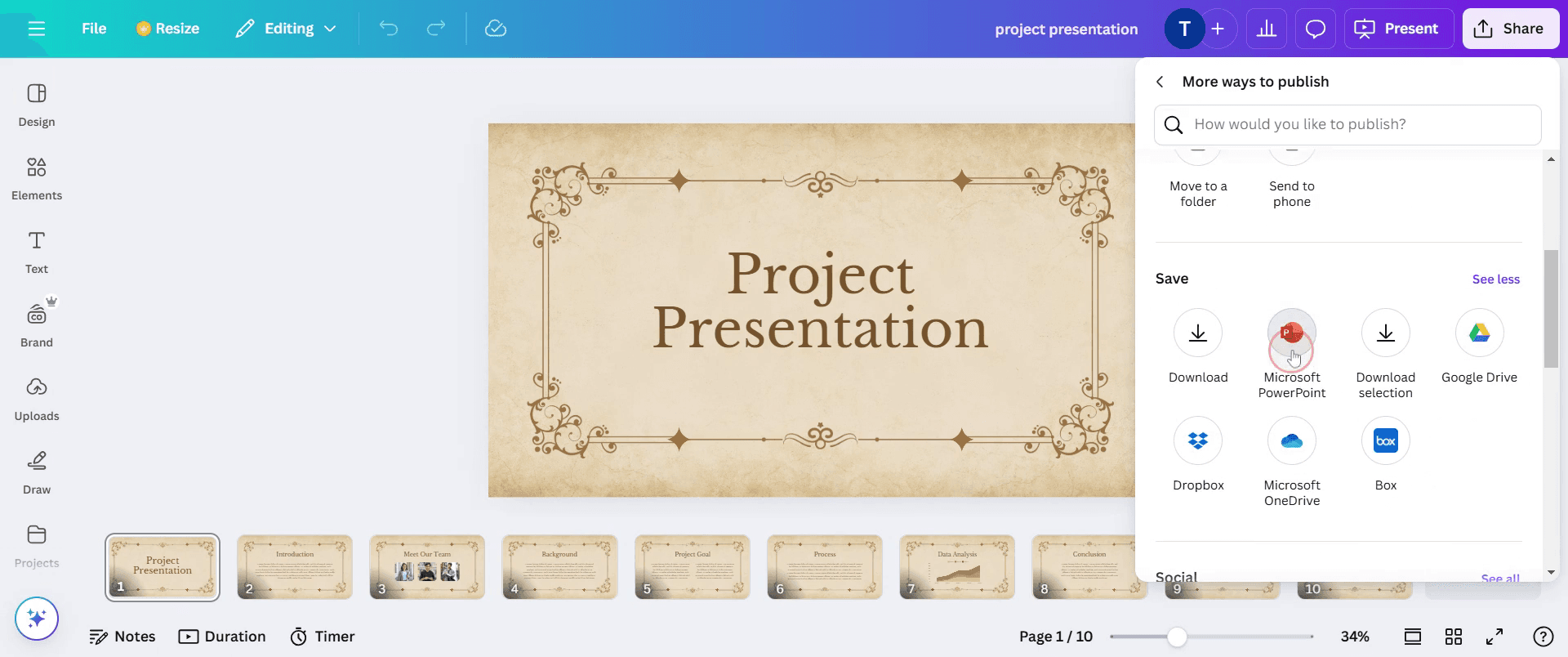
Step 3
Then select the Microsoft PowerPoint.
Step 4
Click on download.
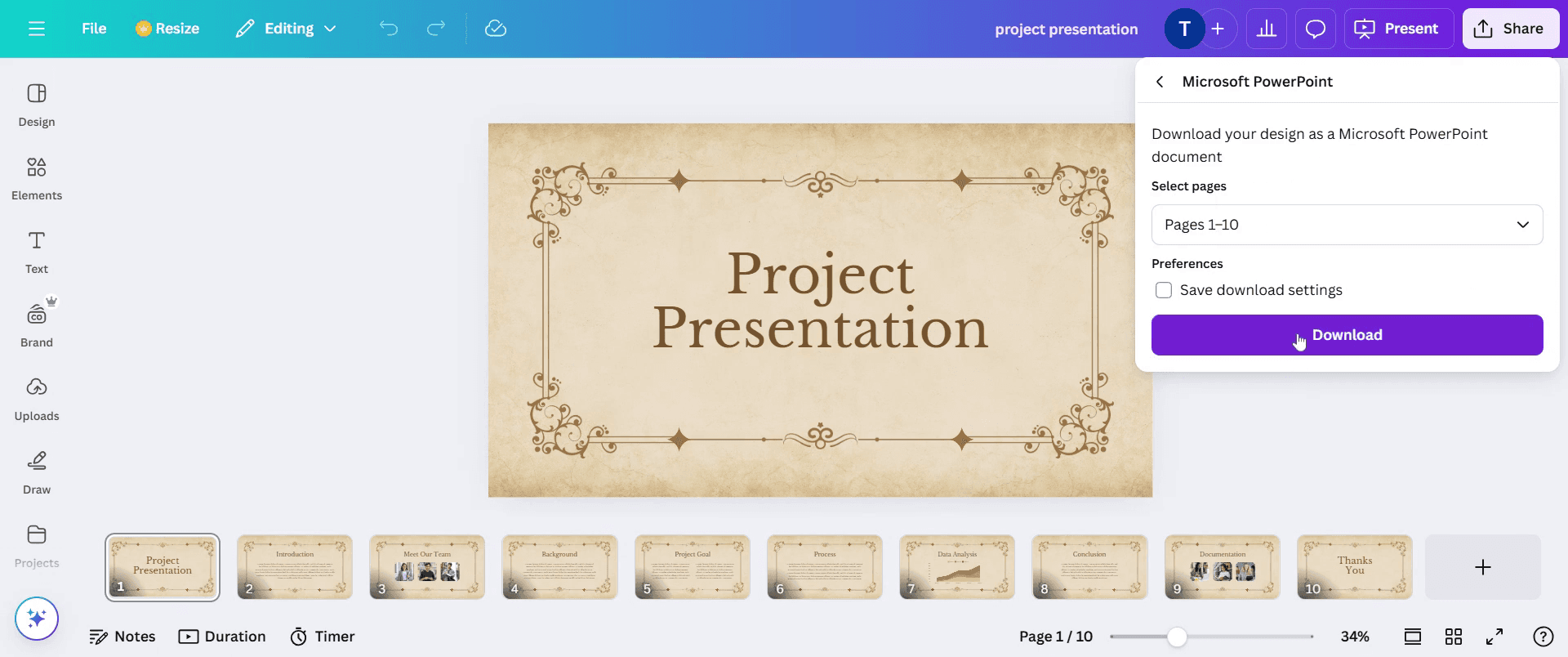
This is a step-by-step guide on how to save Canva as PowerPoint.
Pro tips for how to download Canva as PowerPoint
Use the right export format – Always select PPTX format while downloading to ensure compatibility with Microsoft PowerPoint.
Check font and alignment – Some custom fonts and elements may shift when opened in PowerPoint, so review and adjust after downloading.
Optimize for presentations – Keep text and graphics within safe margins to ensure they display correctly on different screen sizes.
Common pitfalls and to avoid them
Forgetting to check animations – Canva animations do not transfer to PowerPoint, so plan to add them manually in PowerPoint.
Using unsupported fonts – Some Canva fonts may not be available in PowerPoint, causing formatting issues after download.
Ignoring image quality – If you use low-resolution images, they may appear pixelated in PowerPoint presentations.
Common FAQs for how to download Canva as PowerPoint
Why is my downloaded PowerPoint file from Canva missing some elements?
Some fonts, graphics, and animations may not be supported in PowerPoint try using standard elements for better compatibility.Can i edit my Canva design after downloading it as a PowerPoint file?
Yes, once downloaded, you can open the PowerPoint file in Microsoft PowerPoint and make further edits.Does Canva retain animations when exporting to PowerPoint?
Only basic animations and transitions transfer to PowerPoint, so complex effects may not work as expected.
If you're an instructor or content creator looking to make tutorial videos, give a try. It transforms rough screen recordings into polished, studio-style videos that are ready for sharing with your audience. Plus, it automatically generates a step-by-step guide based on the video you create. Fascinating, right? Start by creating your first tutorial for free with trupeer.ai .

