How to Fade Edges of Photo in Canva
Discover the step-by-step guide on how to fade edges of photos in Canva. Enhance your images with smooth transitions and professional finishes effortlessly.

This document offers a step-by-step guide to creating faded edges on a photo in Canva. Follow these instructions to personalize and share your design effortlessly.
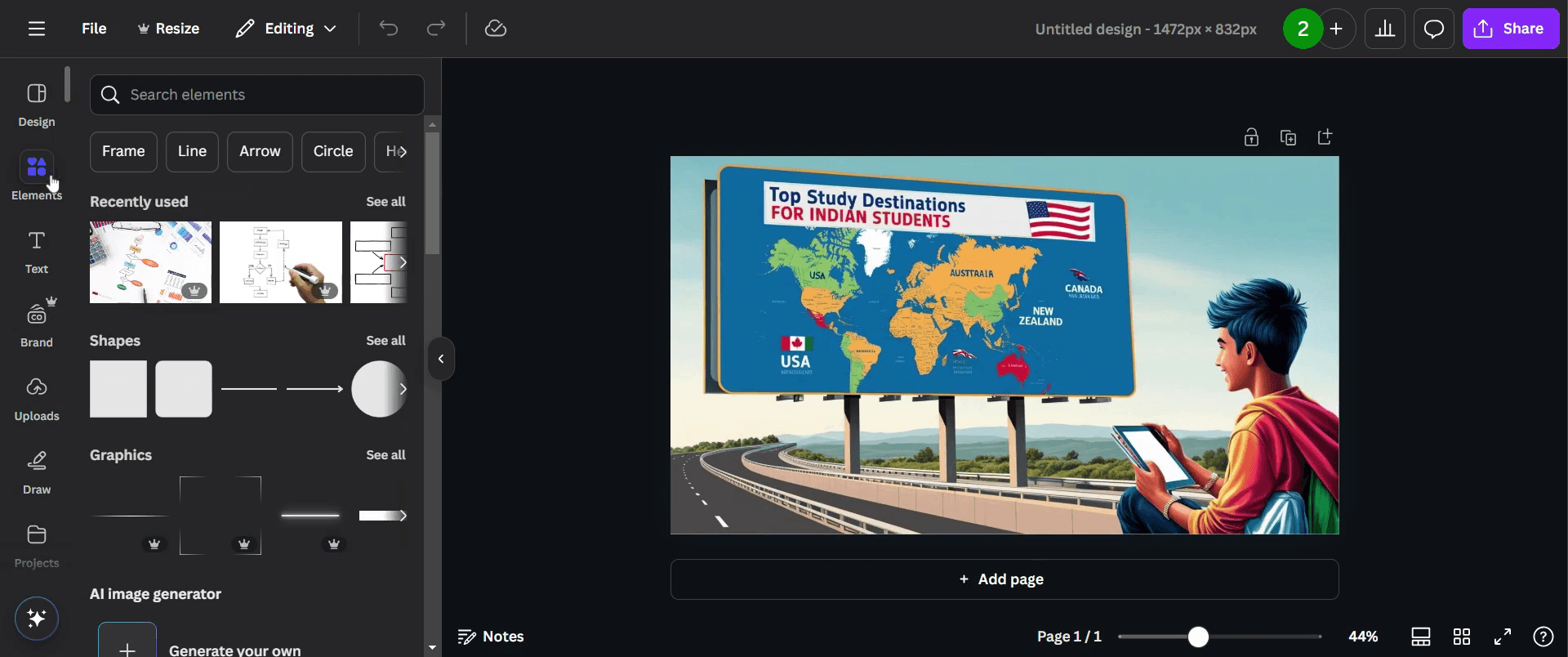
Step 1
Click on "Elements" option.
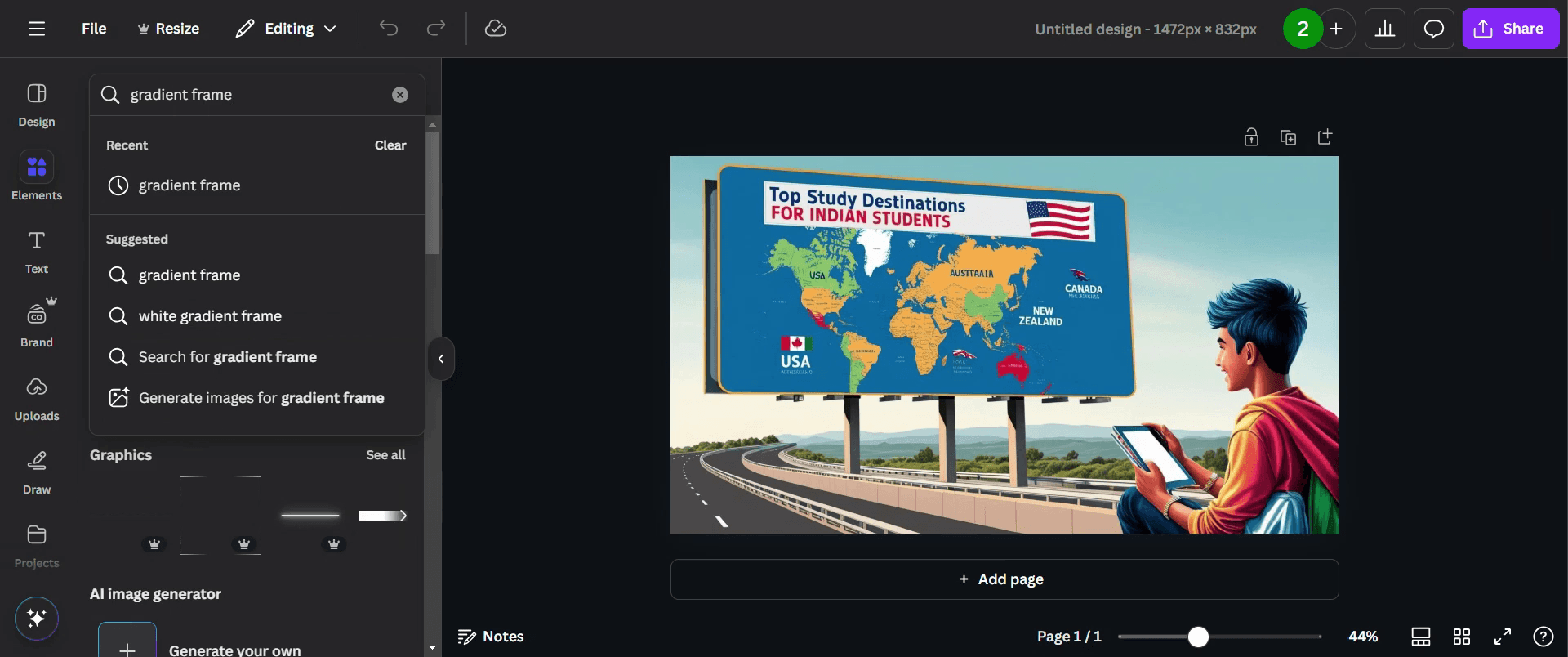
Step 2
Use the search bar to find gradient frame.
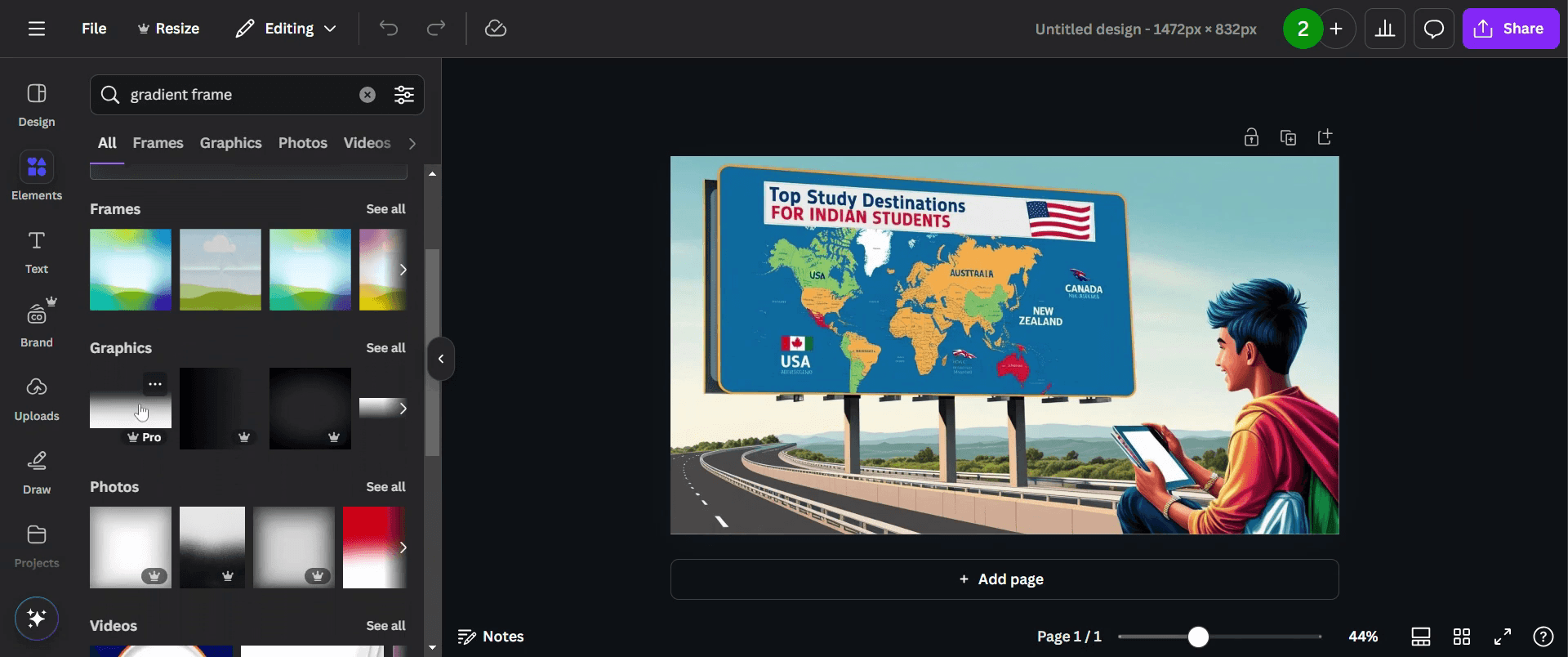
Step 3
Choose the frame that best suits your design needs.
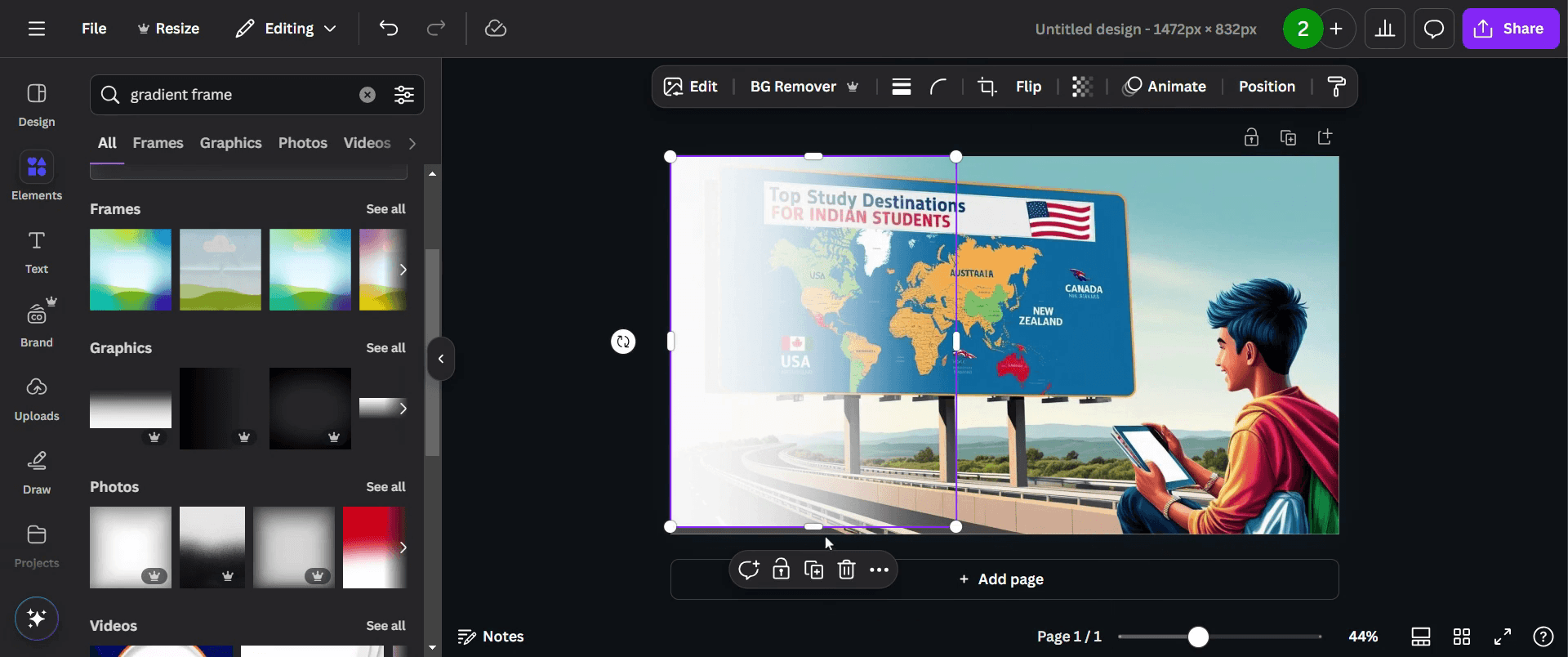
Step 4
Use the rotate feature to adjust it to your liking.
Step 5
If needed, duplicate the frame to create additional effects.
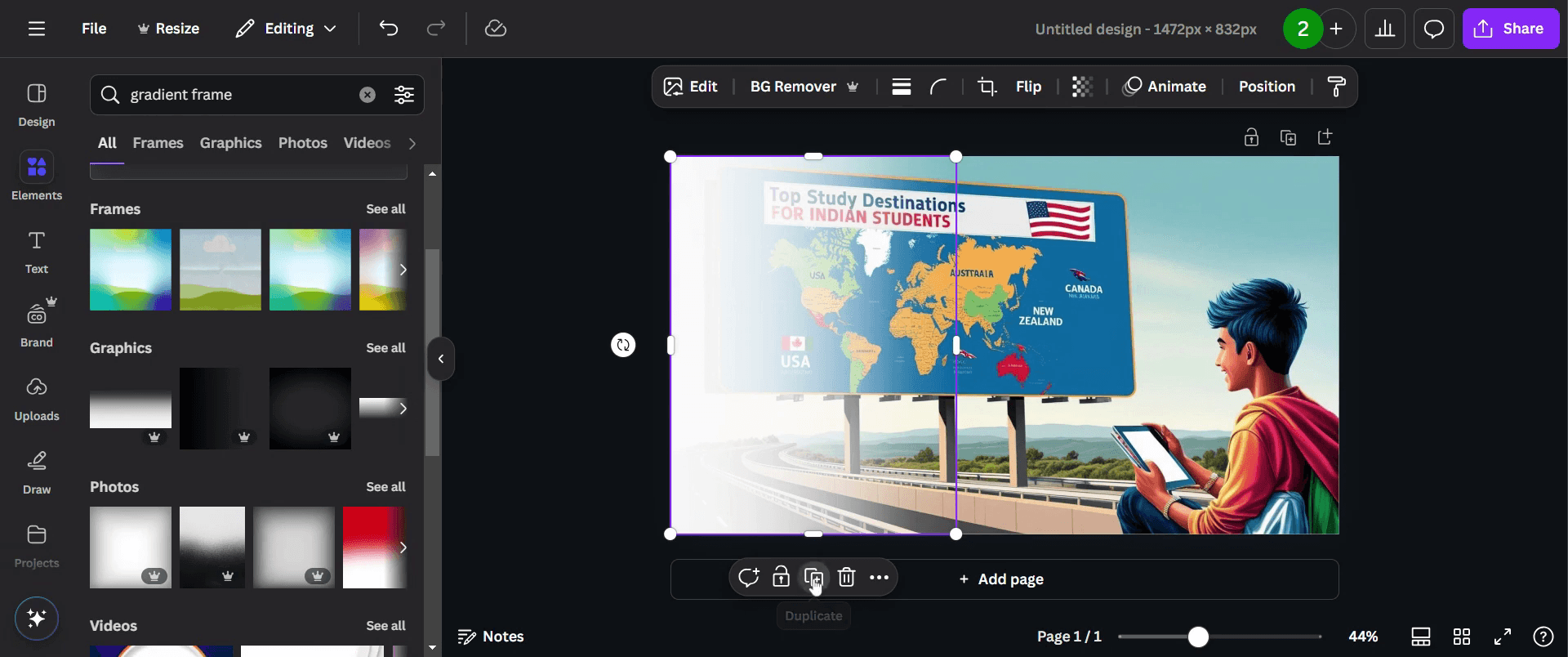
Step 6
Take your time to make these adjustments until you are fully satisfied with the design.
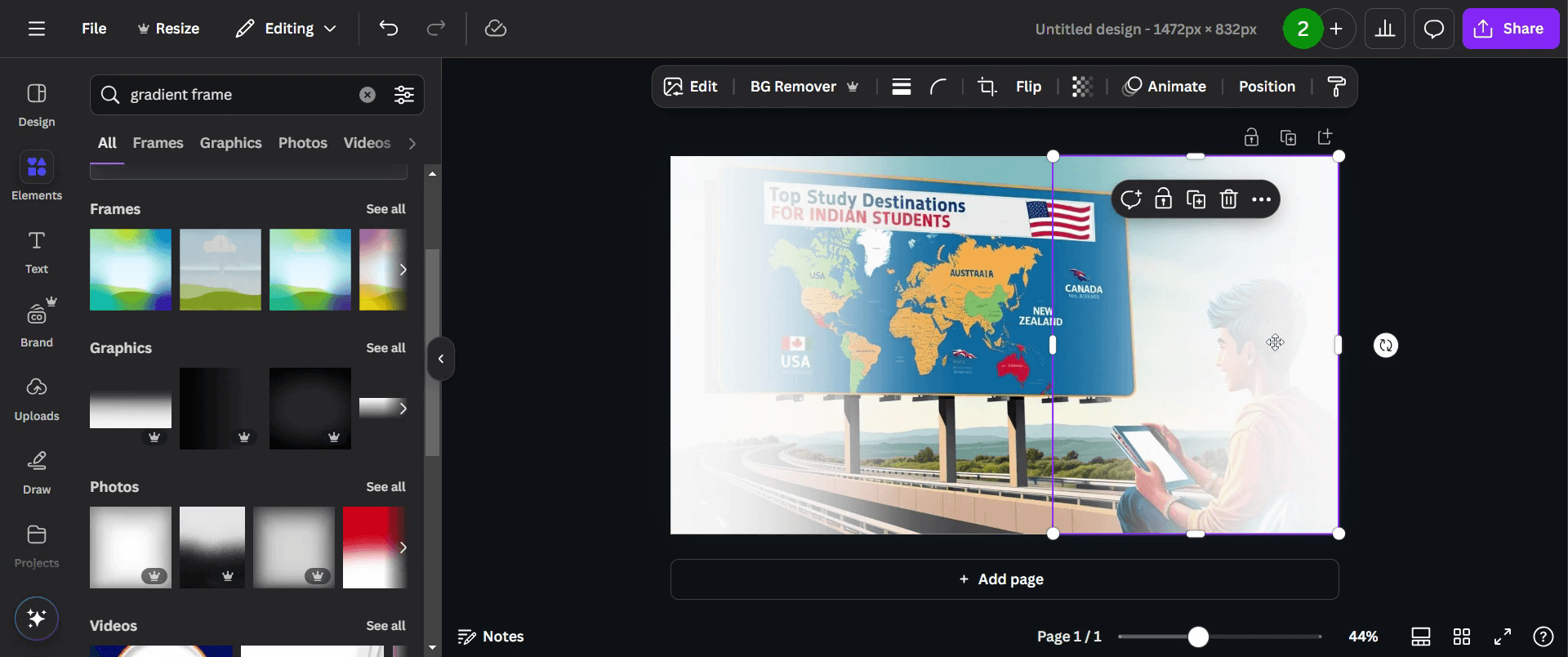
Step 7
Finally, share your completed design by clicking on "share" button.
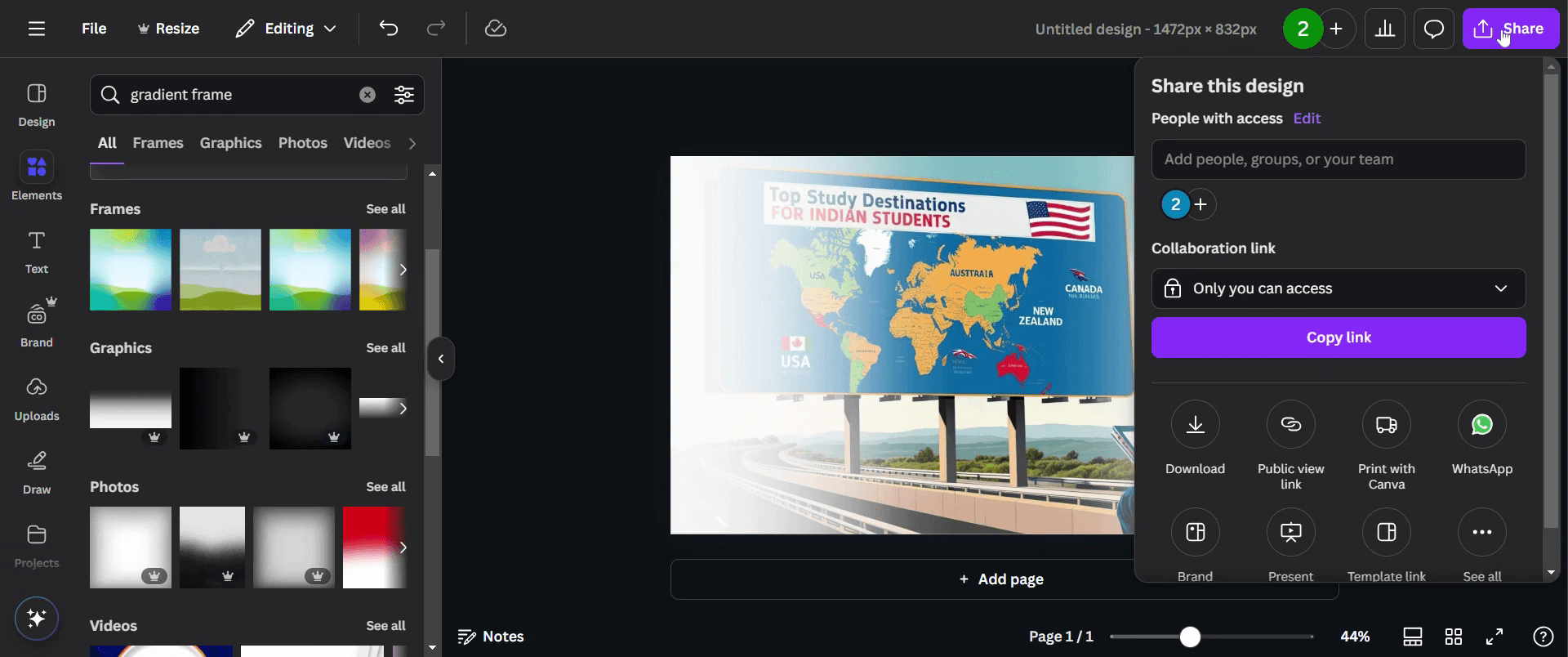
This is a step-by-step guide on how to fade the edges of a photo in Canva.
Pro-tips for fading edges of a photo in Canva
To fade the edges of a photo, use Canva’s built-in Gradient effect in the Effects section for easy blending into the background.
Apply the Duotone effect with a low-opacity setting to create a subtle fade at the edges of your photo.
You can use Canva's frames to add a fade effect to the edges, as they often have built-in edge transitions.
Common pitfalls & how to avoid them while fading edges of a photo in Canva
Applying too strong of a fade effect keep the fade light and gradual to maintain the photo’s clarity.
Not adjusting the image size ensure the photo is large enough to show a smooth fade effect and avoid pixelation.
Overusing fade effects sometimes less is more. Keep the fade subtle so it enhances the image without overpowering the subject.
Common FAQs for fading edges of a photo in Canva
1. Can I fade just the corners of a photo in Canva?
Yes, you can achieve this effect by using the Gradient tool and adjusting it to fade out at the corners, or you can use a frame with the desired fade pattern.
2. Can I control the intensity of the fade in Canva?
Yes, you can control the intensity by adjusting the opacity and blending of the gradient effect, making it more subtle or prominent depending on your design needs.
3. Does Canva offer a way to fade only the background of a photo?
While Canva doesn’t have a specific background fade tool, you can use the gradient tool and position it to only affect the outer edges, allowing you to focus the clarity on the subject.
4. Can I fade edges without losing image quality in Canva?
Yes, as long as the image is high resolution and you adjust the fade effect carefully, you can fade the edges without compromising the overall quality of the image.
If you're an instructor or content creator looking to make videos, give Trupeer.ai a try. It transforms rough screen recordings into polished, studio-style videos that are ready for sharing with your audience. Plus, it automatically generates a step-by-step guide based on the video you create. Fascinating, right? Start by creating your first tutorial for free with Trupeer.ai.

