
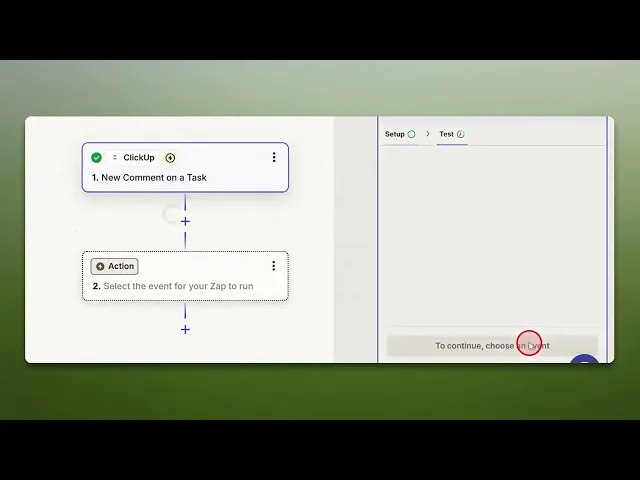
How To Integrate Asana With ClickUp
Discover the step-by-step guide on integrating Asana with ClickUp to streamline your project management and enhance team collaboration effectively.
This document provides a detailed walkthrough on how to integrate Asana with Click Up. The instructions below guide you through each step of the process to ensure seamless integration.
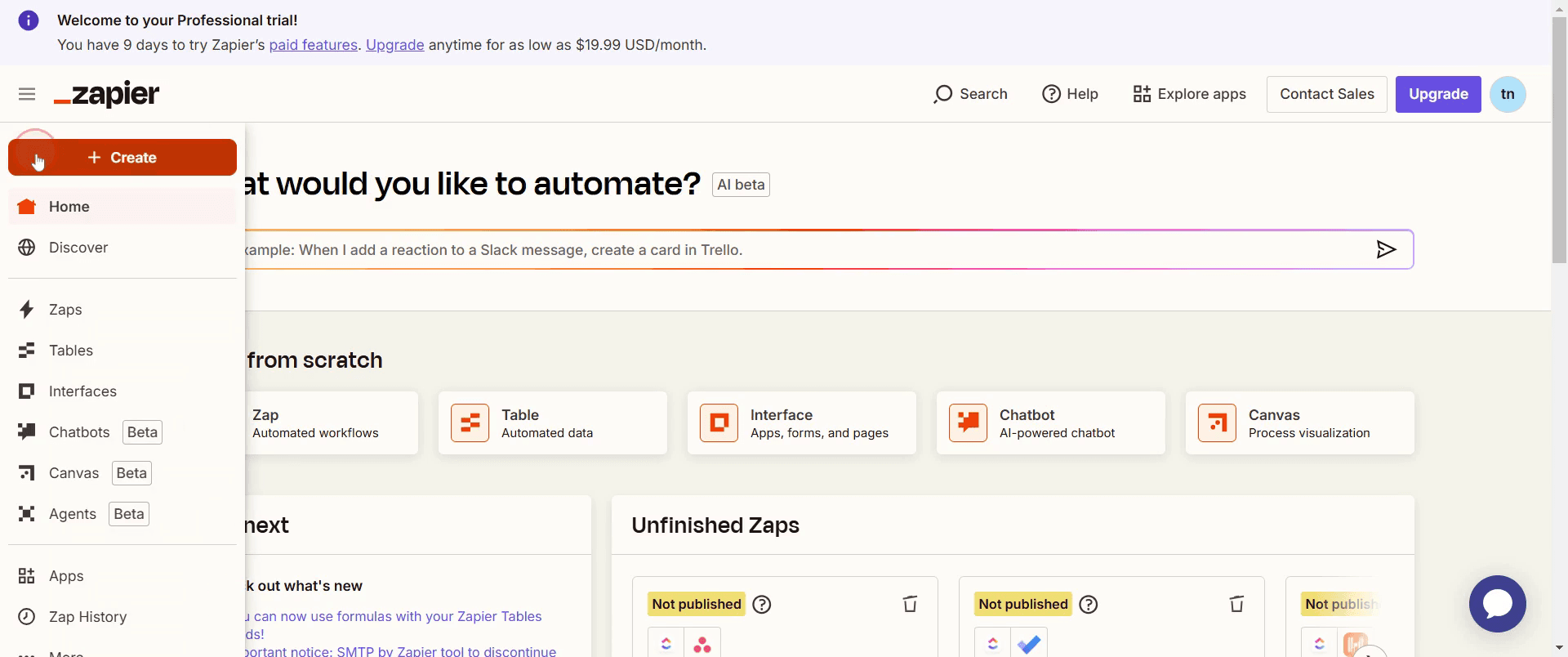
Step 1
Click on Create.
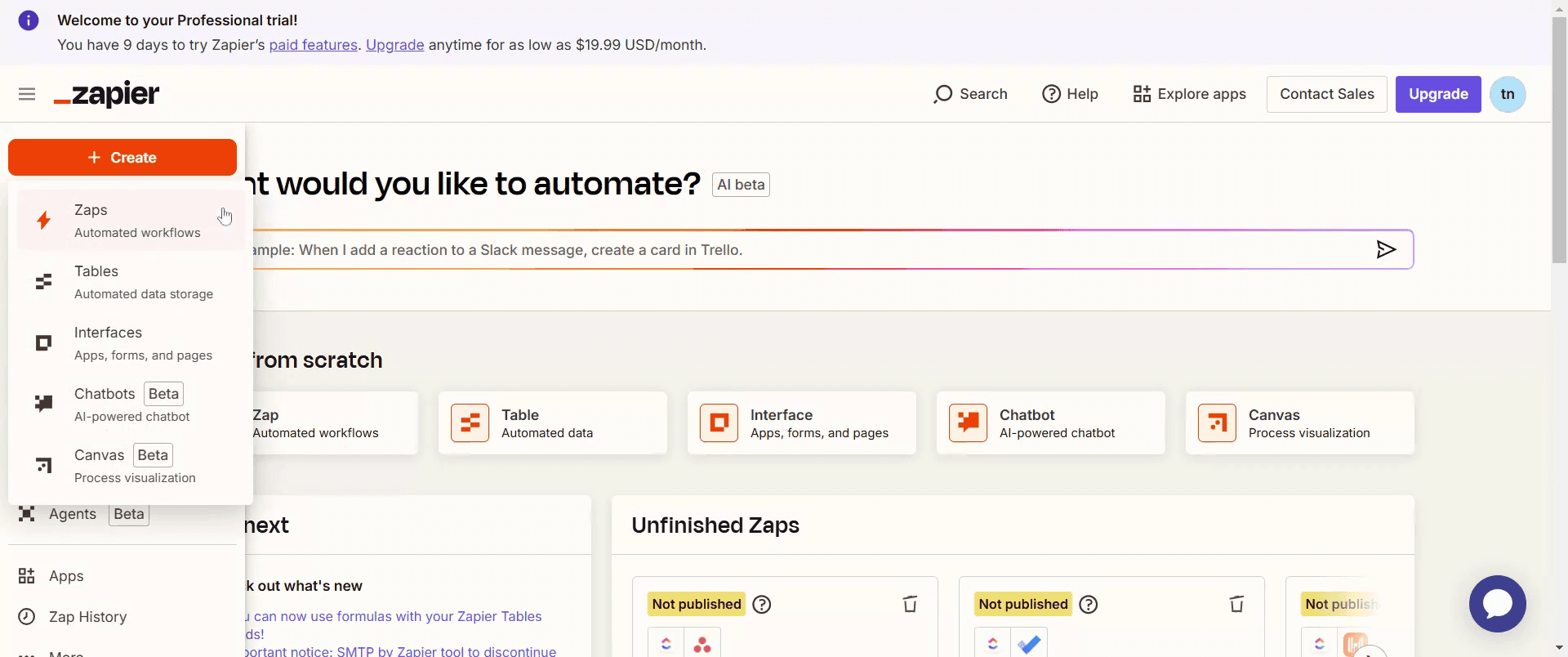
Step 2
Then select Zaps.
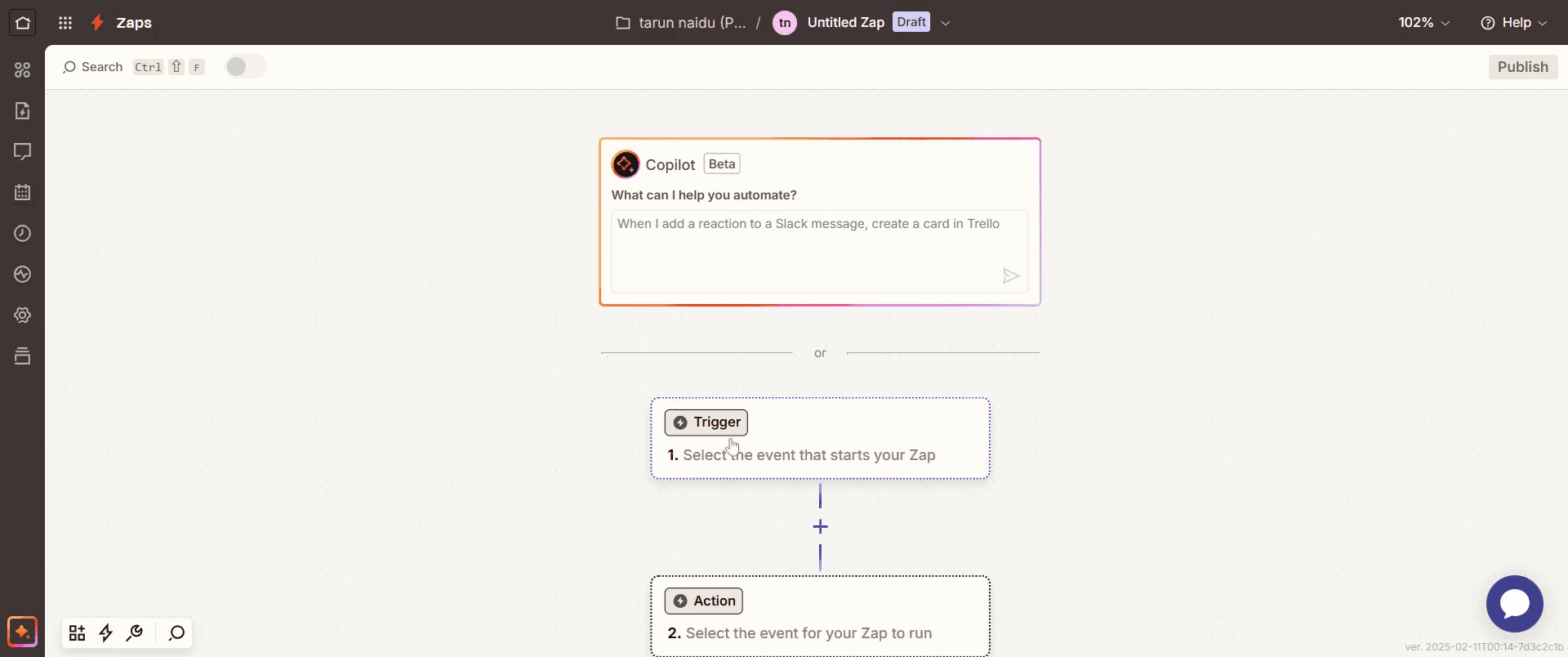
Step 3
Then click on Trigger.
Step 4
Select the Click Up.
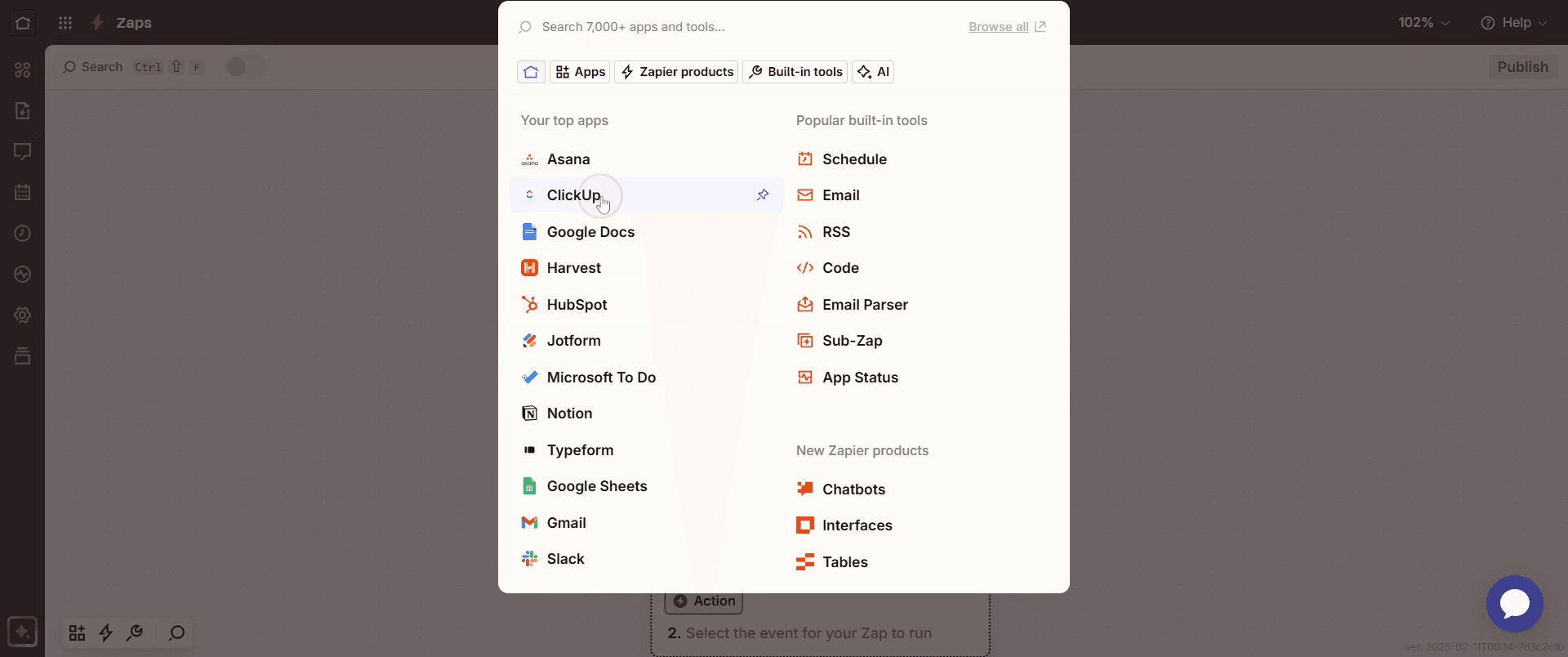
Step 5
Select the trigger event .
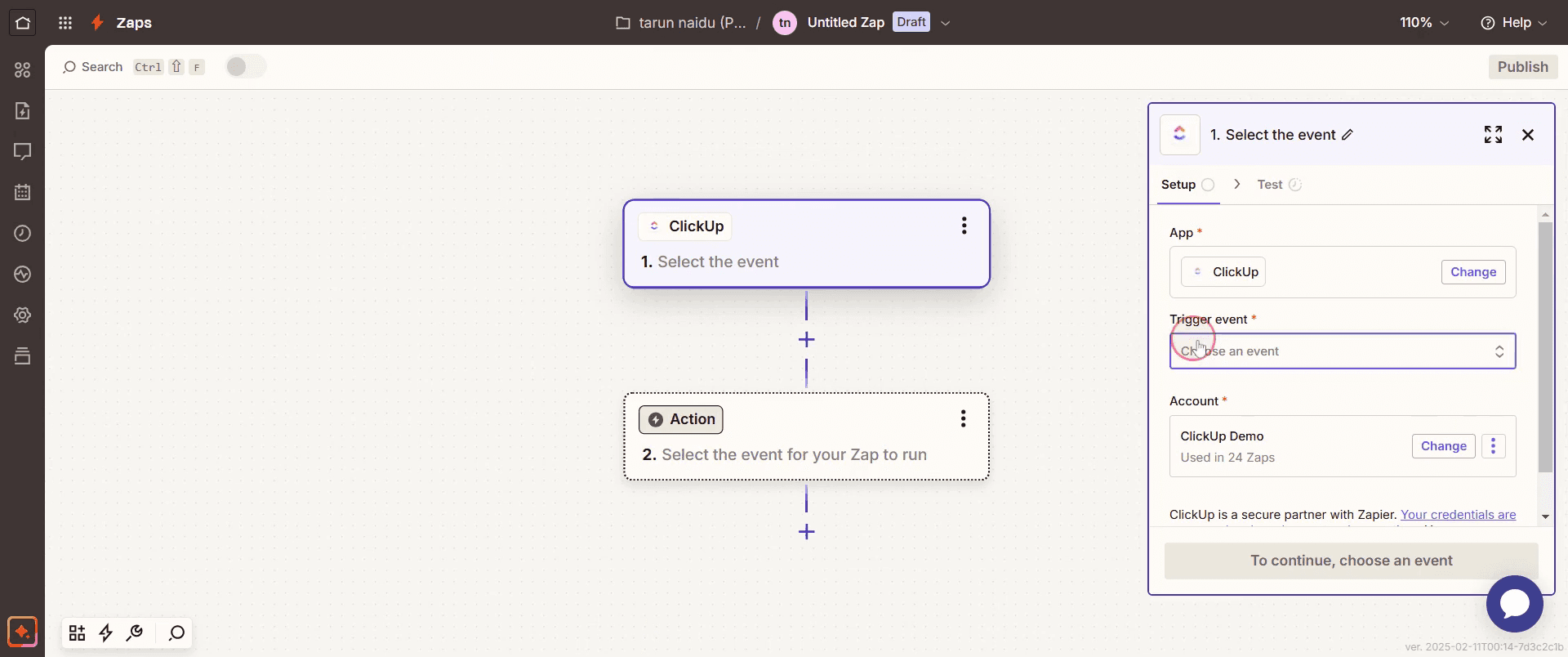
Step 6
Click on Continue,
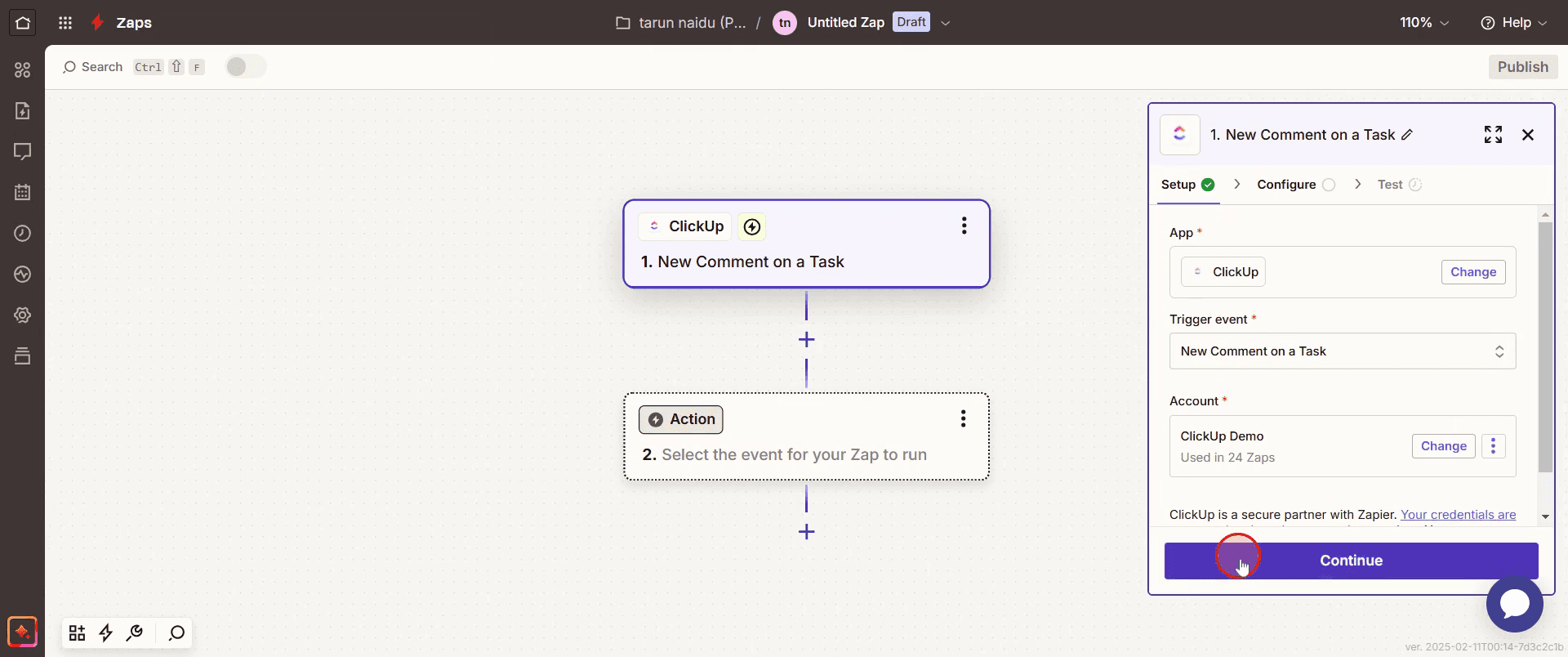
Step 7
Then select the appropriate workspace.
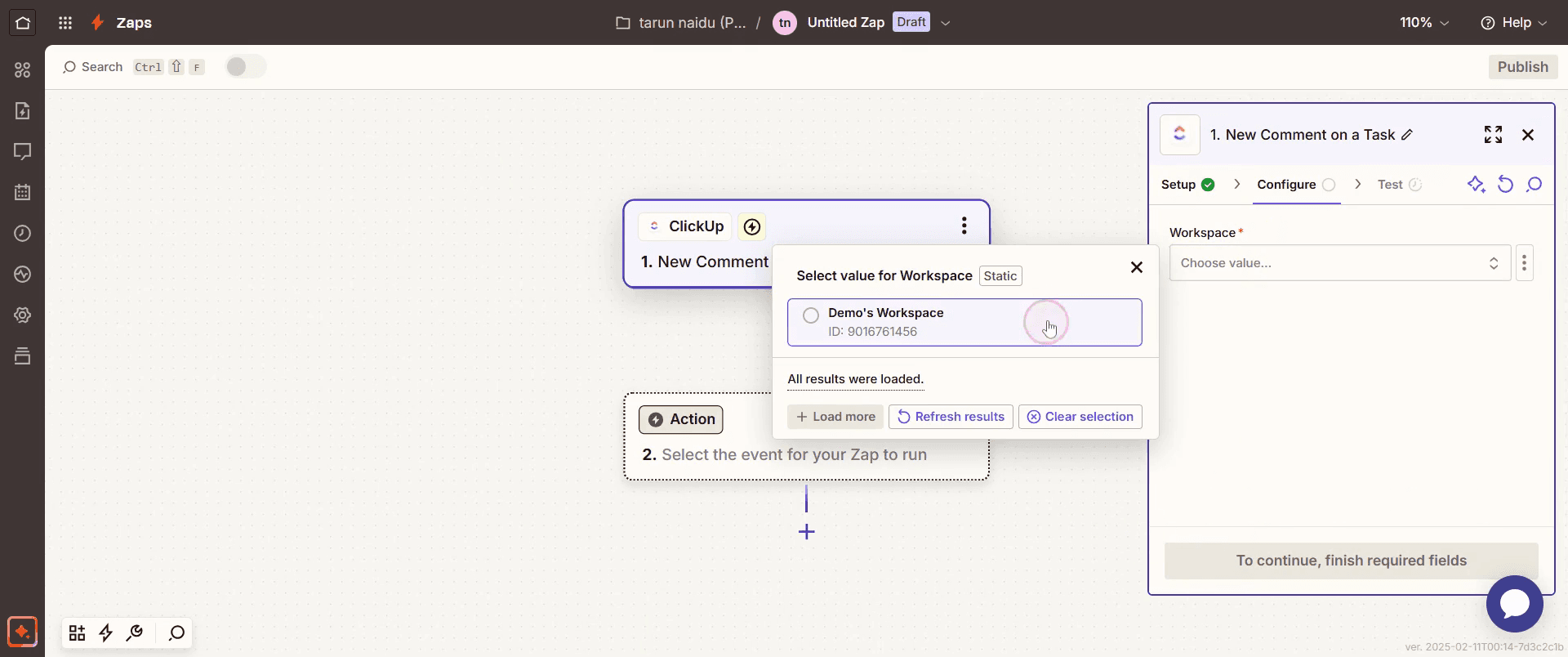
Step 8
Once again, click on Continue.
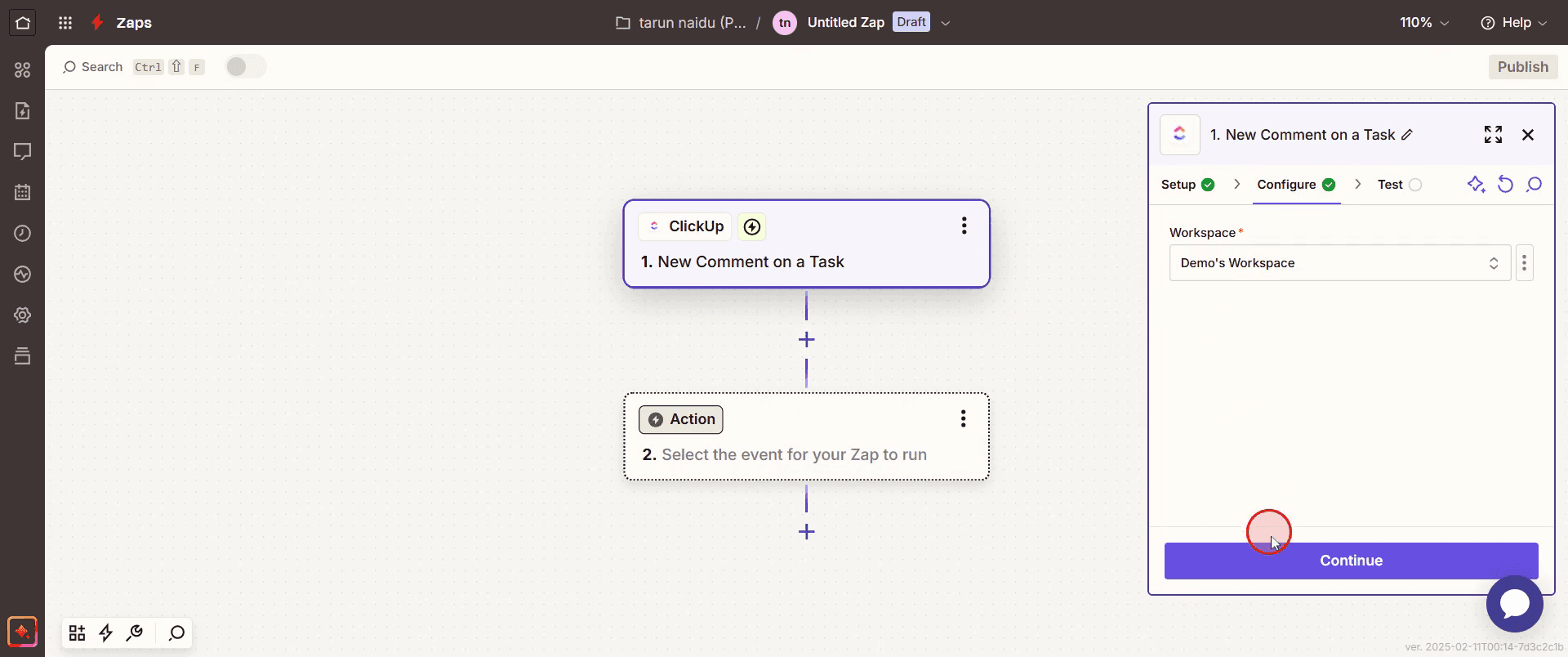
Step 9
Then click on Test Trigger.
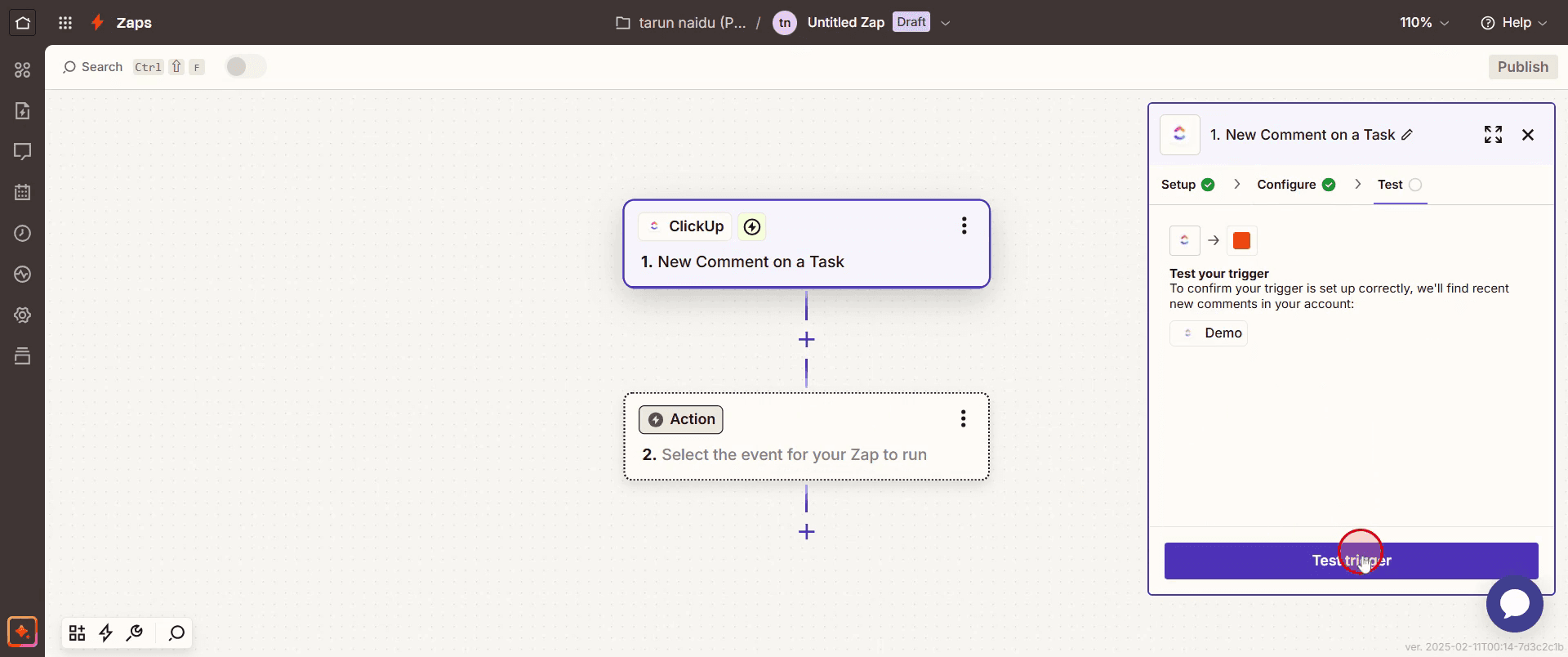
Step 10
Click on Skip Test .
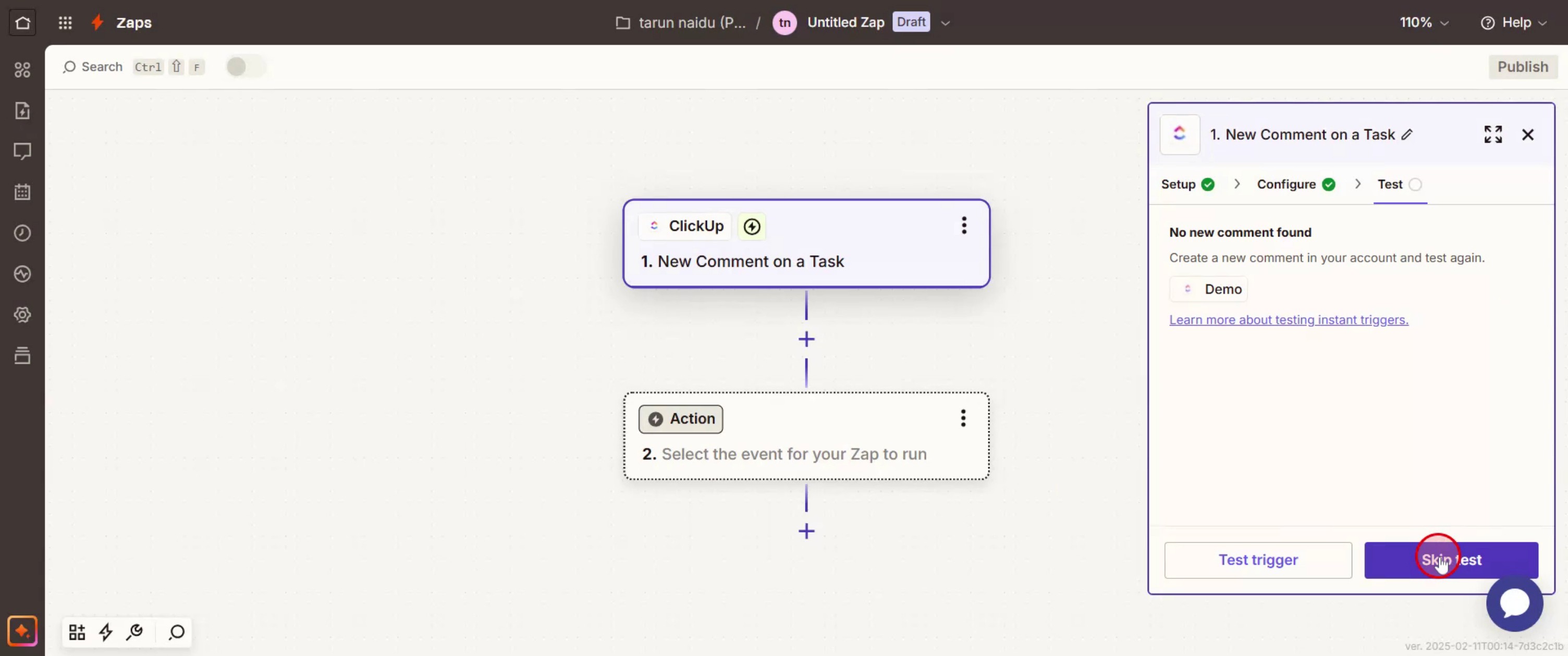
Step 11
Then click on Continue.
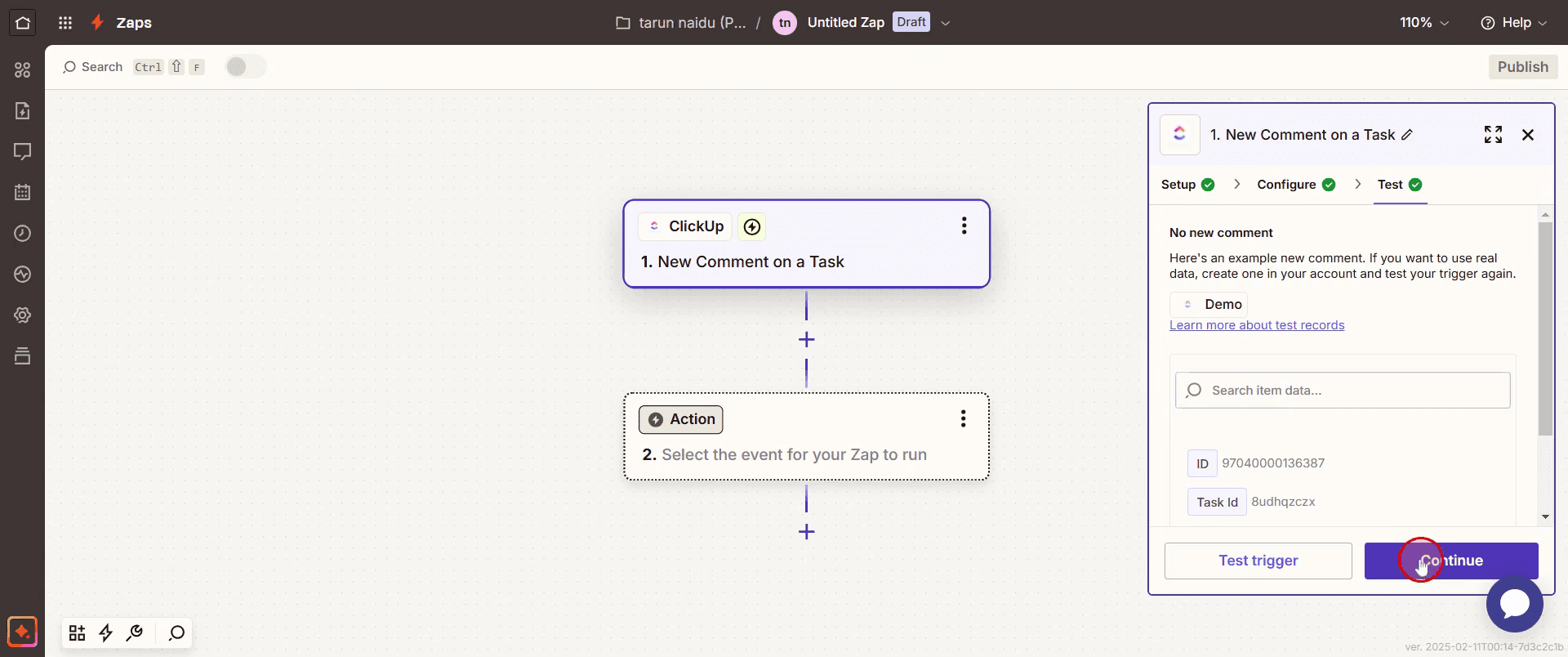
Step 12
Select Asana.
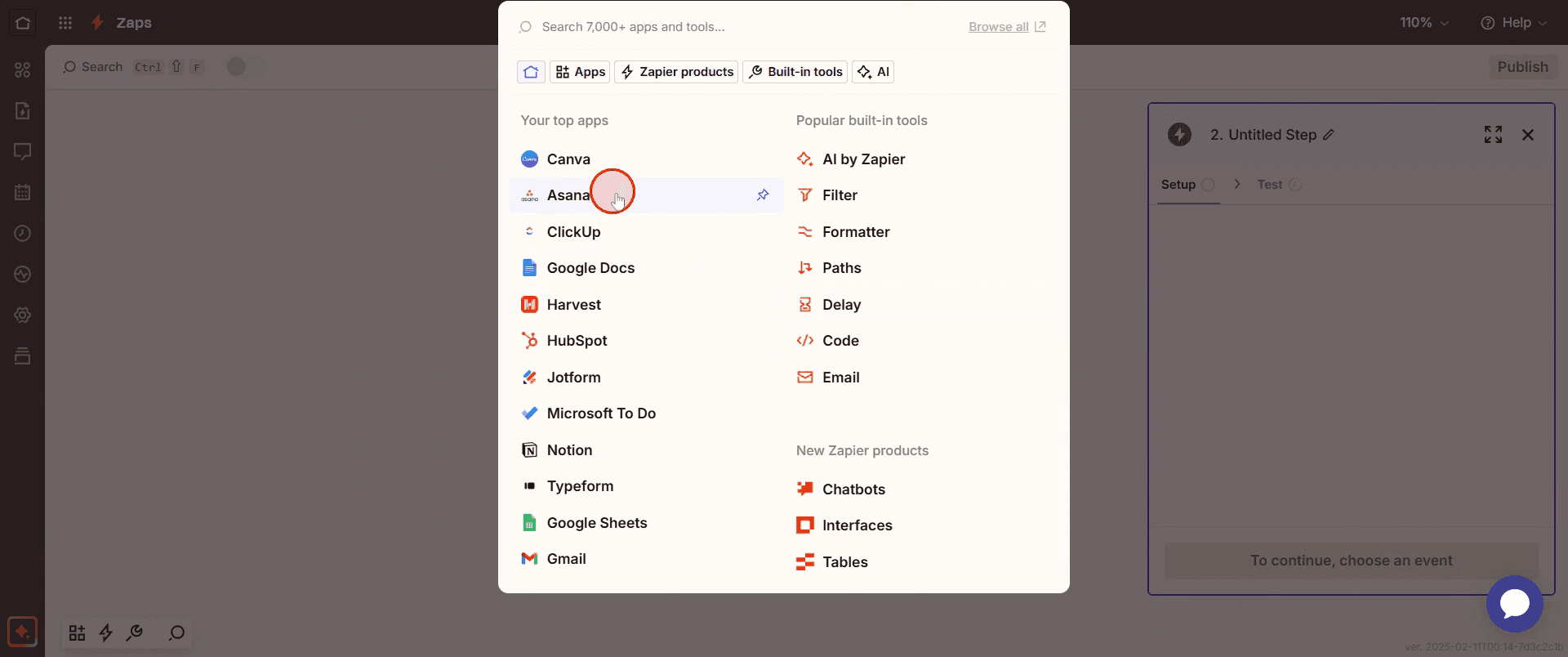
Step 13
Then select the action event.
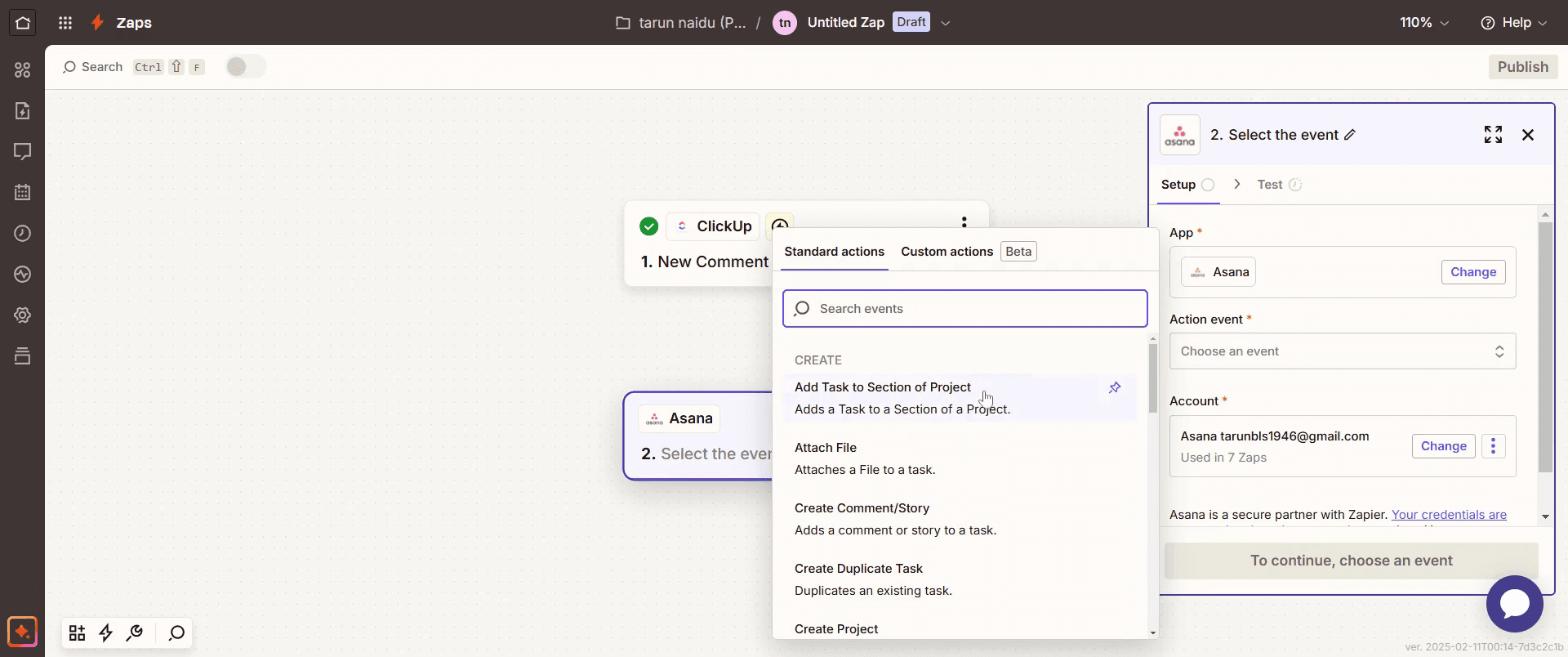
Step 14
Click on Continue.
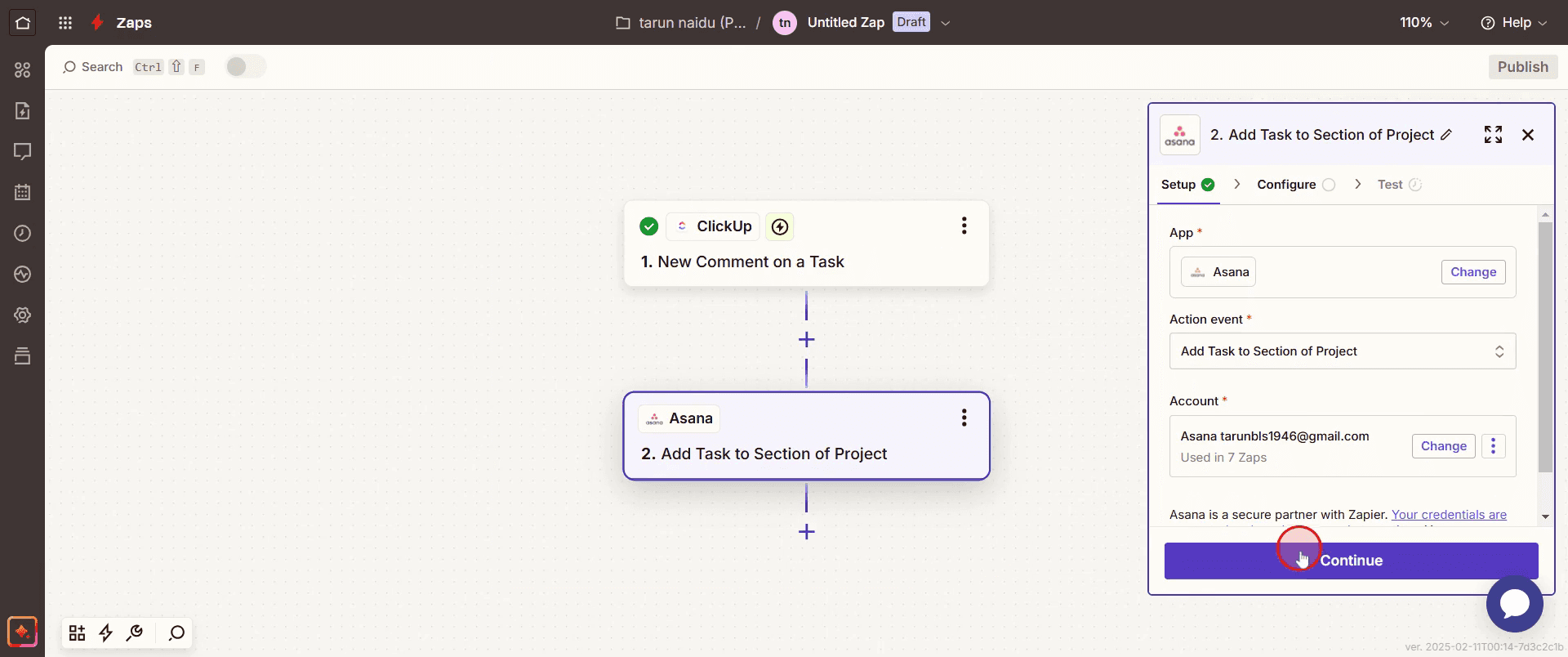
Step 15
Enter a task ID by clicking on the three dots,
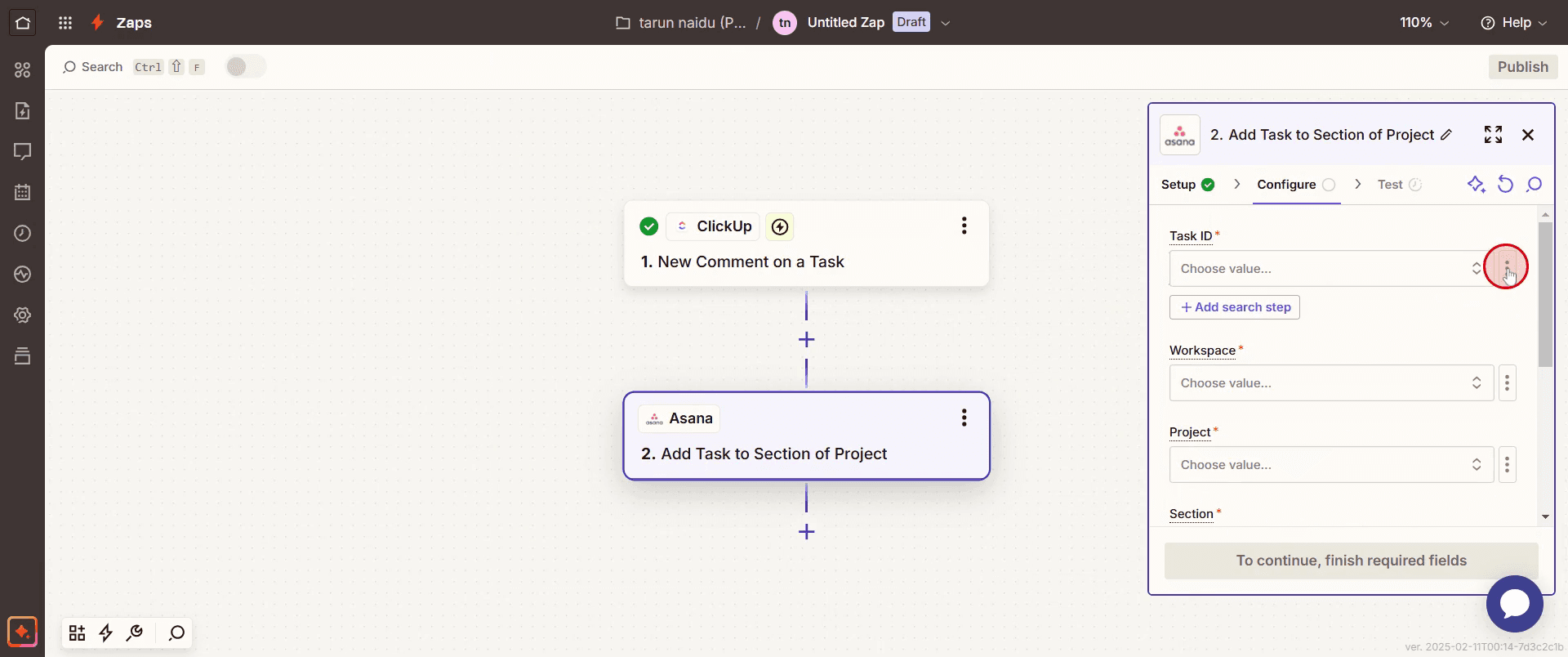
Step 16
Enter a workspace by clicking on the three dots,
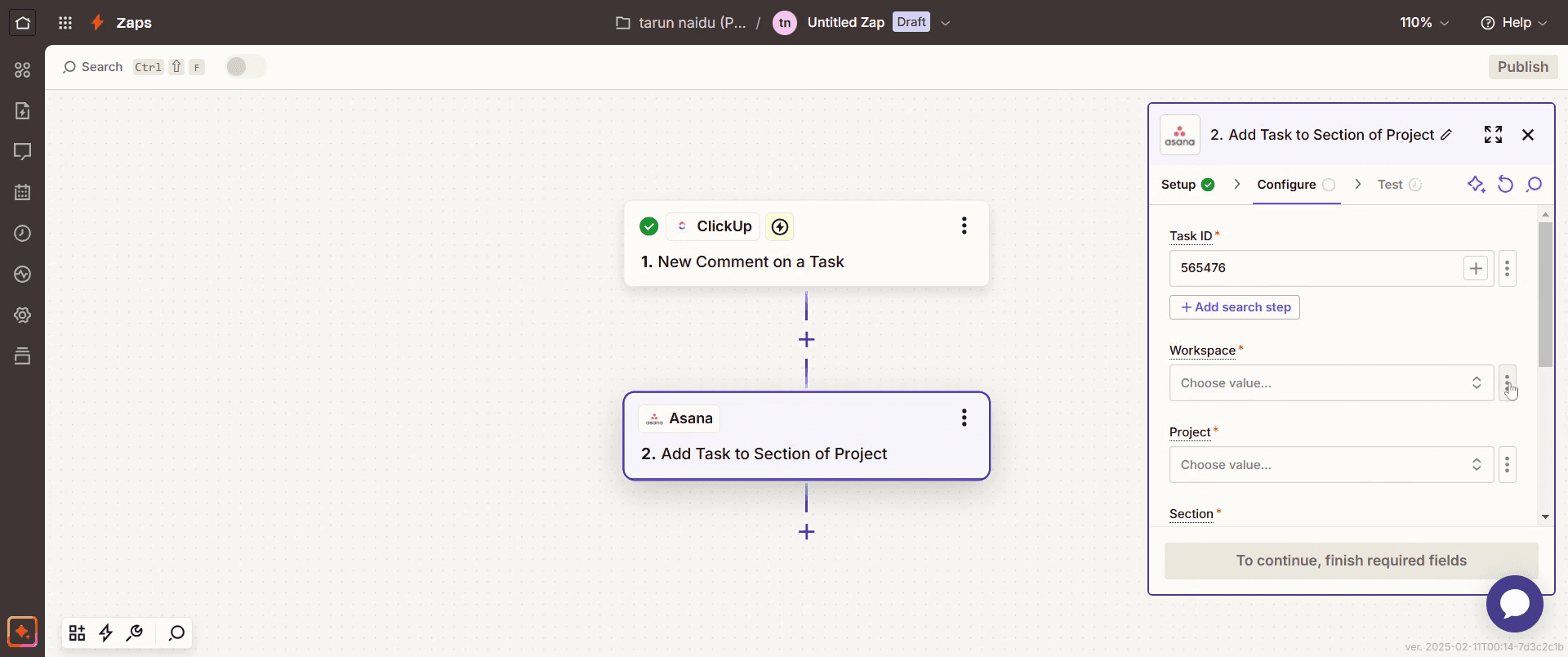
Step 17
Enter a project by clicking on the three dots .
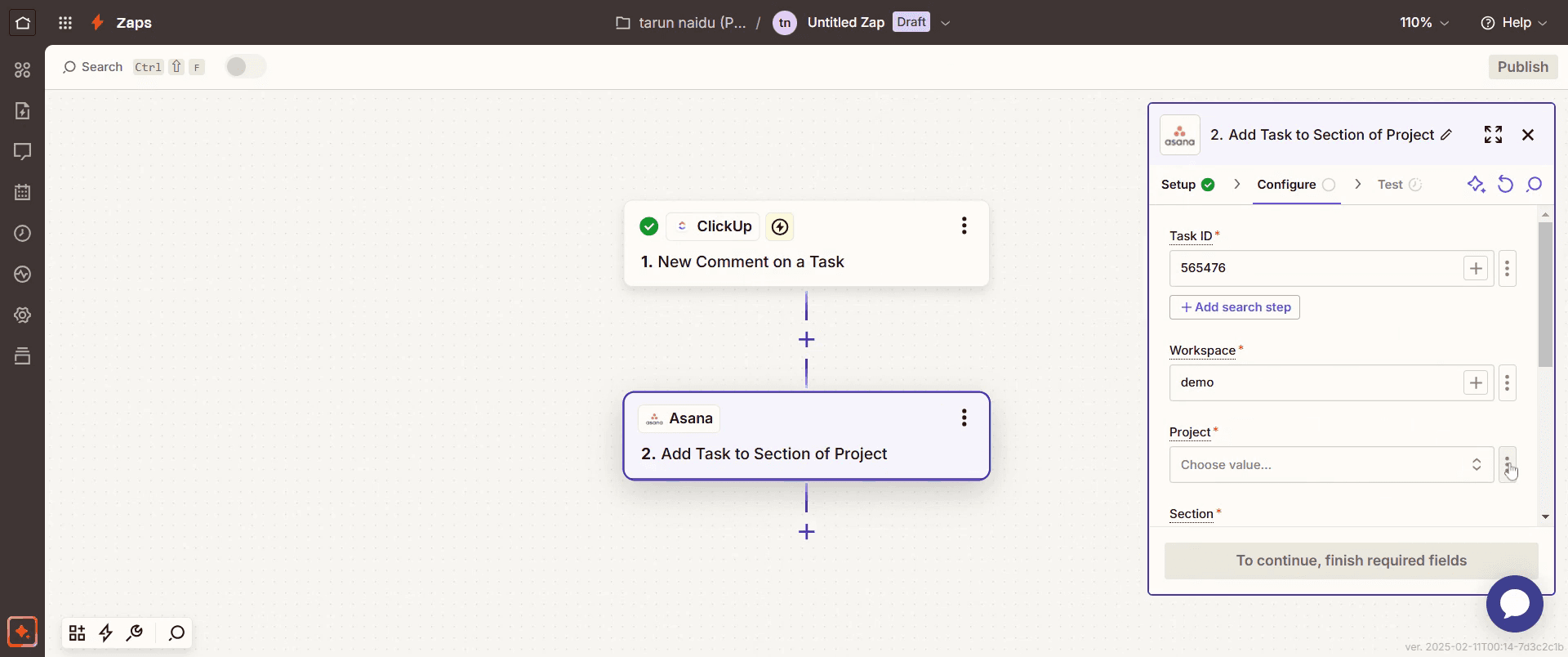
Step 18
Enter a project name according to your needs.
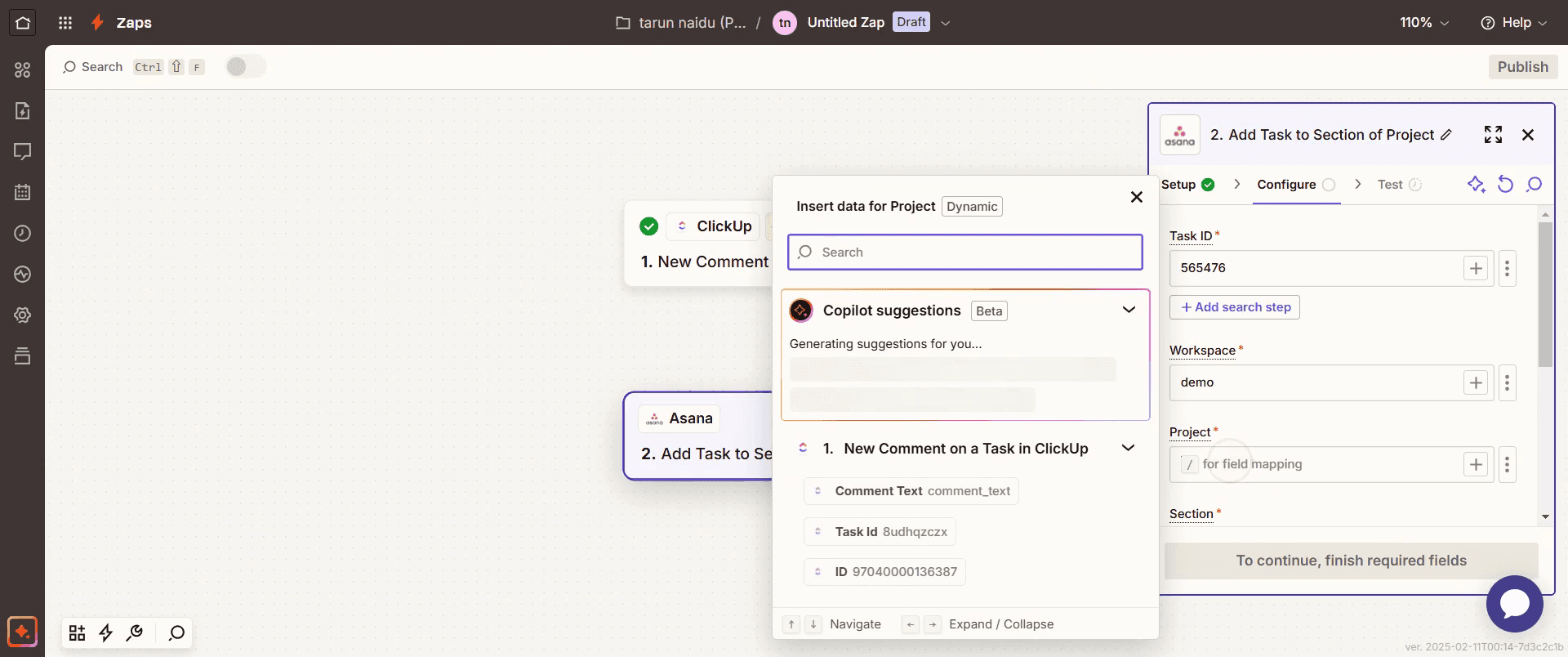
Step 19
Select Custom, then enter the section values as required.
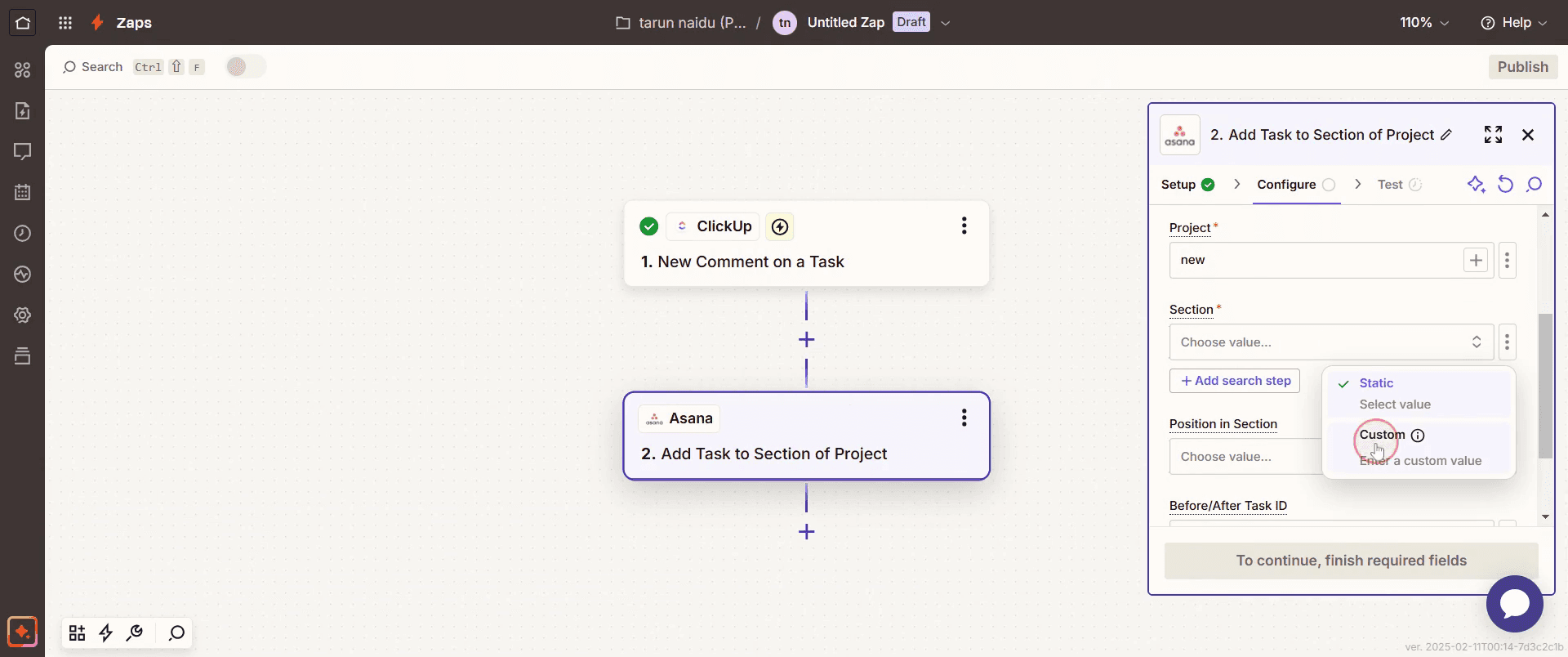
Step 20
Complete your entries as desired. Then click on Continue.
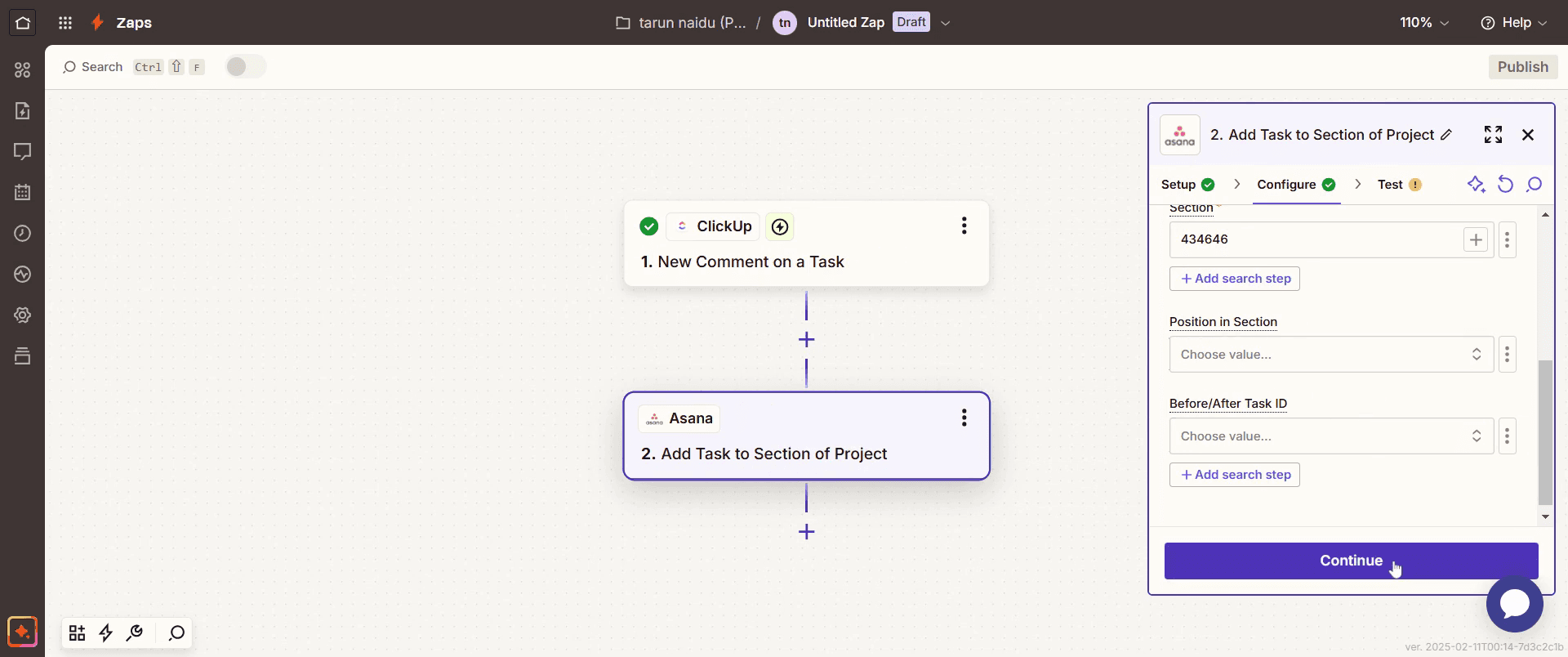
Step 21
Continue the process and click on Test Step.
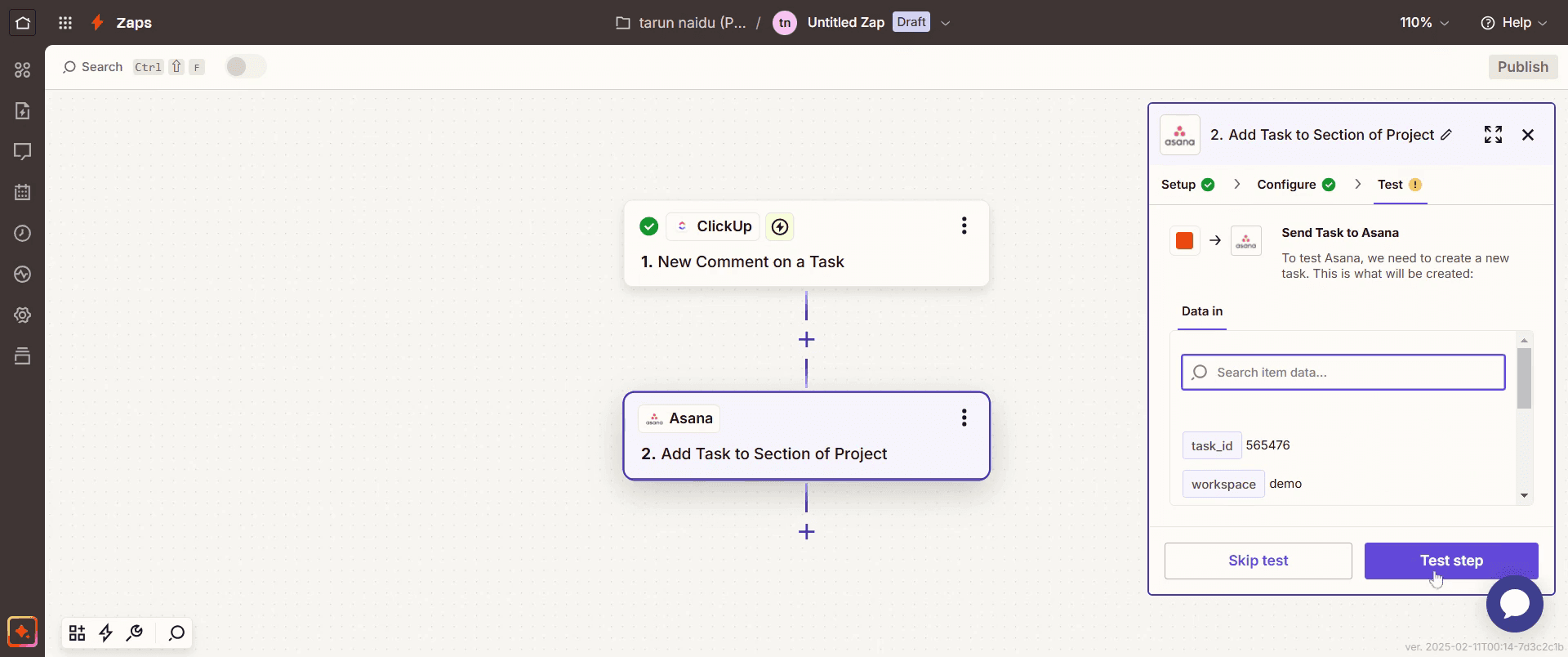
Step 22
Once all steps have been completed, click on Publish.
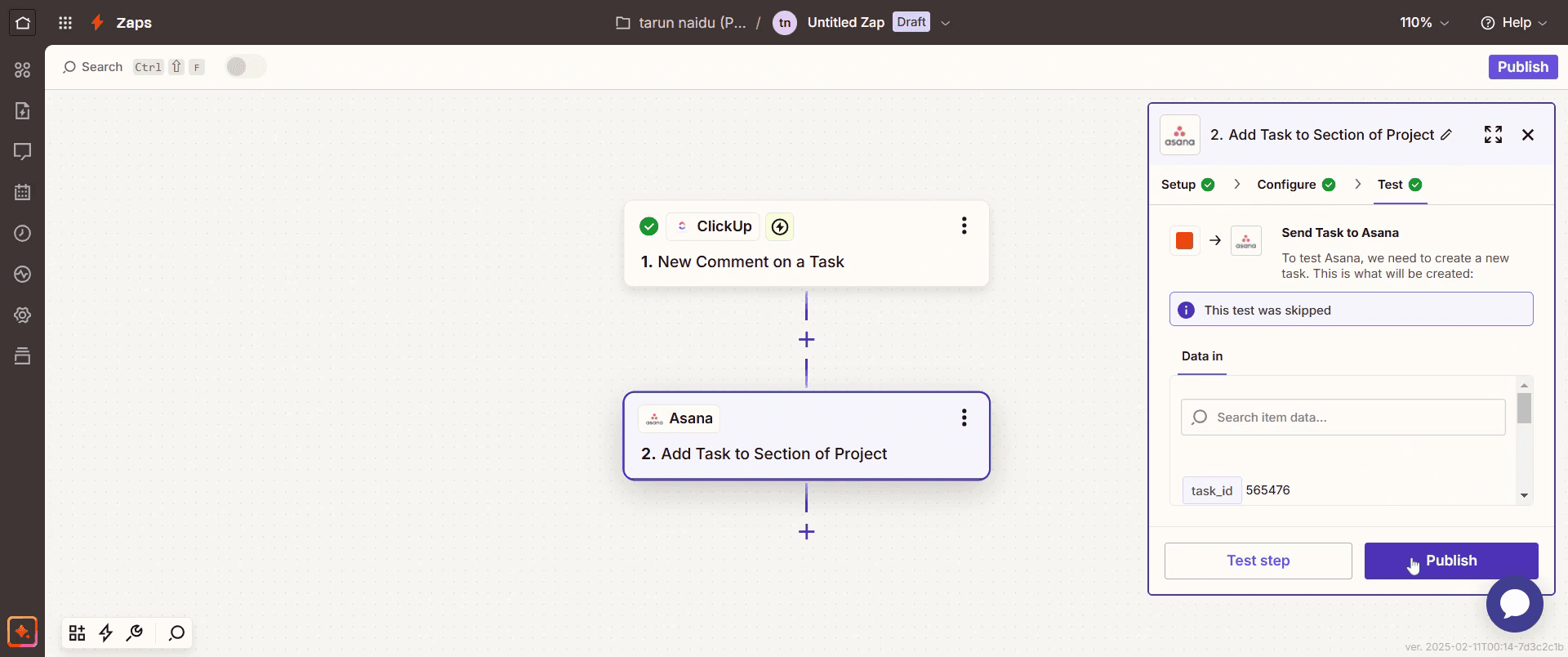
This is the step-by-step process to integrate Asana with Click Up. Let’s look at some tips for it.
Pro tips for integrating Asana with Click Up
Use Click Up’s native integration – Navigate to Click Up’s Integrations page and connect Asana for seamless workflow syncing.
Sync tasks and projects efficiently – Select specific tasks, projects, or workspaces you want to sync to avoid unnecessary clutter.
Automate updates between platforms – Use automation tools like Zapier to keep tasks and project statuses updated in real-time.
Common pitfalls & how to avoid them
Not selecting the right permissions can block access, so ensure you have admin permissions in both Asana and Click Up.
Forgetting to map task fields correctly can cause data inconsistencies, so align priority, status, and assignee fields properly.
Ignoring integration limits may lead to missed syncs, so check Click Up’s and Asana’s integration policies for data transfer limits.
Common FAQs about integrating Asana with Click Up
Can i sync tasks between Asana and Click Up automatically?
Yes, you can use Click Up’s built-in integration or Zapier to automate task syncing between the two platforms.Does the integration work for all Click Up plans?
Basic integrations may be available on free plans, but advanced syncing options require a paid Click Up plan.Why aren’t my tasks syncing between Asana and Click Up?
Check your integration settings, ensure task field mapping is correct, and verify permissions in both tools.Can i import my entire Asana workspace into Click Up?
Yes, Click Up offers a direct Asana import tool to migrate tasks, projects, and lists seamlessly.
If you're an instructor or content creator looking to make tutorial videos, give a try. It transforms rough screen recordings into polished, studio-style videos that are ready for sharing with your audience. Plus, it automatically generates a step-by-step guide based on the video you create. Fascinating, right? Start by creating your first tutorial for free with trupeer.ai .

