
How to integrate Canva with Google Docs
Learn the step-by-step process to integrate Canva with Google Docs. Elevate your document creation with beautiful graphics and easy collaboration.
This process will guide you through integrating Canva with Google Docs using Zapier. By following these steps, you can seamlessly connect these applications to automate your workflow.
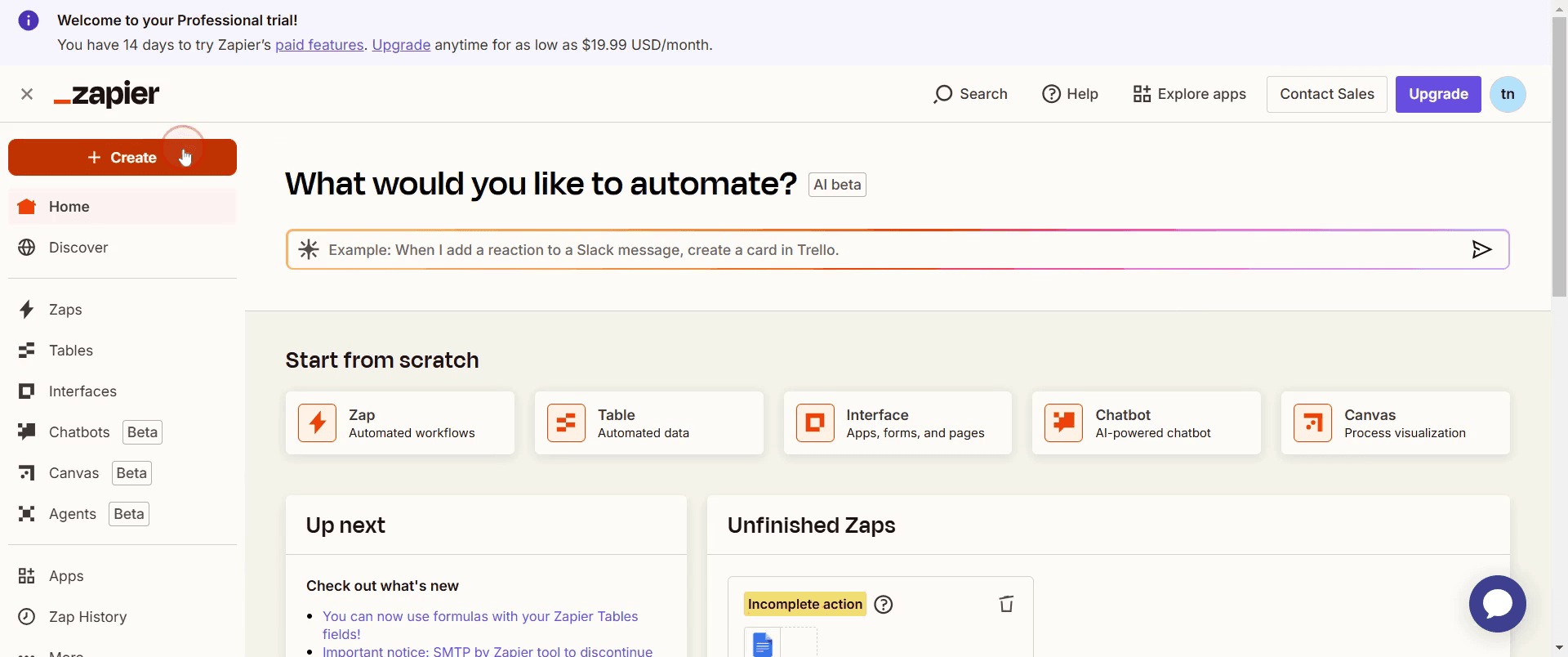
Step 1
Click on Create.
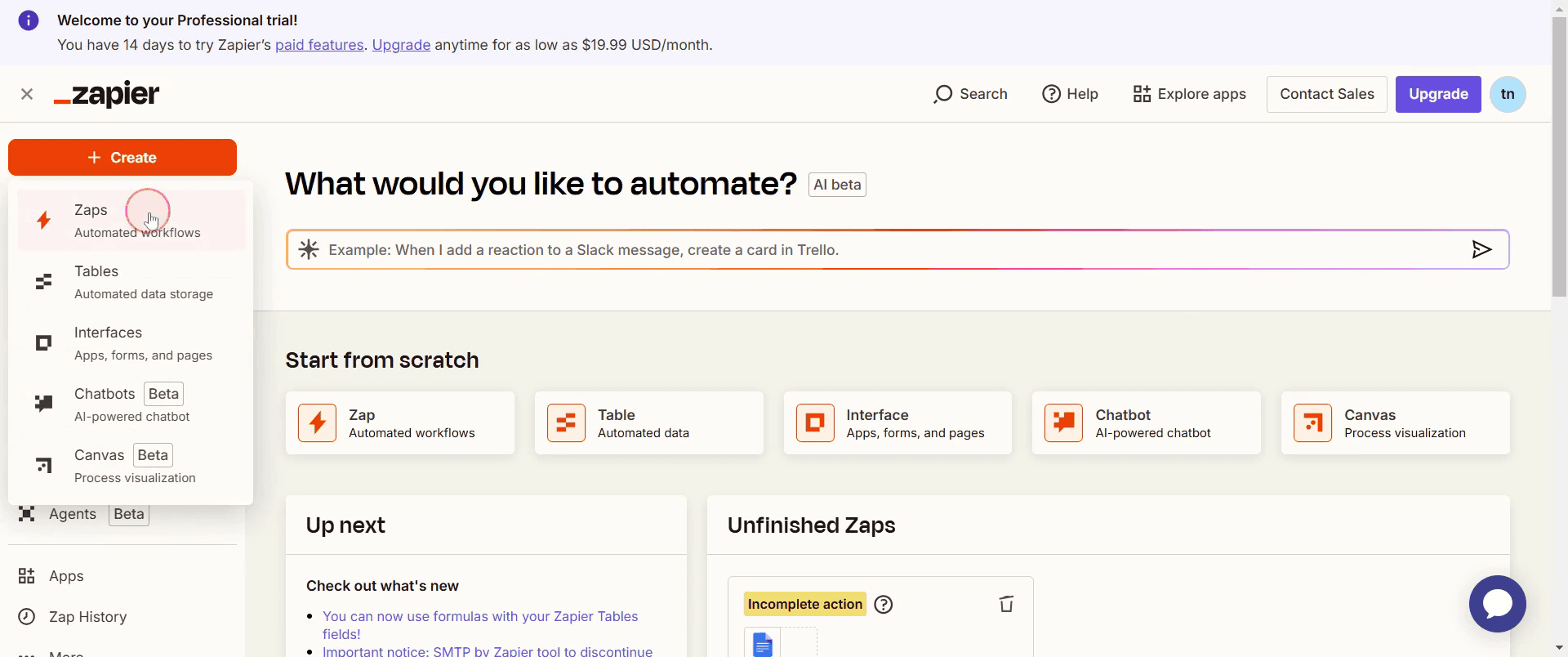
Step 2
And select Zaps.
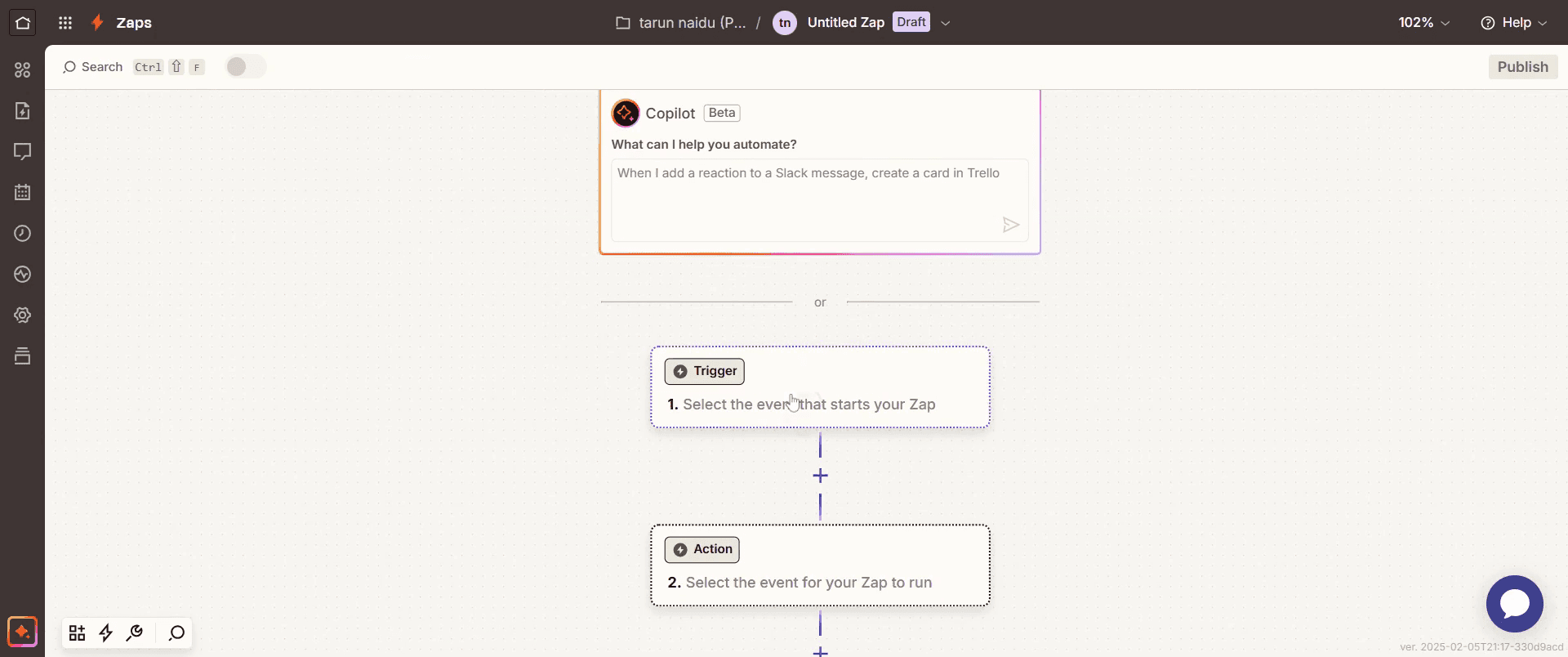
Step 3
Click on Trigger .
Step 4
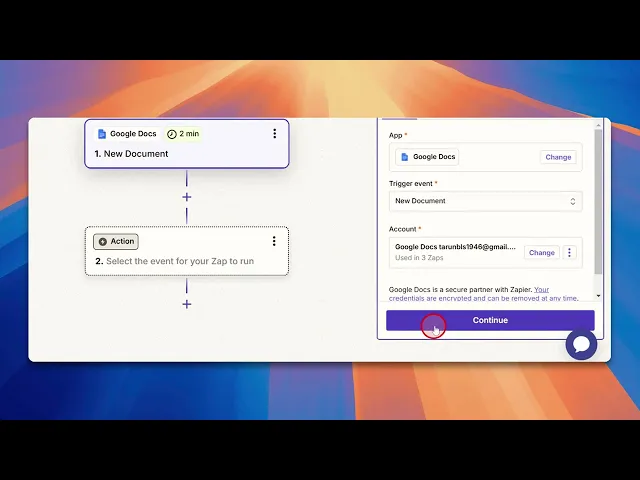
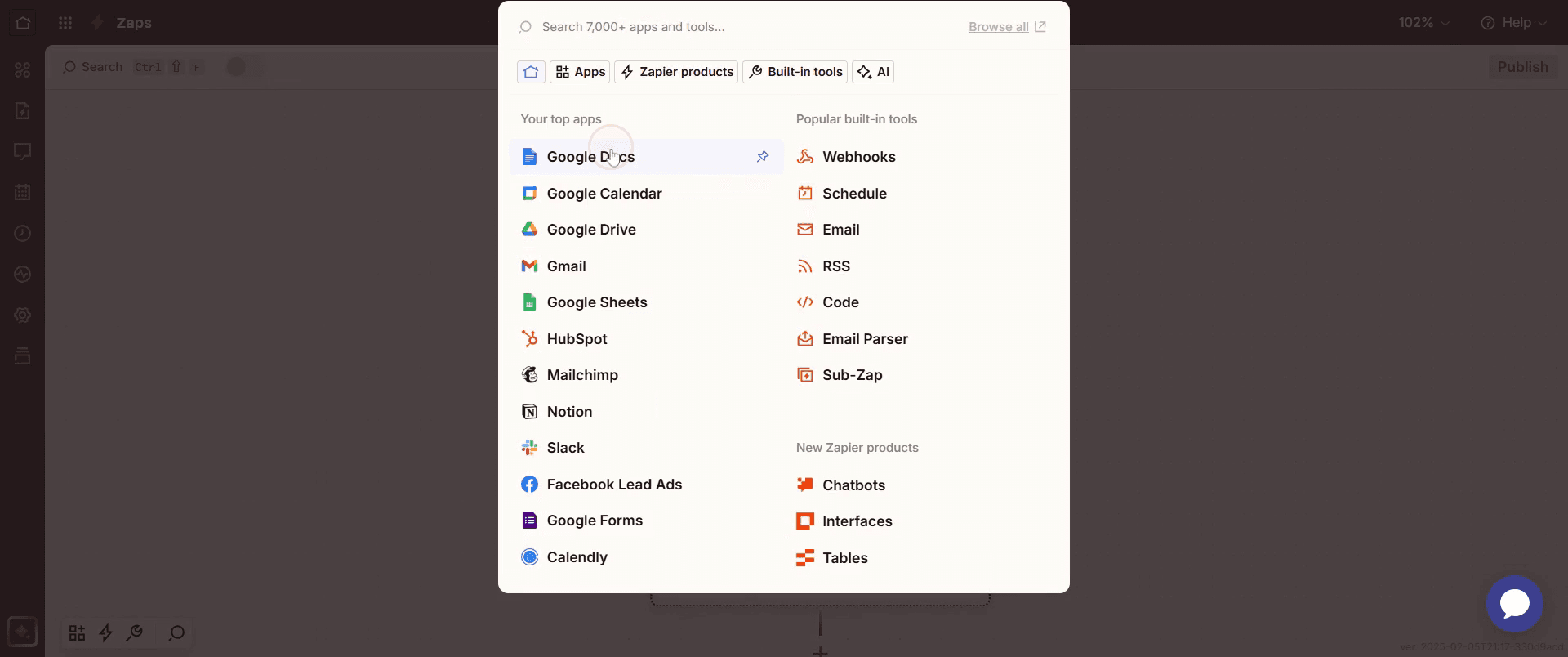
Select Google Docs,
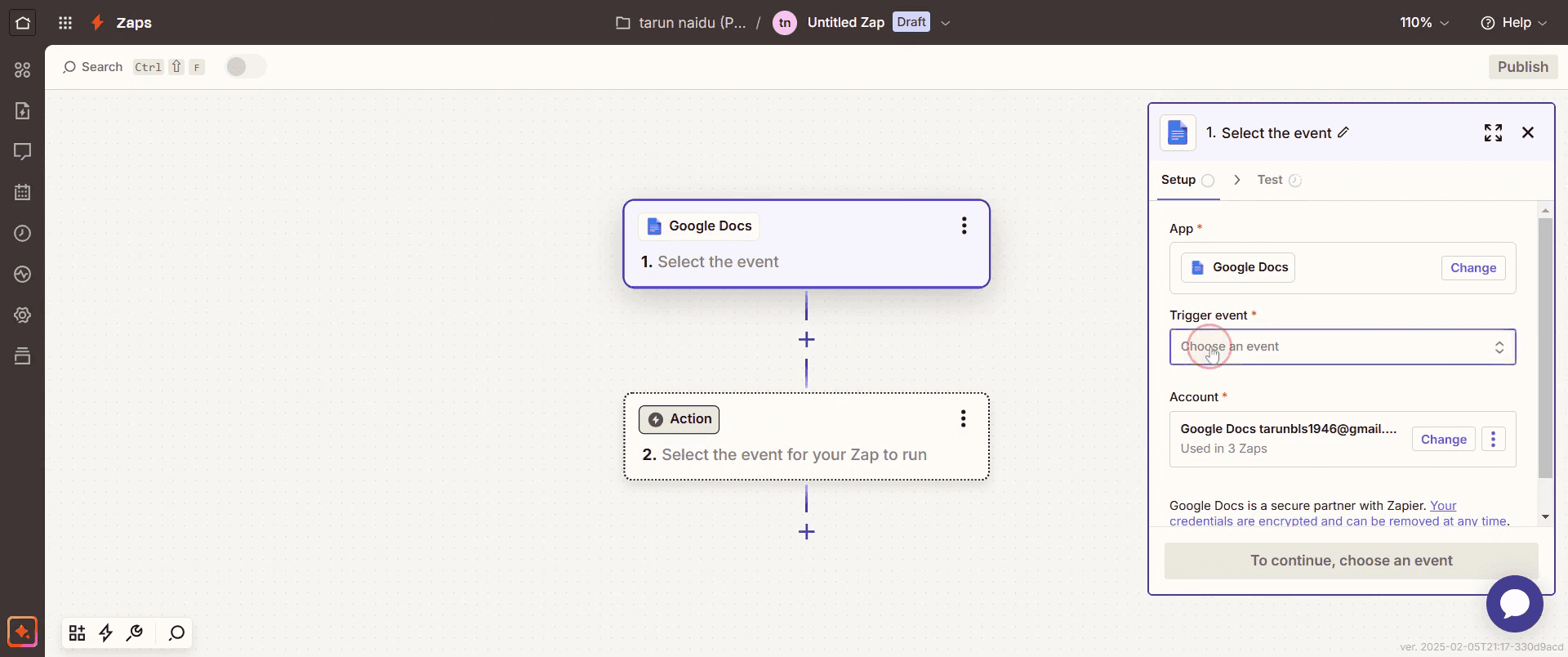
Step 5
And select the Trigger Event option.
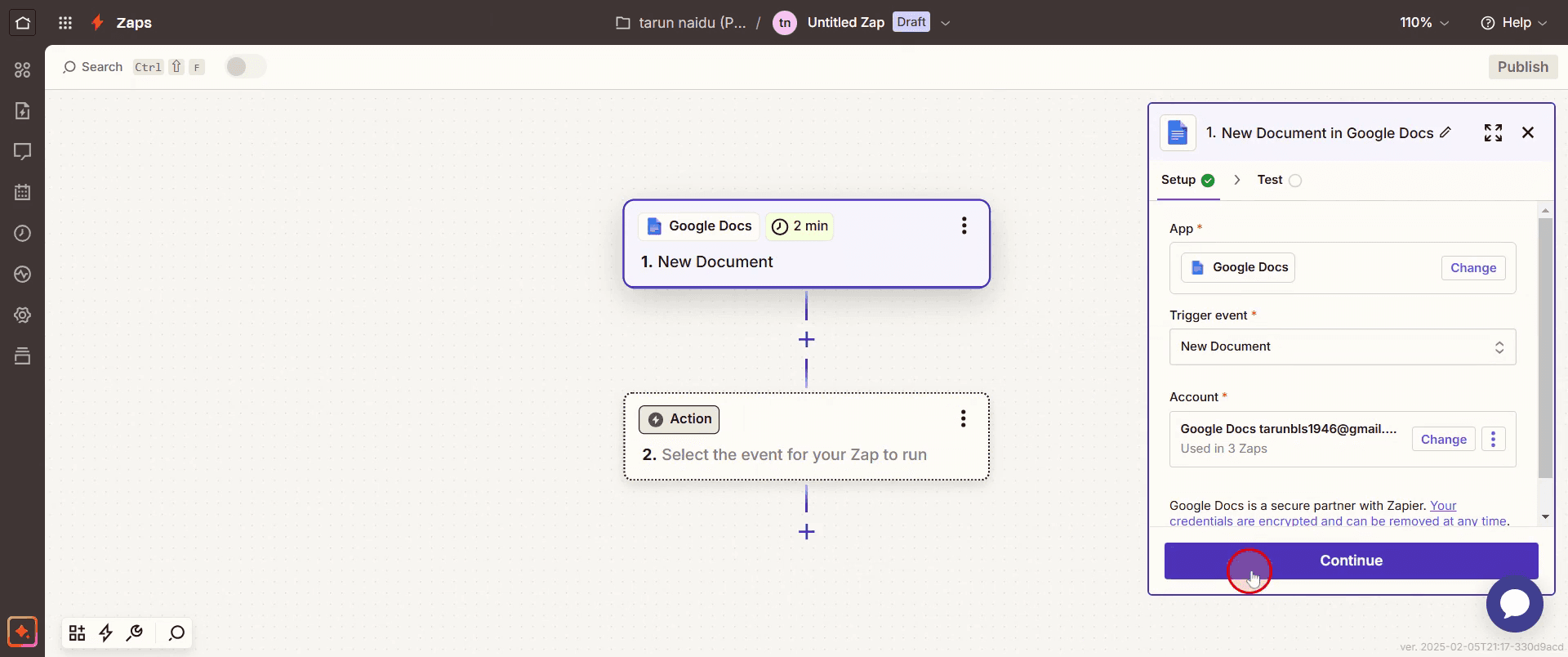
Step 6
Then select Continue button.
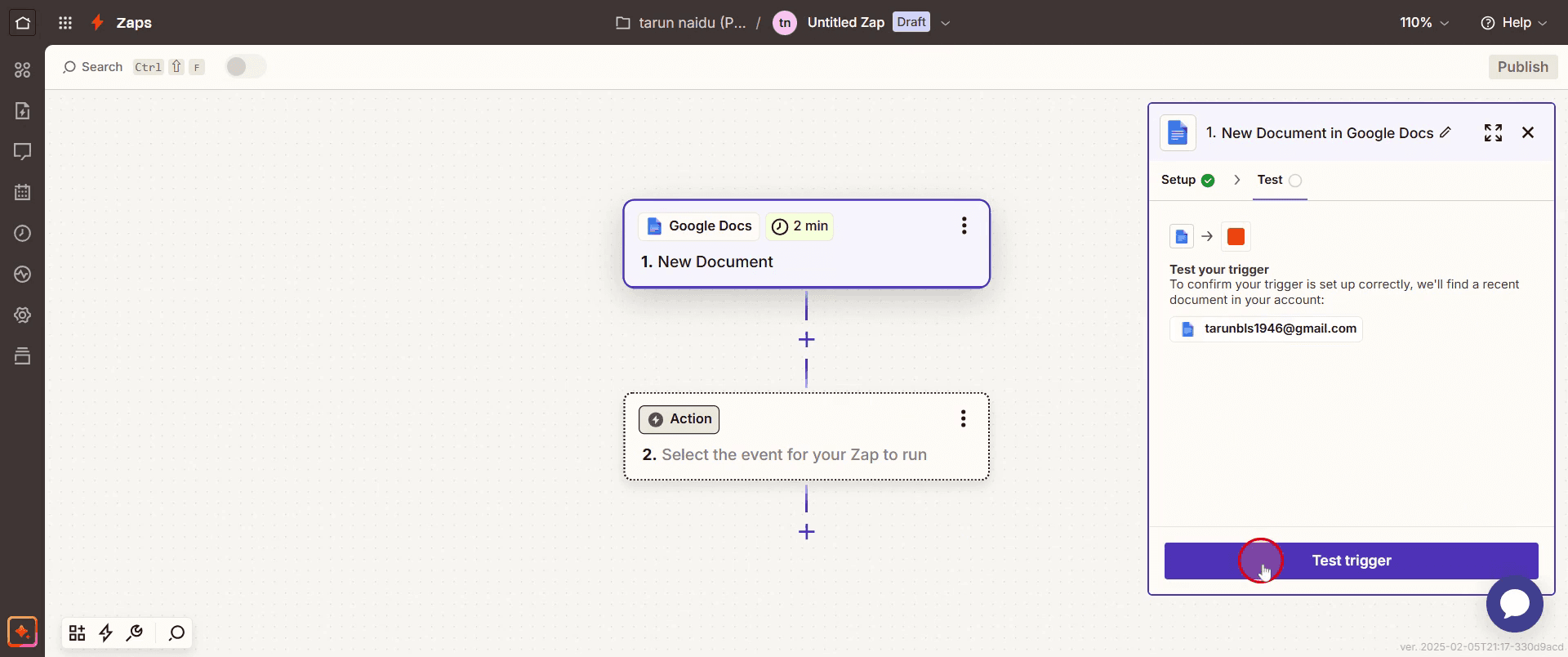
Step 7
Click on Test Trigger.
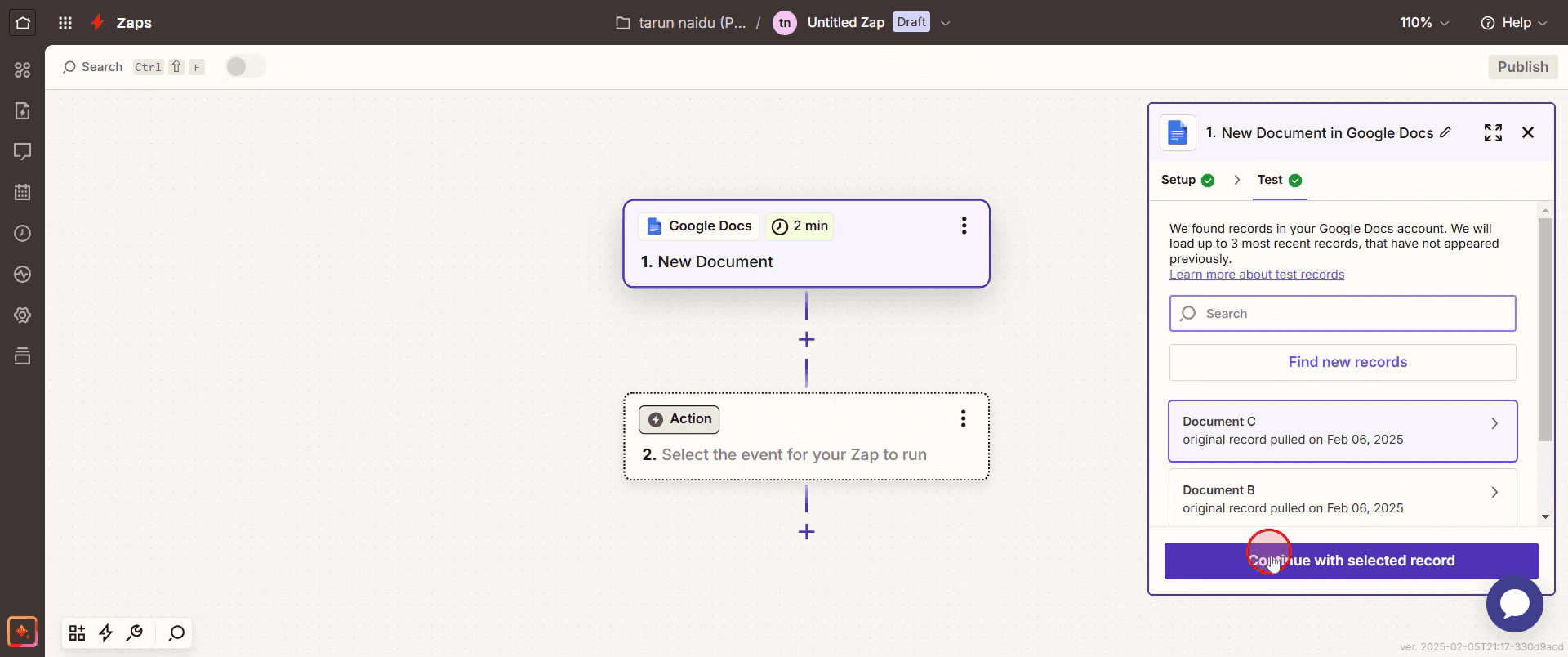
Step 8
Click on Continue with selected records.
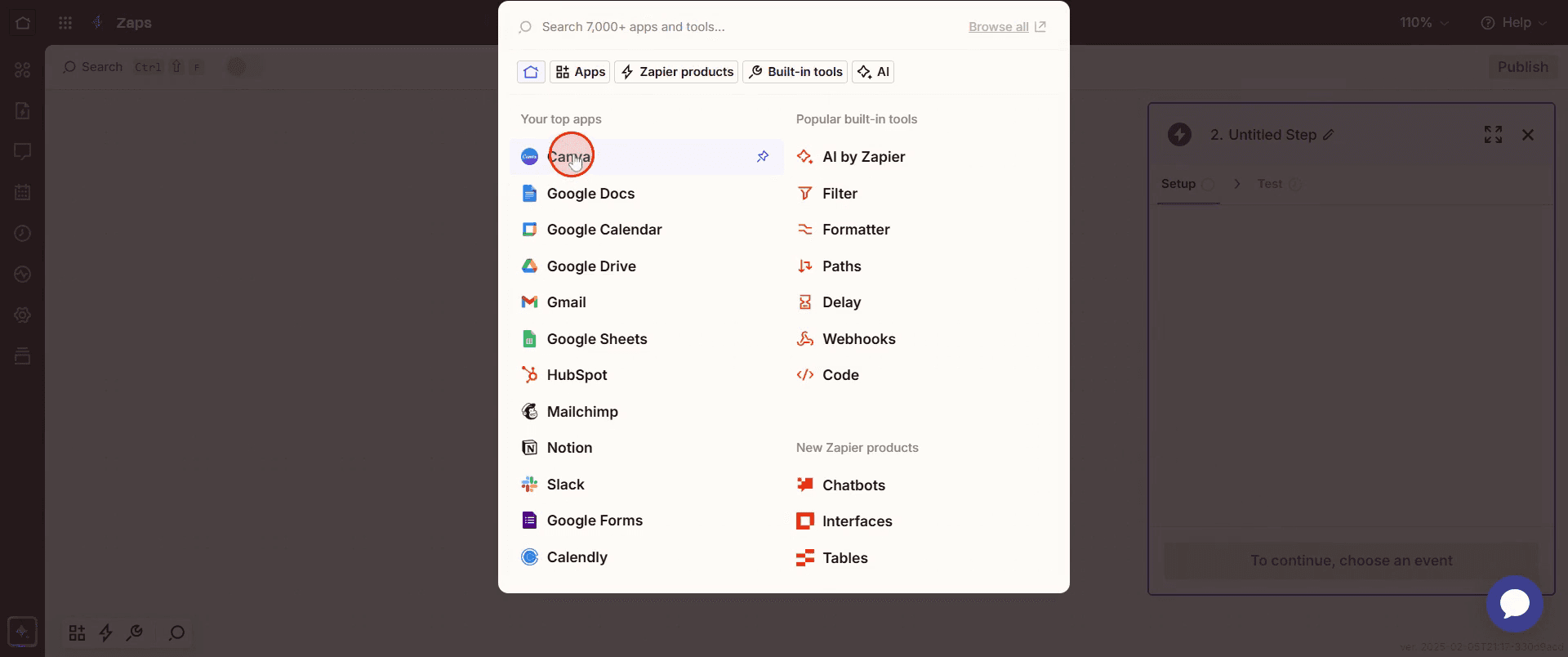
Step 9
Select Canva.
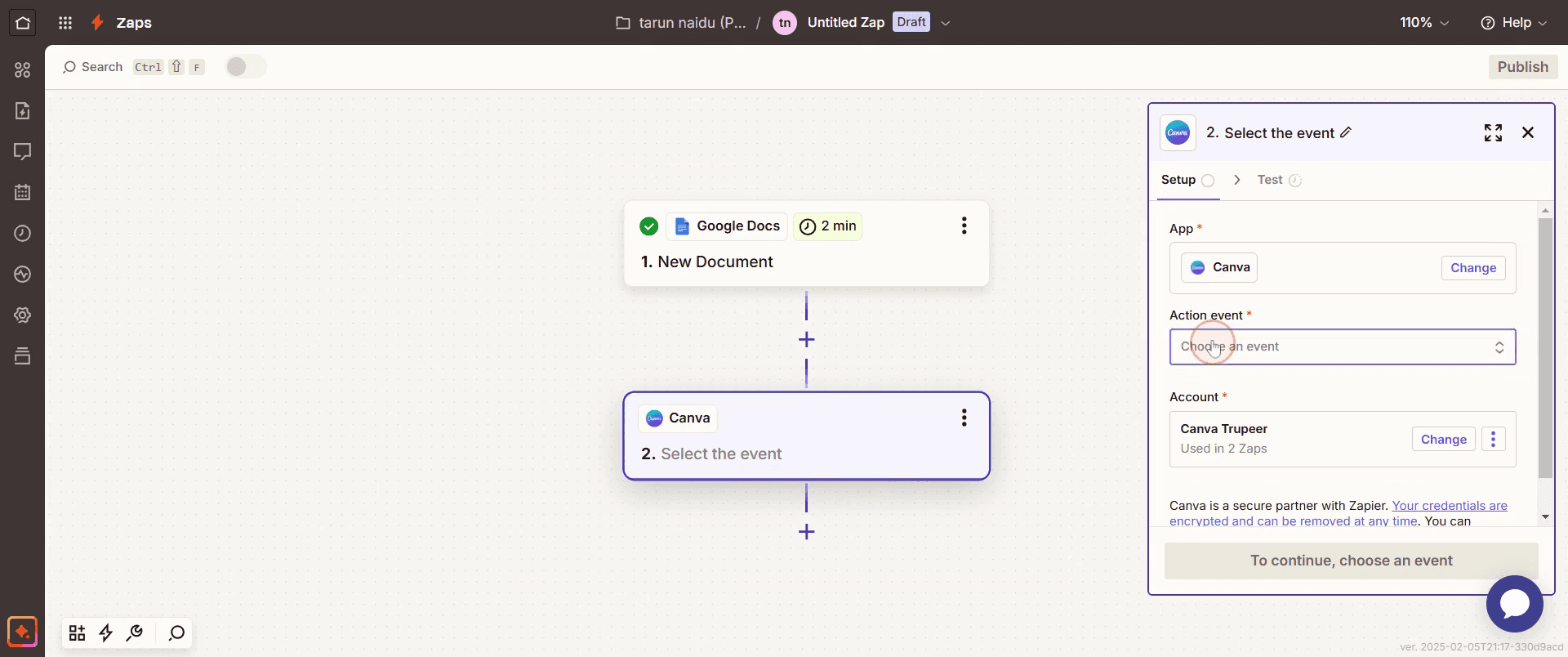
Step 10
Choose your desired action event,
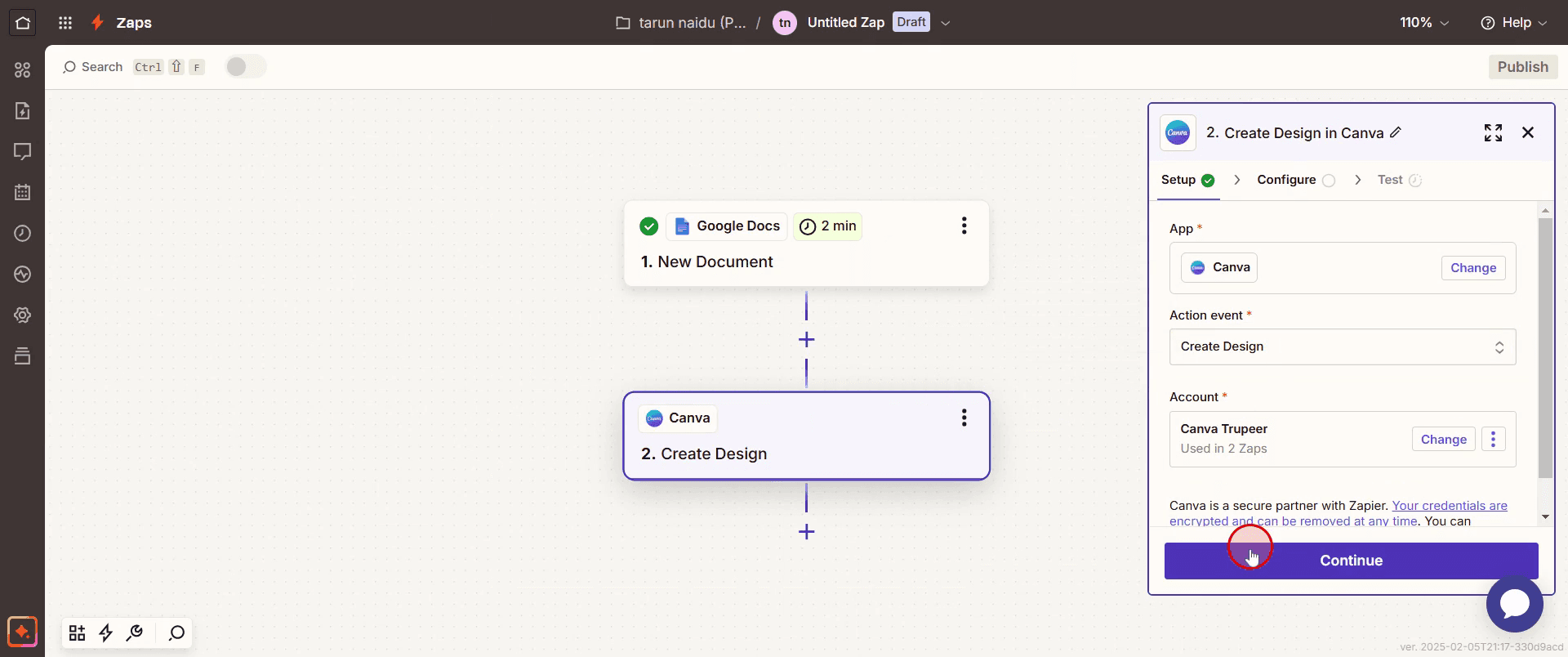
Step 11
Click Continue.
Step 12
Then select Test Setup.
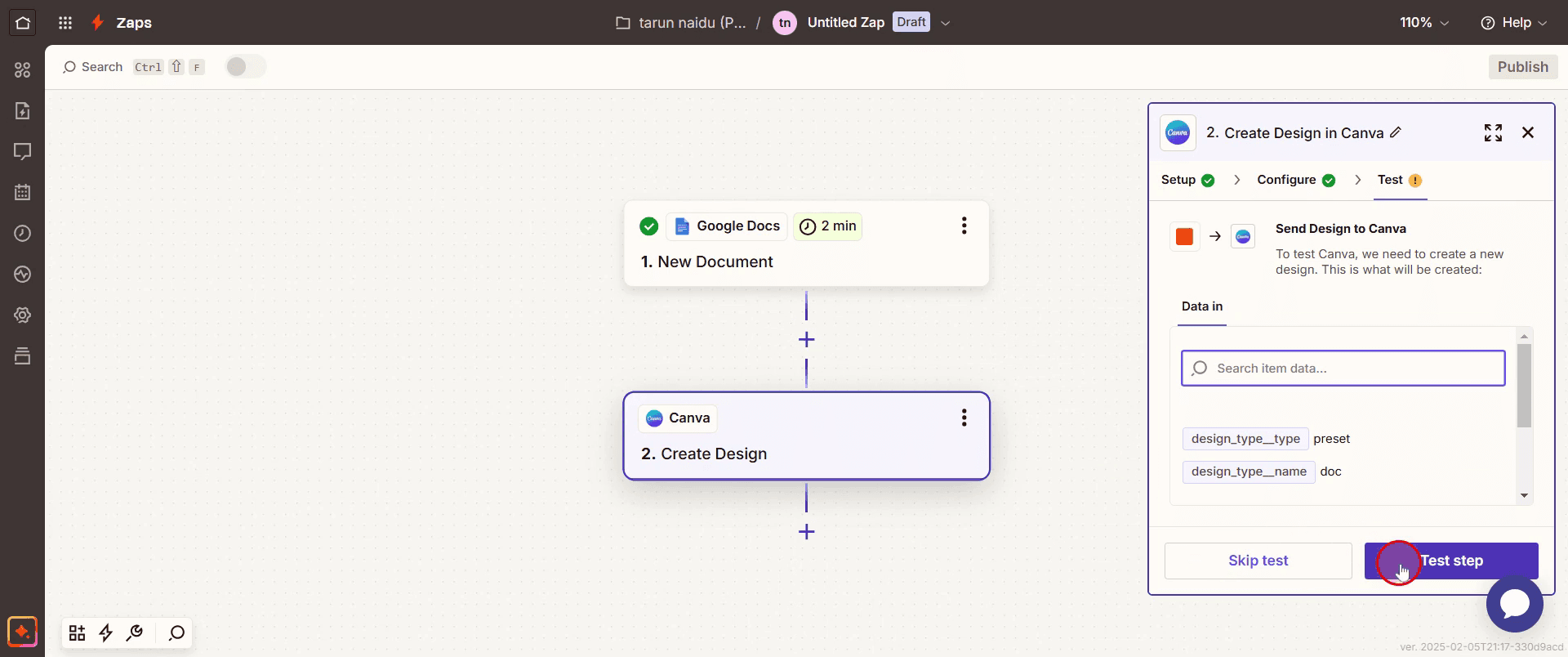
Step 13
Then click on Publish.
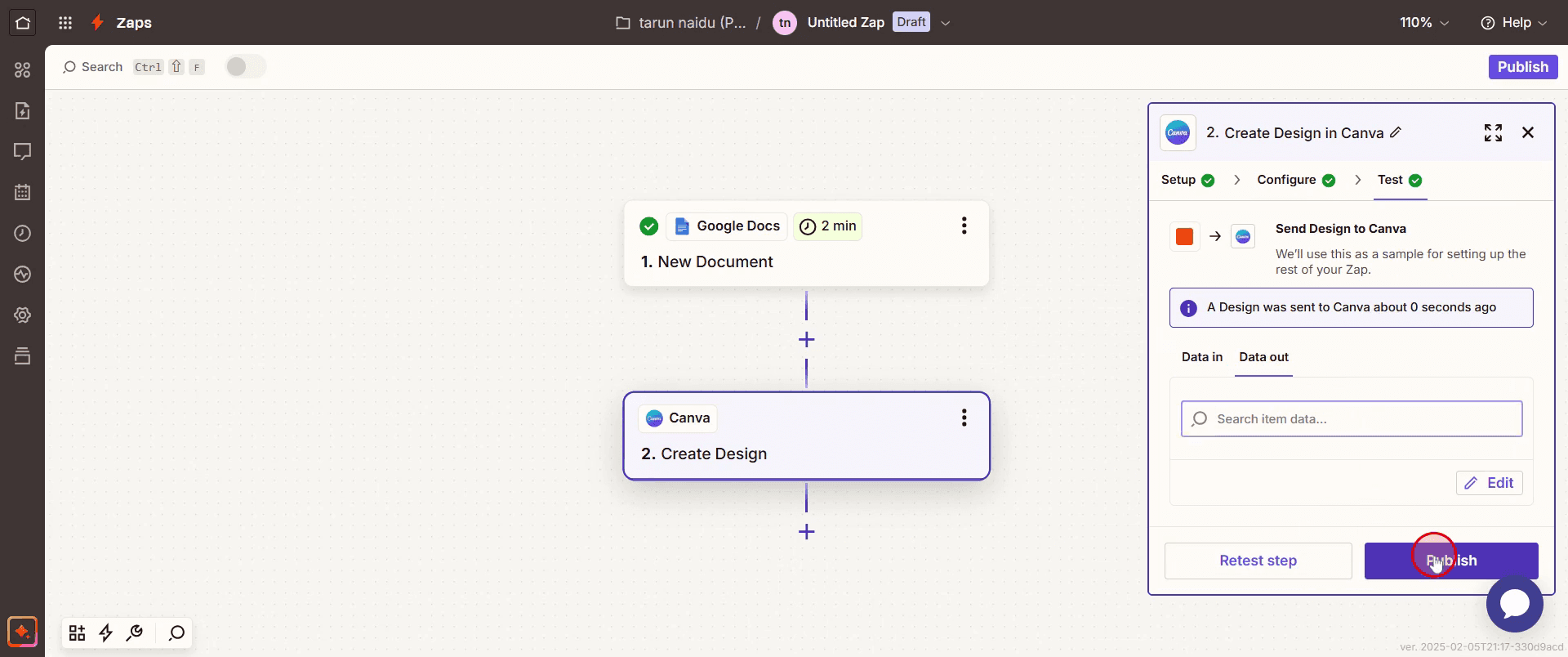
Step 14
Then you can see the Canva integrated with Google Docs
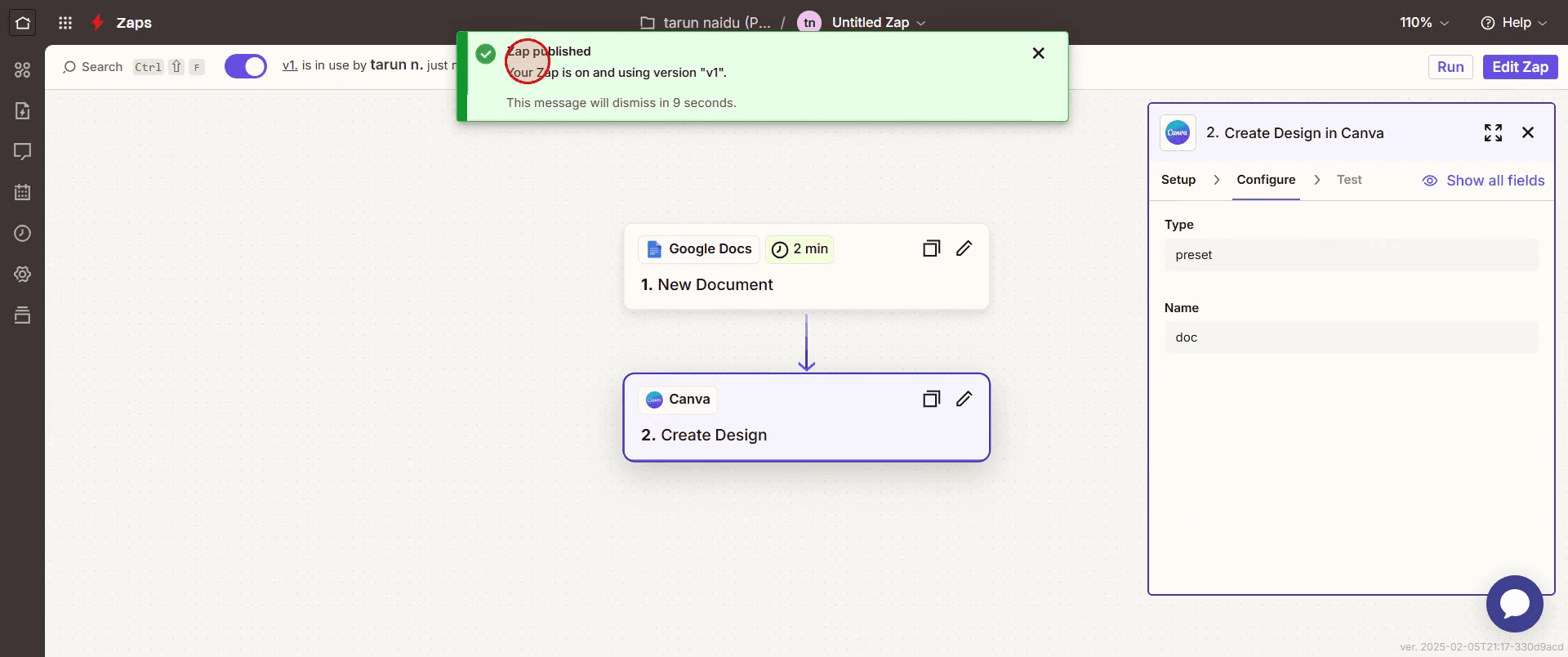
This is a step-by-step guide on how to integrate Canva with Google Docs.
Pro tips for how to integrate Canva with Google Docs
Use PNG or PDF for Best Quality – Download your Canva design as a high-resolution PNG or PDF to maintain clarity when adding it to Google Docs.
Embed Directly with Links – Instead of inserting static images, copy the Canva design link and add it to Google Docs for easy access and updates.
Resize and Align Efficiently – After inserting your Canva design, use the image positioning tools in Google Docs to improve formatting.
Common pitfalls and how to avoid them
Uploading a low-quality image—always download in high resolution to prevent blurriness in Google Docs.
Forgetting to adjust image positioning—use text wrapping to align the Canva design properly within your document.
Using the wrong file format—opt for PNG or PDF, as some formats may not support transparency or maintain quality.
Common FAQs for how to integrate Canva with Google Docs
How do i add a Canva design to Google Docs?
Download your Canva design as a PNG or PDF, then insert it into Google Docs using the Insert > Image option.Can i edit a Canva design after adding it to Google Docs?
No, but you can edit the design in Canva and replace the image in Google Docs with the updated version.What is the best file format for integrating Canva with Google Docs?
PNG is ideal for high-quality images, while PDF works best for full-page designs without quality loss.Can i embed a live Canva design in Google Docs?
While Google Docs doesn’t support live embedding, you can add a clickable link to your Canva project for easy access.Why does my Canva image lose quality in Google Docs?
This can happen if the image is compressed or resized excessively always use high resolution downloads and adjust dimensions carefully.
If you're an instructor or content creator looking to make tutorial videos, give a try. It transforms rough screen recordings into polished, studio-style videos that are ready for sharing with your audience. Plus, it automatically generates a step-by-step guide based on the video you create. Fascinating, right? Start by creating your first tutorial for free with trupeer.ai .

