
How To Integrate Canva With Loomly
Discover how to seamlessly integrate Canva with Loomly to enhance your design and social media management. Boost your workflow and creativity today!
This guide provides clear, step-by-step instructions for integrating Canva with Loomly. By following these steps, you'll be able to seamlessly connect these two platforms and manage your projects more effectively.
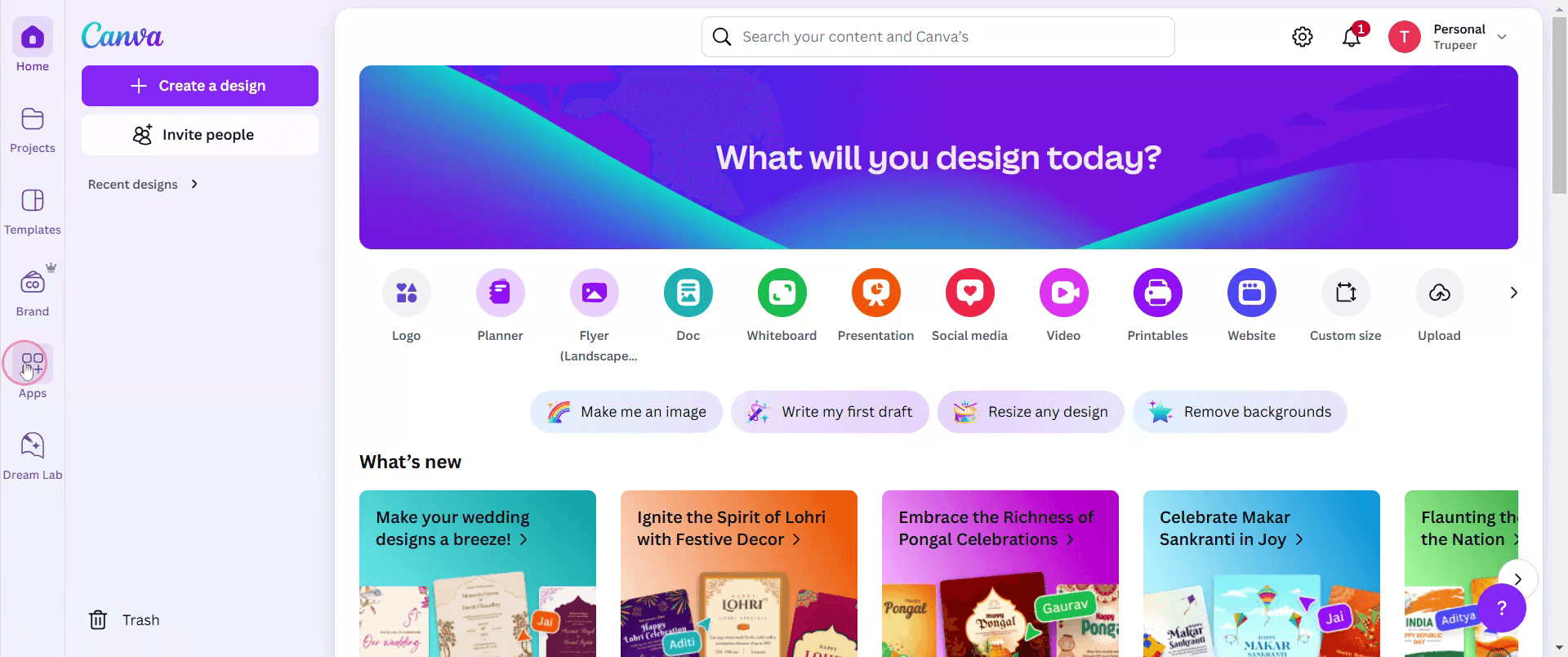
Step 1
Click on the Apps section.
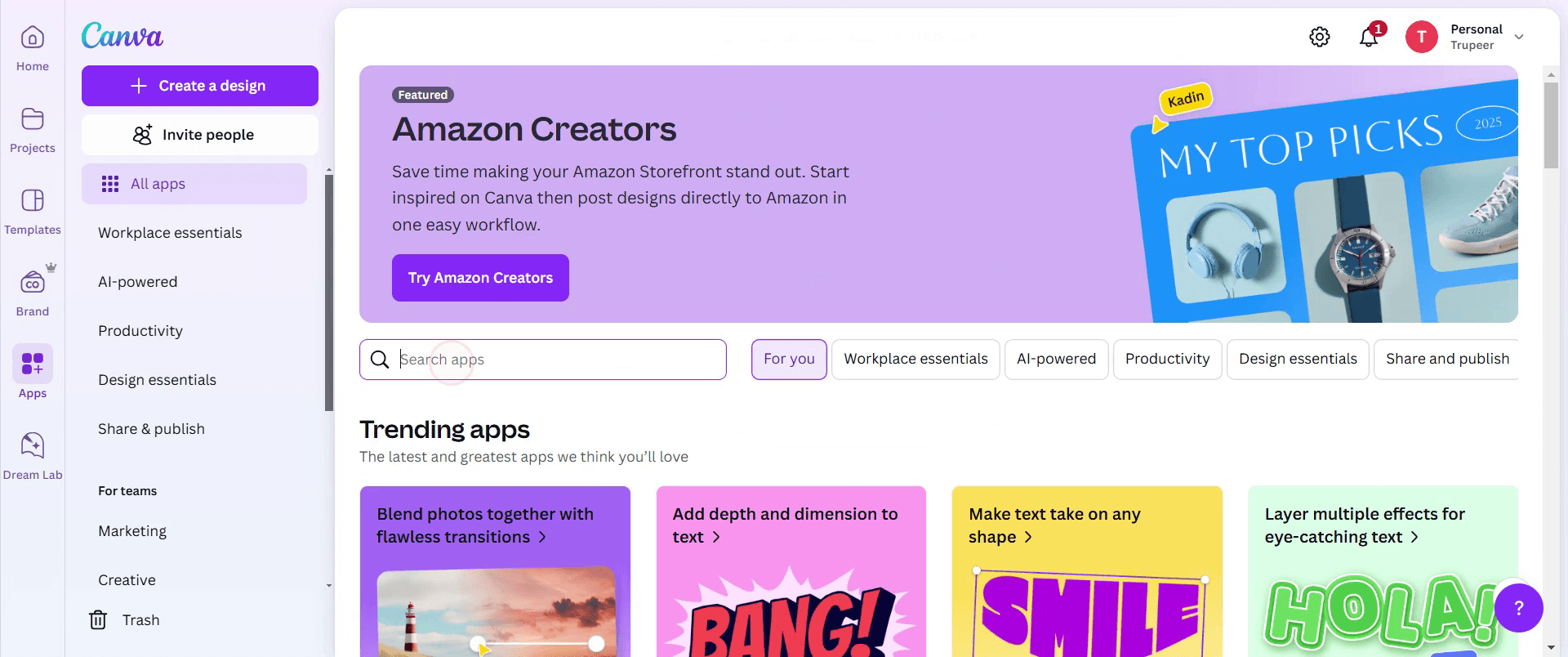
Step 2
In the search bar, type Loomly.
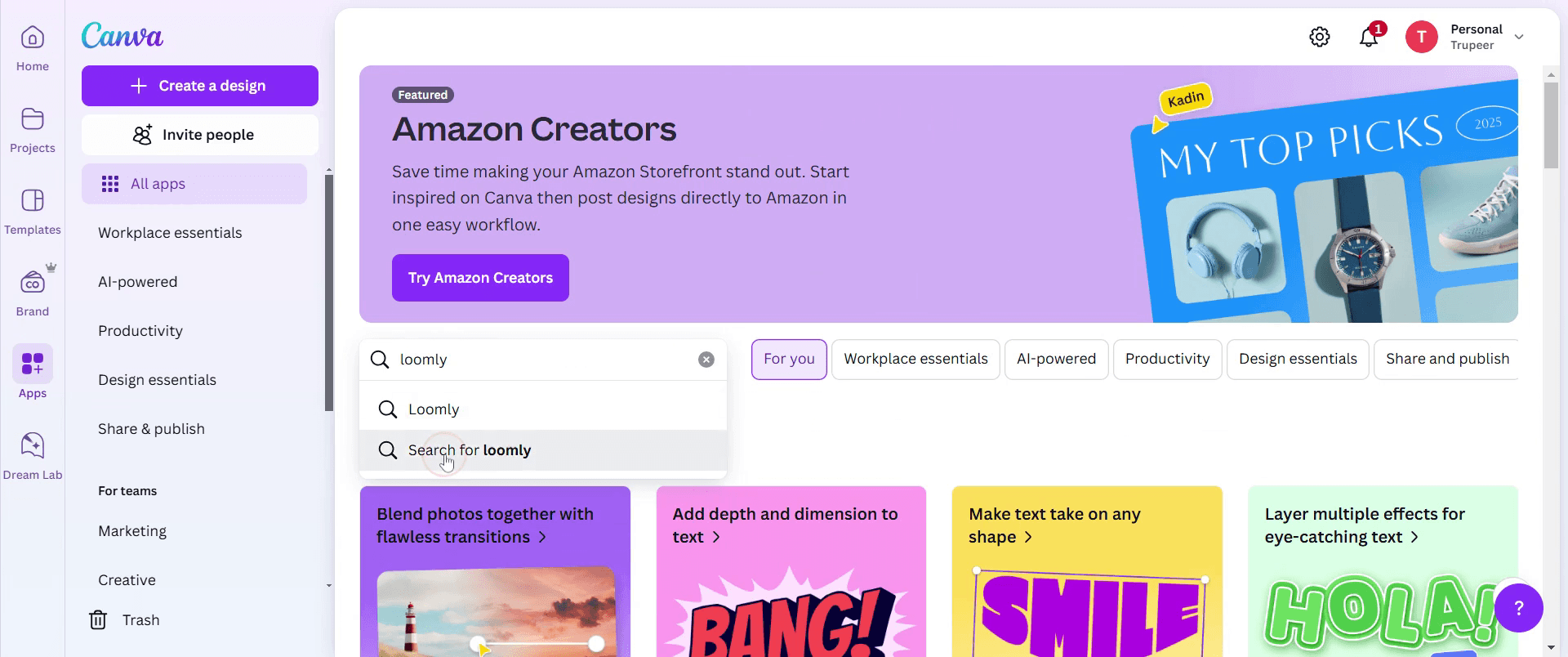
Step 3
Select Loomly,
Step 4
Click on Use existing design.
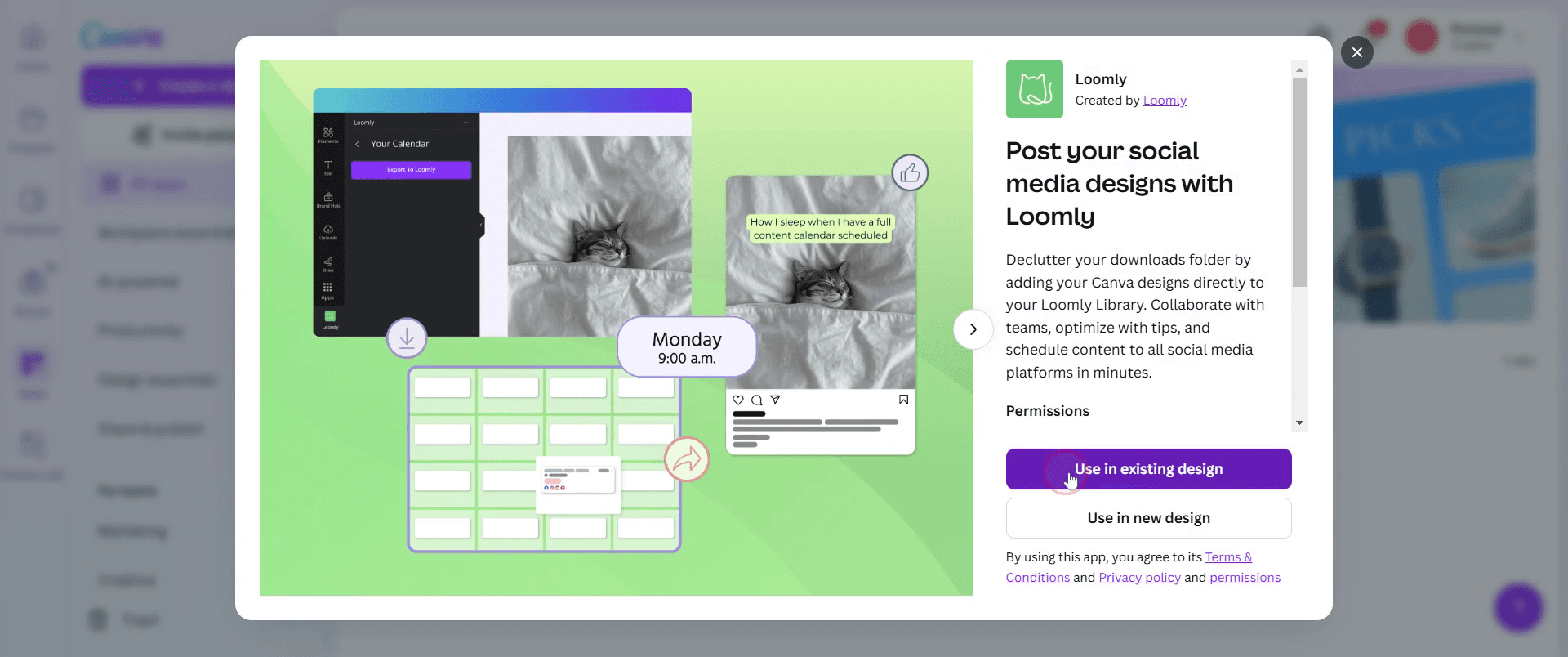
Step 5
Click on Your projects.
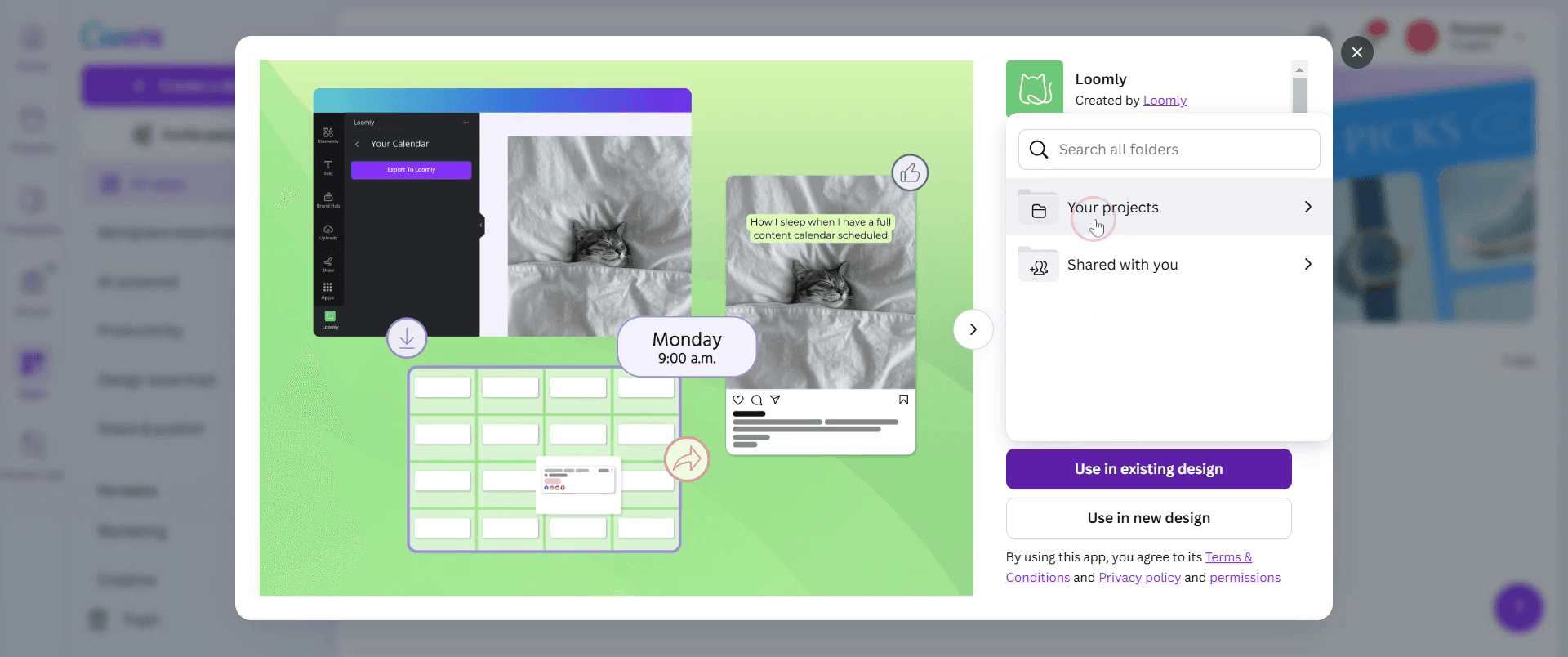
Step 6
Select the existing project,
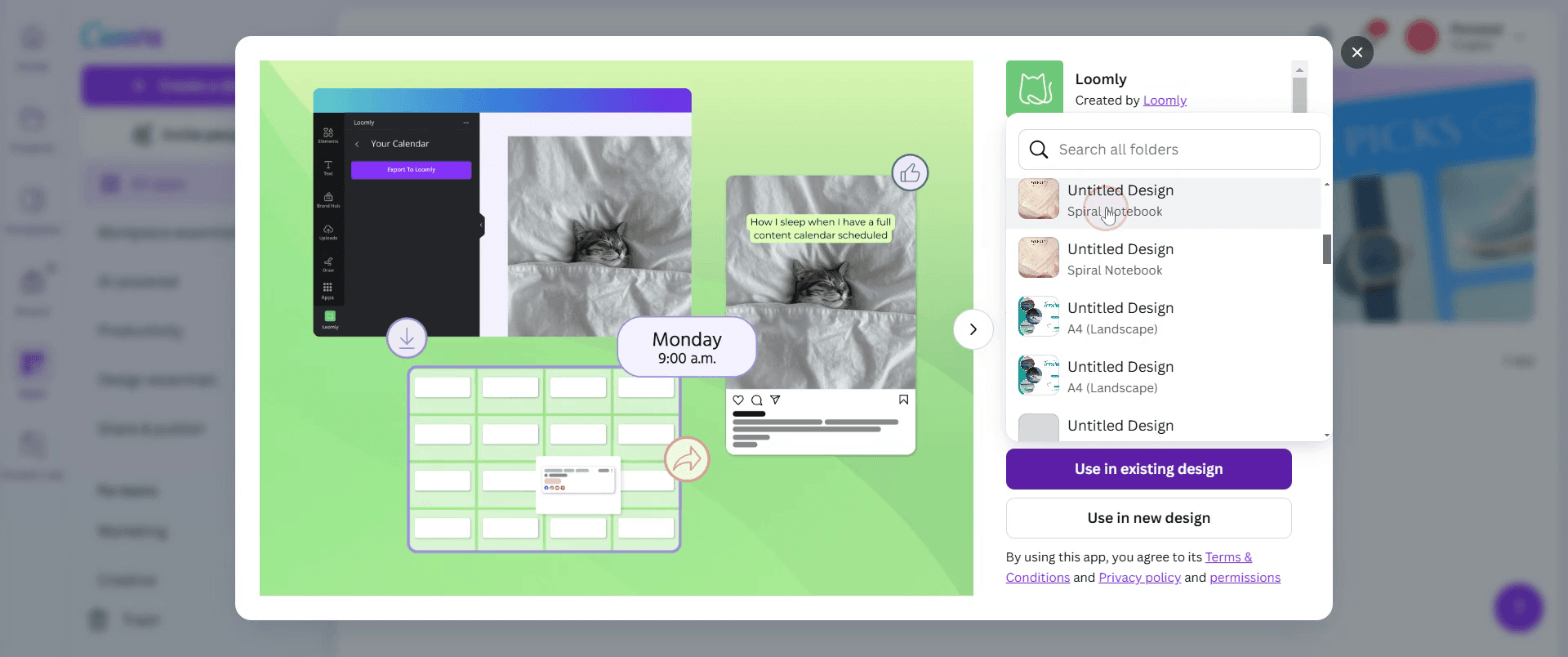
Step 7
Now you can see Loomly integrated with Canva.
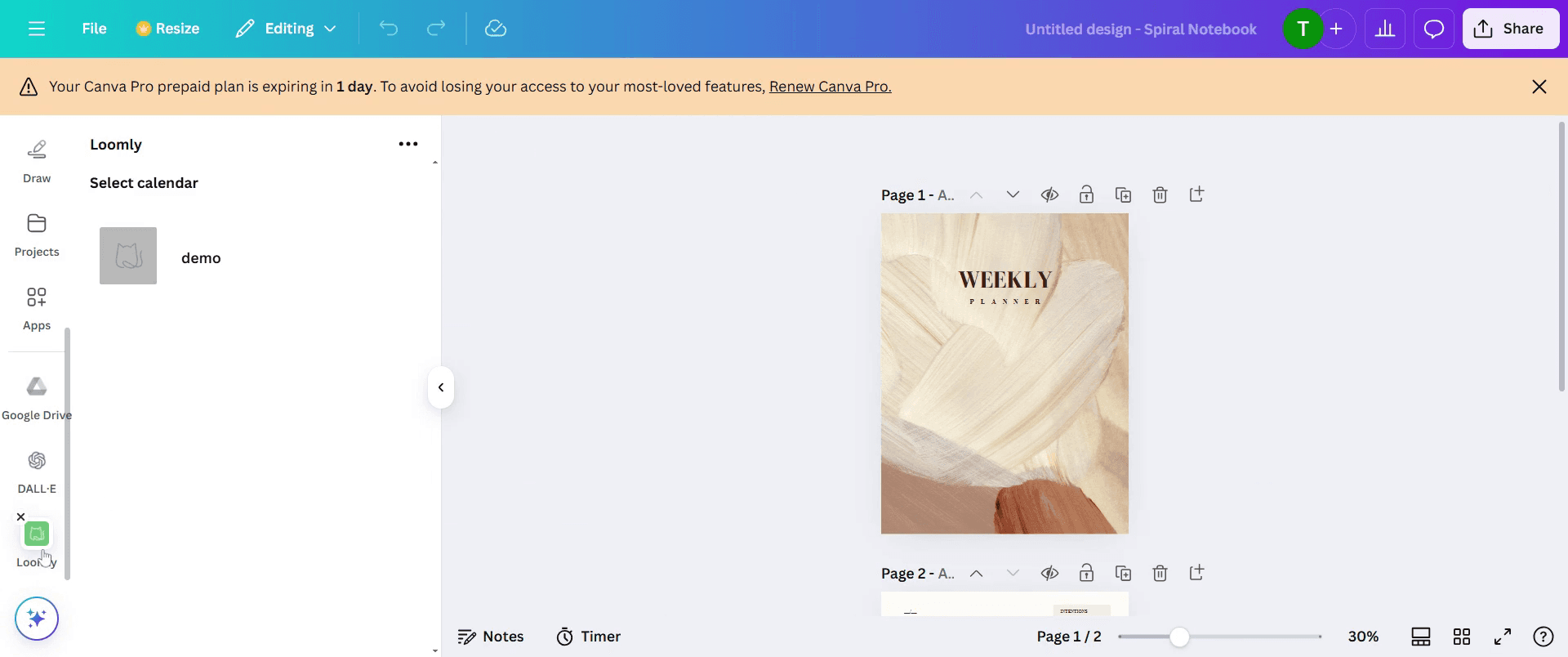
This is a step-by-step guide on ow to integrate Canva with Loomly.
Pro tips for how to integrate Canva with Loomly
Ensure your Canva designs are in the correct file format (PNG, JPG, or PDF) for seamless uploads to Loomly.
Organize your Canva assets in folders to easily locate and upload them to Loomly without delays.
Use transparent PNGs when creating graphics in Canva to maintain high quality and professional branding on Loomly.
Common pitfalls and how to avoid them
Uploading large file sizes—opt for optimized PNGs or JPGs to prevent slow loading times in Loomly.
Not checking image dimensions—verify that Canva designs match Loomly’s recommended sizes to avoid cropping or distortion.
Forgetting to link accounts—ensure Canva and Loomly are properly connected for smooth integration and content scheduling.
Common FAQs for how to integrate Canva with Loomly
What file formats should i use when uploading Canva designs to Loomly?
PNG and JPG are recommended for images, while MP4 works best for videos.Can i edit my Canva design in Loomly after uploading?
No, edits must be made in Canva before uploading the final version to Loomly.Why is my Canva image not fitting correctly in Loomly?
Check Loomly’s recommended image dimensions and adjust your Canva design accordingly.Can i schedule Canva-created content directly in Loomly?
Yes, after uploading your Canva design, you can schedule posts within Loomly’s content calendar.
If you're an instructor or content creator looking to make tutorial videos, give a try. It transforms rough screen recordings into polished, studio-style videos that are ready for sharing with your audience. Plus, it automatically generates a step-by-step guide based on the video you create. Fascinating, right? Start by creating your first tutorial for free with trupeer.ai .

