
How To Integrate Click Up With Harvest
Unlock the potential of ClickUp and Harvest integration. Follow our comprehensive guide to streamline your workflow and boost productivity effortlessly.
In this process, you will learn how to integrate Click Up with harvest by setting up a series of steps using the Zapier platform. This integration will help automate tasks between Click Up and other applications.
Step 1
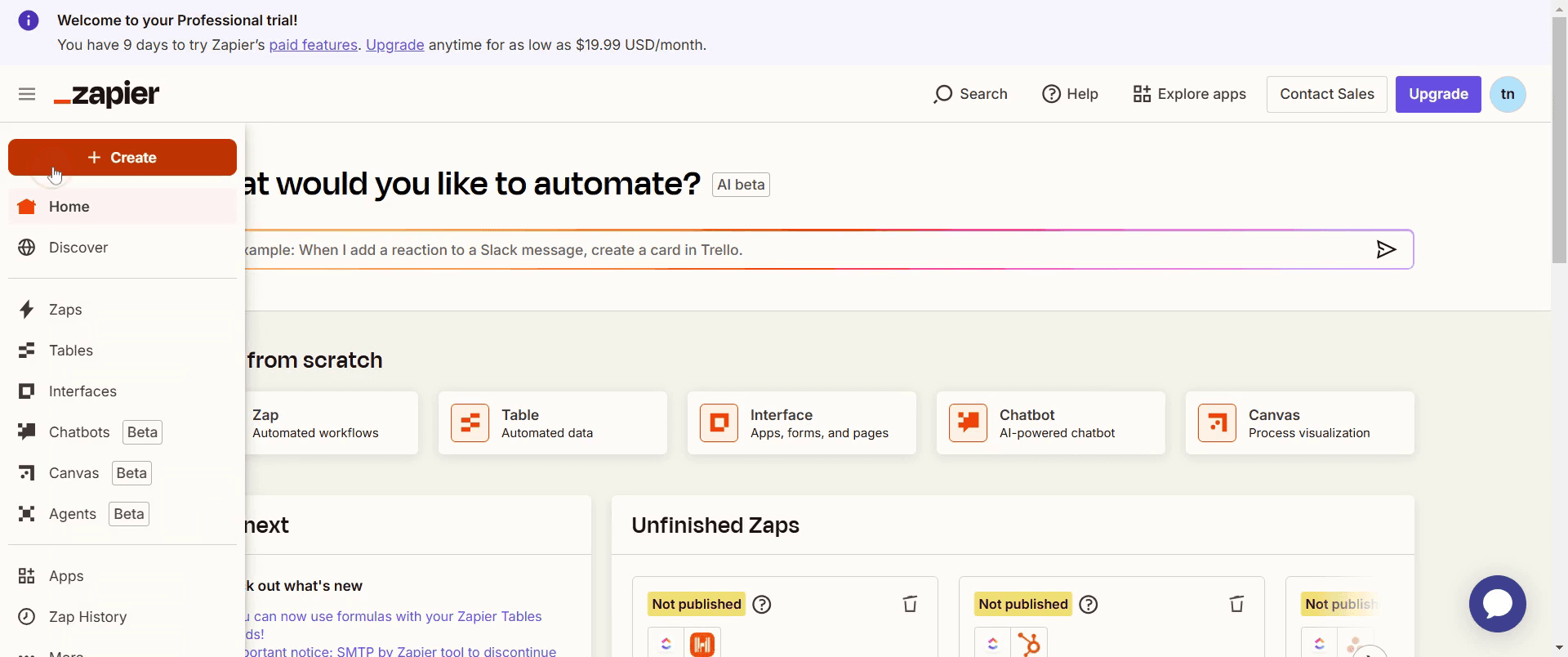
Select the Create button,
Step 2
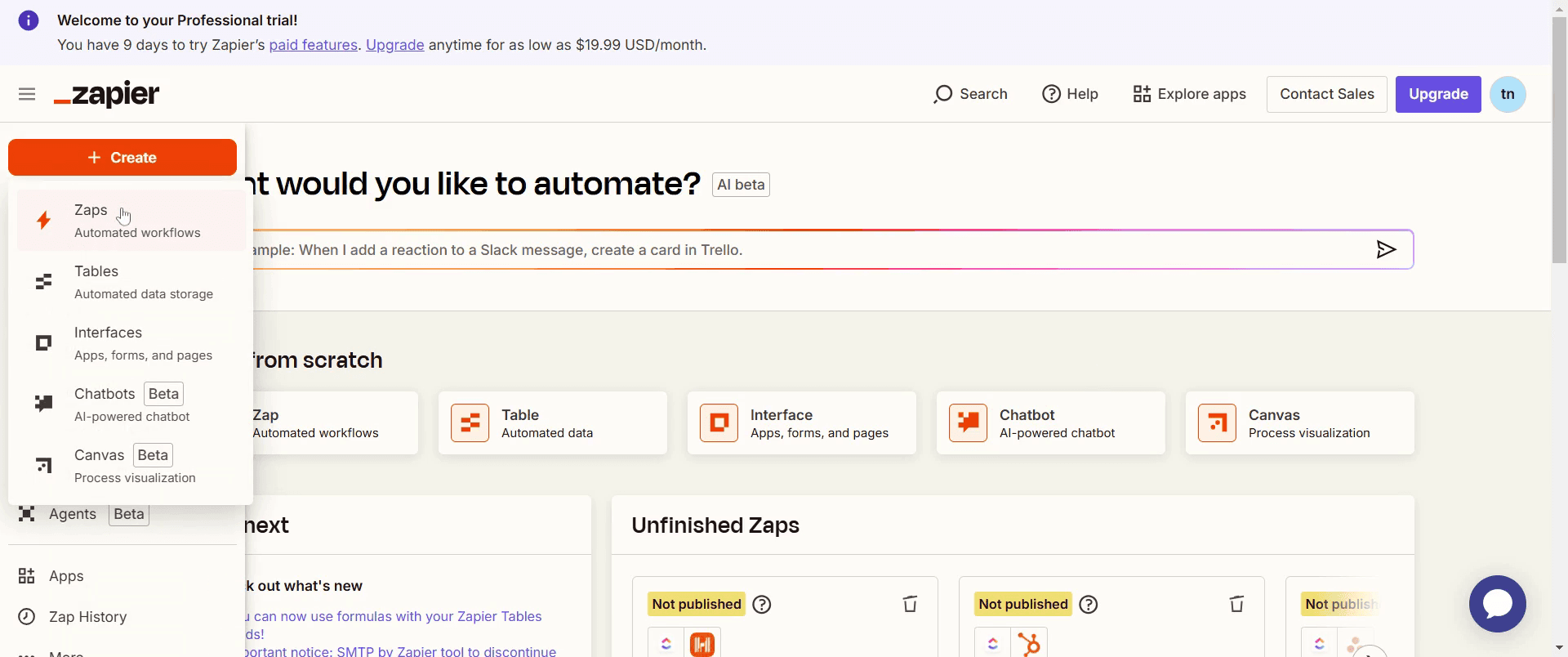
Then click on Zaps option.
Step 3
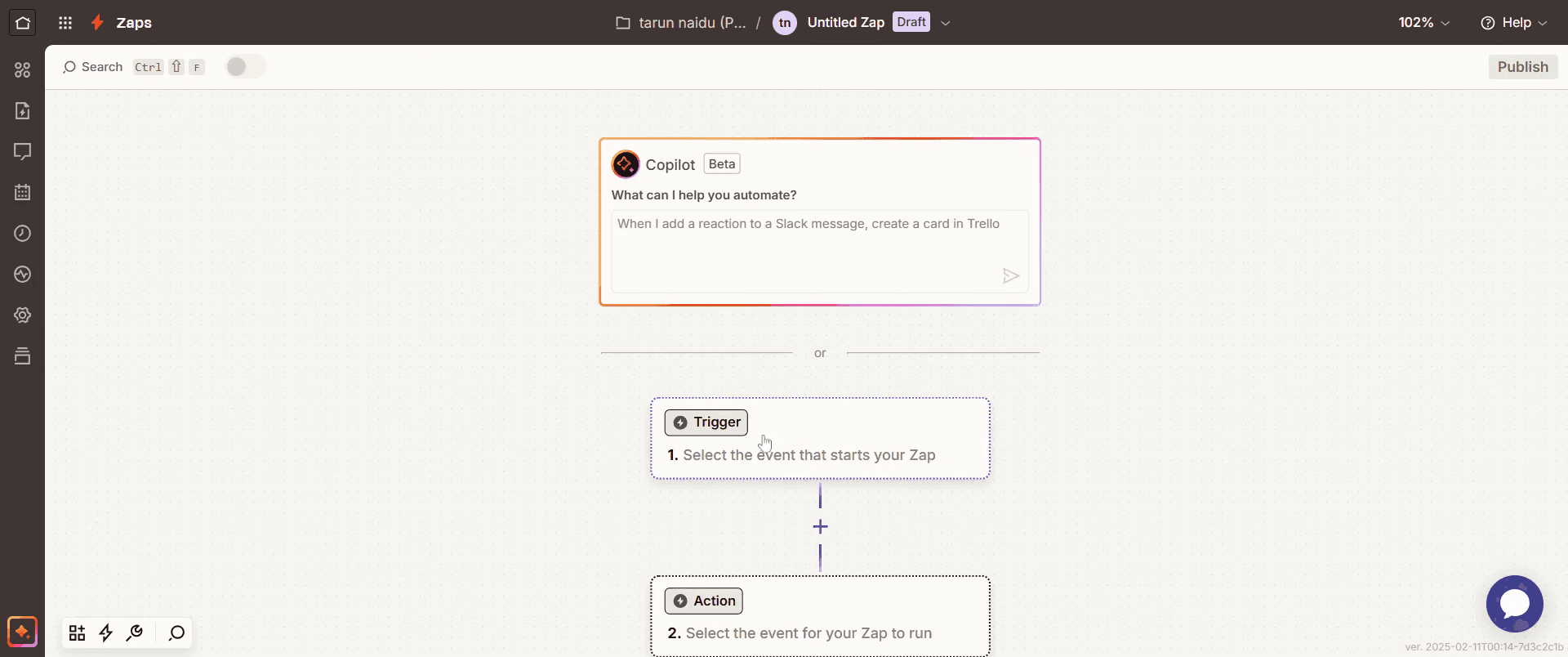
Then select Trigger.
Step 4
Choose Click Up from the search menu.
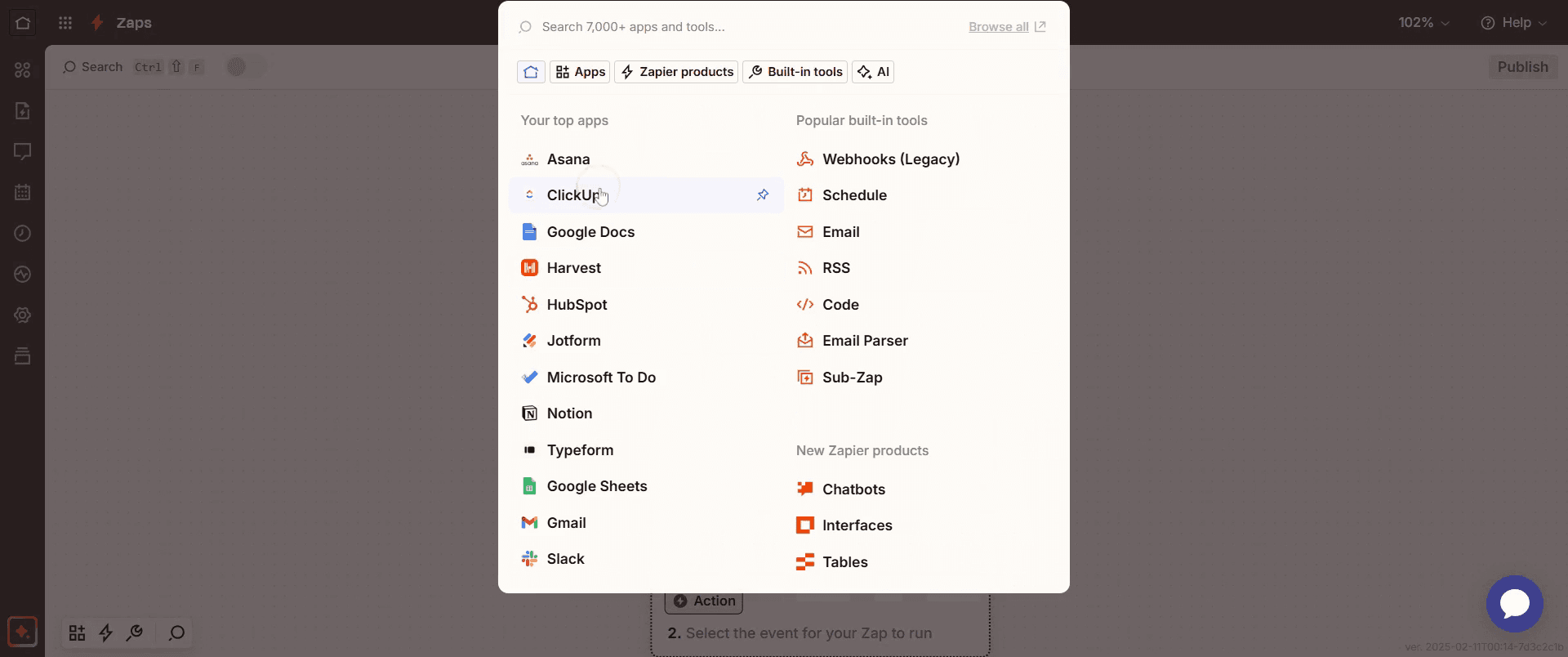
Step 5
Select a Trigger event that best suits your requirements.
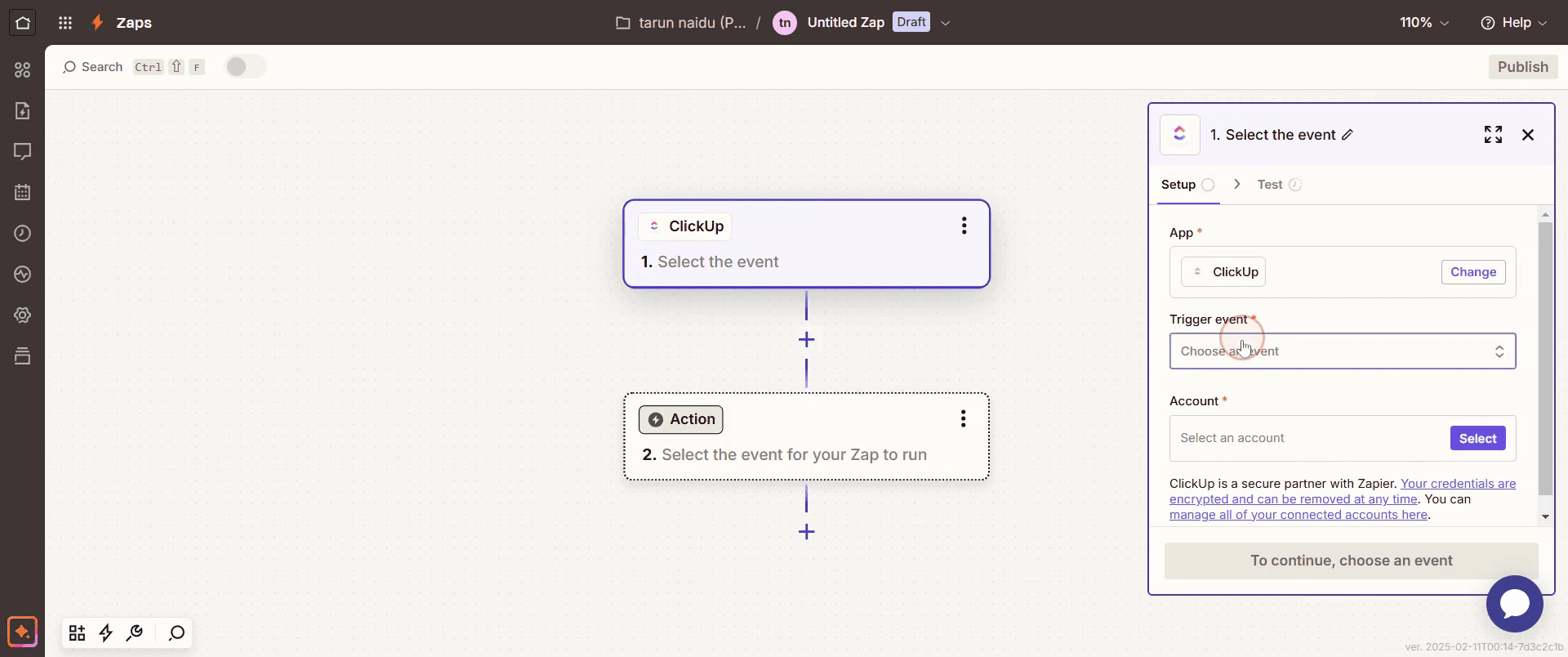
Step 6
Then click Continue.
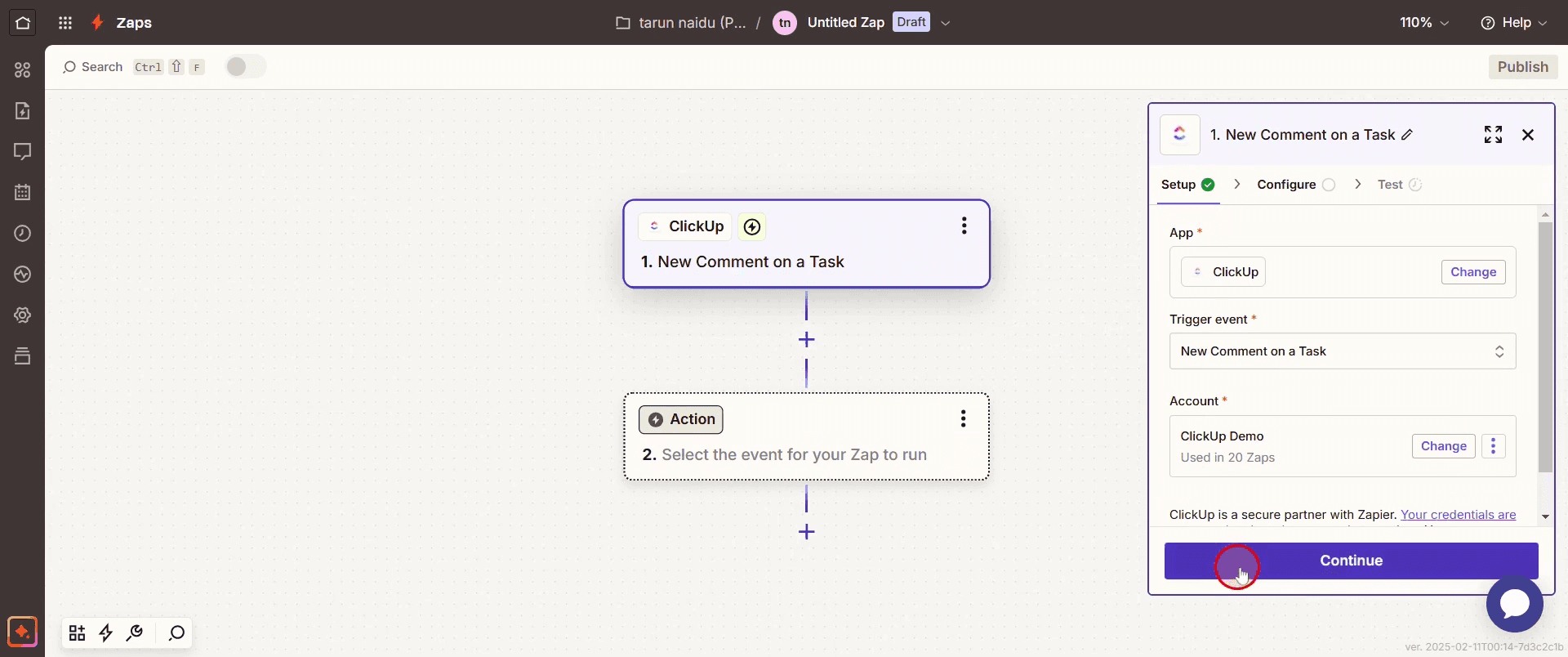
Step 7
Choose the appropriate Workspace.
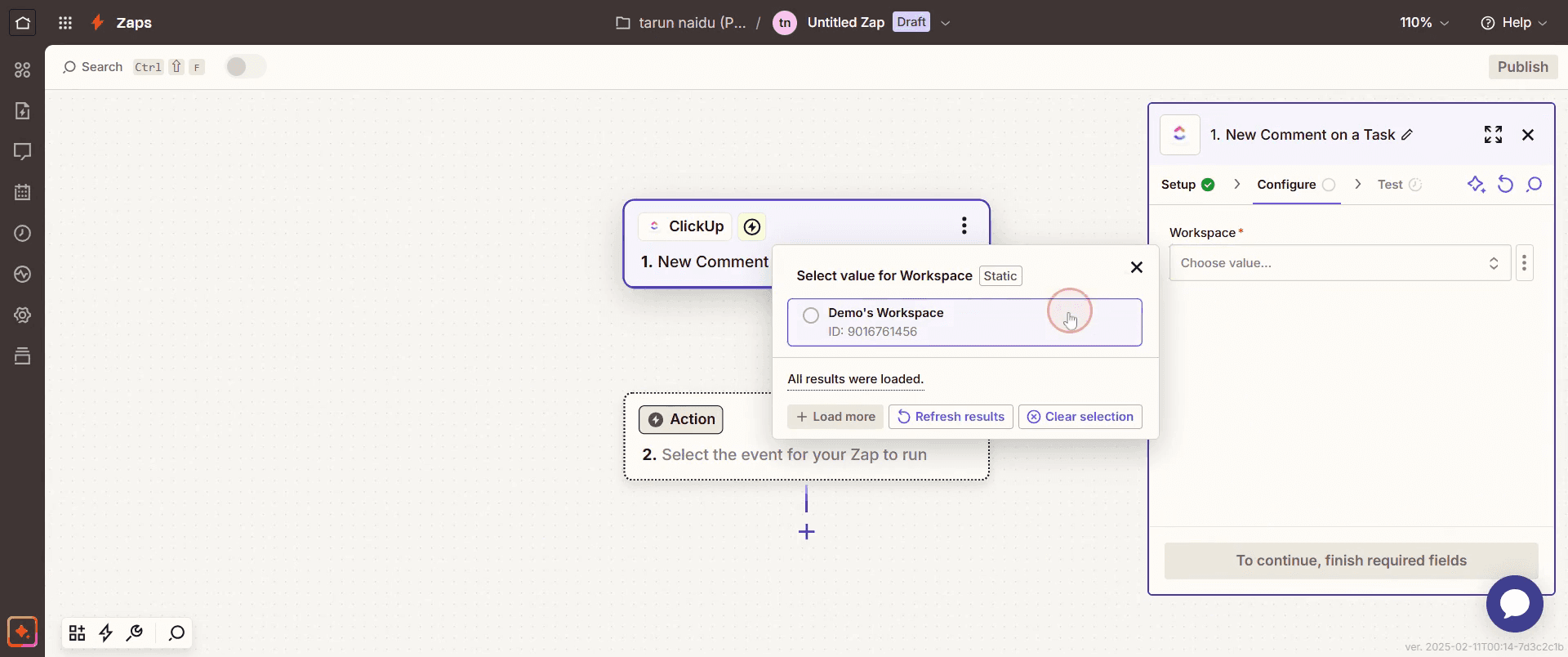
Step 8
Next click Continue.
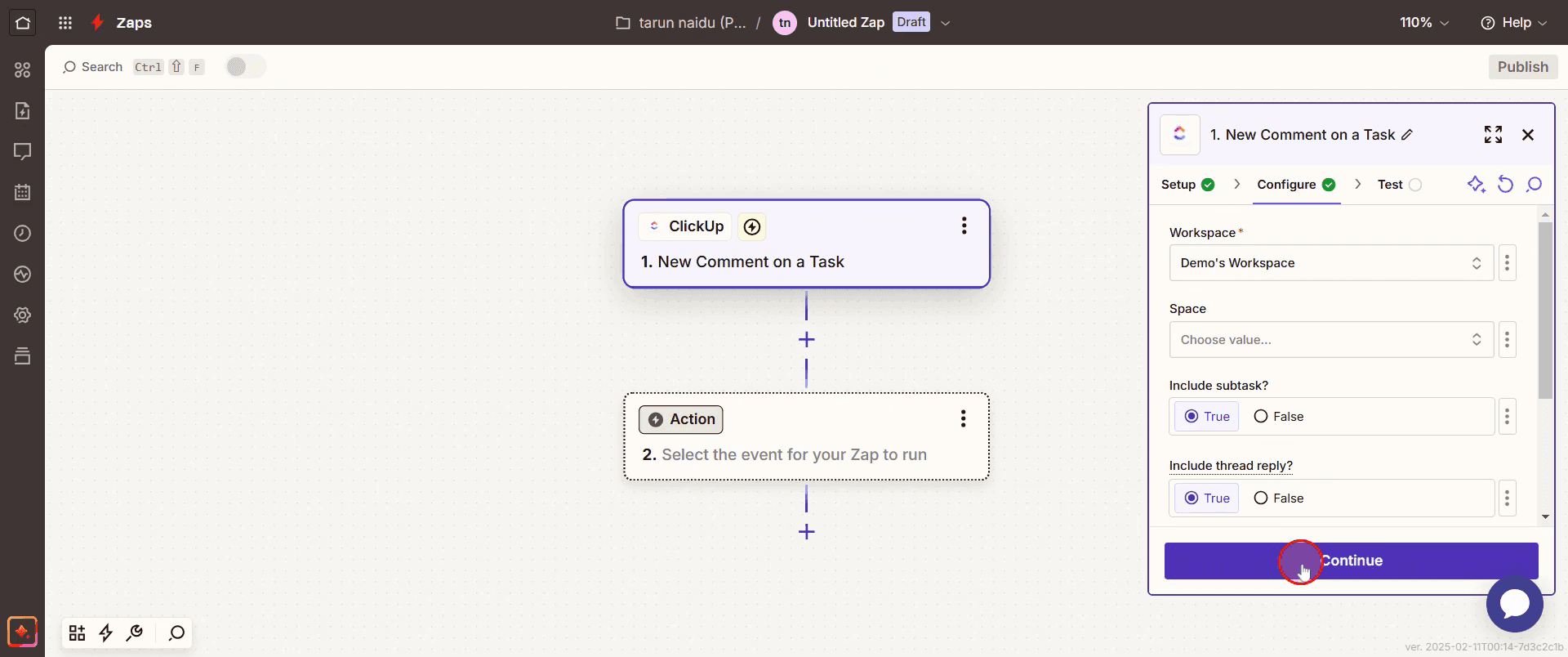
Step 9
Then select Test Trigger.
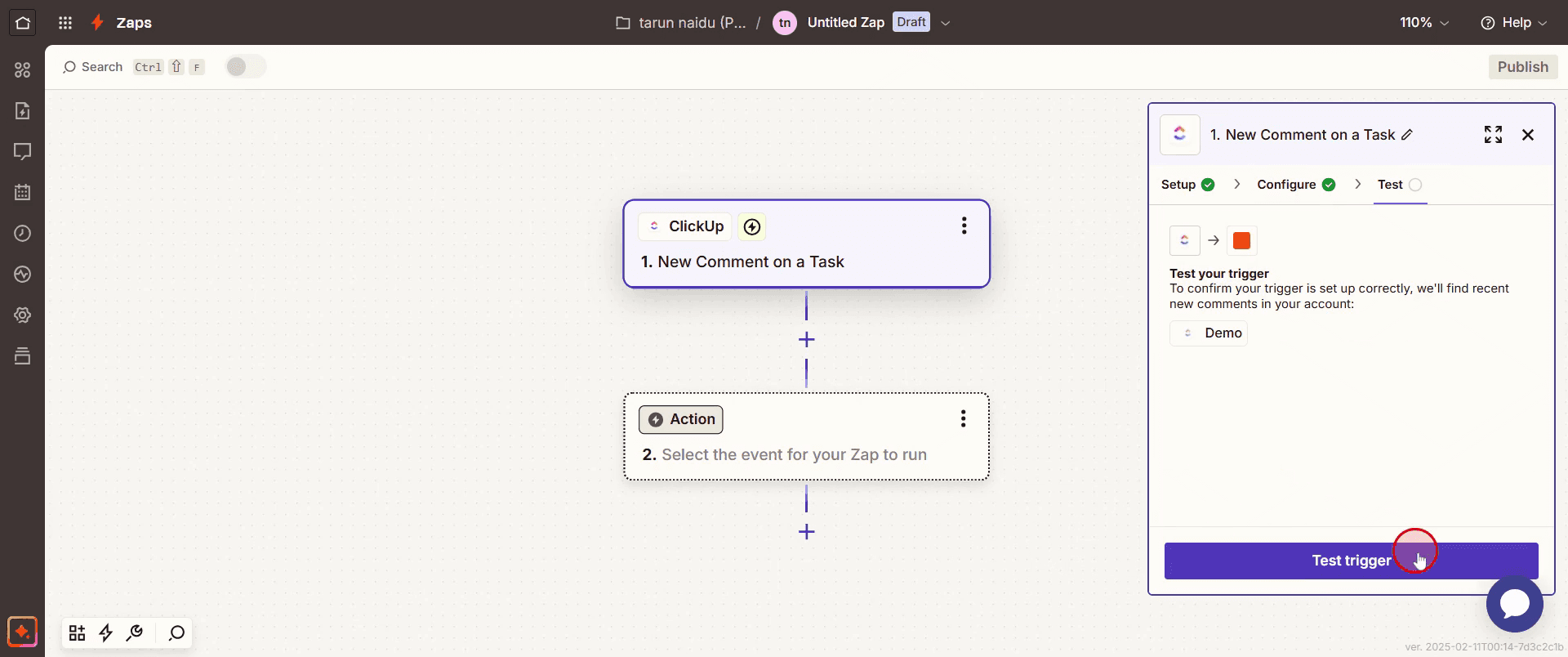
Step 10
Select the Skip Test.
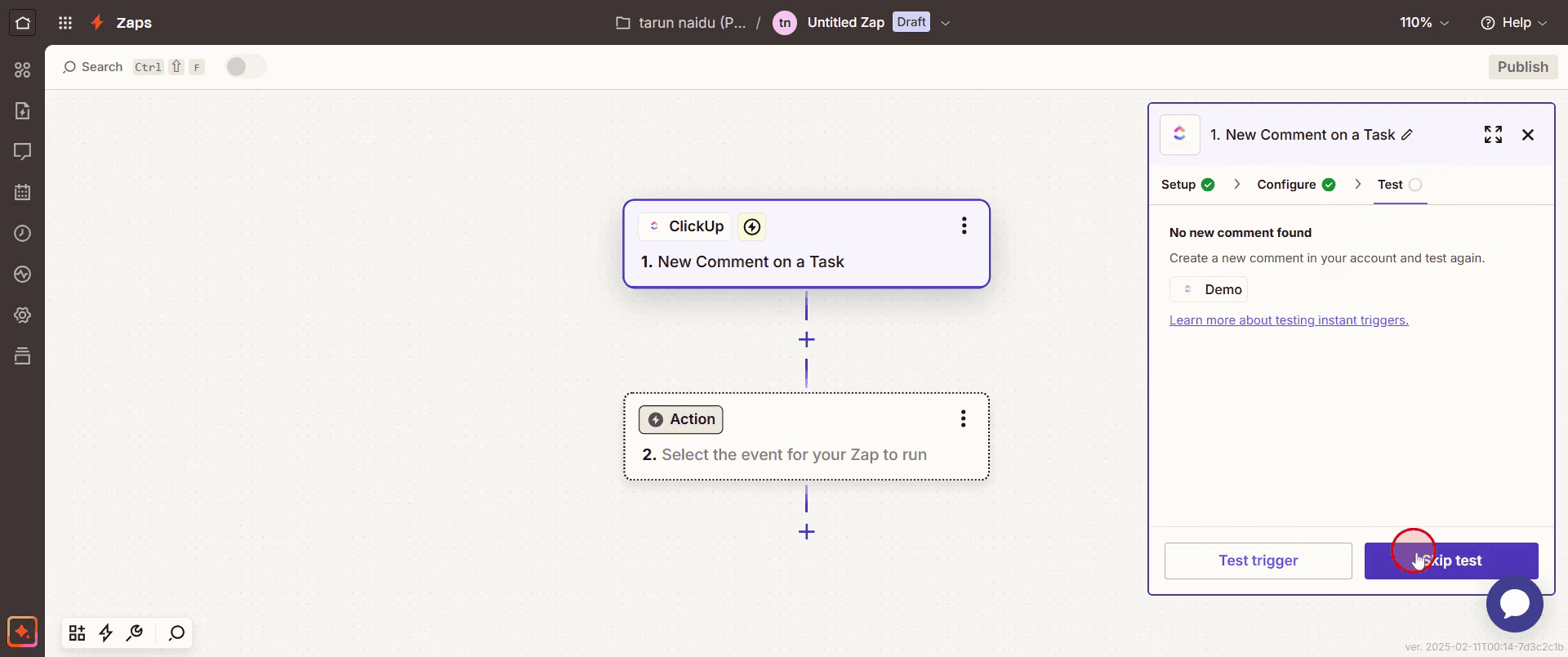
Step 11
Then click Continue.
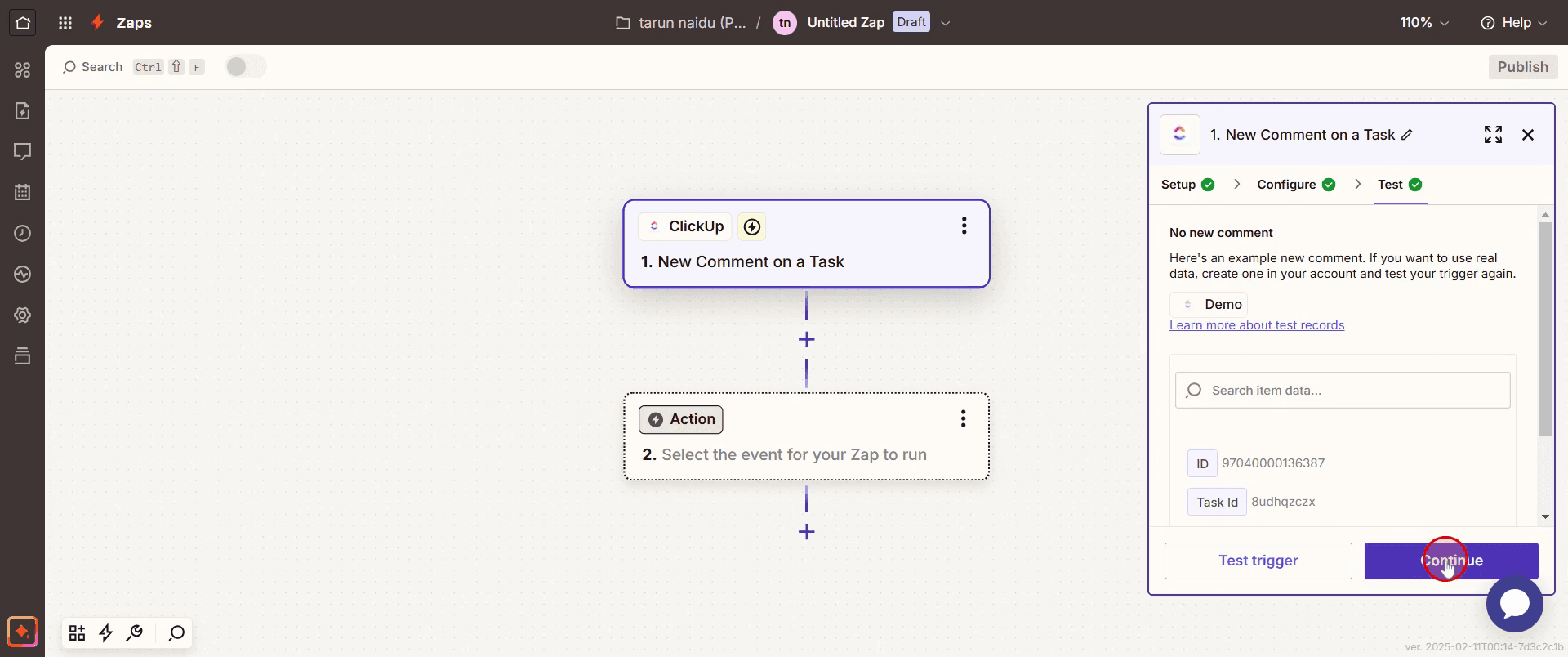
Step 12
Select the specific application you wish to integrate,
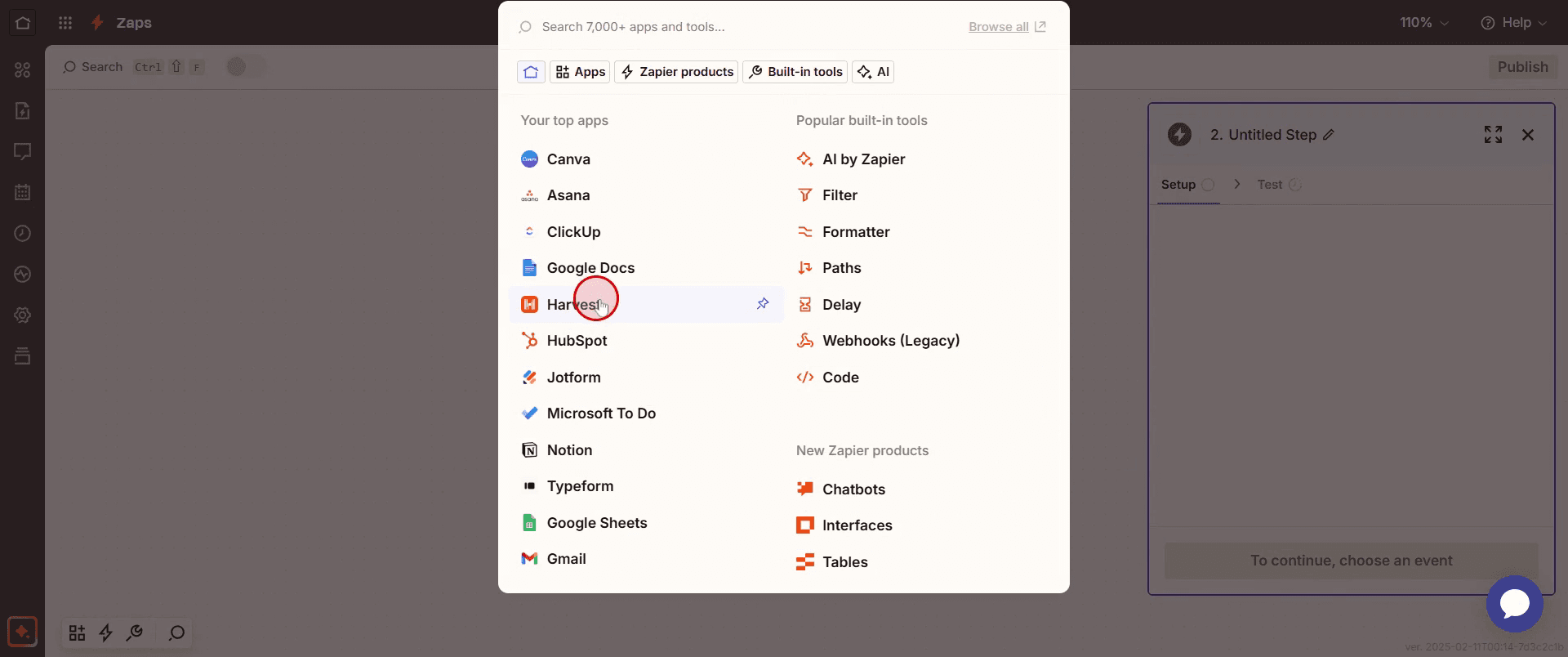
Step 13
Choose the desired Action event.
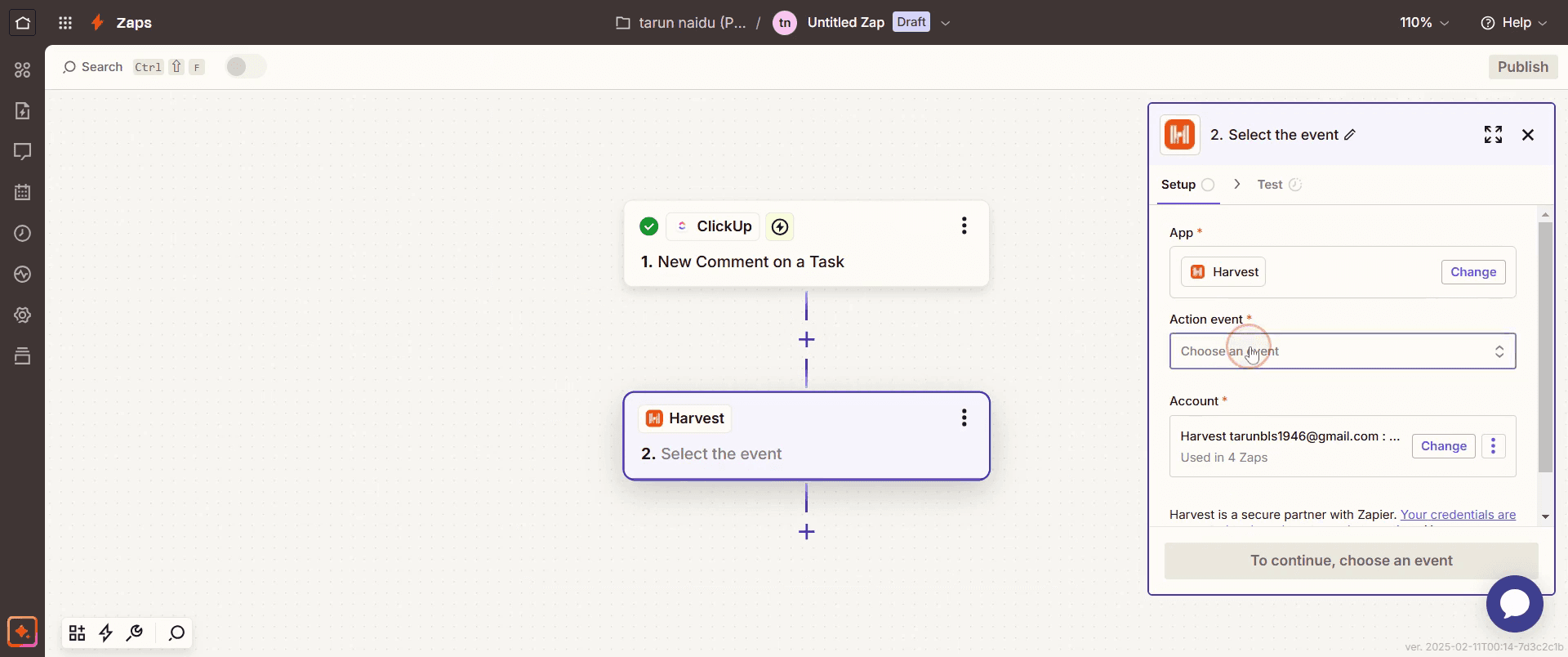
Step 14
Click Continue to proceed .
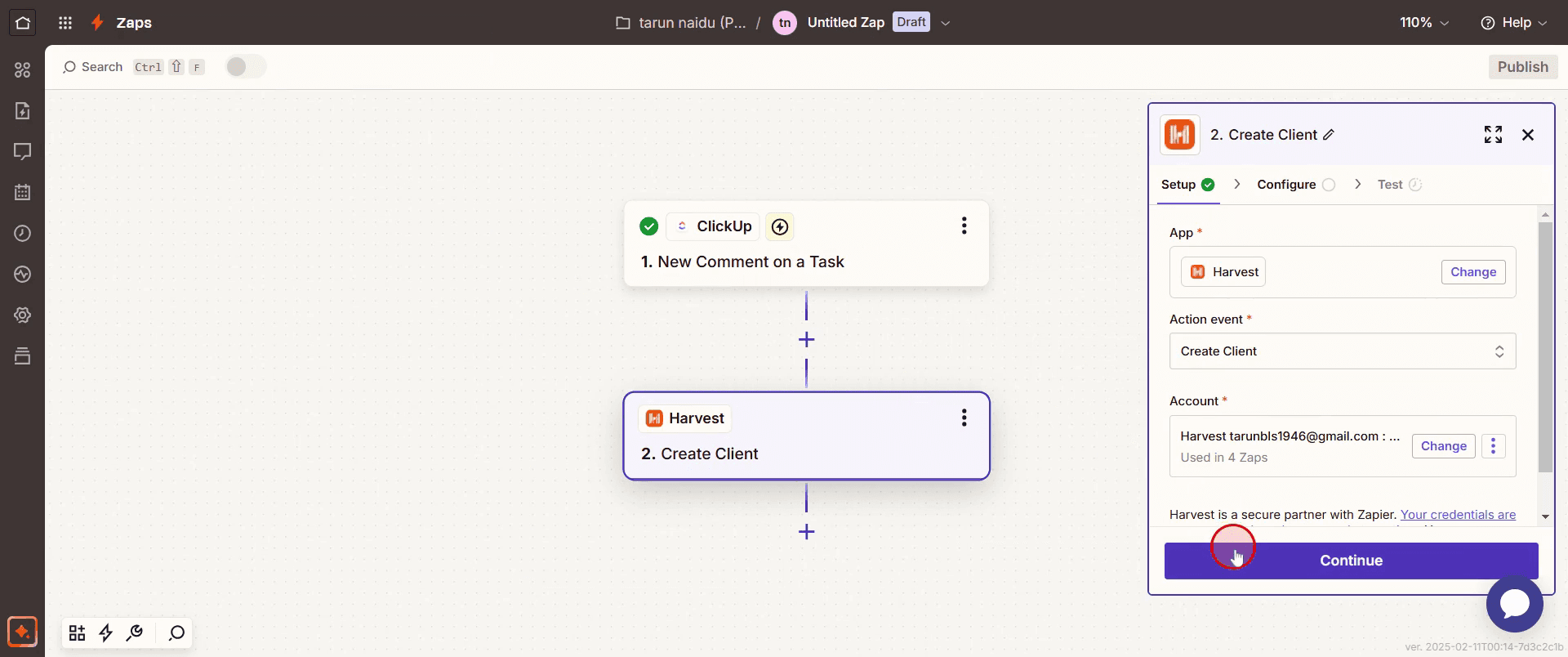
Step 15
And input the necessary name as per your requirements.
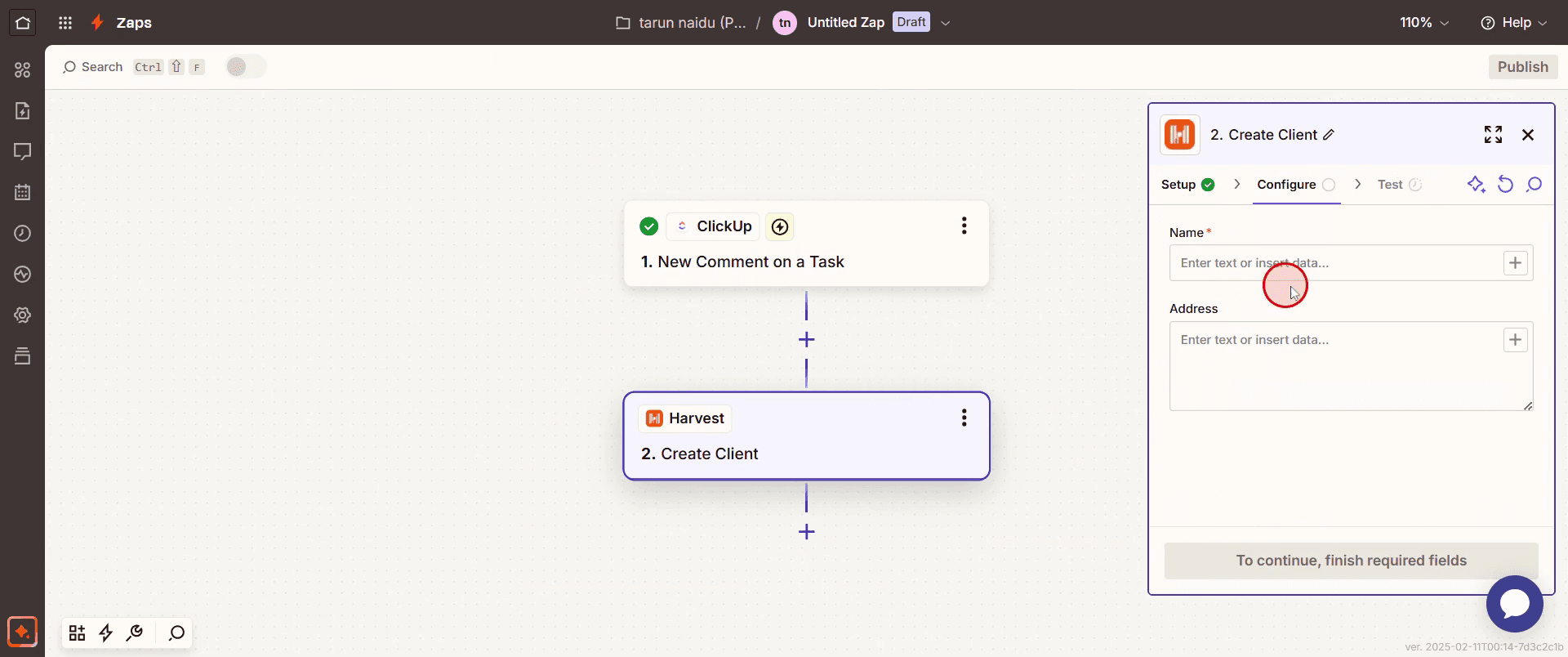
Step 16
Then click Continue.
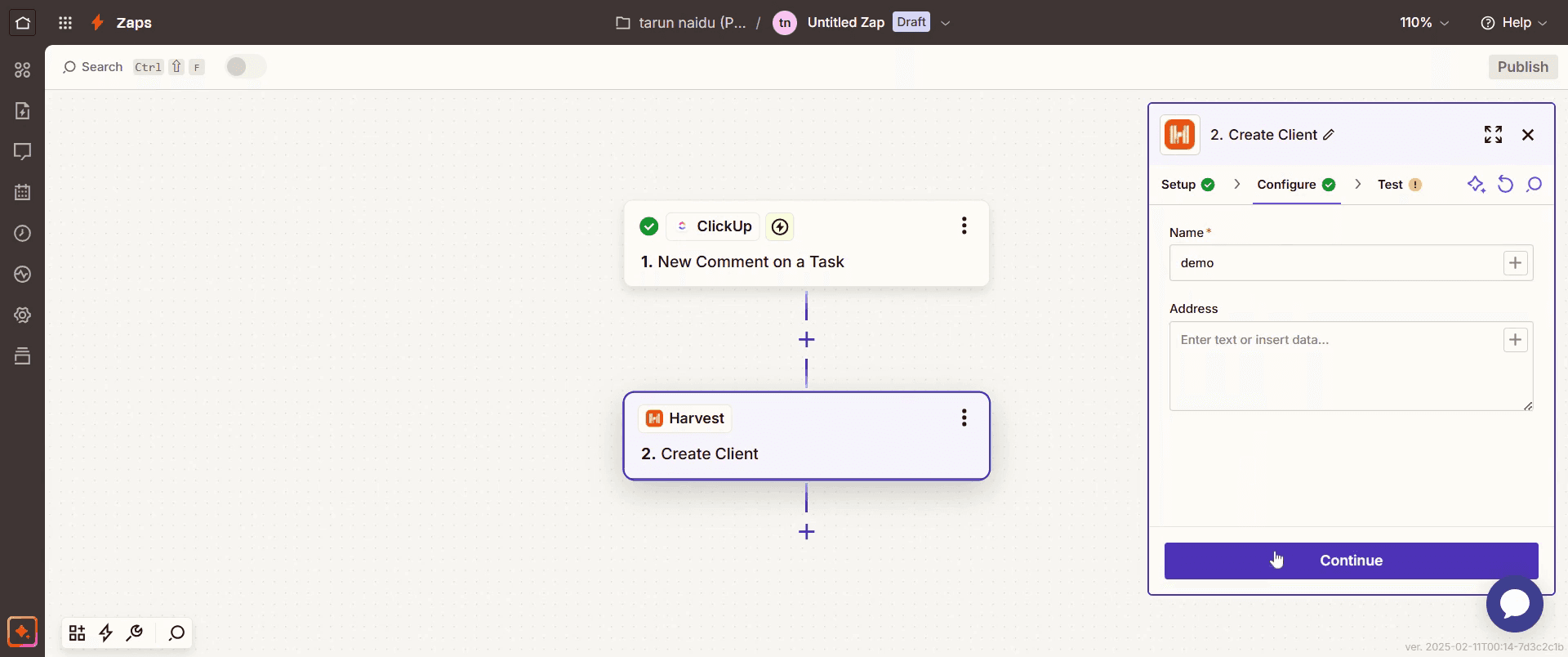
Step 17
And select Test Step.
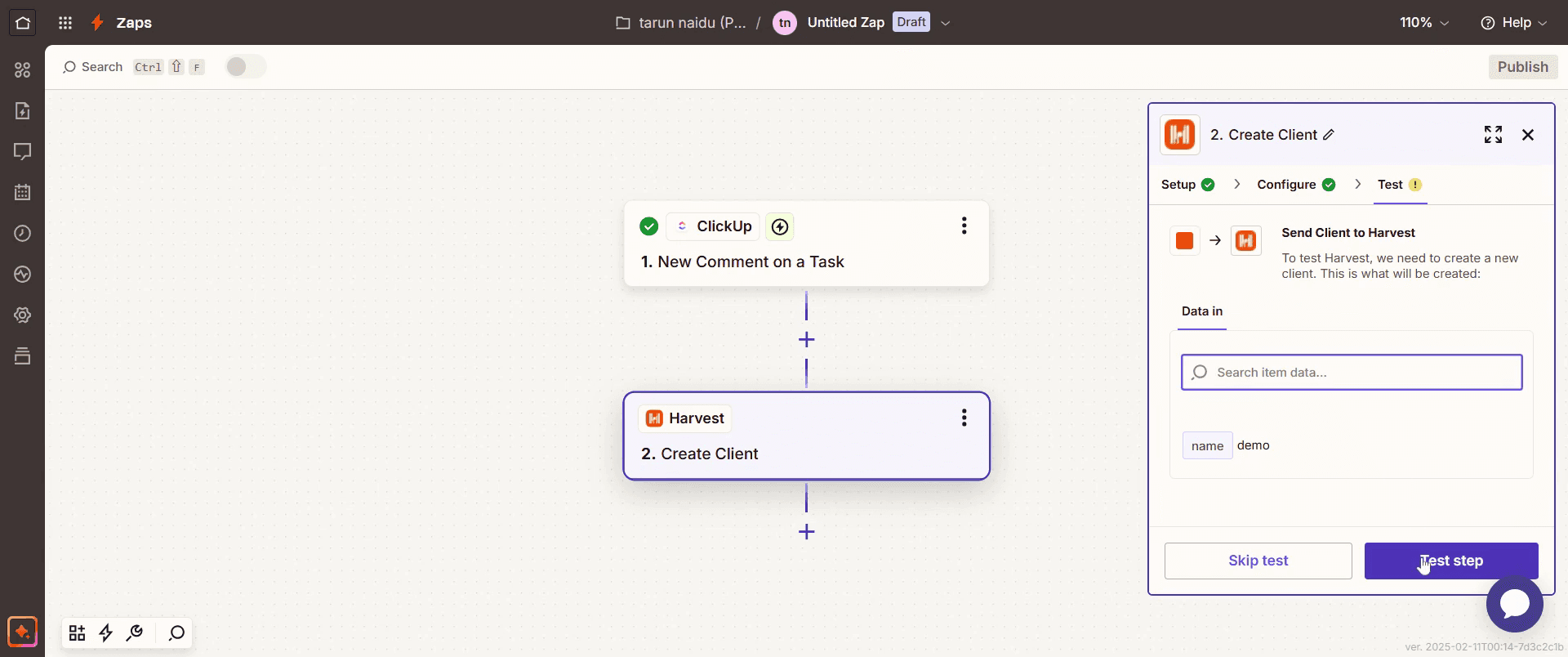
Step 18
And click Publish.
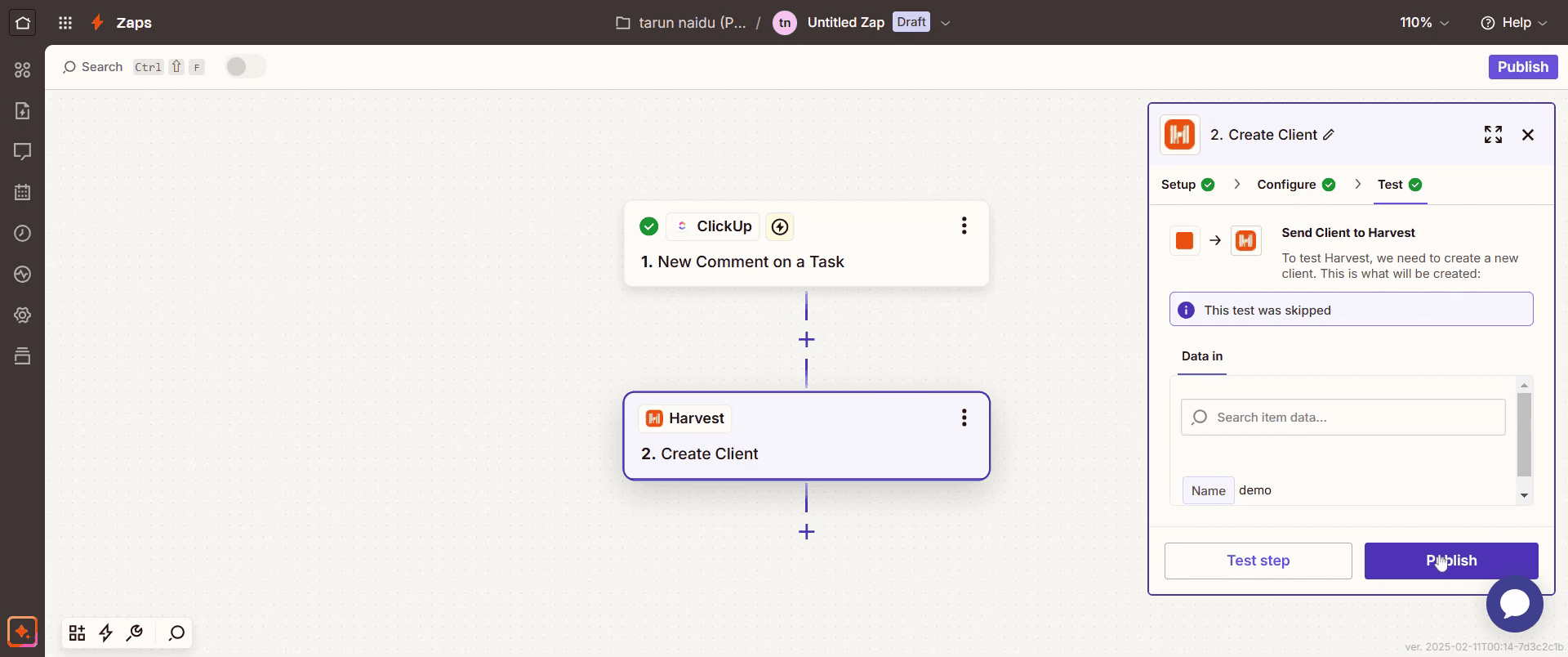
This is the step-by-step process to integrate Click Up with Harvest. Let’s look at some tips for it.
Pro tips for integrating Click Up with Harvest
Use the Native Click Up + Harvest Integration – Leverage the Click Up + Harvest integration to seamlessly track time spent on Click Up tasks. By syncing both platforms, you can automatically start and stop timers in Harvest based on task status in Click Up.
Set Up Task Time Tracking – When creating tasks in Click Up, make sure to link them to corresponding projects or tasks in Harvest. This allows for automatic synchronization of time tracked in Harvest to your Click Up tasks.
Organize Projects Efficiently – For better clarity, link your Click Up tasks and projects to Harvest’s time tracking categories. This organization helps you manage both task progress and the time spent on them across both tools.
Common pitfalls & how to avoid them
Forgetting to Sync Time Entries – Ensure that time entries from Harvest are being synced properly with Click Up. Without this, you may end up manually entering time or losing important data.
Ignoring Permissions – If you or your team do not have the right permissions in either Click Up or Harvest, syncing will not occur correctly. Verify that both platforms are set up to allow integration.
Incorrect Task Linking – If tasks in Click Up are not correctly linked to corresponding projects in Harvest, you may face difficulties in tracking time accurately. Always double-check task associations.
Common FAQs for integrating Click Up with Harvest
Can i track time on Click Up tasks in Harvest?
Yes, once integrated, Harvest allows you to track time directly on your Click Up tasks. You can start and stop the timer from within Click Up and have the time logged automatically in Harvest.Can i bill clients directly through Harvest after tracking time in Click Up?
Yes, Harvest allows you to mark time entries as billable and generate invoices for your clients based on the time tracked in Click Up. This makes client billing much easier and more accurate.Does the Click Up and Harvest integration work in real-time?
Yes, time entries from Harvest are synced in real-time with tasks in Click Up once the integration is set up correctly. However, it may require manual syncing if the integration is not fully configured.Is the Click Up and Harvest integration available in the Click Up free plan?
Yes, the basic integration between Click Up and Harvest is available in the free plan. However, for advanced automation features, you might need to explore Click Up’s paid plans or use additional third-party services like Zapier.
If you're an instructor or content creator looking to make tutorial videos, give a try. It transforms rough screen recordings into polished, studio-style videos that are ready for sharing with your audience. Plus, it automatically generates a step-by-step guide based on the video you create. Fascinating, right? Start by creating your first tutorial for free with trupeer.ai .

