
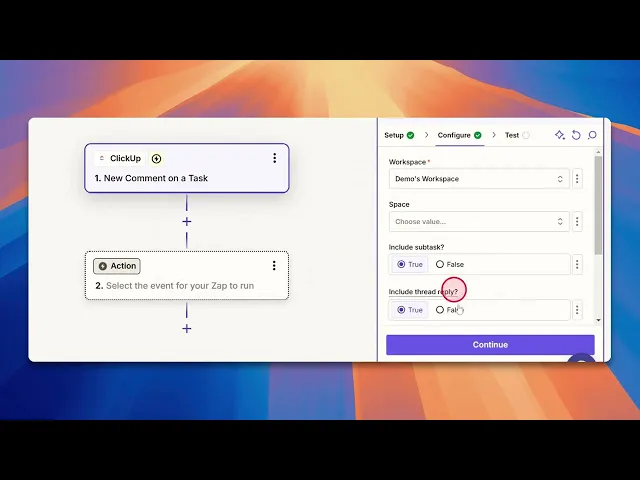
How To Integrate Click Up With HubSpot
Learn how to seamlessly integrate ClickUp with HubSpot. Boost your productivity and manage projects efficiently with our comprehensive guide.
This guide provides clear instructions on how to integrate Click Up with hub spot using Zapier. By following these steps, you will be able to set up automated workflows efficiently.
Step 1
Click on Create.
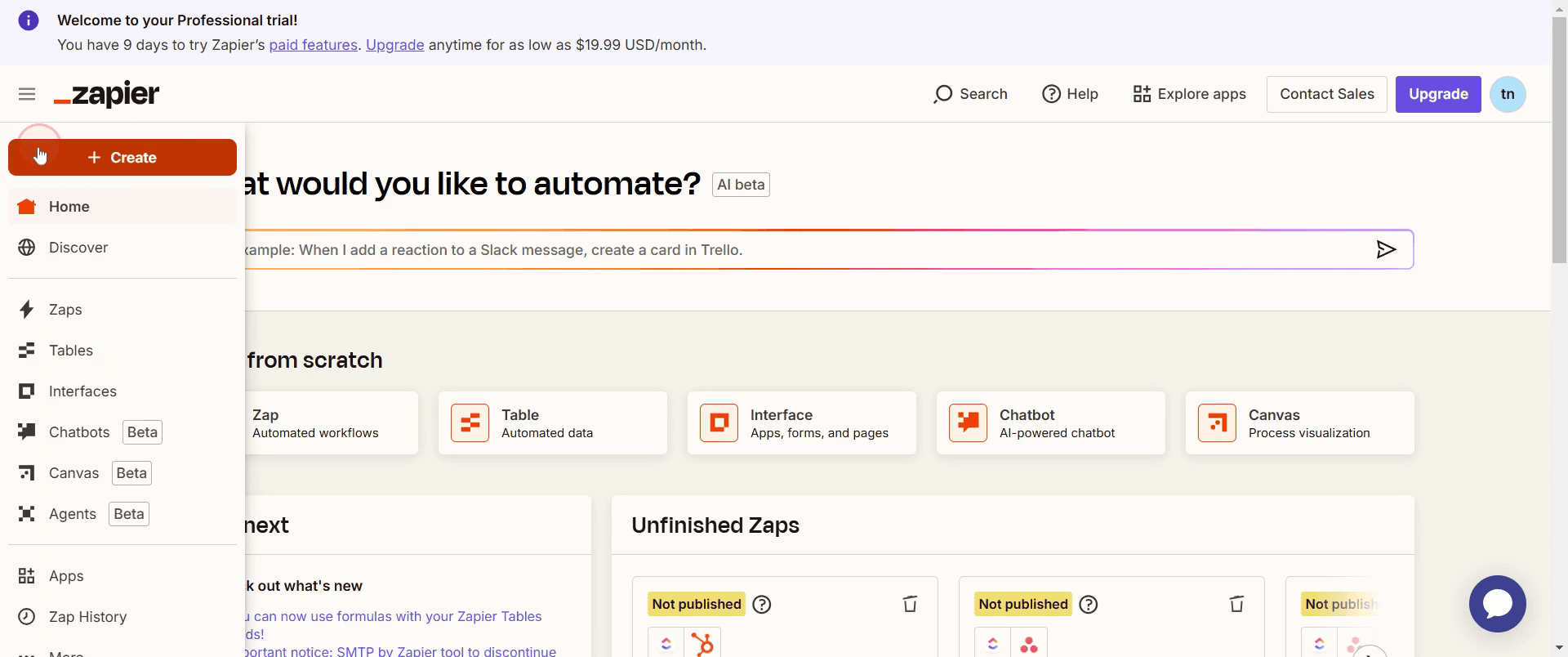
Step 2
Then selecting Zaps.
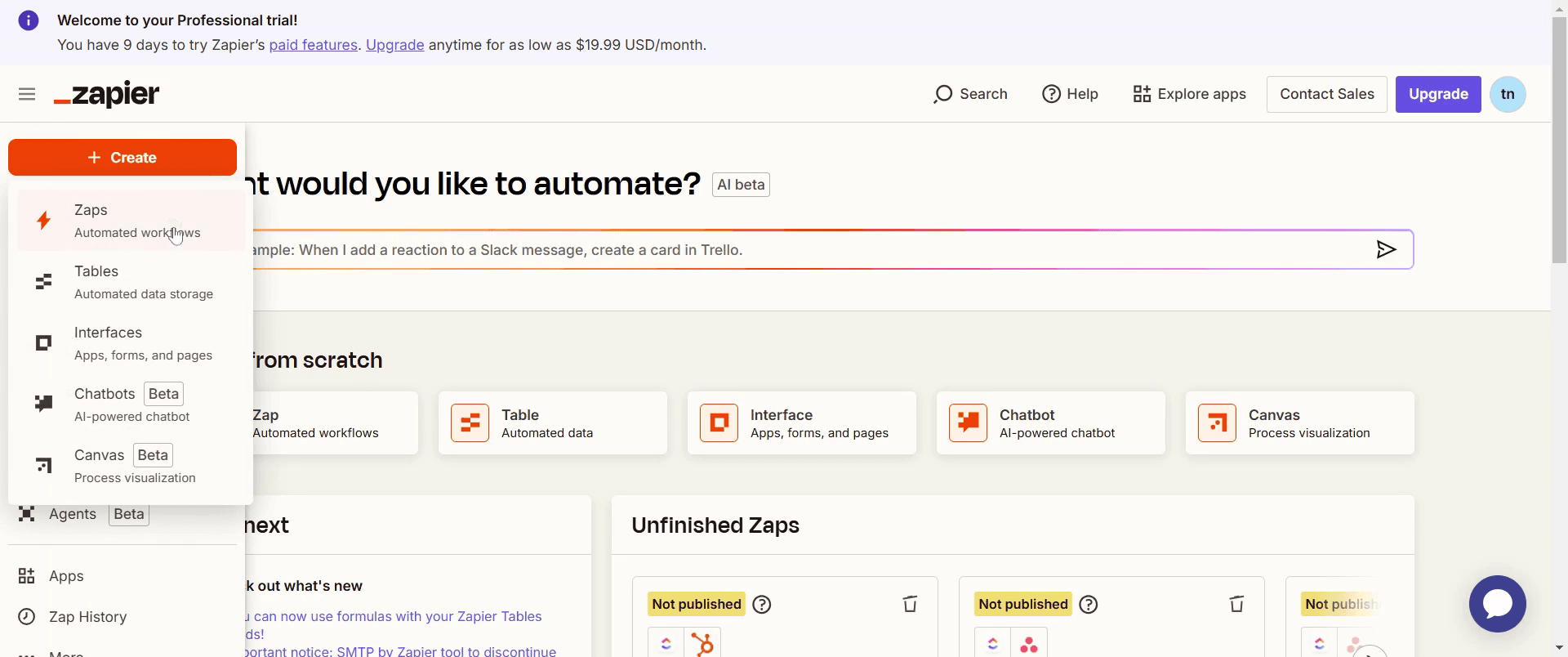
Step 3
Click on Trigger.
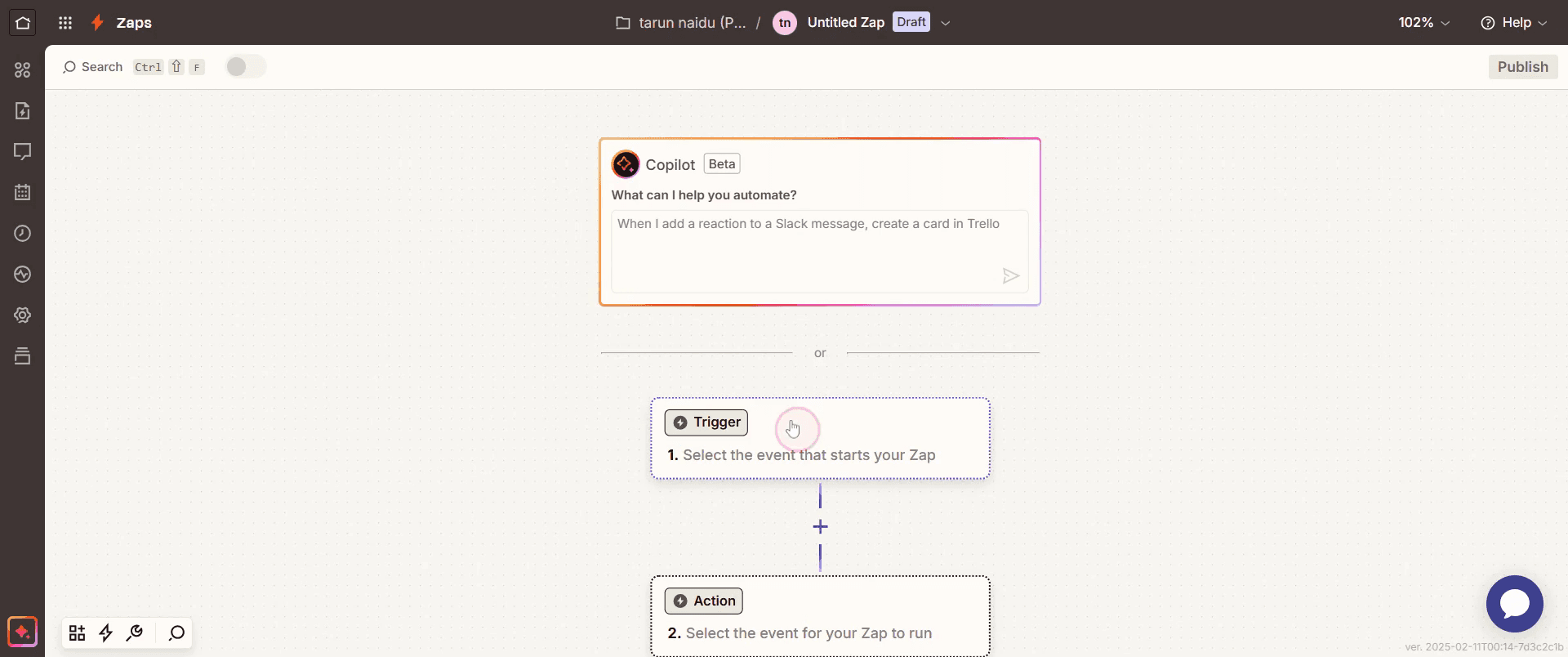
Step 4
Then select Click Up.
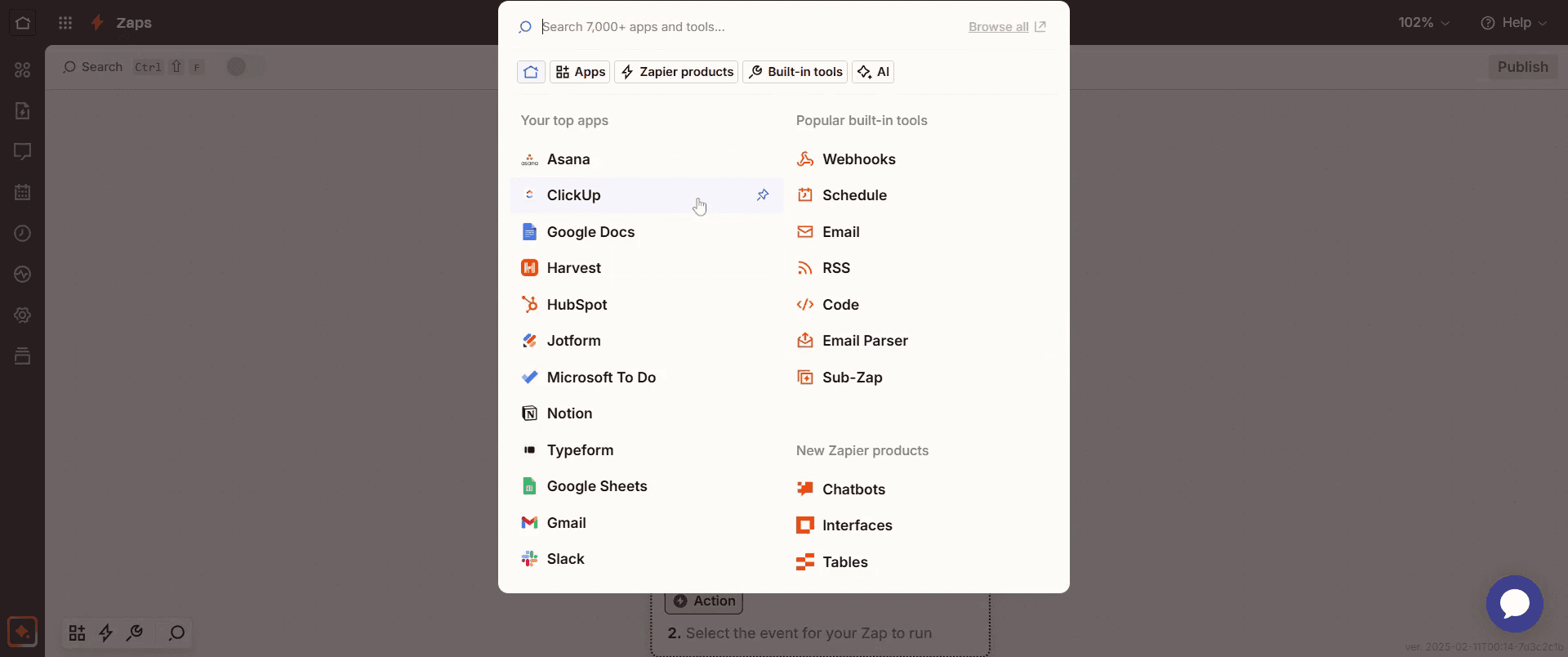
Step 5
Choose the trigger event that suits your requirements.
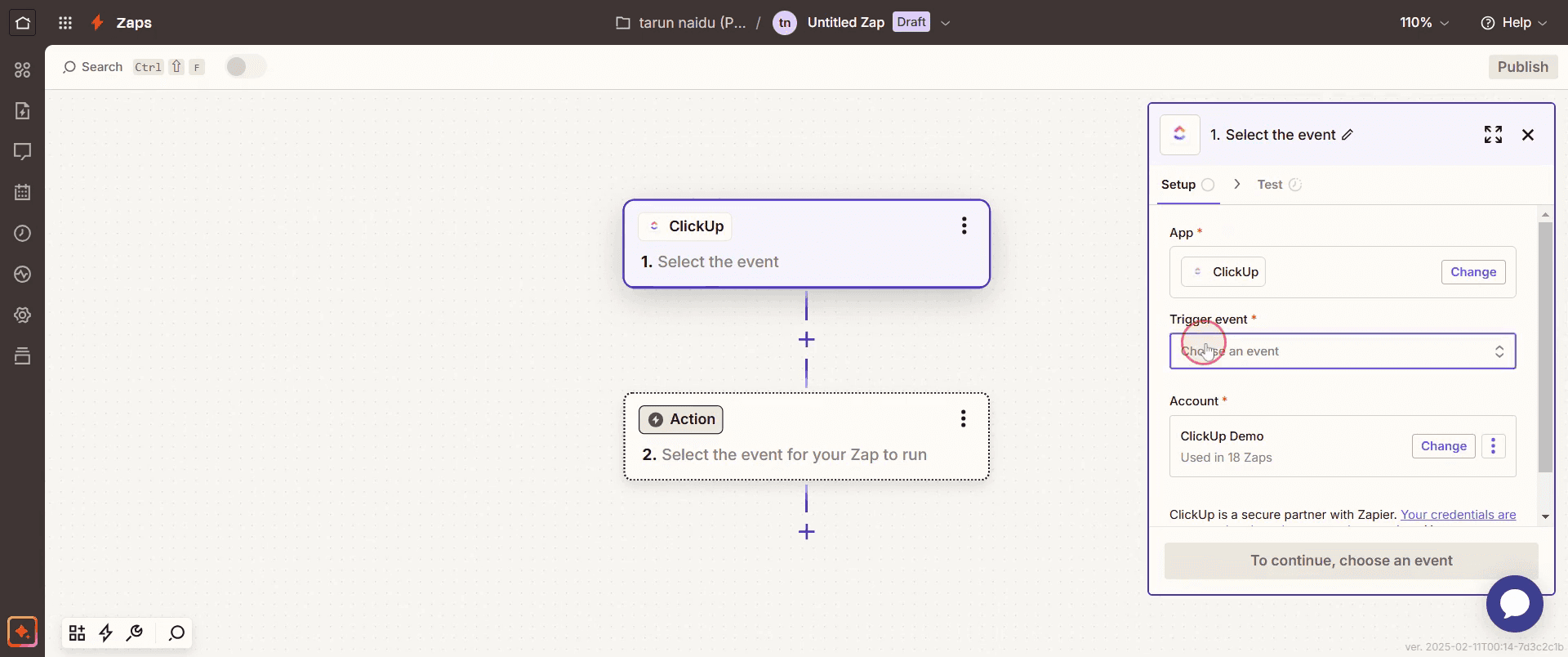
Step 6
And click Continue.
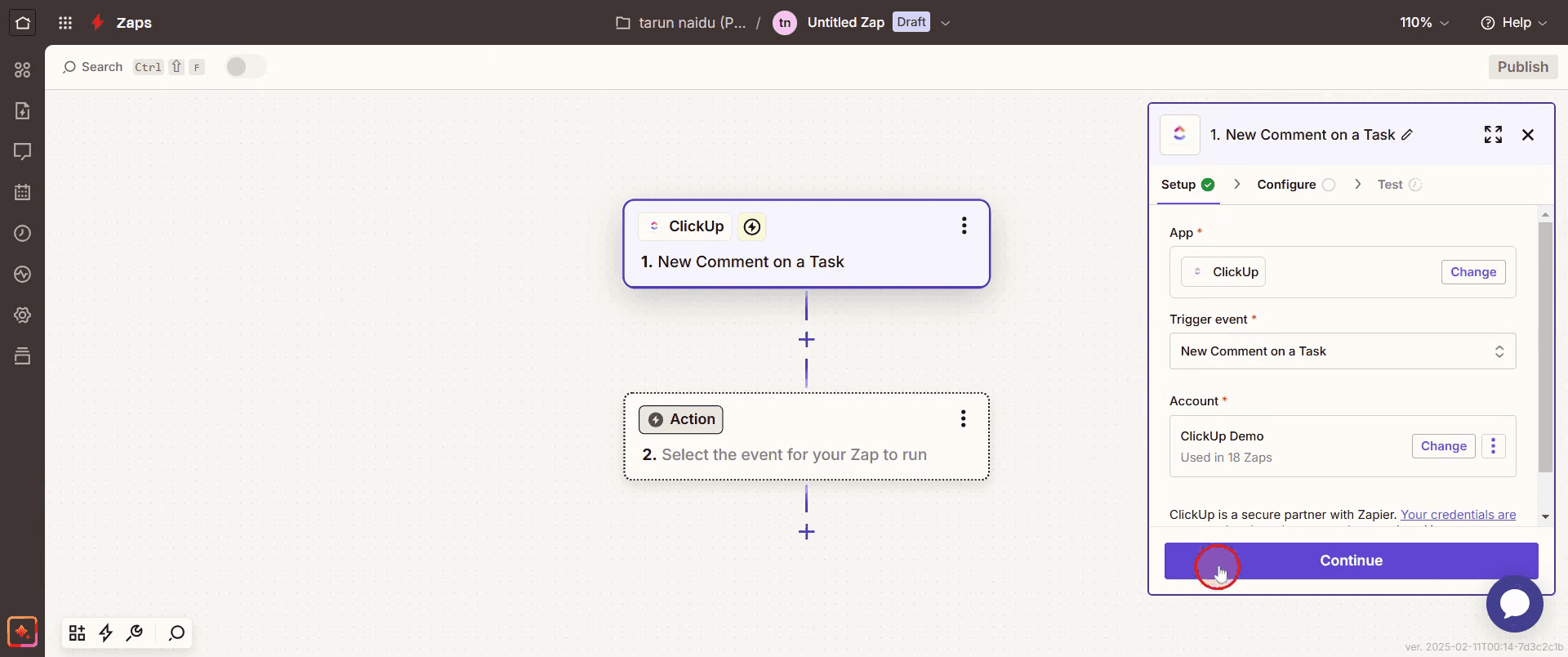
Step 7
Select the appropriate workspace .
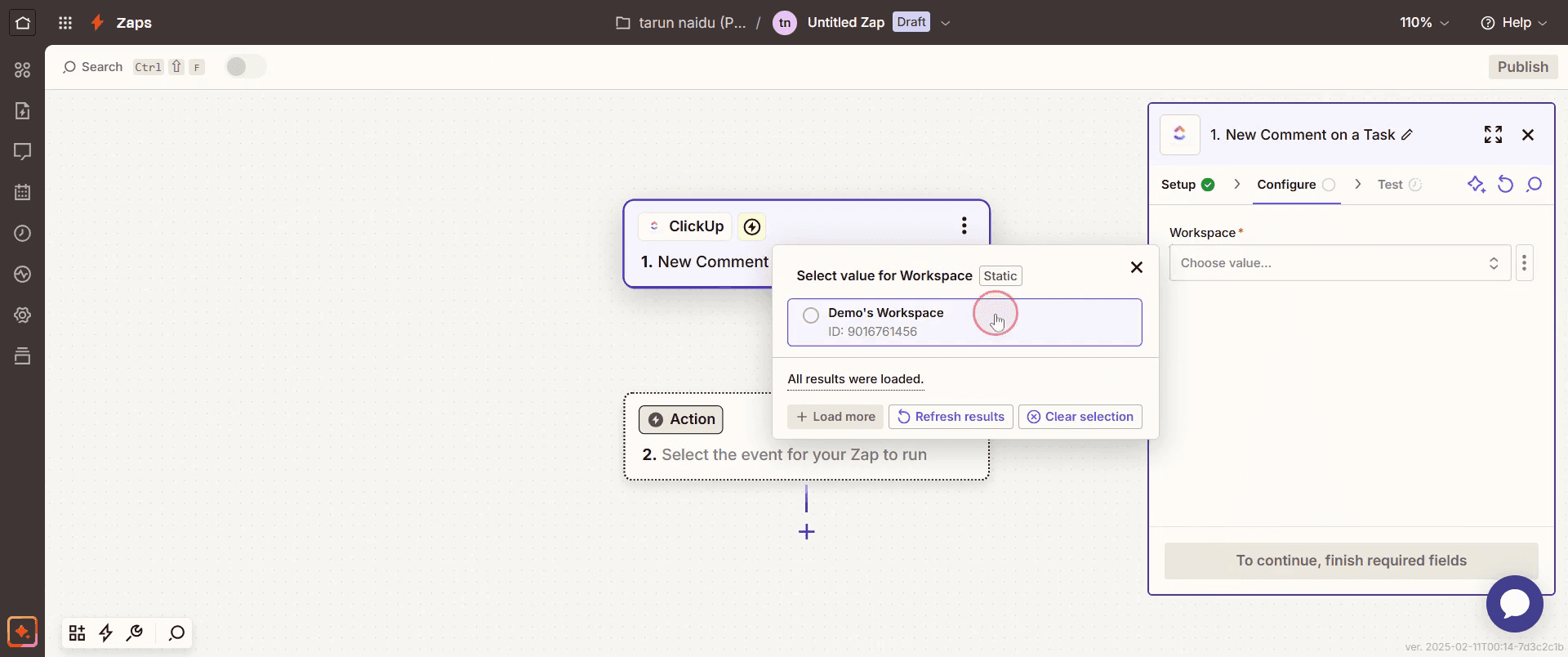
Step 8
And click Continue,
Step 9
Click on Test Trigger.
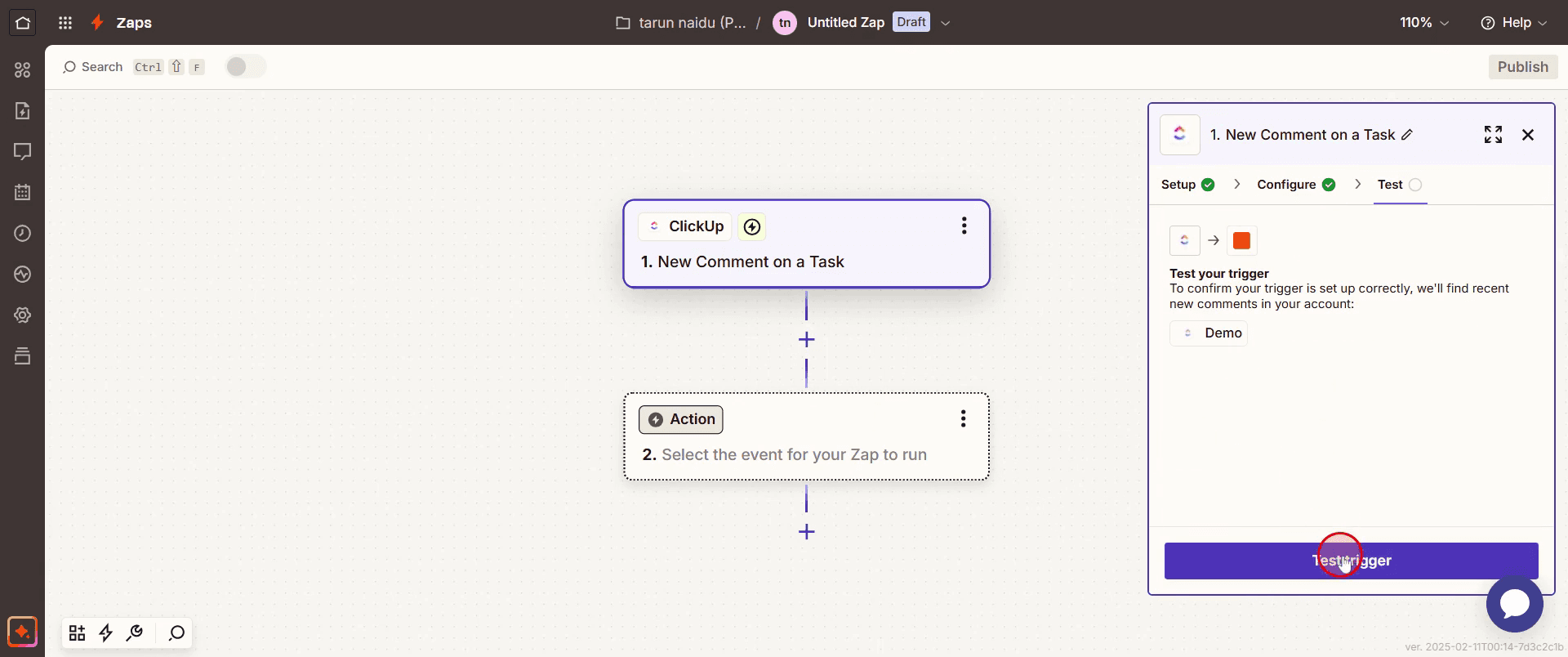
Step 10
Then click on continue.
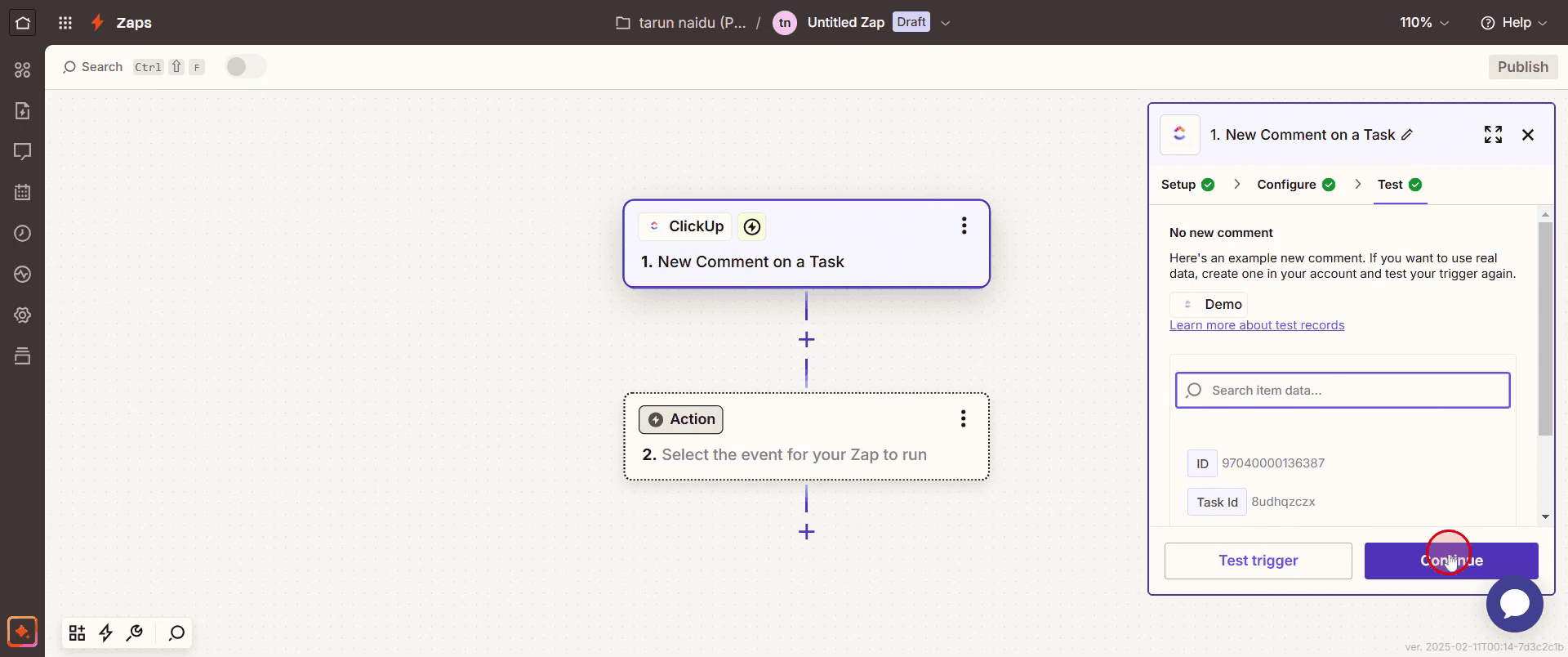
Step 11
Select HubSpot.
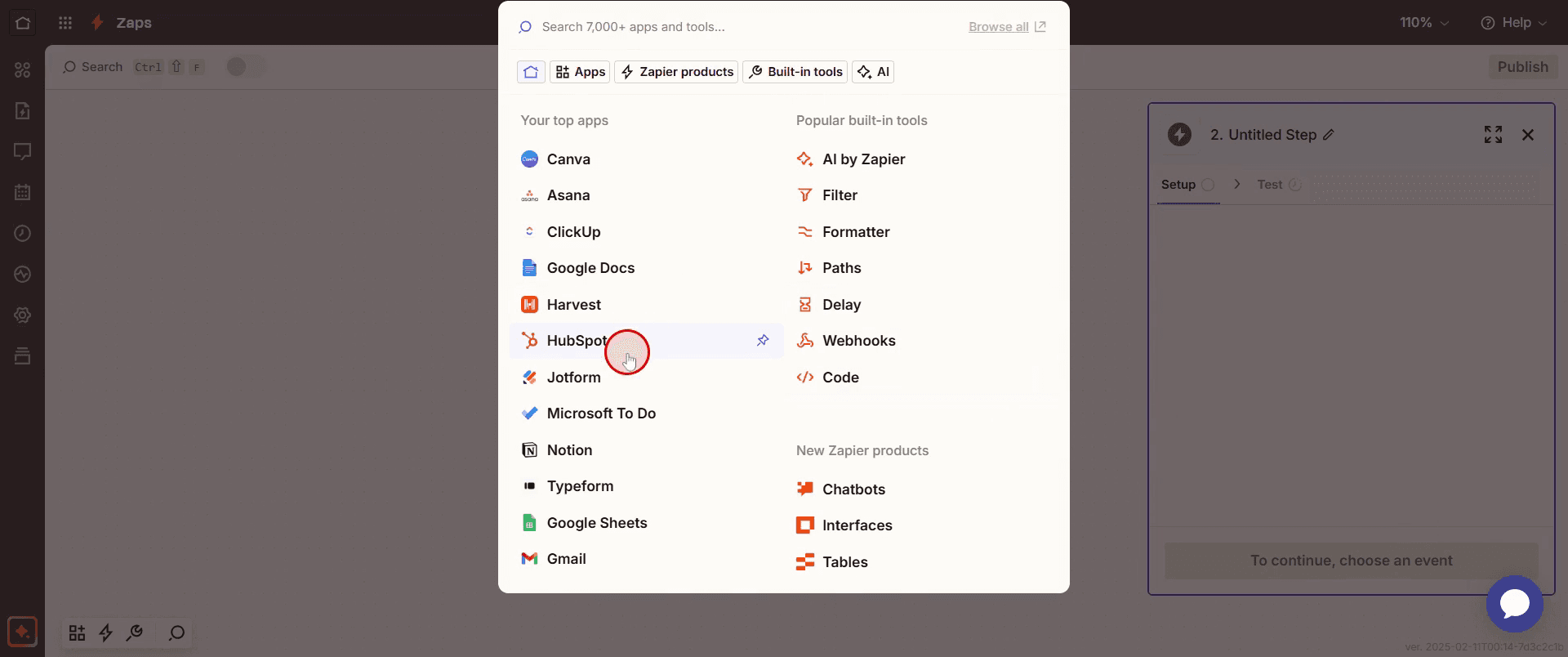
Step 12
Then choose the action event.
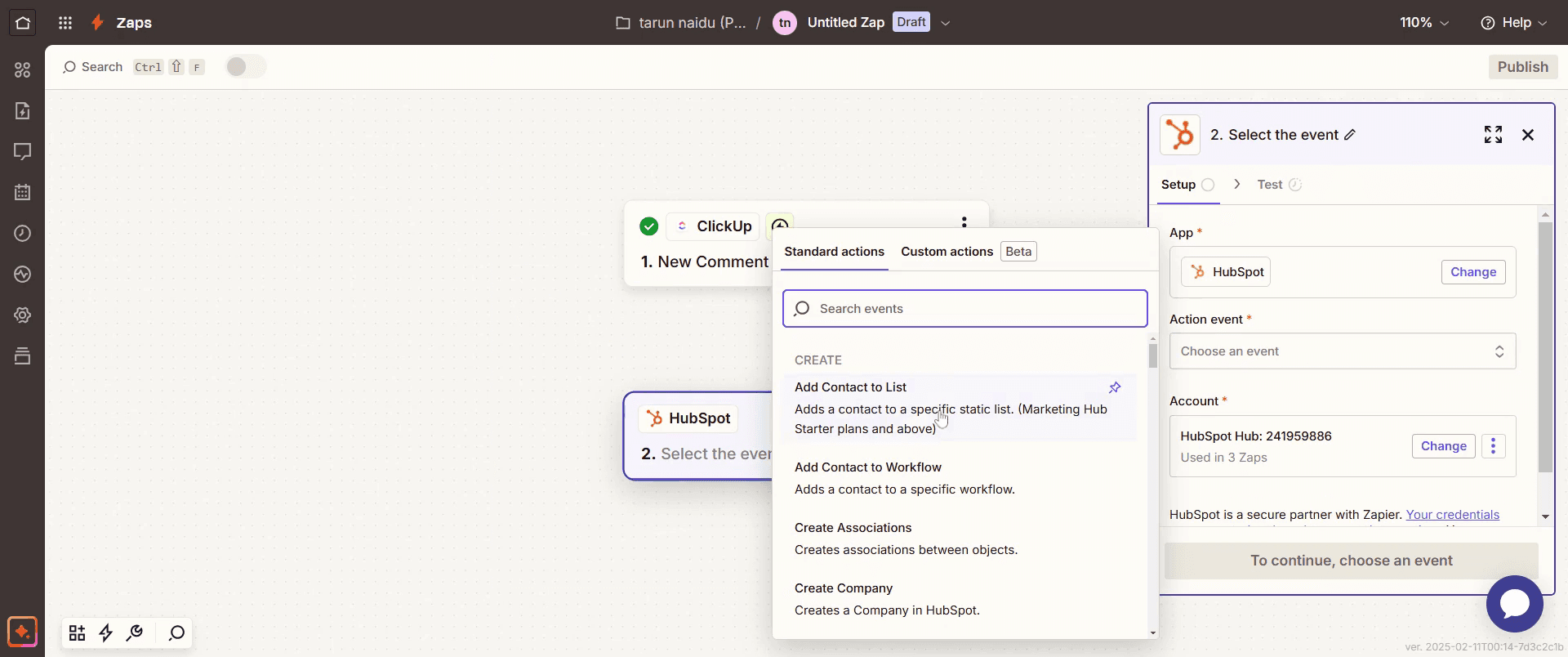
Step 13
Then click on continue .
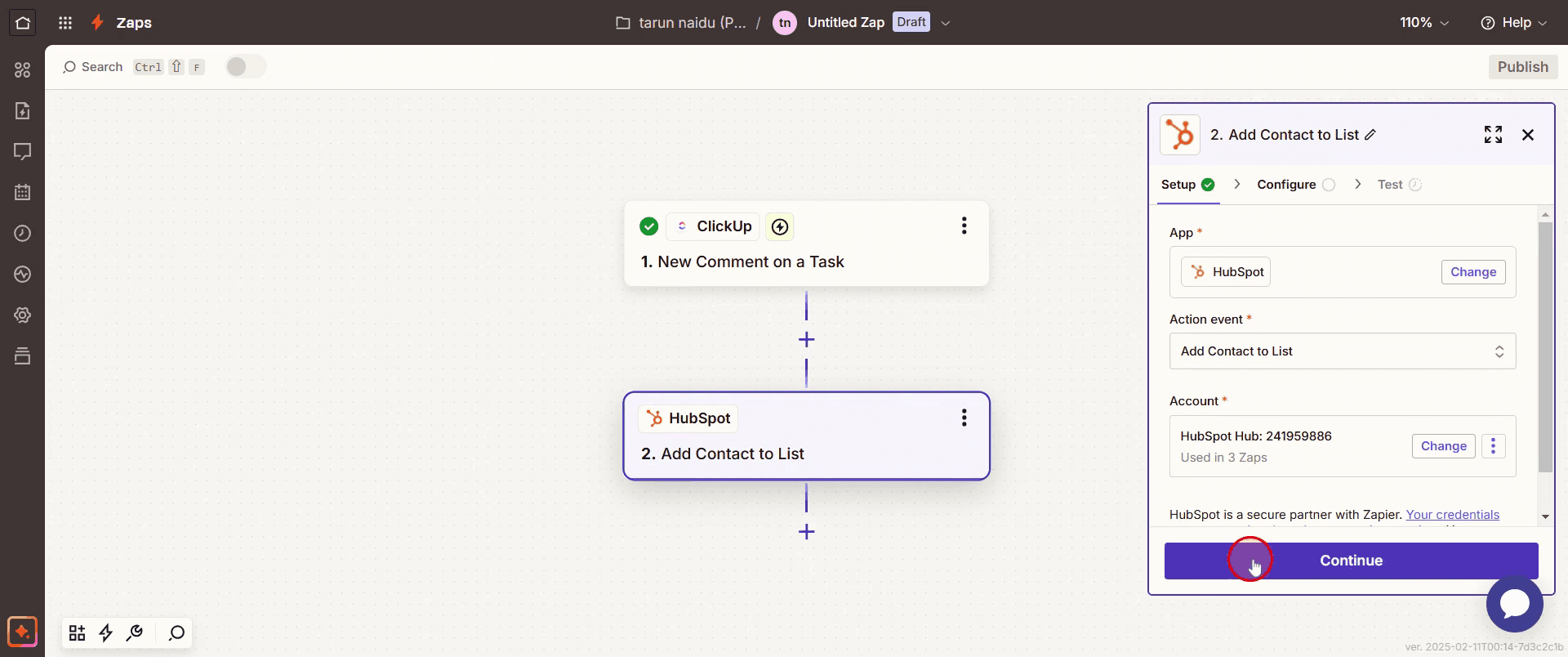
Step 14
Enter a last name by click on three dots .
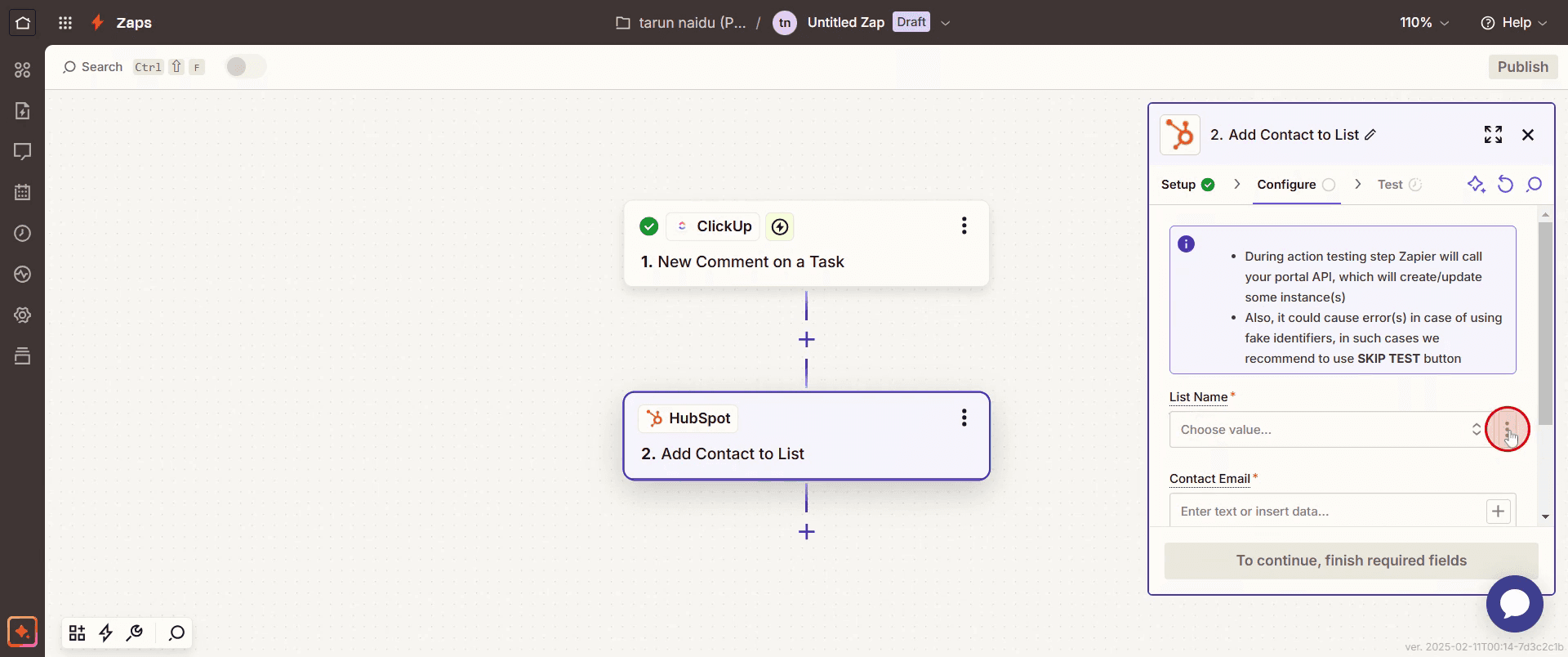
Step 15
And select the custom option,
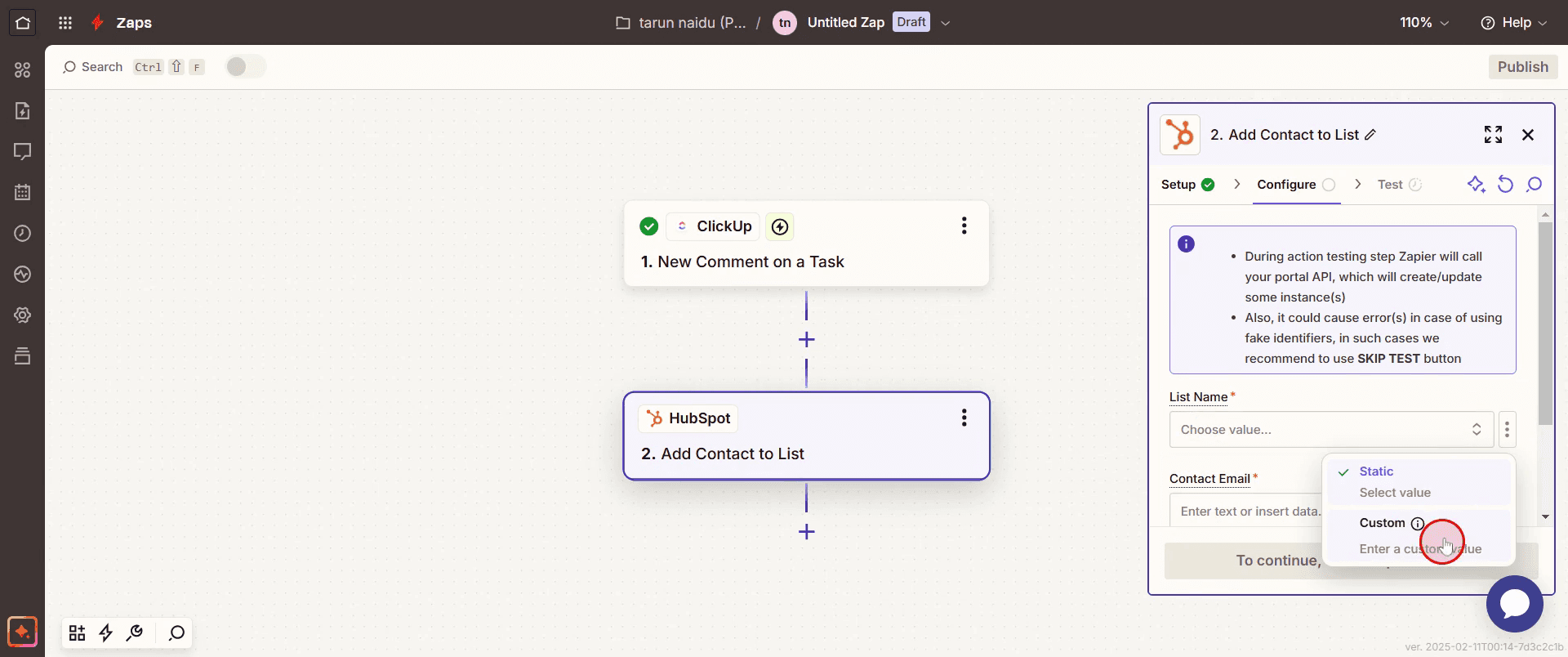
Step 16
Then enter a email based on you needs.
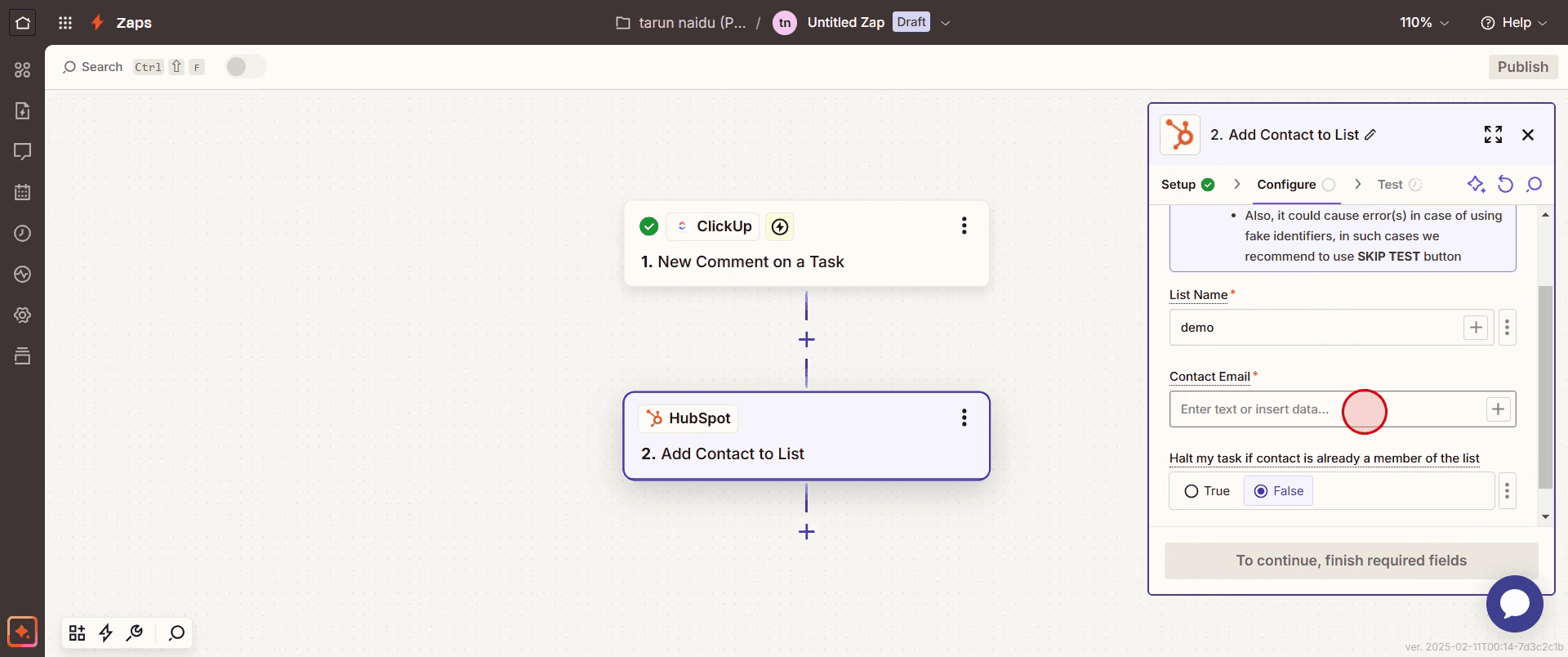
Step 17
Then click on continue .
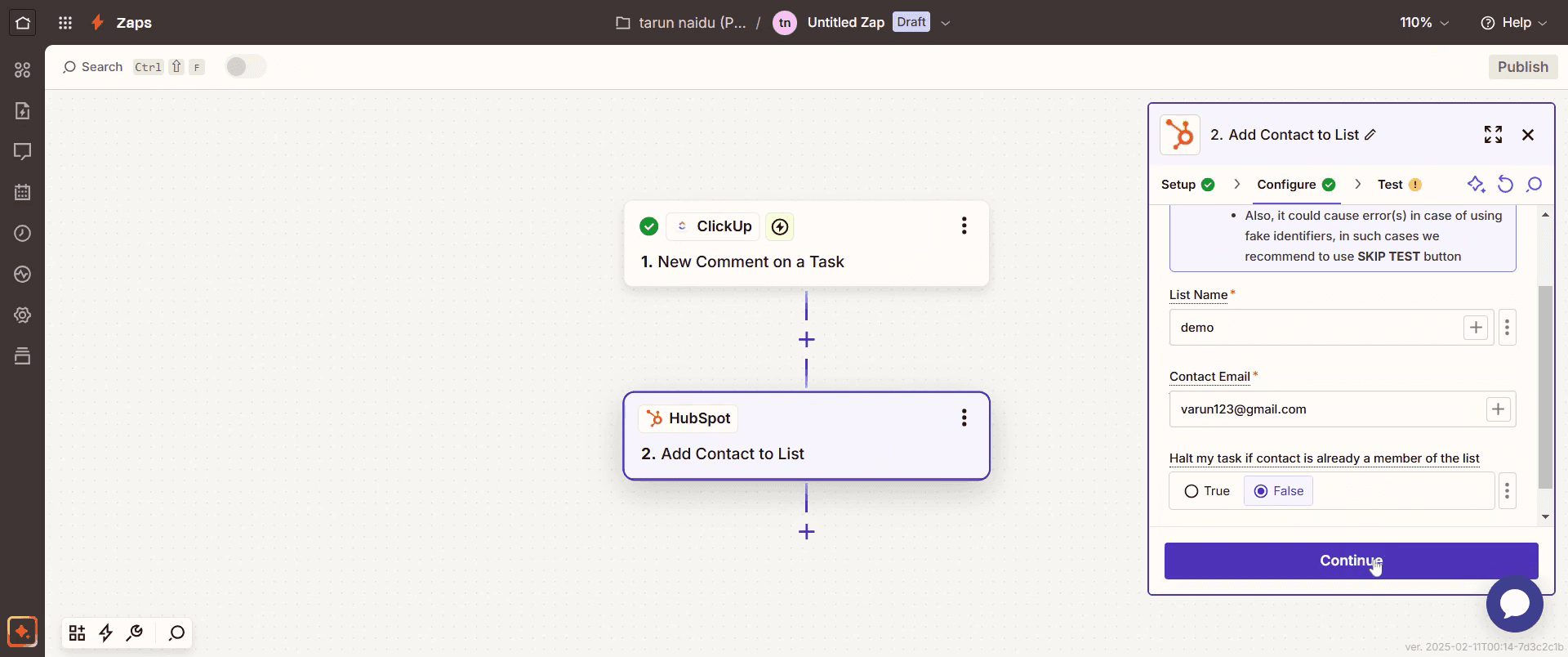
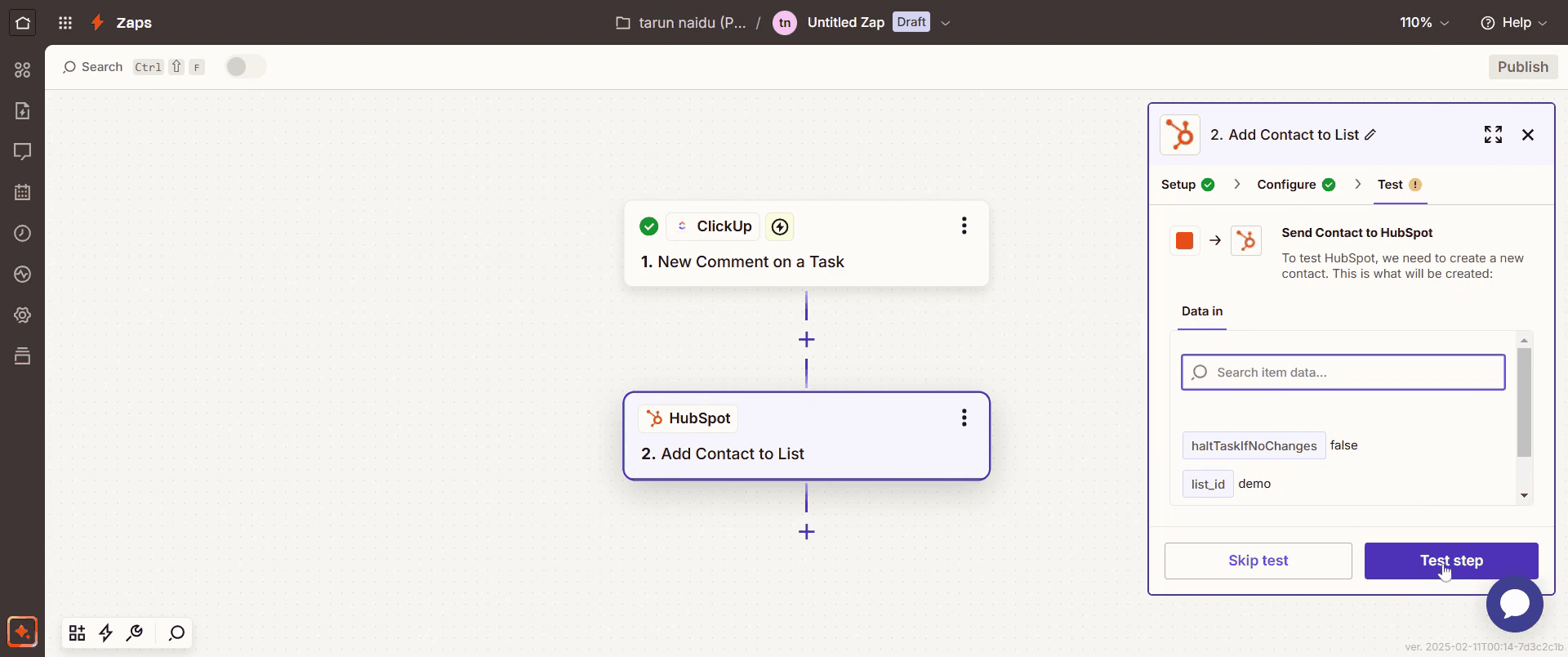
Step 18
Click on Test Setup ,
Step 19
Click on Publish.
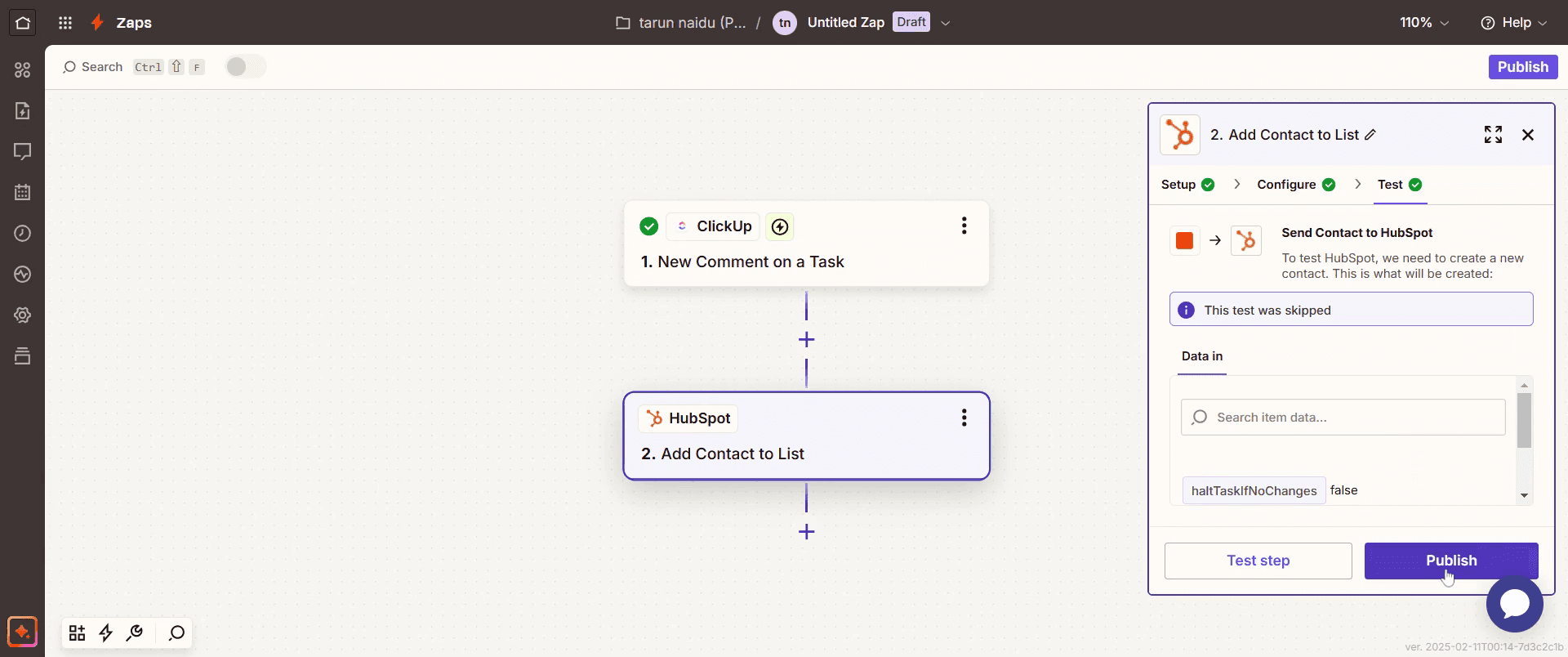
This is the step-by-step process to integrate Click Up with HubSpot. Let’s look at some tips for it.
Pro tips for integrating Click Up with HubSpot
Use the Native Click Up + HubSpot Integration – Leverage the Click Up + HubSpot integration to sync your tasks, deals, and projects between both platforms. By enabling the integration, you'll keep all your customer data and tasks in sync automatically, reducing the need for manual updates.
Set Up Automation for HubSpot and Click Up Sync – Use Click Up’s automation features to create triggers based on activities in HubSpot, such as when a deal is closed or a contact is created. This will create tasks or update statuses in Click Up accordingly, keeping your teams aligned.
Link HubSpot Contacts with Click Up Tasks – When creating tasks in Click Up, you can directly link them to HubSpot contacts or companies. This allows you to keep all related information together, making it easier for sales and customer support teams to collaborate.
Common pitfalls & how to avoid them
Unlinked HubSpot Contacts or Deals – If your HubSpot contacts or deals are not linked properly to tasks in Click Up, you may lose track of important customer-related activities. Always ensure the integration is correctly set up to link relevant contacts or deals to tasks.
Ignoring Workflow Automations – Failing to configure HubSpot workflow automations can lead to missed updates in Click Up. Make sure that automations are set up to trigger actions in both systems, such as creating tasks or updating project statuses based on HubSpot events.
Overcomplicating the Integration – Adding too many rules or integrations can overwhelm your team and create unnecessary complexity. Keep the integration simple and focused on the most important actions to avoid confusion.
Common FAQs for integrating Click Up with HubSpot
Can i create tasks in Click Up based on HubSpot activities?
Yes, by setting up automation in Click Up, you can automatically create tasks based on activities in HubSpot, like form submissions, deal changes, or new contacts.Can i track HubSpot deals and sales in Click Up?
Yes, the integration allows you to track HubSpot deals and their associated tasks directly in Click Up. This helps you manage sales pipelines and projects in one place.Can i link HubSpot contacts to tasks in Click Up?
Yes, you can link HubSpot contacts or companies to tasks in Click Up. This ensures all customer-related information is in one place, making it easier for your team to manage tasks and customer relationships.Do i need a paid plan for the Click Up and HubSpot integration?
The integration is available for both free and paid plans. However, more advanced features, such as custom automations, may require a Click Up paid plan or additional HubSpot tools.
If you're an instructor or content creator looking to make tutorial videos, give a try. It transforms rough screen recordings into polished, studio-style videos that are ready for sharing with your audience. Plus, it automatically generates a step-by-step guide based on the video you create. Fascinating, right? Start by creating your first tutorial for free with trupeer.ai .

