
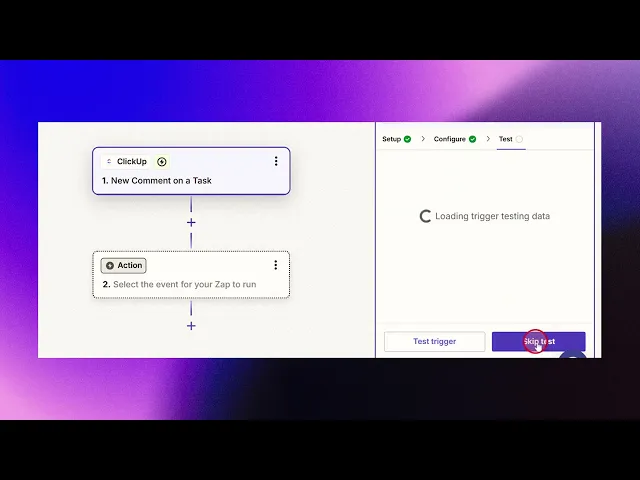
How To Integrate Click Up With JotForm
Learn how to effectively integrate ClickUp with JotForm. Boost your productivity and simplify task management with our comprehensive tutorial.
This document outlines the process of integrating Click Up with JotForm using Zapier. Follow the steps below to seamlessly connect these two platforms and automate your workflows.
Step 1
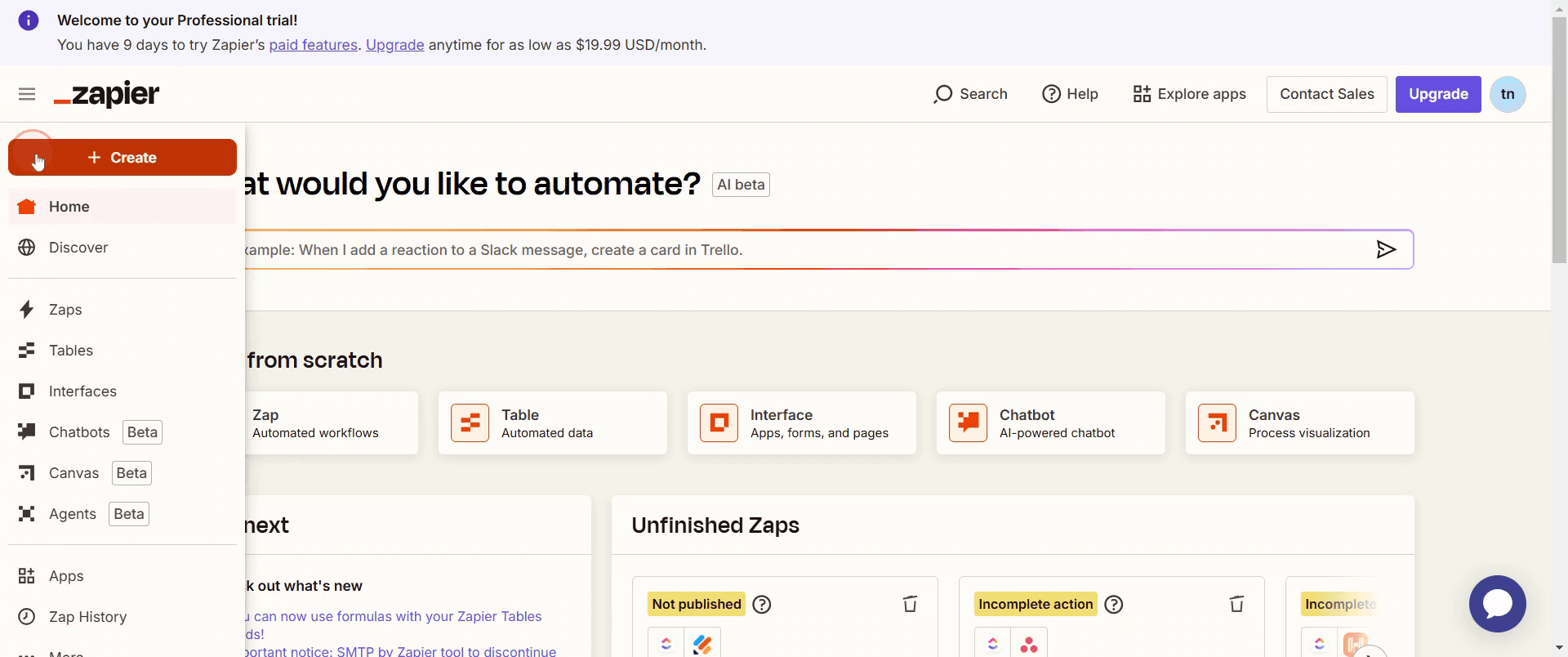
Click on Create,
Step 2
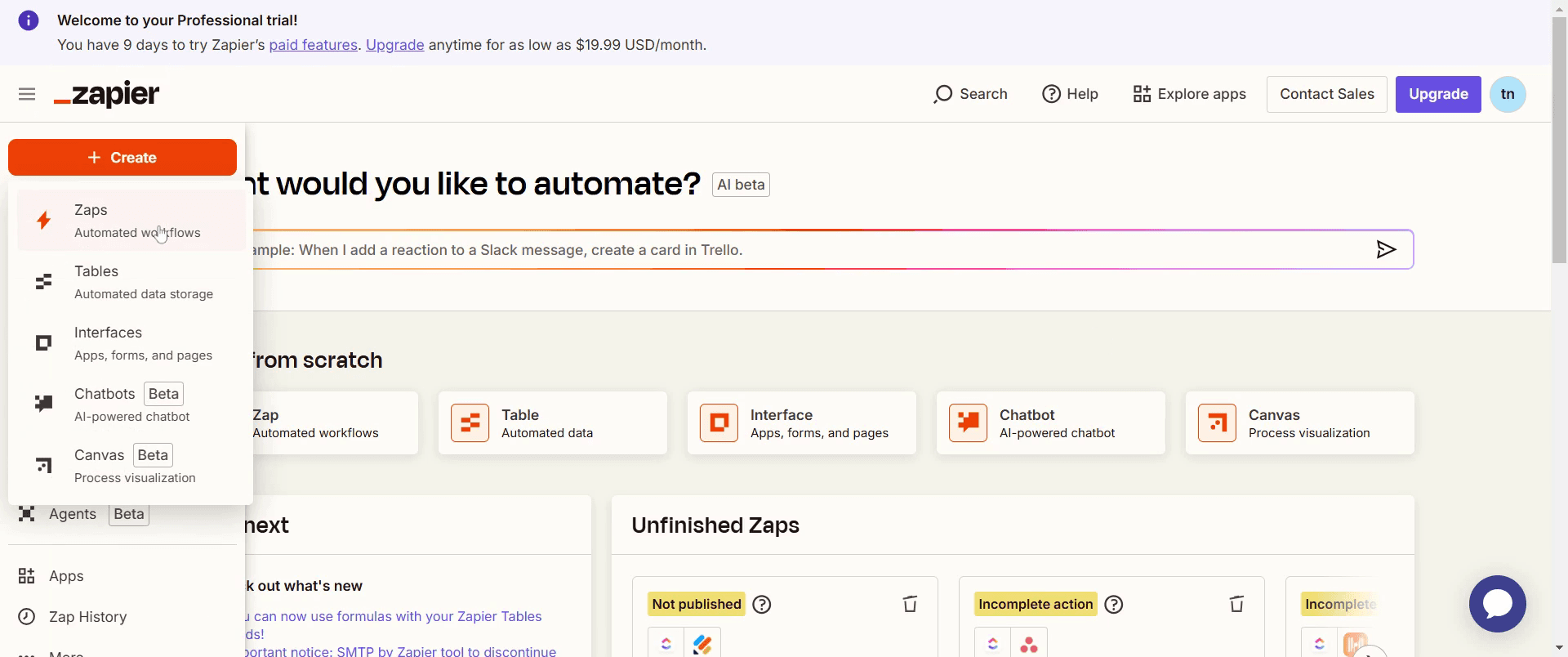
Then select Zaps.
Step 3
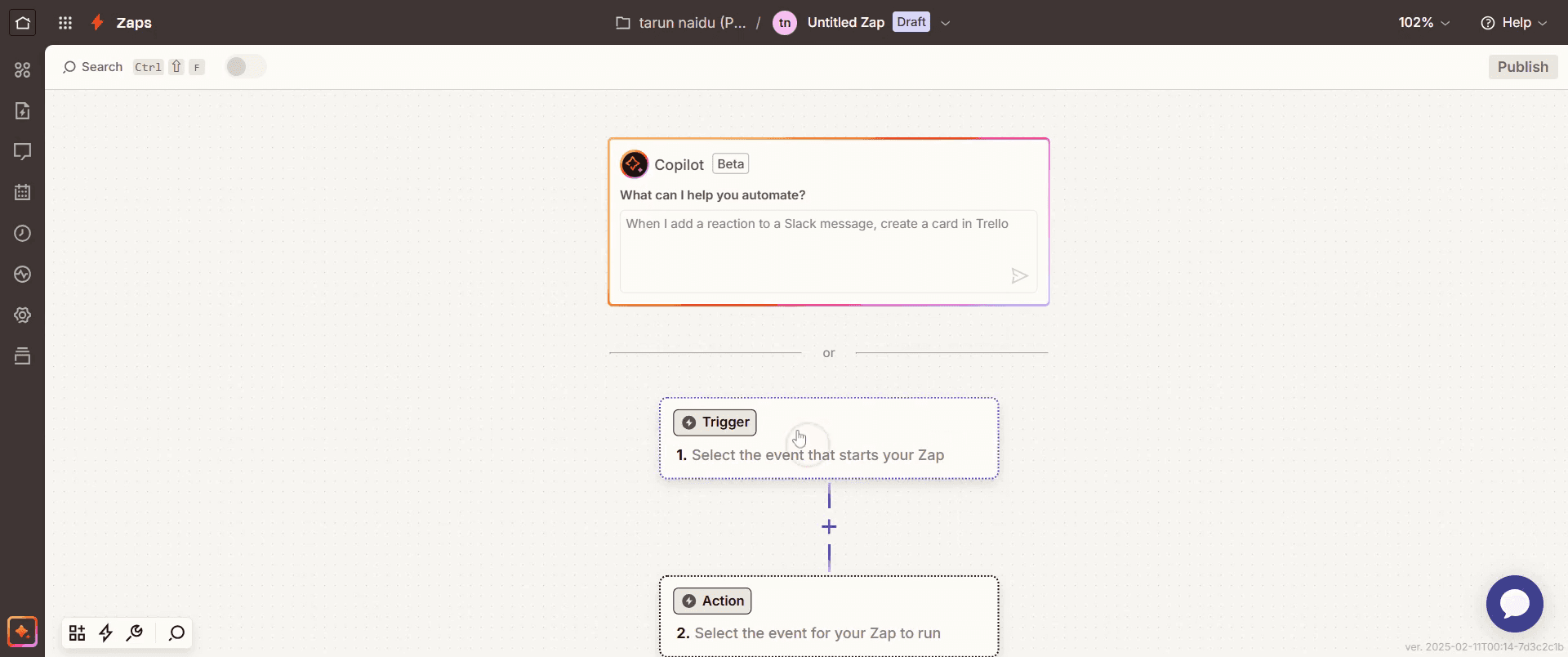
Once loaded, select the trigger option.
Step 4
In the search menu, type Click Up.
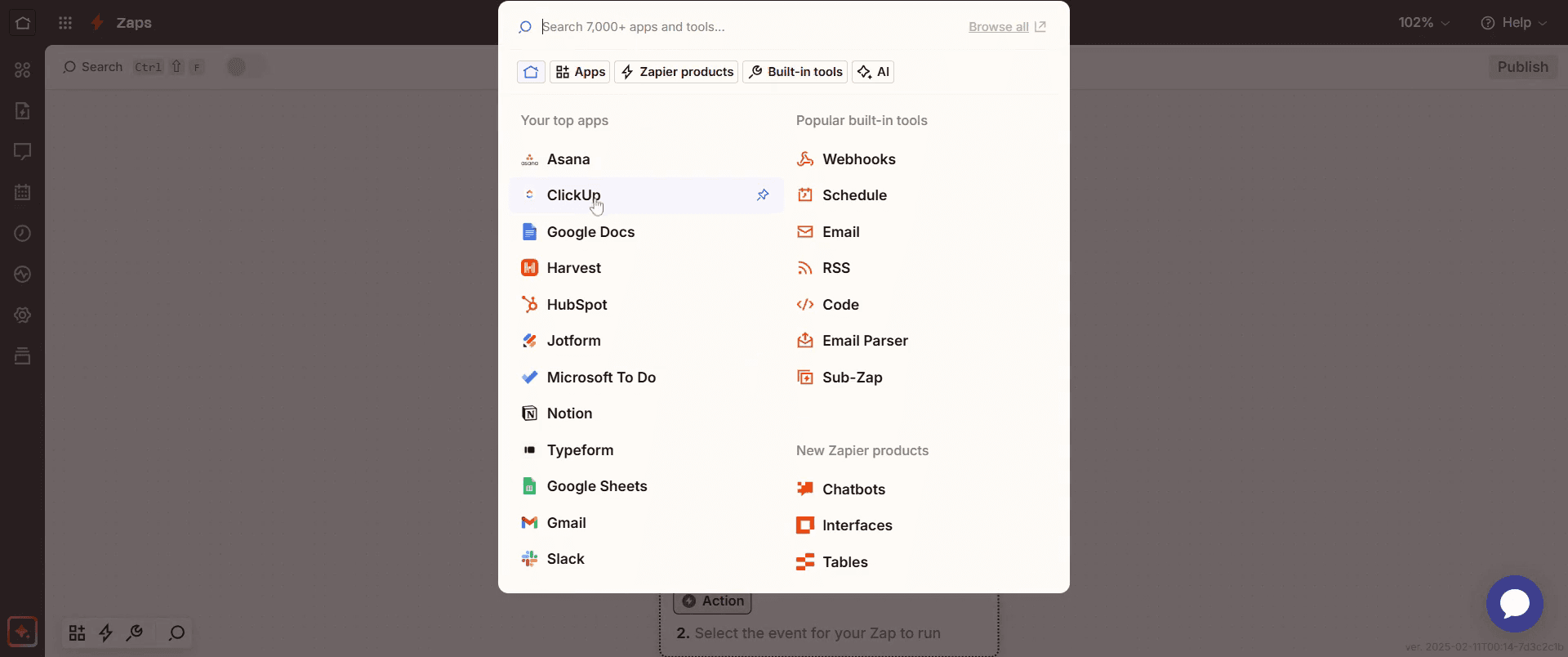
Step 5
After selecting the trigger event,
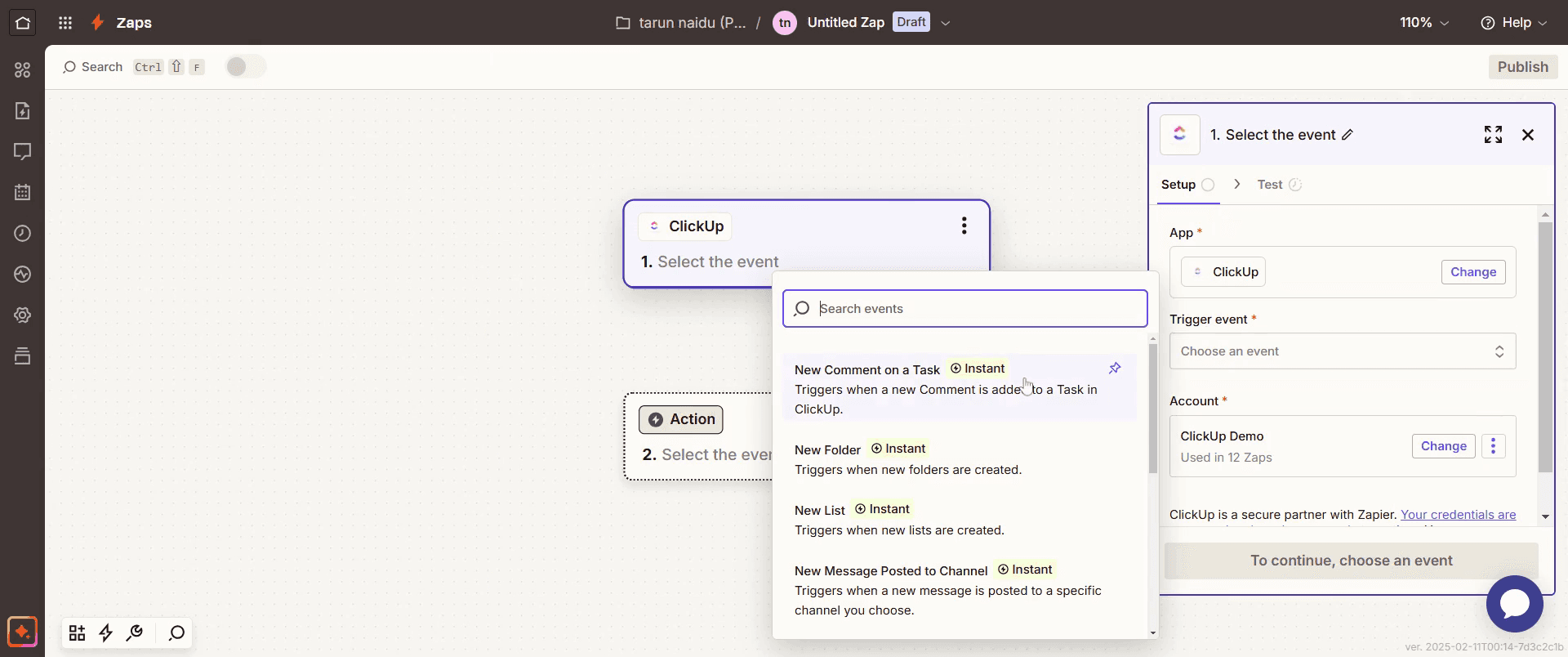
Step 6
Then click on Continue.
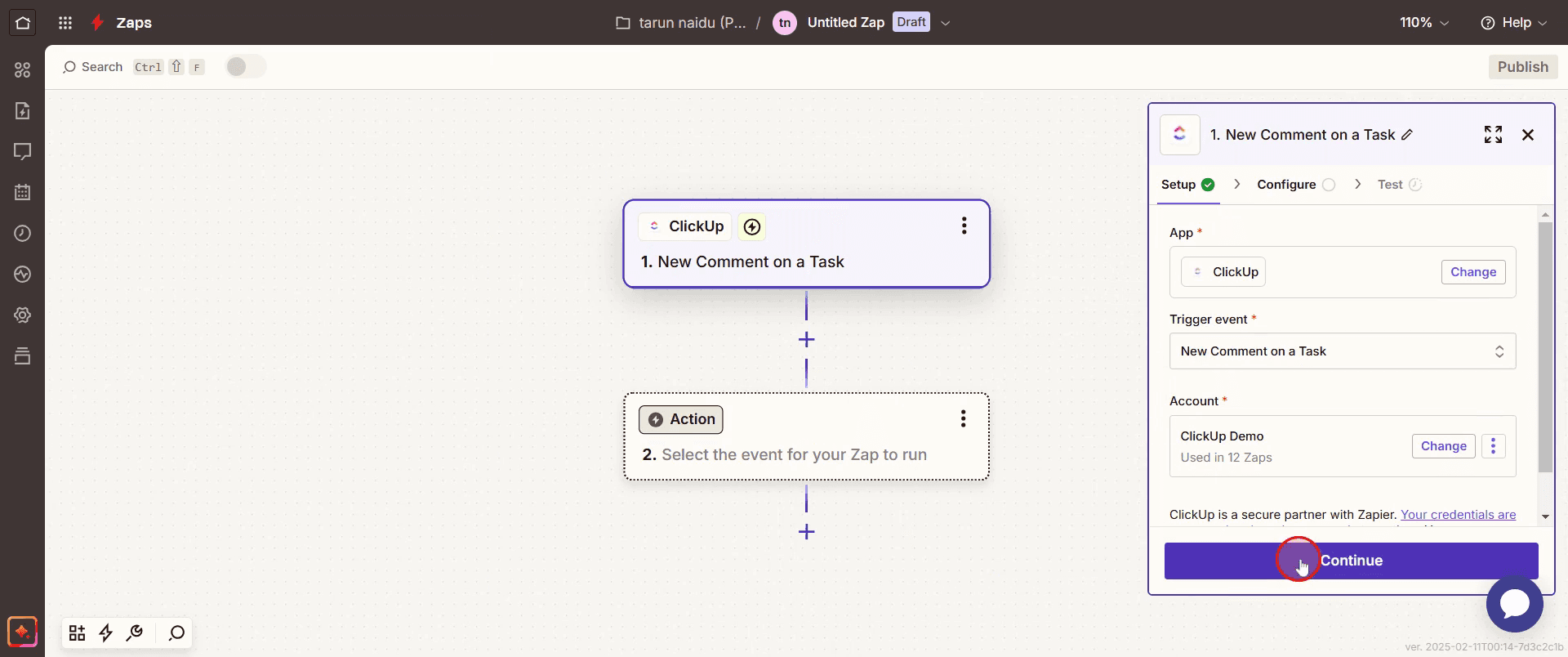
Step 7
Select the desired workspace,
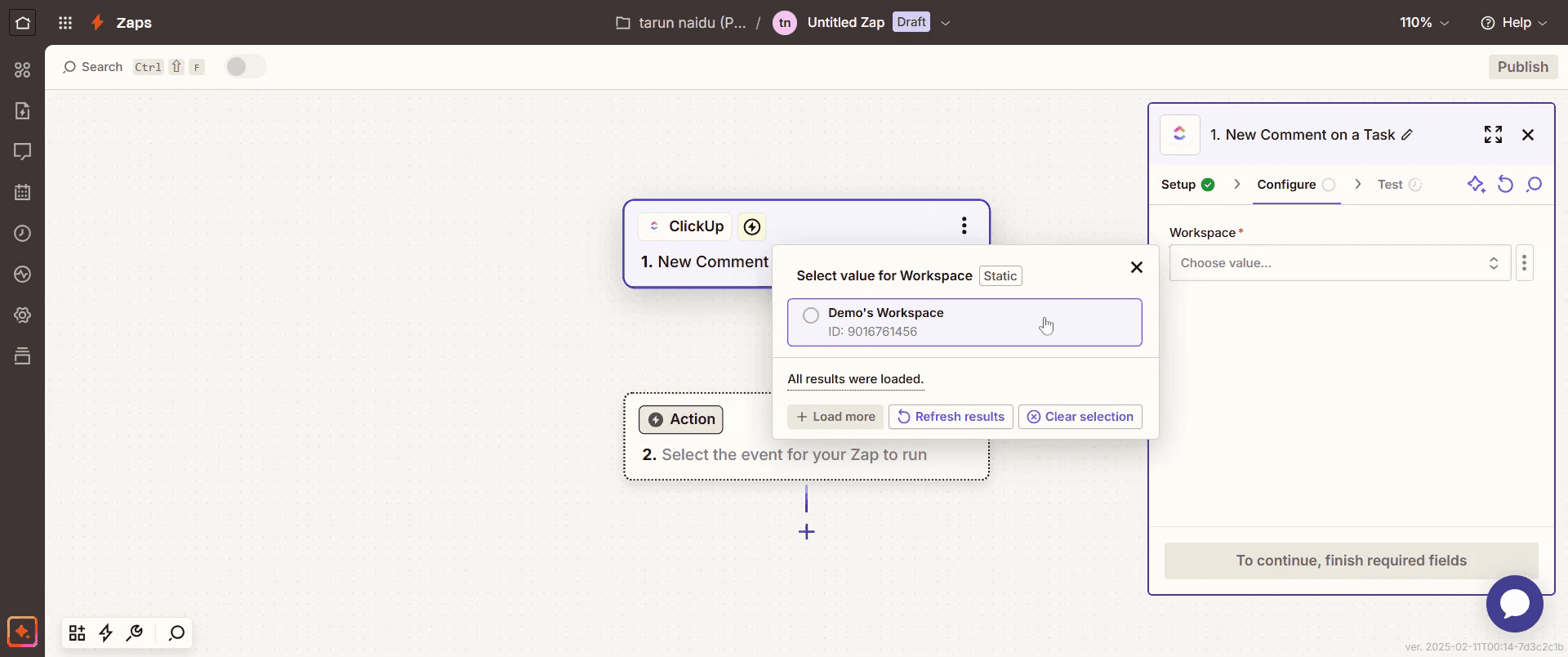
Step 8
And click on Continue again.
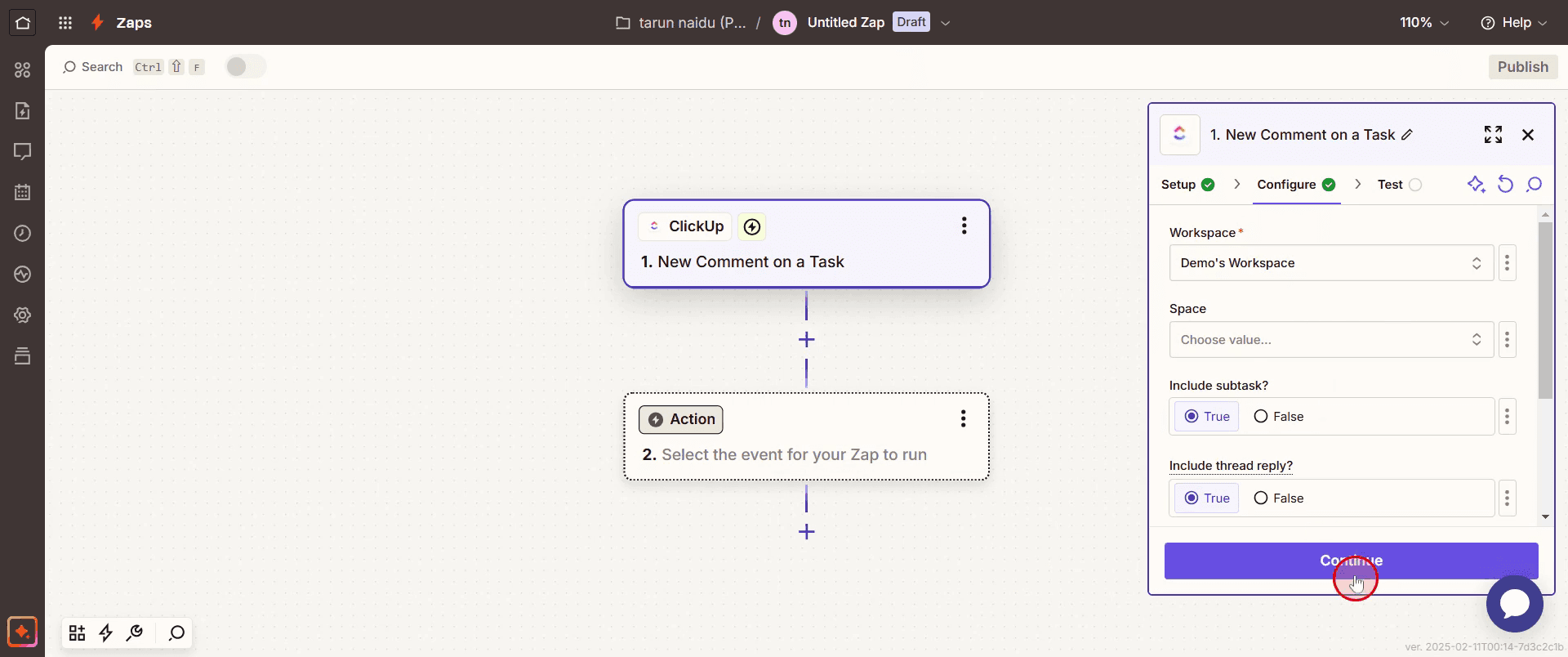
Step 9
Click on Test Trigger,
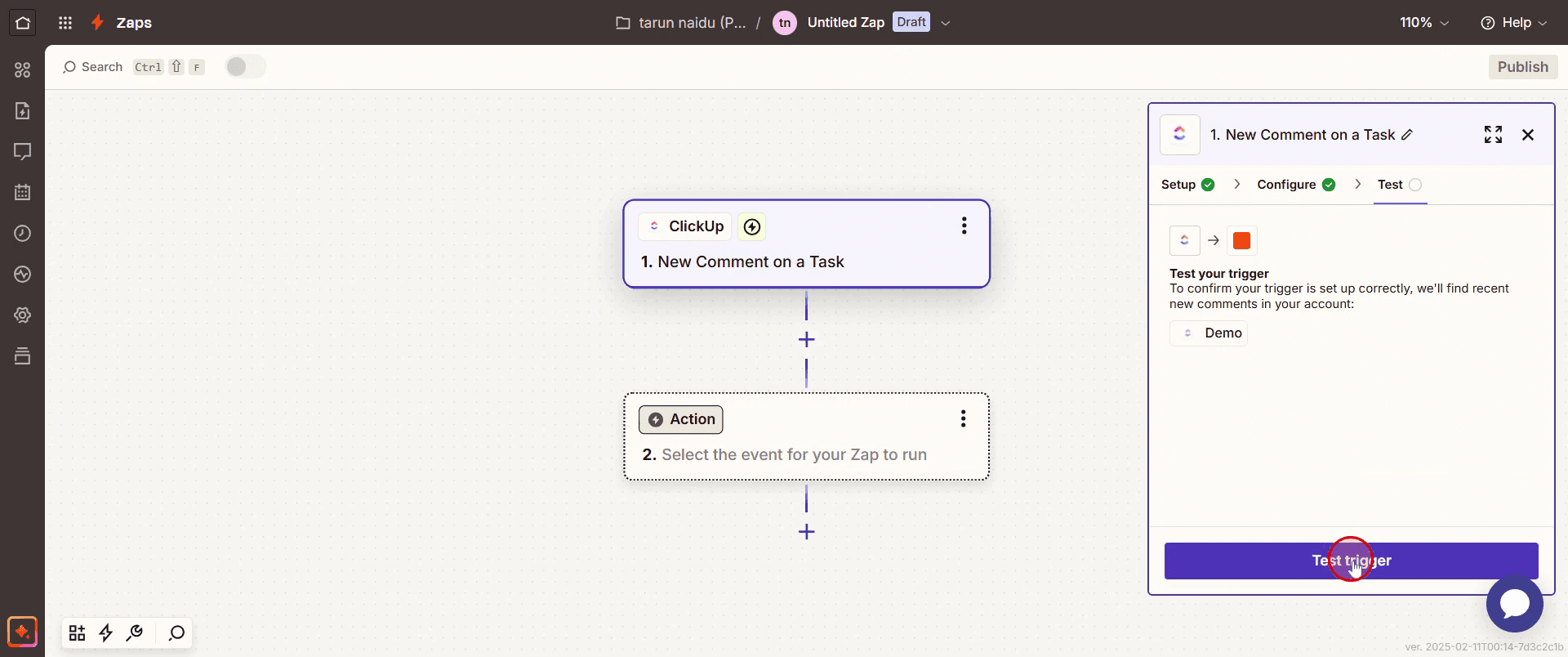
Step 10
Select Skip Test.
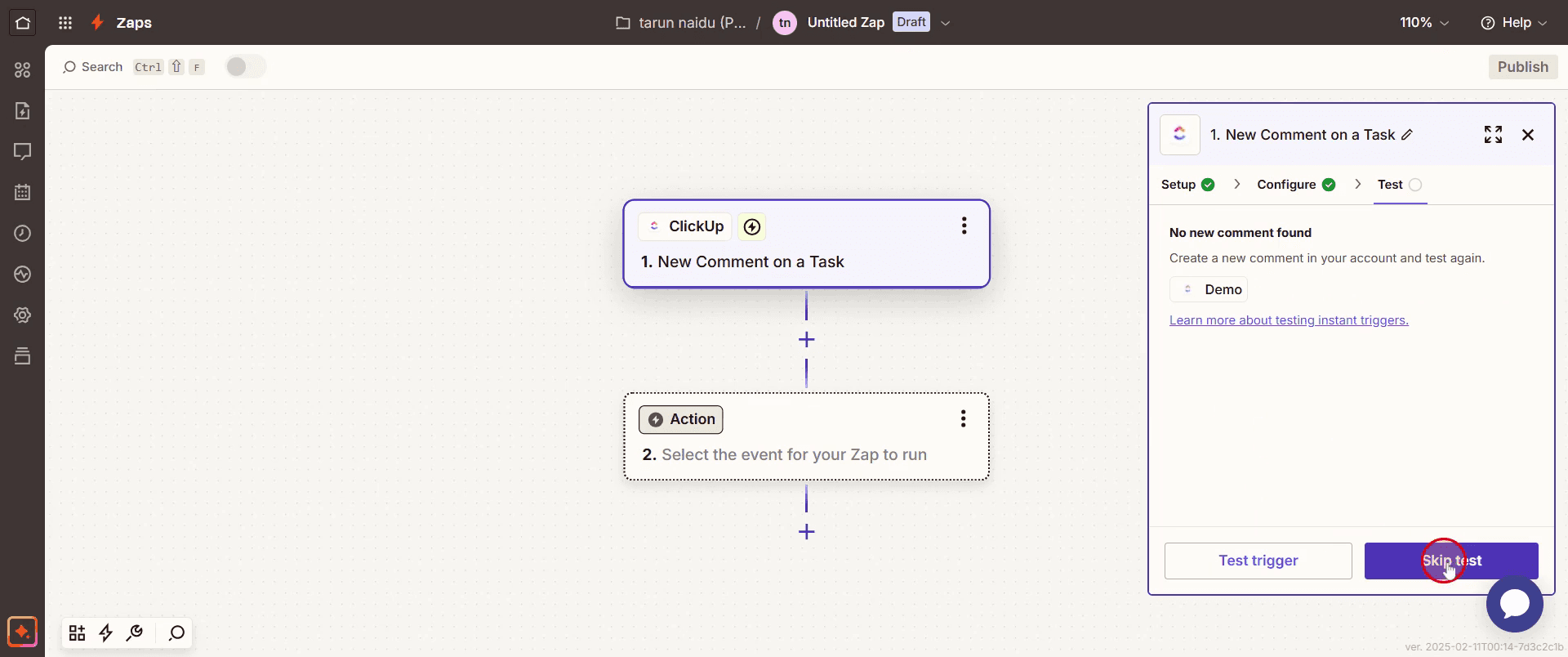
Step 11
And proceed by clicking Continue.
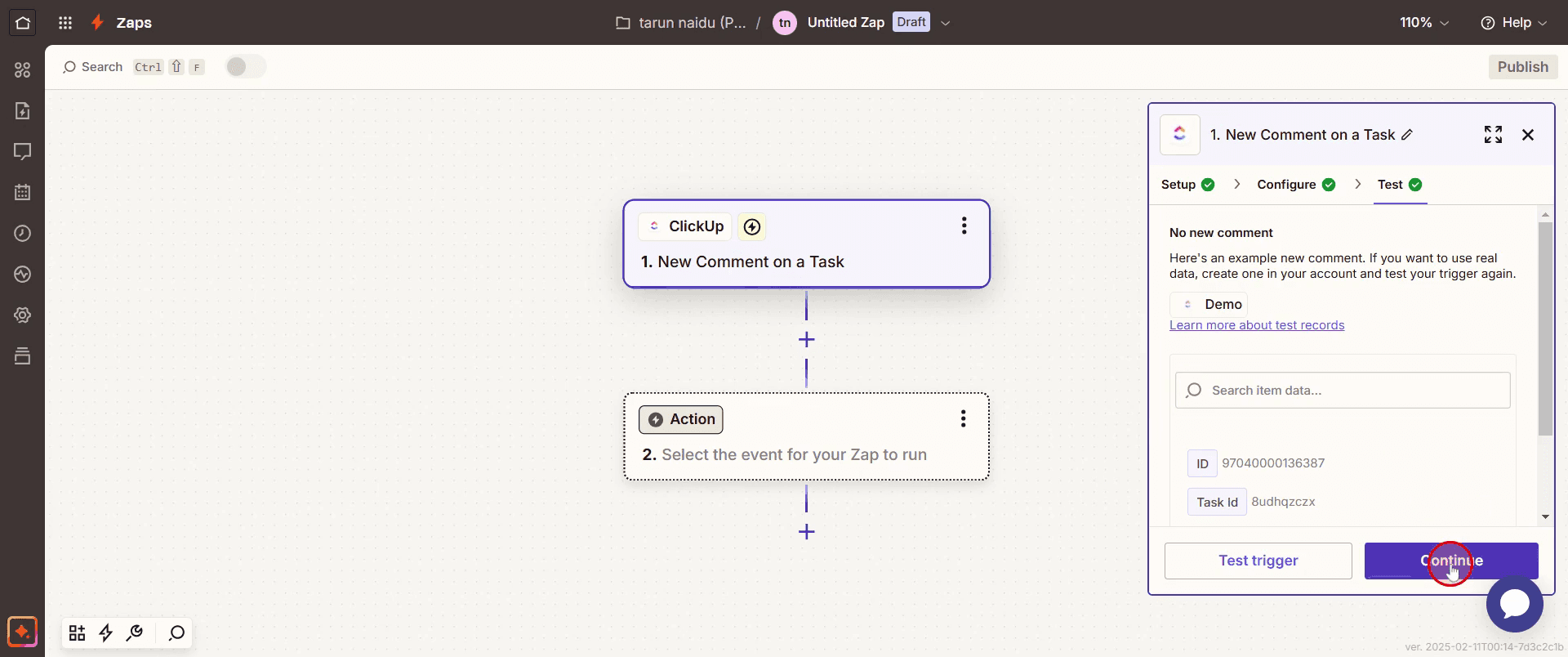
Step 12
Select JotForm as the application,
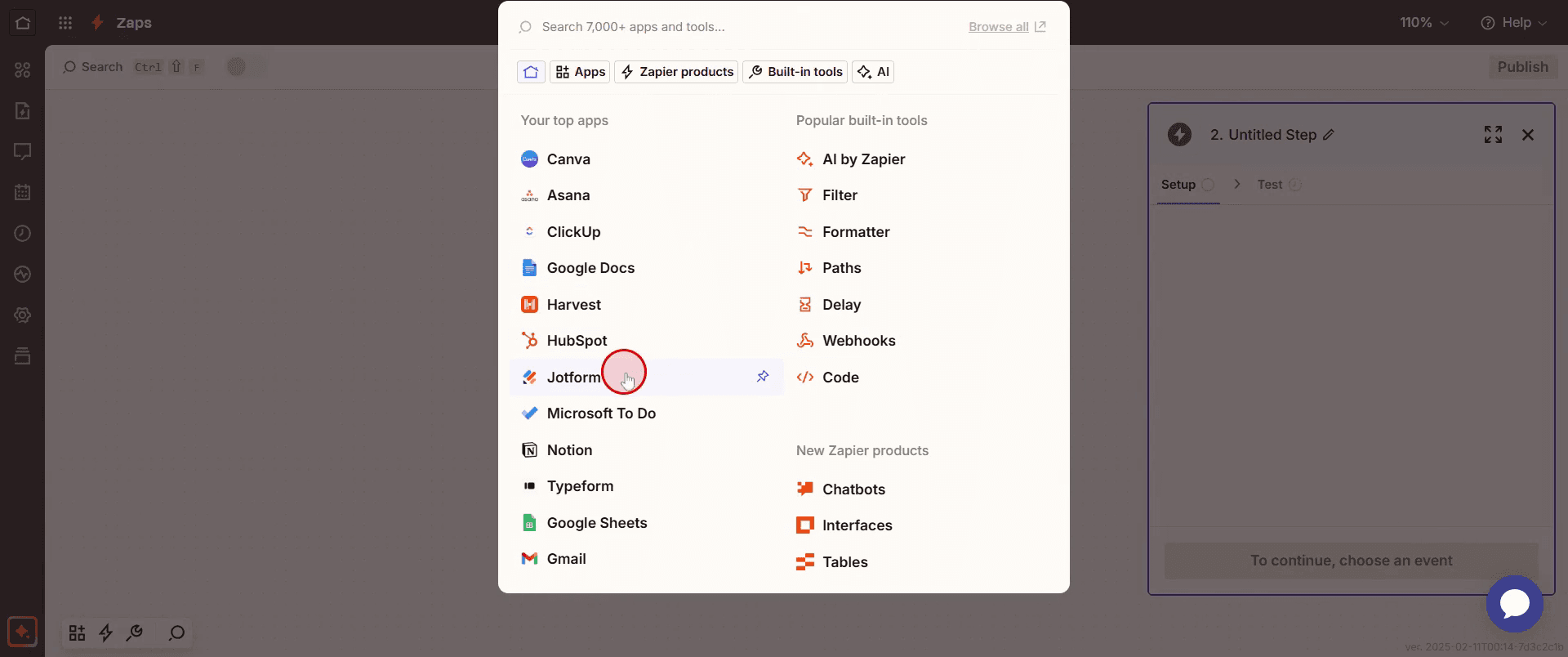
Step 13
And choose the desired action event.
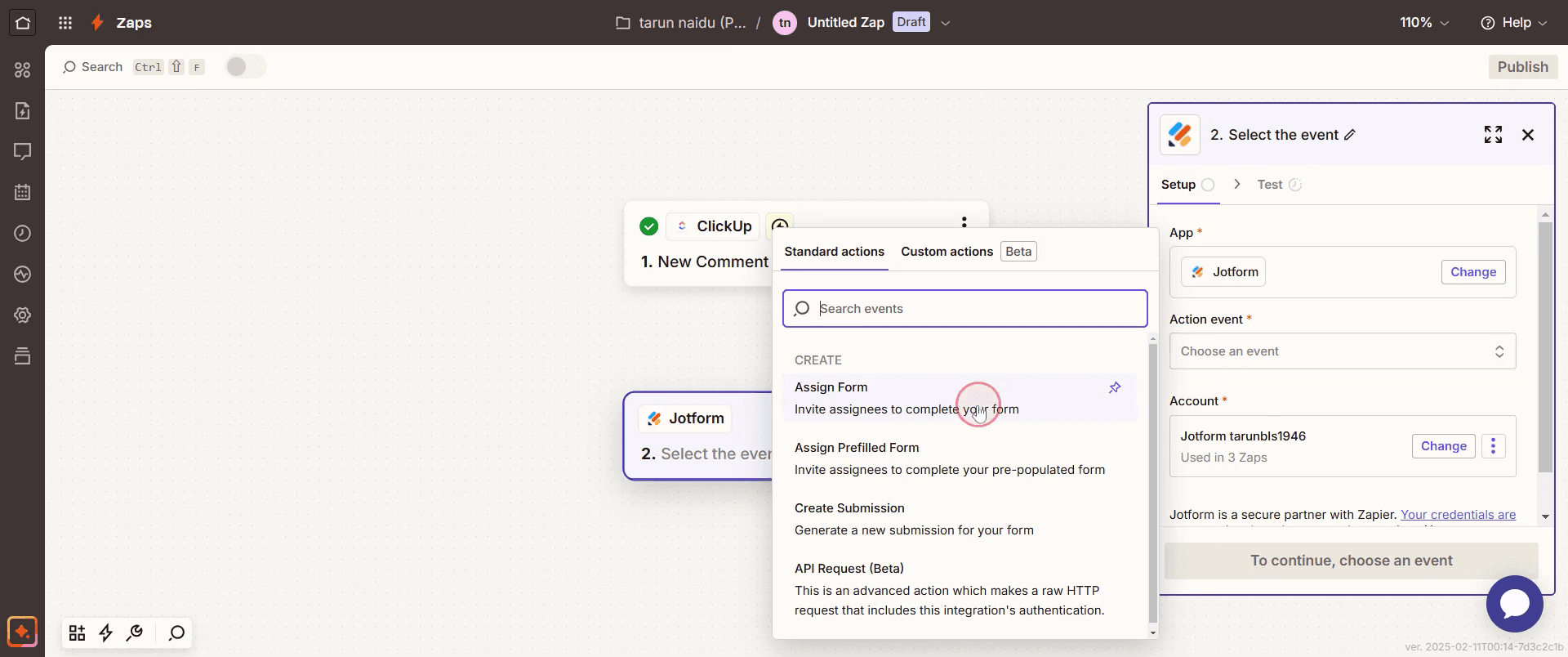
Step 14
Click Continue .
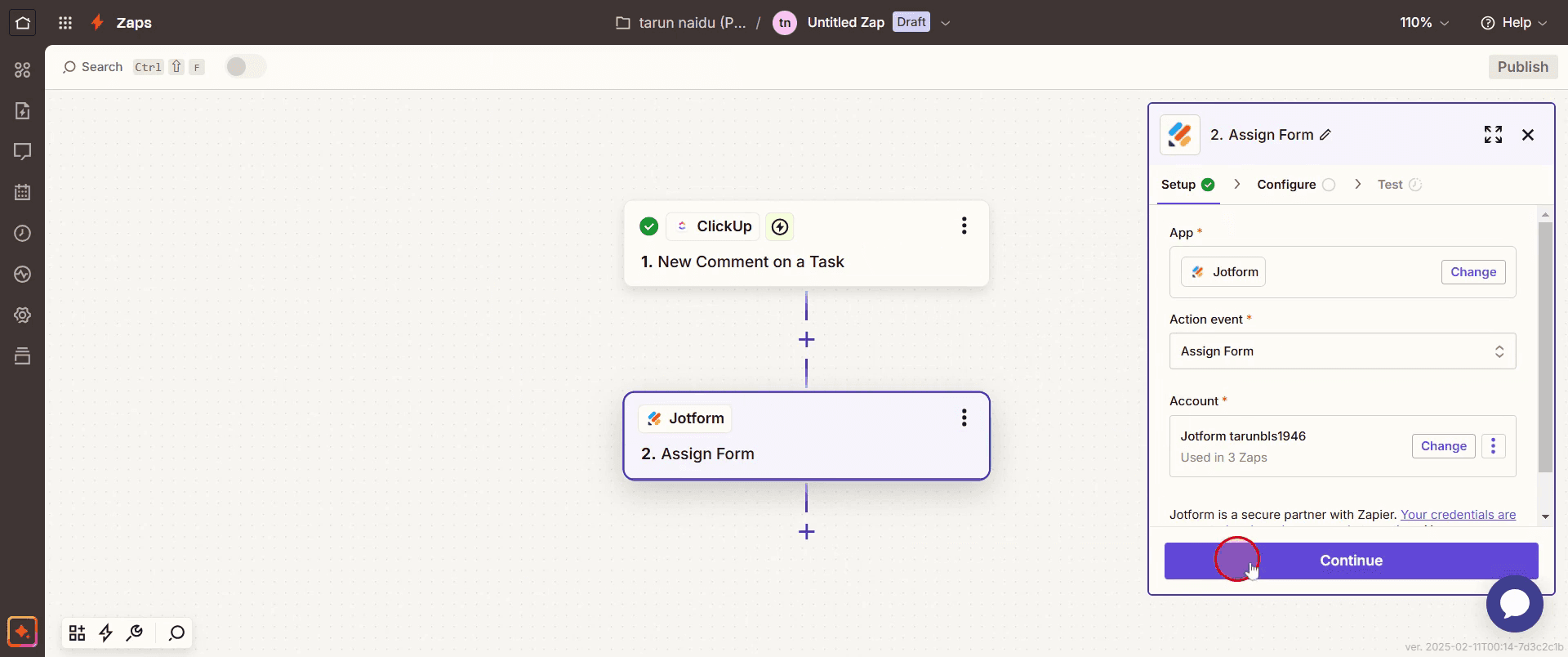
Step 15
Click on the three dots,
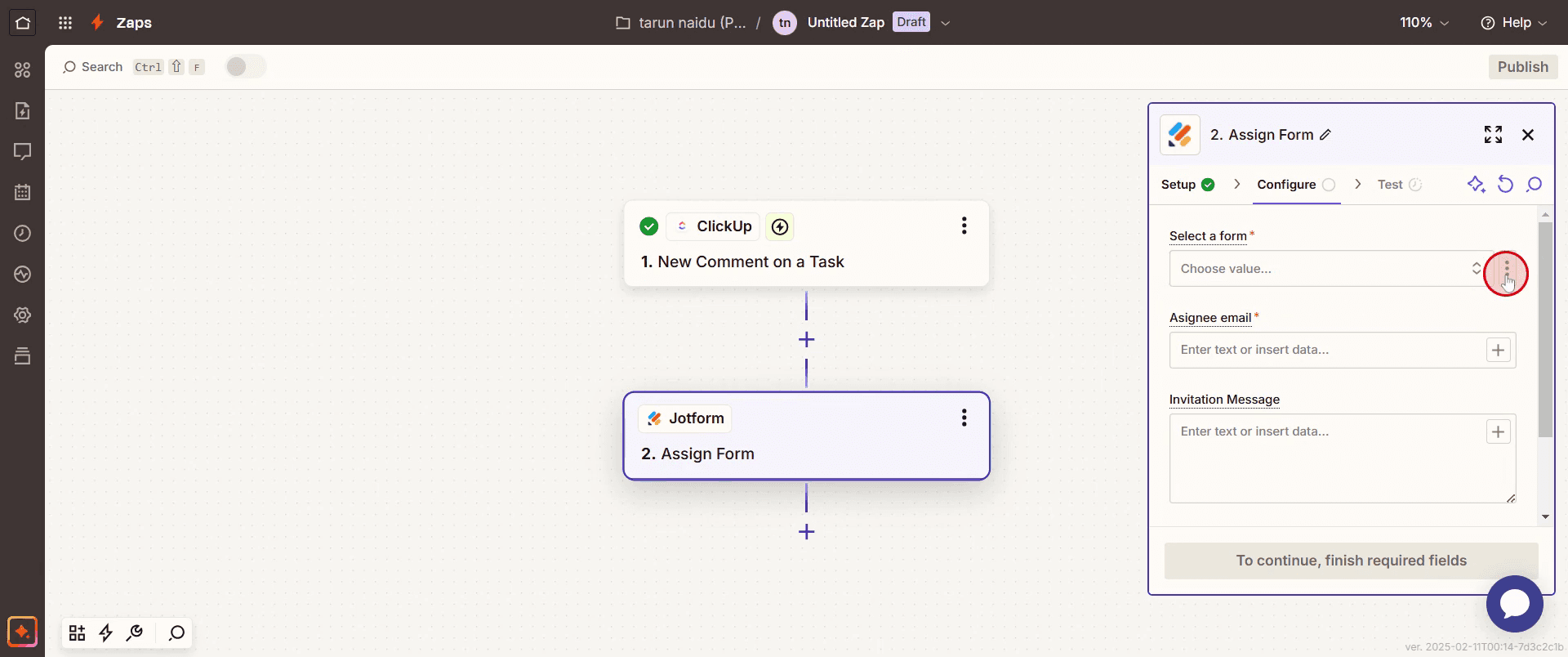
Step 16
And choose Custom.
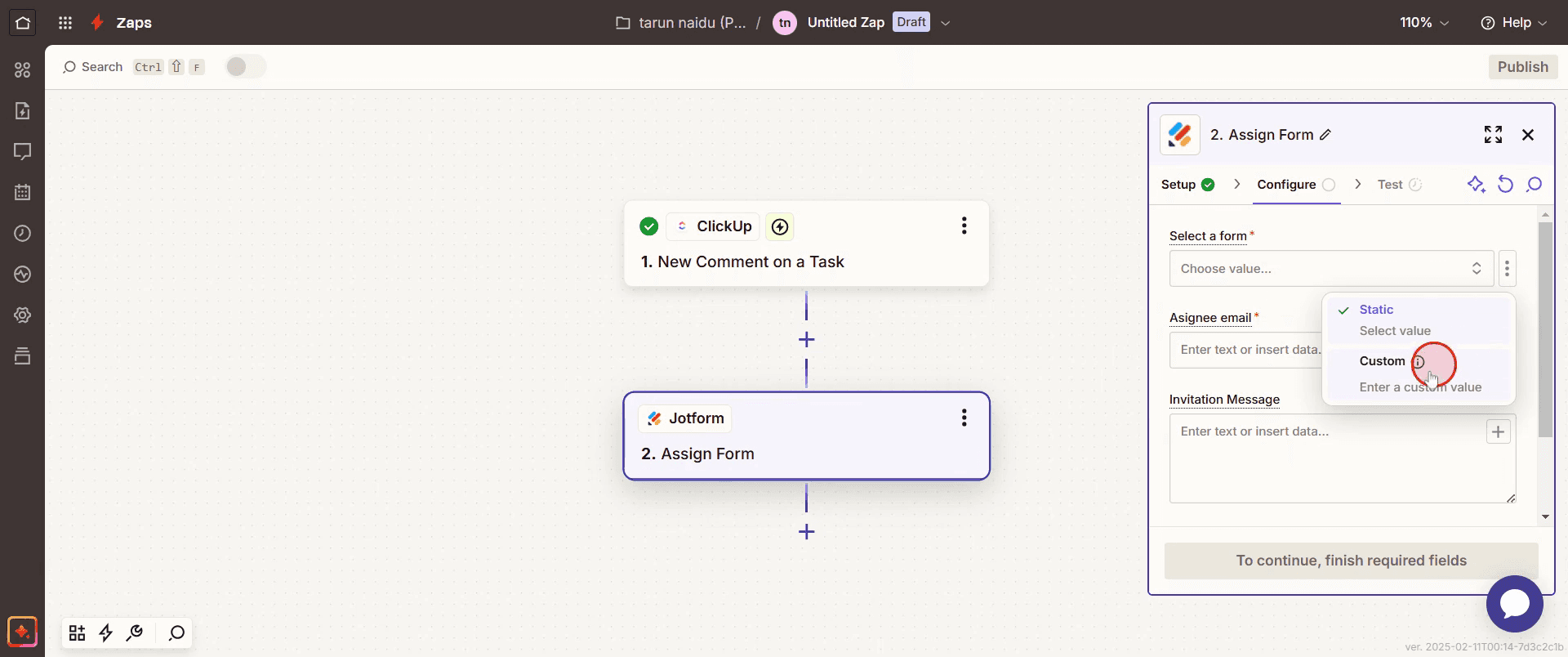
Step 17
Select the Assignee,
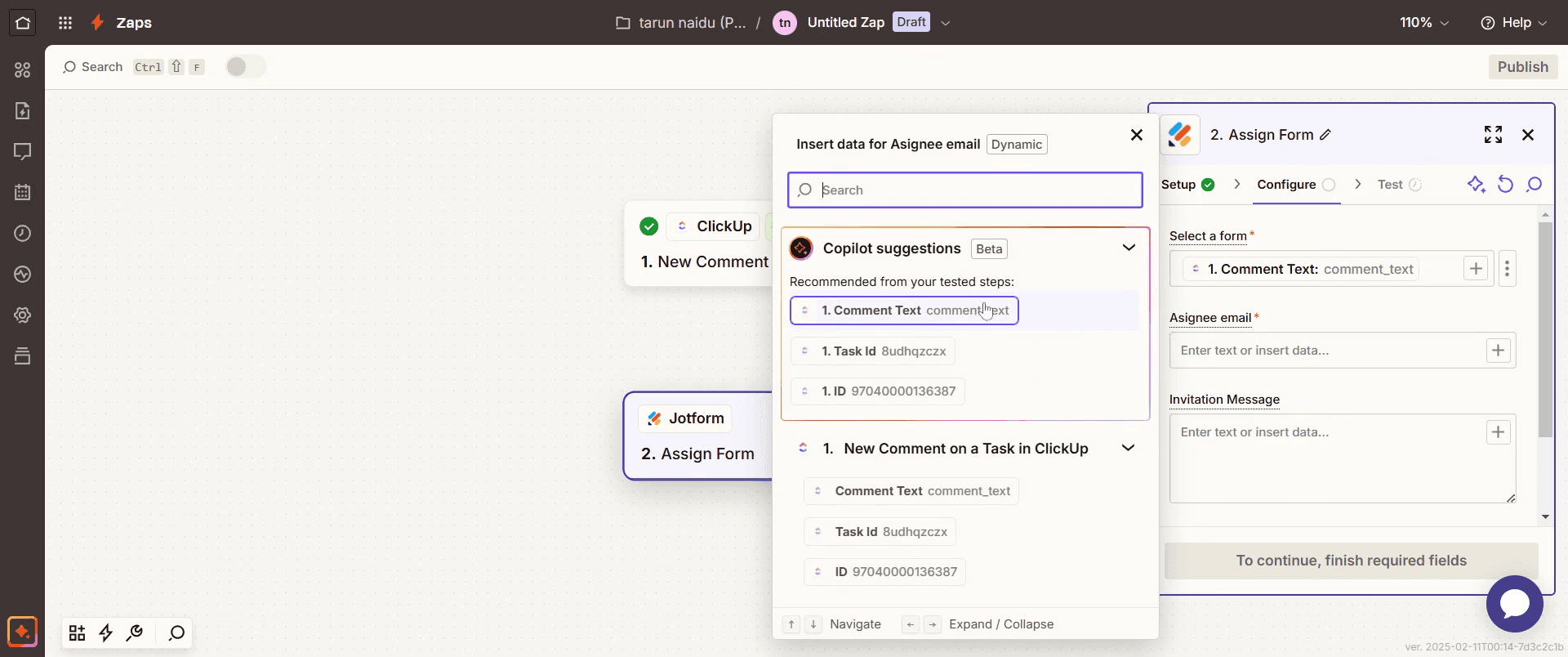
Step 18
Then click on continue.
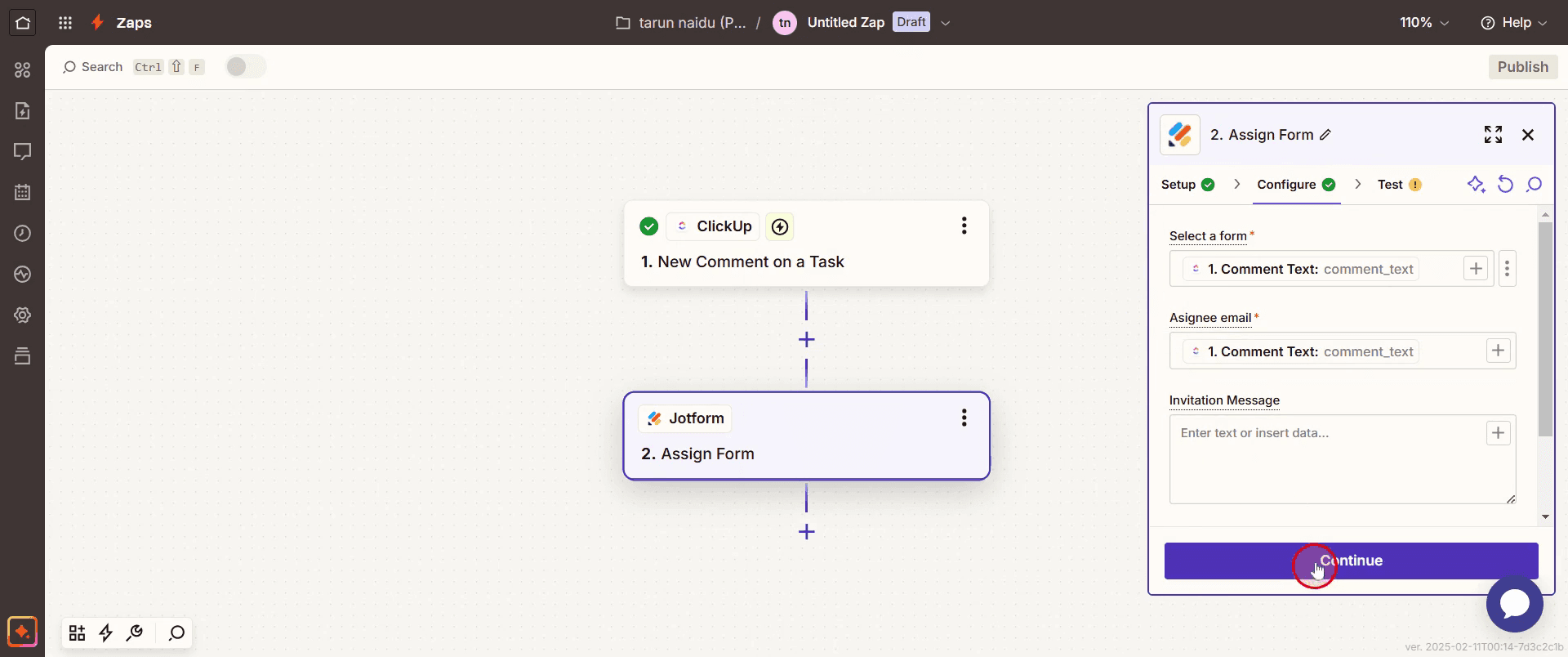
Step 19
Then select Test Step.
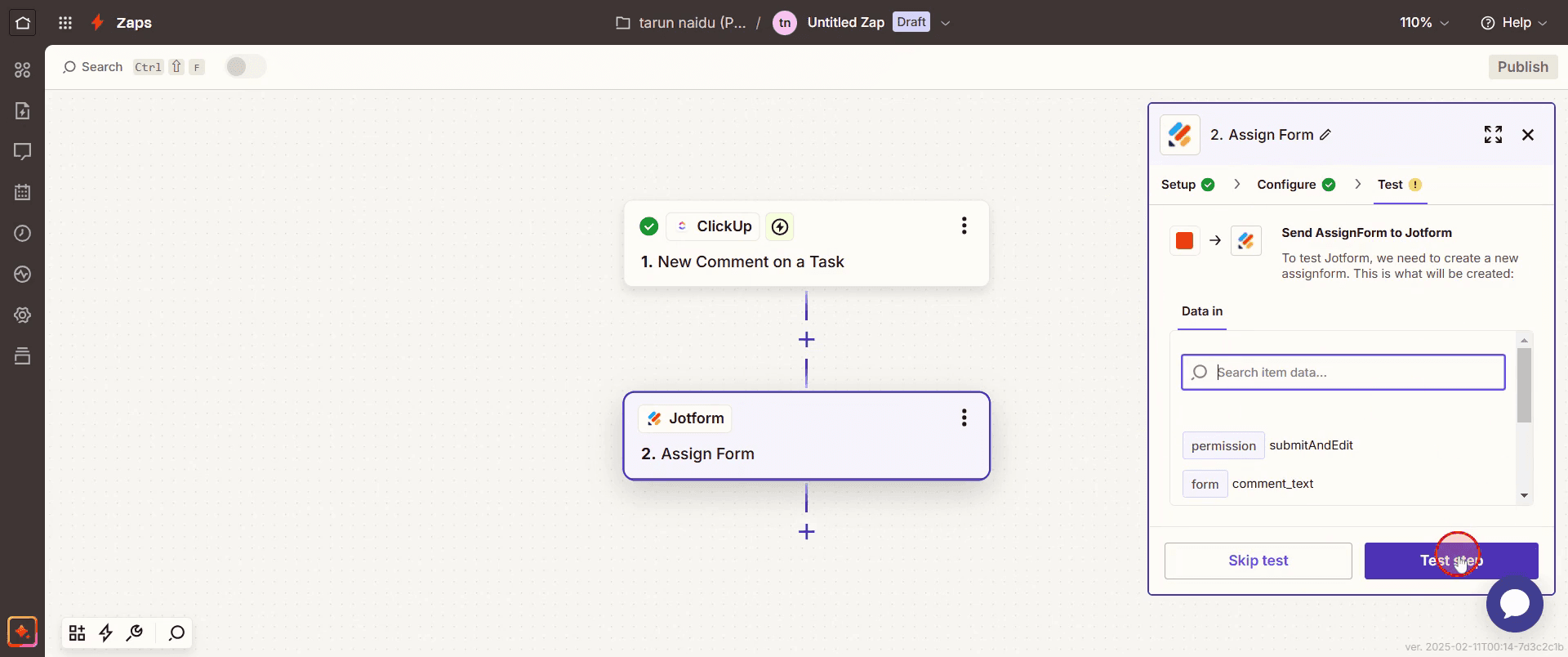
Step 20
Click on Publish.
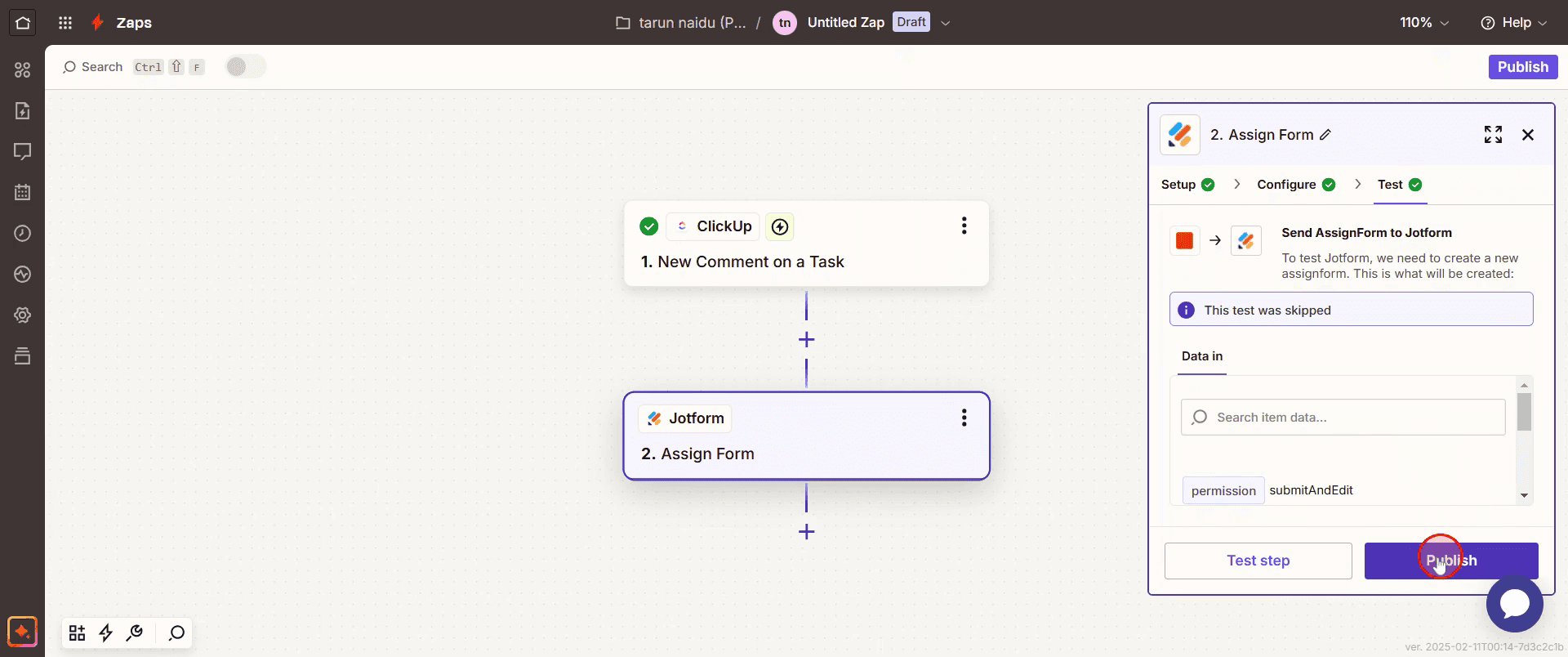
This is the step-by-step process to integrate Click Up with JotForm. Let’s look at some tips for it.
Pro tips for integrating Click Up with JotForm
Use the Native Click Up + JotForm Integration – Leverage the Click Up + JotForm integration to streamline your workflows. This integration allows you to automatically create Click Up tasks directly from form submissions, ensuring that every form response gets tracked and acted upon.
Automate Task Creation for New JotForm Submissions – Set up automation to create a Click Up task whenever a new form is submitted via JotForm. You can configure task details based on the form responses, making it easy to delegate work and track progress.
Link JotForm Submissions to Specific Click Up Projects – When setting up the integration, you can link specific JotForm submissions to specific Click Up projects or lists, ensuring the right team receives the information and starts working on it immediately.
Common pitfalls & how to avoid them
Form Submission Not Triggering Task Creation – If the integration is not set up correctly, JotForm submissions may not trigger the task creation in Click Up. Double-check the integration settings and test the workflow to ensure tasks are created automatically.
Misaligned Task Fields – If the fields between JotForm and Click Up are not mapped correctly, important data may not appear in the right places. Ensure all relevant form fields are mapped accurately to Click Up task fields, so nothing important is missed.
Overcomplicating Automations – Having too many automations or unnecessary steps can slow down the process and cause confusion. Keep your workflows simple, and only set up the automations that are essential for your team’s success.
Common FAQs for integrating Click Up with JotForm
Can i automatically create Click Up tasks from JotForm submissions?
Yes, with the integration, you can automate the creation of Click Up tasks based on JotForm submissions. Each form response can trigger a task in Click Up, including custom field mappings to suit your workflow.Can i map JotForm responses to specific fields in Click Up tasks?
Yes, the integration allows you to map specific JotForm responses to fields in Click Up, such as assignee, task description, priority, and due dates. This ensures the data is transferred correctly for efficient project management.How can i link JotForm submissions to Click Up projects?
During the integration setup, you can choose to link submissions to specific Click Up projects or lists, ensuring that each form submission goes to the right place for the appropriate team to work on.Do i need a paid plan to integrate Click Up with JotForm?
The integration can be used on both free and paid plans. However, advanced features such as custom field mapping and automated workflows may require a paid subscription to Click Up or JotForm.
If you're an instructor or content creator looking to make tutorial videos, give a try. It transforms rough screen recordings into polished, studio-style videos that are ready for sharing with your audience. Plus, it automatically generates a step-by-step guide based on the video you create. Fascinating, right? Start by creating your first tutorial for free with trupeer.ai .

