
How To Integrate ClickUp With Email
Learn the step-by-step process to integrate ClickUp with your email. Boost your productivity and keep your tasks organized effortlessly.
In this guide, you'll learn how to seamlessly integrate ClickUp with your email, allowing you to manage and coordinate tasks more efficiently. By linking your ClickUp projects with your email account, you can streamline communication and boost productivity.
Step 1
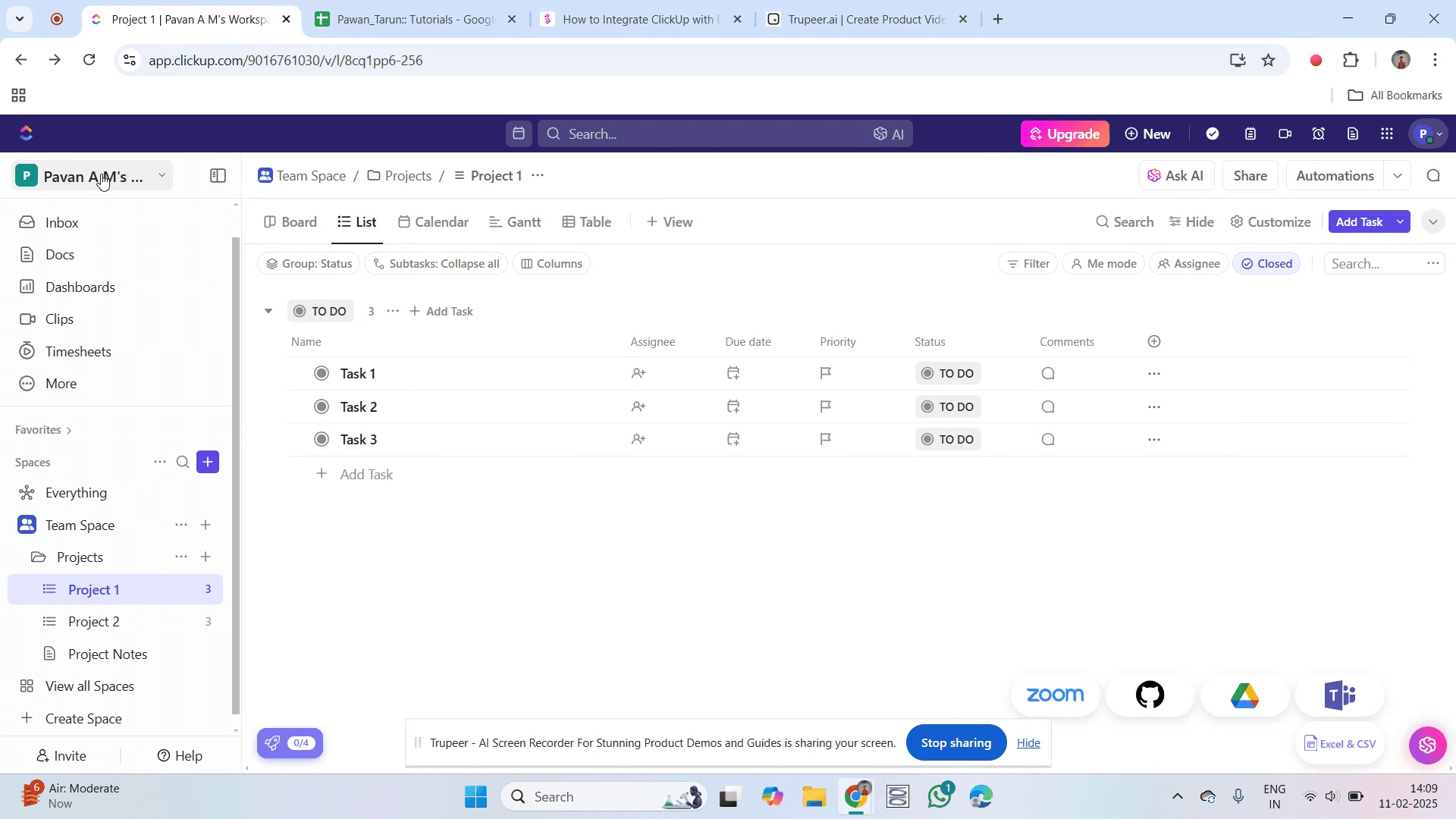
Go to your workspace name and click on it.
Step 2
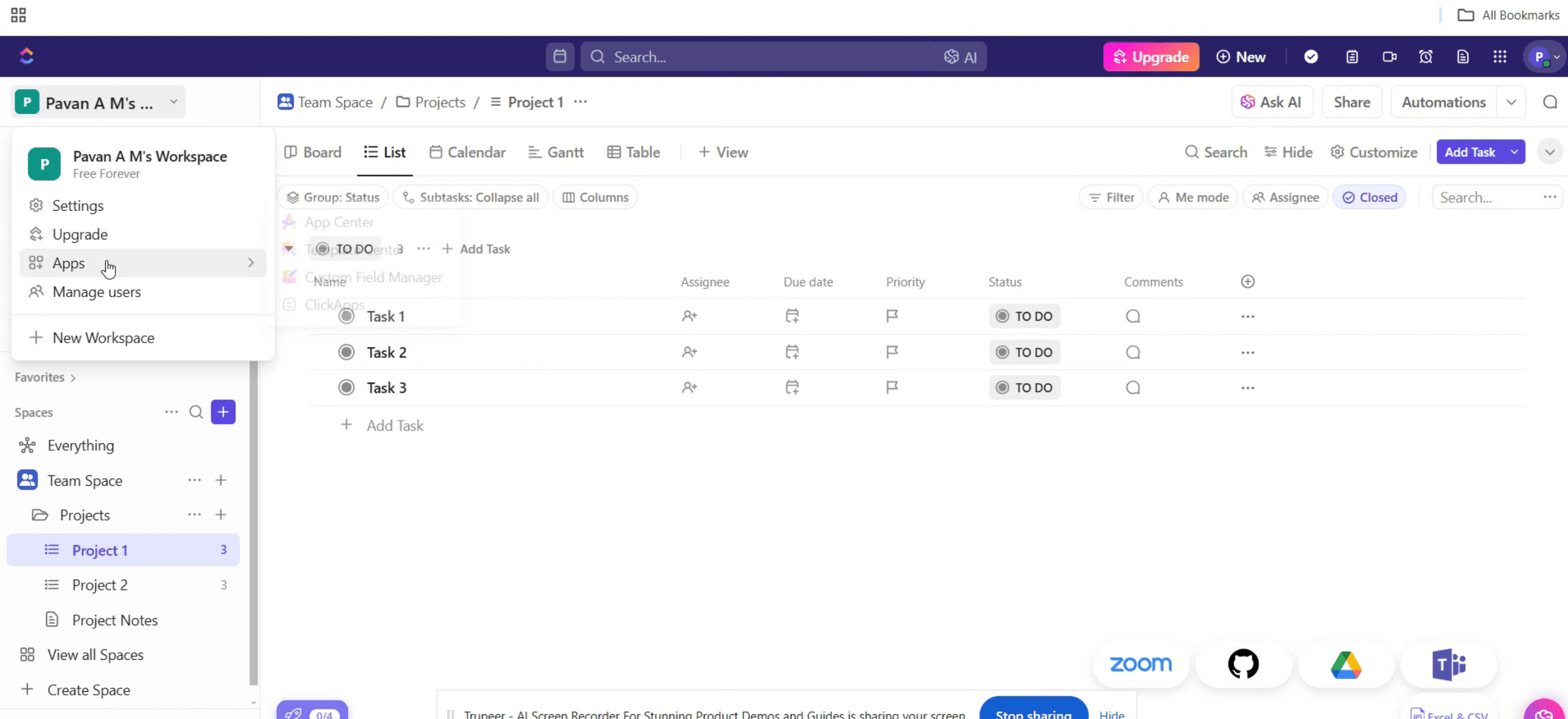
Then, select "Apps".
Step 3
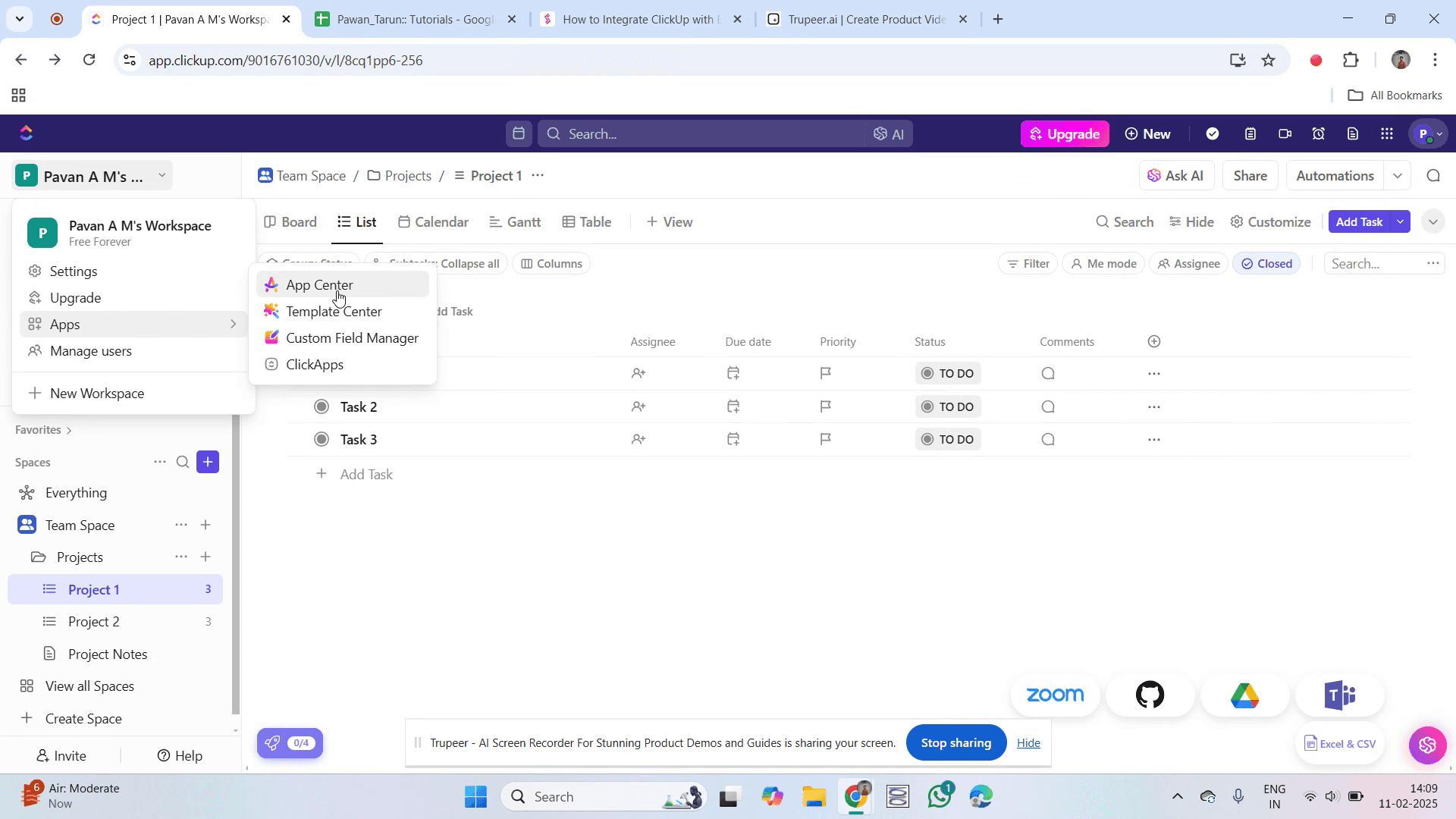
Next, click on "App Center."
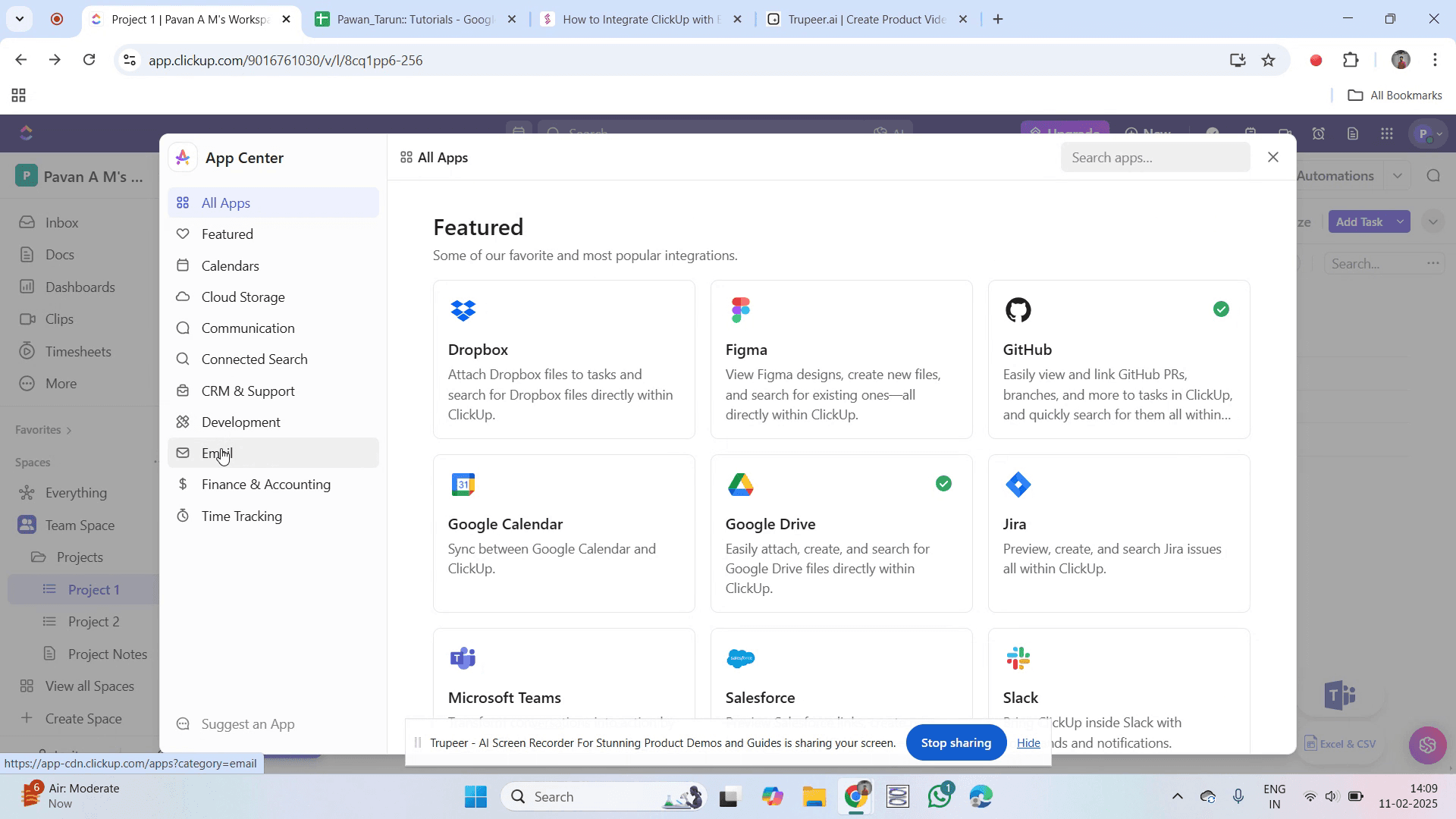
Step 4
Then click on 'Email' in App Center.
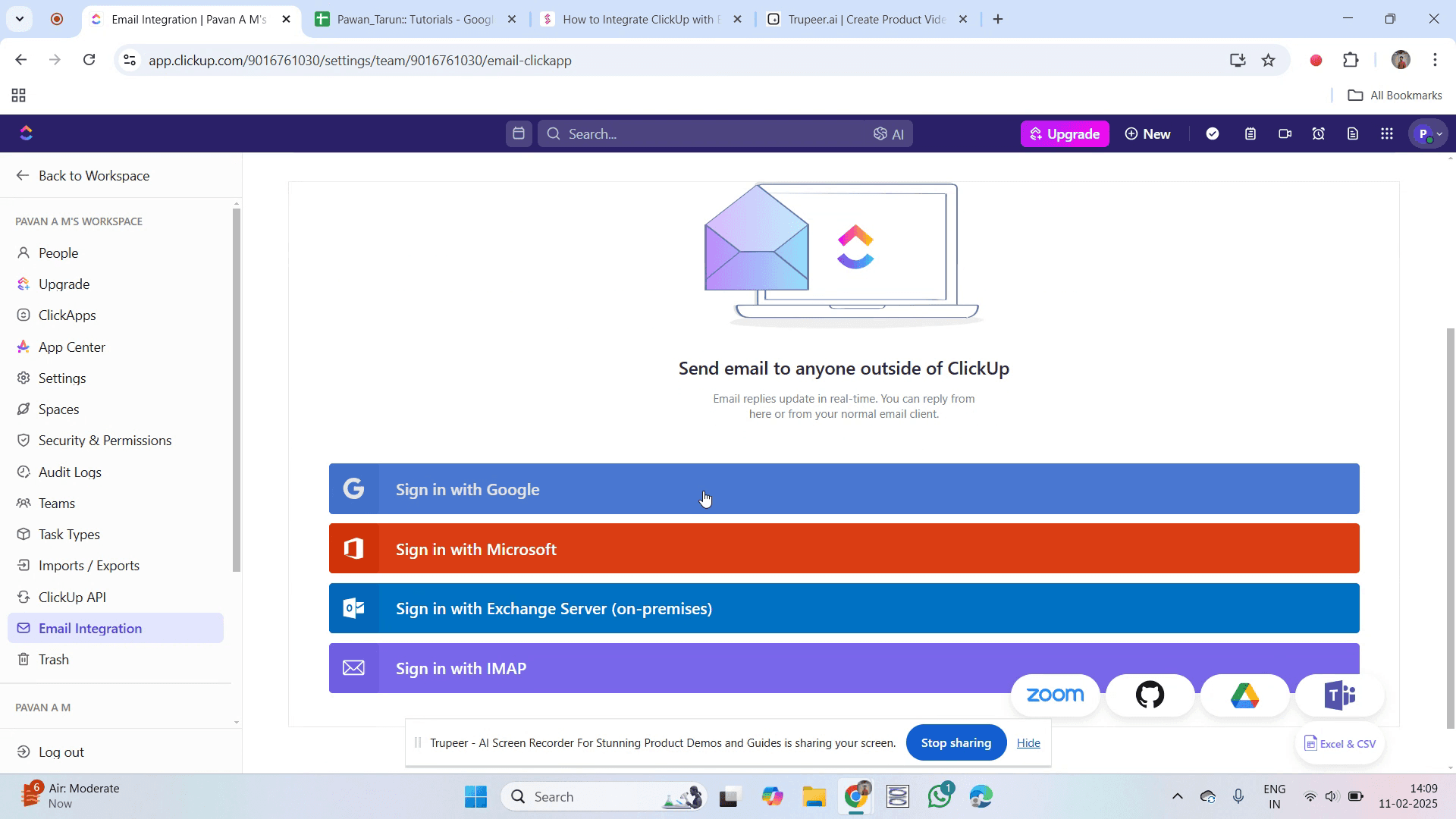
Step 5
Here, you will find the 'Sign in with Google' feature, click on that.
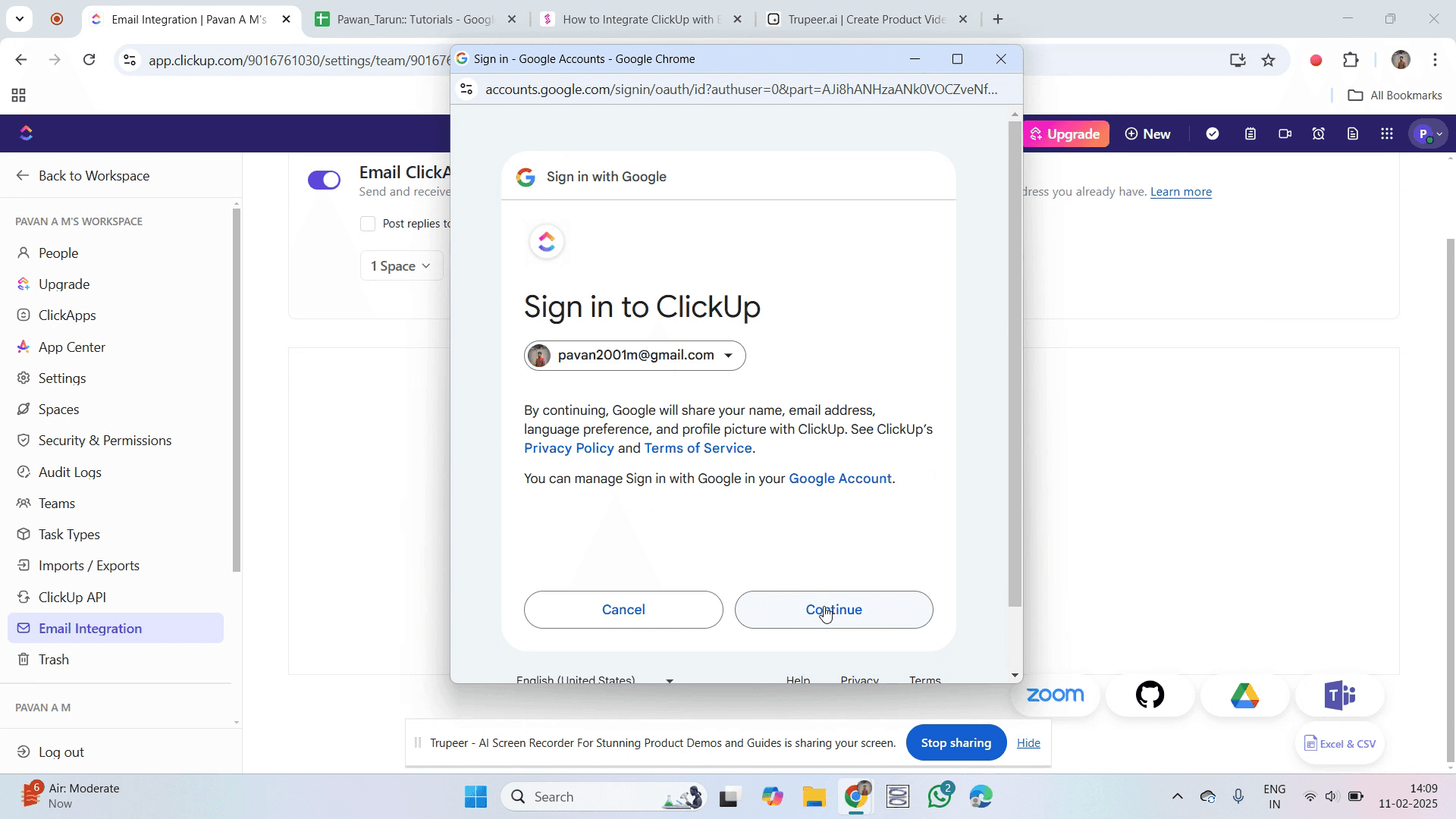
Step 6
Choose an account and click on 'Continue'.
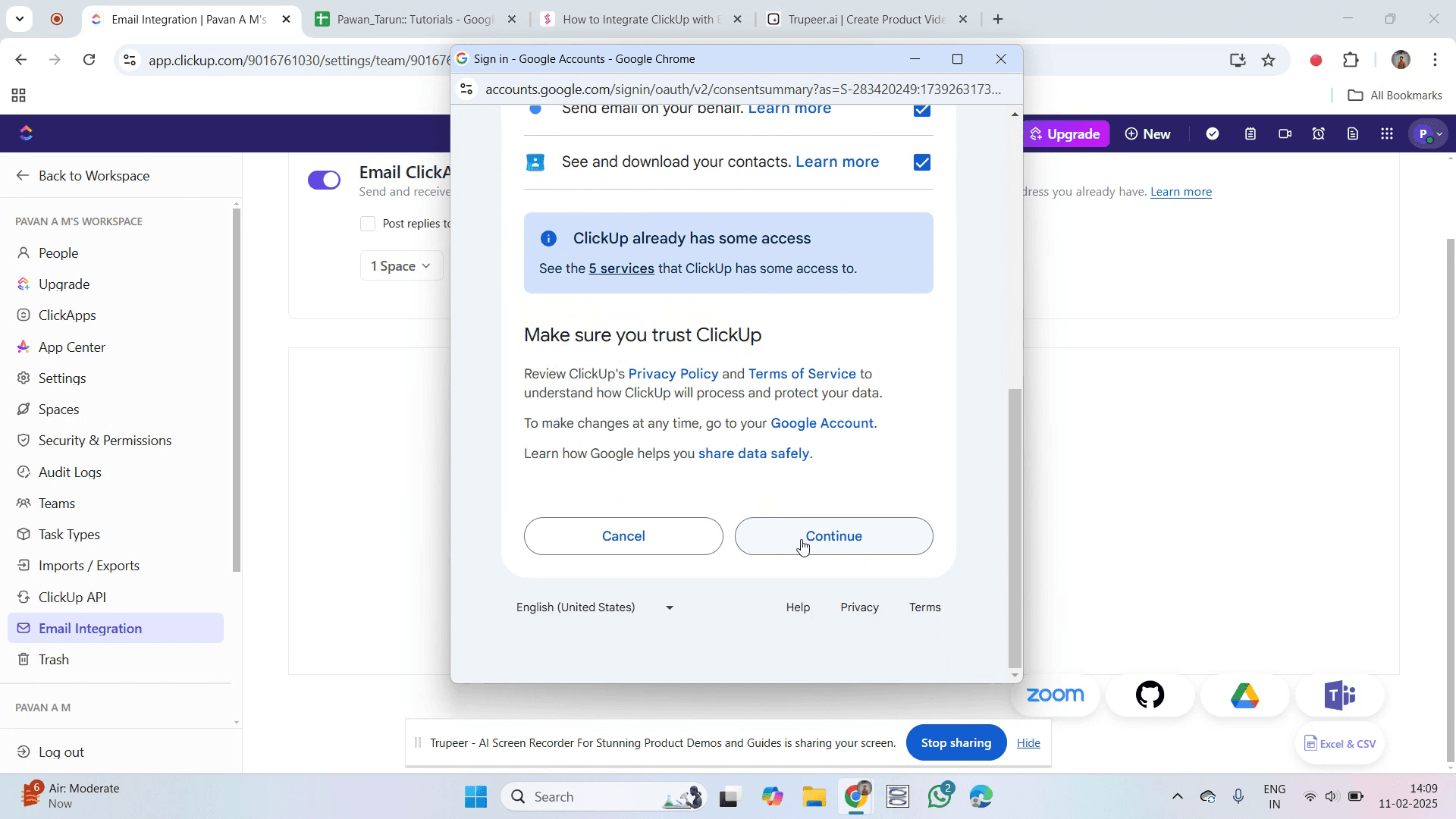
Step 7
Accept all the necessary permissions and click on 'Continue'.
Step 8
Once loading is complete, you will see that your email account is now successfully linked with ClickUp.
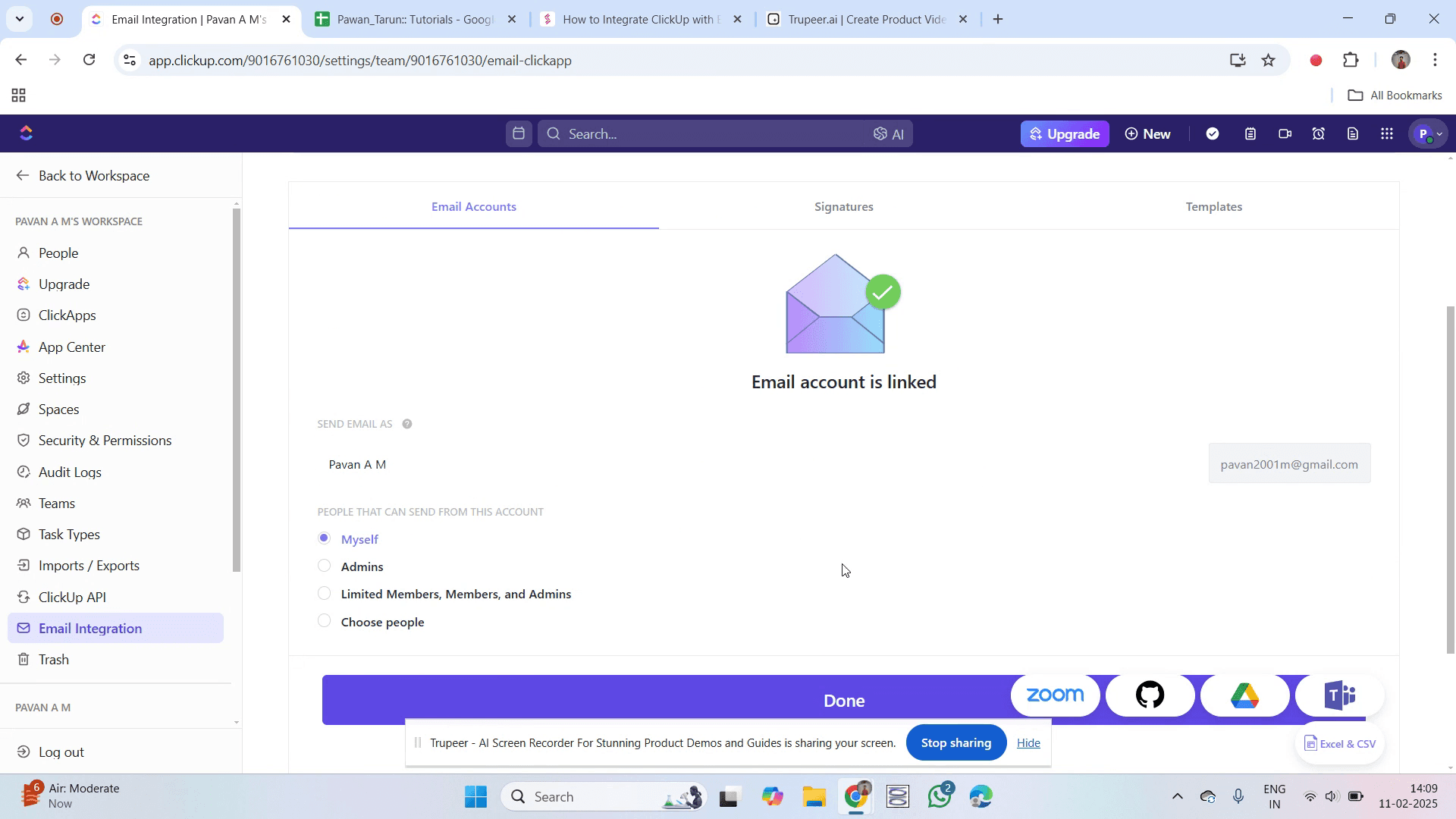
That's it. This is a step-by-step guide on how to integrate ClickUp with email.
Pro-tips for integrating ClickUp with email
Enable the Email in ClickUp feature by navigating to ClickApps in ClickUp settings.
Connect your email provider (Gmail, Outlook, or others) under Settings > Integrations > Email.
Use the Email task feature to send and receive emails directly within ClickUp tasks.
Common pitfalls & how to avoid them while integrating ClickUp with email
Not verifying email permissions – Ensure ClickUp has the necessary access to send and receive emails from your account.
Forgetting to enable email notifications – Check notification settings to ensure you receive important task updates.
Using an incorrect email format – Always format emails properly when sending them from ClickUp to avoid errors.
Common FAQs for integrating ClickUp with email
Does ClickUp support multiple email accounts?
Yes, you can connect multiple email accounts and choose which one to use when sending emails.How do I track emails in ClickUp?
Emails sent through ClickUp are logged as task comments, making it easy to track conversations.Can I receive replies to ClickUp emails?
Yes, replies to emails sent from ClickUp will appear as comments within the corresponding task.
If you're an instructor or content creator looking to make tutorial videos, give Trupeer.ai a try. It transforms rough screen recordings into polished, studio-style videos that are ready for sharing with your audience. Plus, it automatically generates a step-by-step guide based on the video you create. Fascinating, right? Start by creating your first tutorial for free with Trupeer.ai.

