

How To Integrate Jira With A SharePoint List
Learn how to seamlessly integrate Jira with a SharePoint list. Improve your workflow and boost team productivity with our comprehensive guide.
This document provides clear and concise instructions on how to integrate Jira with SharePoint. Follow these steps to successfully connect these platforms and enable seamless collaboration between your teams.
Step 1
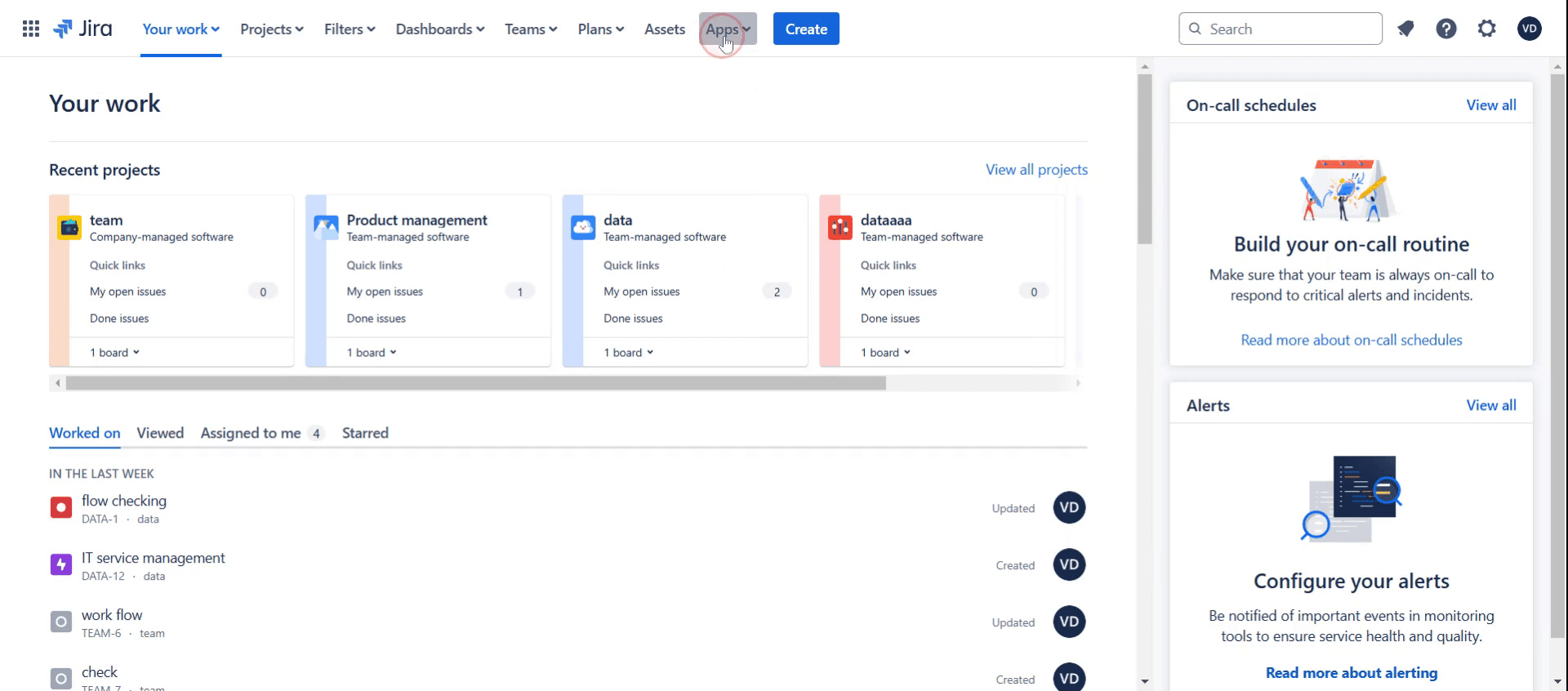
Click on Apps.
Step 2
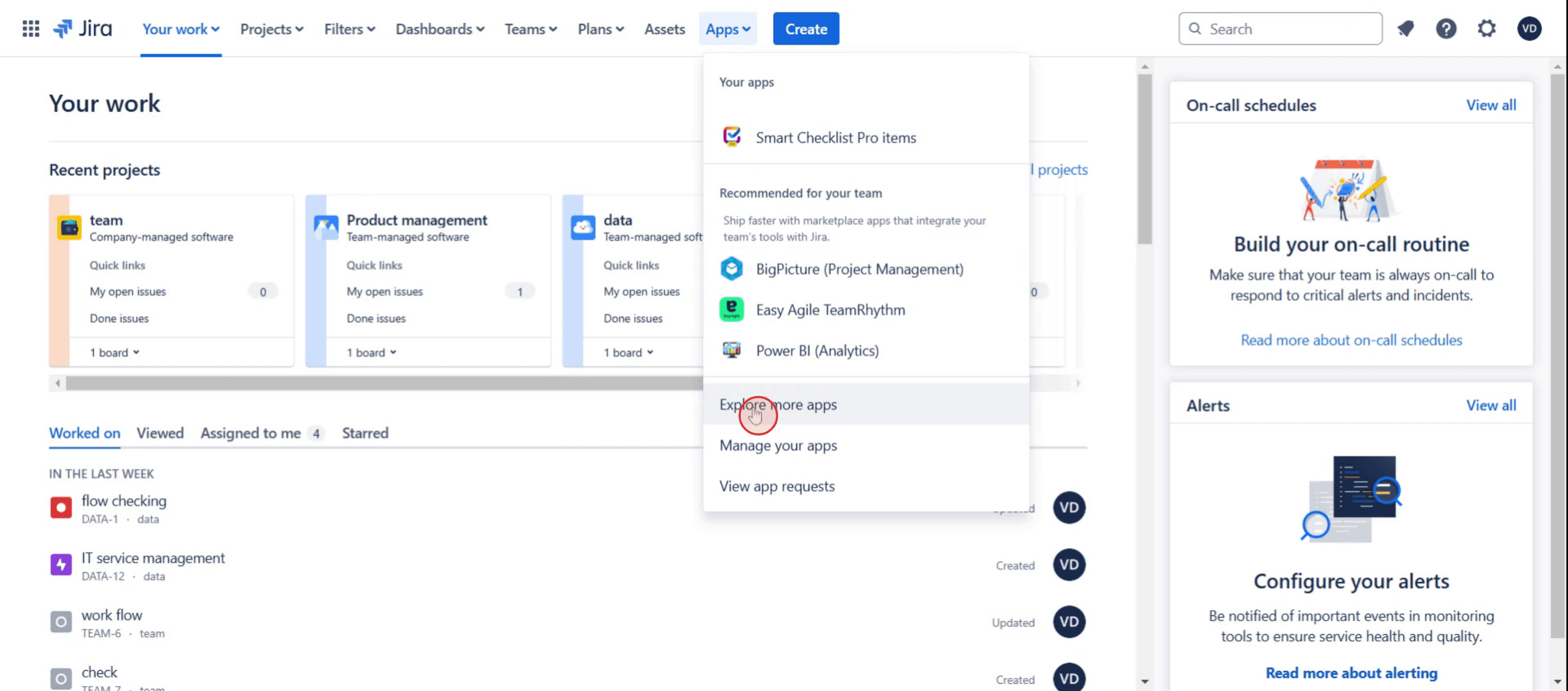
Then select Explore More Apps.
Step 3
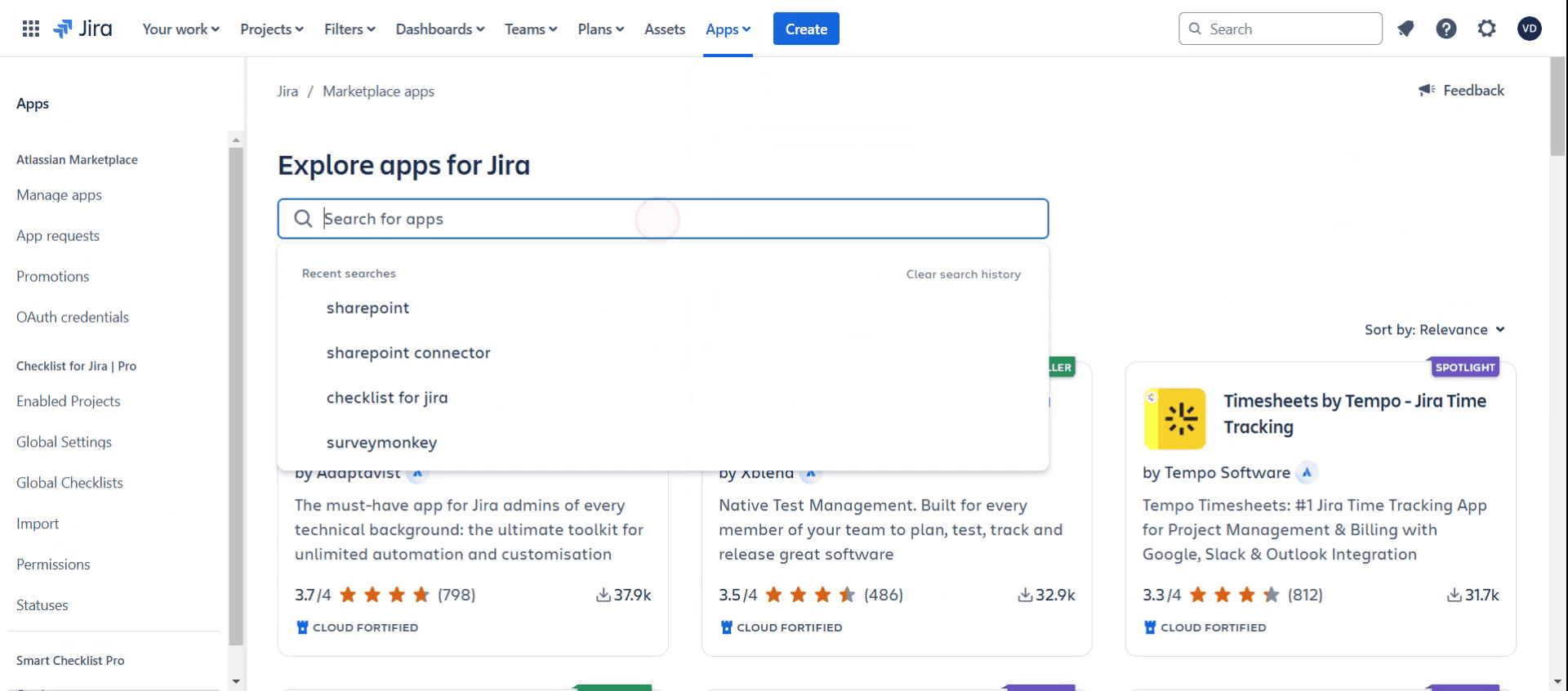
In the search bar, type SharePoint.
Step 4
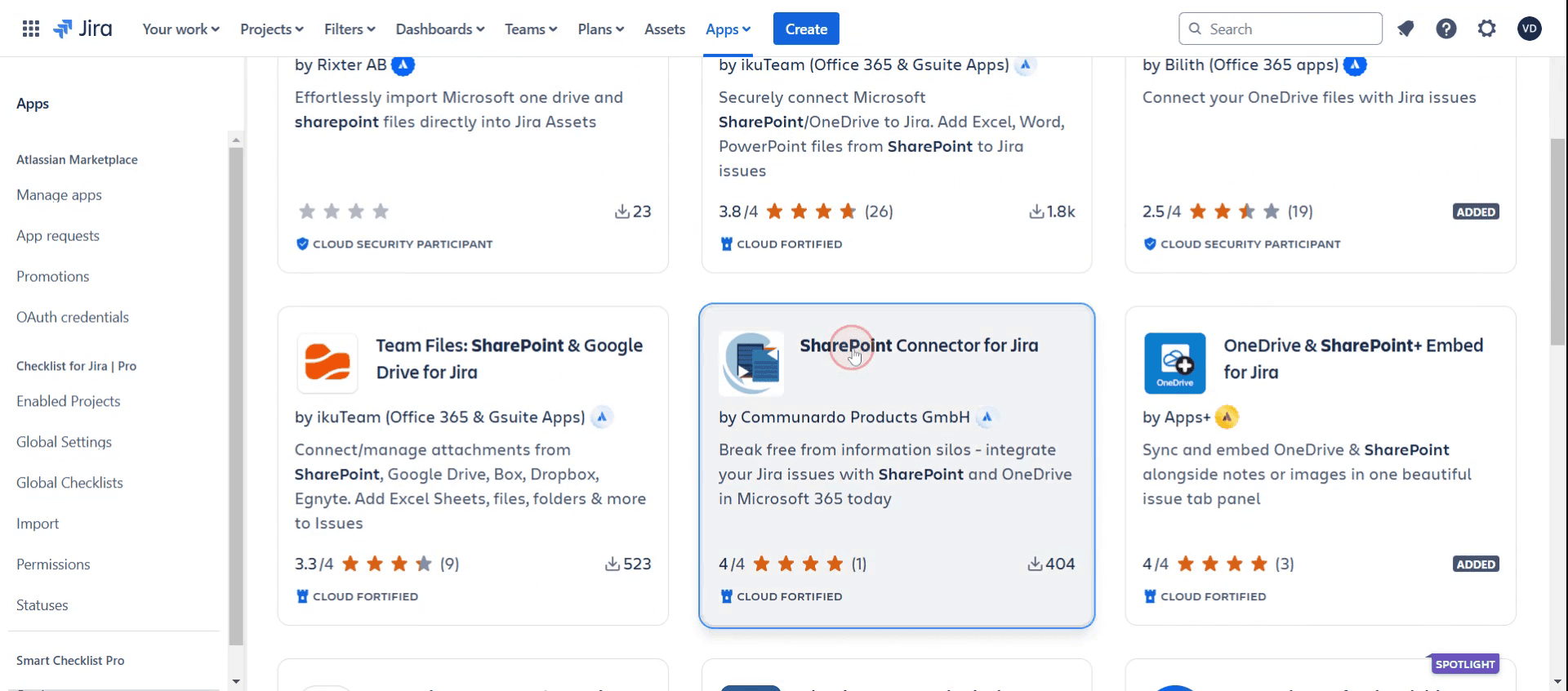
Click on SharePoint app.
Step 5
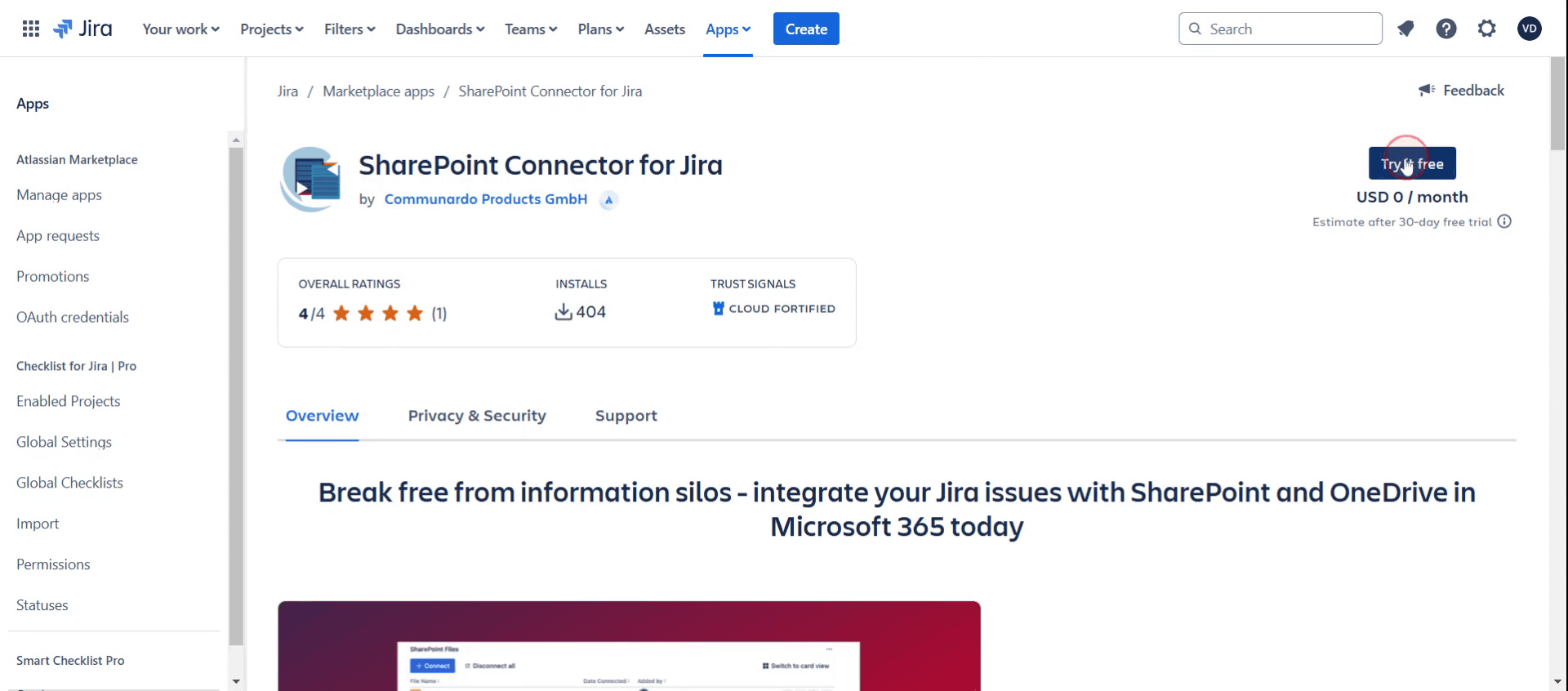
Click on Try it for Free.
Step 6
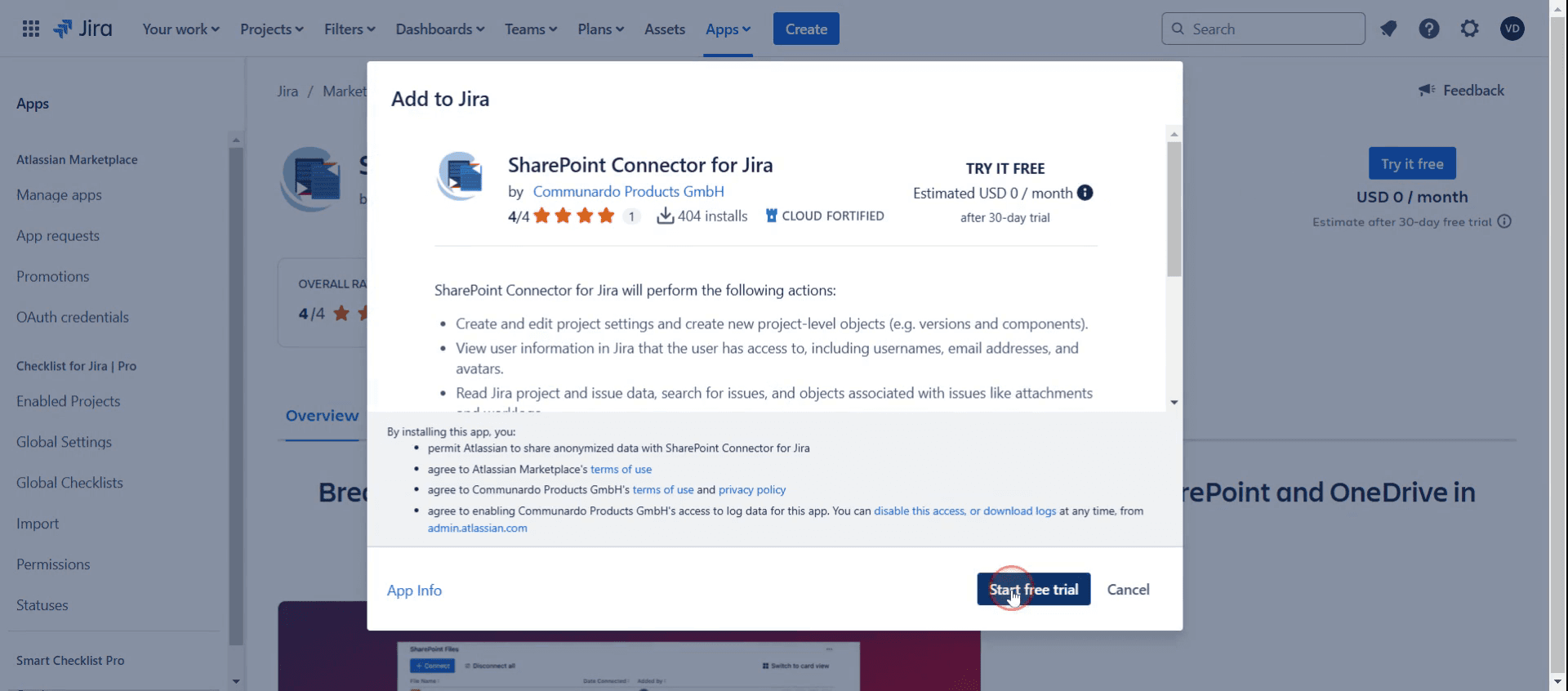
And click on Share a Free Trial.
Step 7
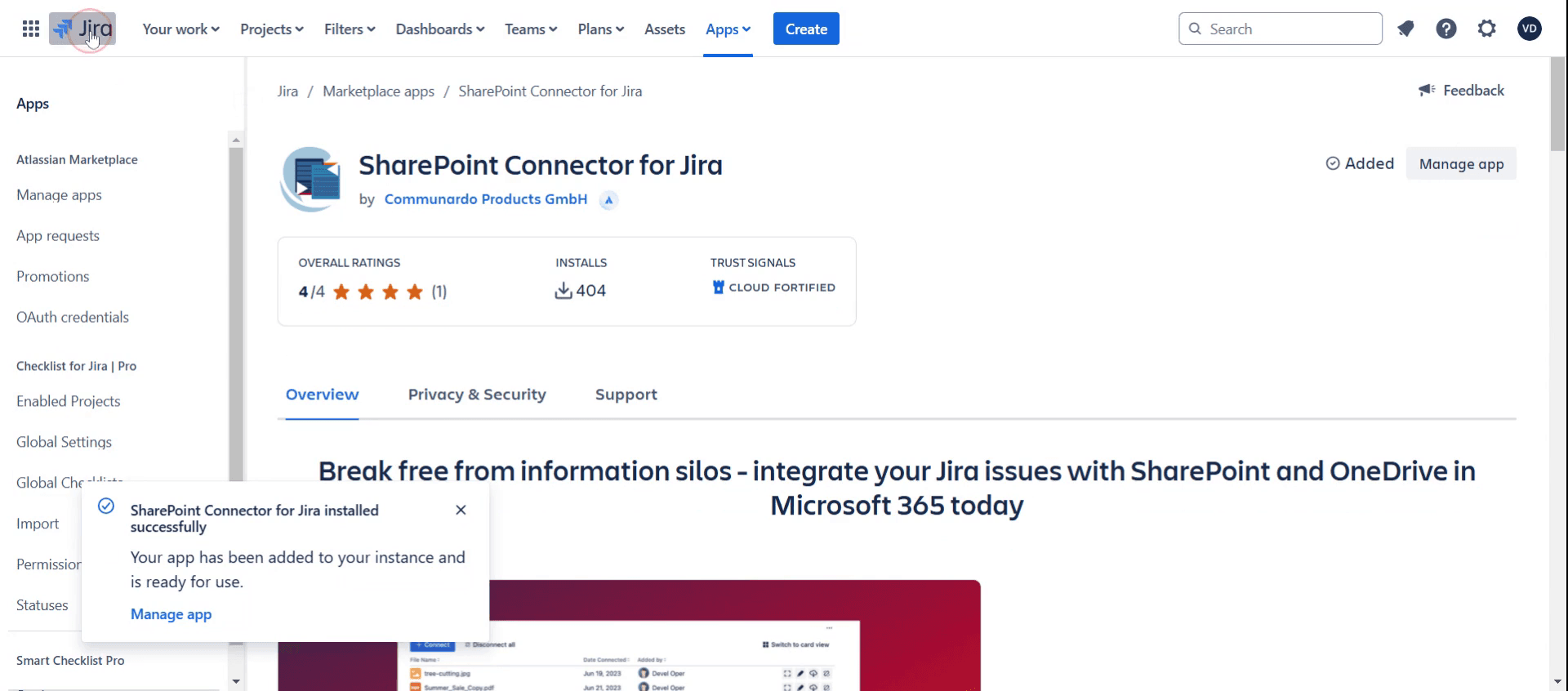
Then you can see the pop up, Jira is successfully installed.
Step 8
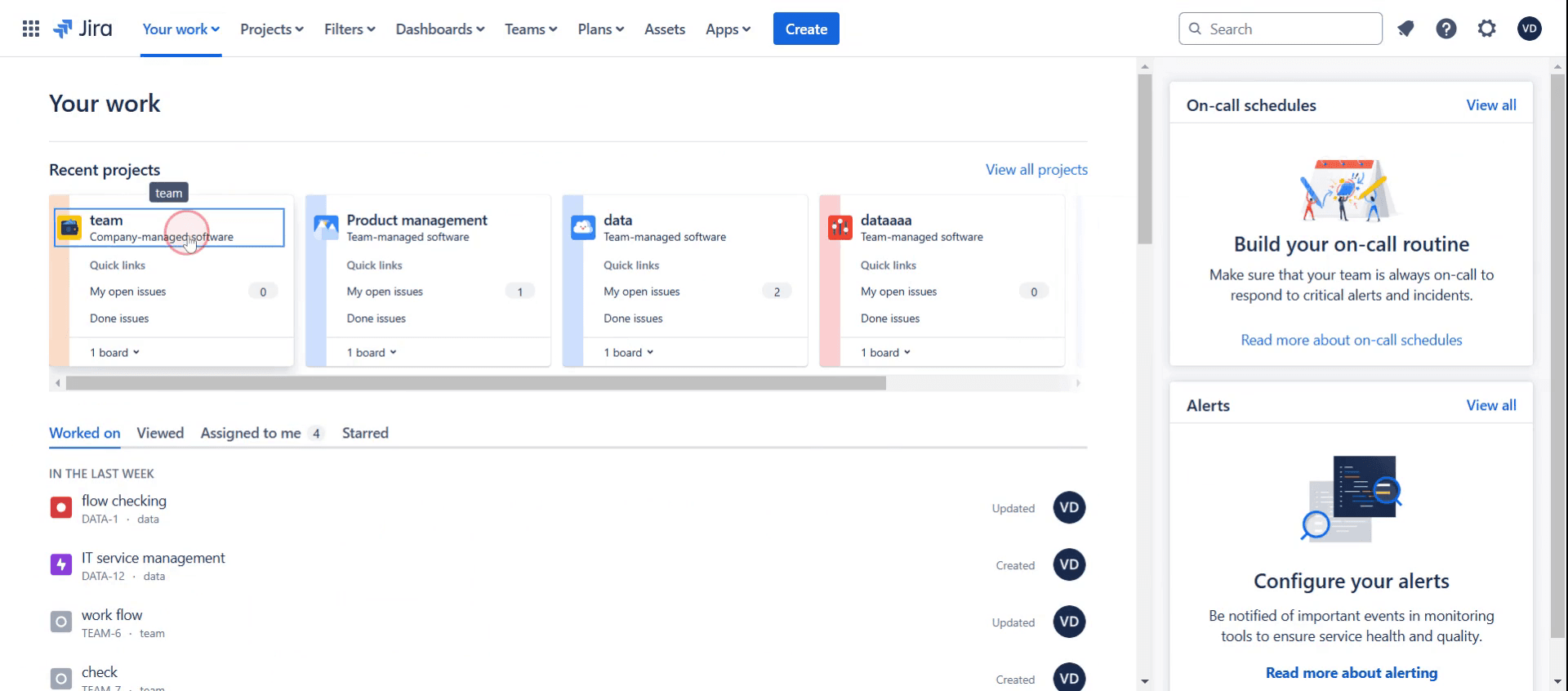
Select a specific project from within Jira.
Step 9
Choose a particular ticket ,
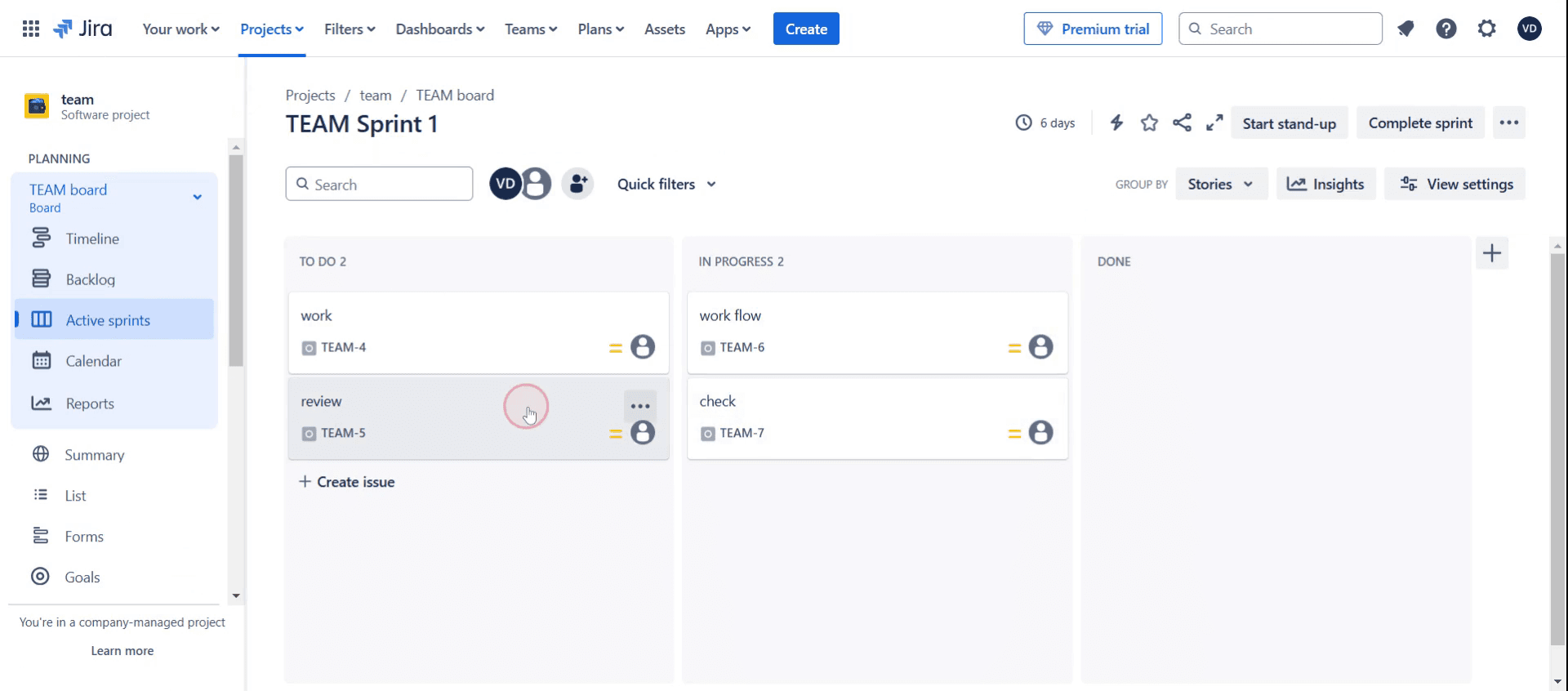
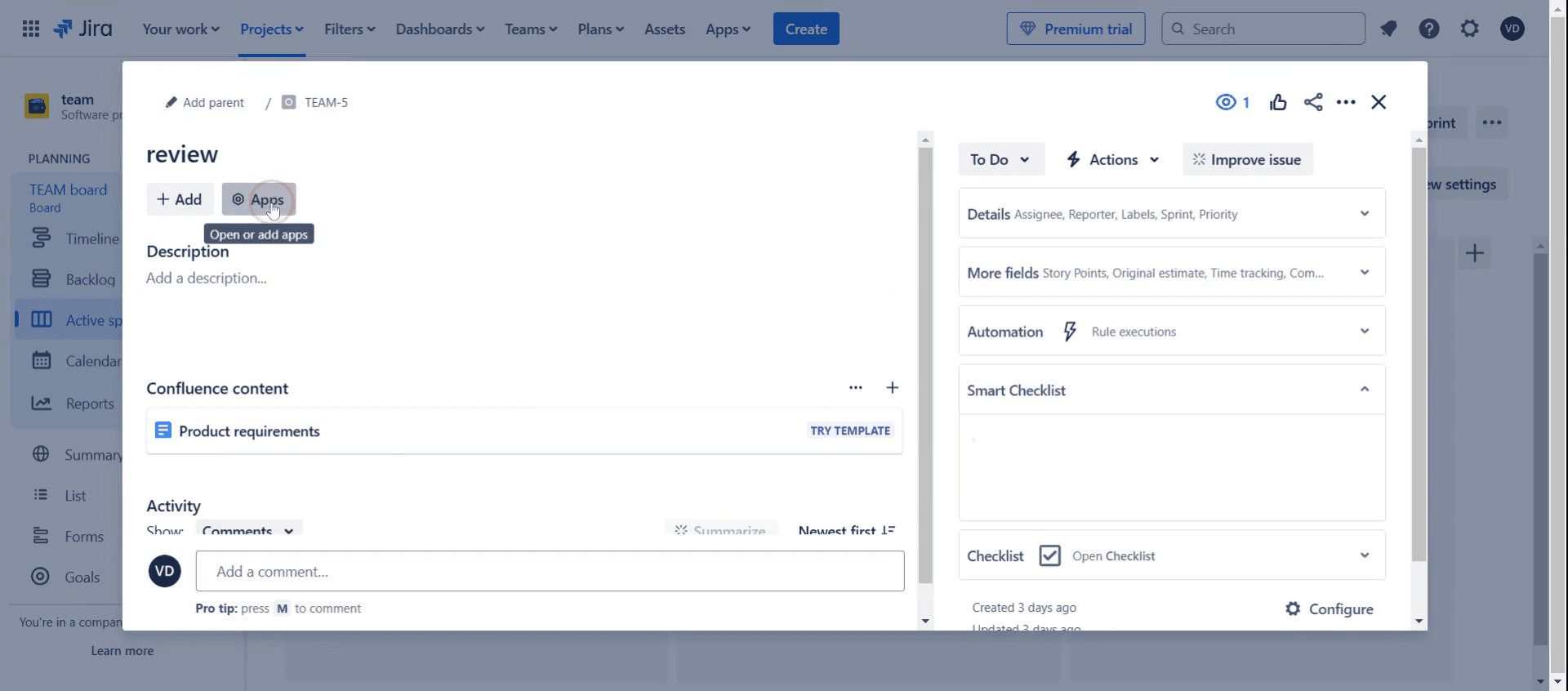
Step 10
Click on Apps.
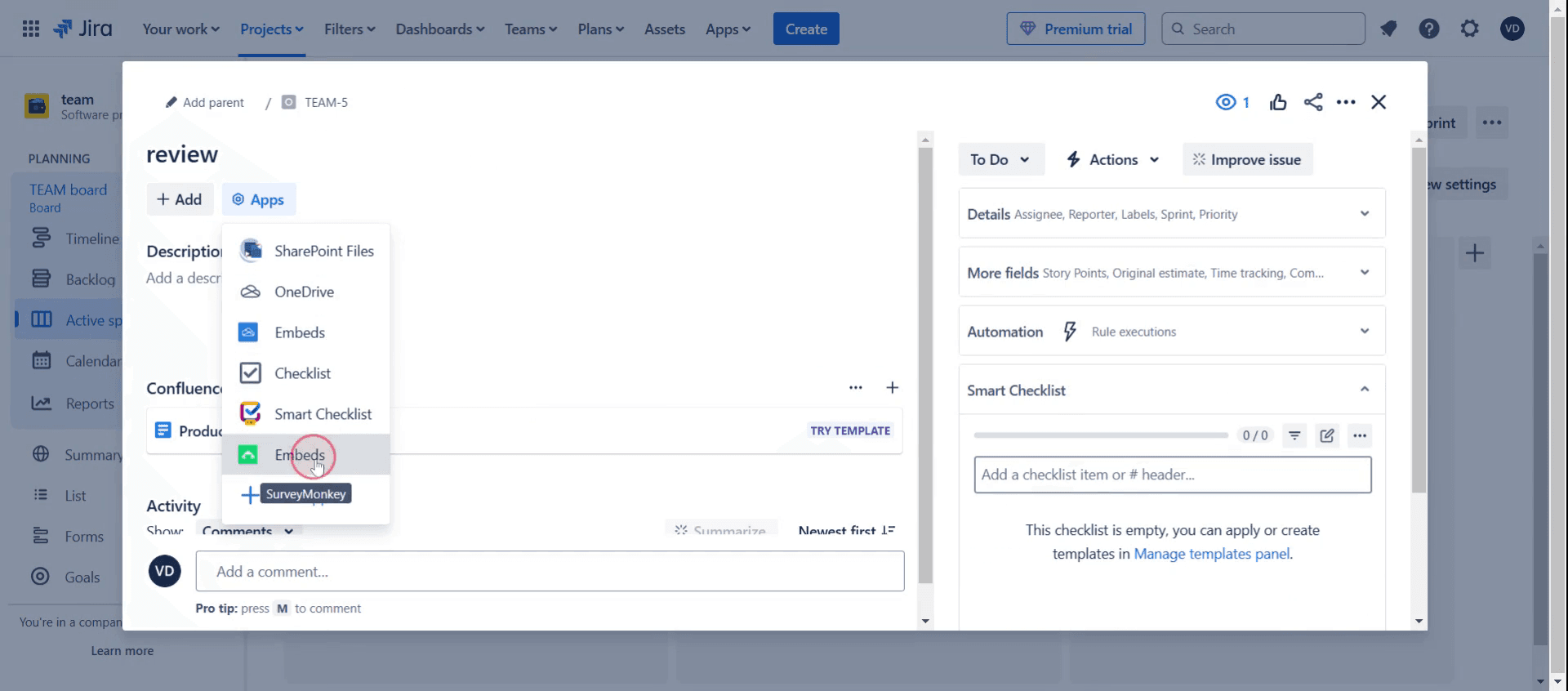
Step 11
Select Embeds.
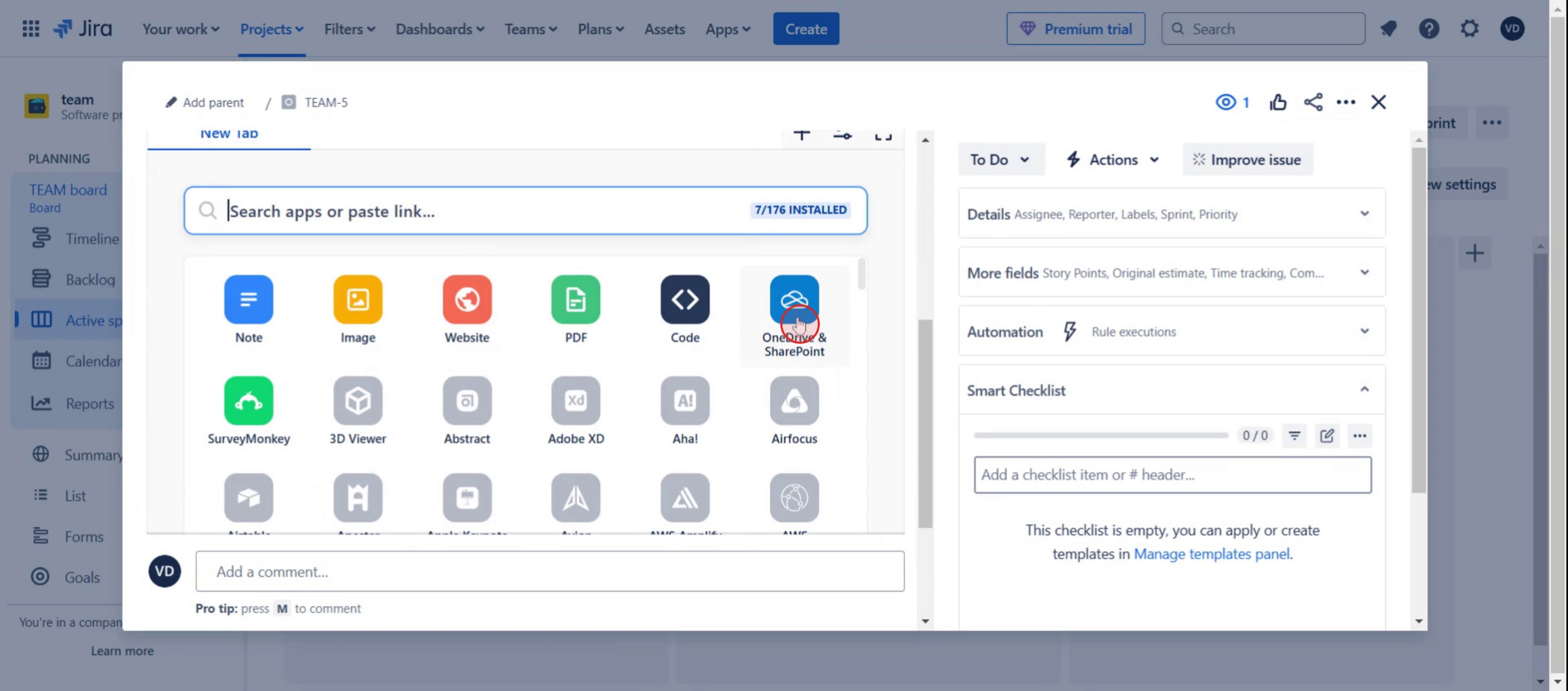
Step 12
Click on OneDrive SharePoint,
Step 13
And click on save option.
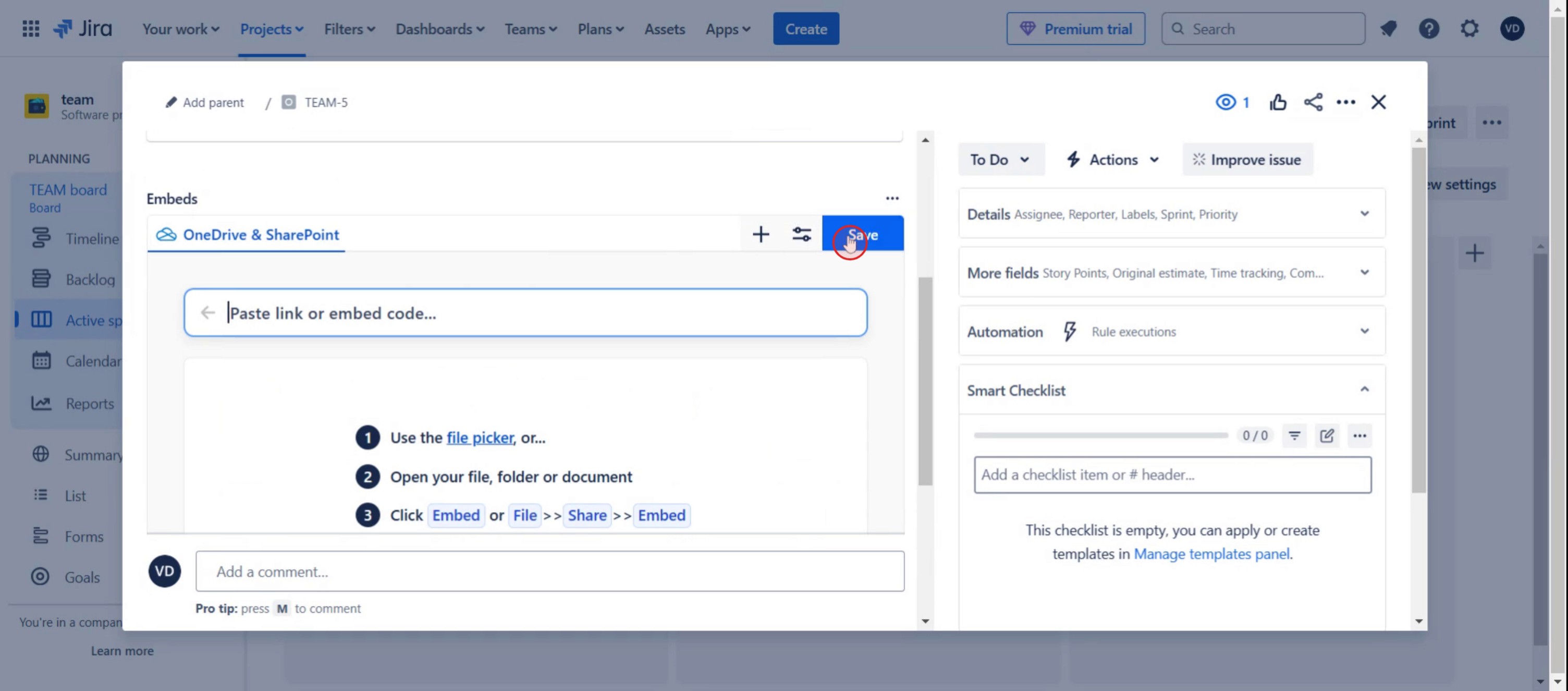
This is the step-by-step process to integrate Jira with a SharePoint list. Let’s look at some tips for it.
Pro-tips for integrating Jira with a SharePoint list
Use a Connector Tool for Seamless Integration – Jira does not natively support SharePoint integration, so use third-party connectors like Microsoft Power Automate, Atlassian SharePoint Connector, or Zapier to sync data.
Define Sync Rules Before Integrating – Decide what data needs to be shared between Jira and SharePoint, such as issue status, priority, attachments, or comments.
Enable Two-Way Sync for Real-Time Updates – Configure the integration to allow updates in Jira to reflect in SharePoint and vice versa to maintain data consistency.
Common pitfalls & how to avoid them
Incorrect API Configuration – Ensure that API keys and authentication tokens are correctly set up in the integration tool to prevent sync failures.
Data Duplication Issues – If two-way sync is enabled, duplicate records can appear. Configure unique identifiers to prevent data loops.
Limited Field Mapping – Not all Jira fields may be supported in SharePoint. Use custom field mapping to align data properly.
Common FAQs for integrating Jira with a SharePoint list
Can i sync Jira issues with SharePoint automatically?
Yes, you can set up real-time sync using Power Automate or a Jira SharePoint connector.What kind of Jira data can be shared with SharePoint?
You can sync issue status, summary, assignee, comments, attachments, priority, and custom fields between Jira and SharePoint.Does this integration support two-way updates?
Yes, most connector tools allow two-way sync, so updates made in SharePoint can reflect in Jira and vice versa.Can i control which Jira issues get synced to SharePoint?
Yes, you can set up filters and conditions to sync only selected Jira issues based on project, status, or priority.
If you're an instructor or content creator looking to make tutorial videos, give a try. It transforms rough screen recordings into polished, studio-style videos that are ready for sharing with your audience. Plus, it automatically generates a step-by-step guide based on the video you create. Fascinating, right? Start by creating your first tutorial for free with trupeer.ai .

