
How To Invert Colors In Canva
Discover how to easily invert colors in Canva with our step-by-step guide. Transform your designs and enhance visual appeal effortlessly.
This guide offers step-by-step instructions on adding colors in Canva. Although Canva lacks a direct color inversion feature, you can manually achieve this effect.
Step 1
Select the element that you wanted to invert color.

Step 2
And access the color options on the top as show in the screenshot below.
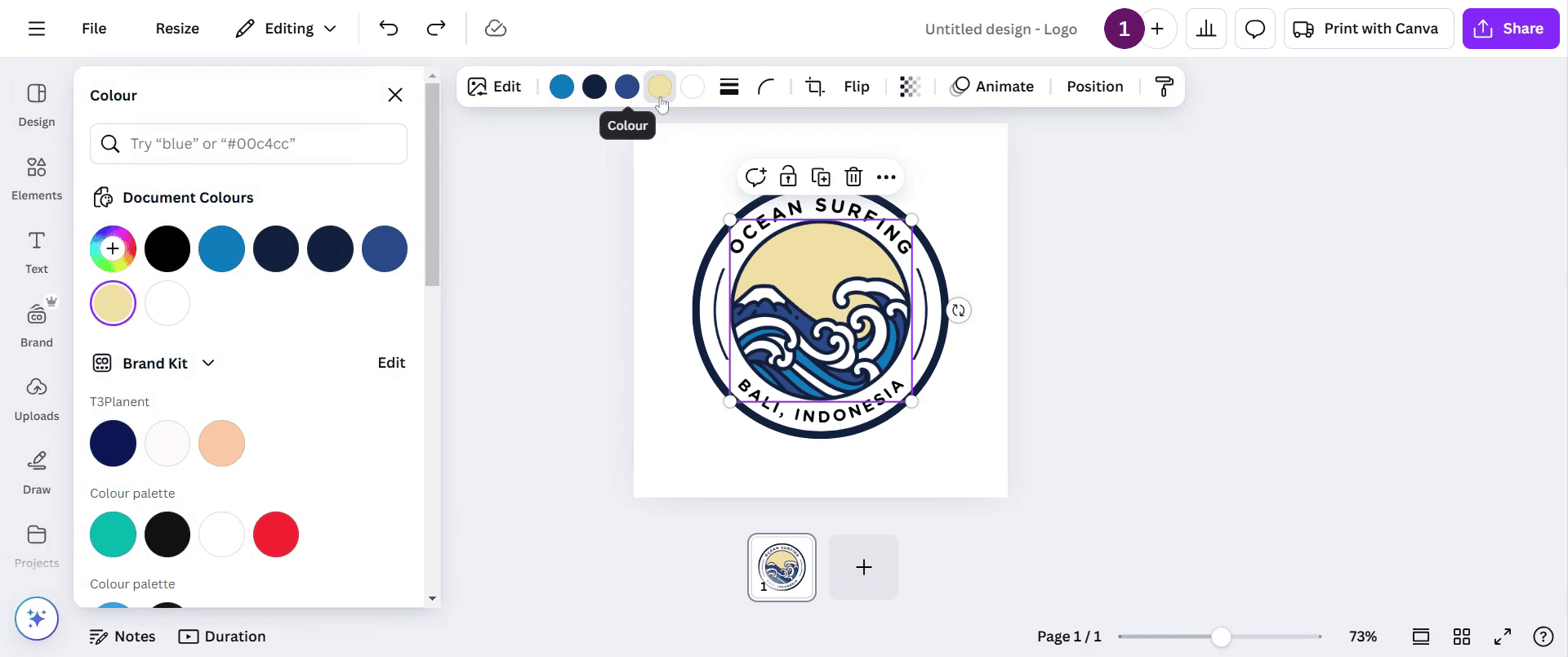
Step 3
Now explore various color combinations as you need.

Step 4
Once you have manually changed the colors share it by clicking on the share option.

This is a step-by-step guide on how to invert colors in Canva.
Pro-tips for inverting colors in Canva
Use the Effects tool to quickly apply a color inversion to elements like text or images in Canva.
Invert colors on images for a striking, high-contrast effect that enhances visual impact in your designs.
Adjust the intensity of the inverted colors by tweaking the brightness and contrast sliders for a more refined look.
Common pitfalls & how to avoid them while inverting colors in Canva
Applying color inversion to backgrounds with low contrast can make it hard to read text always check visibility after inverting.
Using the color inversion effect on all elements can result in overwhelming, hard-to-read designs apply selectively.
Forgetting to adjust your text or graphics after inversion may lead to misalignment or poor visibility.
Common FAQs for inverting colors in Canva
1. Can I invert colors in Canva for free?
Yes, you can invert colors in Canva using the free version by selecting an element and applying the color inversion through the Effects menu.
2. How do I reset the colors after inverting in Canva?
If you want to undo color inversion in Canva, simply select the element again and turn off the Invert effect, or manually adjust the colors to your original preference.
If you're an instructor or content creator looking to make videos, give Trupeer.ai a try. It transforms rough screen recordings into polished, studio-style videos that are ready for sharing with your audience. Plus, it automatically generates a step-by-step guide based on the video you create. Fascinating, right? Start by creating your first tutorial for free with Trupeer.ai.

