
How To Lock A Row On Google Sheets
Discover the step-by-step guide on how to lock a row in Google Sheets. Enhance your spreadsheet management and keep your data organized effortlessly.
This document provides a step-by-step process on how to lock a row in a spreadsheet. Follow these instructions to ensure certain rows are protected and have restricted access based on your preferences.
Step 1
First go to the row you wish to lock.
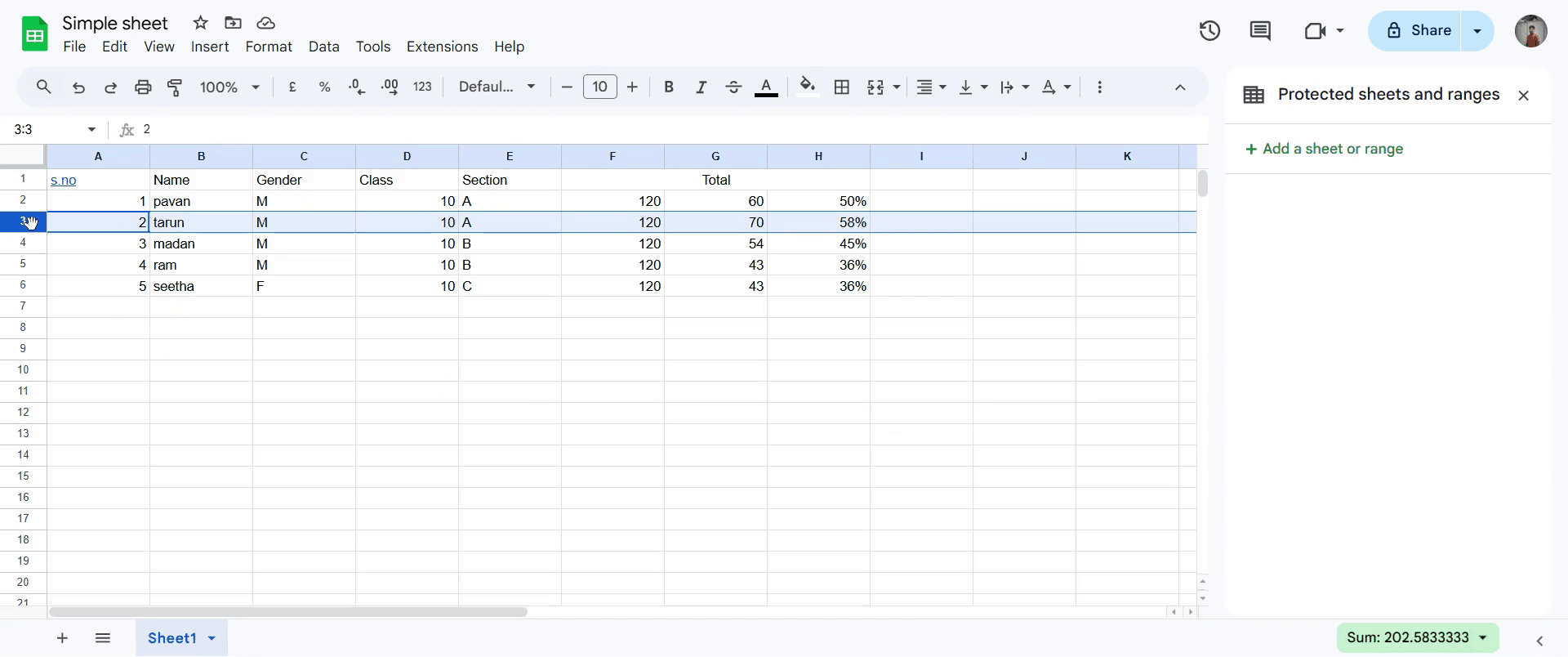
Step 2
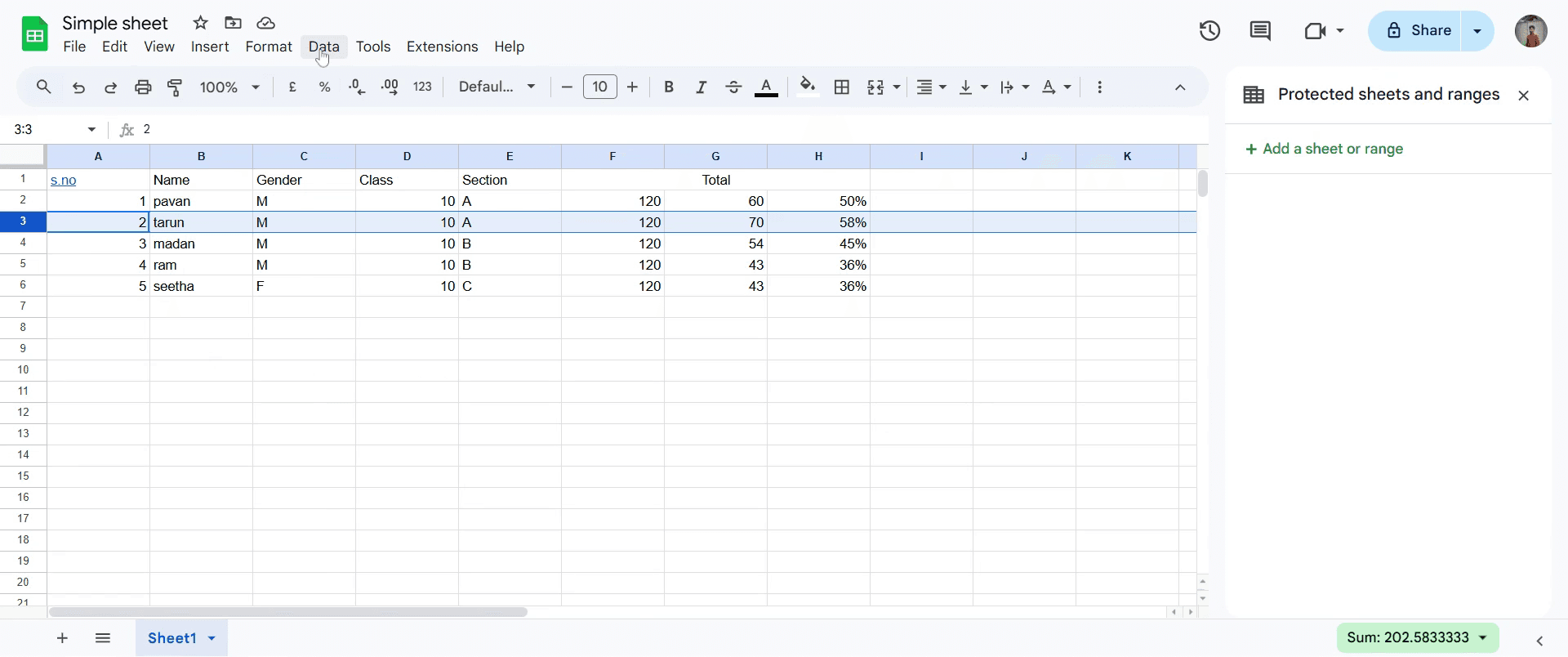
Once selected, look for the "Data" option in the menu and click on it.
Step 3
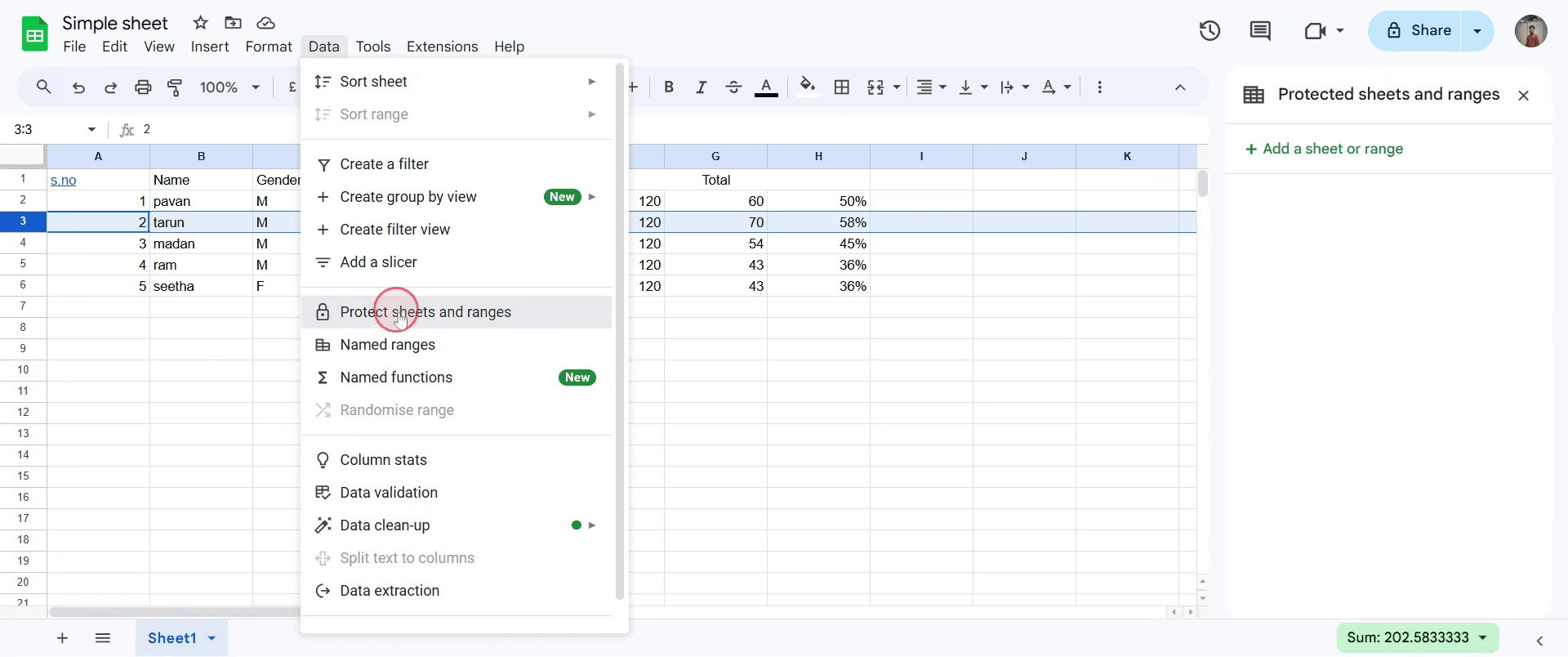
Select the "Protect sheets and and ranges" option.
Step 4
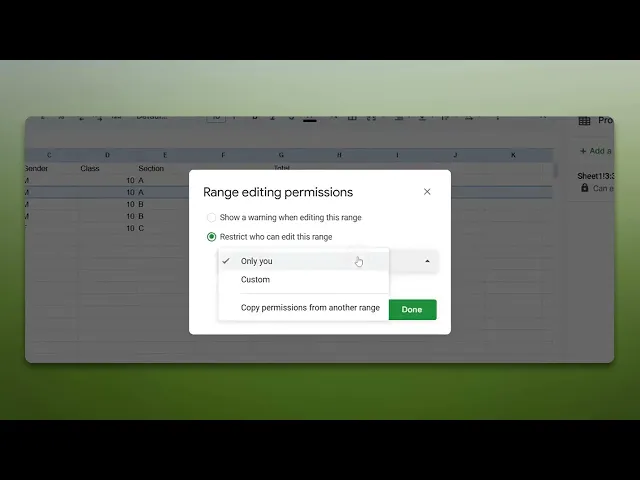
Proceed by selecting "Set Permissions."
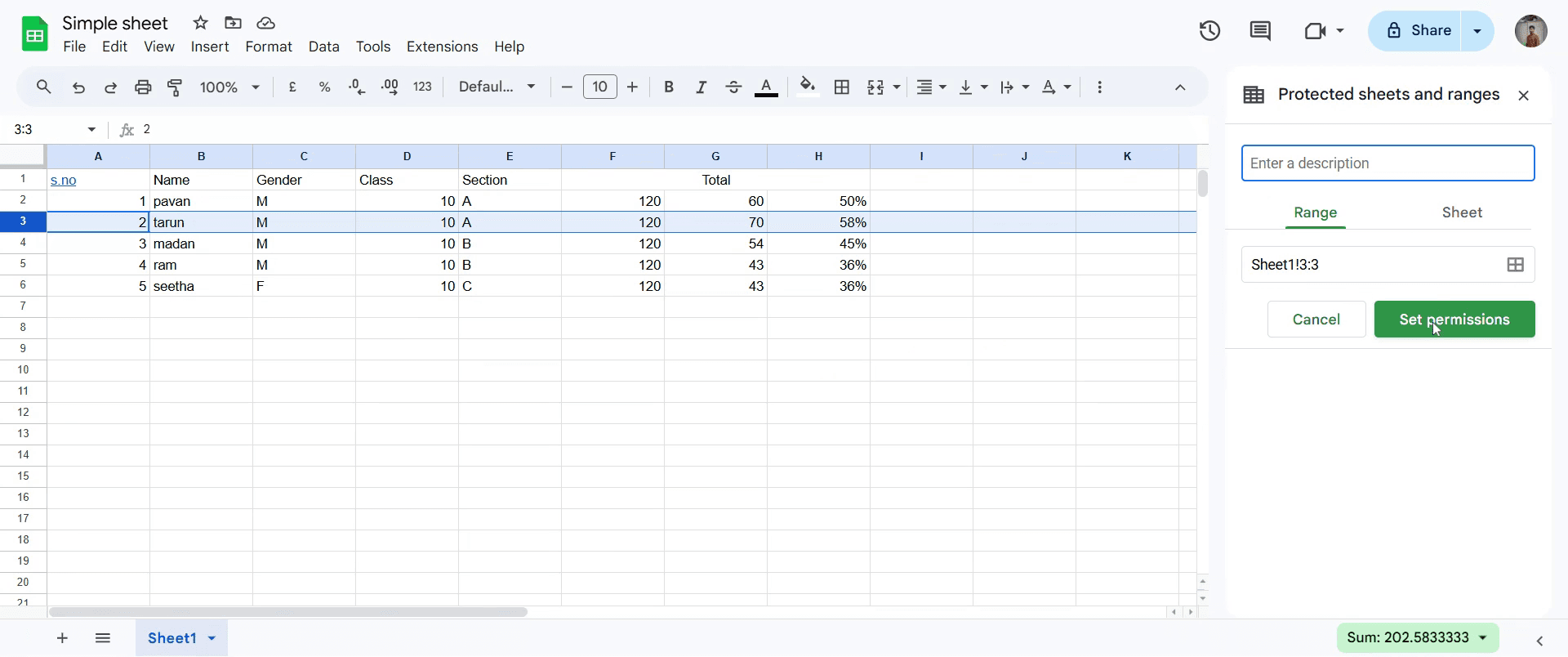
Step 5
A drop-down menu will appear, presenting various permission options.
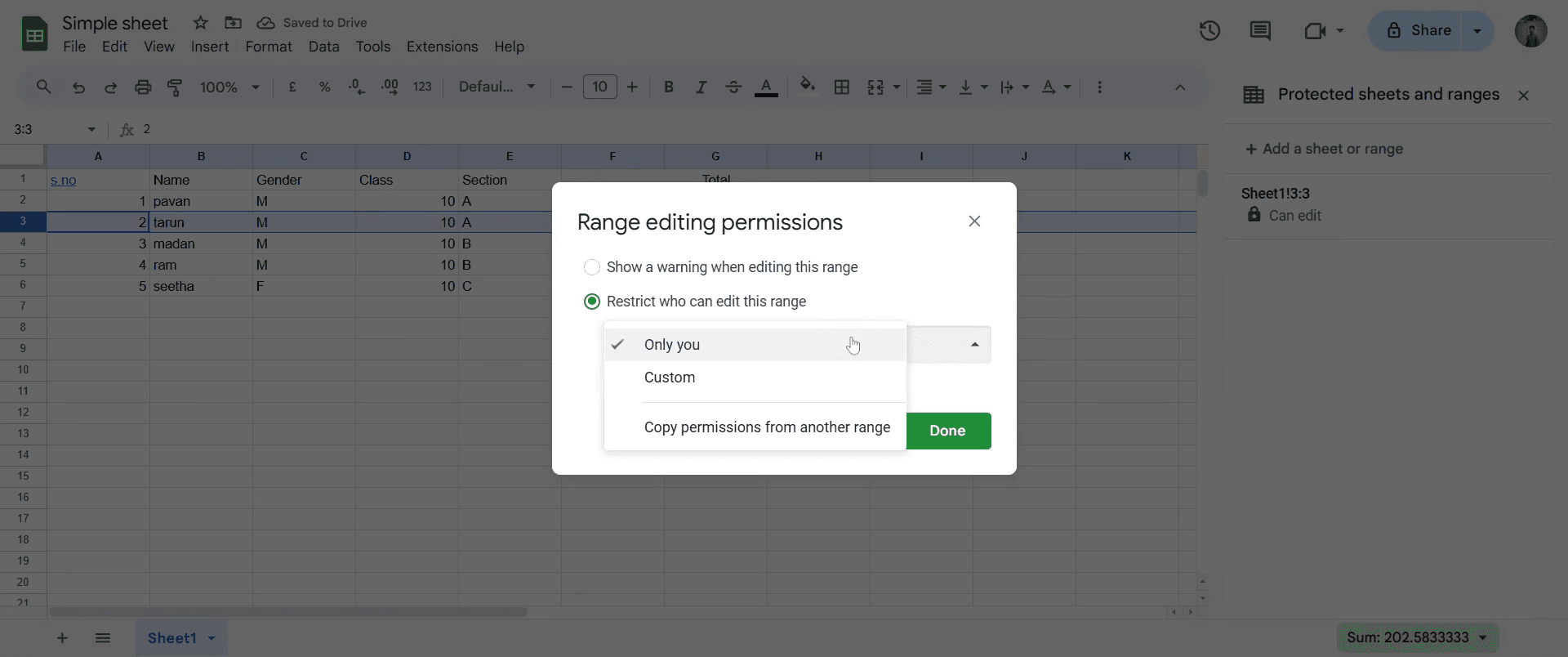
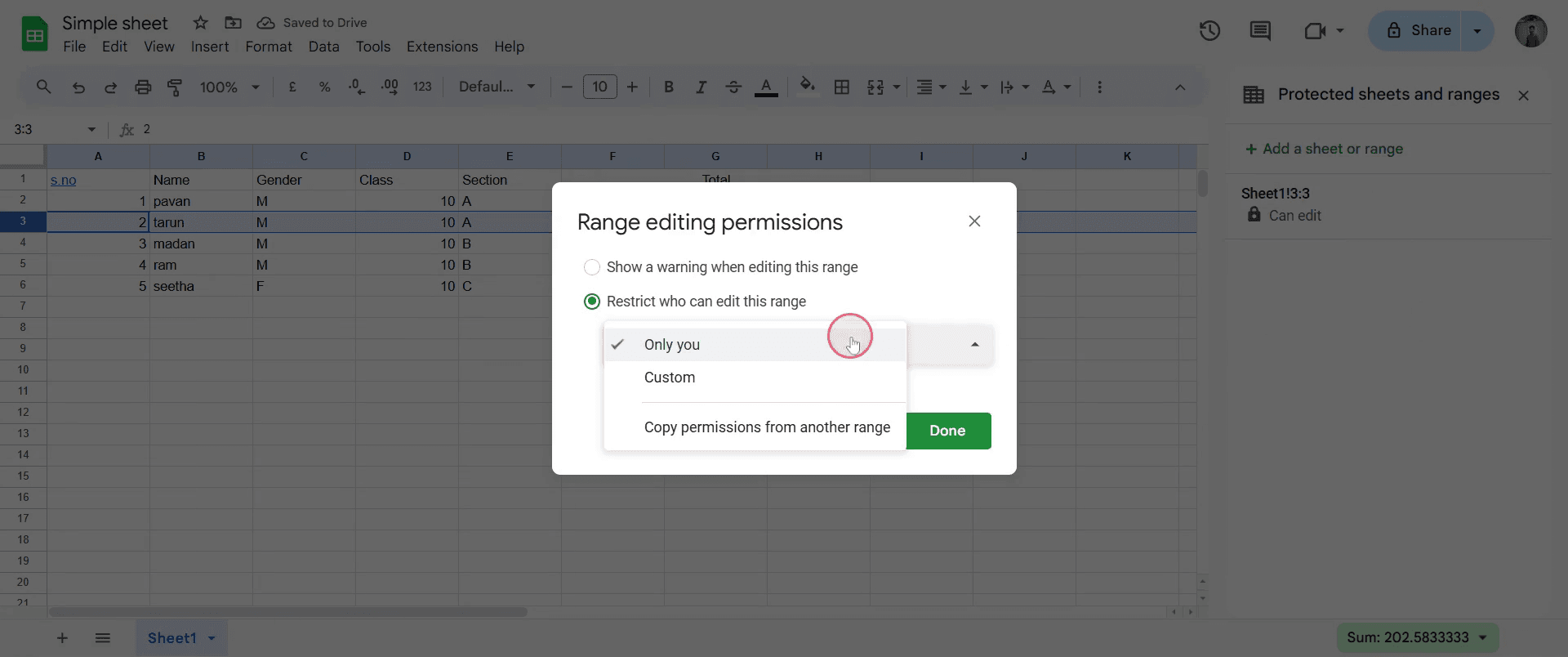
Step 6
From the drop-down menu, choose "Only for you" option.
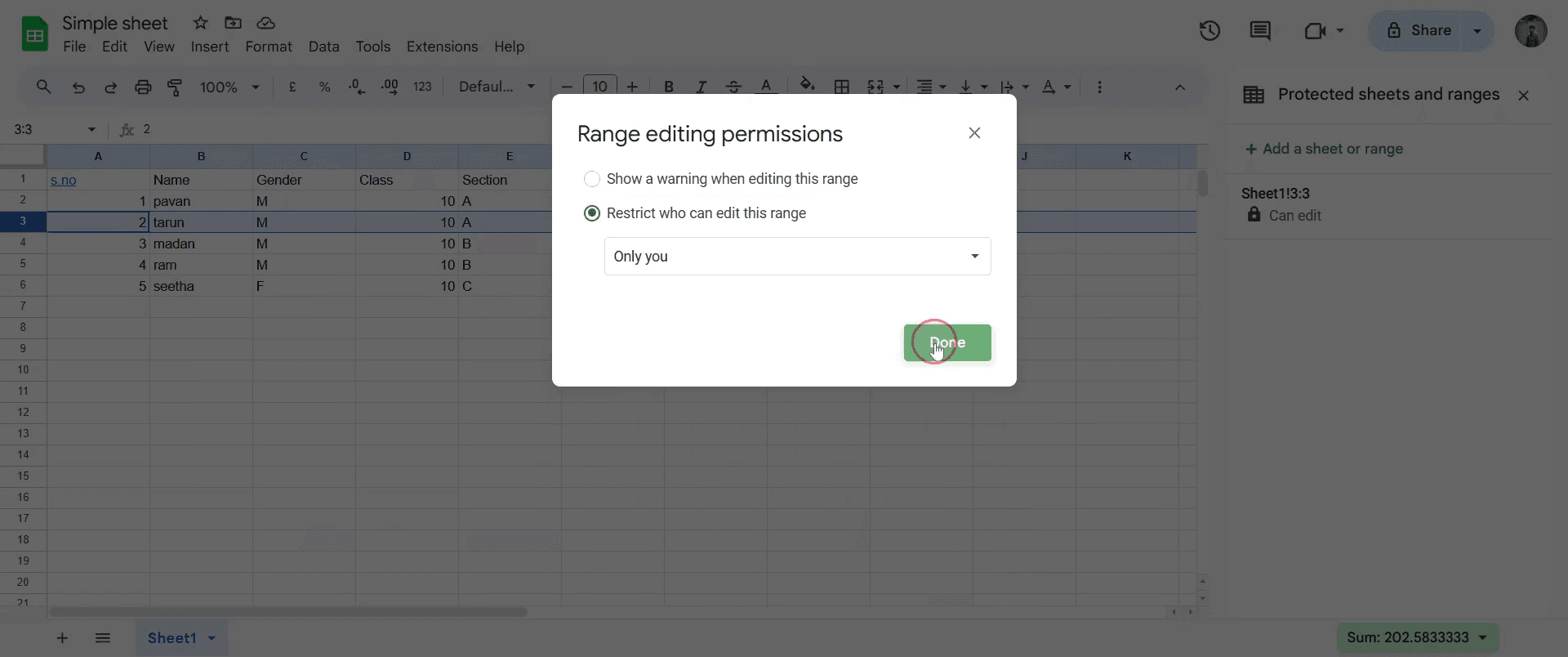
Step 7
Finally, click on "Done" to confirm your settings.
Pro-tips for locking a row on Google Sheets
Use the Freeze option under the View menu to keep the top row visible while scrolling.
Lock multiple rows by selecting the row below the last one you want to freeze before applying the freeze setting.
Combine row locking with Protected Ranges under Data to prevent unauthorized edits.
Common pitfalls & how to avoid them while locking a row on Google Sheets
Forgetting to select the correct row before freezing always click on the row below the one you want to lock.
Using freeze instead of Protect Range for security freezing only keeps rows visible but does not prevent edits.
Trying to freeze too many rows Google Sheets allows freezing only from the top of the sheet, so adjust accordingly.
Common FAQs for locking a row on Google Sheets
Can I lock multiple rows at once?
Yes, select a row, go to View > Freeze, and choose Up to row X to lock multiple rows.How do I prevent others from editing a locked row?
Use Data > Protect sheets and ranges to restrict editing for specific users.Can I lock both rows and columns at the same time?
Yes, freeze rows and columns separately by selecting Freeze under View for each.
If you're an instructor or content creator looking to make tutorial videos, give Trupeer.ai a try. It transforms rough screen recordings into polished, studio-style videos that are ready for sharing with your audience. Plus, it automatically generates a step-by-step guide based on the video you create. Fascinating, right? Start by creating your first tutorial for free with Trupeer.ai.

