
How To Log Time In Jira
Discover effective methods to log time in Jira with our comprehensive guide. Enhance your project management skills and streamline your workflow today.
This document outlines the process of logging time in Jira. Follow these steps to accurately record the time spent on specific tasks within your Jira projects.
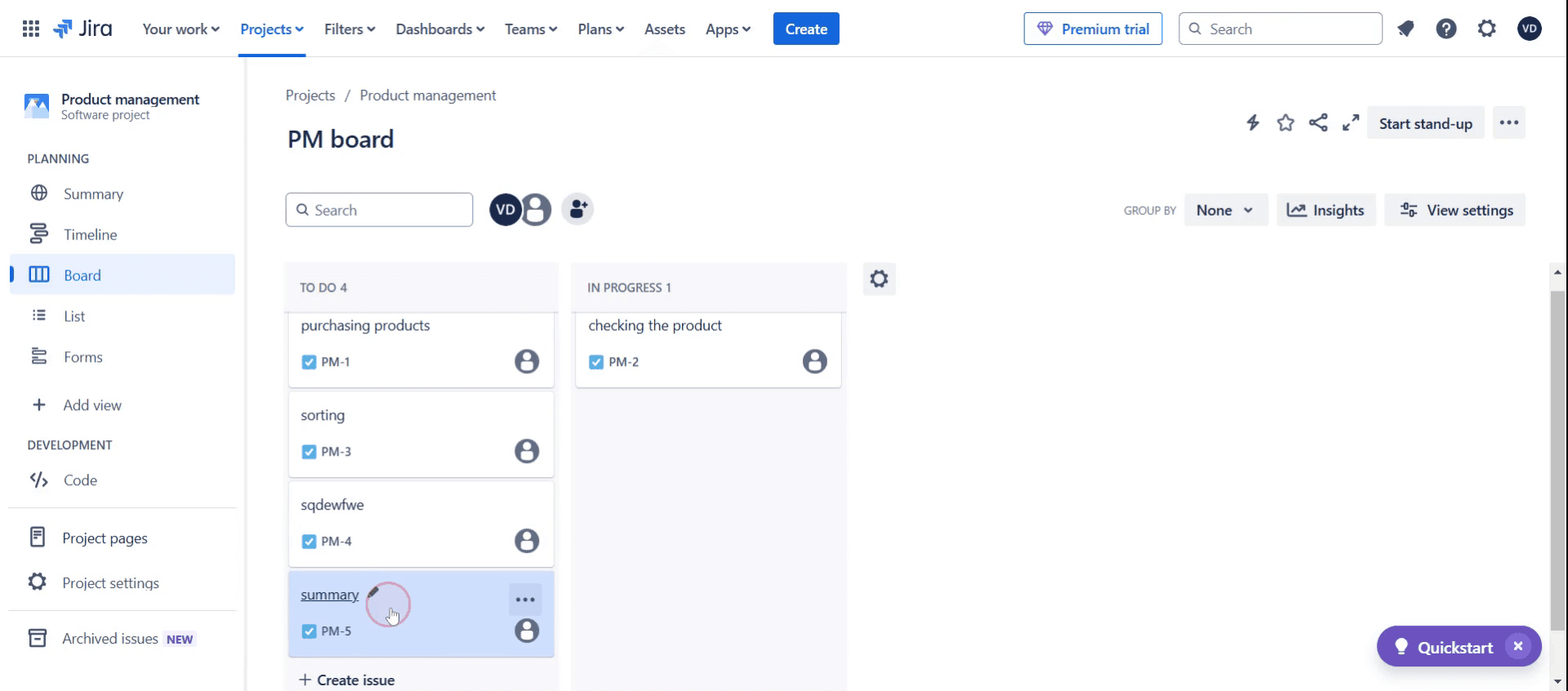
Step 1
Click on the specific ticket,
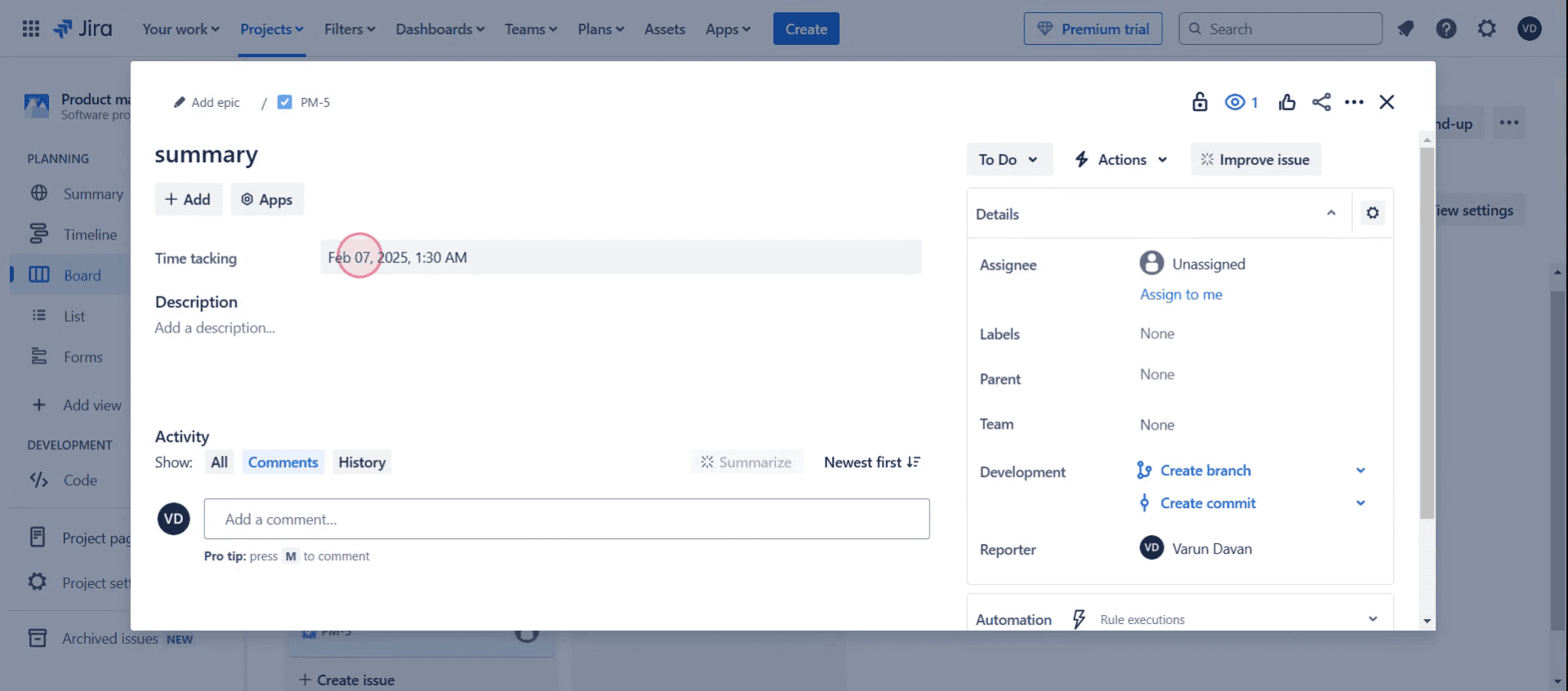
Step 2
Click on the time tracking option.
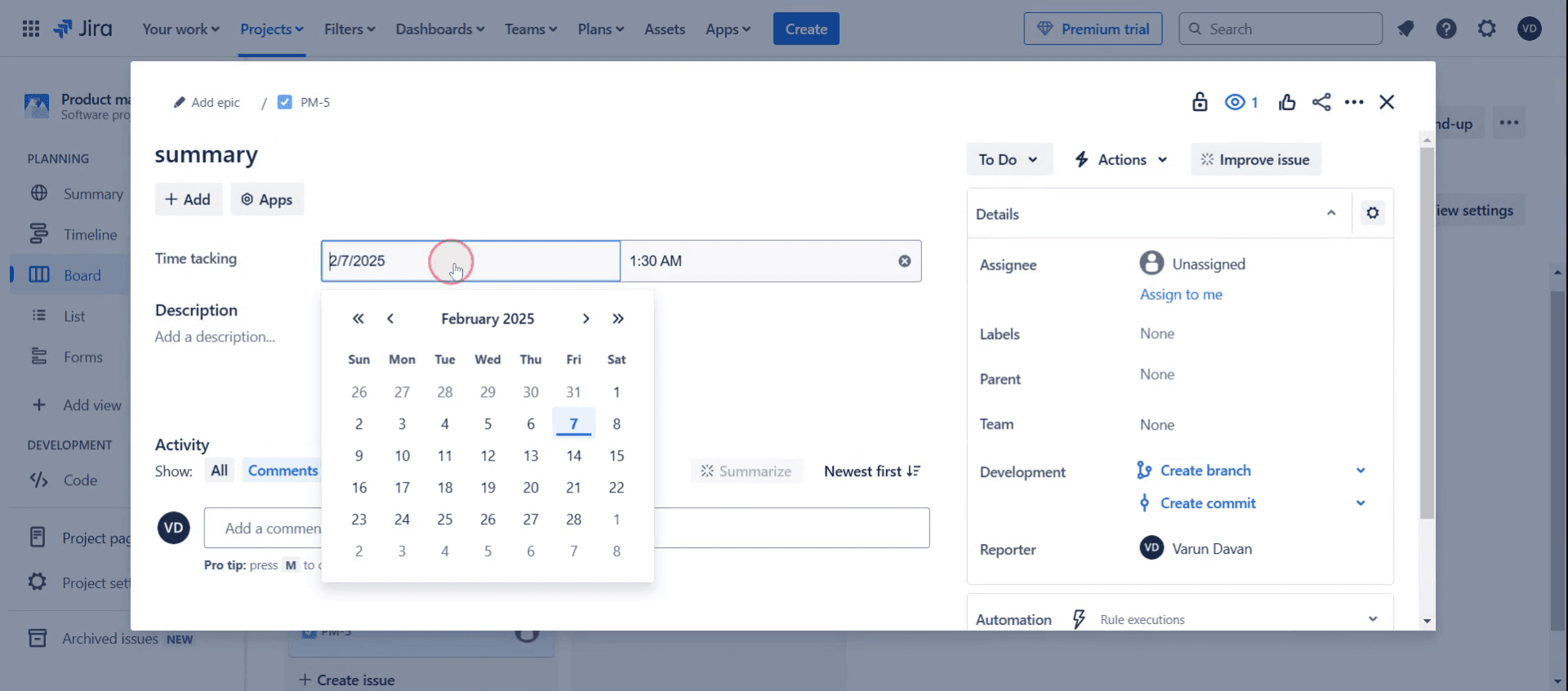
Step 3
Select the desired date from the calendar.
Step 4
Choose a particular time according to your needs,
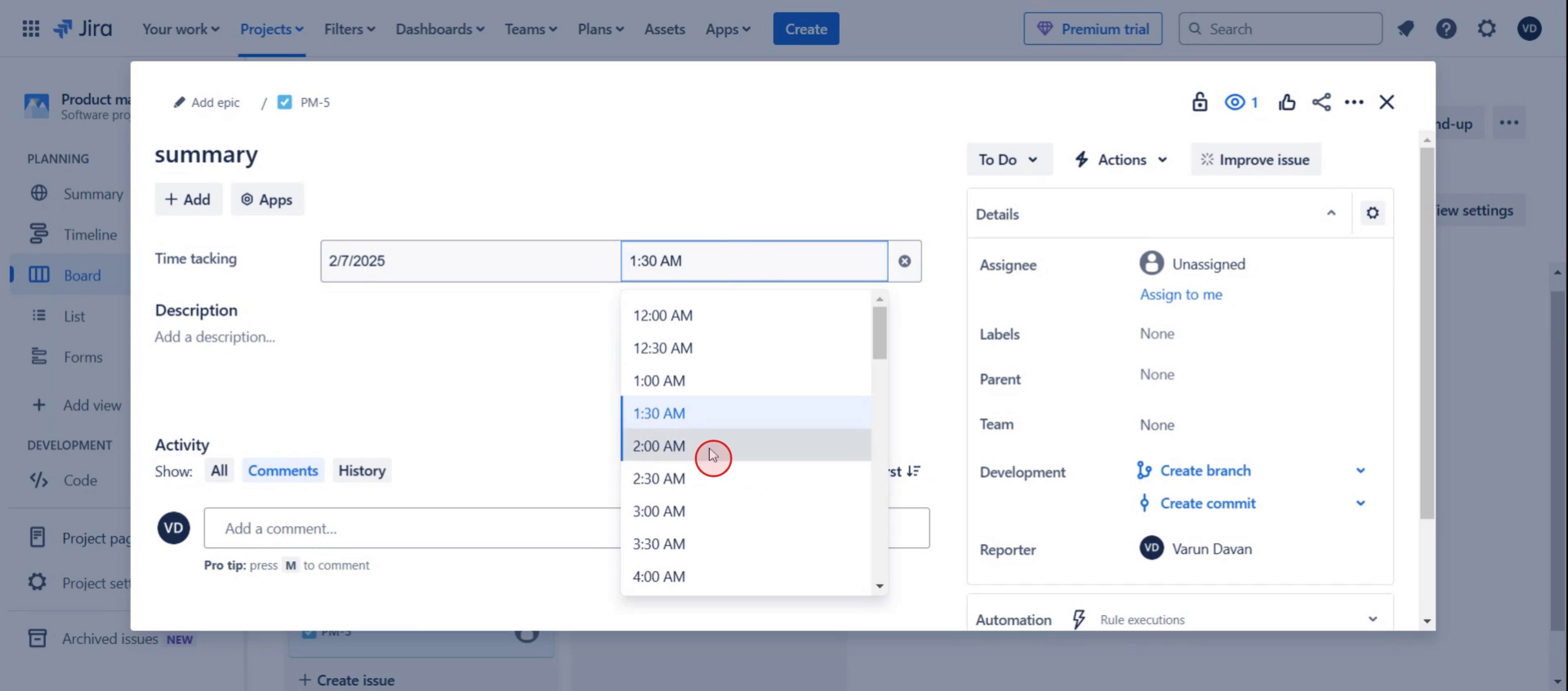
Step 5
Then click on the save.
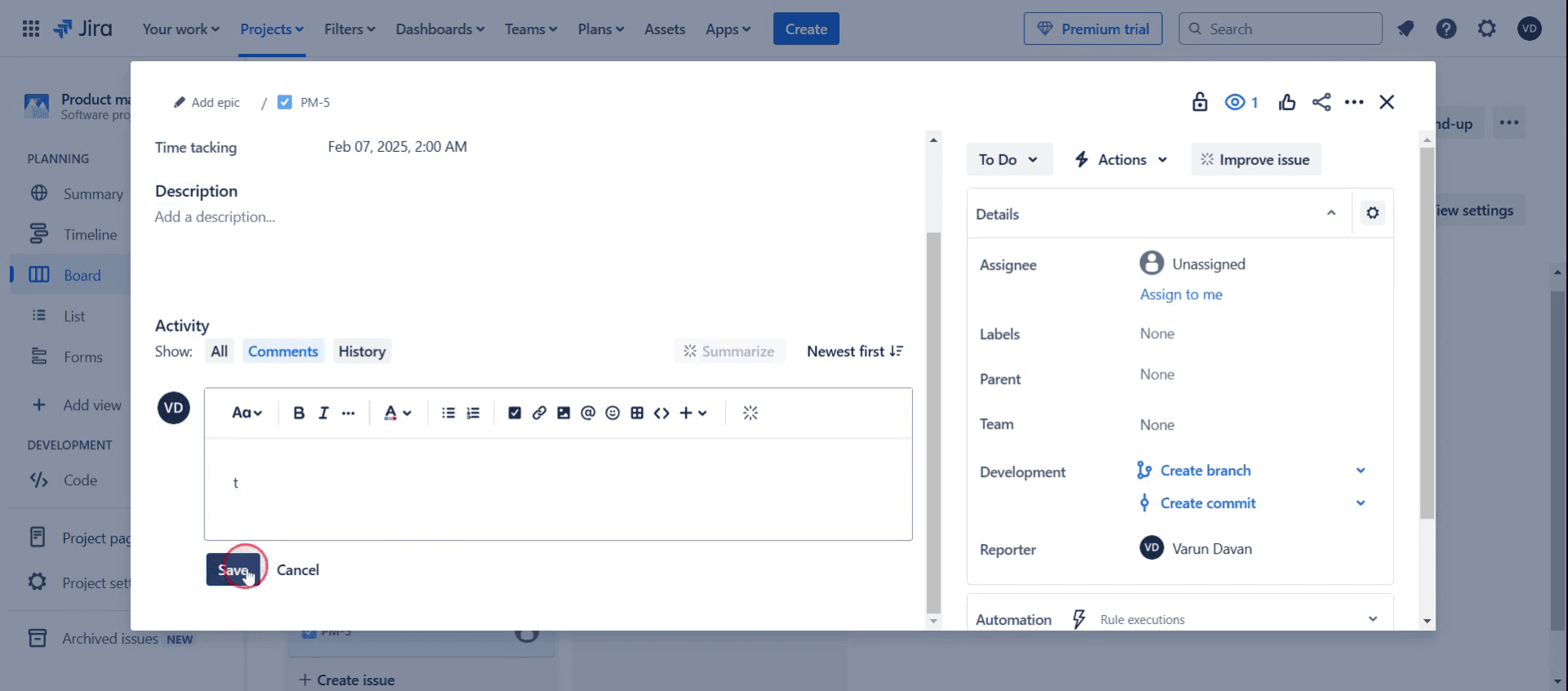
Step 6
The saved entry will be visible on the ticket.
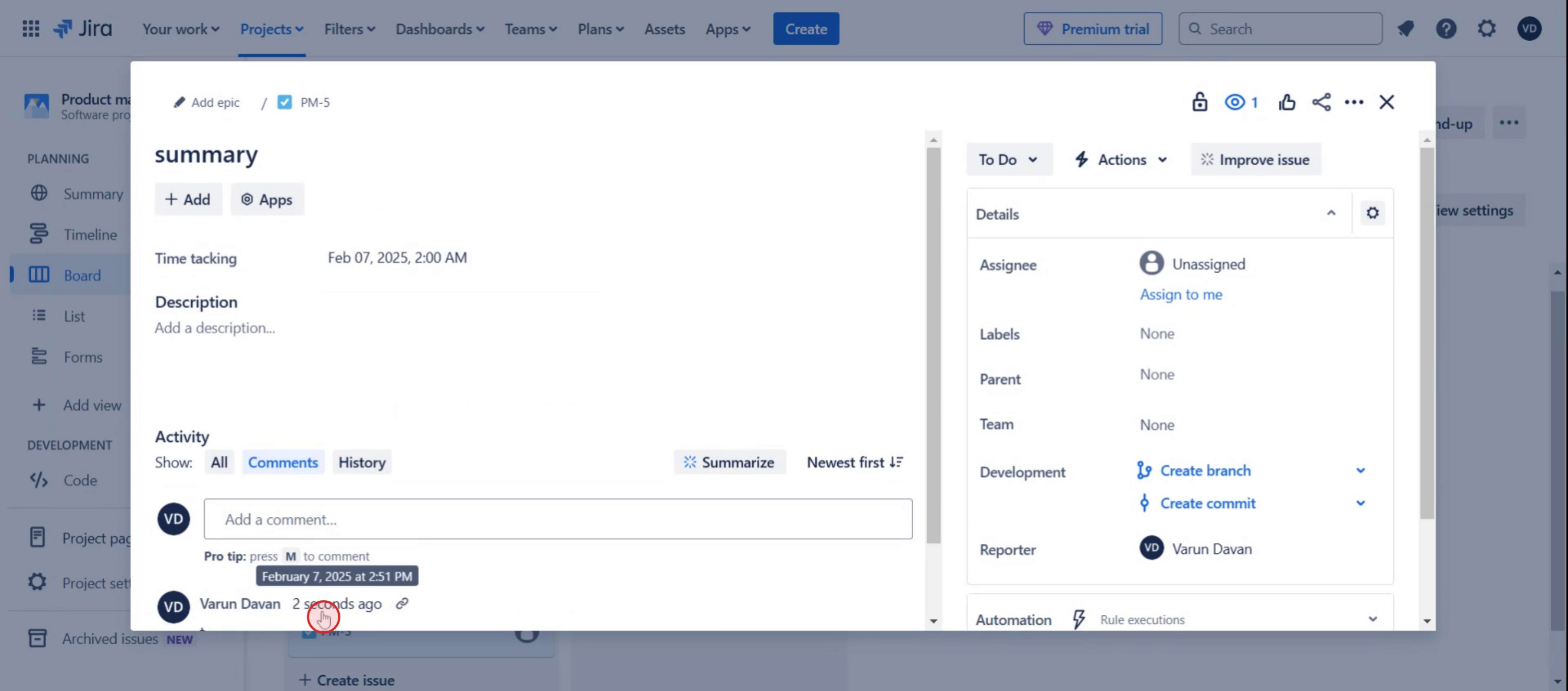
This is a step-by-step guide on how to Log Time in Jira.
Pro tips on how to log time in Jira
Use the Log Work feature under the issue's activity section to track time accurately and ensure team visibility.
Enter time in Jira using shorthand formats like 2h 30m for ease and efficiency while logging work hours.
Add meaningful work descriptions when logging time to provide context and help with future reporting.
Common pitfalls and how to avoid them
Forgetting to select the correct issue before logging time can misallocate efforts—always double-check the issue ID.
Using inconsistent time formats may lead to errors—stick to Jira’s standard time-tracking syntax like 1h 15m
Not enabling time tracking in Jira settings can prevent logging—ensure the feature is activated in project configurations.
Common FAQs on how to log time in Jira
Why can't i log time in Jira?
If you can’t log time, check whether time tracking is enabled in project settings and if you have the necessary permissions.Can i edit or delete logged time in Jira?
Yes, you can edit or delete logged time if you have the appropriate permissions navigate to the work log and make adjustments.How do i track billable hours when logging time in Jira?
You can use custom fields or Jira add-ons like Tempo Timesheets to track billable vs non billable hours.Is there a way to report total logged time for a Jira project?
Yes, Jira offers built-in time-tracking reports under Reports > Time Tracking, and third-party plugins provide advanced reporting.
If you're an instructor or content creator looking to make tutorial videos, give a try. It transforms rough screen recordings into polished, studio-style videos that are ready for sharing with your audience. Plus, it automatically generates a step-by-step guide based on the video you create. Fascinating, right? Start by creating your first tutorial for free with trupeer.ai.

