
How To Make Charts In Sheets
Discover the essential guide on how to create stunning charts in Sheets. Enhance your data visualization skills and make informed decisions effortlessly.
In this process, you'll learn how to create and customize charts using Google Sheets. By following these steps, you can transform your data into various types of charts to visualize the information effectively.
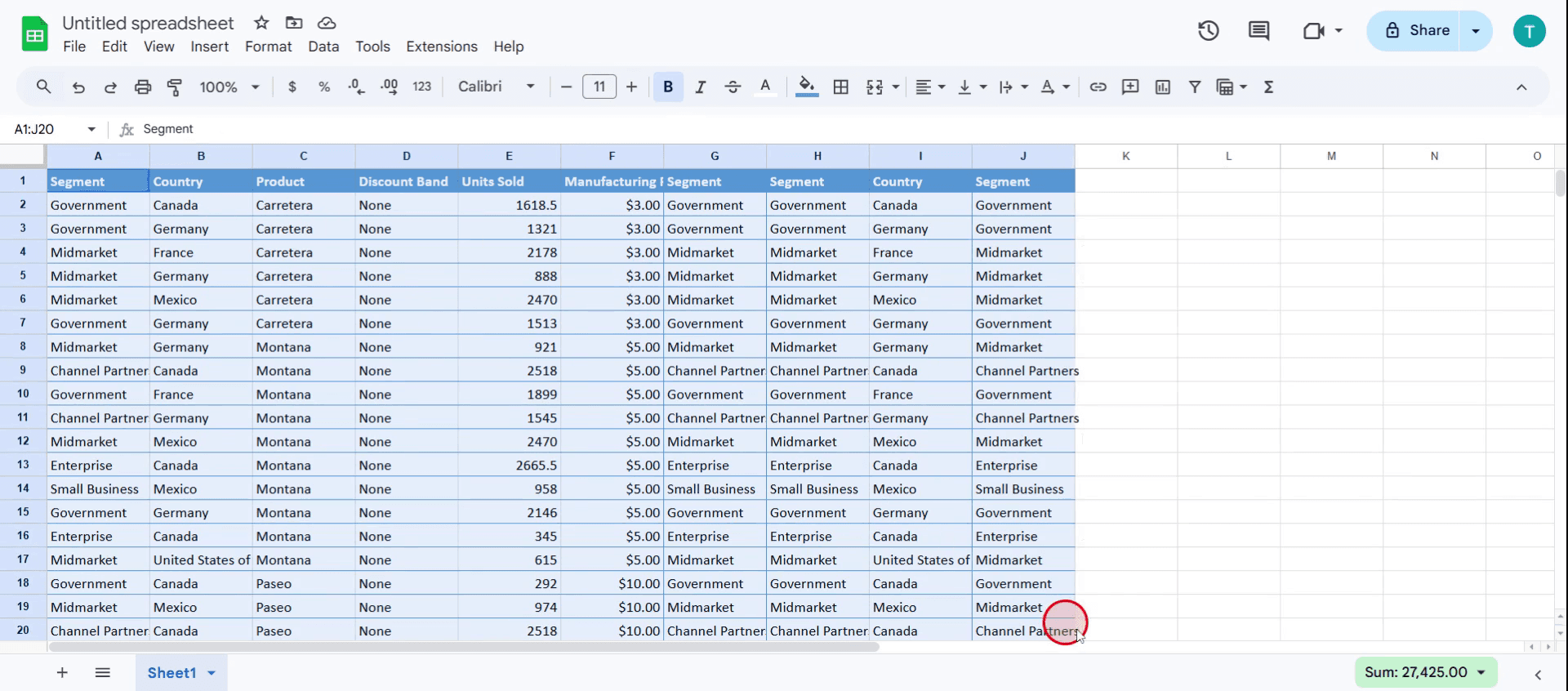
Step 1
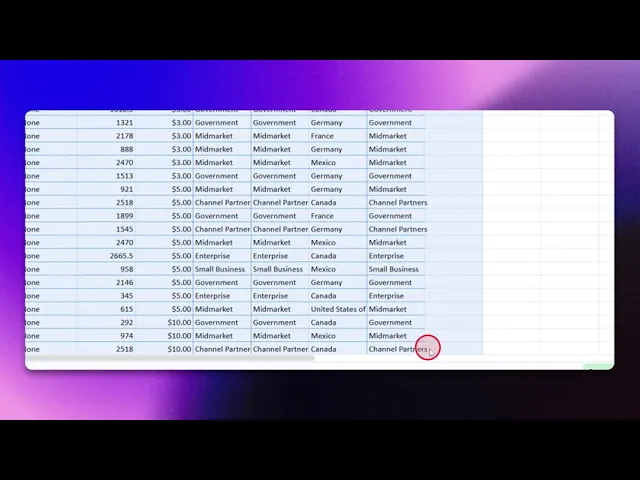
Select the data you wish to visualize.
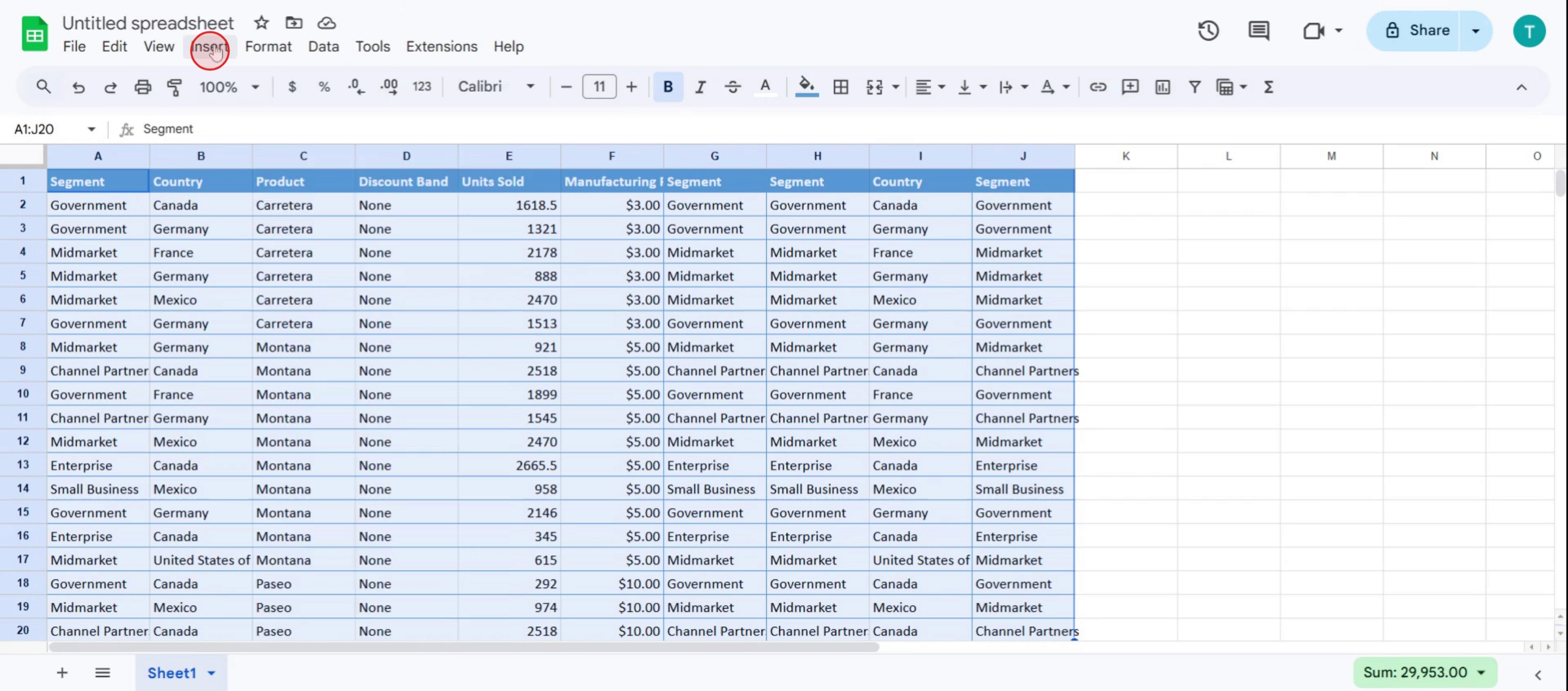
Step 2
Click on the Insert option in the menu.
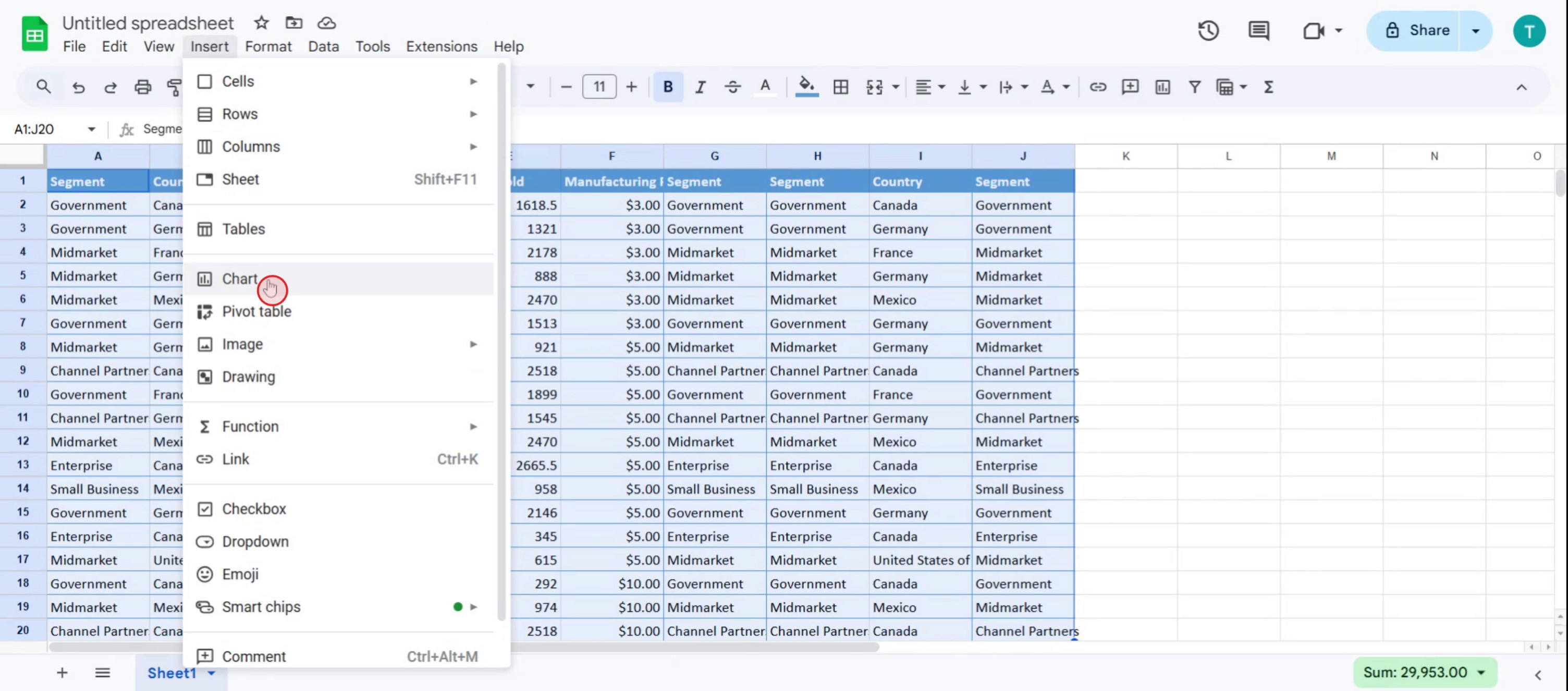
Step 3
Select Chart.
Step 4
Click on the dropdown menu under the chart type section.
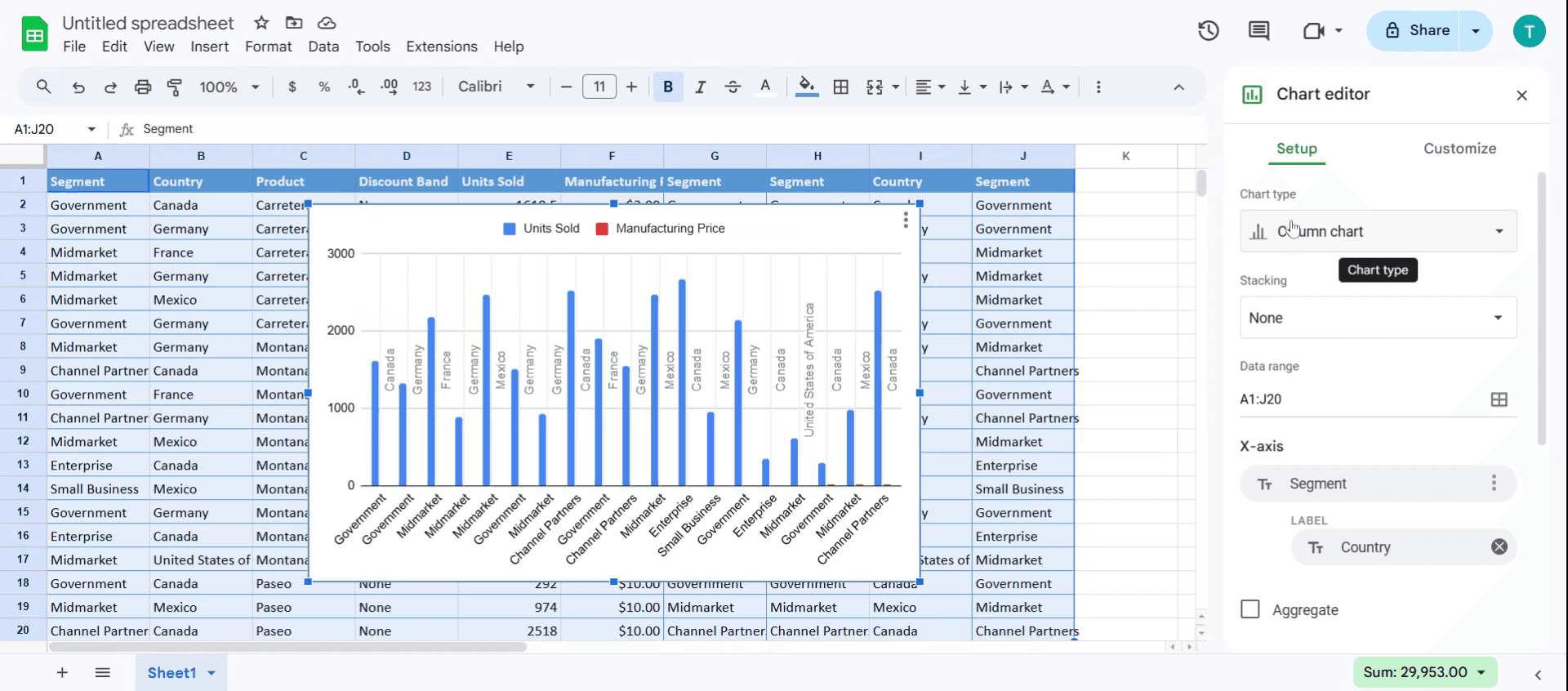
Step 5
A variety of chart options such as Line, Area, Column, Bar, Pie, and Scatter will be displayed.
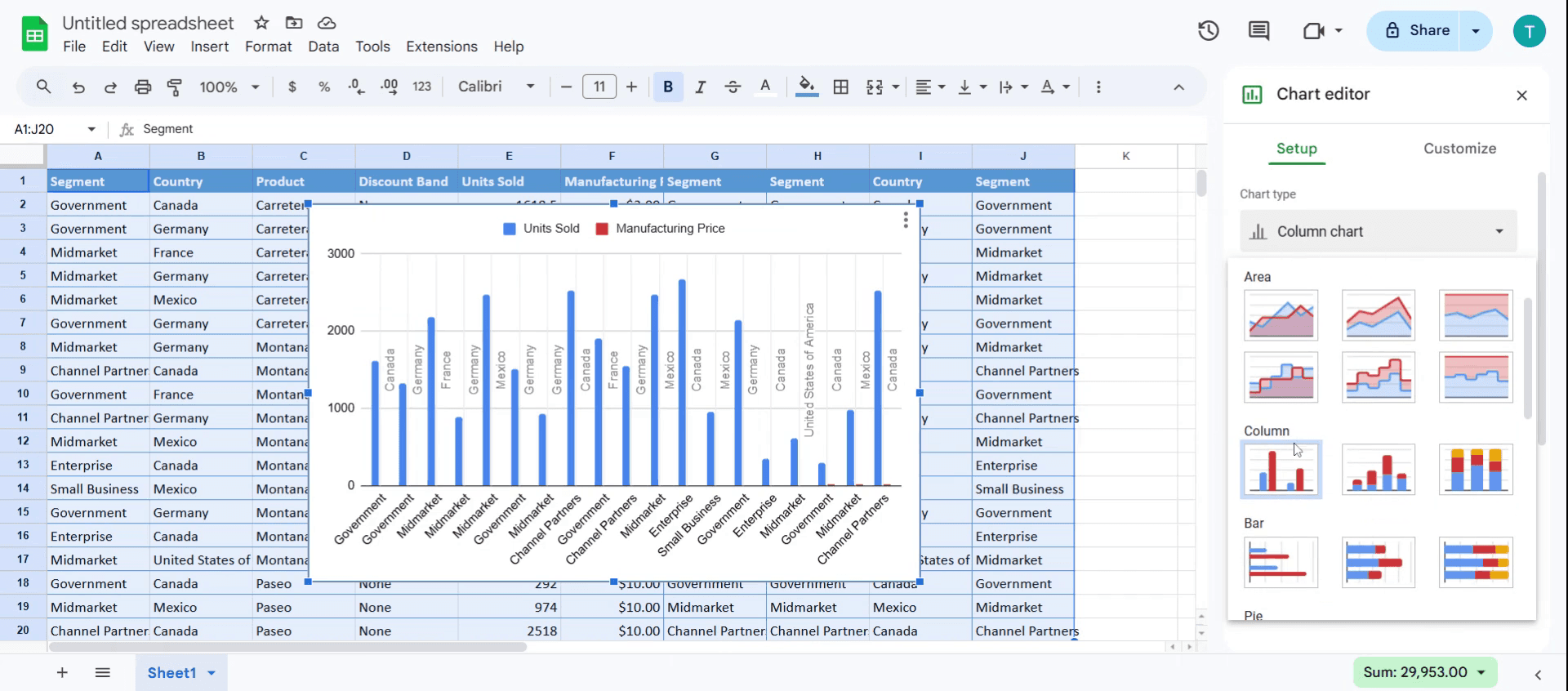
Step 6
Select the Scatter Chart option.
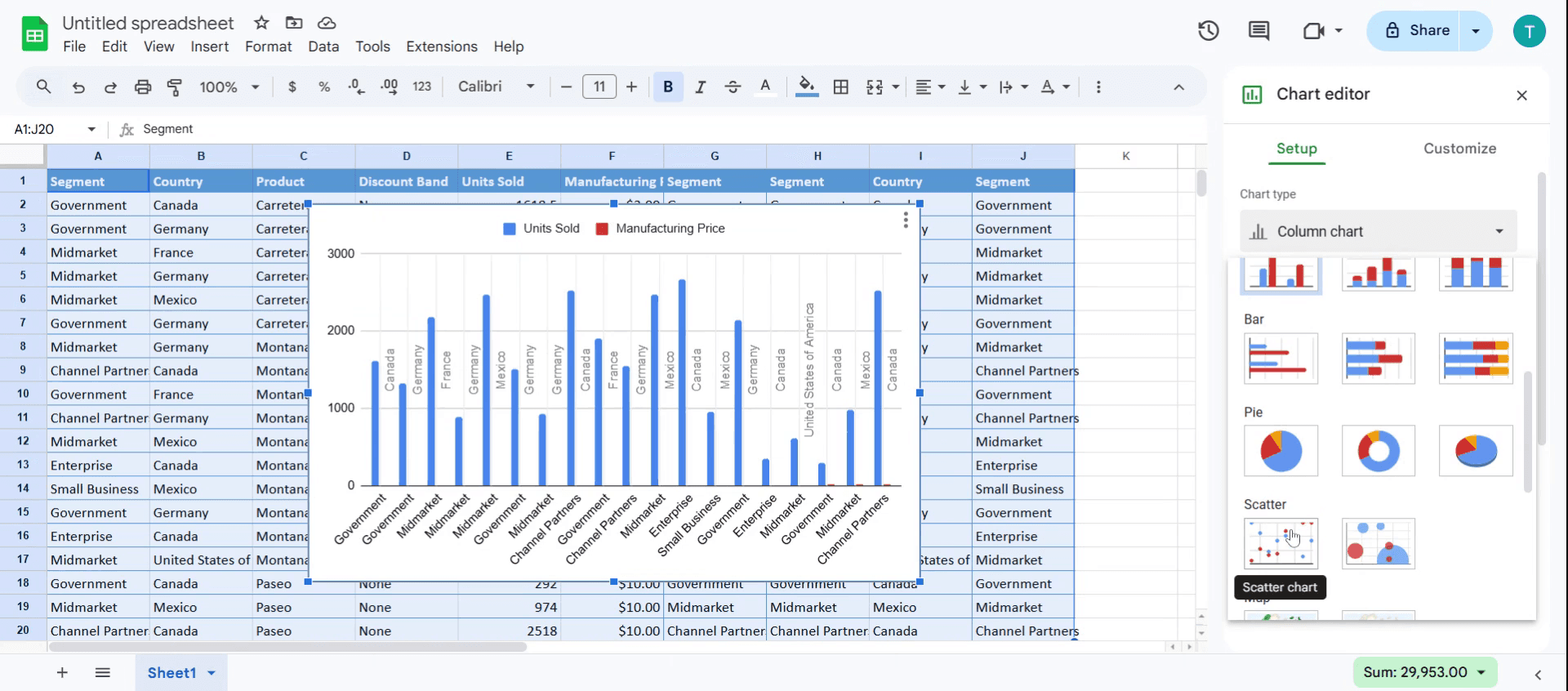
This is a step-by-step guide on how to make charts in Sheets.
Pro tips for how to make charts in Sheets
Choose the right chart type – Use bar charts for comparisons, line charts for trends, and pie charts for proportions to ensure clear data visualization.
Format and customize for clarity – Use labels, colors, and gridlines to make your chart easy to interpret at a glance.
Link charts to dynamic data – Ensure your chart updates automatically by selecting ranges that grow dynamically using named ranges or array formulas.
Common pitfalls and to avoid them
Using incorrect data selection – Ensure the data range includes headers and avoids blank rows to prevent chart errors.
Choosing the wrong chart type – A pie chart won’t work well for large datasets; opt for a bar or line chart instead.
Ignoring data labels and legends – Missing labels can make charts unclear, so always add proper titles and legends.
Common FAQs for how to make charts in Sheets
1. How do i create a chart in how to make charts in Sheets?
Go to Insert > Chart, select your data range, and choose the appropriate chart type from the Chart Editor.
2. Can I customize colors and labels in how to make charts in Sheets?
Yes! You can modify colors, axis labels, and data points using the Customize tab in the Chart Editor.
3. What’s the best chart type to use in how to make charts in Sheets?
It depends on your data: use bar charts for comparisons, line charts for trends, and pie charts for percentage distributions.

