
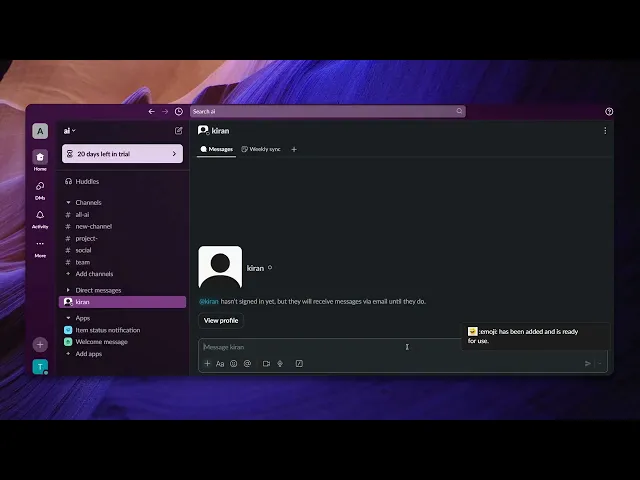
How To Make Custom Emojis In Slack
Discover the step-by-step guide on creating custom emojis in Slack. Enhance your team's communication with personalized emojis that reflect your unique style.
This guide provides a step-by-step process for creating custom emojis in Slack. Follow these instructions to personalize your Slack experience by uploading and using your own custom emoji designs.
Step 1
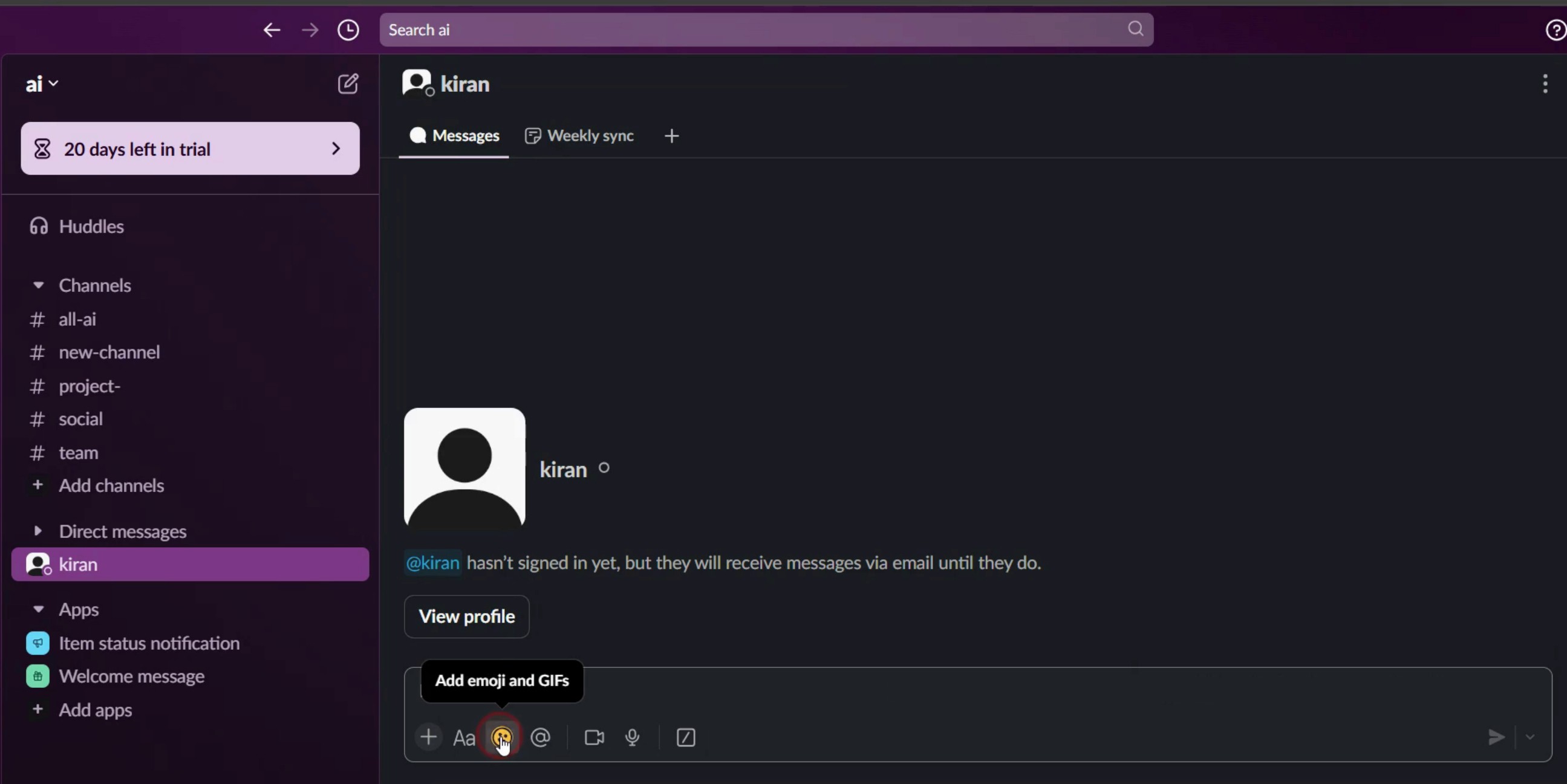
Click on the emoji icon.
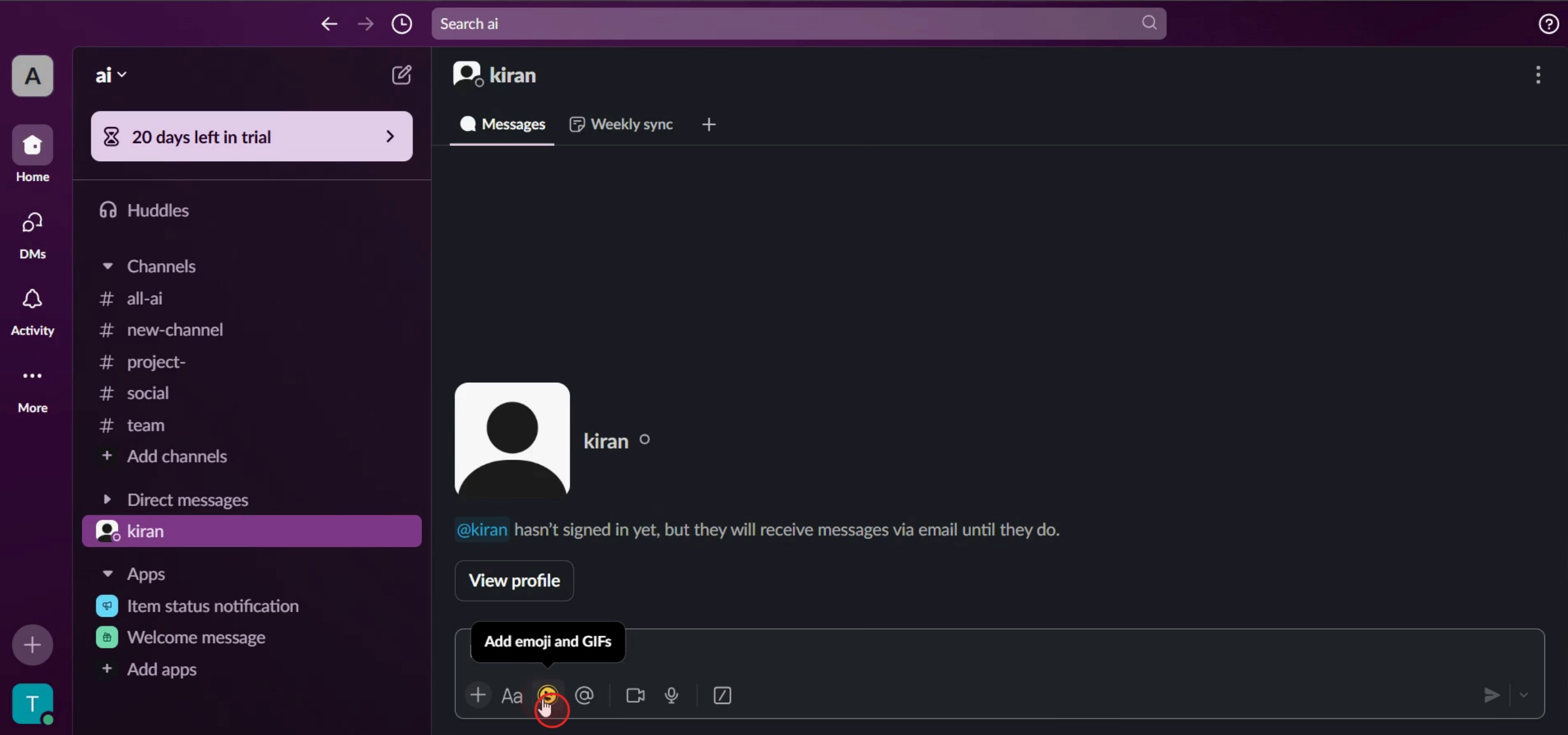
Step 2
Next, select the Add Emoji .
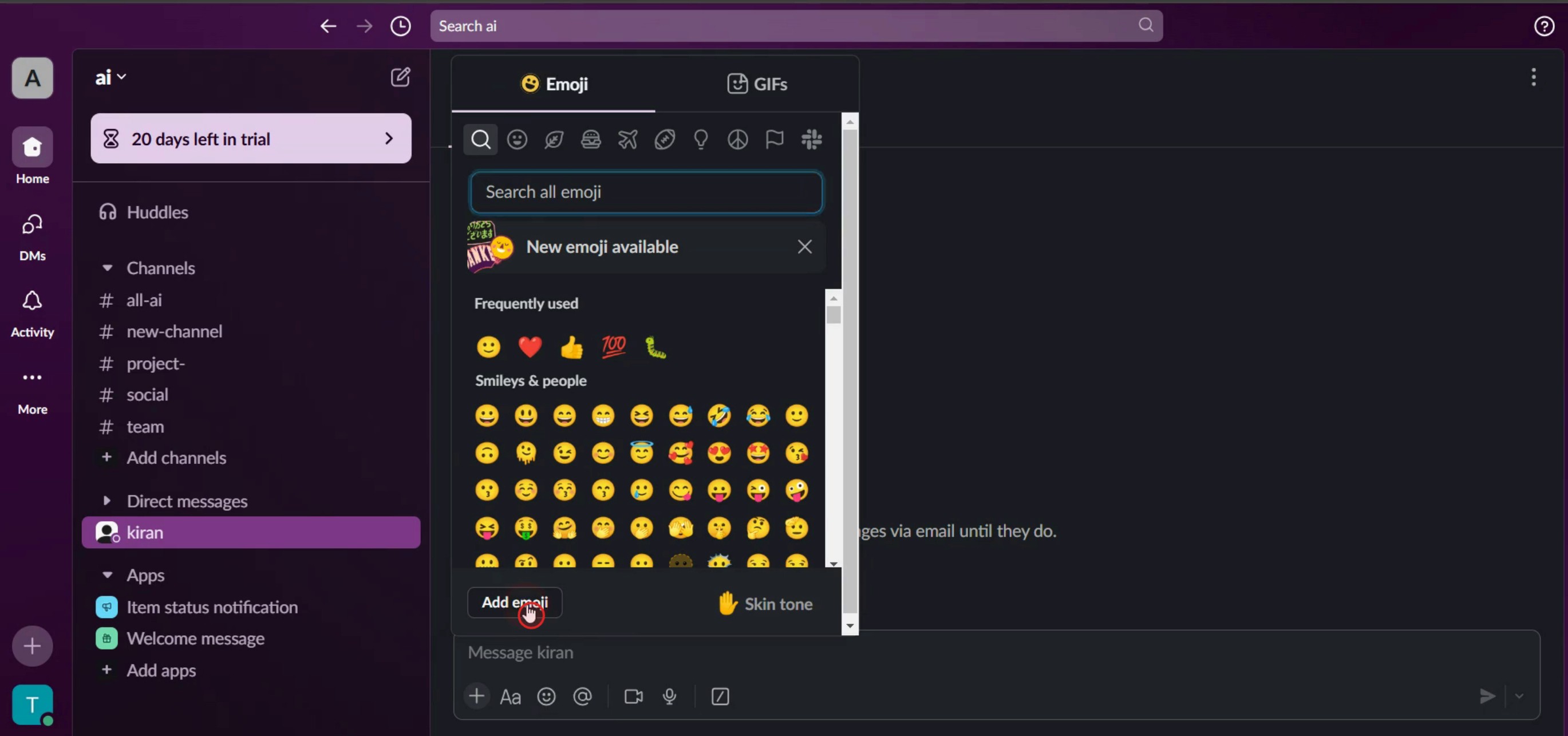
Step 3
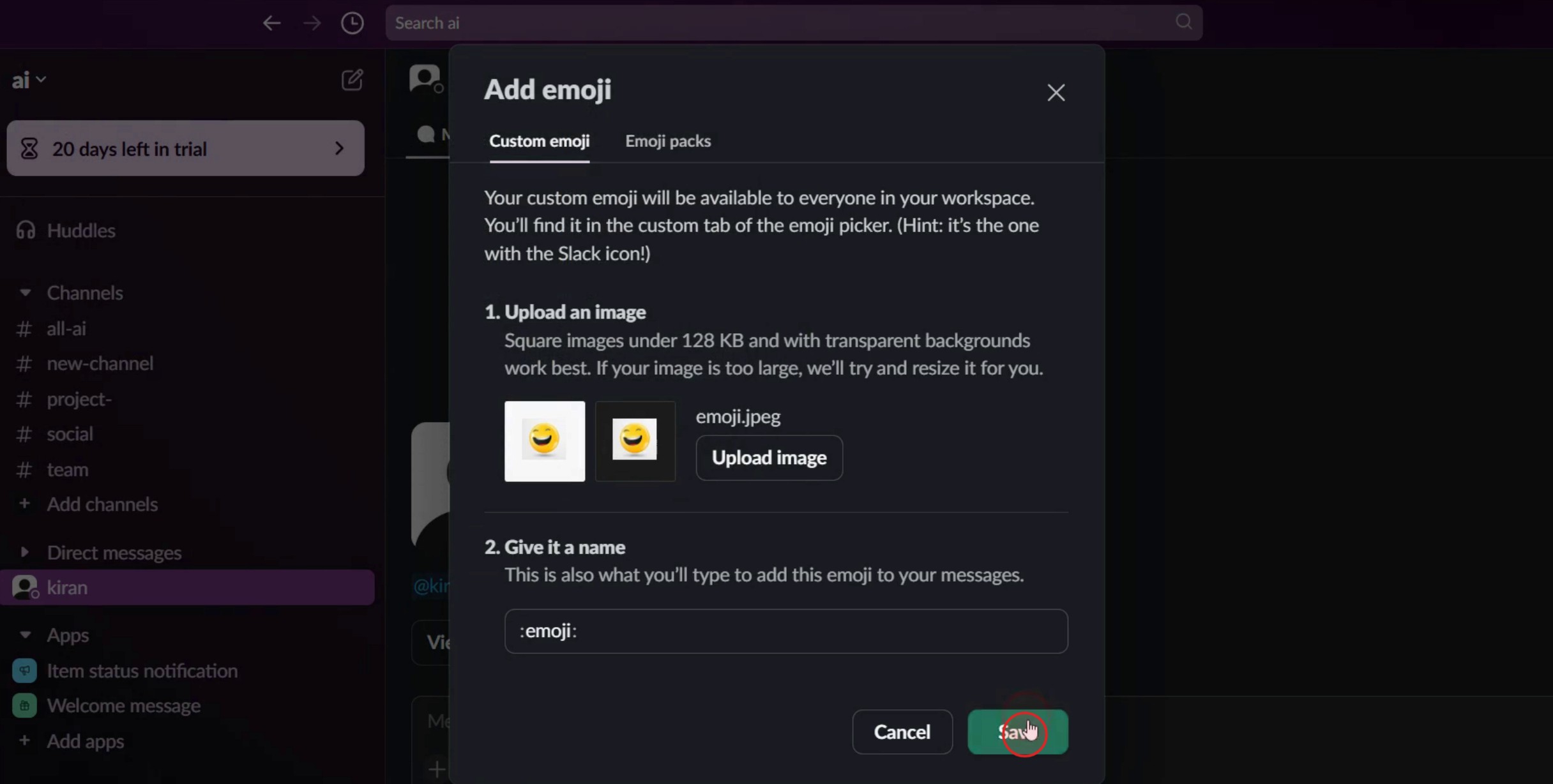
Click on Upload image,
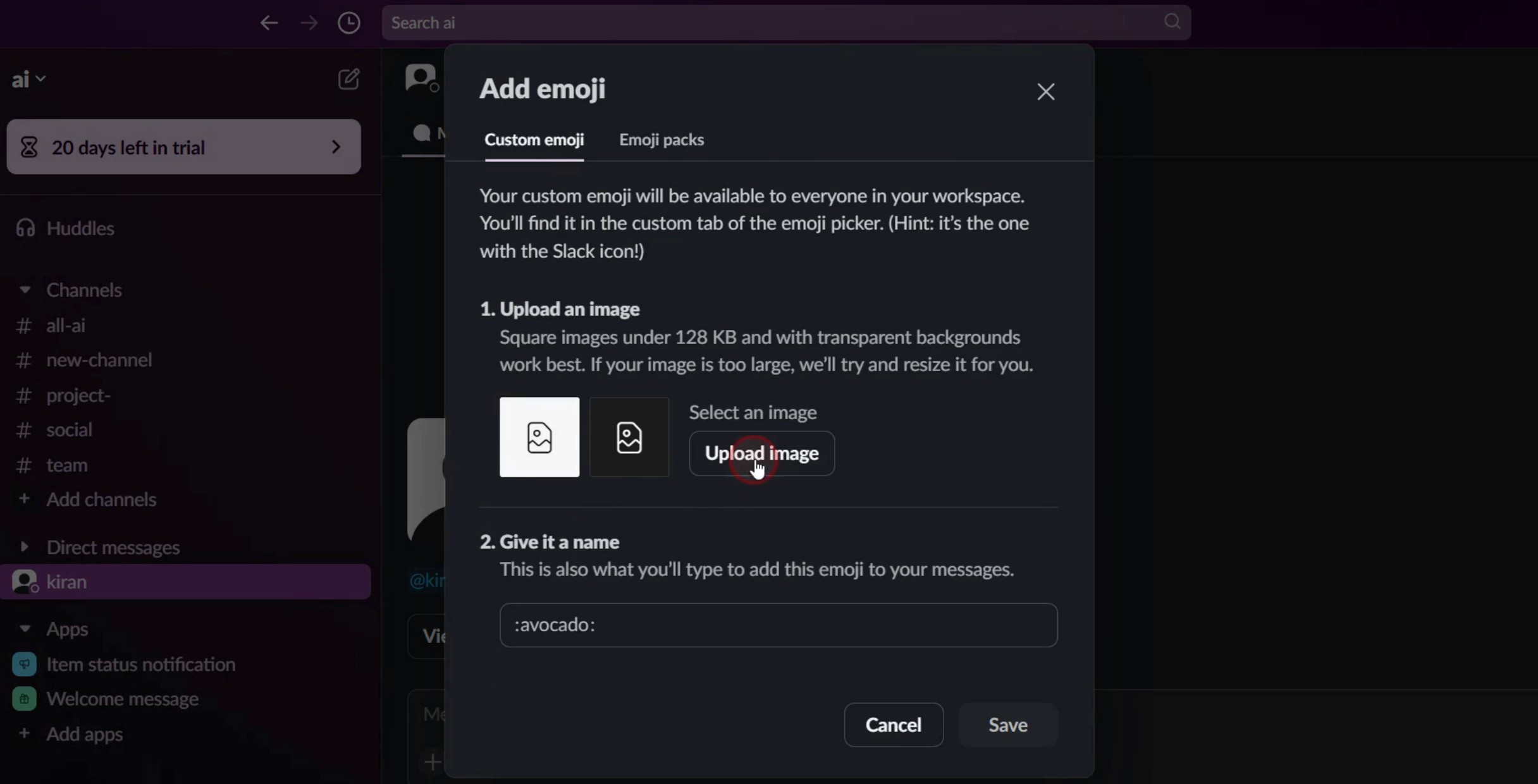
Step 4
And click on the Save button.
Step 5
Again click on the Add Emoji.
Step 6
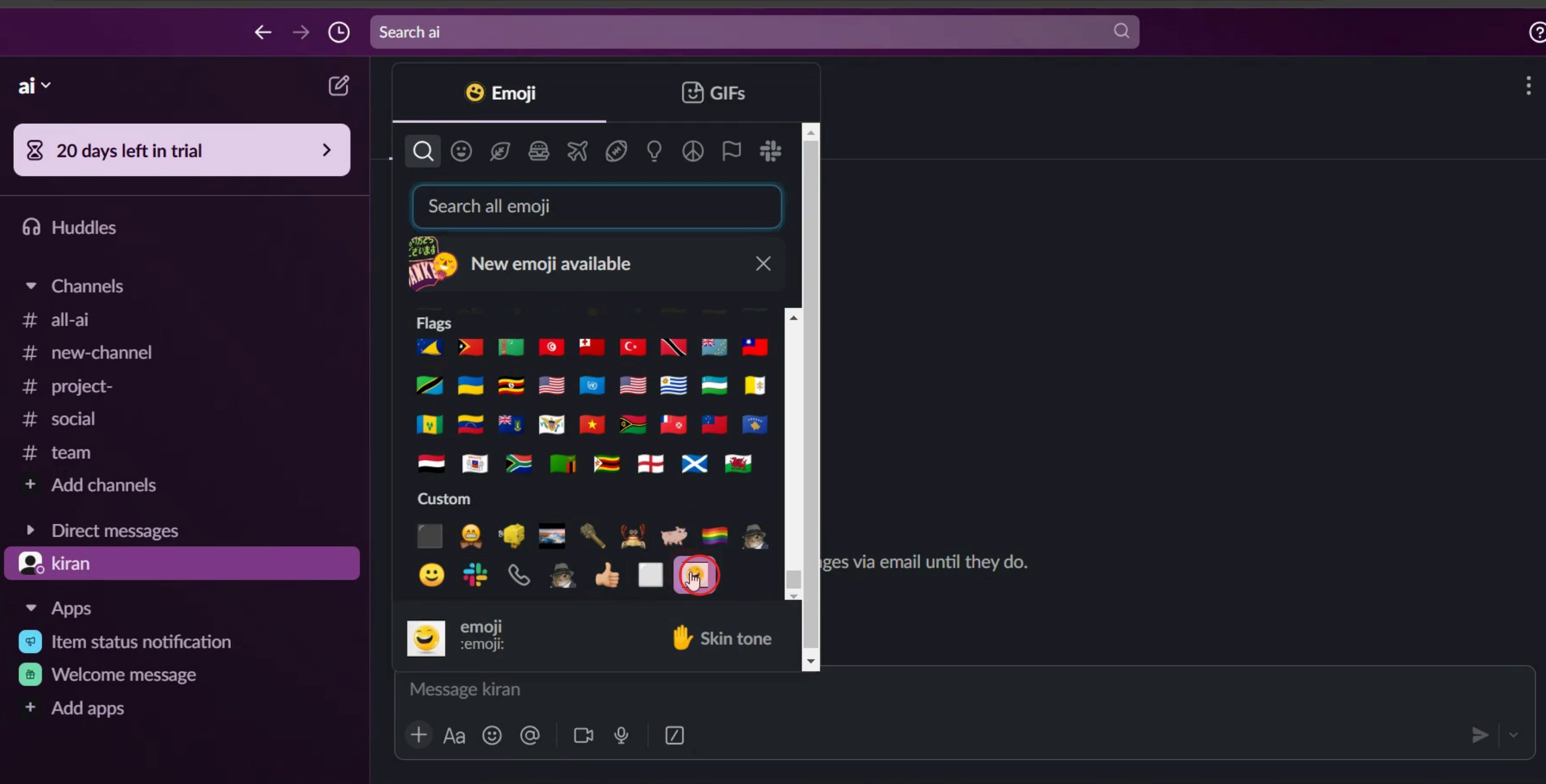
Select the newly added emoji,
Step 7
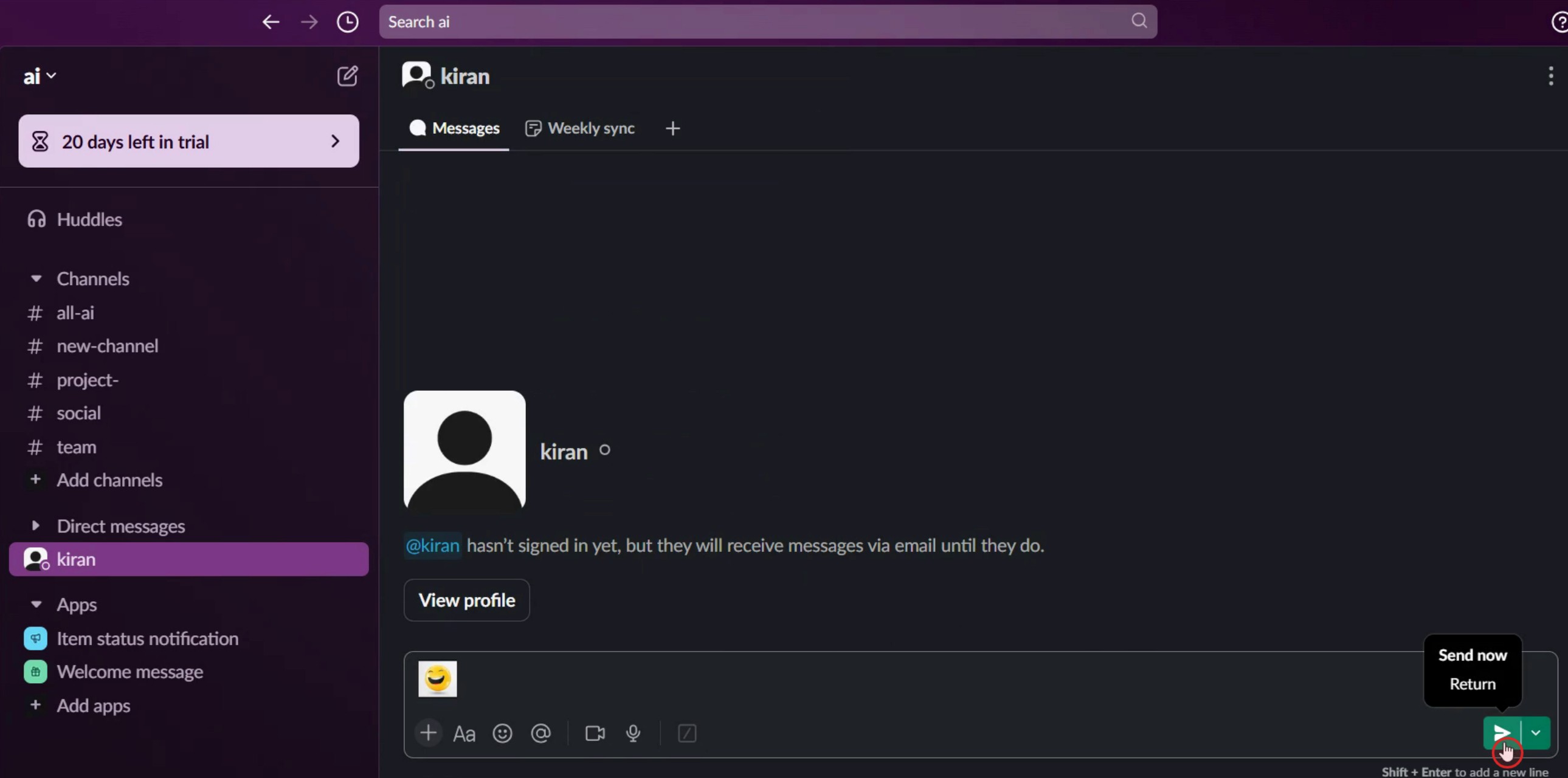
Click on the Send button.
This is a step-by-step guide on how to make custom emojis in Slack.
Pro tips for how to make custom emojis in Slack
Use high-quality images – Choose clear, high-resolution images with a transparent background (PNG format) for the best emoji appearance.
Optimize the size for better visibility – Slack resizes emojis to 128x128 pixels, so uploading a properly cropped and scaled image ensures clarity.
Create fun and recognizable emojis – Use custom emojis for team inside jokes, branding, or reaction shortcuts to enhance communication and engagement.
Common pitfalls and how to avoid them
Uploading low-resolution or blurry images makes emojis hard to recognize use high-quality images for the best results.
Forgetting to give the emoji a descriptive name can make it hard to find use clear, relevant names to ensure easy usage.
Not following Slack’s file size limit (128KB) may cause upload failures compress the image if needed before uploading.
Common FAQs on how to make custom emojis in Slack
What is the best image size for a custom emoji in Slack?
Slack resizes emojis to 128x128 pixels, so it's best to use an image close to this size for optimal clarity.Can i delete or edit a custom emoji in Slack?
Yes, workspace admins and users with permission can remove or rename custom emojis from Slack’s emoji settings.Why isn’t my custom emoji appearing in Slack?
If your emoji isn’t showing up, check the file format (must be PNG, JPG, or GIF), size (under 128KB), and naming conventions.How many custom emojis can i add in Slack?
The limit depends on your Slack plan, with free plans allowing fewer custom emojis than paid plans.
If you're an instructor or content creator looking to make tutorial videos, give a try. It transforms rough screen recordings into polished, studio-style videos that are ready for sharing with your audience. Plus, it automatically generates a step-by-step guide based on the video you create. Fascinating, right? Start by creating your first tutorial for free with trupeer.ai .

