
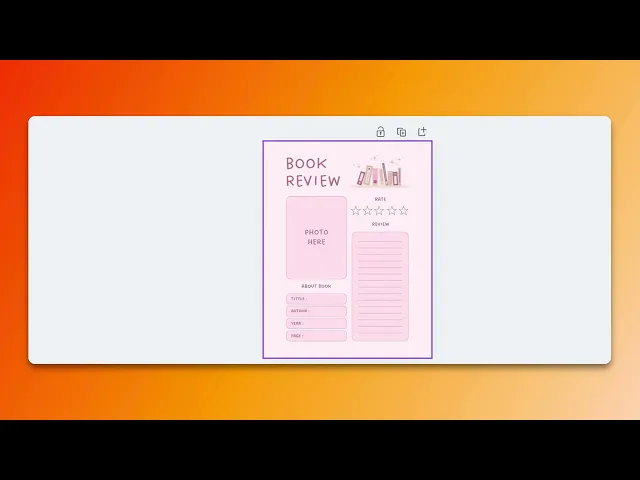
How To Make A Digital Planner On Canva
Discover how to create a personalized digital planner using Canva. Our step-by-step guide will help you design and customize your planner effortlessly.
In this process, you will learn how to craft a digital planner using Canva's design tools. The steps will guide you from opening Canva to customizing your planner with text, images, and graphics, ensuring a tailored and personal planner experience.
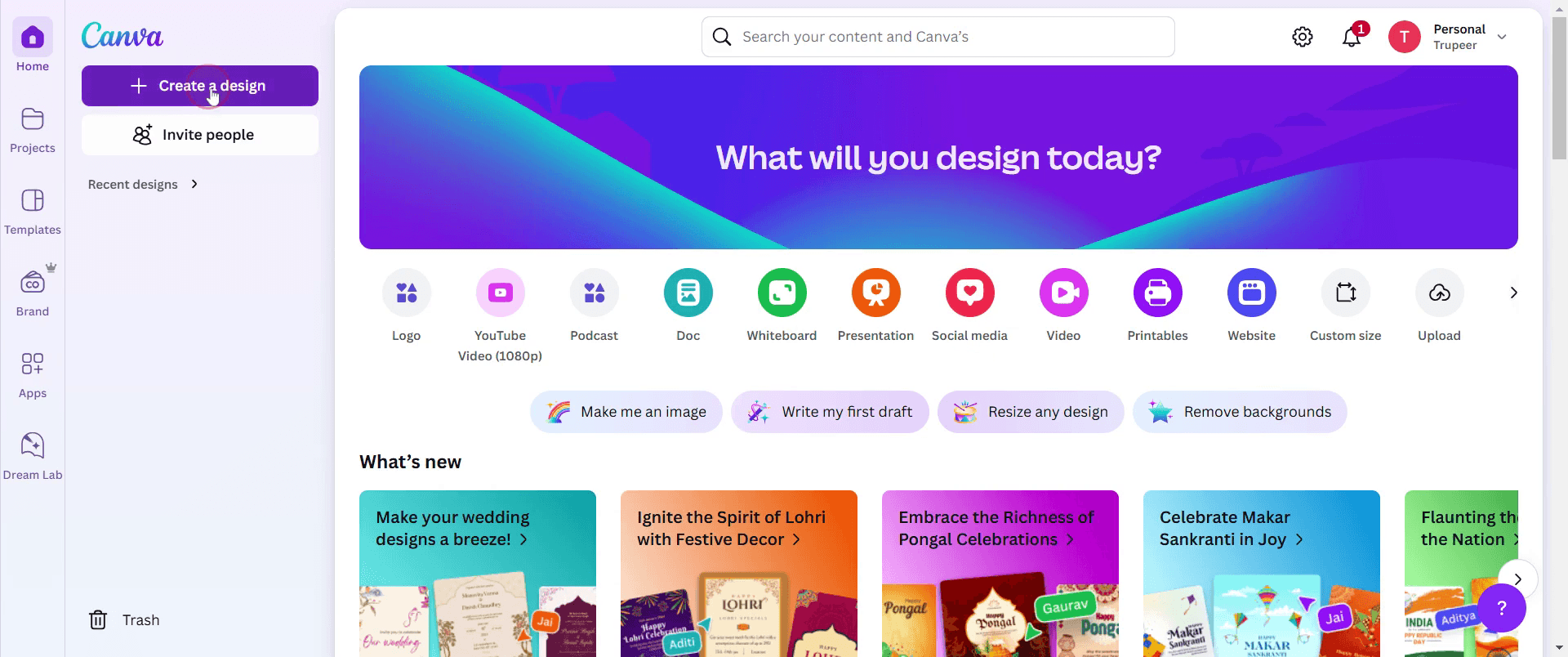
Step 1
Click on the Create Design button,
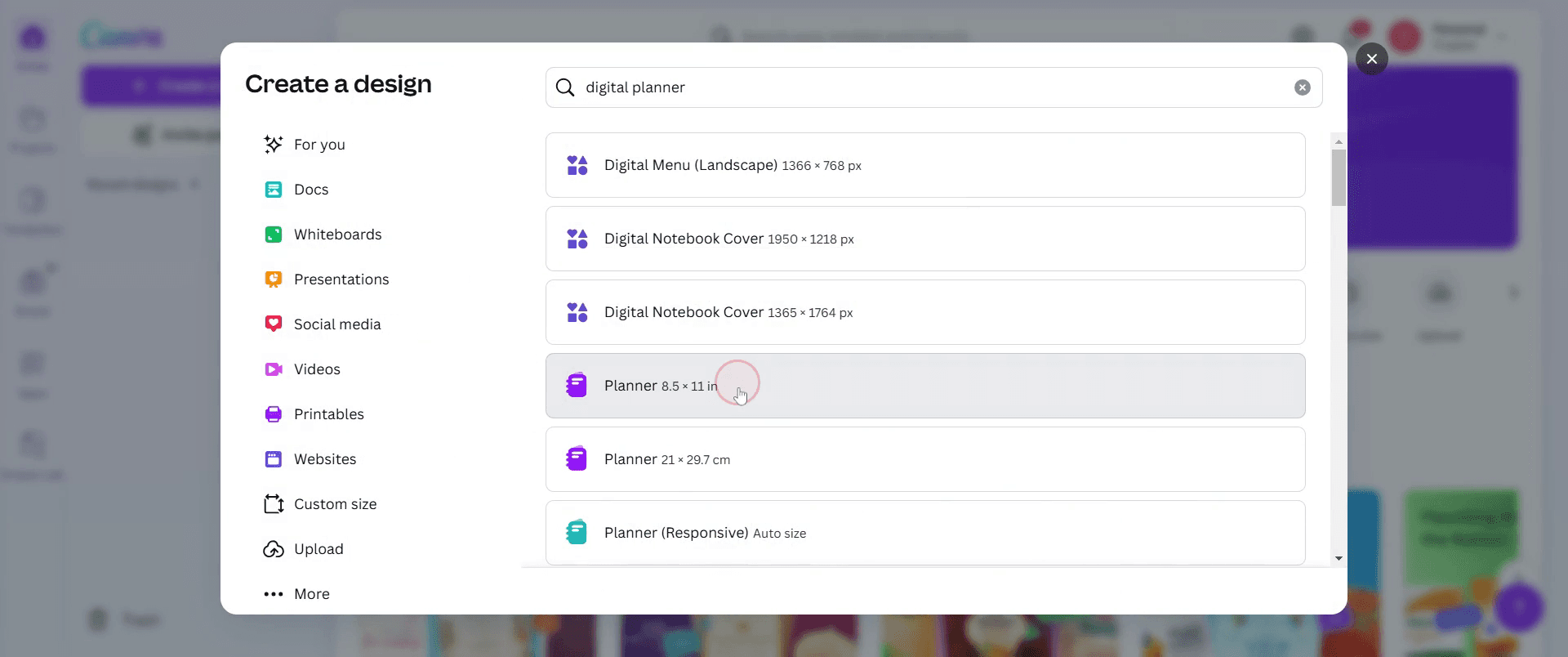
Step 2
Select the planner template.
Step 3
Select the specific template.
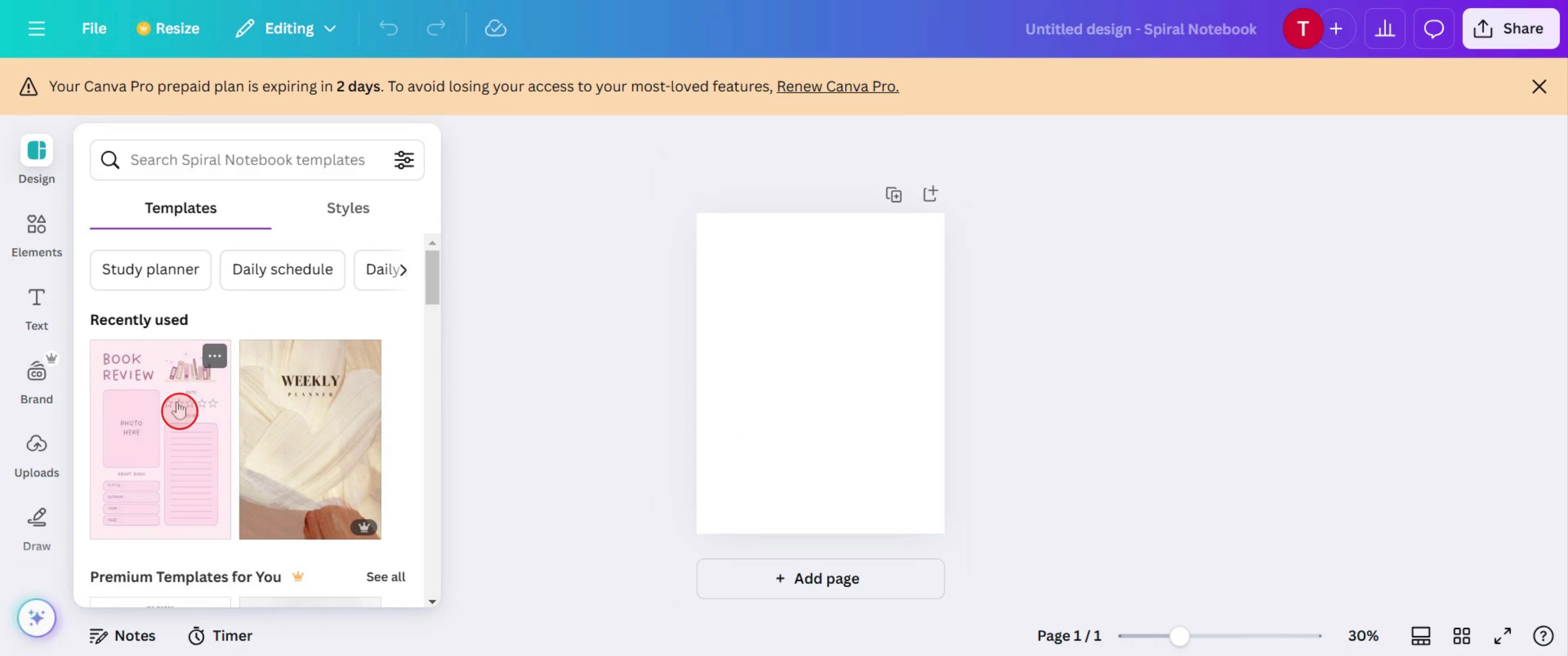
Step 4
The template will appear, starting with the cover page.
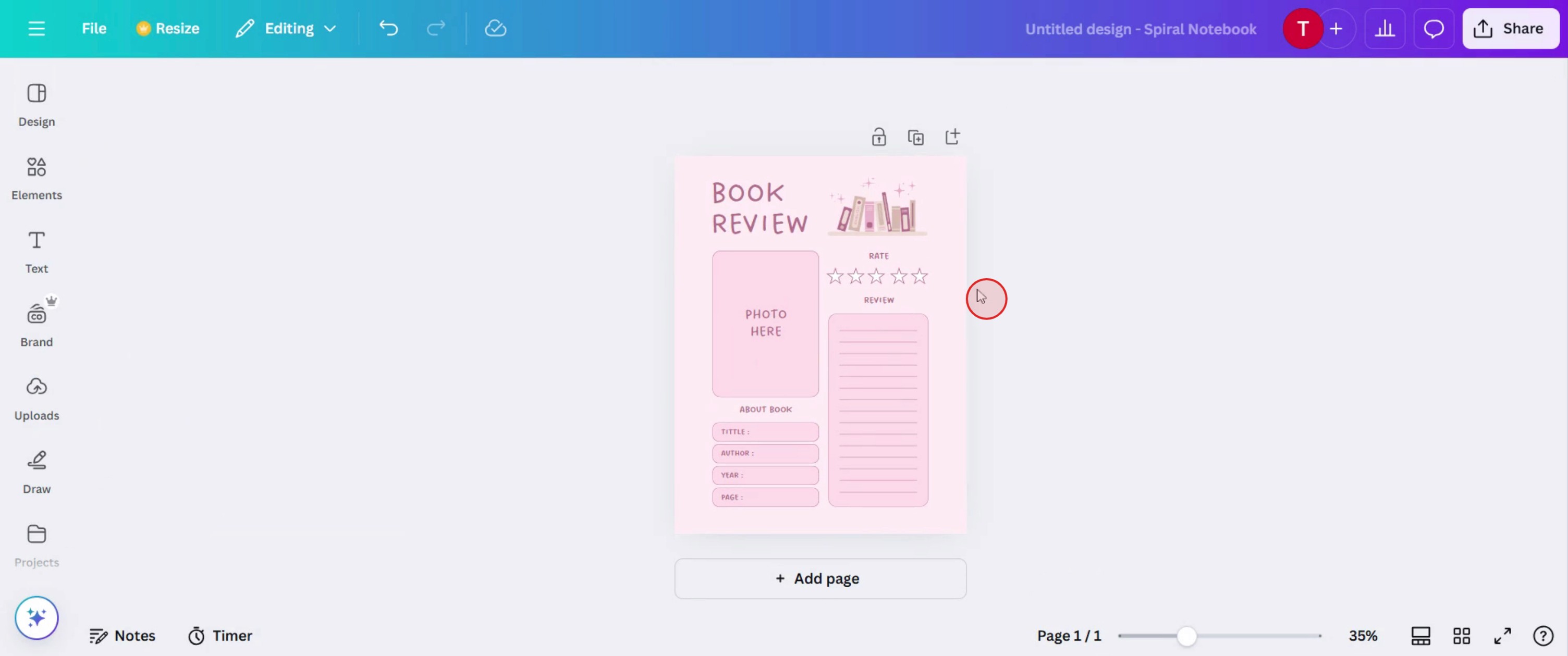
Step 5
Then add text,
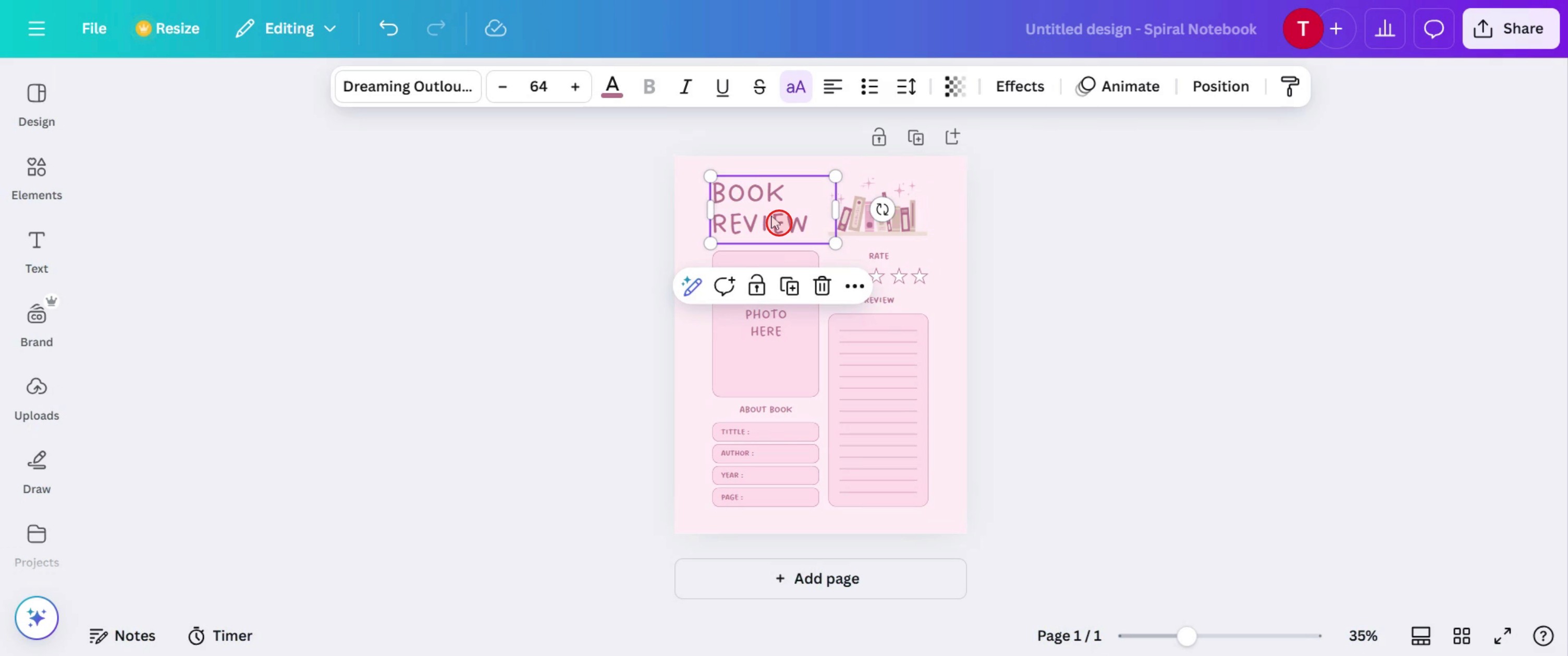
Step 6
And insert images and graphics as needed.
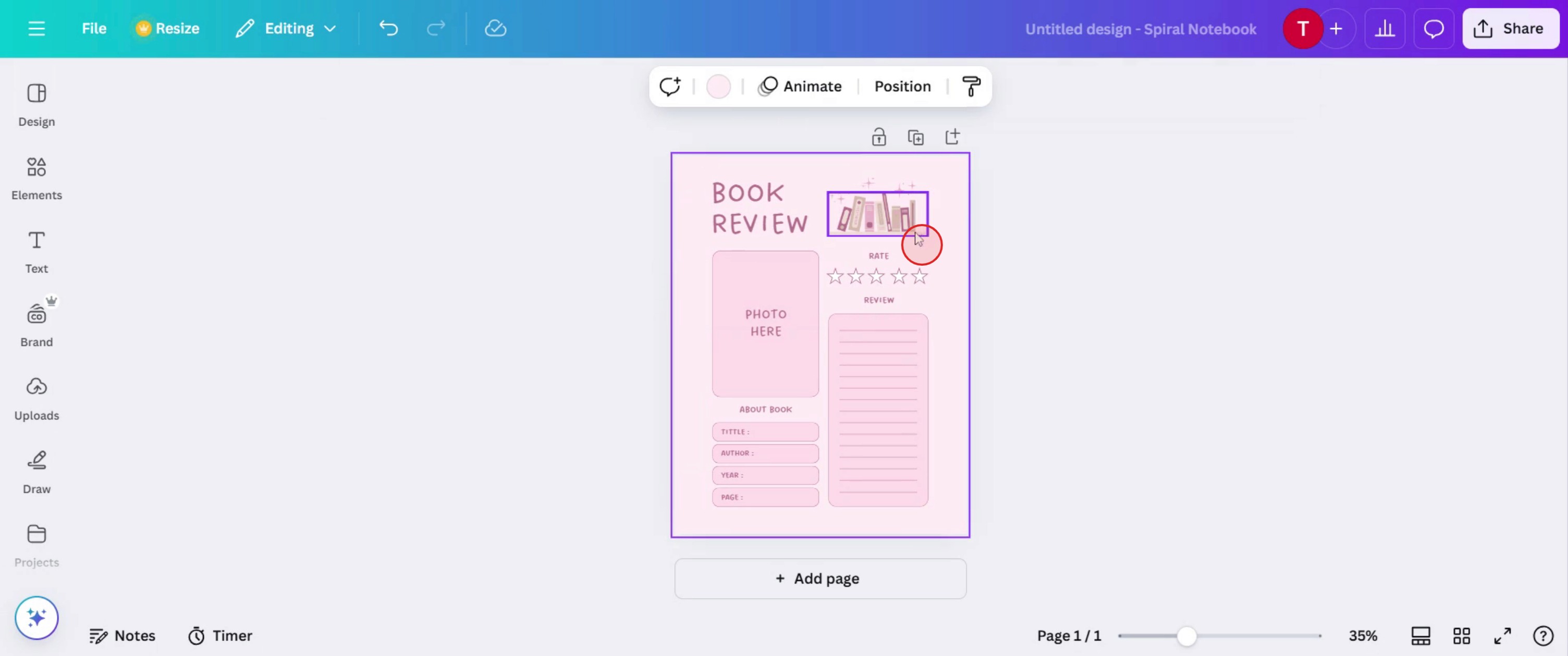
Step 7
Select the color.
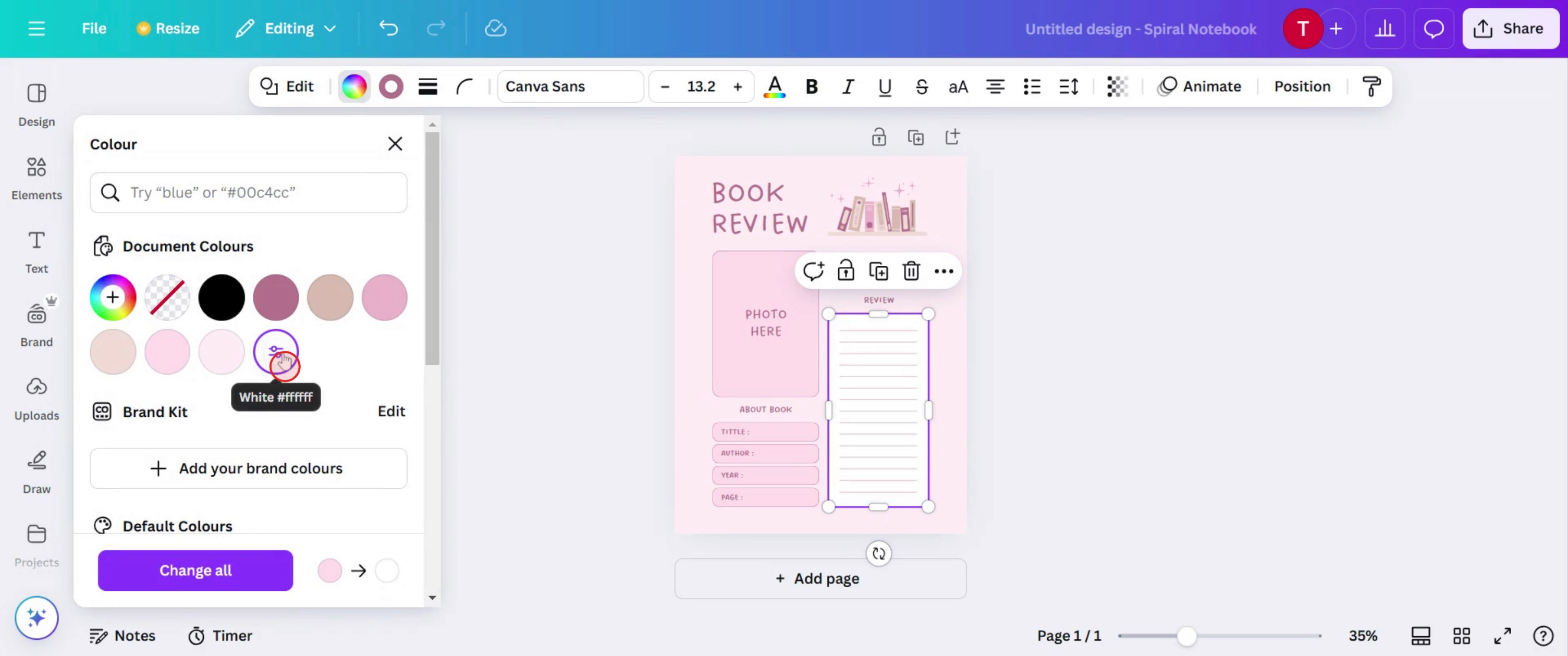
Step 8
Click on the Share button.
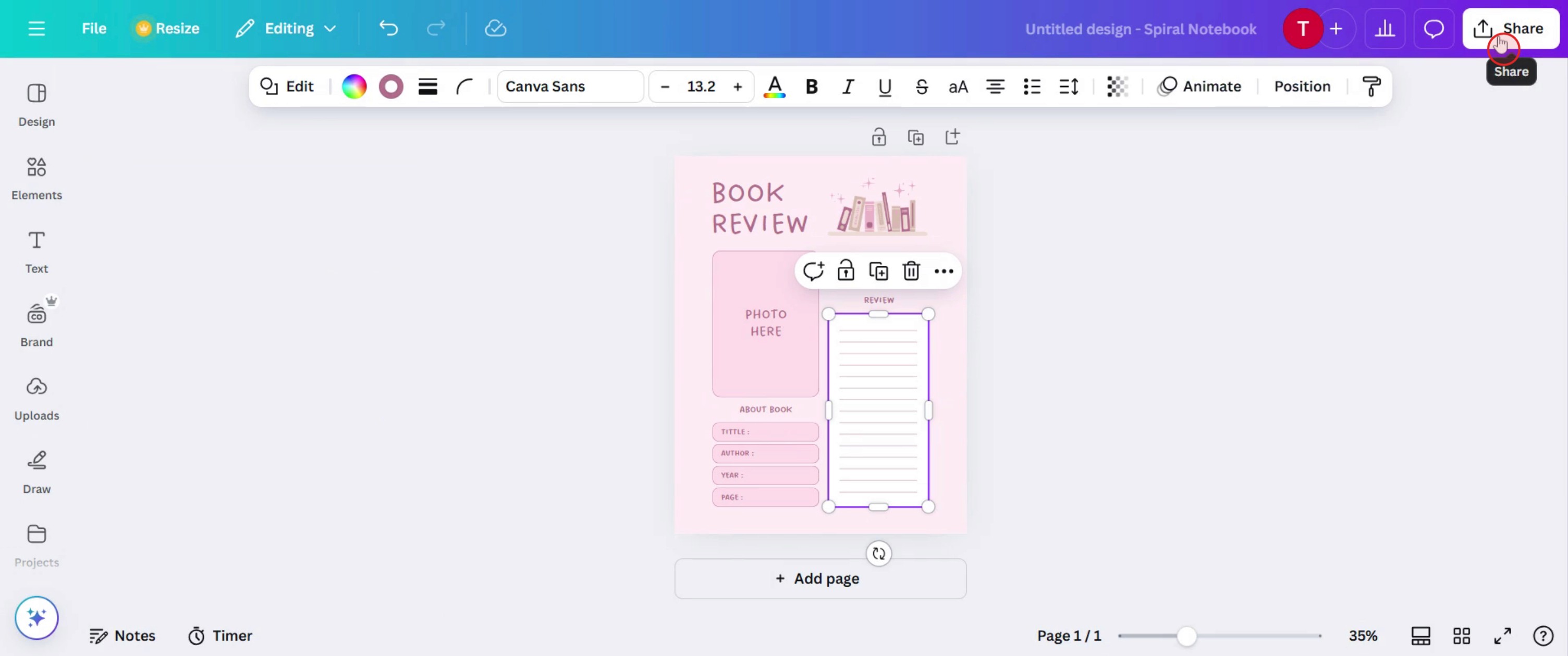
This is a step-by-step guide on how to make a Digital planner on Canva.
Pro tips for how to make a digital planner on Canva
Use hyperlinks for easy navigation – Add clickable links to sections, tabs, or important pages in your planner for a seamless user experience.
Choose the right dimensions – Set up your Canva design with tablet friendly dimensions (such as 1920x1080px) for better usability on digital devices.
Utilize Canva’s elements and templates – Make use of pre-designed templates, stickers, and fonts to enhance the look and functionality of your planner.
Common pitfalls and how to avoid them
Forgetting to embed hyperlinks before exporting as a PDF can make the planner non-interactive ensure all links are working before finalizing.
Using too many high resolution images can make the file size too large opt for optimized graphics to maintain quality without slowing performance.
Selecting the wrong export format can affect usability always download your planner as an interactive PDF to preserve hyperlinks and layout.
Common FAQs on how to make a digital planner on Canva
What size should a digital planner be in Canva?
A standard size is 1920x1080px, but you can also use A4 or letter size dimensions depending on your preferred format.Can i use Canva’s free version to make a digital planner?
Yes, Canva’s free version provides essential design tools, but Canva Pro offers advanced elements, premium fonts, and better customization options.How do i add hyperlinks to my digital planner in Canva?
Select the text or element, click the Link button, enter the URL or page number, and apply the link to make it interactive.What is the best format to download my digital planner from Canva?
Export your planner as a PDF Standard or PDF Print to maintain clickable links and high quality visuals.
This tutorial was created in minutes using Trupeer. To generate your own product tutorials, simply screen record a rough video, Trupeer will transform it into a polished product tutorial and a step-by-step guide within minutes. Create your first video tutorial and guide with trupeer.ai for free.

