
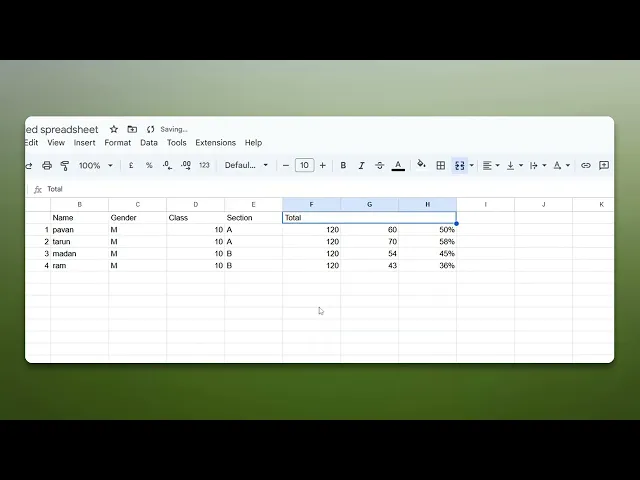
How To Merge And Center In Google Sheets
Discover the step-by-step guide on how to merge and center cells in Google Sheets. Enhance your spreadsheet formatting with ease and precision.
This document provides a comprehensive walkthrough on how to merge and center in google sheets. By following these steps, you will be able to efficiently organize and align your data as needed.
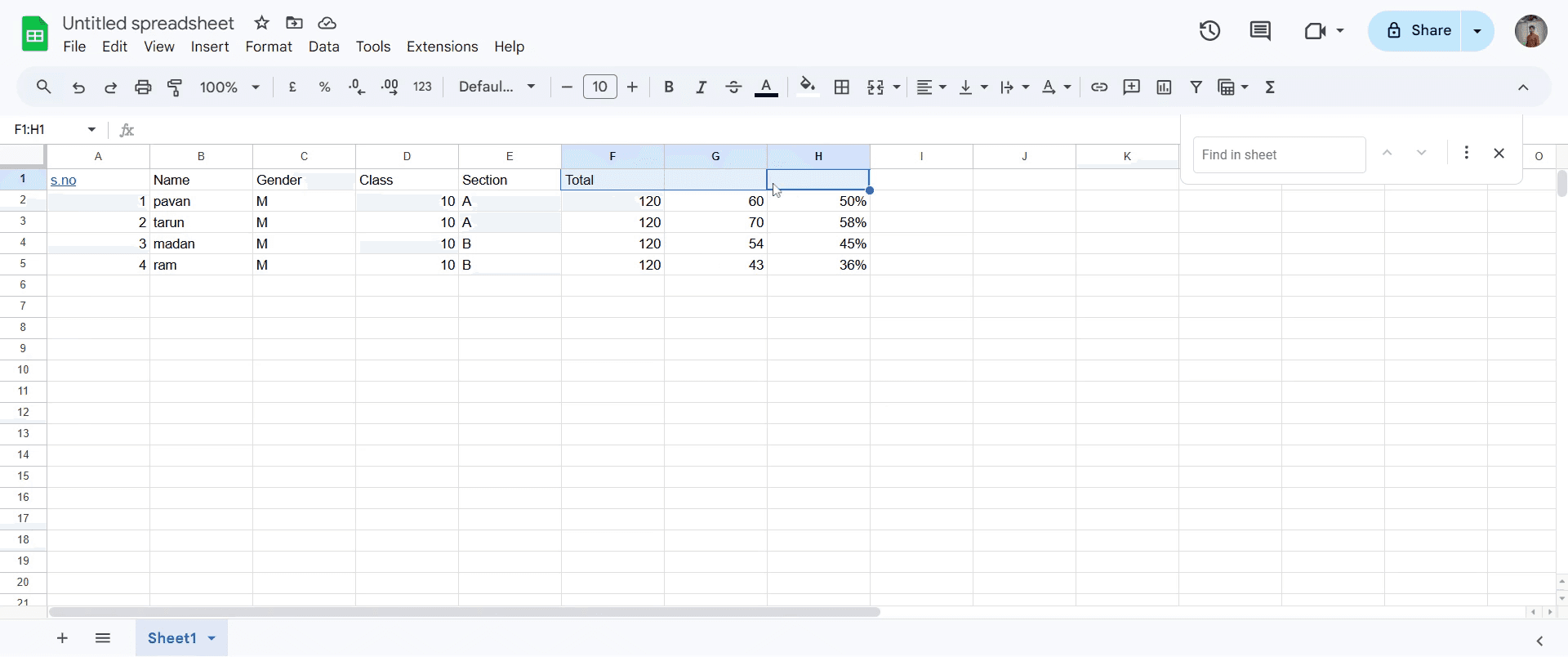
Step 1
Begin by selecting the cells you wish to merge.
Step 2
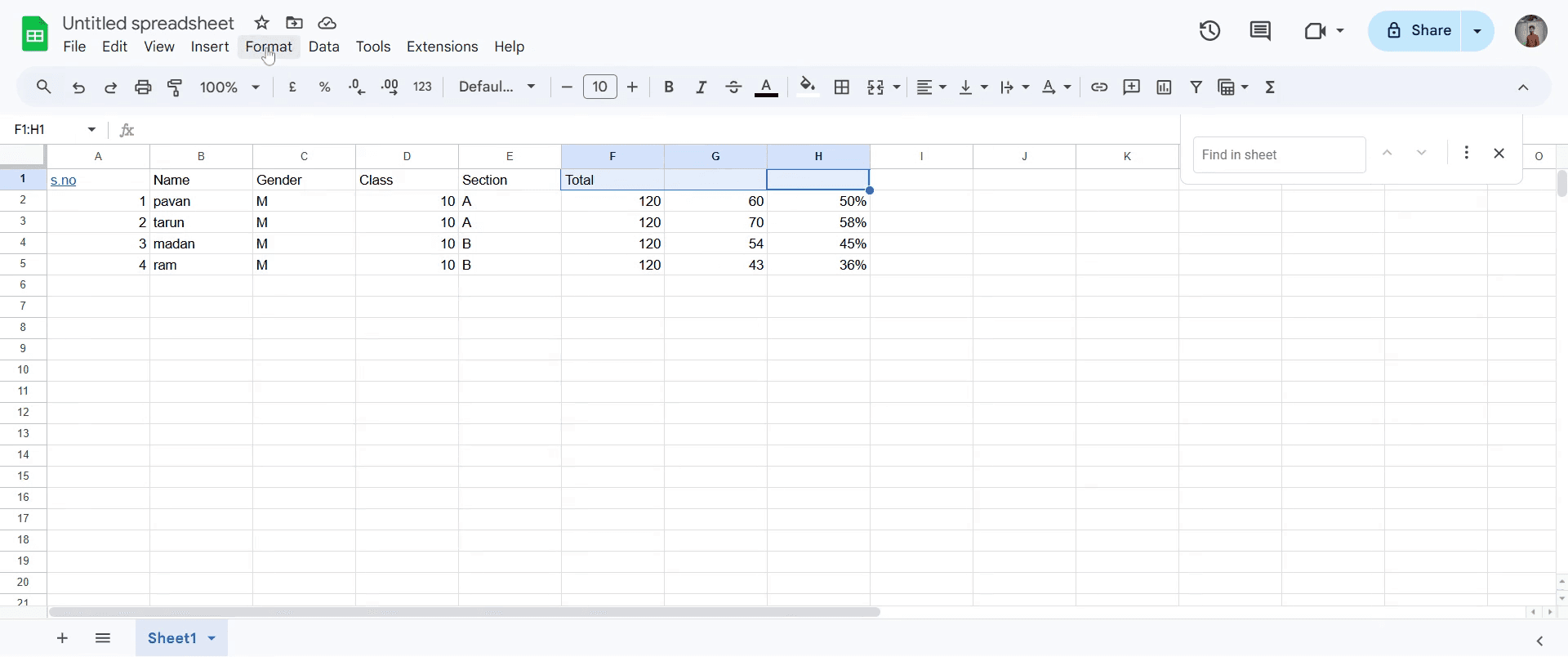
Next, locate and click on the option labeled "Format".
Step 3
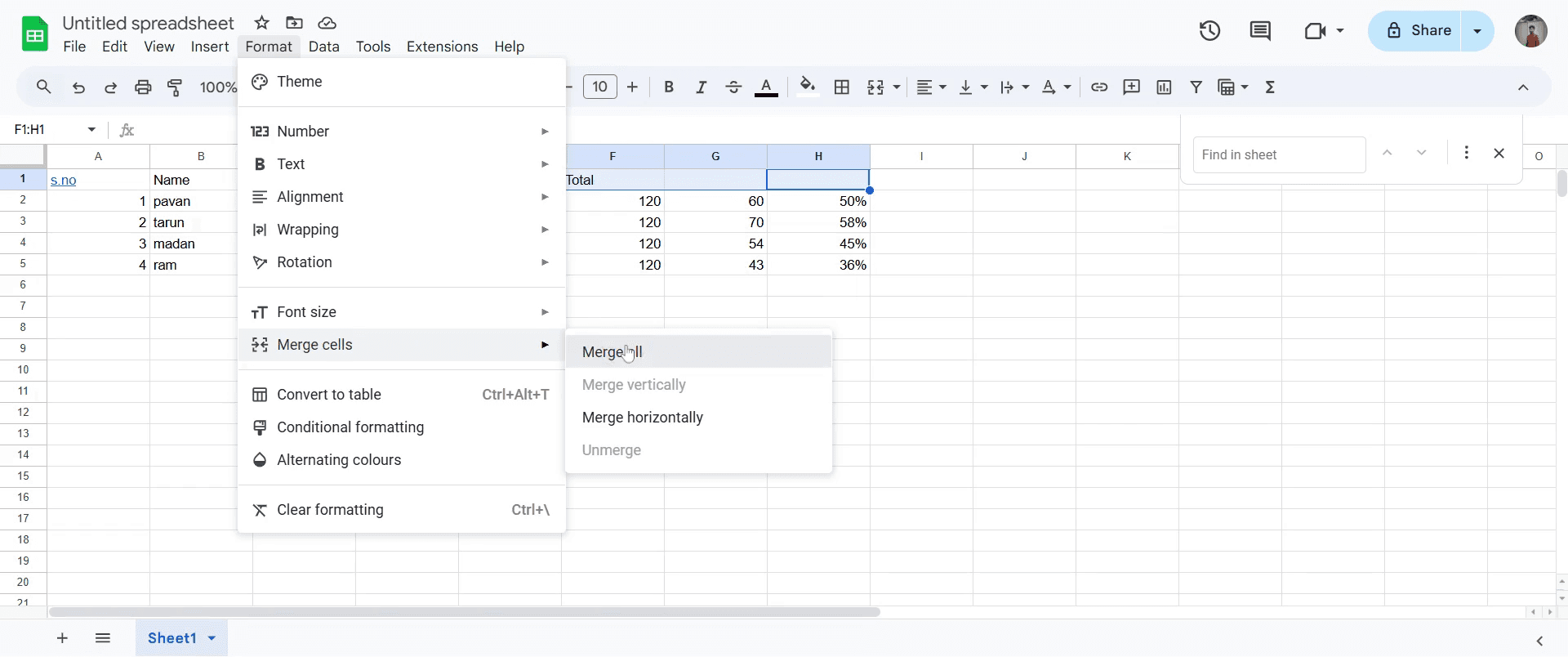
From the dropdown menu, select "Merge Cells".

Step 4
And then choose "Merge All" to combine the selected cells.
Step 5
Once the cells are merged, proceed to centralize the data by clicking on the designated centralize option.
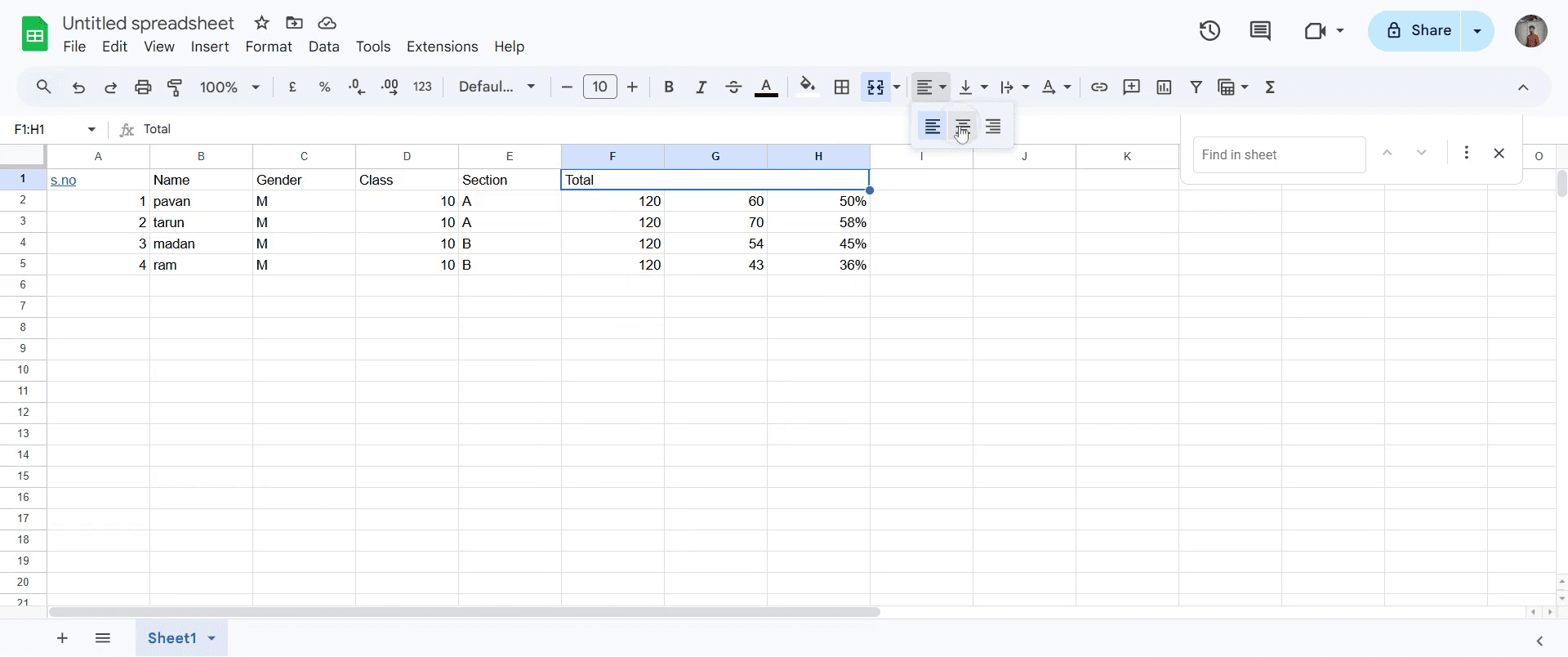
That's it. This is a step-by-step guide on how to merge and center in Google Sheets
Pro-tips for merging and centering in Google Sheets
Use the merge & center option to combine multiple cells into one and center the content in the middle for a clean and organized look.
After merging cells, make sure to adjust text formatting to avoid overlap and ensure readability.
You can merge cells horizontally, vertically, or both by selecting the appropriate option in the toolbar.
Common pitfalls & how to avoid them while merging and centering in Google Sheets
Merging cells and losing data ensure only the necessary cells are merged, as merging can remove data from non-selected cells.
Forgetting to unmerge when editing unmerge cells when you no longer need them to maintain flexibility in your layout.
Overusing merged cells avoid excessive merging in a large data set, as it can make sorting and filtering difficult.
Common FAQs for merging and centering in Google Sheets
Can I merge cells and keep all the data?
Merging will only keep the data from the top-left cell, so ensure important information is in the first cell before merging.How do I unmerge cells in Google Sheets?
Select the merged cells, click on the Merge icon again, and choose Unmerge to restore the individual cells.Can I merge and center multiple rows or columns at once?
Yes, you can select multiple rows or columns, then use the Merge and center option to merge and center across the entire selection.
If you're an instructor or content creator looking to make tutorial videos, give Trupeer.ai a try. It transforms rough screen recordings into polished, studio-style videos that are ready for sharing with your audience. Plus, it automatically generates a step-by-step guide based on the video you create. Fascinating, right? Start by creating your first tutorial for free with Trupeer.ai.

