

How To Name A Chat In Teams
Discover effective strategies for naming your chat in Teams. Enhance communication and organization with our expert tips and best practices for team collaboration.
This document provides a detailed walkthrough on how to name a chat within Microsoft Teams. Follow these simple steps to quickly and efficiently assign a name to your chat group.
Step 1
Click on the chat.

Step 2
And click on new chat.
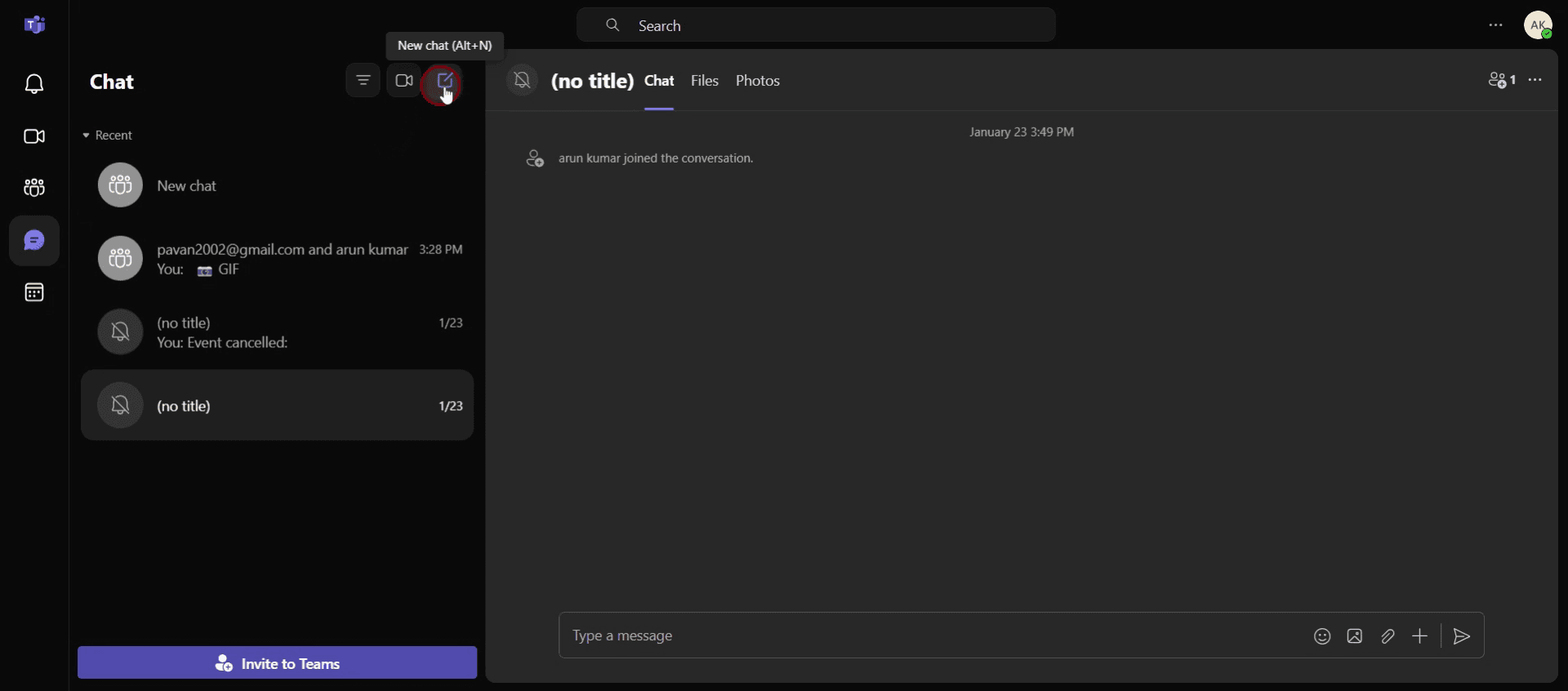
Step 3
Then select the option add a group name.
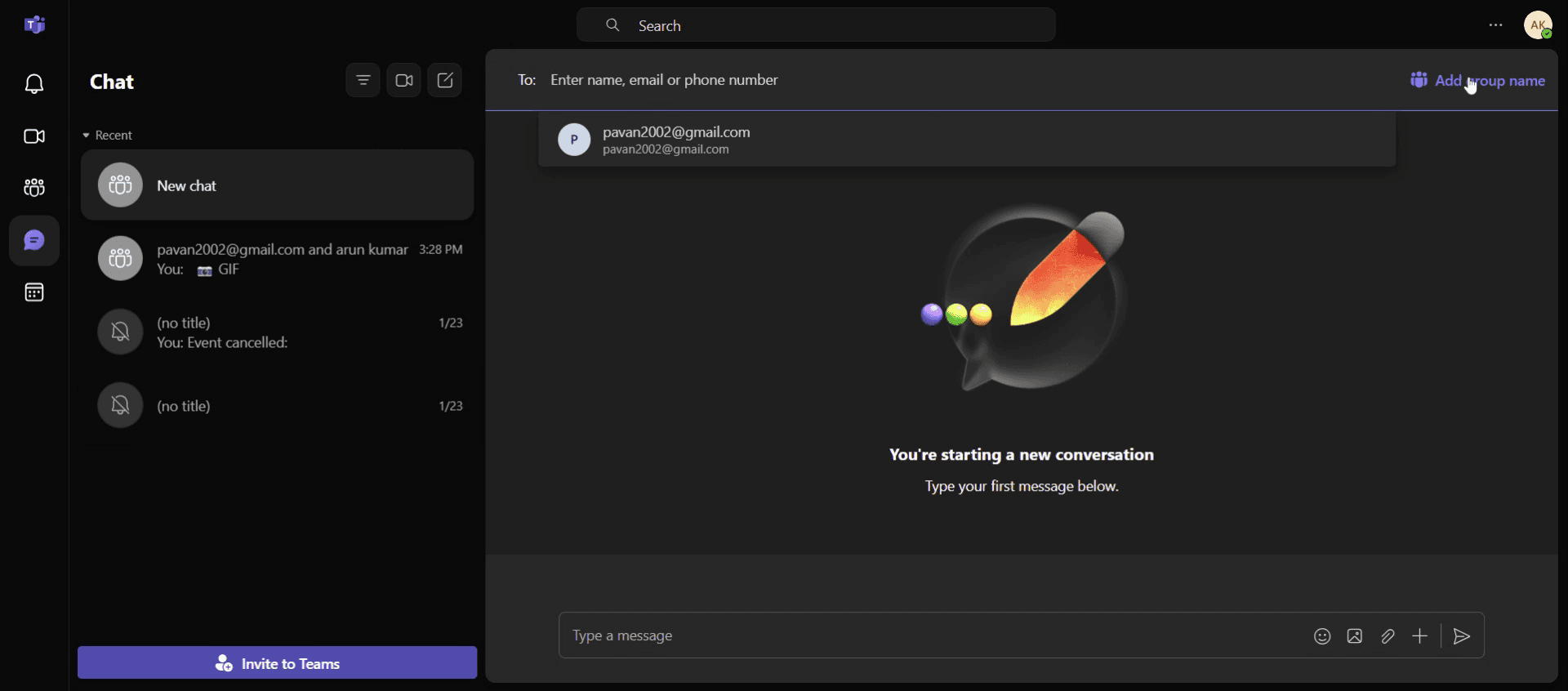
Step 4
Then enter the name.
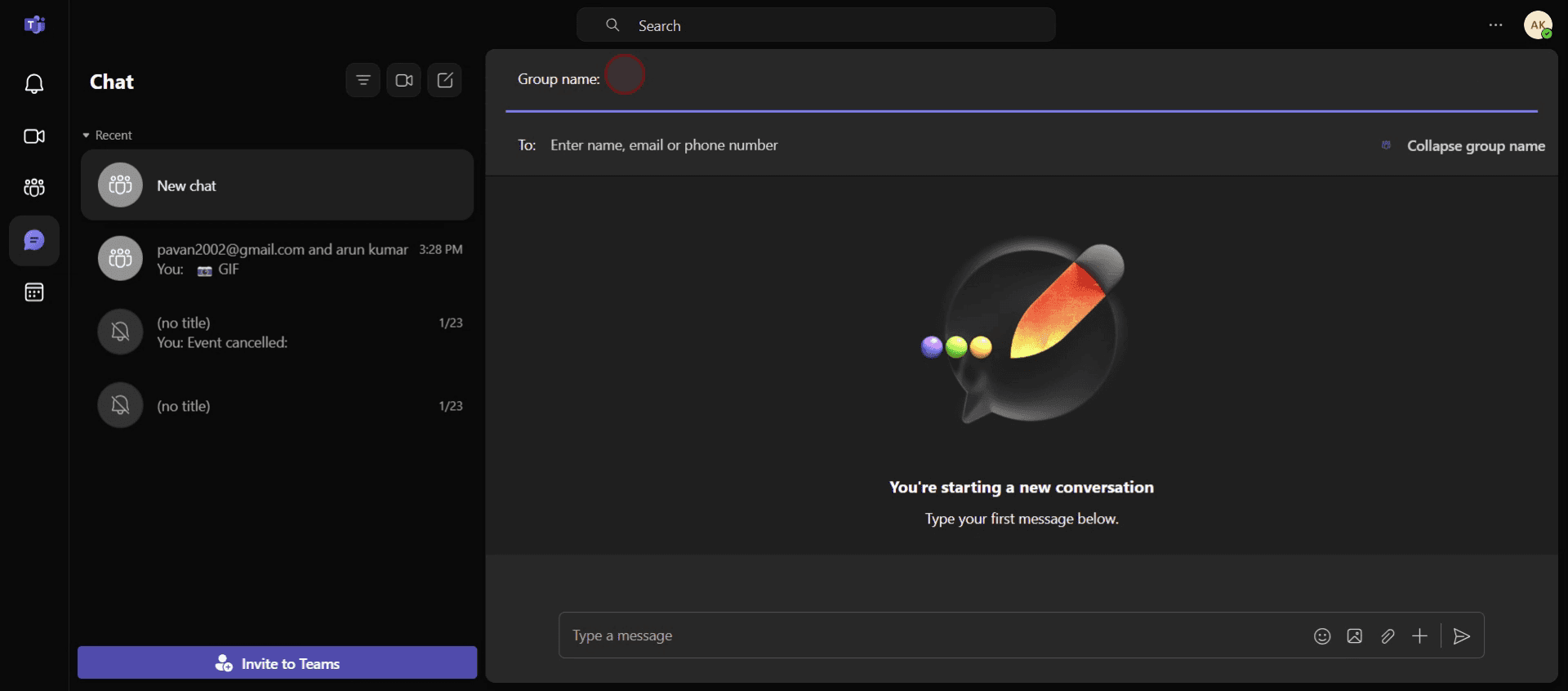
This is the step-by-step process to name a chat in Teams, Let’s look at some tips for it.
Pro tips for naming a chat in Teams
Open the Chat – Start by opening the chat you want to rename. It could be a one-on-one chat or a group chat. If you're renaming a group chat, ensure you're part of the conversation.
Click on the Chat Name – In a group chat, click on the group name at the top of the conversation window. For a one-on-one chat, click on the contact’s name. This will take you to the chat settings page.
Select Edit – In the settings page, you'll see an option to edit the chat name. Click on it to type the new name for the chat.
Common pitfalls & how to avoid them
Not Having Permissions – In group chats, only the chat owner or the person who created the chat has the ability to rename it. If you don't have permissions, you won’t be able to rename the chat.
Renaming in One-on-One Chats – Unlike group chats, you cannot rename a one-on-one chat. Only group chats or multiple-person chats can be renamed.
Too Long or Vague Names – Try to keep the chat name short, relevant, and descriptive. Overly long or vague names might make it harder for team members to identify the chat..
Common FAQs for naming a chat in Teams
Can everyone see the new chat name in Teams?
Yes, once the chat name is updated, all participants in the group chat will see the new name. It will be visible for everyone in the chat window.What should i name a group chat in Teams?
Choose a name that is descriptive and relevant to the conversation. For example, name it after the project, team, or topic being discussed, like Marketing Strategy or Quarterly Review.Can i change the name of a chat in Teams if I’m not the creator?
You can only change the name of a chat if you’re the chat owner or creator. If you don’t have permissions, you won’t be able to rename it.Can i rename a one-on-one chat in Teams?
No, you cannot rename a one-on-one chat in Microsoft Teams. Only group chats or multiple-person chats can be renamed.
If you're an instructor or content creator looking to make tutorial videos, give a try. It transforms rough screen recordings into polished, studio-style videos that are ready for sharing with your audience. Plus, it automatically generates a step-by-step guide based on the video you create. Fascinating, right? Start by creating your first tutorial for free with trupeer.ai .

