
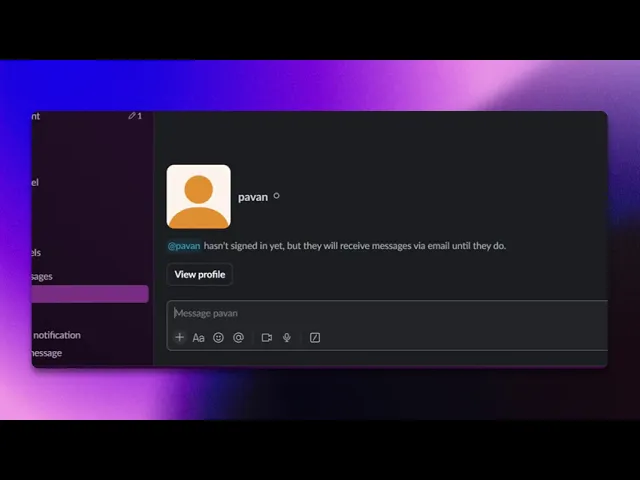
How To Schedule A Message In Slack
Discover how to schedule messages in Slack effortlessly. Our comprehensive guide provides step-by-step instructions to enhance your communication efficiency.
This document provides a concise guide on how to effectively schedule messages in Slack, allowing you to plan communications for specific dates and times.
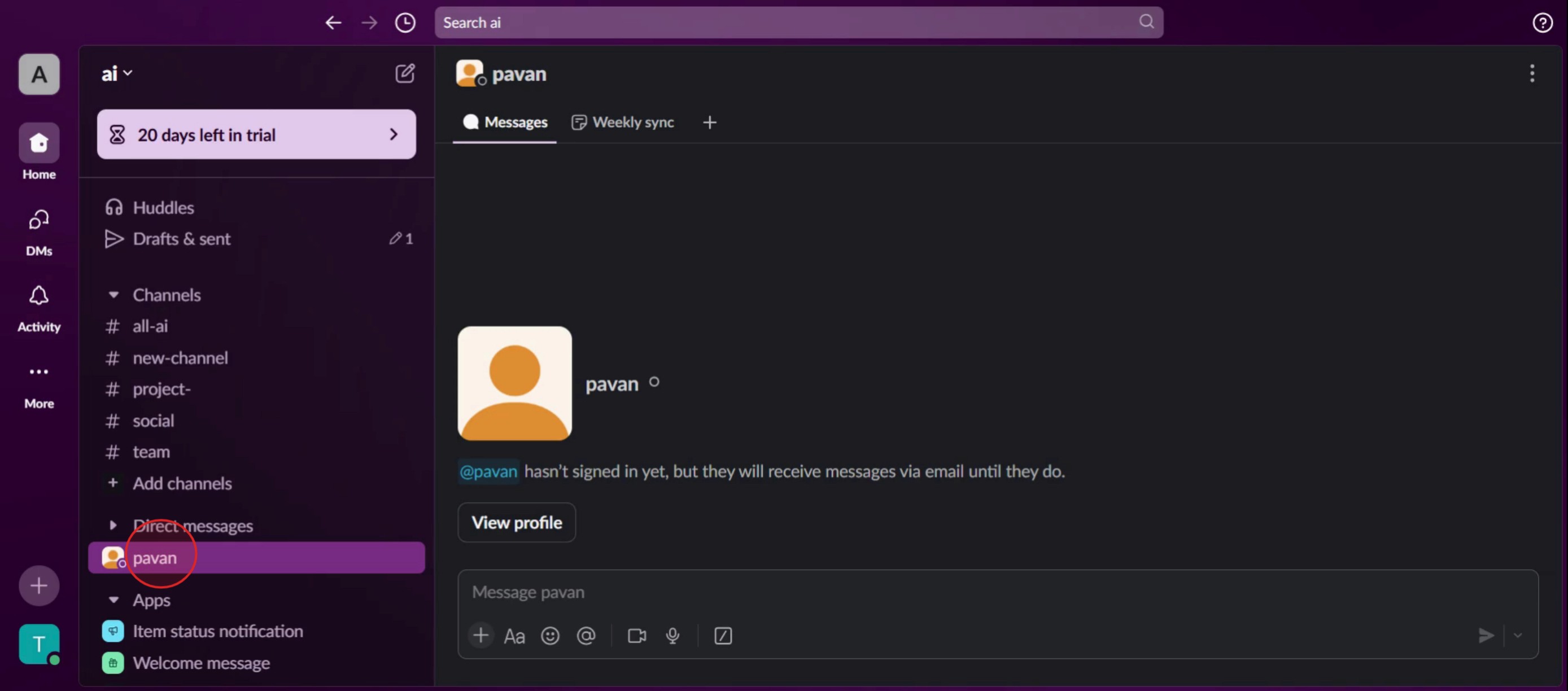
Step 1
Opening the chat with the individual to whom you wish to send the message.
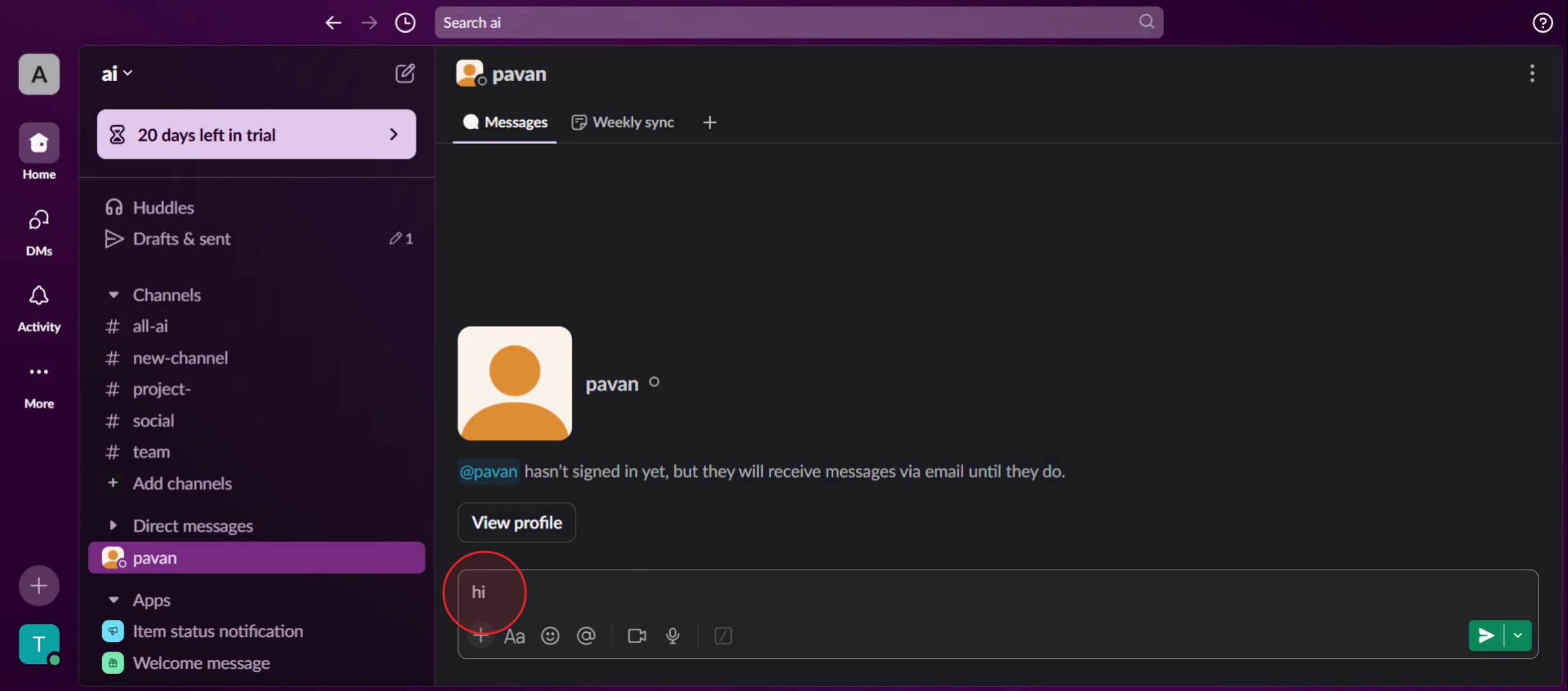
Step 2
In the message box type the content you want to send.
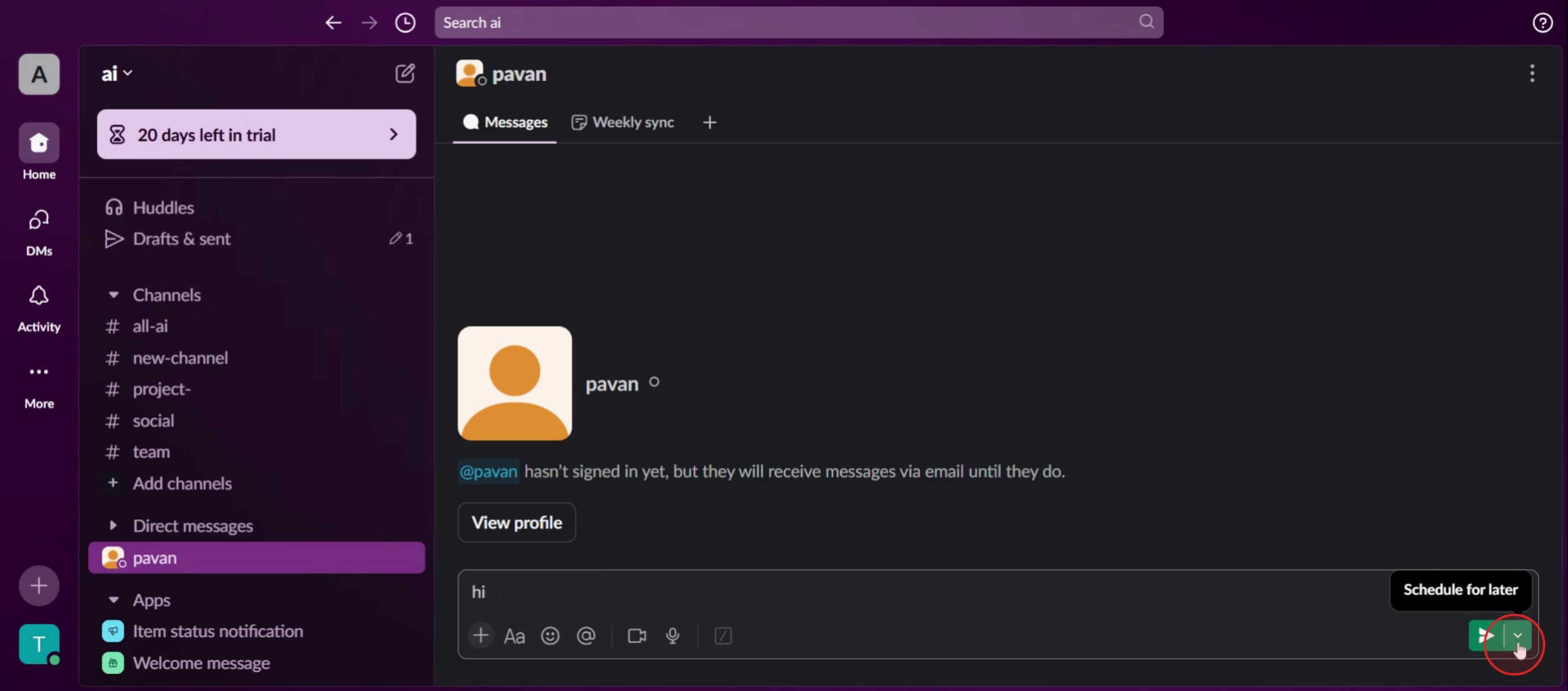
Step 3
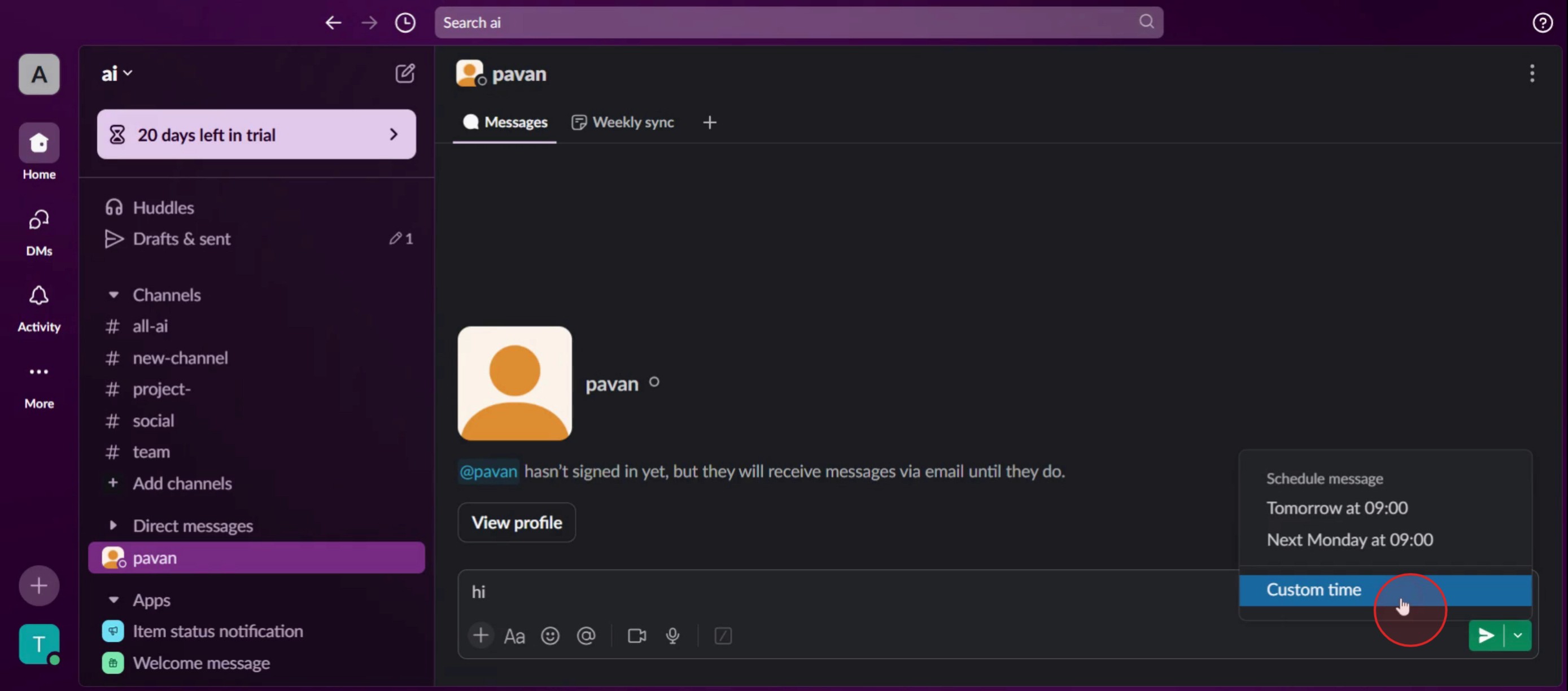
Locate the downwards arrow icon, click on it.
Step 4
And then select Custom time,
Step 5
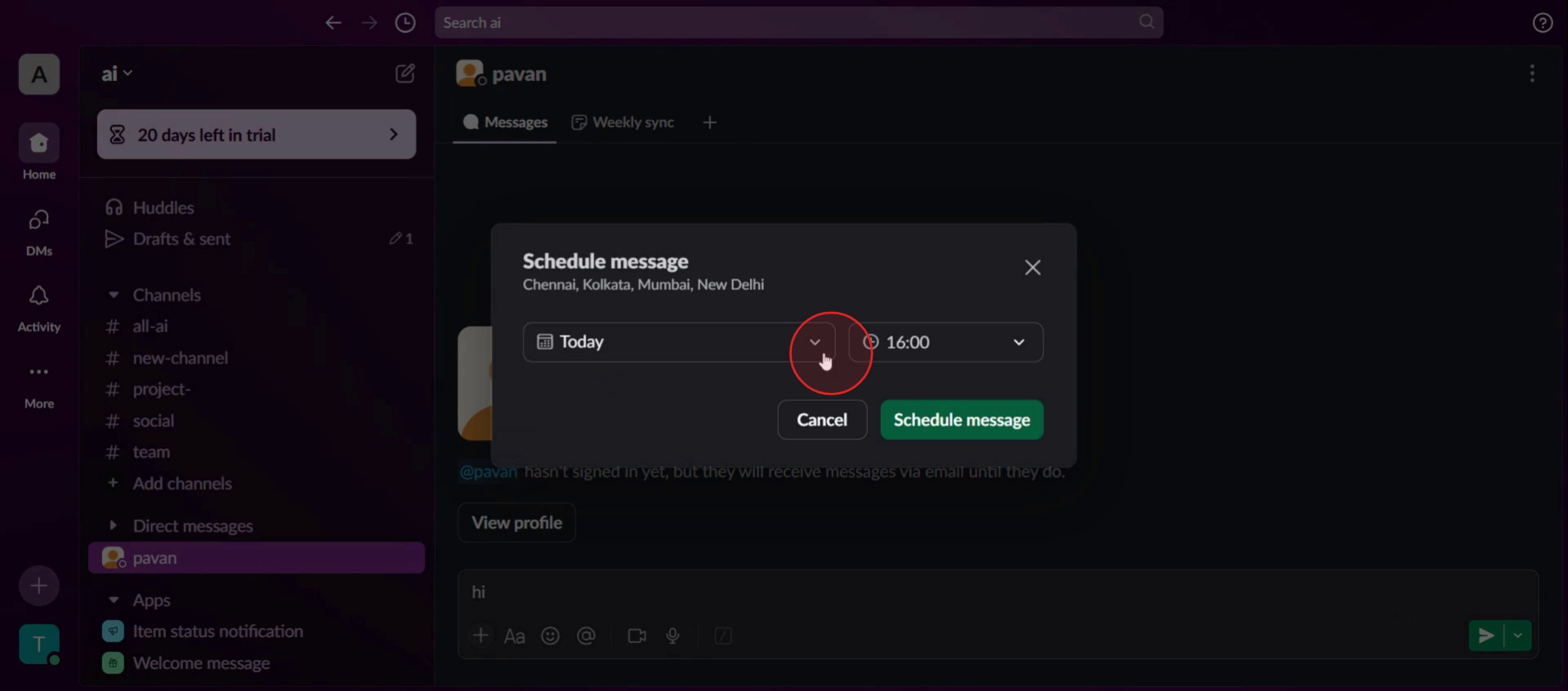
Choose the specific date and time you want the message to be delivered.
Step 6
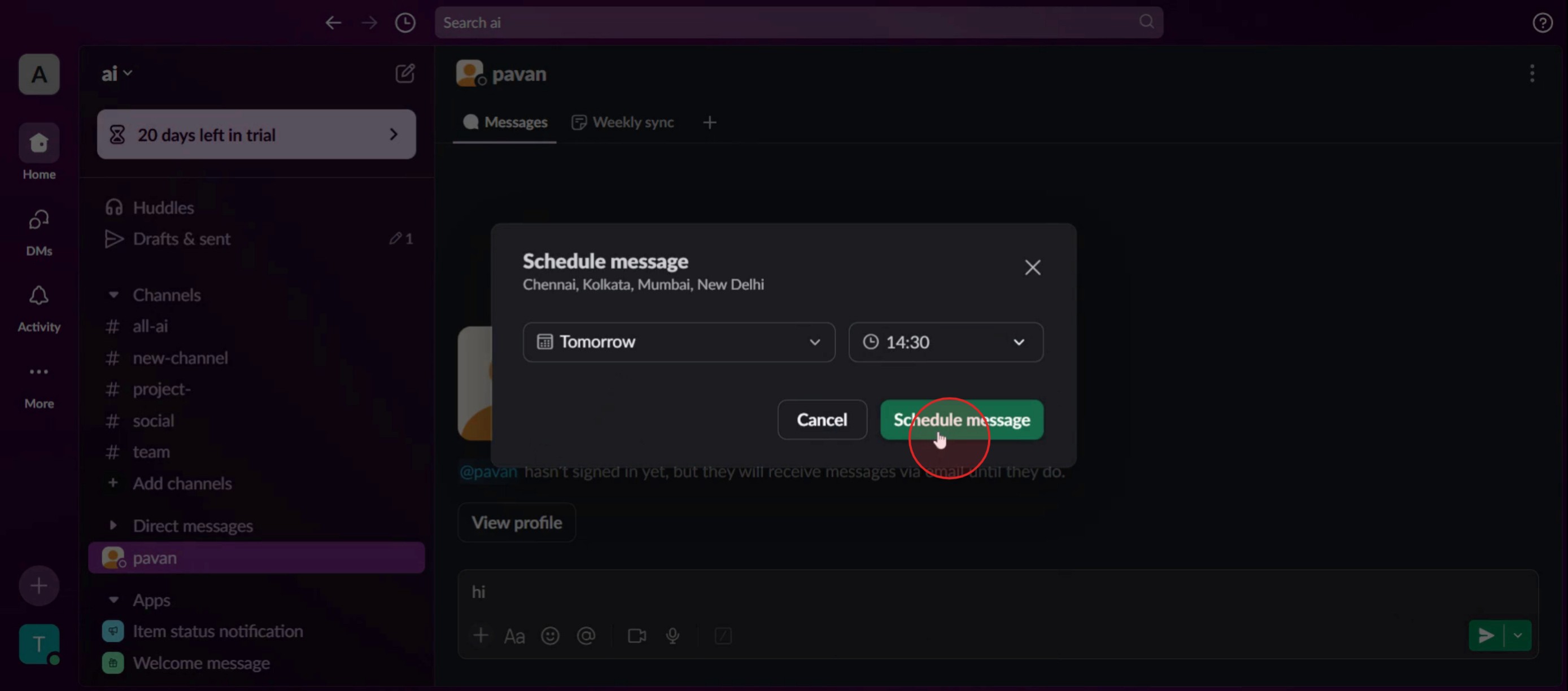
Click on the Schedule Message,
This is the step-by-step process to schedule a message in Slack. Let’s look at some tips for it.
Pro tips for how to schedule a message in Slack
Use precise timing for better engagement – Schedule messages during active hours to ensure they reach team members when they are online and responsive.
Modify scheduled messages before sending – If you need to make changes, go to Scheduled messages, edit the content, and adjust the timing before it is sent.
Use scheduling for time zone management – When working with global teams, schedule messages to align with recipients’ working hours for better communication.
Common pitfalls and how to avoid them
Forgetting to check scheduled messages can lead to outdated information always review them in the Scheduled section.
Scheduling messages in the wrong channel can cause miscommunication double-check the recipient before confirming.
Not considering time zones can lead to messages being missed schedule messages based on the recipient’s local time for better visibility.
Common FAQs for how to schedule a message in Slack
Can i edit a scheduled message in Slack?
Yes, go to the Scheduled section in Slack, find the message, and edit or reschedule it before it gets sent.Where can i find my scheduled messages in Slack?
You can view all your scheduled messages by clicking on the Scheduled section in Slack’s message input field.Can i cancel a scheduled message in Slack?
Yes, you can cancel a scheduled message by navigating to the Scheduled section, selecting the message, and deleting it before it sends.Why should i use scheduled messages in Slack?
Scheduling messages helps ensure timely communication, avoids disruptions during off-hours, and keeps team members informed at the right time.
If you're an instructor or content creator looking to make tutorial videos, give a try. It transforms rough screen recordings into polished, studio-style videos that are ready for sharing with your audience. Plus, it automatically generates a step-by-step guide based on the video you create. Fascinating, right? Start by creating your first tutorial for free with trupeer.ai .

