
How To Schedule A Teams Meeting?
Master the art of scheduling Teams meetings with our comprehensive guide. Streamline your virtual gatherings and improve team communication effortlessly.
This document offers a clear and straightforward guide to scheduling a meeting using the calendar tool. Follow these steps to set the meeting title, invite participants, and select the date and time efficiently.
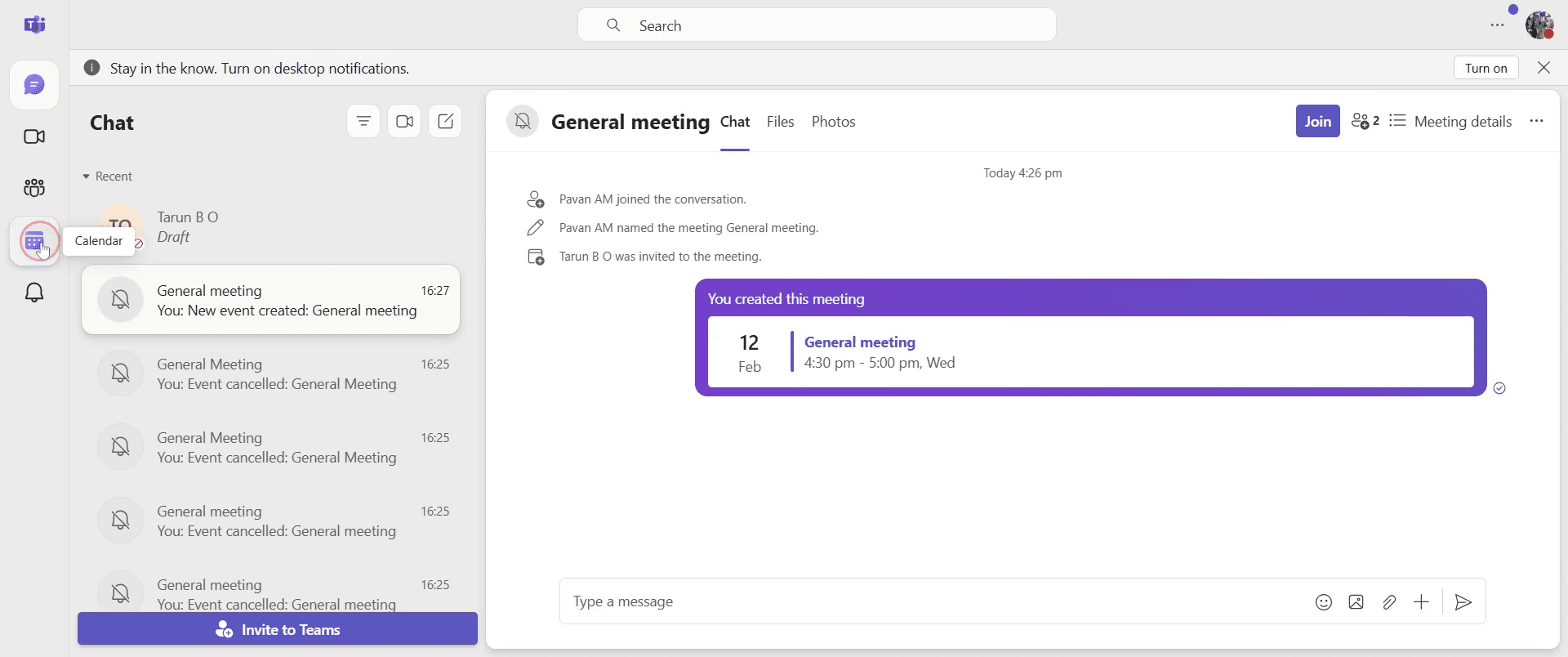
Step 1
Begin by accessing the calendar option. Click on the calendar to proceed.
Step 2
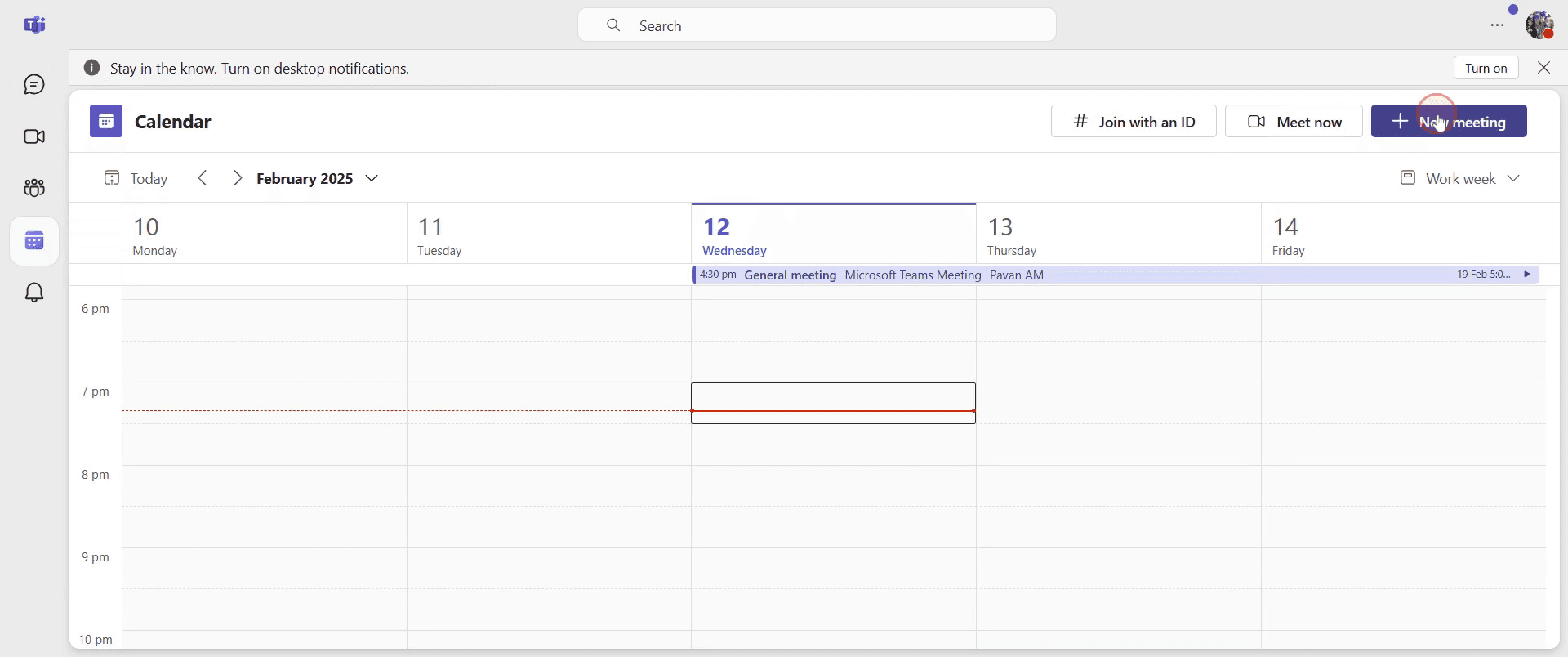
Click on the "New Meeting" option to begin setting up your meeting.
Step 3
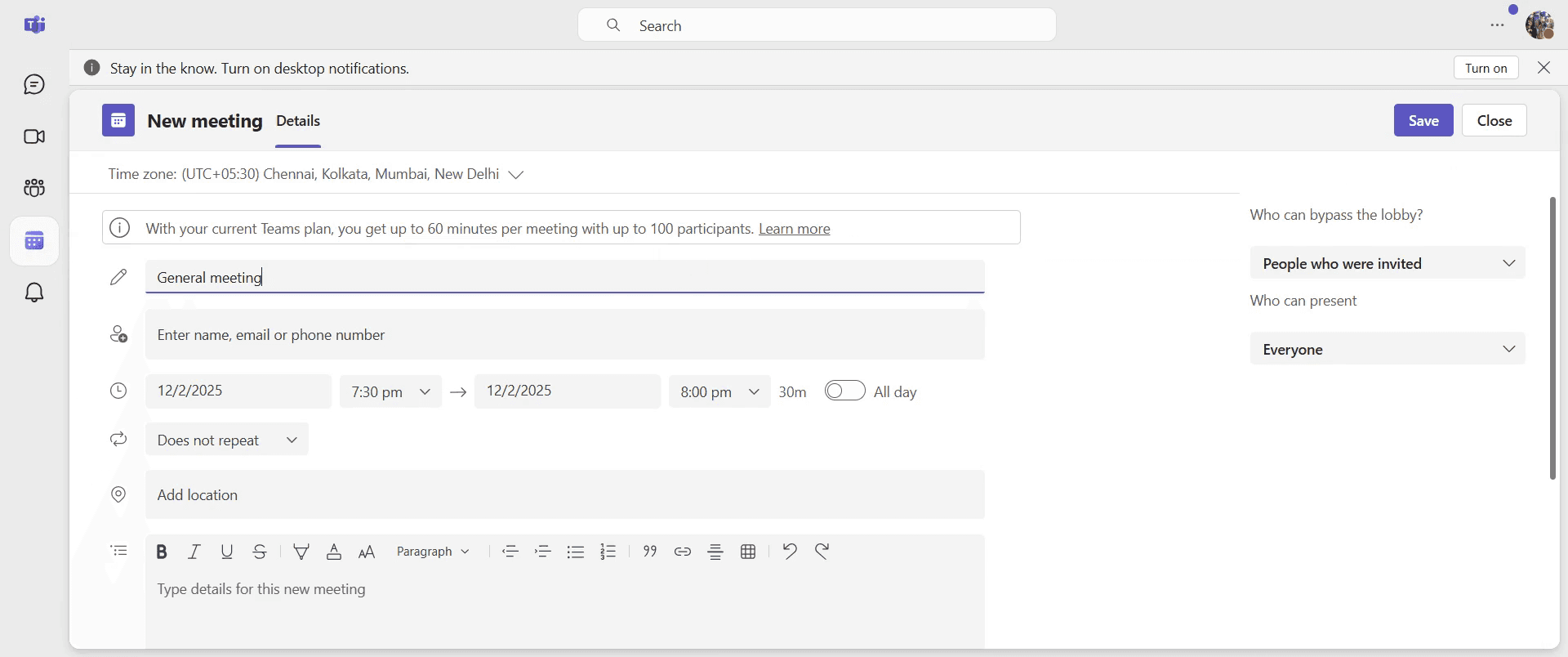
Here, you can assign a title to your meeting.
Step 4
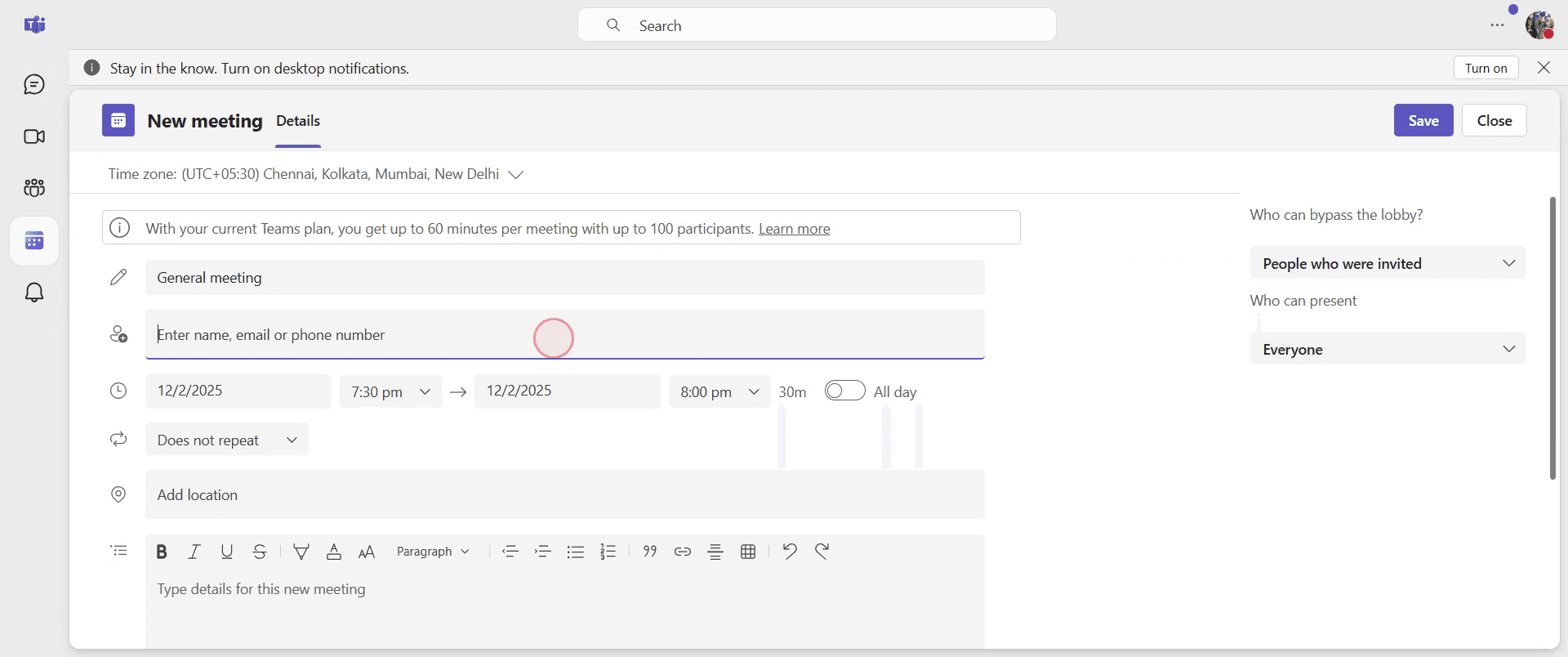
Add the individuals you wish to invite to the meeting.
Step 5
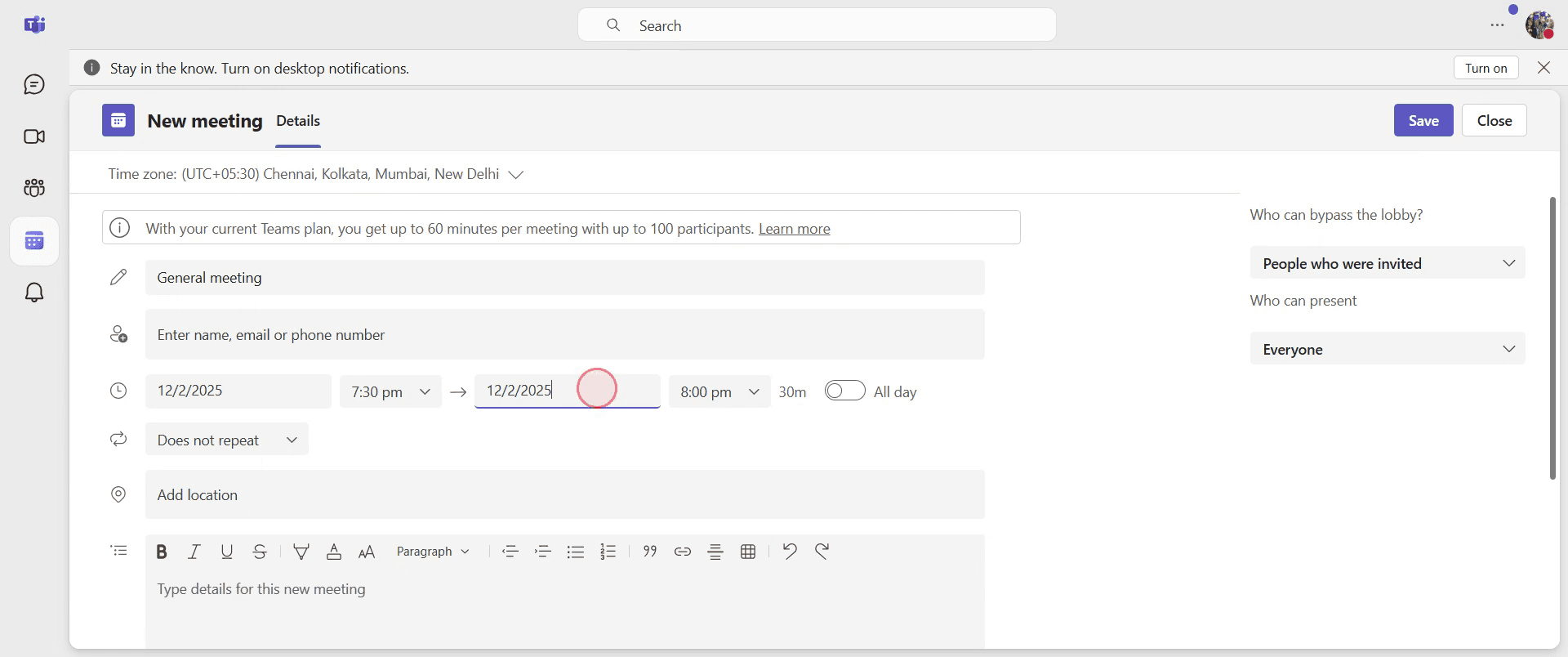
In the Date section, select and set the desired date for the meeting.
Step 6
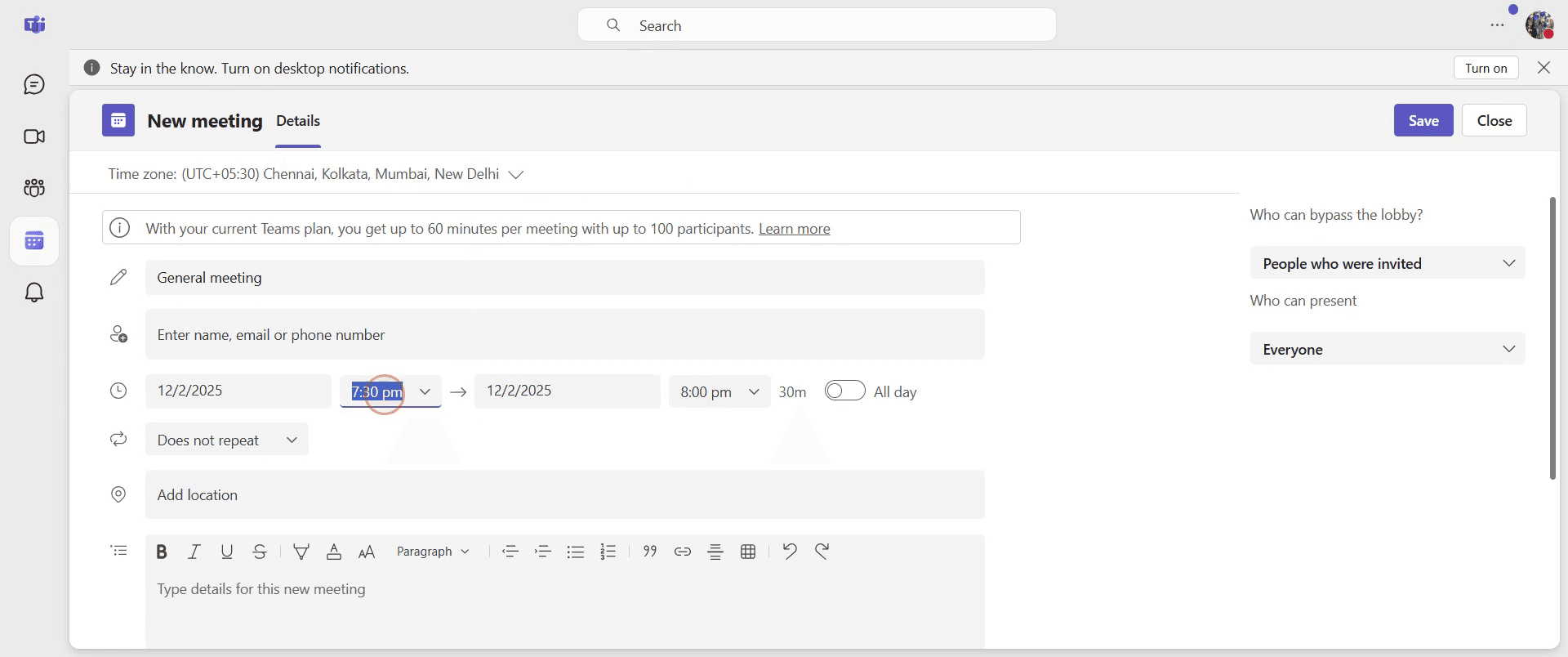
Specify the time for the meeting in the appropriate field.
Step 7
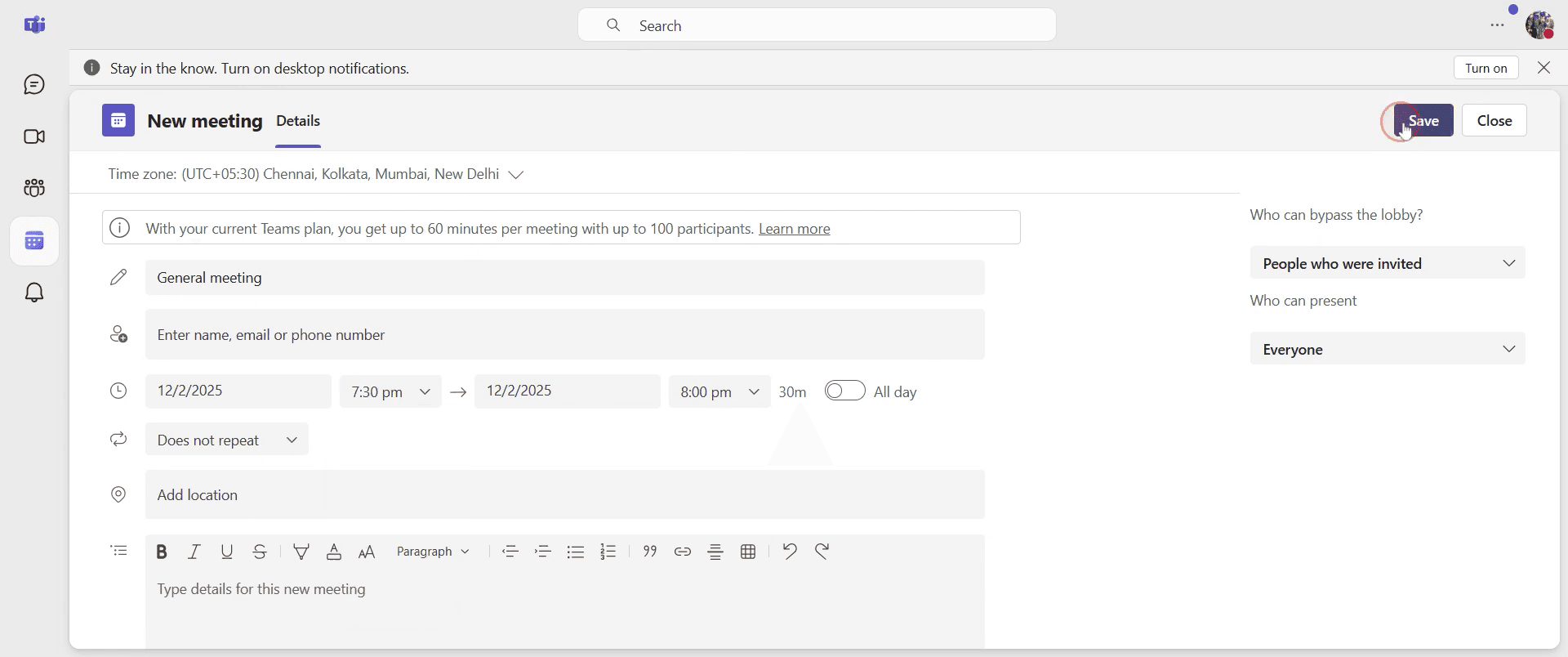
Once you have finalized all the details, click "Save" to schedule the meeting.
Step 8
Now the meeting is added to your calendar.
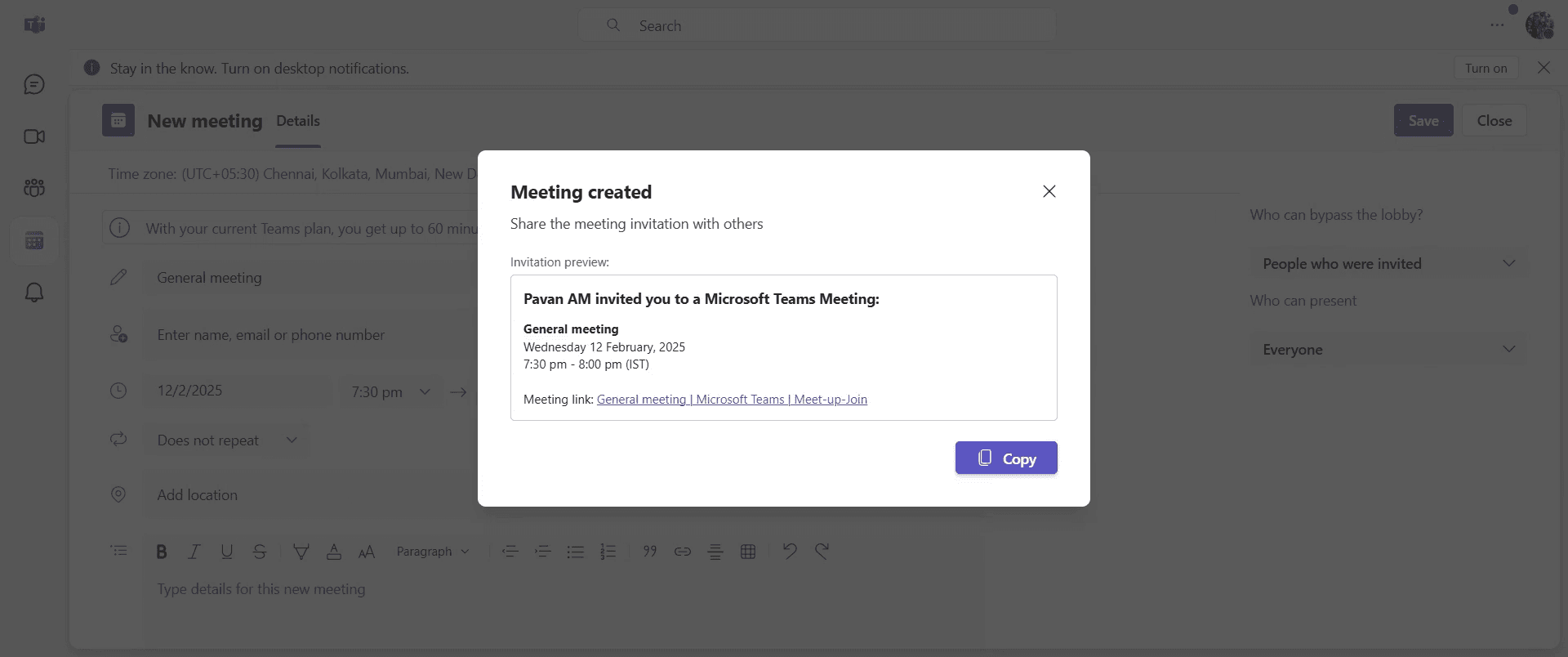
That’s it. This is a step-by-step guide on how to schedule a Teams meeting.
Pro-tips for scheduling a teams meeting
Use the scheduling assistant to check attendees' availability before finalizing the meeting time
Set a clear agenda in the meeting details to ensure a productive discussion
Enable meeting options to control participant permissions before the meeting starts
Common pitfalls & how to avoid them while scheduling a teams meeting
Overlapping meetings - Check the scheduling assistant to avoid conflicts in participants' calendars
Missing meeting link - Ensure the “Teams meeting” toggle is enabled when scheduling from Outlook or Teams
Incorrect time zone - Verify the selected time zone to avoid scheduling confusion for participants
Common FAQs for scheduling a teams meeting
Can I schedule a recurring Teams meeting?
Yes, while creating a new meeting, select the Repeat option and choose the recurrence patternHow do I schedule a meeting with external participants?
Enter their email addresses in the participant field, and they will receive an invite with the meeting linkCan I schedule a Teams meeting from Outlook?
Yes, open Outlook, go to the calendar, click New Teams Meeting, enter details, and send the inviteHow do I change the scheduled time of a Teams meeting?
Open the meeting in Teams, click Edit, adjust the date and time, then click Save to notify attendees
If you're an instructor or content creator looking to make tutorial videos, give Trupeer.ai a try. It transforms rough screen recordings into polished, studio-style videos that are ready for sharing with your audience. Plus, it automatically generates a step-by-step guide based on the video you create. Fascinating, right? Start by creating your first tutorial for free with Trupeer.ai.

