
How To See All Tickets Assigned To Me In Jira
Discover how to view all tickets assigned to you in Jira with our comprehensive guide. Streamline your workflow and enhance your project management efficiency.
This document provides a step-by-step process to view all tickets assigned to a user in Jira. Follow these instructions to efficiently navigate and filter issues within your Jira dashboard.
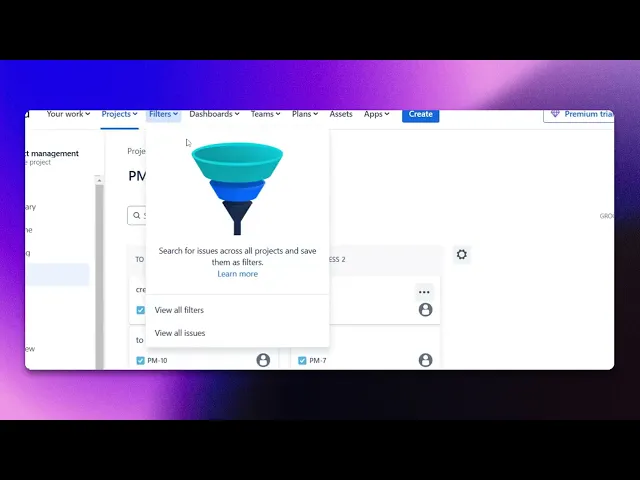
Step 1
Click on the Filters option.
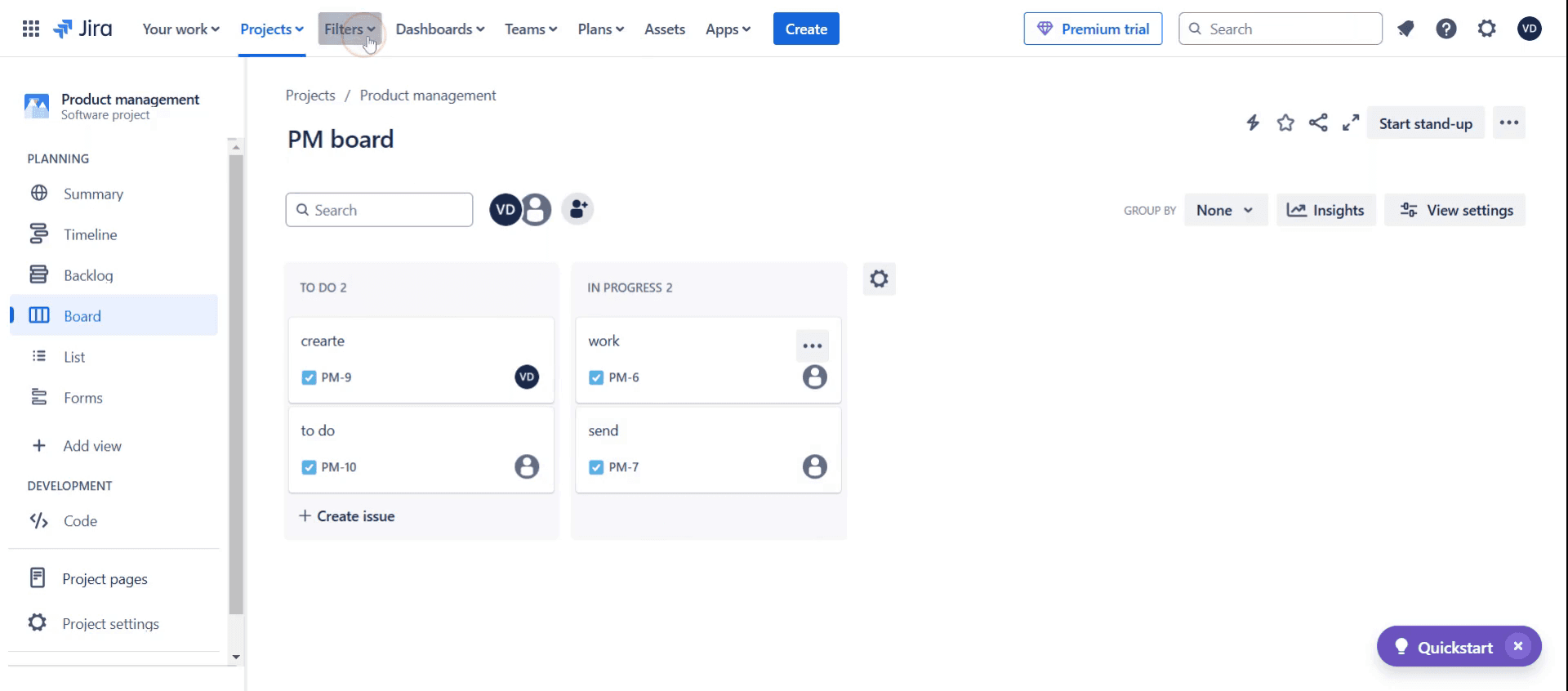
Step 2
Then click on view all issues.
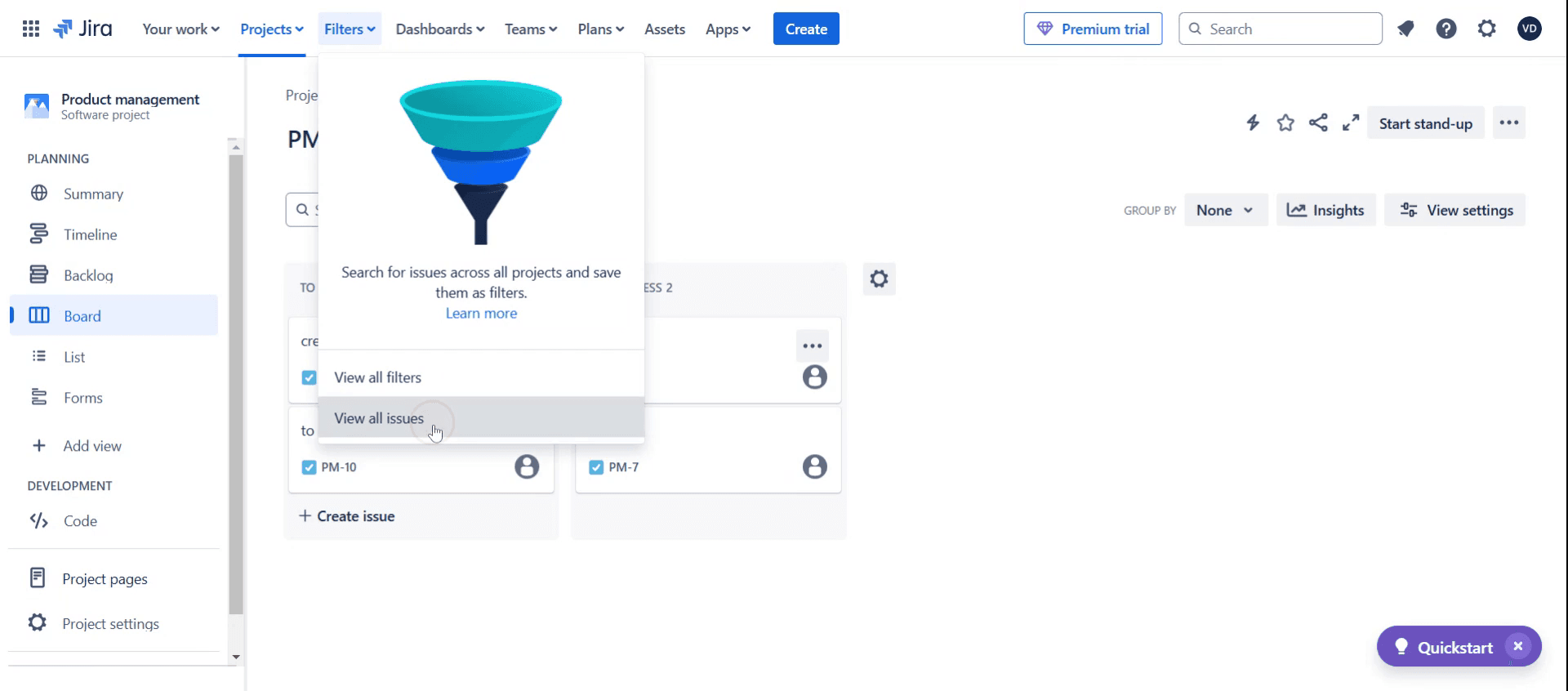
Step 3
And click on the Project option.
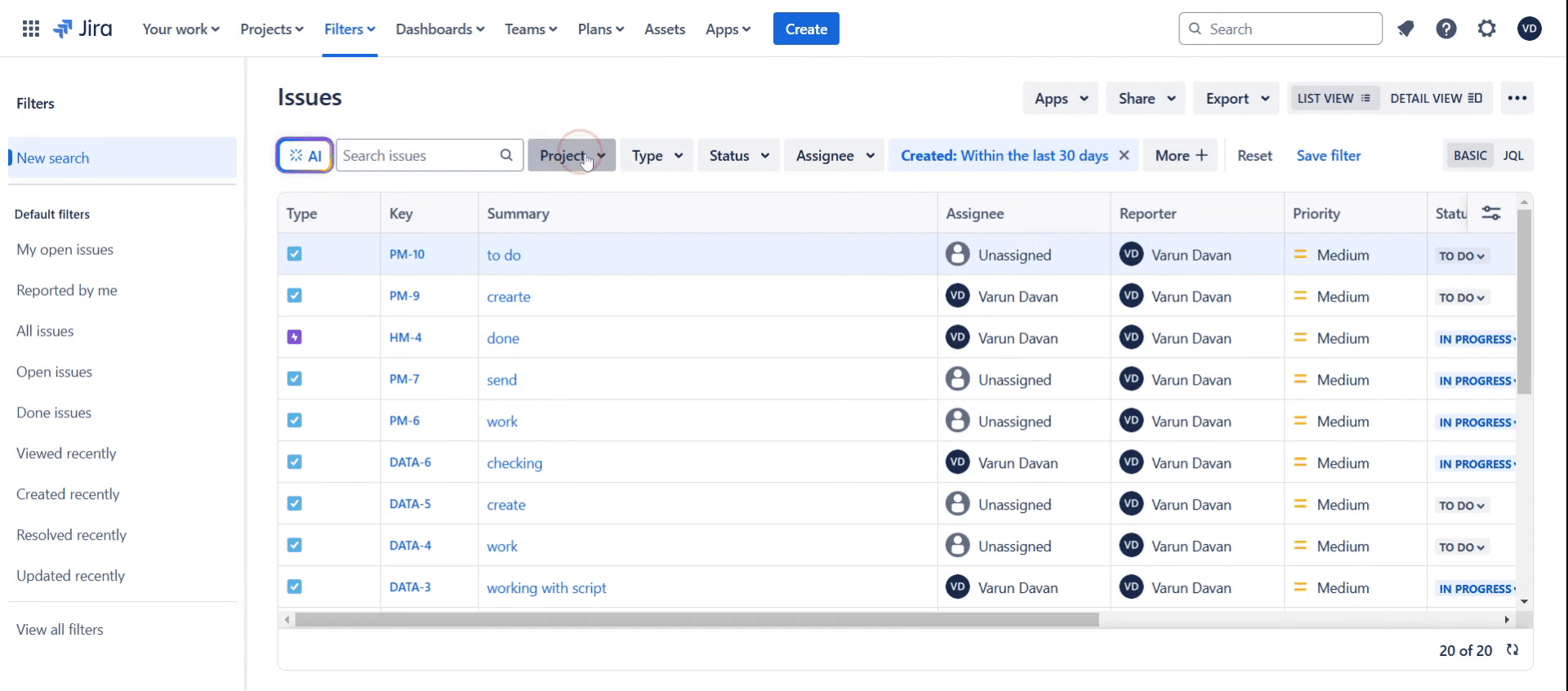
Step 4
Choose the specific project,
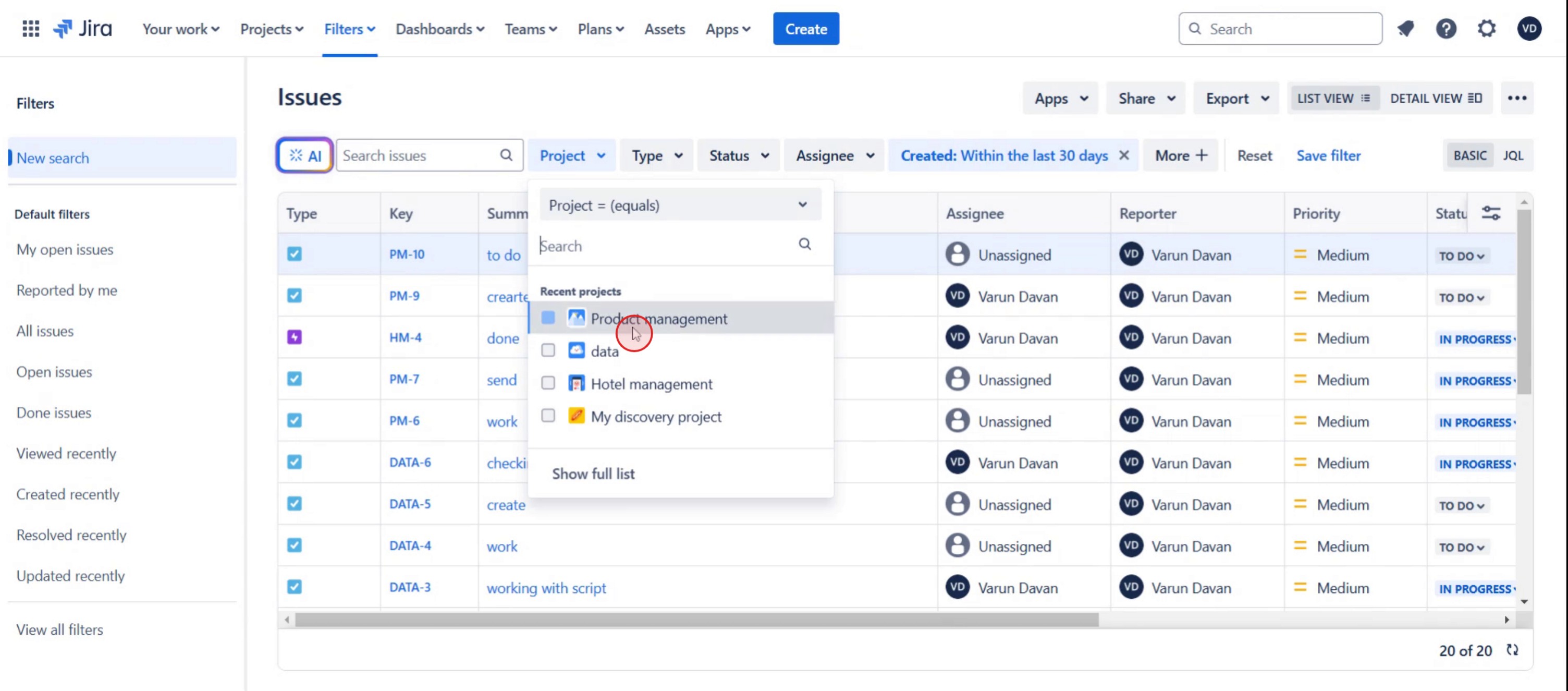
Step 5
Then click on assignee.
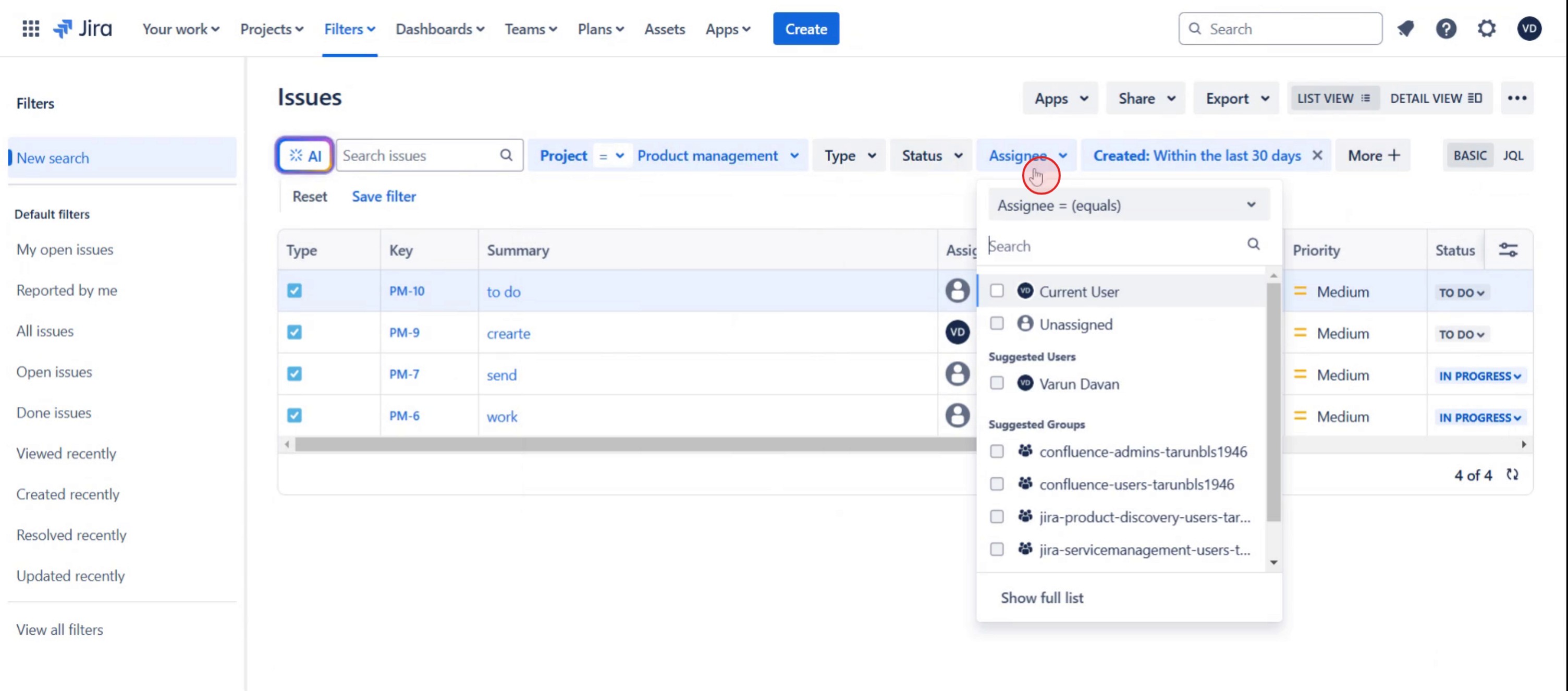
Step 6
Select current user,
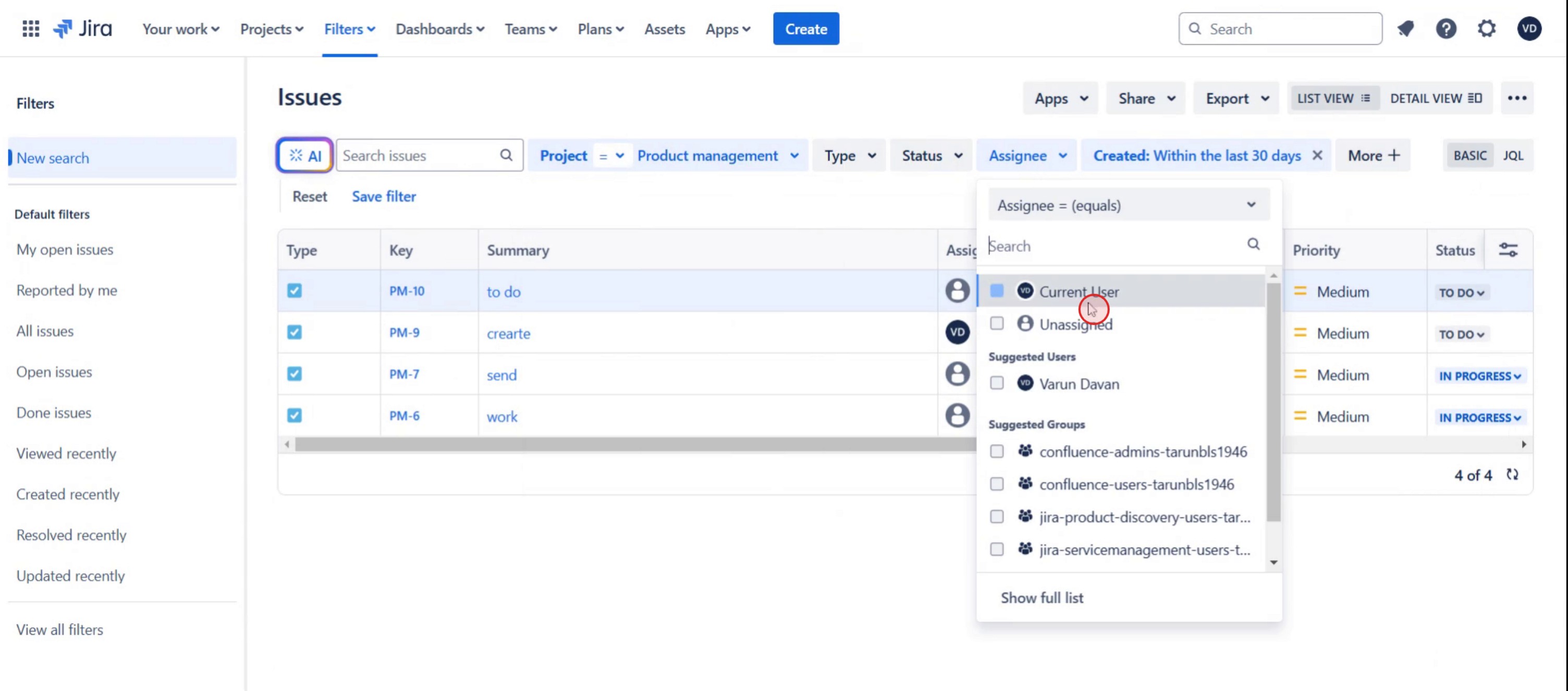
Step 7
Then select the list view option.
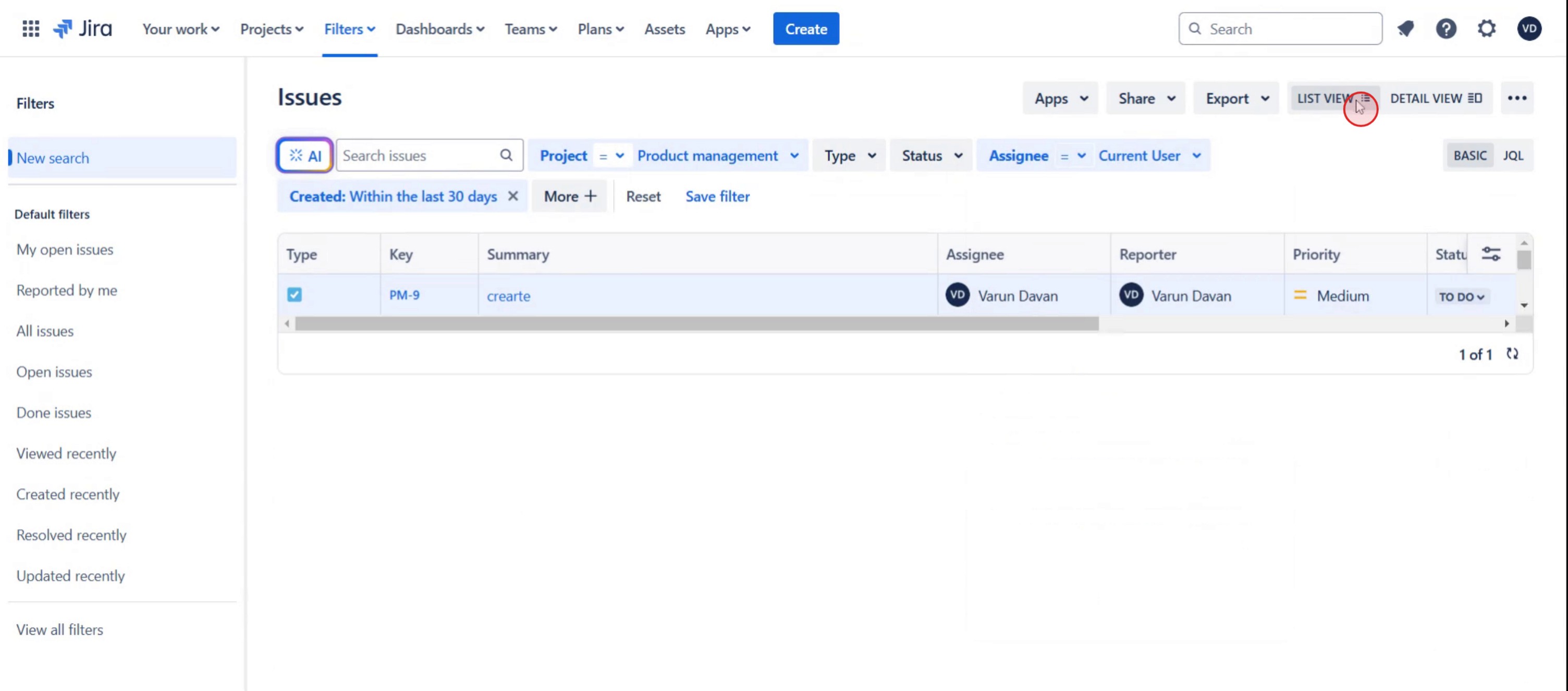
This is a step-by-step guide on how to see all Tickets Assigned to me in Jira.
Pro tips for how to see all tickets assigned to me in Jira
Utilize Jira’s search functionality with filters – You can easily filter the tickets assigned to you by using the assignee field in the search or Jira Query Language (JQL) to narrow down your results.
Customize your dashboard to display assigned tickets – Set up a dashboard with widgets that display your assigned tickets so you can see them at a glance without having to run a new search.
Regularly check your notifications and worklogs – Make it a habit to check notifications and worklogs regularly, as they can help you stay updated on the tickets you’re assigned to.
Common pitfalls and how to avoid them
Failing to set proper filters can result in missing or incomplete ticket lists, so ensure your search criteria are correctly configured.
Not using JQL to refine your search may lead to irrelevant results, so take advantage of Jira’s powerful querying capabilities.
Ignoring your dashboard settings may cause you to overlook important tickets, so regularly update your dashboard with widgets that show only the tasks assigned to you.
Common FAQs for how to see all tickets assigned to me in Jira
Can i customize my view to only see my assigned tickets in Jira?
Yes, you can customize your Jira dashboard by adding widgets or setting up filters that display all tickets assigned to you, making it easier to manage tasks.How do i use Jira Query Language (JQL) to filter tickets assigned to me?
In Jira, you can use JQL to create more advanced filters, like assignee = current User() which will automatically show all tickets assigned to your account.Why are some tickets not showing up when i search for my assigned tickets in Jira?
This could be due to improper search filters or permissions; make sure you're using the right search criteria and have access to the relevant projects.Can i track tickets assigned to me across multiple projects in Jira?
Yes, by using JQL, you can filter tickets from multiple projects by specifying project names along with the assignee field, ensuring you see all tickets assigned to you across all projects.
If you're an instructor or content creator looking to make tutorial videos, give a try. It transforms rough screen recordings into polished, studio-style videos that are ready for sharing with your audience. Plus, it automatically generates a step-by-step guide based on the video you create. Fascinating, right? Start by creating your first tutorial for free with trupeer.ai .

